Stock Verification
On this page
Stock Verification picks out the bill lines whose price is far from the price you have set for the item. It lists the purchase or sale lines priced more than 10% above or below the item’s price in the stock setup. Run it after a day or a week of billing to catch a wrong rate typed on a bill, a price that has changed and was not updated in the stock setup, or the wrong item chosen.
Open the report
Press Alt+5 for Stock Reports, then V. It opens for the financial year from its first day to today, with Purchases, for all categories.
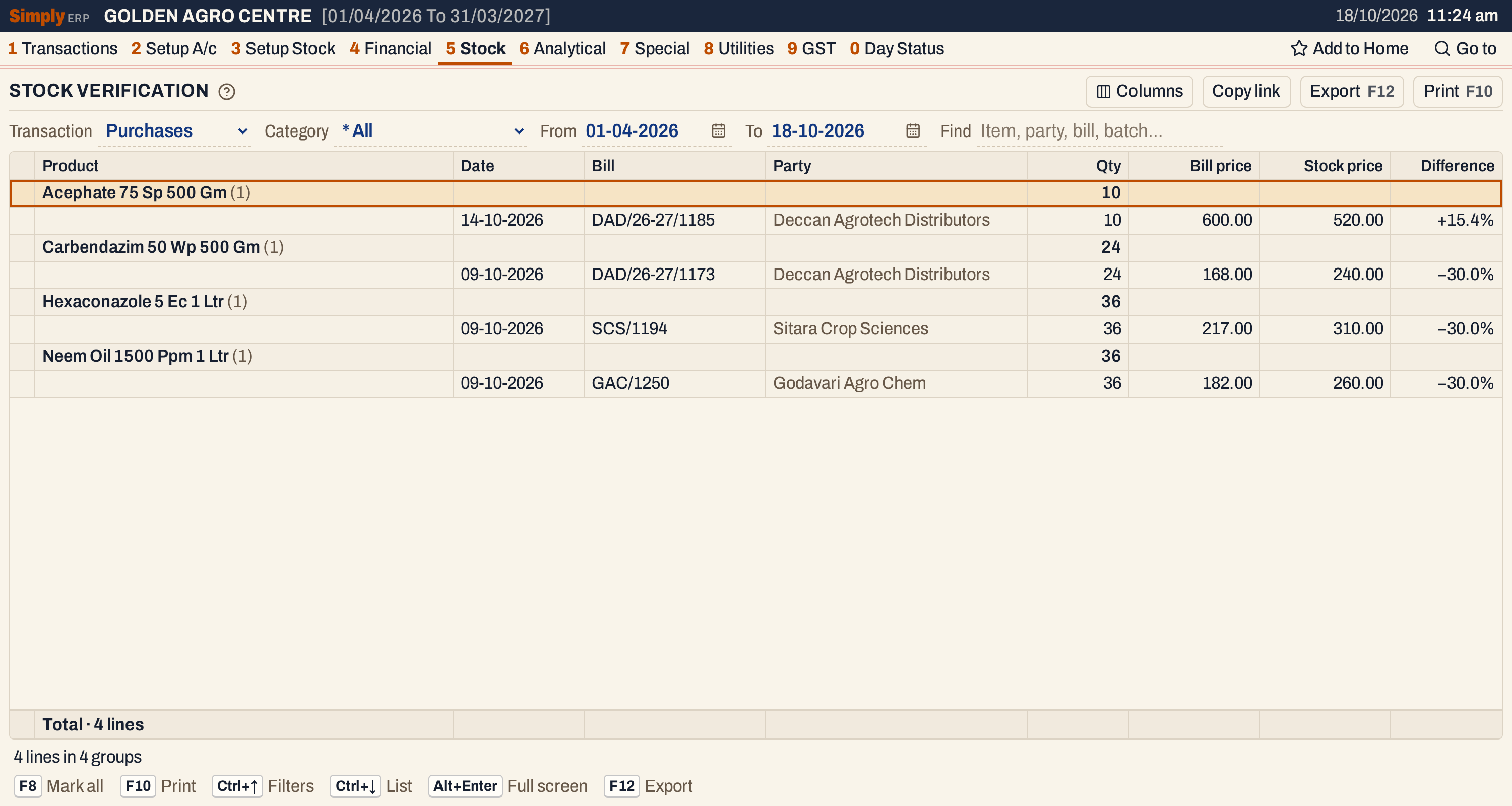 Four purchase lines are far from the price of their item. Each product is a heading with its units, and its flagged bills are under it.
What it lists
For Purchases, every line of a purchase bill; for Sales, every line of a sale bill, in the period. A line is listed when its bill price is more than 10% above or more than 10% below the item’s price in the stock setup:
- for purchases, the item’s purchase price;
- for sales, the item’s sale price (with GST).
A line priced exactly 10% above or below is not listed. The prices are set in the item grid (Item prices and codes). An item without a price in the stock setup has nothing to compare with: every one of its lines that has a bill price is listed, with no Difference. Set its price to check it.
The lines are grouped by product, in product name order; inside a product, in date order. A purchase or sale line is one product on one bill. The date is the posting date of the bill.
Columns
| Column | What it shows |
|---|---|
| Product | On a heading, the product, with the number of its lines in brackets. |
| Date | The posting date of the bill. |
| Bill | The bill number. |
| Party | The supplier of a purchase. For a sale, the customer: the ship-to name when the bill has one, and Cash Sales when no customer is named. |
| Qty | The units. On a heading, their total. |
| Bill price | The price of one unit written on the bill line. |
| Stock price | The item’s purchase price (for Purchases) or sale price (for Sales) in the stock setup. |
| Difference | How far the bill price is from the stock price, in percent of the stock price, with a plus or minus sign. Blank when the item has no stock price. |
The line at the bottom counts the lines. The status line says how many lines there are, in how many groups; each product is a group. Columns hides Party or Difference; the print leaves them out too.
Choices
| Choice | What it does |
|---|---|
| Transaction | Purchases (the usual) or Sales. |
| Category | Lists only the products of that category. * All lists every category. |
| From, To | The period, both days included. Both must fall in the financial year. It opens from the first day of the year to today. |
| Find | Shows only the lines whose product, party, place, bill number, batch or manufacturer matches what you type. |
Every choice is kept in the page address, so Copy link gives a link that opens the same report.
 The choices above the list.
How the figures are worked out
For each bill line:
- Bill price = the price written on the line. It is the rate of the bill, before any discount.
- Stock price = the item’s purchase price or sale price as it is in the stock setup now.
- Difference = (Bill price ÷ Stock price − 1) × 100, shown with one decimal.
The line is listed when the Bill price is above 110% of the Stock price or below 90% of it. The price comparison is on the item’s price today, so a price changed later changes what an old bill shows.
On the screenshots: Acephate was bought at 600.00 against a purchase price of 520.00, which is 15.4% above (600 ÷ 520 = 1.154); Carbendazim at 168.00 against 240.00 is 30.0% below.
 600.00 against 520.00 is +15.4%. 168.00 against 240.00 is −30.0% (marked).
Bills to parties with a GSTIN
The report compares the numbers as they are; it does not add or take off GST. On a bill to a party with a GSTIN, the rate is before GST (the bill shows Registered · rates before GST); on a bill to a party without one, the rate includes GST. The item’s sale price includes GST.
So with 18% GST, the bill price of a sale to a customer with a GSTIN is about 15% below the sale price (1 ÷ 1.18 = 0.847) even when the customer pays the full price, and the line is listed. For a customer without a GSTIN the rate includes GST and is compared as it stands. When you read the Sales list, look at the customer before you suspect the rate. On Purchases, a supplier with a GSTIN has the same effect: the bill’s rate is before GST, and the item’s purchase price is compared as it is recorded.
In the screenshot, Acephate’s sale price is 640.00 with GST. The bills charge 509.83 before GST, which is 601.60 with 18% GST, 6% under the sale price. The report shows 509.83 against 640.00, which is 20.3% below; about 15 points of it are the GST.
 Acephate is priced at 640.00 with GST. These bills charge 509.83 before GST, which is 601.60 with GST, so the report shows 20.3% below.
Open, mark, print and export
- Enter on a line opens the bill; on a product’s heading it opens the product’s stock ledger for the same period.
- F2 marks a line or a whole product, with all the lines under it. F8 marks all the lines. F10 then prints only the marked lines, and the print says Marked lines only.
- F10 prints the report as it is on the screen: the company, the title RATE VERIFICATION STATEMENT, the period and the transaction, then the products and their lines.
- F12 saves it as an Excel workbook.
- Alt+Enter gives the whole window to the list.
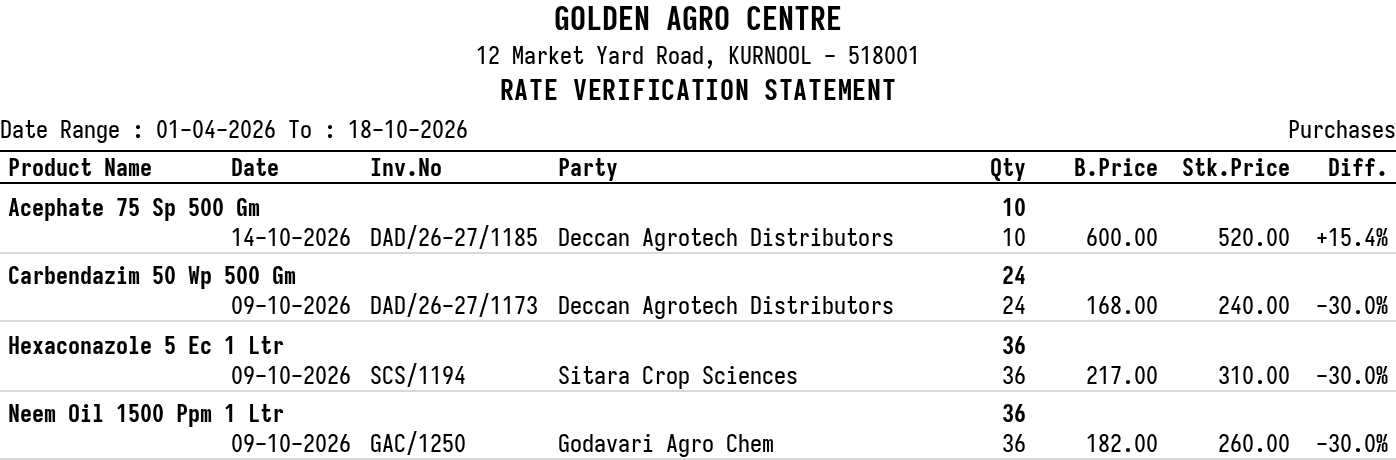 The print of the purchase lines.
Updated 4 November 2026.