Stock Statement (Values)
On this page
The Stock Statement (Values) shows every item’s stock movement for a period, as in the Stock Statement, and next to each quantity its value in rupees. At the end is the gross profit of each item: what you sold and what is left, less what you started with and bought. Use it to see what your stock is worth, what each item earned, and how the closing stock value is reached.
Open the report
Press Alt+5 for Stock Reports, then K. The report opens for the financial year from its first day to today, for all categories, with returns in their own columns.
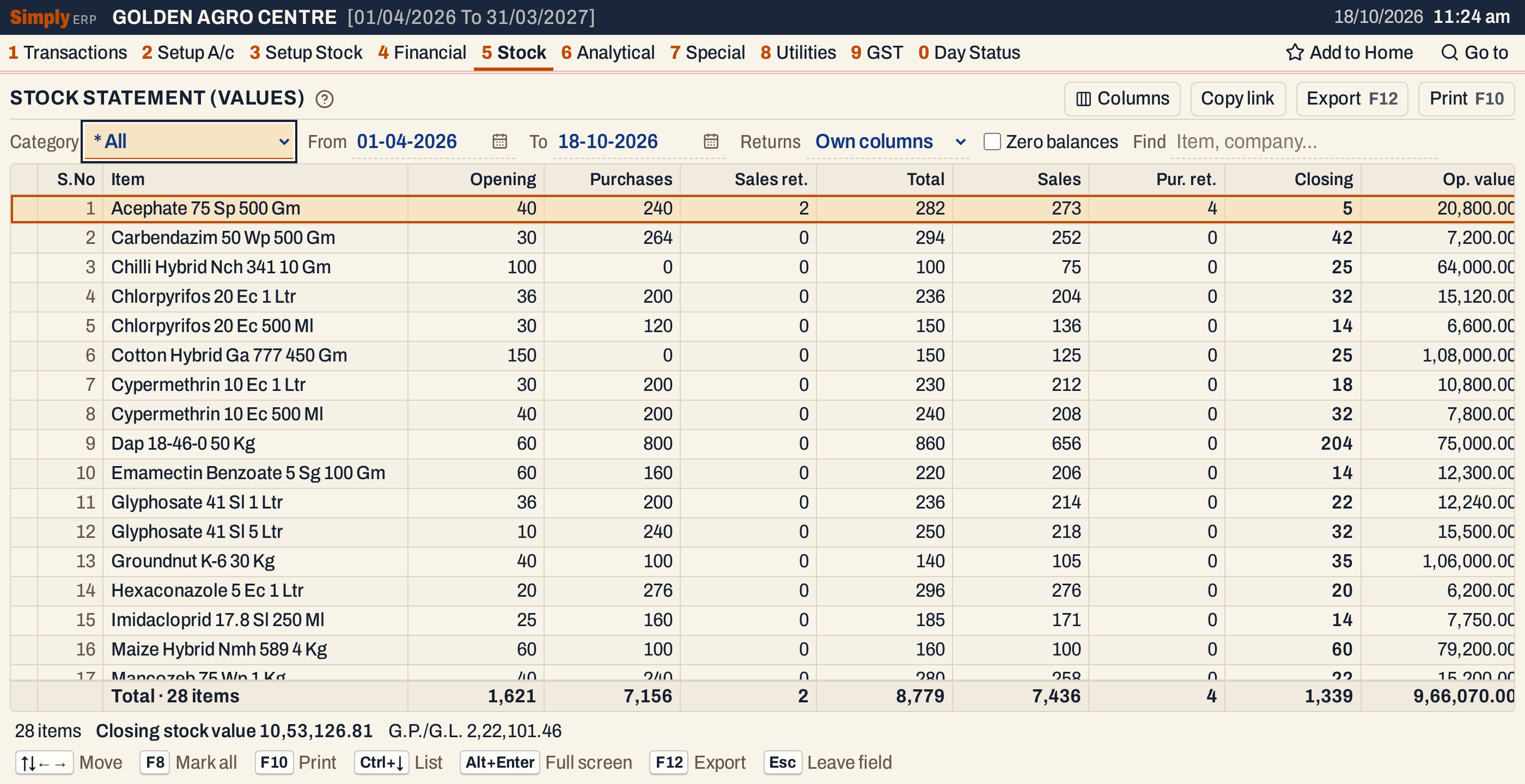 The quantities come first, the values follow to the right. The grid scrolls sideways: press → on a line to move along it.
What it lists
One line for each item that had stock or movement in the period: an item is left out when its opening stock, purchases, sales returns, sales, purchase returns and closing stock are all zero, unless you tick Zero balances. Items are in name order.
Purchase bills, sales bills, sales returns, purchase returns and goods received or delivered before billing count in the quantities, as in the Stock Statement. The values come from the bills only: goods received before billing are in the quantities, and in Cl. value through Closing, but have no Pur. value until they are billed.
A bill counts on the day it is posted: a purchase bill or a sales return on the day it was received (its Recd. date), any other bill on its own date.
Stock taken out in Damages / Breaks is not counted in this report: it is not taken off the stock and has no value here. The Stock Statement shows it in its own column and takes it off.
Columns
With Returns set to Own columns (the default), the quantity columns are:
| Column | What it shows |
|---|---|
| Opening | The stock before the From date. |
| Purchases | Units bought in the period. |
| Sales ret. | Units customers returned in the period. |
| Total | Opening + Purchases + Sales ret. |
| Sales | Units sold in the period. |
| Pur. ret. | Units returned to suppliers in the period. |
| Closing | Total − Sales − Pur. ret. In red when it is negative. |
The value columns follow:
| Column | What it shows |
|---|---|
| Op. value | The value of the opening stock. |
| Pur. value | The value of the purchases. |
| S.R. value | The value of the sales returns. |
| Total value | Op. value + Pur. value + S.R. value. |
| Sales value | The value of the sales. |
| P.R. value | The value of the purchase returns. |
| Cl. value | The value of the closing stock. |
| G.P. | The gross profit. In red when it is a loss. |
With Returns set to In inward / outward, purchases and sales returns are one column, Inward, and sales and purchase returns are one column, Outward. The value columns follow in the same way: Op. value, In. value, Total value, Out. value, Cl. value and G.P.
The totals line adds up every column, and the status line gives the number of items, the total closing stock value and the total gross profit (G.P./G.L.).
 The totals and the status line.
Choices
| Choice | What it does |
|---|---|
| Category | One category, or * All (the default). |
| From, To | The period. Both dates must fall in the financial year. It opens with the first day of the year and today. |
| Returns | Own columns or In inward / outward, described above. |
| Zero balances | Includes items with no stock and no movement. |
| Find | Shows only items whose name or company matches what you type. |
| Columns | Hides S.No or any quantity or value column, on the screen and in the print. |
Click a column title to sort by it, and click again to reverse. A figure column starts with the largest. Changing Returns clears the sort. Every choice is kept in the page address, so Copy link gives a link that opens the same report.
 The choices above the grid.
How the figures are worked out
Quantities are worked out as in the Stock Statement: Opening is the item’s opening stock plus purchases and sales returns, less sales and purchase returns, dated before the From date. Total adds the period’s purchases and sales returns, and Closing takes off its sales and purchase returns. Both dates of the period count.
Values. A purchase or sale line is valued at its unit cost with GST included, times its units. The unit cost is the line’s amount with GST, plus any charge the bill adds to the cost, such as freight, divided by the units and rounded to paise. Because the unit cost is rounded first, a value can differ by a few paise from the total of the bills. A return is valued at the amount on its return bill, with GST.
- Op. value = the item’s opening stock at its Op. price, plus the value of the purchases and sales returns before the From date, less the value of the sales and purchase returns before it.
- Pur. value = the value of the purchases in the period.
- S.R. value = the amount of the sales returns in the period.
- Total value = Op. value + Pur. value + S.R. value.
- Sales value = the value of the sales in the period.
- P.R. value = the amount of the purchase returns in the period.
- Cl. value = Closing × the closing rate. The closing rate is the unit cost on the item’s latest purchase bill dated up to the To date. When the item has no purchase, it is Op. value divided by Opening. When there is neither, the closing rate is nil.
- G.P. = Sales value + P.R. value + Cl. value − Op. value − Pur. value − S.R. value.
In the combined layout, In. value = Pur. value + S.R. value and Out. value = Sales value + P.R. value.
Example, from the showcase books: Acephate 75 Sp 500 Gm opens with 40 units at 520.00, which is 20,800.00. It buys 240 units at 613.60, which is 520.00 with 18% GST, for 1,47,264.00. It takes back 2 units from a customer for 1,280.00 and returns 4 units to a supplier for 2,454.40. It sells 273 units for 1,69,516.80, the sum of its sale lines. Its closing stock is 40 + 240 + 2 − 273 − 4 = 5 units at 613.60, which is 3,068.00. The gross profit is 1,69,516.80 + 2,454.40 + 3,068.00 − 20,800.00 − 1,47,264.00 − 1,280.00 = 5,695.20.
Because purchases and sales are both valued with GST, the gross profit here is worked out on amounts that include GST.
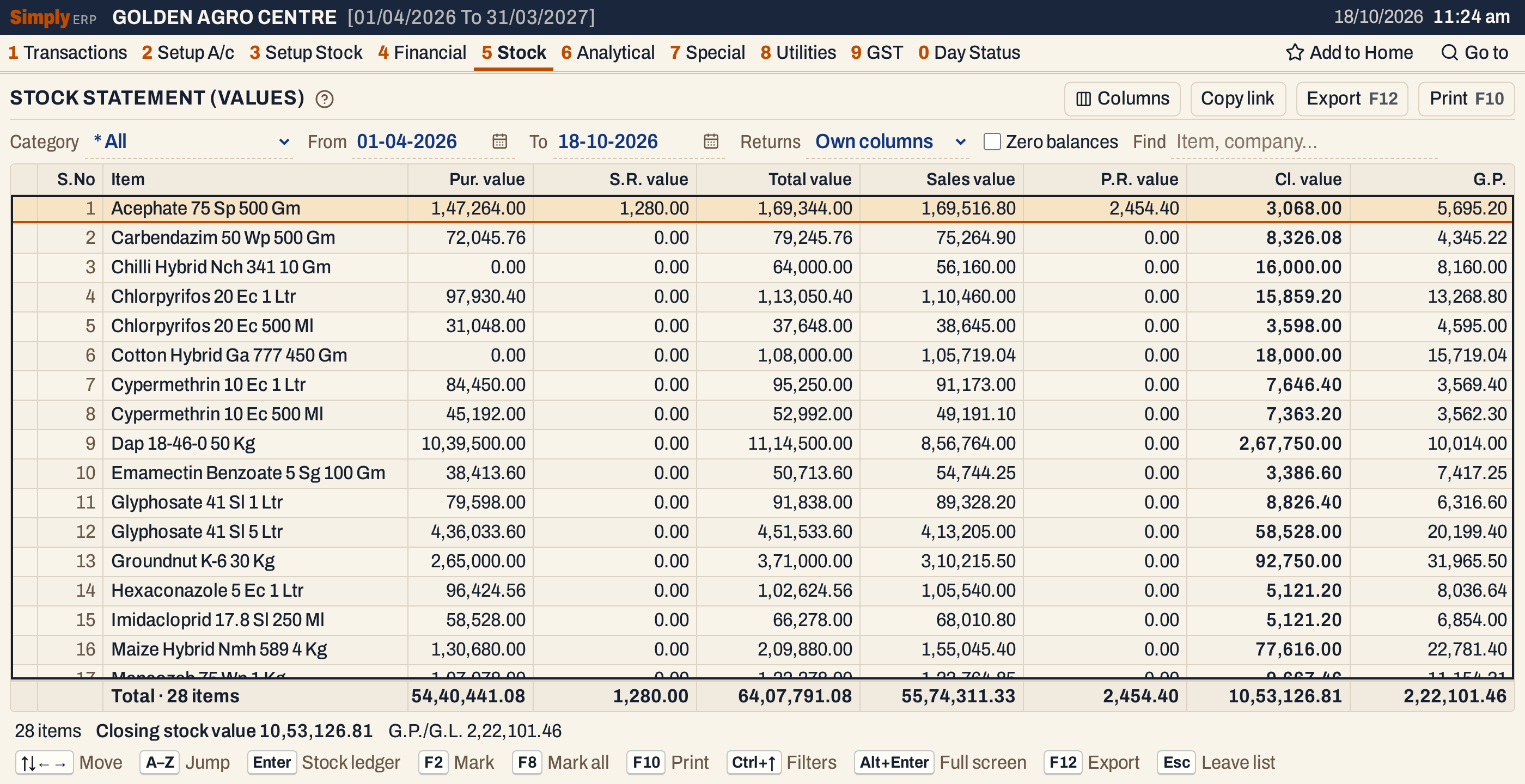 The value columns after Op. value. The totals are 10,53,126.81 closing stock value and 2,22,101.46 gross profit.
Inward and outward
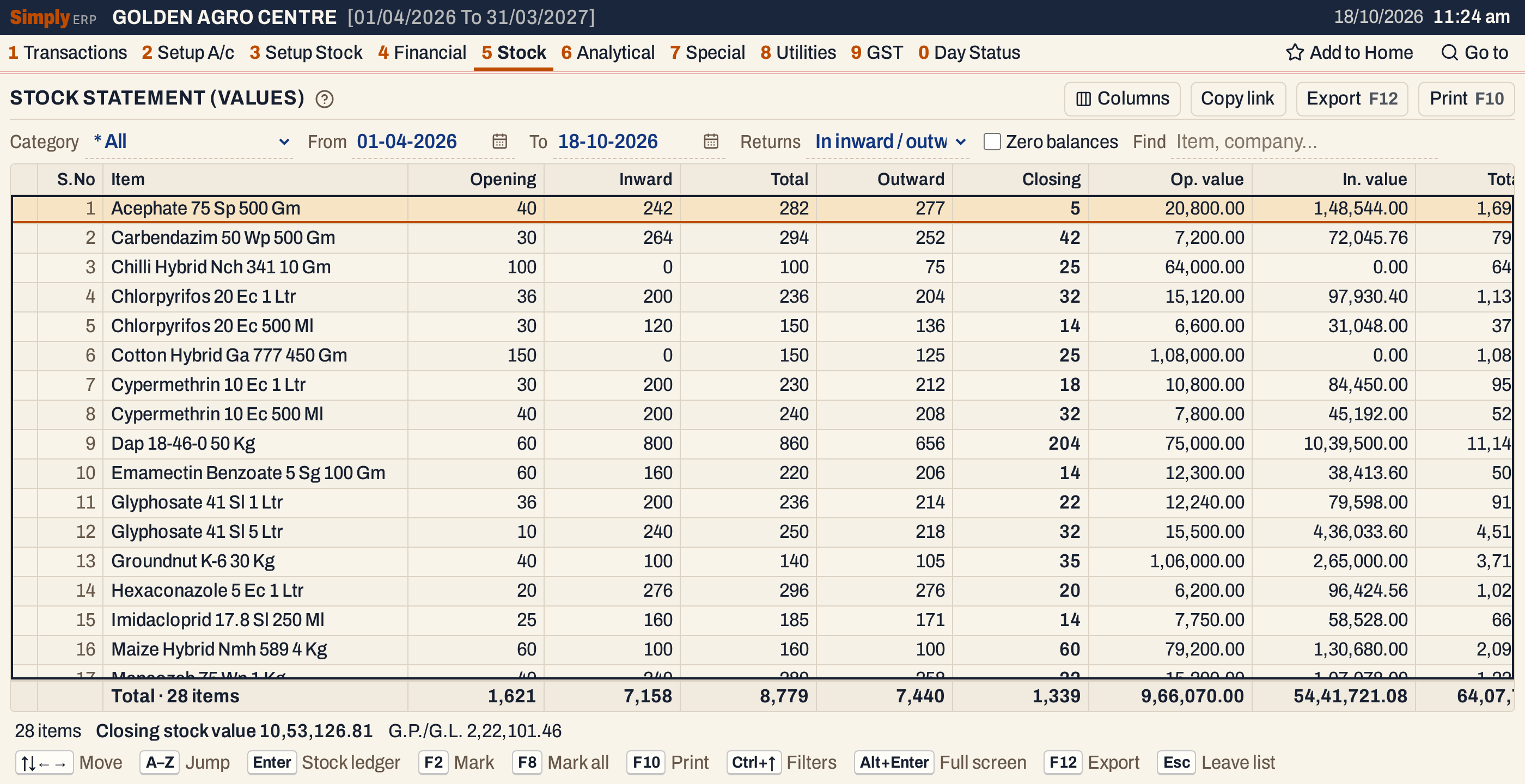 Acephate’s Inward is 240 purchased + 2 returned by a customer, and its Outward is 273 sold + 4 returned to a supplier. Its In. value, 1,48,544.00, is 1,47,264.00 of purchases + 1,280.00 of returns.
Open, mark, print and export
- Enter on an item opens its Stock Ledger for the period.
- Type the first letters of an item name to jump to it.
- F2 marks an item and F8 marks them all. F10 then prints only the marked items.
- F10 prints each item on two lines: its quantities, and under them their values. The report is titled Stock Statement for Own columns and Sales & Stock Statement for In inward / outward, with the category and the period in its heading. In the inward / outward layout the value line also carries the item’s G.P./G.L. The last lines give the totals of the quantities and of the values, with the total G.P./G.L.
- F12 saves it as an Excel workbook.
- Alt+Enter gives the whole window to the list.
Updated 4 November 2026.