Edit a saved bill
On this page
A saved bill can be changed when a unit count, a rate, the customer or a date was wrong. SimplyERP takes the old figures off your books and posts the new ones under the same bill number, and keeps the bill as it was in Changed Bills. This page changes a sale bill; purchases and returns are changed the same way.
Find the bill
Press Alt+1 for the Transactions menu and Y for All Bills (Find a Bill). The screen starts in its Find box: type the bill number, the party, the place, a phone number or a GSTIN, and the matching bills of the year so far are listed as you type. Press ↓ to go to the list.
 Find P/295. F4 on the highlighted bill edits it; Enter opens it first.
You can also reach the same list from a bill book’s own menu, under View / Modify / Delete / Print.
Open the bill first
Enter opens the bill. Opening it before changing it is a good habit: the customer’s Balance now is on the screen, so you can see what the change does to it afterwards.
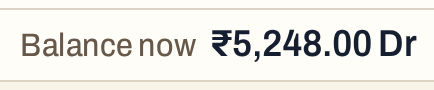 Lakshmi Devi K owes ₹5,248.00 before the change.
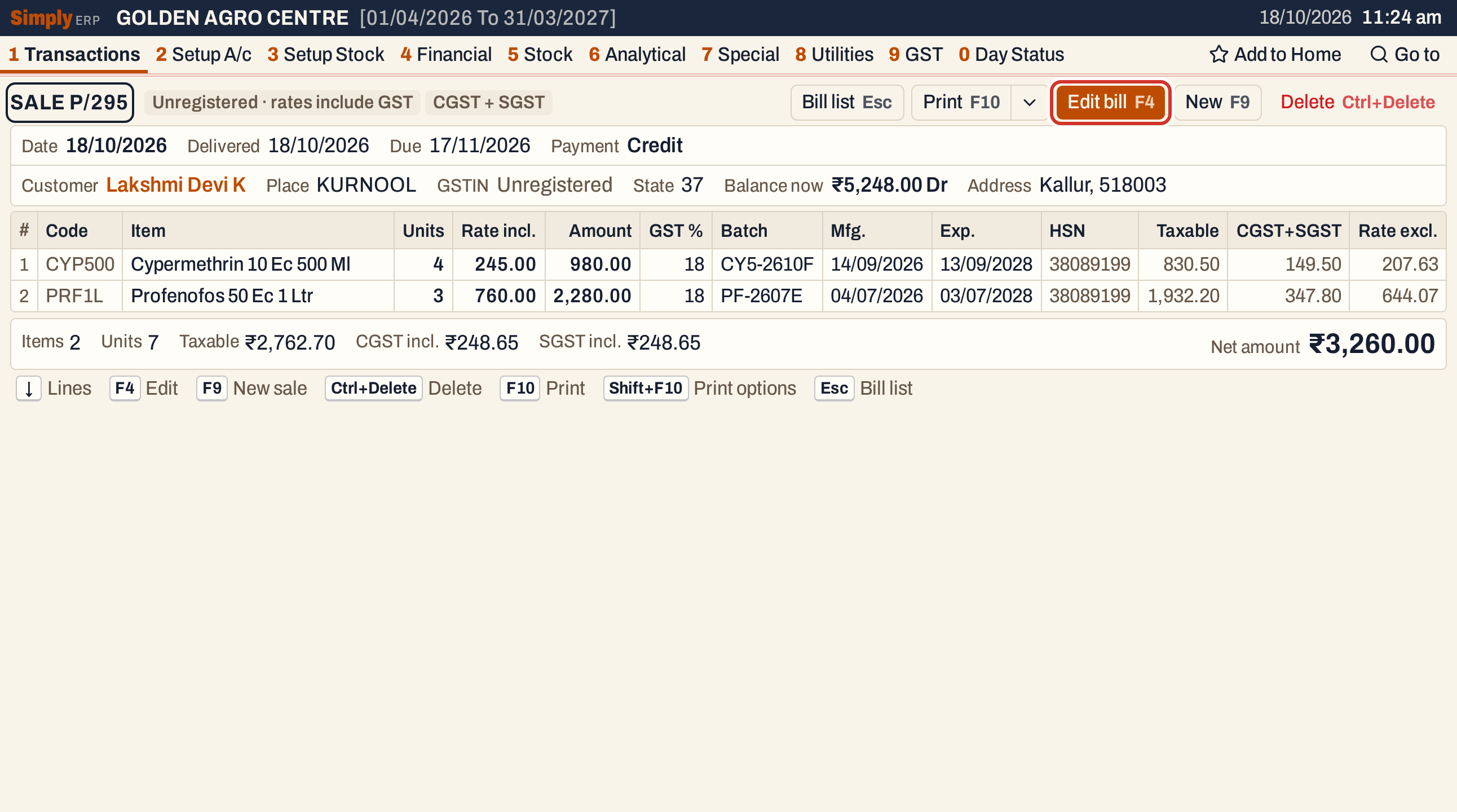 The saved bill: ₹3,260.00 in all. Edit bill, F4, opens it for changes.
Press F4
F4 opens the bill in the same screen you made it in, with every field filled from the saved bill.
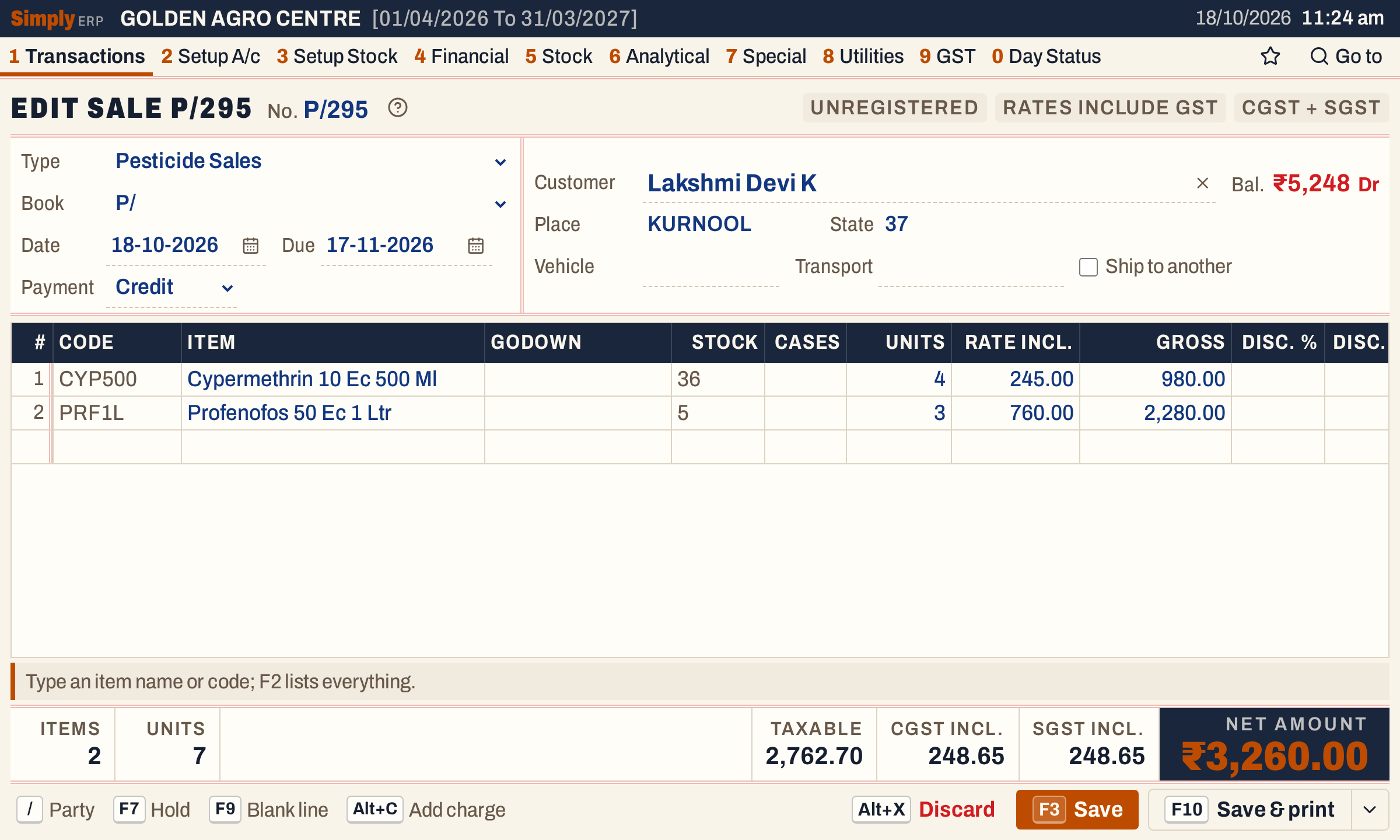 Edit sale P/295. The Save button and every other key work as on a new bill.
Two things cannot change on a saved bill: its Type and its Book. The bill keeps its number.
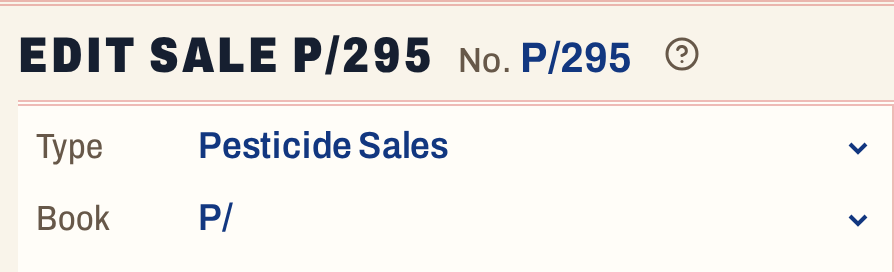 The type and book are fixed, and so is the number.
Everything else can change. You can choose another customer, move the date or the due date, change the payment, change units, rates, discounts and batches, add lines, remove a line with Ctrl+Delete, or add a charge with Alt+C. The Stock column adds the bill’s own saved units back to what is on hand, so the bill is not counted against itself.
Change what was wrong
Here the first line should have been 6 units of Cypermethrin 10 Ec 500 Ml, not 4. Click the Units cell of line 1, type 6, and press Tab or Enter. The line’s gross becomes 1,470.00.
 The Units cell is ringed. Gross is 6 × 245.00 = 1,470.00.
The totals follow as you type.
 The net amount is now ₹3,750.00, ₹490.00 more than before.
If you change your mind, press Alt+X. It asks first, then discards what you changed, and the saved bill stays as it was. An edit you leave unfinished is kept in Drafts, and F4 on the same bill opens it again.
Save the change
F3 saves, and F10 saves and prints the bill; see Print a bill. A notice names the bill, and the saved bill opens again with the new figures.
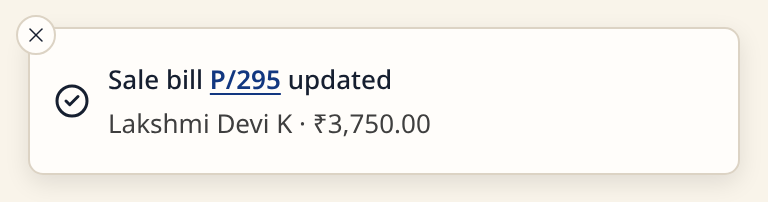 The bill keeps its number.
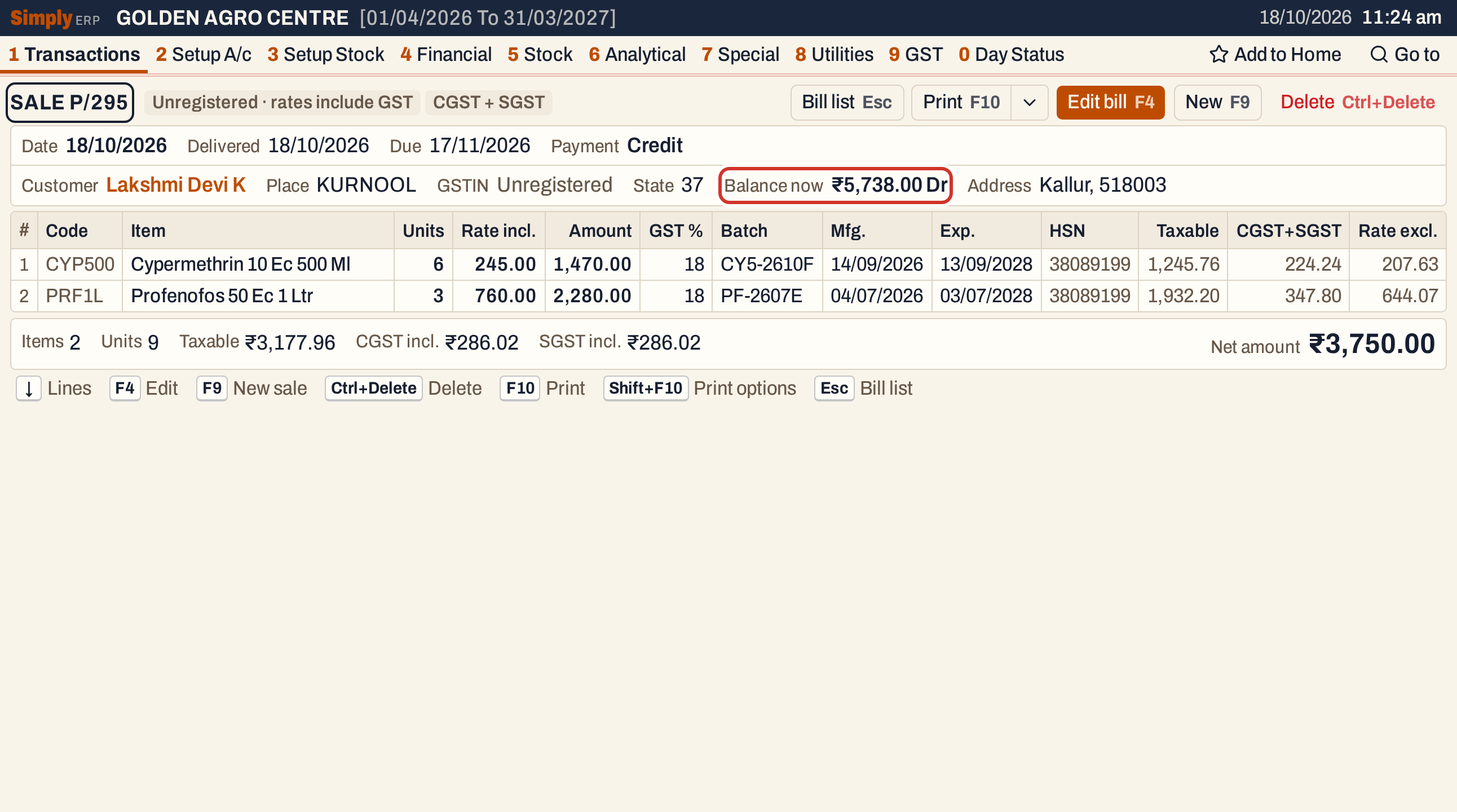 The customer’s balance is now ₹5,738.00 Dr: ₹5,248.00 plus the ₹490.00 the bill grew by.
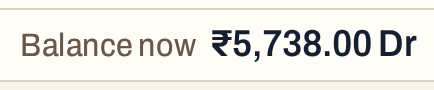 ₹5,248.00 + ₹3,750.00 − ₹3,260.00 = ₹5,738.00.
What saving does to your books
Saving a changed bill is a delete and a fresh posting in one step. If the save fails, nothing changes.
- The old bill is first copied to Changed Bills, marked Modified.
- The units of the old lines go back into stock, batch by batch, and the old postings are taken off the ledger.
- The new lines are then posted as a new bill would be: the units leave stock from the batches shown, and the customer (or the cash account), the sales account and the GST accounts get the new figures. See Make a sale bill for the table of postings.
- The bill keeps its number, its book and the time it was first made.
For this bill the customer is debited ₹3,750.00 instead of ₹3,260.00, the sales account is credited ₹3,177.96 instead of ₹2,762.70, and the CGST and SGST output accounts ₹286.02 each instead of ₹248.65. The 2 extra units of Cypermethrin leave the batch on line 1.
Some saves do less:
- If nothing was changed, nothing is posted and nothing is recorded in Changed Bills.
- If only the dates were changed, the bill’s postings stay as they are and move to the new date. The old dates are recorded in Changed Bills.
- A bill that has an active e-invoice can only be changed in ways that keep what was filed: its party, date, items, quantities and amounts cannot change. Cancel the e-invoice (within 24 hours of making it) or issue a credit or debit note instead. See E-invoice and e-way bill.
- A bill that a return names as its original bill must stay with the same party and keep at least the units the return took back. The return follows the bill’s new date.
- If an admin PIN is set, saving a change to a saved bill asks for it.
The changed bill shows in the customer’s ledger, the stock ledger and every register and GST return, with its new figures.
See the earlier version
Every change is recorded. Press Alt+8 for Utilities and S for Changed Bills (Audit). The screen starts in its Changed from date, and the period it covers (Changed from to To) is the date of the change. Each line shows the bill’s own date, party and place, and the Change column says Modified here, or Deleted for a deleted bill. Click the Find box and type the bill number.
 One change recorded for P/295.
Enter opens the bill as it was before the change. It is marked Earlier version, and Current bill takes you to the bill as it stands now.
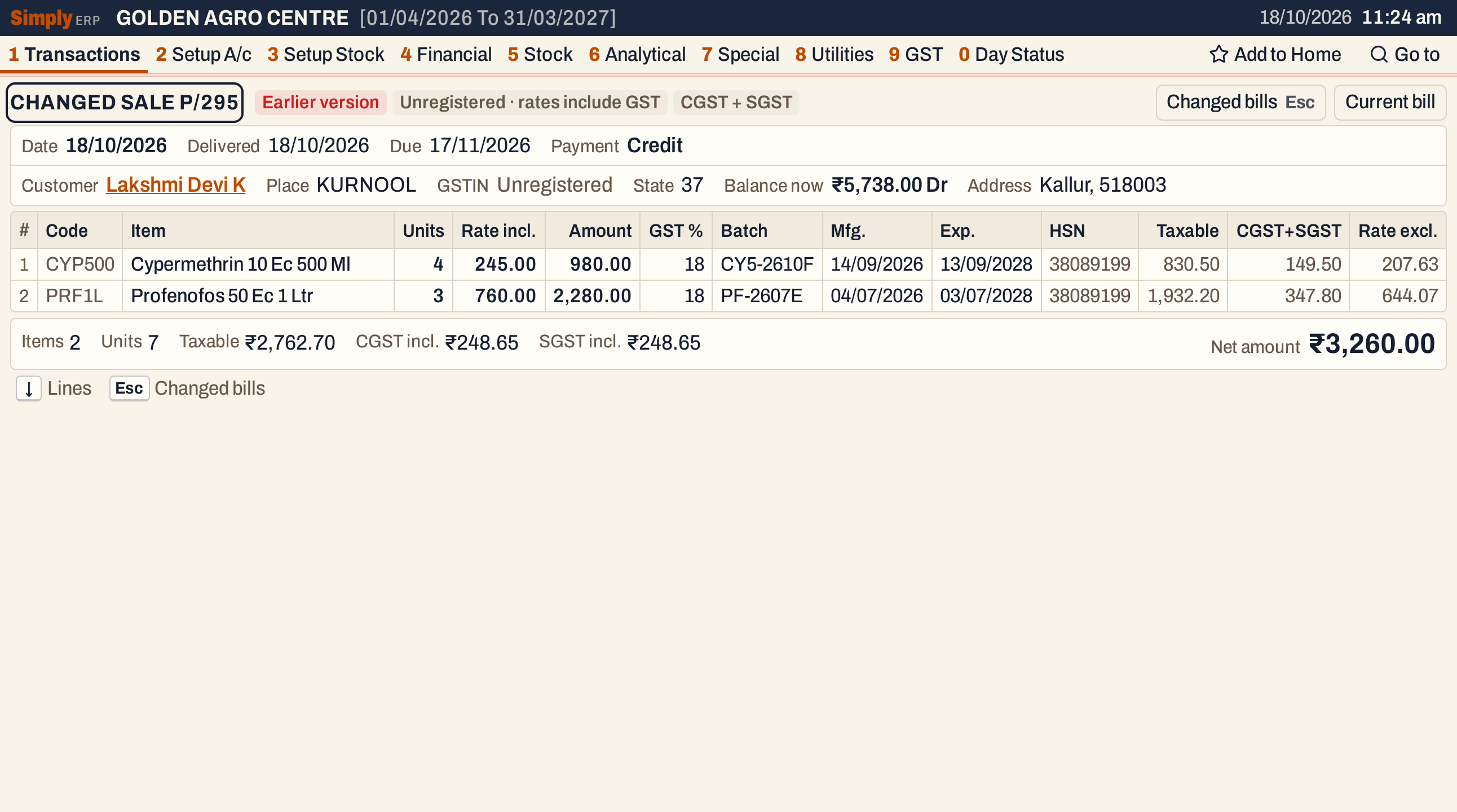 The bill as it was: ₹3,260.00. The Balance now shown is the customer’s balance today.
See Changed Bills for the whole list.
Keys
| Key | What it does |
|---|---|
| F4 | In All Bills or on a saved bill: edit the bill |
| F3 | Save the changes |
| F10 | Save the changes and print the bill |
| Alt+X | Discard the changes (asks first) |
| Ctrl+Delete | On the edit screen, remove a line; on a saved bill, delete the bill |
| Esc | On a saved bill, back to the list it was opened from |
Common questions
Can I change the bill number or book? No. A bill keeps its type, book and number. To move a sale to another book, delete it and make it again; see Delete a bill.
Can I change a credit note or a debit note? Yes, F4 opens a note in the note screen instead of the bill screen. See GST credit note.
Updated 4 November 2026.