Dealer wise Purchases / Sales
On this page
Dealer wise Purchases / Sales adds up your bills party by party. For purchases it answers “how much did I buy from each supplier this year, and on how many bills”. For sales it answers the same for each customer. Each party is shown with its GST number.
Open the report
Press Alt+5 for Stock Reports, then W. The report opens for the financial year from its first day to today. It shows Purchases, one line for each supplier (the Summary view).
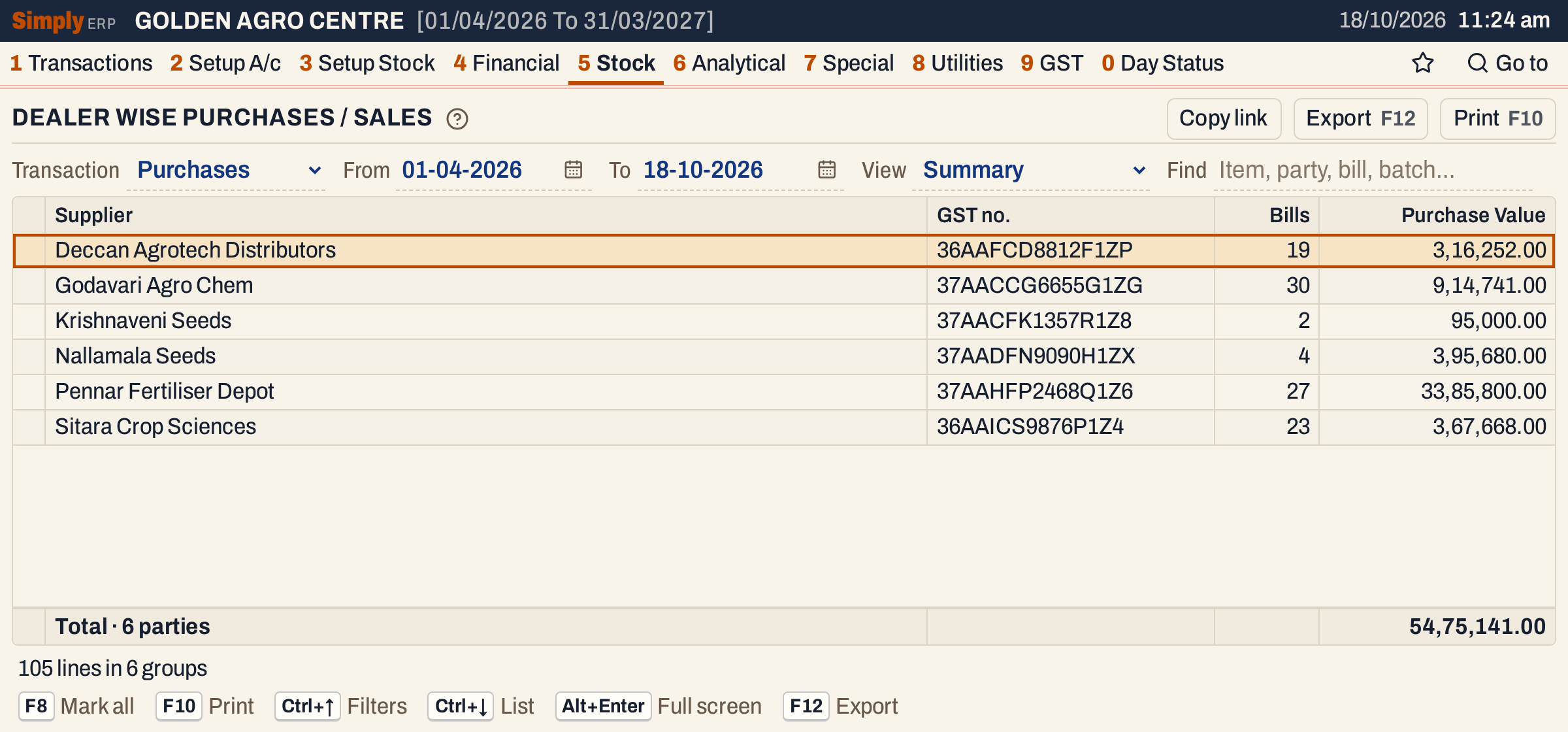 Six suppliers bought from in the year: Pennar Fertiliser Depot is the largest at 33,85,800.00 on 27 bills.
What it lists
The report reads whole bills, not the items on them:
- Purchases: every purchase bill posted in the period.
- Sales: every sale bill posted in the period.
Purchase returns, sales returns, notes, receipts, payments and goods received without a bill are not read. The report has no Category choice, because a bill counts whole whatever items are on it.
A bill belongs to the period by its posting date: a sale bill’s own date, and for a purchase the day it was received (the Recd. date), which can be later than the date on the supplier’s bill.
One line stands for one party:
- A supplier or a customer with a saved account is one line, whatever the name on its bills.
- A customer without a saved account (a cash or wallet sale to a walk-in) is listed under the name typed on the bill, and bills with no name typed are listed together under Cash. Such a line is kept apart from a saved account of the same name.
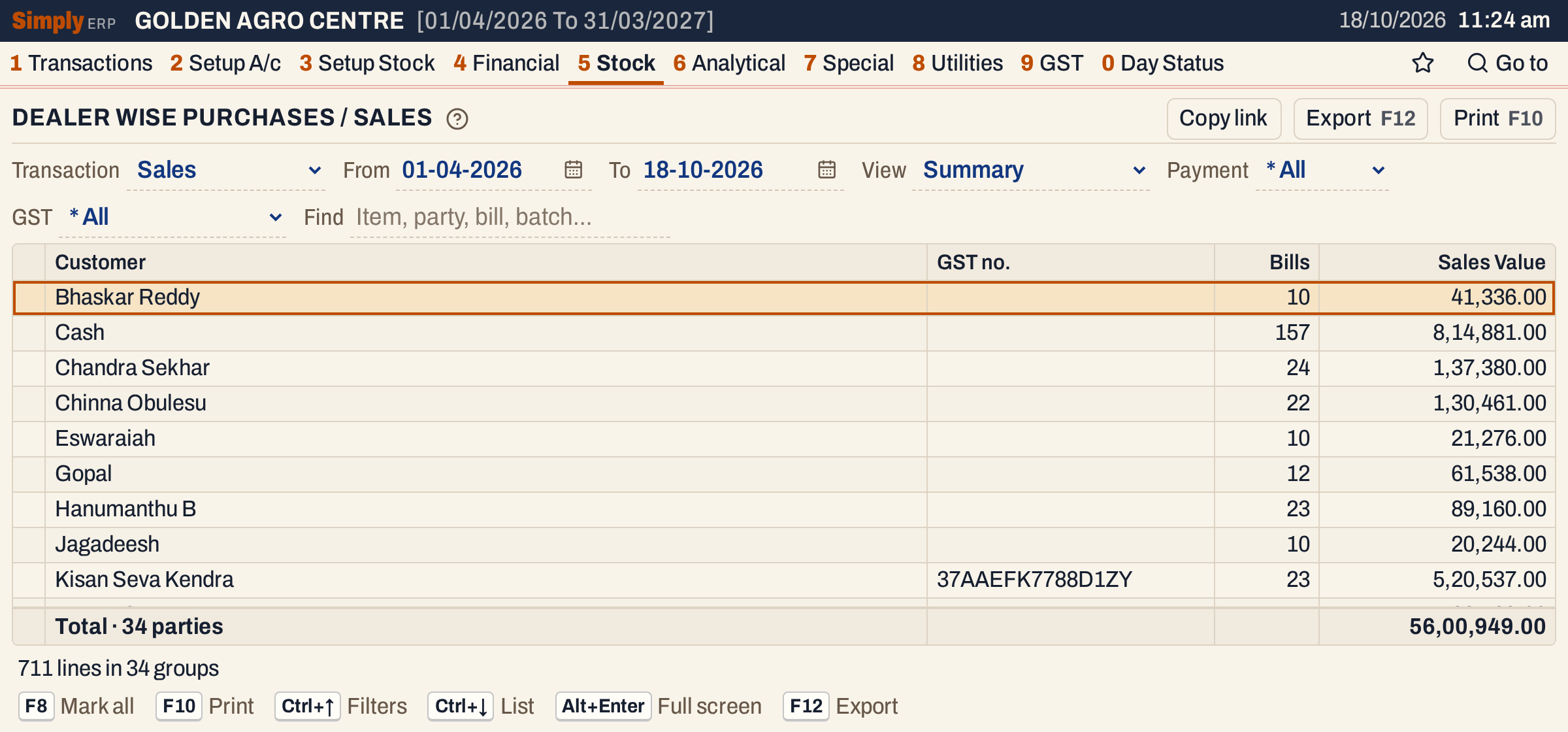 The sales view lists customers. Cash holds the 157 walk-in bills made out to Cash, with no saved account.
Columns
The columns depend on the View.
| Column | What it shows |
|---|---|
| Supplier / Customer | The party’s name. Purchases show Supplier and sales show Customer. Summary only. |
| GST no. | The party’s GST number: the first one found on its bills in the period. Blank for a party with none. Summary only. |
| Bills | The number of bills of the party in the period. Summary only. |
| Purchase Value / Sales Value | The total net amount of those bills. Summary only. |
| Supplier details / Customer details | Detailed view: a heading line for each party with its name, the number of its bills in brackets and its GST number, followed by its bills. |
| Bill | Detailed view: the bill’s number. For a purchase it is the supplier’s bill number. |
| Bill date | Detailed view: the date on the bill. |
| Amount | Detailed view: the bill’s net amount. On the party’s heading line, the total of its bills. |
The line under the grid counts the parties and adds up the value; in the Detailed view it counts the bills, which it calls lines. The status line counts the bills and the parties, which it calls lines and groups.
Choices
| Choice | What it does |
|---|---|
| Transaction | Purchases (the usual when the report opens) or Sales. |
| From, To | The period, both days included. Both dates must fall in the financial year. If you set From after To, the other date moves with it. |
| View | Summary (one line for each party) or Detailed (each party’s bills under its heading). |
| Payment | Sales only. * All, Cash (bills paid in cash) or Credit. Bills paid another way, such as by wallet, appear only under * All. |
| GST | Sales only. * All, Registered (customers with a GSTIN on the bill) or Unregistered. |
| Find | Shows only the parties and bills that match what you type in the party’s name, its place or the bill number. |
Every choice, including the bills you mark, is kept in the page address, so Copy link gives a link that opens the same report.
 The choices for purchases. Choosing Sales adds Payment and GST.
Payment and GST narrow the sales to the customers you want, for example the credit sales to registered customers:
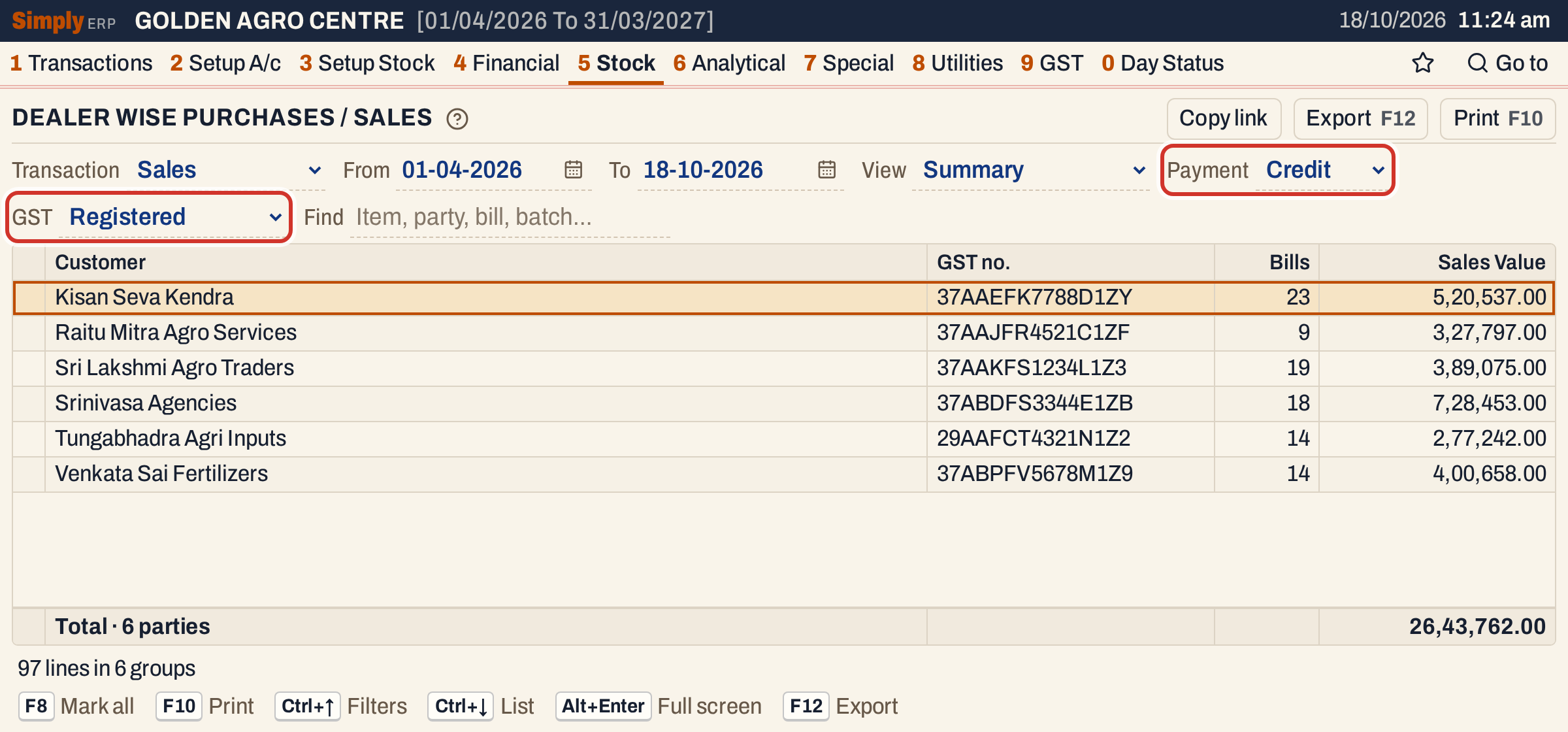 Six registered customers have credit bills in the year, 97 bills in all.
How the figures are worked out
- Each bill’s amount is its net amount, the figure at the foot of the bill: the value of the items after discounts, plus GST, plus or minus charges and the round-off. It is not the taxable value.
- Bills is the number of bills of the party in the period.
- Purchase Value / Sales Value is the sum of those bills’ net amounts. In the Detailed view below, Nallamala Seeds has four bills of 1,32,500.00, 66,000.00, 1,32,500.00 and 64,680.00, which add up to 3,95,680.00.
- The total is the sum of the parties’ values, so it equals the sum of every bill listed.
- A party’s GST no. is the first GSTIN found on its bills. A customer with a GSTIN on some bills and none on others shows the GSTIN.
- Parties come in name order, and within a party the bills come in order of posting date.
- A Find or a choice of Payment and GST decides which bills are counted before anything is added, so the counts and values change with them.
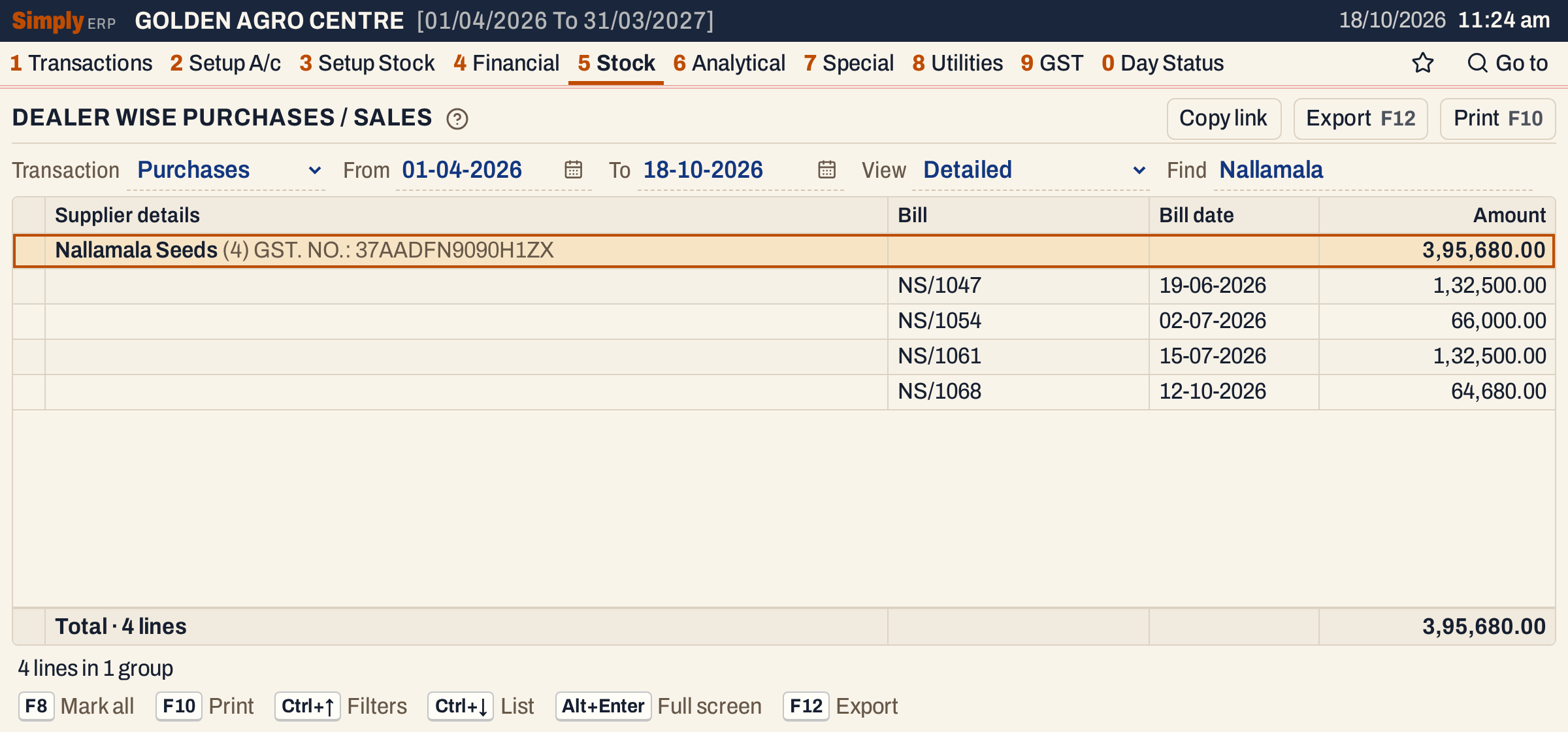 Detailed lists each party’s bills. The heading line carries the party’s total, and the bills under it add up to it.
Open, mark, print and export
- In the Detailed view, Enter on a bill opens the bill itself. Enter does nothing on a line of the Summary.
- F2 marks a party or a bill, and F8 marks them all. F10 then prints only the marked ones, and the print’s totals count only those. Marking a party’s heading in the Detailed view marks all of its bills.
- F10 prints the report as it is on the screen. The heading reads PARTY WISE PURCHASES or PARTY WISE SALES, with the period, whether it is purchases or sales, and your Payment, GST and Find choices.
- F12 saves what the print shows as an Excel workbook, with the figures as numbers.
- Alt+Enter gives the whole window to the list.
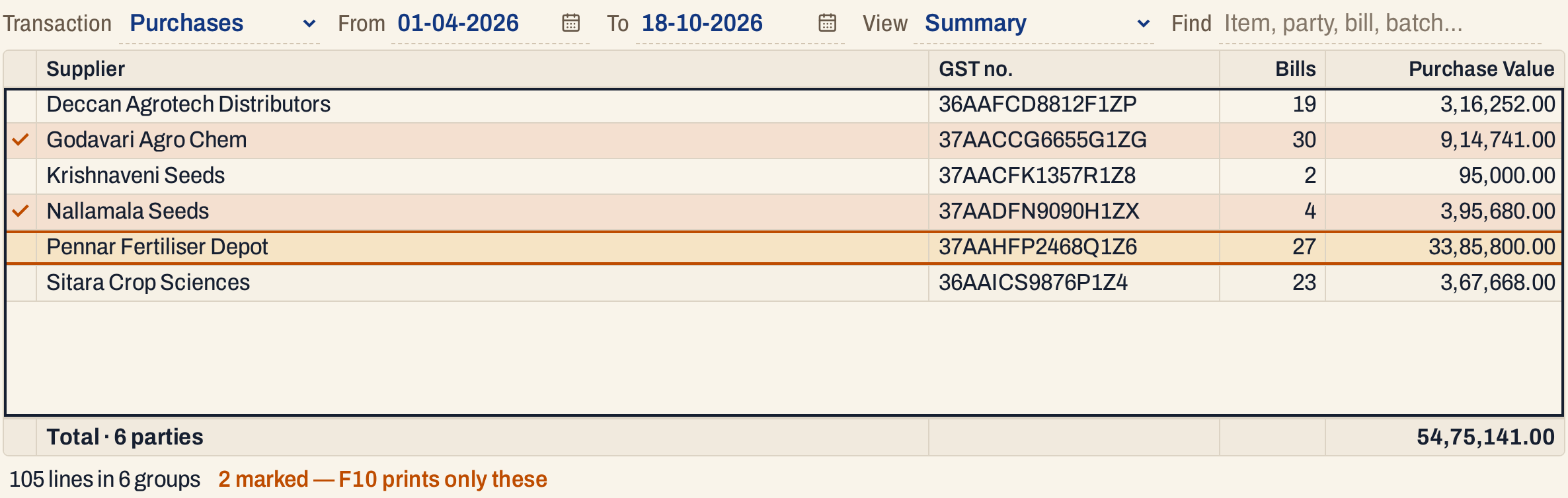 Two suppliers marked with F2. The status line reminds you that F10 prints only these.
Updated 4 November 2026.