Change item prices and codes
On this page
The item grid lists every item, one line each, with its code and prices. It is the quickest place to correct a price, a code or the number of packs in a case: move to the cell, type, and save all the changes in one go. What does not change often (the company, technical name and GST rate of a product) belongs to its group and is shown here, but read-only.
Open the item grid
Press Alt+3 for the Setup Stock menu, then A for Items.
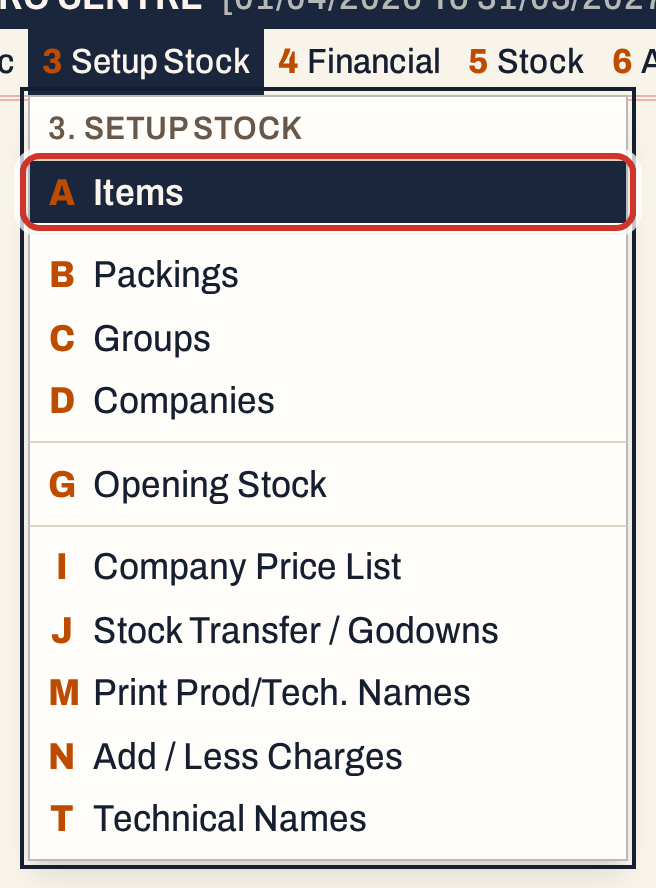 3 A: Setup Stock, Items.
The grid opens with the first item selected. Items are listed by name. Each line is one packing of a product, as bills list it.
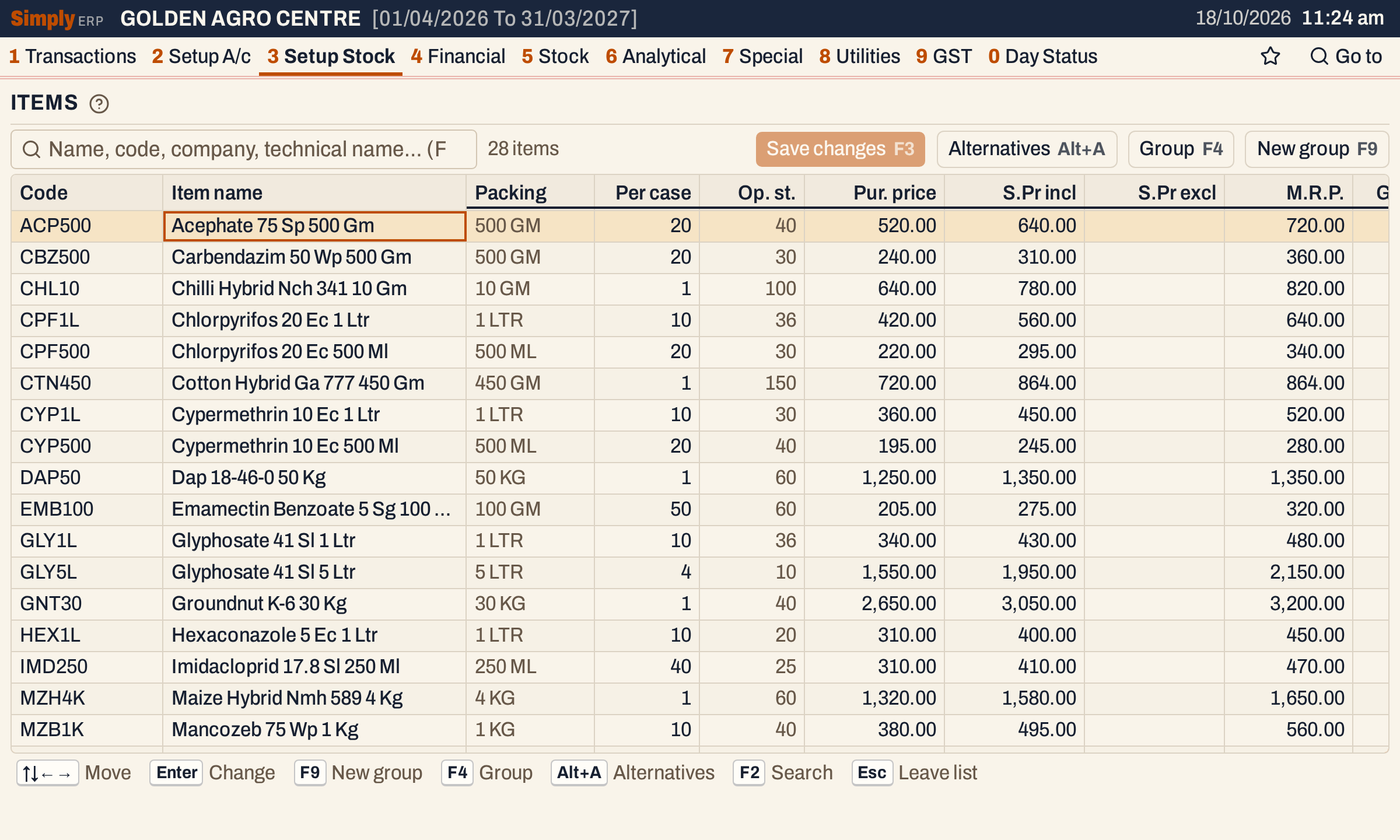 Code and Item name stay in view while the other columns scroll.
| Column | What it shows |
|---|---|
| Code | The item’s own code. You can change it. |
| Item name | The product’s name and the packing, as bills print it. |
| Packing | The packing from the packing list. |
| Per case | The number of packs in a case. You can change it. |
| Op. st. | Opening stock. Read-only; it is entered in Opening stock. |
| Pur. price | The purchase price. You can change it; blank means none recorded. |
| S.Pr incl | The sale price with GST. You can change it. |
| S.Pr excl | The sale price before GST. You can change it; blank means none recorded. |
| M.R.P. | The maximum retail price. You can change it. |
| GST %, Company, Technical name | From the item’s group. Read-only. |
| On hand | The stock on hand now. Read-only. |
Find an item
Press F2 to go to the search box above the grid, and type any part of the item’s name, code, company, technical name, packing or HSN. The count beside the box shows how many items match. Enter or ↓ returns to the grid.
Typing a character on a cell that cannot take it, such as the item name, starts a search with that character.
 Two items match: the 1 Ltr and the 500 Ml packing.
Change a price or a code
Move with the arrow keys. Home and End go to the first and last column. To change a cell, type the new value: a digit in a price column, or any character in the Code column, starts the edit with what you typed. Enter on a cell edits it with its old value selected, so typing replaces it. Delete or Backspace clears it and starts the edit.
Enter keeps the value and moves to the next editable cell: Code, Per case, Pur. price, S.Pr incl, S.Pr excl, M.R.P., then the next line. Tab does the same, and Shift+Tab goes back one cell. A value that is not a number of 0 or more, or a Per case that is not whole, is refused as you leave the cell. Esc drops the change in the cell you are typing in.
Nothing is saved yet. A changed cell is shaded and the line above the grid counts the items changed (“1 changed — F3 to save”). Here the purchase price of Chlorpyrifos 20 Ec 1 Ltr is typed as 430, and the sale price as 700.
 Changes wait in the grid until you save. Discard drops them all.
Save the changes
Press F3. SimplyERP checks the changed items first and saves nothing if one fails these checks:
- A sale price cannot be above the MRP. 700.00 is above the MRP of 640.00, so the line says so, with the item’s name.
- A price before GST (S.Pr excl) cannot be above the sale price with GST.
- A code cannot be left empty, cannot be longer than 20 characters, and no other item may have it.
 The cell stays as typed so you can correct it.
Move back to the sale price, type 580, press Enter, then F3 again. The line says “Changes saved.” and the figures show with two decimals.
 Saved. Every changed item is saved with one key, however many lines you edited.
Each changed item is saved on its own. If the books refuse one (for example a code another item already has), the message names that item and its change stays marked, while the others are saved.
The new sale price is used by the next bill: the item list of a sale bill shows it as the Rate, beside the MRP, GST and stock.
 Bills already saved keep the rate they were made at.
The group’s columns, and the group itself
Scroll to the right with End and you see the GST %, Company and Technical name of each item. They are the same for all packings of a product, so they are typed once on its group. F4, or Enter on a cell that cannot be edited, opens the item’s group with all its packings; there each packing is a line with the same price columns. F9 starts a new group, see Add a stock group. Save or discard your changes before opening a group.
 These columns are shown, but belong to the group.
See what can stand in for an item
Alt+A lists the alternatives of the item under the cursor: its other packings, then other groups with the same technical name, then those with the same or some of the same active ingredients. Items in stock come first. Enter goes to the one you choose.
 Esc closes the list.
What saving does to your books
Nothing is posted to the accounts. The new purchase price, sale price and MRP are kept on the item and used by the next bill. Stock and saved bills are not changed.
Keys on the item grid
| Key | What it does |
|---|---|
| ↑ ↓ ← → | Move between cells |
| Enter | Edit the cell; in the editor, keep and go to the next cell |
| Esc | Drop the change in the cell being edited |
| F3 | Save every changed item |
| F2 | Go to the search box |
| F4 | Open the item’s group |
| F9 | Add a new group |
| Alt+A | Alternatives of the item |
| F1 | Help for the screen |
Common questions
Why can’t I change the GST rate or company here? They belong to the group. Open the group with F4 and change them once for every packing.
How do I add a new packing of a product? In its group (F4, then F9 to add a packing). See Add a stock group.
Where do I change the opening stock? In Opening stock; the grid shows it but does not edit it.
Updated 4 November 2026.