Account Wise Stock Movement
On this page
Account Wise Stock Movement answers “what goods went to or came from this one party”. Choose a customer or a supplier and it lists every item bought from them, sold to them and returned either way, for a period, as quantities. Use it to check what a customer bought and returned, to answer a supplier who asks what you bought and sent back, or to see how many units of each product one dealer takes.
Open the report
Press Alt+5 for Stock Reports, then Z for More Stock Reports and D. The report opens for the financial year from its first day to today. The list is empty until you choose an Account, and says so.
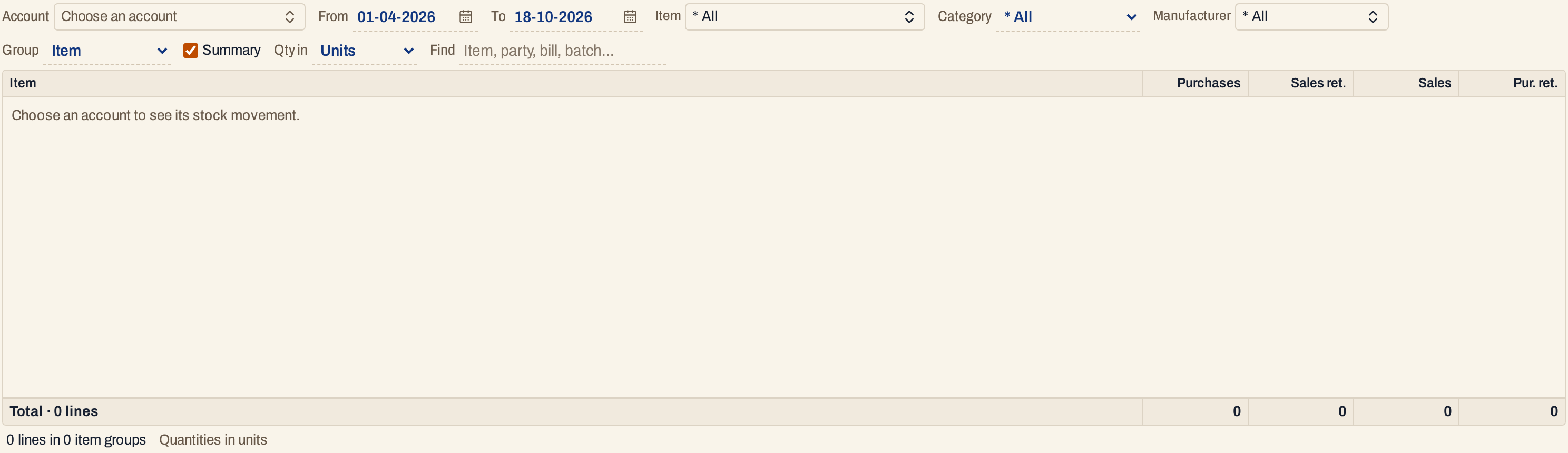 Nothing is listed until an account is chosen.
Type a few letters of the party’s name in Account and press Enter. The accounts of every type are listed with their place, so a customer, a supplier or a farmer can be chosen.
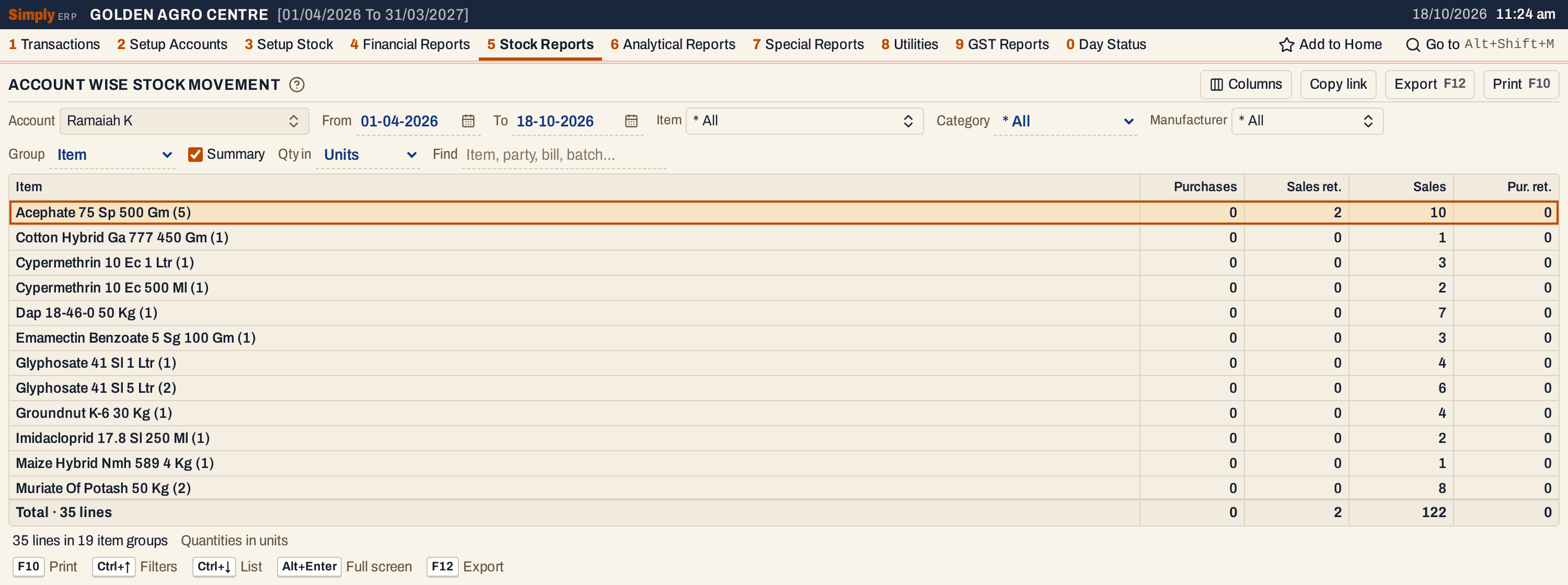 Ramaiah K, a customer: 35 lines on 19 items. Acephate 75 Sp 500 Gm was sold 10 units on four bills and 2 came back on a sales return.
What it lists
The item lines of the bills of the chosen account in the period, from four kinds of document:
- purchase bills of the account, and goods received from it in Goods In / Out (1 P) that have not been billed;
- sales returns the account made;
- sale bills to the account;
- purchase returns made to the account.
Each is listed on the date it is posted: a sale or a purchase return on the bill date, a purchase or a sales return on the date in its Recd. field, goods received on the date of the entry. A bill with three items gives three lines. Charge lines are not item lines and are not listed.
An account that is both a customer and a supplier shows all four kinds. Nothing is netted: purchases and sales returns are not subtracted from sales, and each kind has its own column.
Columns
| Column | What it shows |
|---|---|
| S.No | The line’s number. Not shown in Summary. |
| Date | The date the line is posted, as above. |
| Bill no | The bill’s number. For a purchase, the supplier’s own number. For goods not yet billed, the D.C. number of the entry. |
| Book no | Your own series and number for the bill, such as PUR/3 for a purchase. For a sale it is left blank when it is the same as the Bill no. Shown only when some line has one. |
| Bill type | Purchase, Sales return, Sale or Purchase return. With Group set to Item, a heading line shows the item’s name in this column. |
| Item | The item. Not shown when Group is Item, where the heading line names the item. With Group set to Manufacturer, a heading line shows the manufacturer’s name here. |
| Batch | The batch on the line. Shown only when some line has one. |
| Purchases | Units bought from the account. |
| Sales ret. | Units the account returned to you. |
| Sales | Units sold to the account. |
| Pur. ret. | Units you returned to the account. |
On a line only the column of its own kind has a figure. A heading line (when Group is set) shows the name with the number of lines in brackets, and the four figures added up for its lines, with 0 where nothing was done. The totals line under the grid does the same for every line listed, and the status line gives the number of lines and groups.
The report shows quantities only. For values and prices use the Sales Statement and the Purchase Statement.
Choices
| Choice | What it does |
|---|---|
| Account | The customer or supplier. Required. |
| From, To | The period, both days included. Both dates must fall in the financial year. If you set From after To, the other date moves with it. |
| Item | One or more items. The list holds the items the account has lines for in the period. |
| Category | One item category, or * All. |
| Manufacturer | One or more manufacturers. The list holds the manufacturers of the items the account has lines for. |
| Group | Item (the usual): a heading for each item. Manufacturer: a heading for each manufacturer, with (No manufacturer) for items that have none. None: every line in date order. |
| Summary | One line for each group and no bill lines. Ticked when the report opens, with Group set to Item. It shows only when Group is not None. |
| Qty in | Units (the usual), Litres / kg, Tonnes or Quintals. |
| Find | Shows only the lines whose item, party, bill number, book number, batch or manufacturer matches what you type. |
| Columns | Hides the S.No, Date, Bill no, Book no or Batch column. The print leaves them out too. The Summary has nothing to hide. |
Click a column title to sort by it, and click again to reverse. Shift+click another title to sort within it. Lines come in date order unless you sort. In the Summary, items come in name order, or by a figure column when you click its title. Every choice, including the account, is kept in the page address, so Copy link gives a link that opens the same report.
 The choices above the grid.
How the figures are worked out
- Each line’s quantity is the quantity on the bill line, changed to the unit chosen in Qty in. For litres or kilograms the quantity is multiplied by the item’s pack size, for tonnes by the pack size divided by 1,000 and for quintals by the pack size divided by 100. An item with no pack size recorded shows zero, and the status line says how many lines are affected.
- On a bill line, the quantity goes in the column of its kind: Purchases, Sales ret., Sales or Pur. ret.
- A heading line adds the lines under it, column by column. The totals line adds all lines.
For Ramaiah K the four bills of Acephate 75 Sp 500 Gm (P/22, P/96, P/276 and P/286) sold 2 + 2 + 2 + 4 = 10 units, and the sales return SR-1 brought back 2.
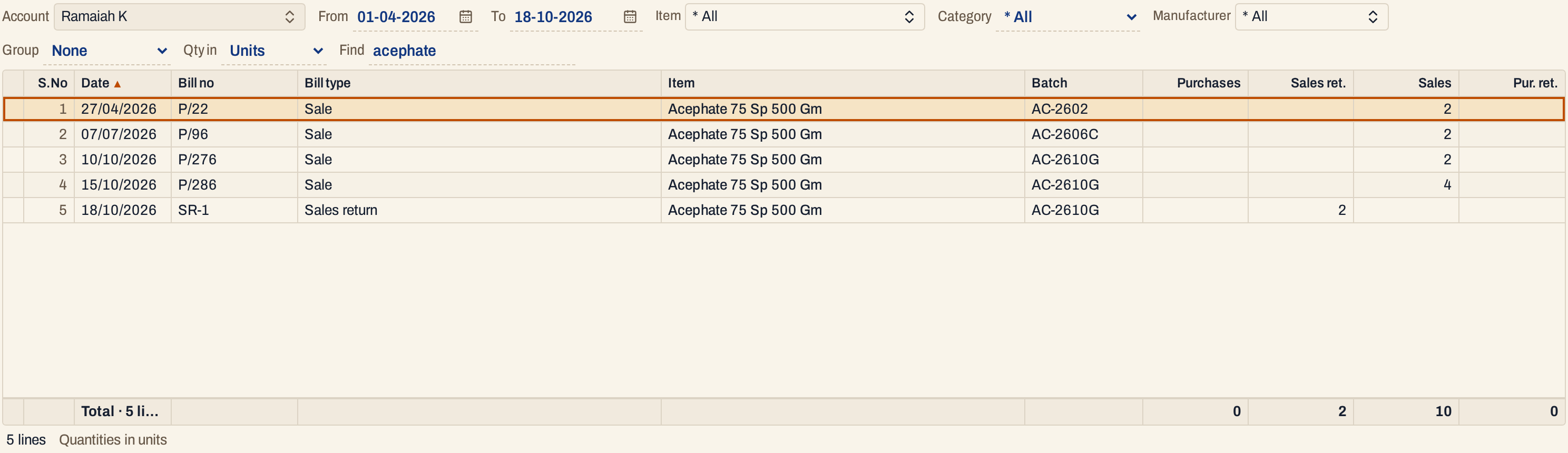 With Group set to None and acephate typed in Find, each bill is a line: the sale bills fill Sales, and the sales return fills Sales ret.
A supplier
The same report for a supplier shows purchases and what was returned to it.
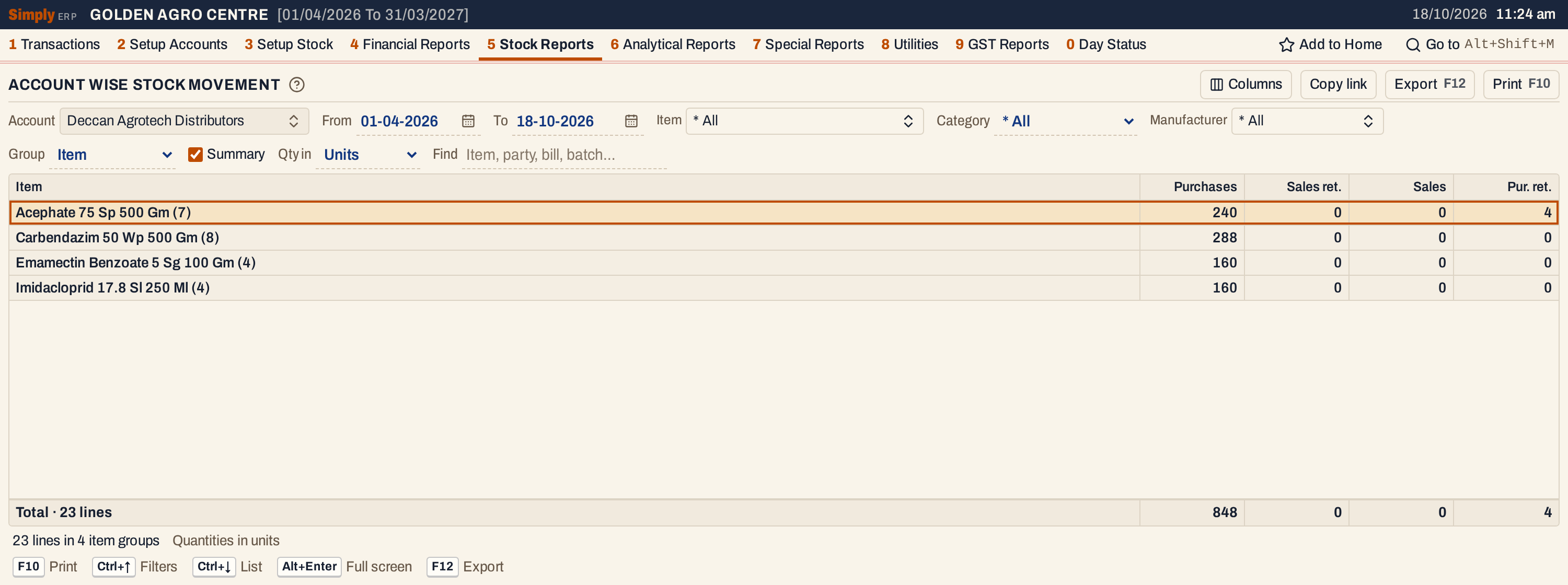 Four items bought from Deccan Agrotech Distributors: 848 units on 23 lines, and 4 Acephate sent back.
Goods received before their bill are lines like any other:
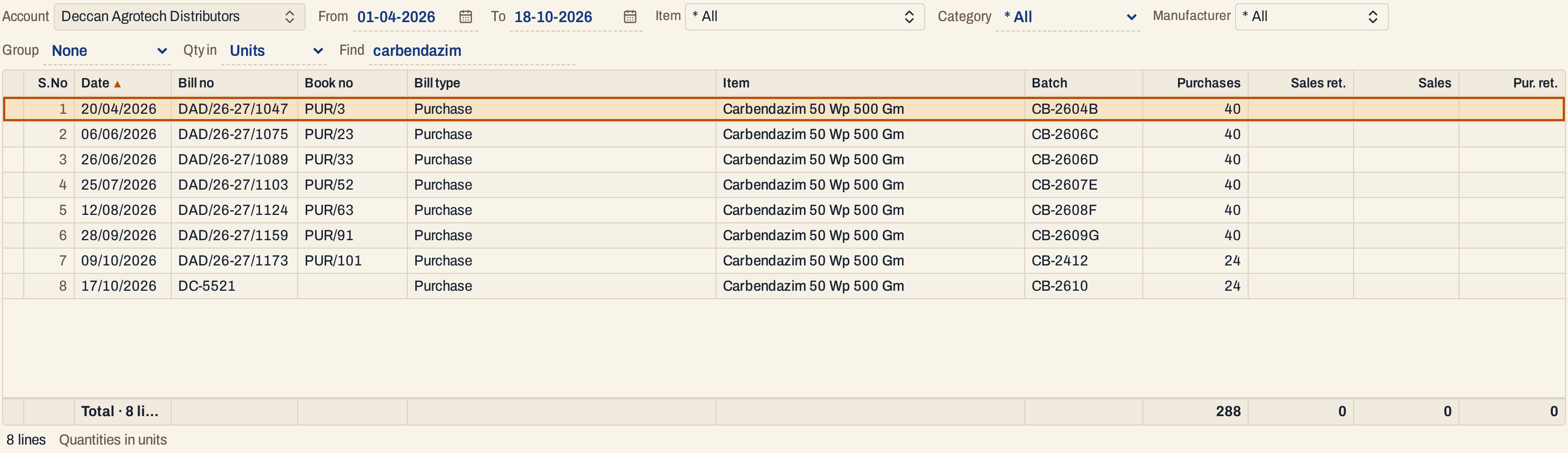 The last line is not a bill: 24 units received on 17-10-2026 with D.C. number DC-5521. When its bill arrives, the units on the bill are listed instead, never both.
Open, mark, print and export
- Enter on a bill line opens the saved bill. On a line of goods not yet billed, it opens the item’s Stock Ledger for the period. On a heading, or on a line of the Summary, it lists that group’s lines.
- F2 marks a line and F8 marks them all. F10 then prints only the marked lines. Marking is not offered in the Summary.
- F10 prints the report as it is on the screen, headed ACCOUNT WISE STOCK MOVEMENT with the account, the period, the unit and your choices, including how it is grouped. The print has the columns that show on the screen.
- F12 saves it as an Excel workbook.
- Type letters in the list to jump to the next heading that begins with them, or with Group set to None, the next item.
- Alt+Enter gives the whole window to the list.
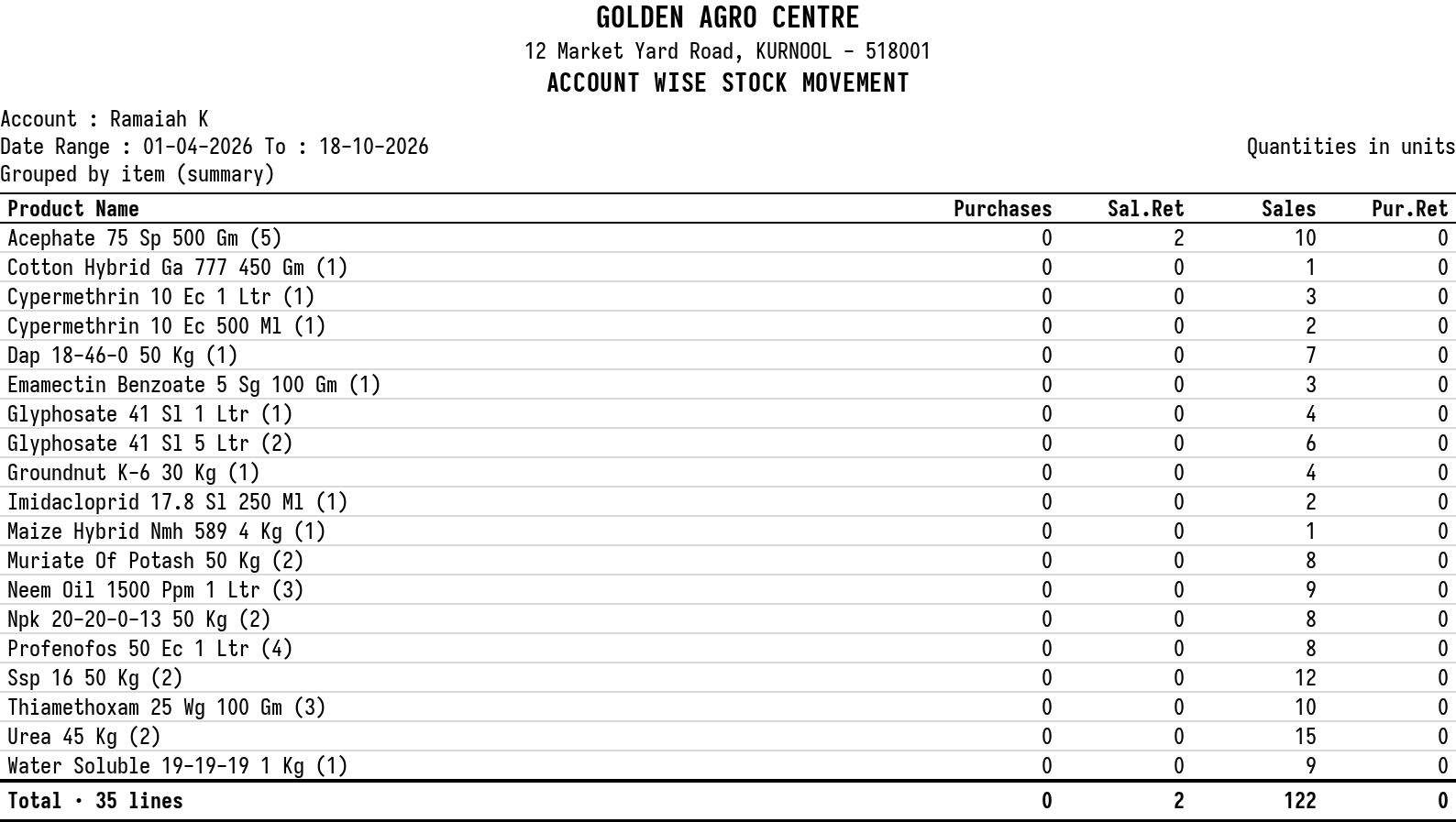 The print of the summary for Ramaiah K.
Updated 4 November 2026.