Sale Ara
On this page
The Sale Ara is the day-wise sales register. For each day it lists the products sold, and under each product the bills, with the units, the net price and the amount. The day’s heading adds the cash sales and the credit sales with their GST. Choose another transaction and the same screen lists purchases, sales returns or purchase returns party by party, with batches and dates.
Open the report
Press Alt+5 for Stock Reports, then P. It opens for the financial year from its first day to today, with sales of all categories.
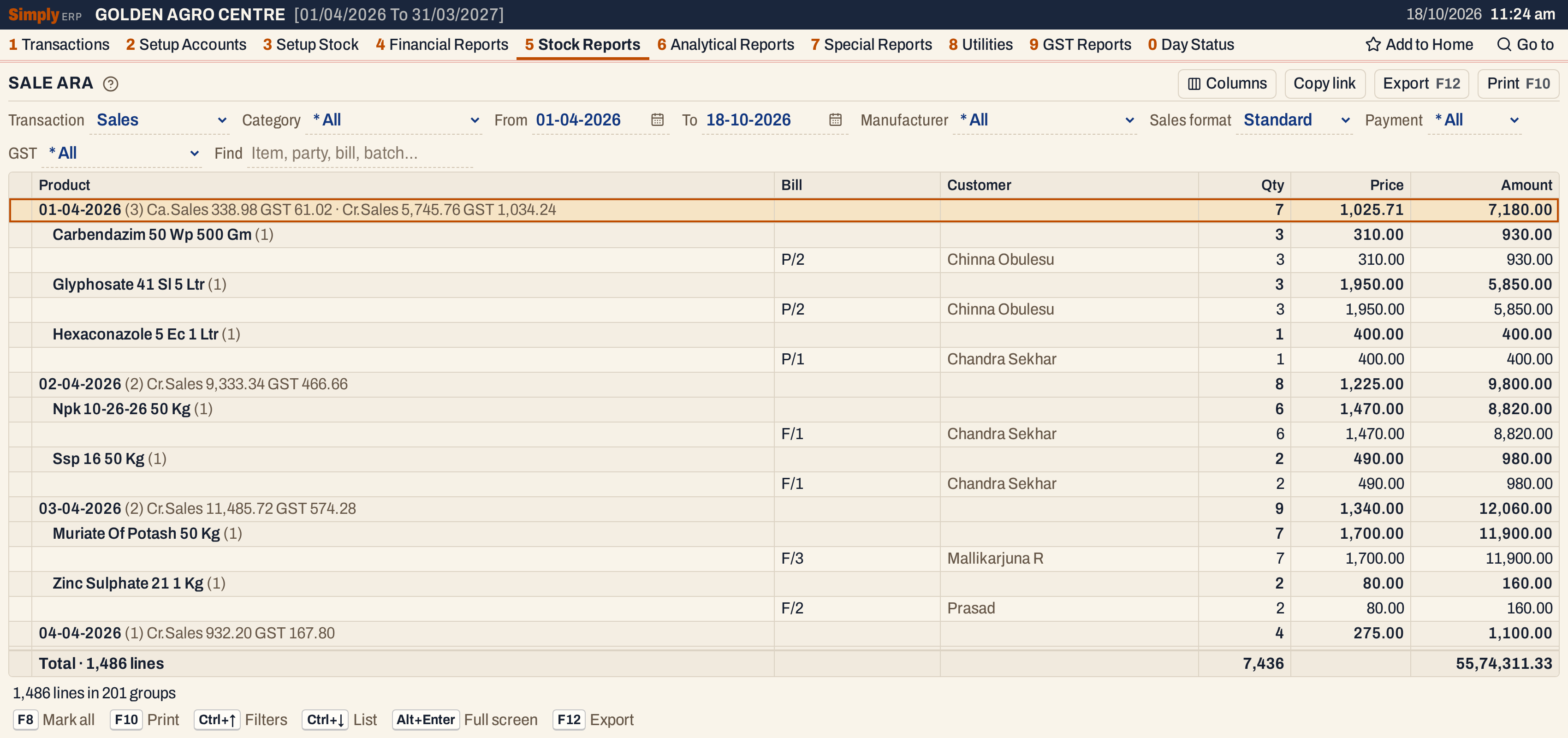 A heading for each day, a line for each product sold that day and a line for each bill that sold it. The status line says 1,486 lines in 201 groups.
What it lists
For Sales, every line of every sale bill in the period, on the invoice date of the bill. Each line is one product on one bill. The lines are grouped by day, then by product.
For Purchases, Sales returns and Purchase returns the lines are on the posting date of the bill and are grouped by party: the supplier of a purchase or of a purchase return, the customer of a sales return. Purchases also list goods received before their bill (Goods In / Out, 1 P), as far as they are not yet covered by a bill, with the challan number in the Bill column.
Columns
For Sales:
| Column | What it shows |
|---|---|
| Product | On a day’s heading, the date, the number of bill lines in brackets and the day’s cash and credit sales. On a product’s heading, the product and its number of bill lines in brackets. |
| Bill | The bill number. |
| Customer | The customer of the bill, or the party it ships to when the bill has Ship to another ticked. A bill to a walk-in customer shows the name it was saved with, such as Cash. |
| Qty | The units. On a heading, their total. |
| Price | The net price of one unit (see below). On a heading, Amount divided by Qty. |
| Amount | The line’s value, Price times Qty. On a heading, the total. |
For Purchases, Sales returns and Purchase returns:
| Column | What it shows |
|---|---|
| Bill | The bill number of the purchase, or the number of the return. |
| Date | The posting date. |
| Product | The product. On a heading, the party and the number of lines. |
| Batch, Mfg., Expiry | The batch and its manufacturing and expiry dates. |
| Qty | The units. On a heading, their total. |
The line at the bottom counts the lines and adds up Qty (and Amount for sales). Columns hides the Customer column. The print leaves it out too.
Choices
| Choice | What it does |
|---|---|
| Transaction | Sales (the usual), Purchases, Sales returns or Purchase returns. |
| Category | Lists only the products of that category. * All lists every category. With Sales format set to Invoice category and no Manufacturer, it picks the bills instead. |
| From, To | The period, both days included. Both must fall in the financial year. It opens from the first day of the year to today. |
| Manufacturer | Lists only the products of one manufacturer. |
| Sales format | Standard or Invoice category, for Sales only. |
| Payment | For Sales and Sales returns: * All, Cash or Credit. Bills paid by card or wallet are listed only under * All. |
| GST | For Sales and Sales returns: * All, Registered (customers with a GSTIN) or Unregistered. |
| Find | Shows only the lines whose product, party, place, bill number, batch or manufacturer matches what you type. |
Every choice is kept in the page address, so Copy link gives a link that opens the same report.
 The choices above the list.
How the figures are worked out
Price and Amount of sales. The price is the net price of one unit, the same as the net rate of the Sales Statement:
- for a customer with a GSTIN, the line’s taxable value after discounts plus its GST, divided by the units;
- for a customer without a GSTIN, the line’s net amount divided by the units;
- rounded to two decimals.
So it is the price the customer paid with GST, after discounts, whatever the rate written on the bill. Amount = Price × Qty, rounded to two decimals.
Headings. The Qty and Amount of a day or a product are the totals of the lines under it, and its Price is Amount ÷ Qty, so it is an average. The count in brackets is the number of bill lines under the heading.
Cash and credit sales. The note on a day’s heading splits the day’s lines by how their bill was paid. Ca.Sales adds up the lines of bills paid in cash: their taxable value, and GST their CGST, SGST and IGST. Cr.Sales does the same for all the other lines: credit bills, and also bills paid by card or wallet. Ca.Sales is left out of a day without cash bills. Taxable value plus GST comes to the day’s Amount for each side, apart from a few paise of rounding.
On 15-10-2026 in the screenshot below: cash 3,648.32 + 656.68 = 4,305.00 and credit 14,986.44 + 1,163.56 = 16,150.00, together 20,455.00.
 One day. The heading (marked) holds the day’s totals and its cash and credit sales; the products follow in name order, each with its bills.
The Invoice category format
The Invoice category format is for sales reports by the category of the bill. With it:
- Category picks bills, not products (when no Manufacturer is chosen): every line of a bill whose invoice category is the one you choose is listed, whatever the product.
- Price is the rate written on the bill line, and Amount is the line’s net amount, as on the bill.
- The products of a day come in the order of their bills, not by name.
- The print says Invoice category format in its heading.
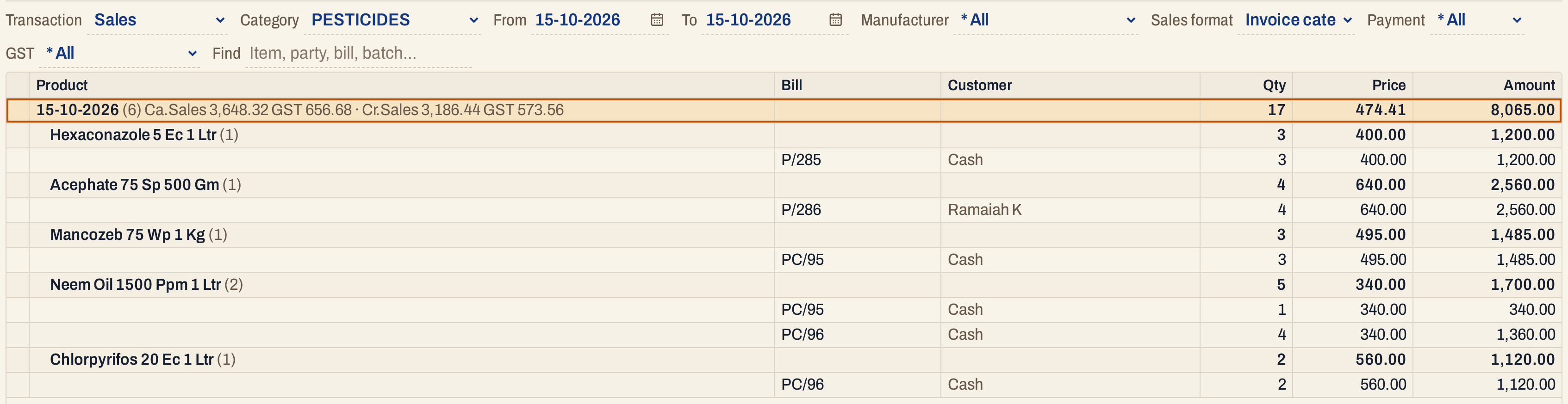 Only the pesticide bills of the day are listed (6 lines, 17 units), in the order of their bills: P/285, P/286, PC/95 and PC/96.
Purchases and returns
These views list each party’s lines: the bill, its date, the product, the batch with its dates and the units. There are no prices.
 Purchases by supplier, with the batches received. The five lines of Godavari Agro Chem add up to its 196 units.
 A sales return, listed under its customer.
 A purchase return, listed under its supplier.
Open, mark, print and export
- Enter on a bill line opens the bill.
- F2 marks a line or a whole day or product, with all the lines under it. F8 marks all the lines. F10 then prints only the marked lines, with their headings and totals worked out again.
- F10 prints the report as it is on screen: the company, the title (SALE ARA, PURCHASE ARA, SALES RETURNS ARA or PURCHASE RETURNS ARA), the period and your choices, then the headings and lines, and the totals at the end.
- F12 saves it as an Excel workbook.
- Alt+Enter gives the whole window to the list.
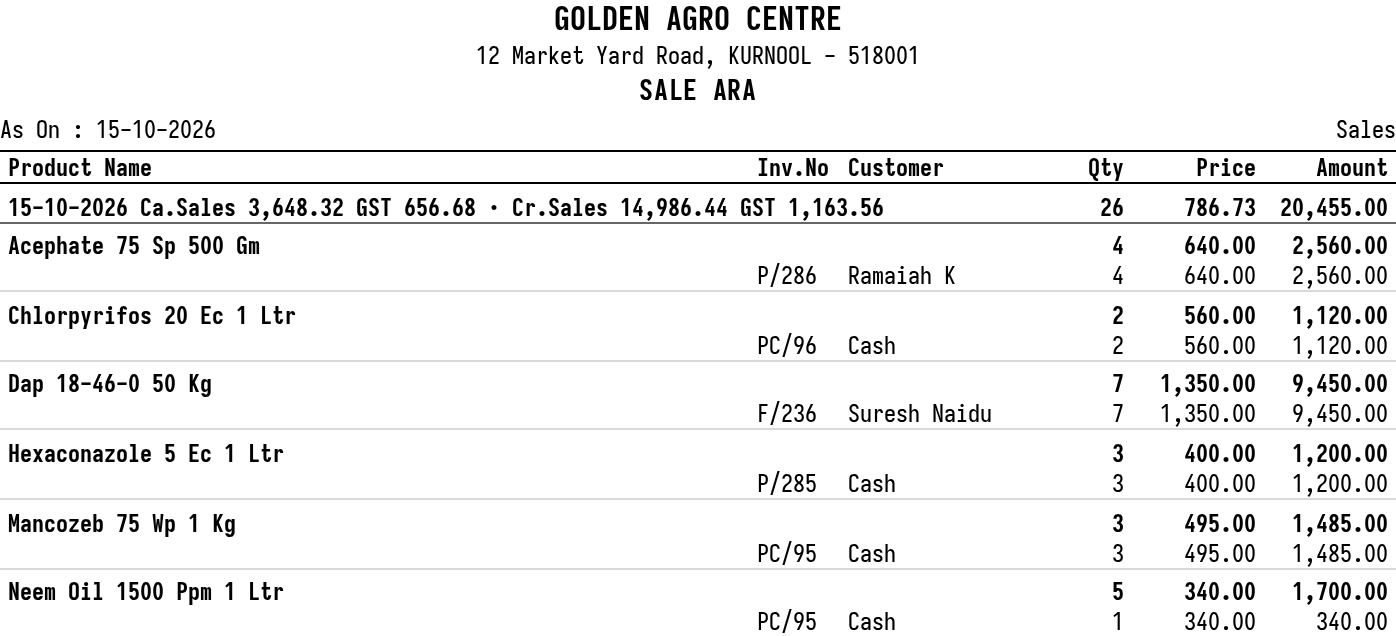 The top of the print for one day.
Updated 4 November 2026.