Stock Daily Movement
On this page
The Stock Daily Movement lists only the items whose stock changed in the period, with the stock before, what came in, what went out and what is left. Under each item that received stock it names the source: the supplier or customer, the bill and the batch. Set From and To to the same day to see what moved on one day, or to a week to check a stock count.
Open the report
Press Alt+5 for Stock Reports, then H. The report opens for the financial year from its first day to today’s date. The screen below is set to two days, 17-10-2026 to 18-10-2026.
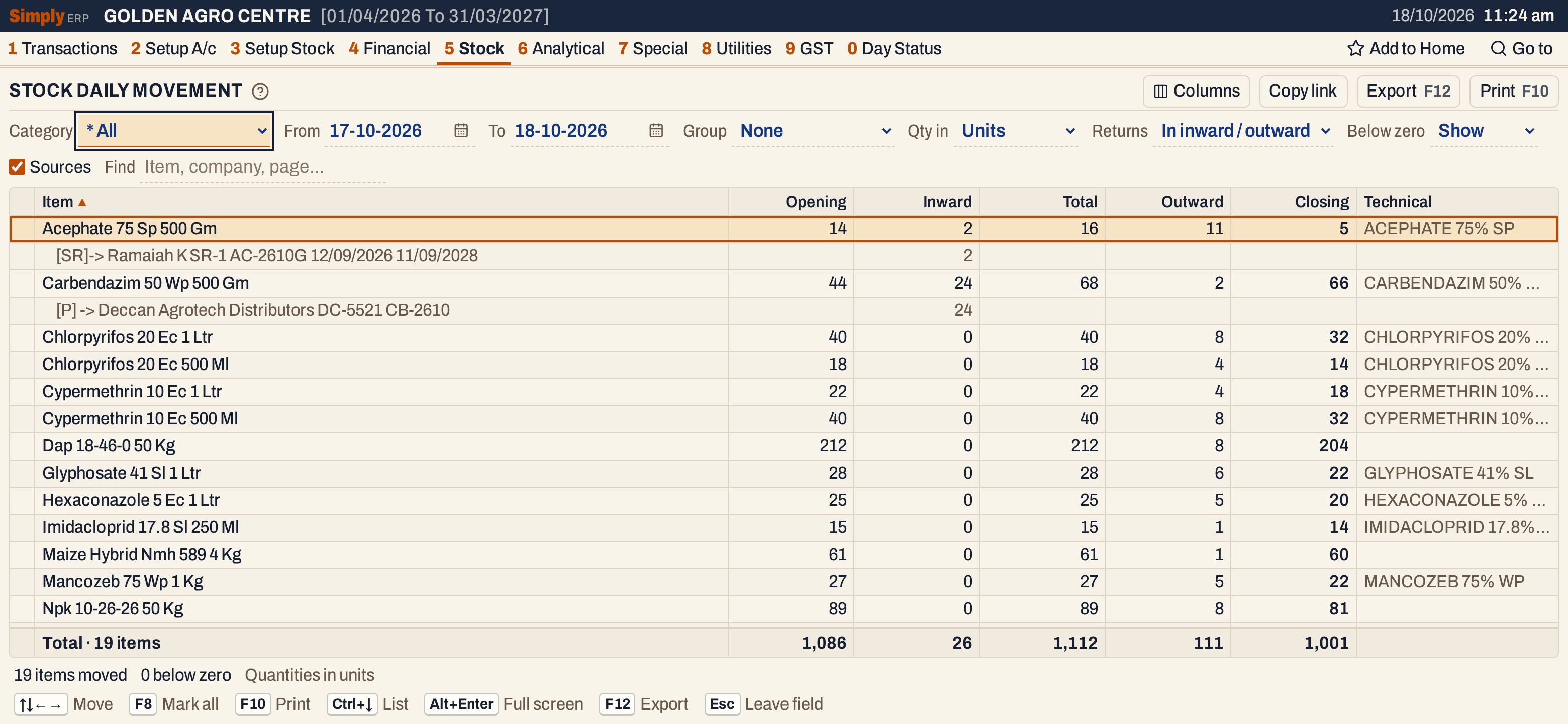 Acephate 75 Sp 500 Gm started at 14, took in 2 and sent out 11, and closes at 5. The line under it, [SR]->, says the 2 came back from customer Ramaiah K on sales return SR-1.
What it lists
One line for each item that had at least one purchase, sales return, sale, purchase return or damage entry in the period. An item with stock but no movement in the period is not listed; use the Stock Statement for those. The movements are the same ones the Stock Ledger lists: bills posted in the period, goods received or delivered on a challan, and damage entries. A bill made for goods a challan has already moved counts only the quantity the challan did not move.
Under an item that received stock (a purchase, goods received, or a sales return) is one source line for each receipt:
- [P] -> a purchase bill or goods received, with the supplier’s name, the bill or challan number, the batch, and the batch’s manufacturing and expiry dates;
- [SR]-> a sales return, with the customer’s name, the return’s number, the batch and its dates.
The quantity of the receipt is shown on the source line, in the Inward column (or in Purchases or Sales ret. when returns have their own columns). The purchases come first, then the sales returns, each in date order. A receipt of several batches or bills gives a source line for each.
Columns
| Column | What it shows |
|---|---|
| Page | The item’s register page. Shown only when some item has one. |
| Item | The item’s name. With Group set, a heading line for each manufacturer or technical name, with the number of items in brackets. Source lines sit under their items. |
| Opening | The stock at the start of the From date. |
| Inward | Purchases plus Sales ret. (In inward / outward layout) |
| Total | Opening plus everything that came in. |
| Outward | Sales plus Pur. ret. plus Damage. (In inward / outward layout) |
| Purchases, Sales ret., Sales, Pur. ret., Damage | Each movement in its own column. Damage appears only when some item listed has a damage entry. (Own columns layout) |
| Closing | The stock at the end of the To date. A negative stock is red. |
| Technical | The item’s technical name. Shown only when some item has one, and not when Group is Technical name. |
The line under the grid adds up each column for the items listed. The status line says how many items moved and how many are below zero.
Choices
| Choice | What it does |
|---|---|
| Category | One item category, or * All. |
| From, To | The period, both days included. Both dates must fall in the financial year. If you set From after To, the other date moves with it. |
| Group | None (the usual), Manufacturer or Technical name: a heading for each, with its items under it. |
| Qty in | Units (the usual), Litres / kg or Tonnes. |
| Returns | In inward / outward (the usual): Inward and Outward only. Own columns: purchases, sales returns, sales, purchase returns and damage in separate columns. |
| Below zero | Show (the usual), Hide the items whose closing stock is below zero, or Only these. |
| Sources | Ticked: the source lines under each item that received stock. Untick it to list the items only. |
| Find | Shows only the items whose name, manufacturer, technical name, group, packing or page matches what you type. |
| Columns | Hides the Page, a figure or the Technical column. The print leaves them out too. |
Click a column title to sort by it, and click again to reverse; figures start with the largest. Shift+click adds a second column to sort by. Every choice is kept in the page address, so Copy link gives a link that opens the same report.
 The choices that change the layout.
How the figures are worked out
The figures are those of the Stock Statement, for the items that moved:
- Opening = the item’s opening stock + purchases + sales returns − sales − purchase returns − damage posted before the From date.
- Purchases, Sales ret., Sales, Pur. ret. and Damage = the units posted from the From date to the To date, both days included.
- Inward = Purchases + Sales ret. Outward = Sales + Pur. ret. + Damage.
- Total = Opening + Inward. Closing = Total − Outward.
For Acephate 75 Sp 500 Gm: 14 + 2 = 16, and 16 − 11 = 5. The 11 is 7 sold and 4 returned to the supplier, as the next screen shows. For Carbendazim 50 Wp 500 Gm: 44 + 24 = 68, and 68 − 2 = 66; the 24 are goods received on challan DC-5521, counted under Purchases.
With Litres / kg or Tonnes, each figure is multiplied by the item’s pack size (and divided by 1,000 for tonnes). An item with no pack size recorded shows zero, and the status line says how many items do. The source lines are converted the same way. Units show whole numbers, and a fraction when a quantity has one; litres, kilograms and tonnes always show three decimals.
The totals are the sums of each column over the items listed. A heading’s figures are the sums of the items under it.
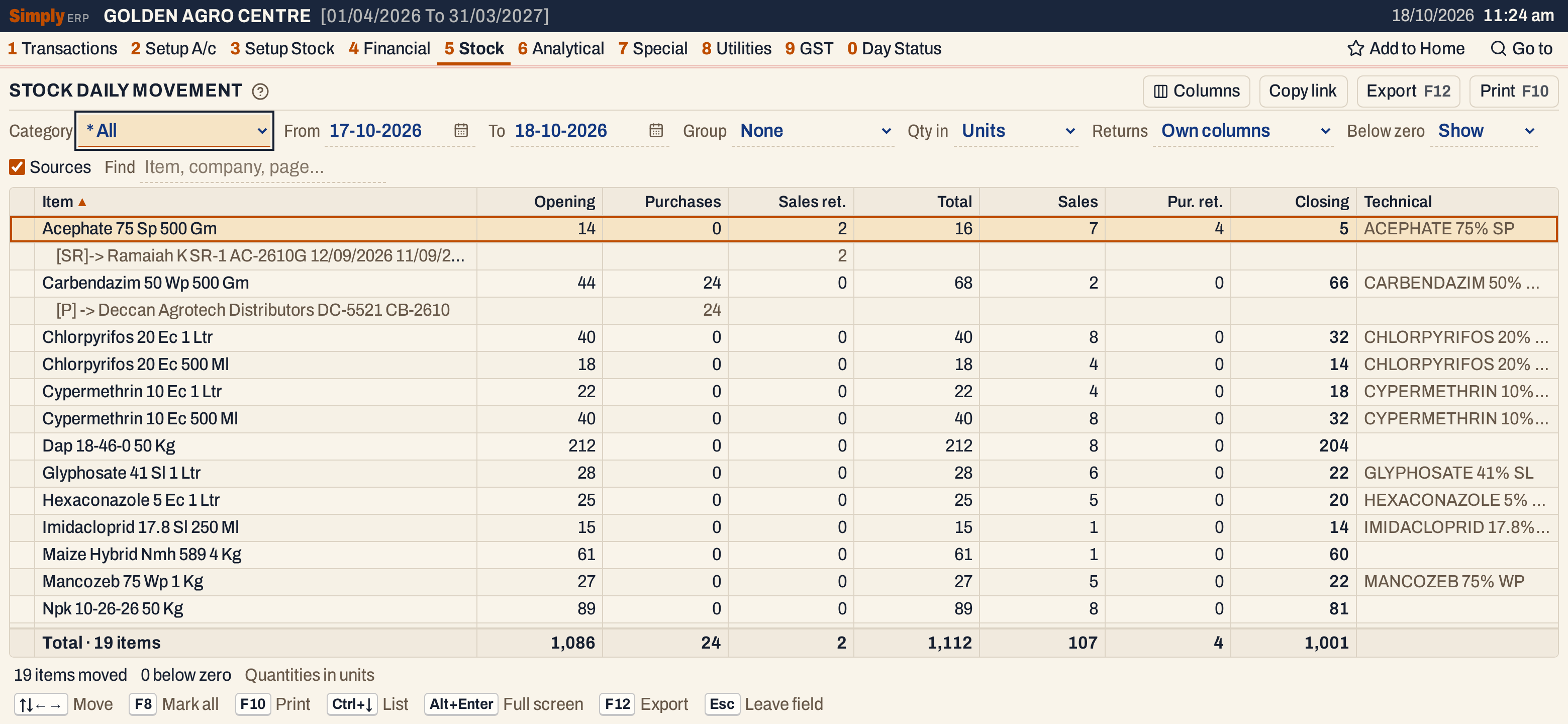 With Returns set to Own columns, the 11 that left Acephate splits into Sales 7 and Pur. ret. 4, and the source lines put their quantity under Sales ret. and Purchases.
Grouping
Set Group to Manufacturer to see what each manufacturer’s items did, or to Technical name to see it by technical name. Items with no manufacturer or technical name gather at the end, under (No manufacturer) or * UNDEFINED GROUP. Untick Sources to leave out the source lines.
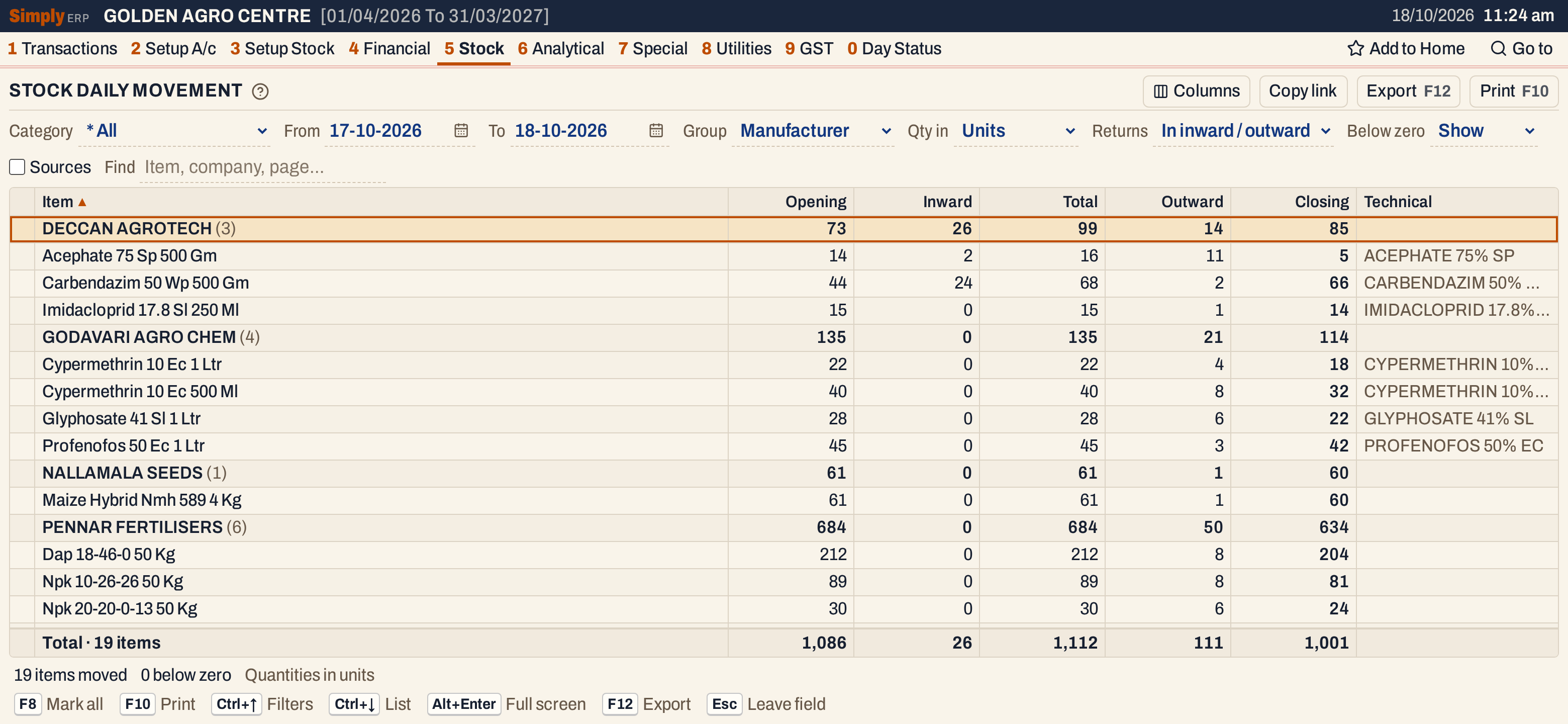 Deccan Agrotech’s three items opened at 73, took in 26, sent out 14 and close at 85.
Open, mark, print and export
- Enter on an item opens its Stock Ledger for the same period. On a source line that came from a bill, it opens the saved bill. Goods received on a challan have no bill to open.
- F2 marks an item and F8 marks them all. F10 then prints only the marked items, with their source lines.
- F10 prints the report as it is on the screen, titled STOCK DAILY MOVEMENT STATEMENT. The heading gives the category (* All when none is chosen) and, for a pesticide, fertilizer or seed category, the licence number from Company Details, then the period, the unit and your choices.
- F12 saves it as an Excel workbook.
- Type letters in the list to jump to the next item that begins with them.
- Alt+Enter gives the whole window to the list.
Updated 4 November 2026.