Enter opening stock
On this page
Opening stock is the stock an item already holds on the day you start using SimplyERP, counted batch by batch. You enter it once for each item, with the batch number, the dates printed on the pack and the quantity. After that, purchases, sales and returns move the stock from there.
Opening stock does not post anything to your accounts. It sets quantities in the stock records only.
Open Opening Stock
Press Alt+3 for the Setup Stock menu, then G for Opening Stock.
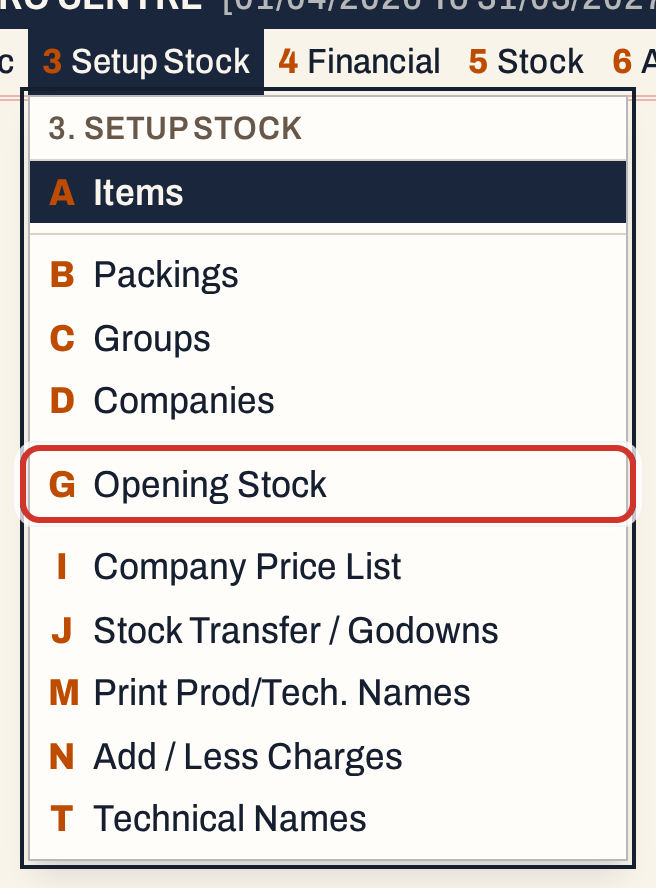 3 G: Setup Stock, Opening Stock.
The screen opens with nothing chosen. Opening stock is entered for one item at a time.
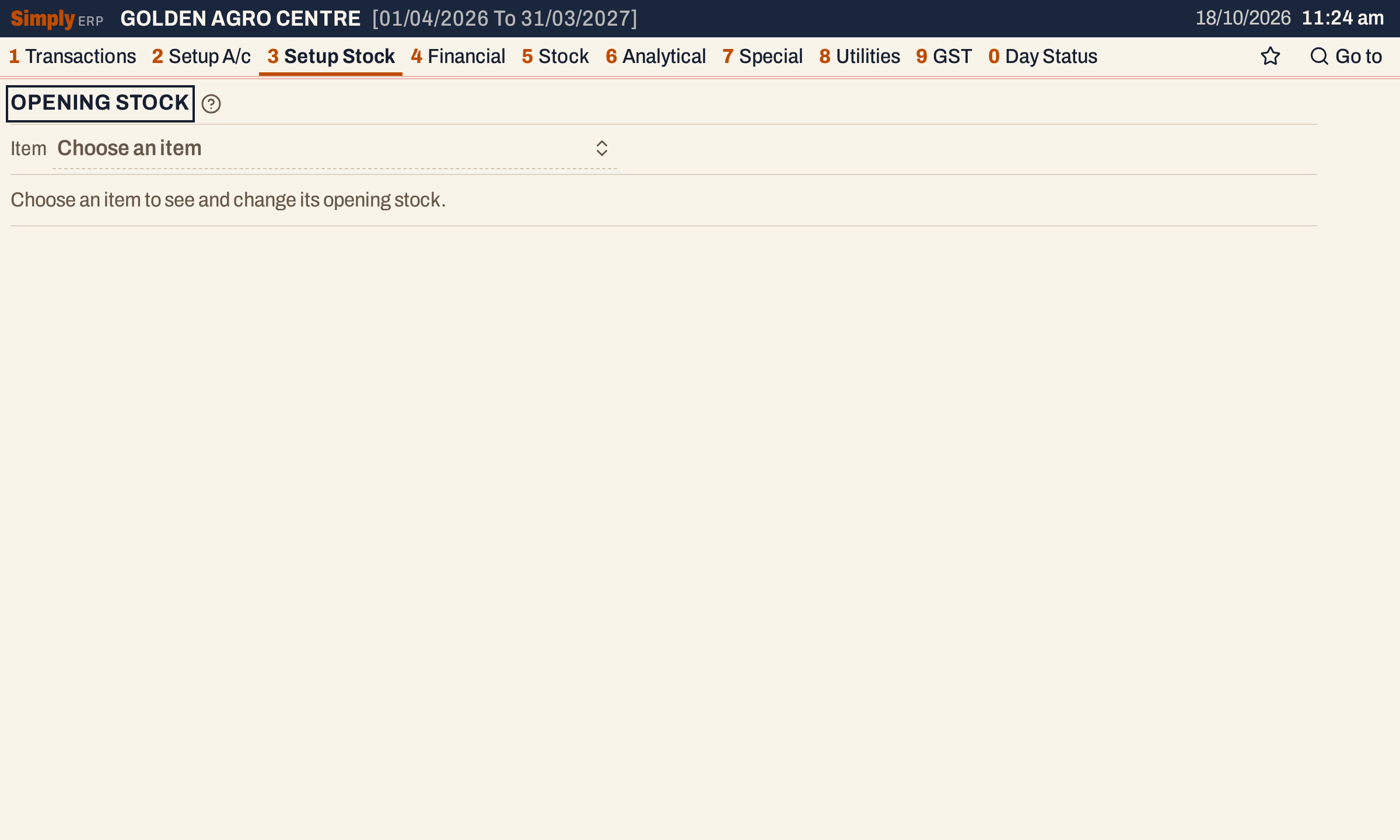 Choose an item to see and change its opening stock.
Choose the item
Click the Item field and type part of the name. A list opens over the screen and narrows as you type; each line shows the item’s name and code. Enter takes the highlighted item. Only stock items are listed, not charges.
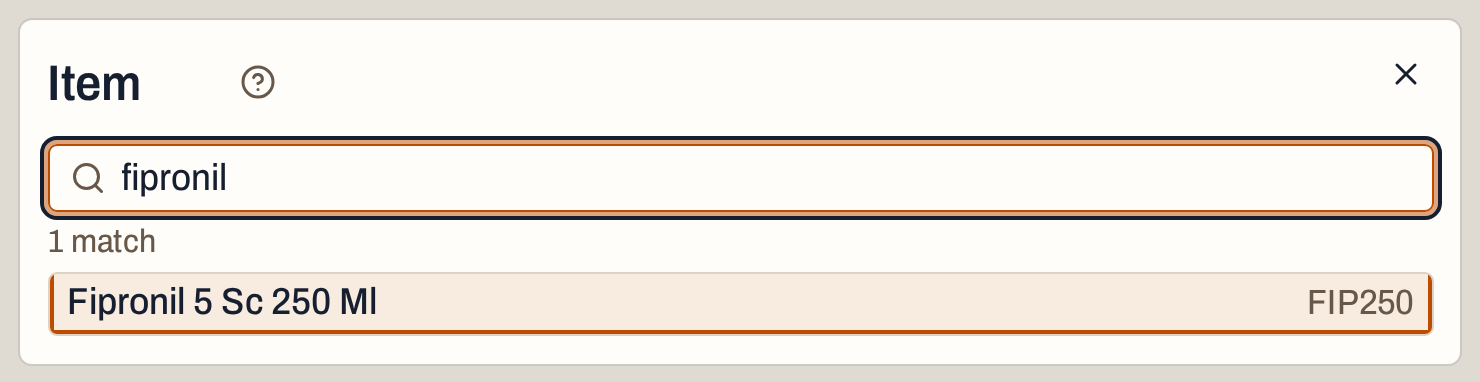 A new product has to be saved as a group first, see Add a stock group.
Beside the item, the screen shows In stock, the quantity the item holds now, and Opening, the opening stock saved for it. A new item has no batches yet.
 The batches list is empty: F9 adds a batch.
Add the batches
Press ↓ to go into the batches, then F9 to add one. Each batch is one line:
- Batch is the batch number, up to 30 characters. It is required.
- Mfg and Exp are the manufacturing and expiry dates, typed as DD/MM/YYYY. A two-digit year is read as 20YY. Either can be left blank. If both are typed, the expiry cannot be before the manufacturing date.
- Quantity is the number of units in the batch, 0 or more.
Type a value and press Enter to keep it and go to the next field; Esc drops the change. Press F9 again for the next batch. Changed fields stay highlighted until you save.
Below the batches, the line says how many batches there are and their total. While you have unsaved changes it also shows what saving will do to the item’s stock.
 Two batches, 60 units in all. Saving will change the stock by +60.
Save
Press F3 (or click Save). The item’s batches are saved and its stock changes by the difference between the new opening total and the old one. Here the stock goes from 0 to 60.
 In stock and Opening both show 60.
Saving replaces the item’s opening batches with the lines on the screen. A batch you leave out opens with 0. A batch typed with the same number and the same dates as one the item already has is that batch; a new number or new dates make a new batch. Once a batch is saved, its number cannot be edited; its dates can, until a bill or stock line names it. Stock that bills and purchases have since moved is kept: only the difference is applied.
The new stock shows at once wherever stock is listed. A sale bill’s item list shows it in the Stock column, and each batch is listed when you choose the batch on a bill line.
 The item now shows 60 in stock on a sale bill.
Stock Statement and Stock Ledger start from the item’s opening stock.
When the batch is already on bills
A batch that bills, goods in or out, or damages already name is printed on them, so SimplyERP protects it. Choose such an item and the grid adds two columns: Gone out, what has left the batch, and On hand, what it holds now.
 The line under the grid counts the bill and stock lines that name the batch.
For such a batch:
- its number and dates cannot be changed;
- it cannot be removed (Ctrl+Delete says so and leaves it in);
- its opening quantity can change, but not below what has gone out of it.
 An opening of 20 is refused because 30 have gone out.
If a batch was opened with too little, raise the quantity here. To add stock that came in after you started, enter a purchase bill instead, see Make a purchase bill.
If the batches you entered do not add up to the item’s opening stock, a red line beside the item says how many units they are short or over. Saving the batches makes the two agree.
Open it from the group form
On the group form (3 C), Alt+O opens Opening Stock on the packing under the cursor. Esc there returns to the group.
 The item is already chosen. Back to group (Esc) returns to the form.
What saving does to your books
| Record | Change |
|---|---|
| Accounts and the ledger | Nothing is posted |
| Each batch | Its opening quantity is set to what you typed, and its stock on hand moves by the difference |
| The item | Opening is the total of its batches, and its stock on hand moves by the same difference |
The item’s value comes from its opening price, which is not set here: it is the Op. price on the item’s packing line in its group, see Add a stock group and Item prices and codes. Stock kept in godowns is divided between them in Godowns and stock transfers.
Keys on this screen
| Key | What it does |
|---|---|
| ↓ | From the Item field into the batches |
| Enter | Edit the field, keep it and go to the next |
| F9 | Add a batch |
| Ctrl+Delete | Remove a batch that is on no bill or stock line |
| F3 | Save |
| Esc | Drop the field you are editing; from the group, back to the group |
| Alt+O | On the group form: open the packing’s opening stock |
| F1 | Help for the screen |
On a Mac, ⌘ stands for Ctrl and ⌥ for Alt.
Common questions
I typed the wrong quantity and saved. Can I fix it? Yes. Choose the item again and change the quantity. The stock changes by the difference. If the batch is on bills, the quantity cannot go below what has gone out of it.
Can I change the item while I have unsaved changes? No. The Item field is locked until you save or press Discard.
Where do I enter stock that I buy later? On a purchase bill. Opening stock is for what you held when you started.
Does opening stock need a manufacturing date? No. Both dates are optional, but expiry dates help the batch lists on bills put the nearest expiry first.
Updated 4 November 2026.