Receive goods before the bill (Goods in and out)
On this page
Goods sometimes reach the shop before the supplier’s bill does: they come on a delivery challan (D.C.), and the bill follows days later. Goods In / Out records them on the day they arrive, so they are in stock and can be sold at once. When the bill comes, you link its lines to what you already received, so the same units are not added to stock a second time.
Open the register
Press Alt+1 for the Transactions menu, then P for Goods In / Out (D.C.).
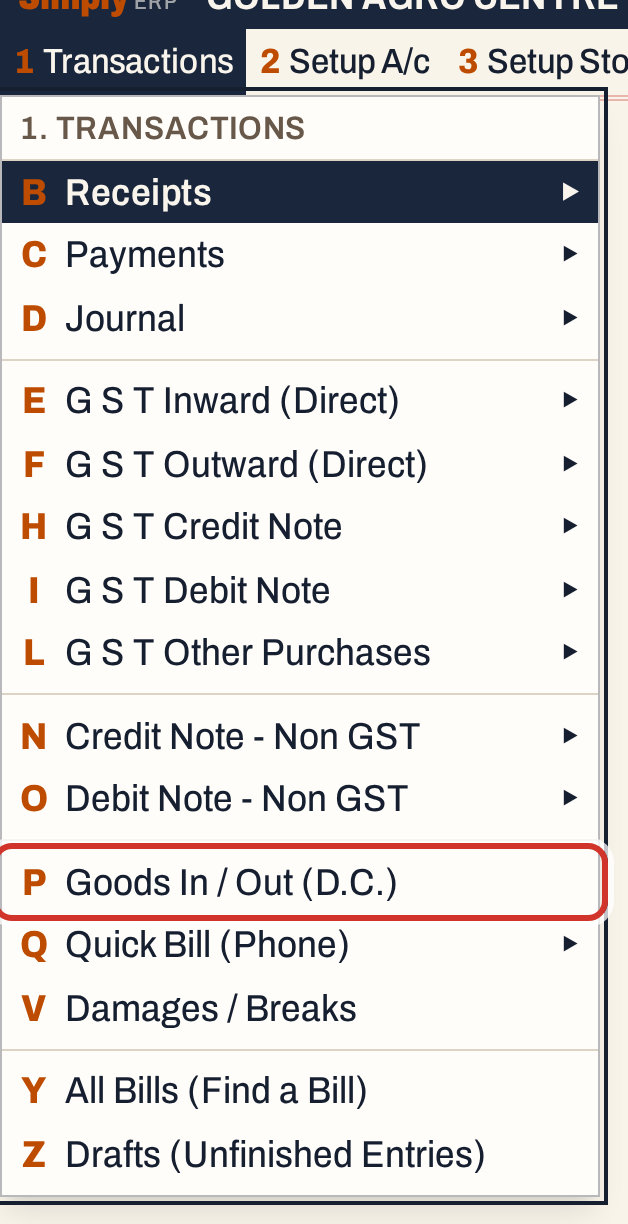 1 P: Transactions, Goods In / Out (D.C.).
The register lists the entries of the period, oldest first. The period starts as the financial year to date, from 01-04-2026 here. The cursor starts on From.
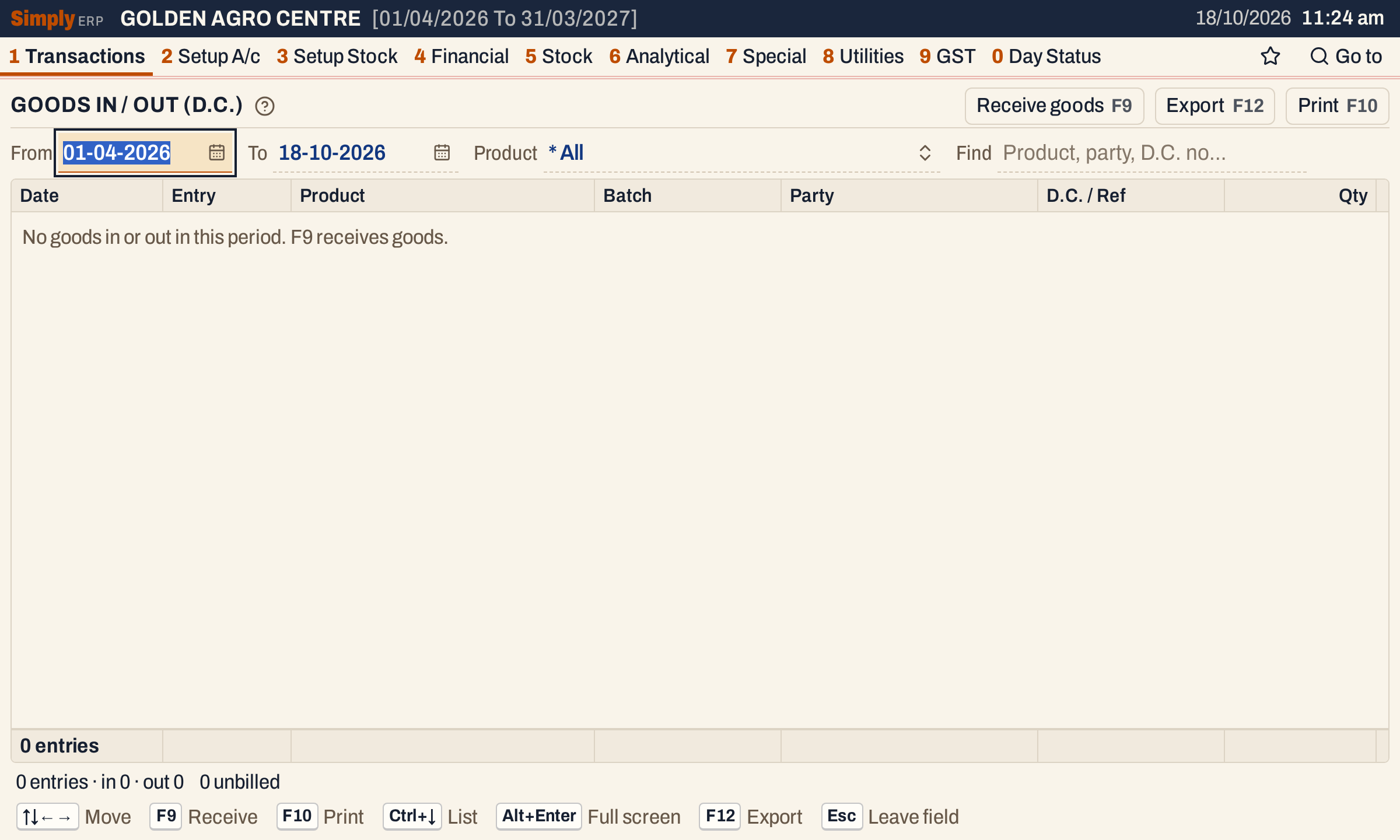 A new register. F9 receives goods.
| Choice | What it does |
|---|---|
| From, To | Show the entries dated between these days |
| Product | Show one product only. * All shows every product. |
| Find | Keep the entries that match what you type in the product’s name or code, batch, party, reference or D.C. number |
Receive goods
Press F9. The entry opens on the lines above the register. Enter moves from field to field.
Product. Type part of the item’s name or code, then Enter on the item. Only items are listed, not other kinds of entry.
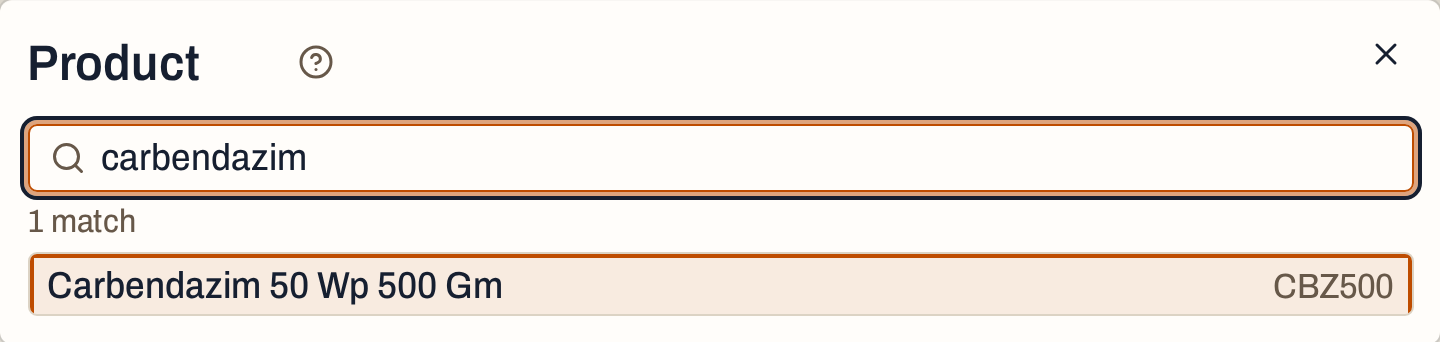 The list narrows as you type.
When the item is chosen, the screen shows its stock In stock, so you see what is on hand before the goods go in.
| Field | What to enter |
|---|---|
| Date | The day the goods arrived. It starts on today’s working date and must fall in the financial year. |
| Qty | The units received. It must be above zero. |
| Cases, Per case | For goods counted in cases. Per case starts from the item’s units per case. |
| Party | The supplier, if you know it. It can be left empty. When it is set, only a bill for that party can take the goods. |
| D.C. No | The number of the delivery challan |
| Ref | A reference of your own |
| Batch | A batch the item already has, or New / no batch |
| New batch, Mfg, Exp | For a new batch: its number and its manufacturing and expiry dates as DD/MM/YYYY. SimplyERP refuses an expiry date before the manufacturing date. A new batch is made when you save. |
| Quoted price | The price the supplier quoted, if you want to record it. It starts as Not recorded. |
| Note | A note about the delivery |
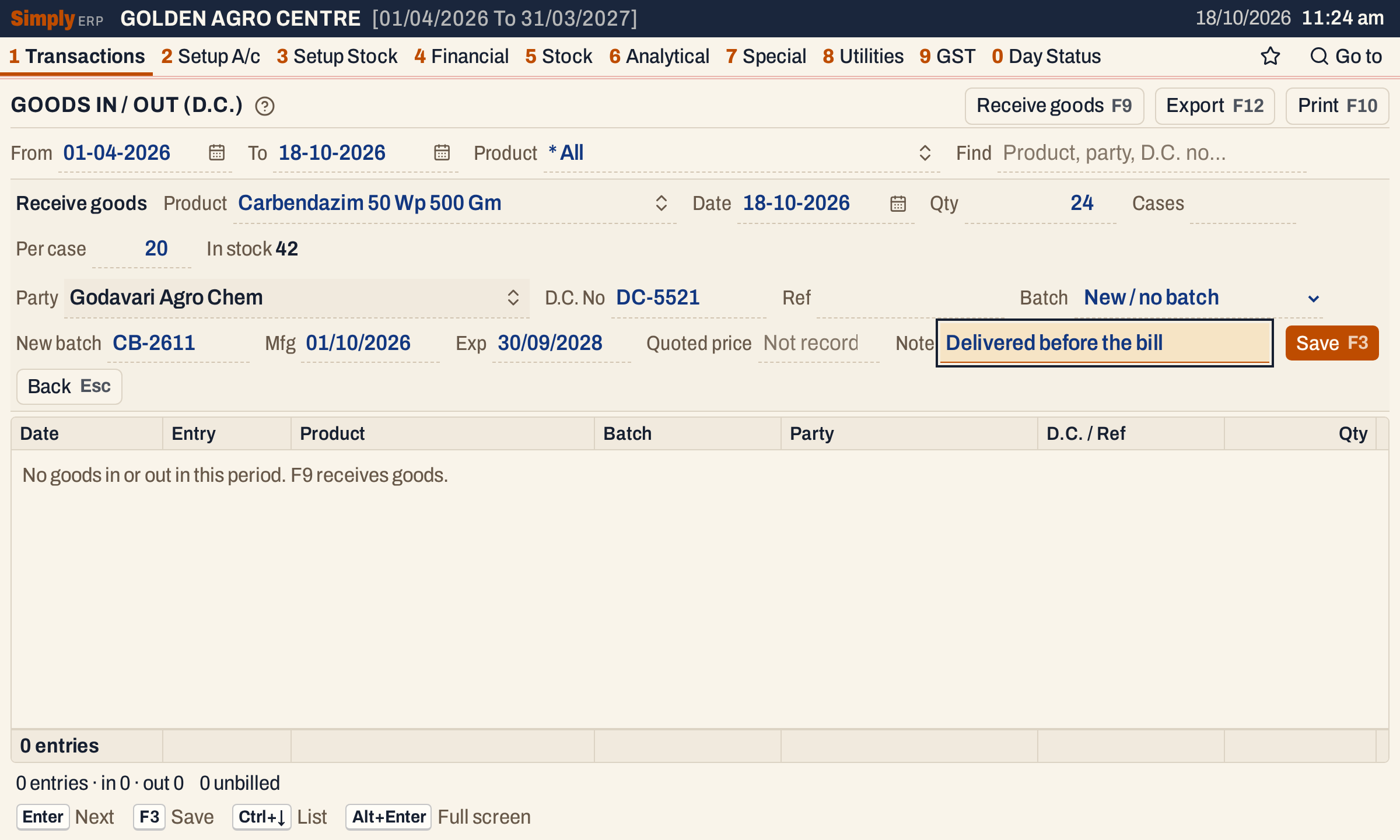 24 units of a new batch, ready to save. The item has 42 in stock.
Press F3 to save. Esc goes back to the register without saving.
The entry is added to the register.
| Column | What it shows |
|---|---|
| Date, Entry | The day, and In for goods received (Out for goods sent) |
| Product, Batch, Party | The item, its batch and the party |
| D.C. / Ref | The D.C. number, or the reference when there is no D.C. number |
| Qty | The units |
| Unbilled | The units no bill has taken yet |
| Bills | The numbers of the bills that took the goods |
The footer counts the entries and adds up the units in and out and the units unbilled.
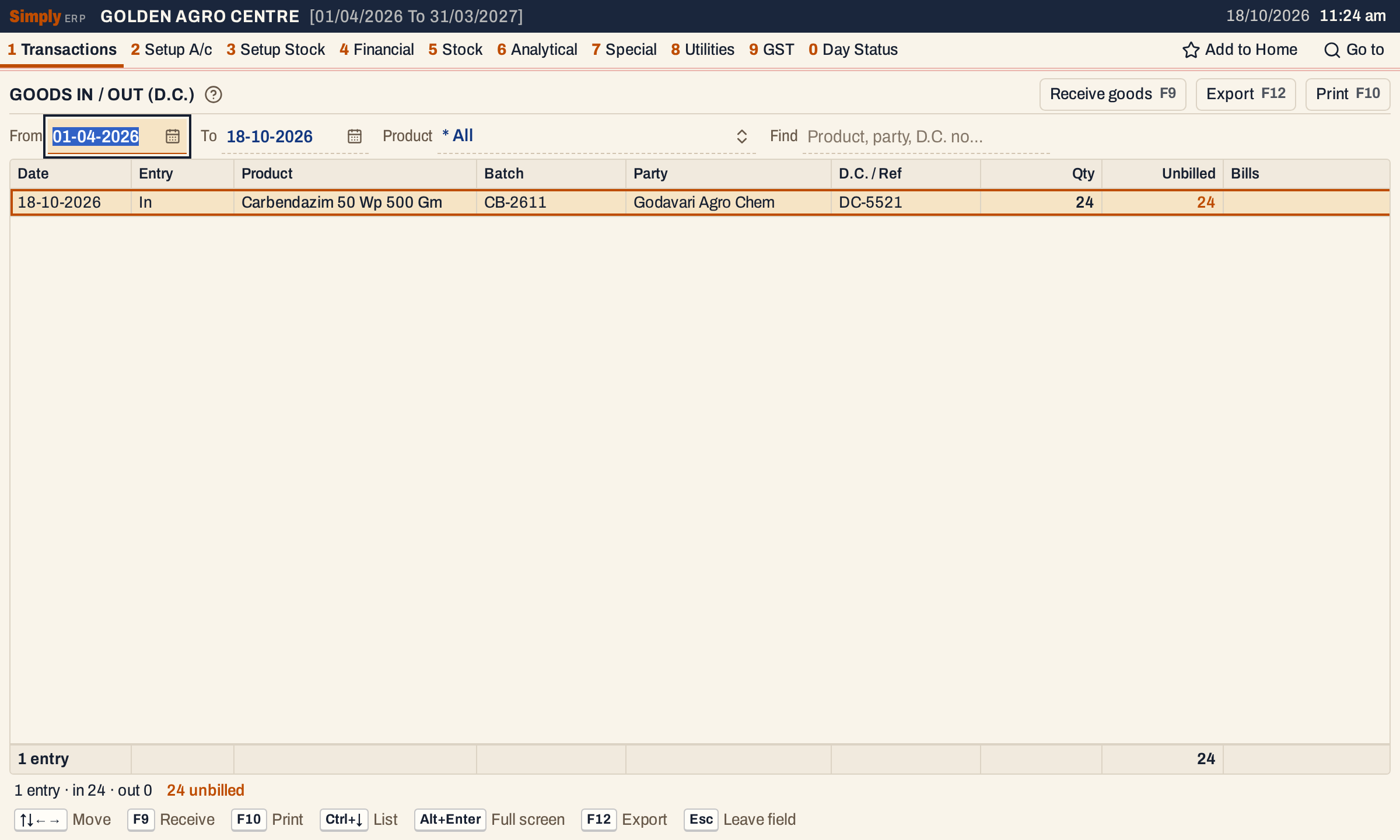 24 units received and 24 unbilled.
The goods are in stock from this moment. The next time you press F9 for the same item, In stock shows 66: the 42 it had and the 24 received.
 42 in stock before, 24 received, 66 now.
Link the goods to the purchase bill
When the supplier’s bill arrives, enter it as a purchase bill. Add the item’s line and its units, as you would for any purchase. On a purchase bill each line has a D.C. column. Click Link in it.
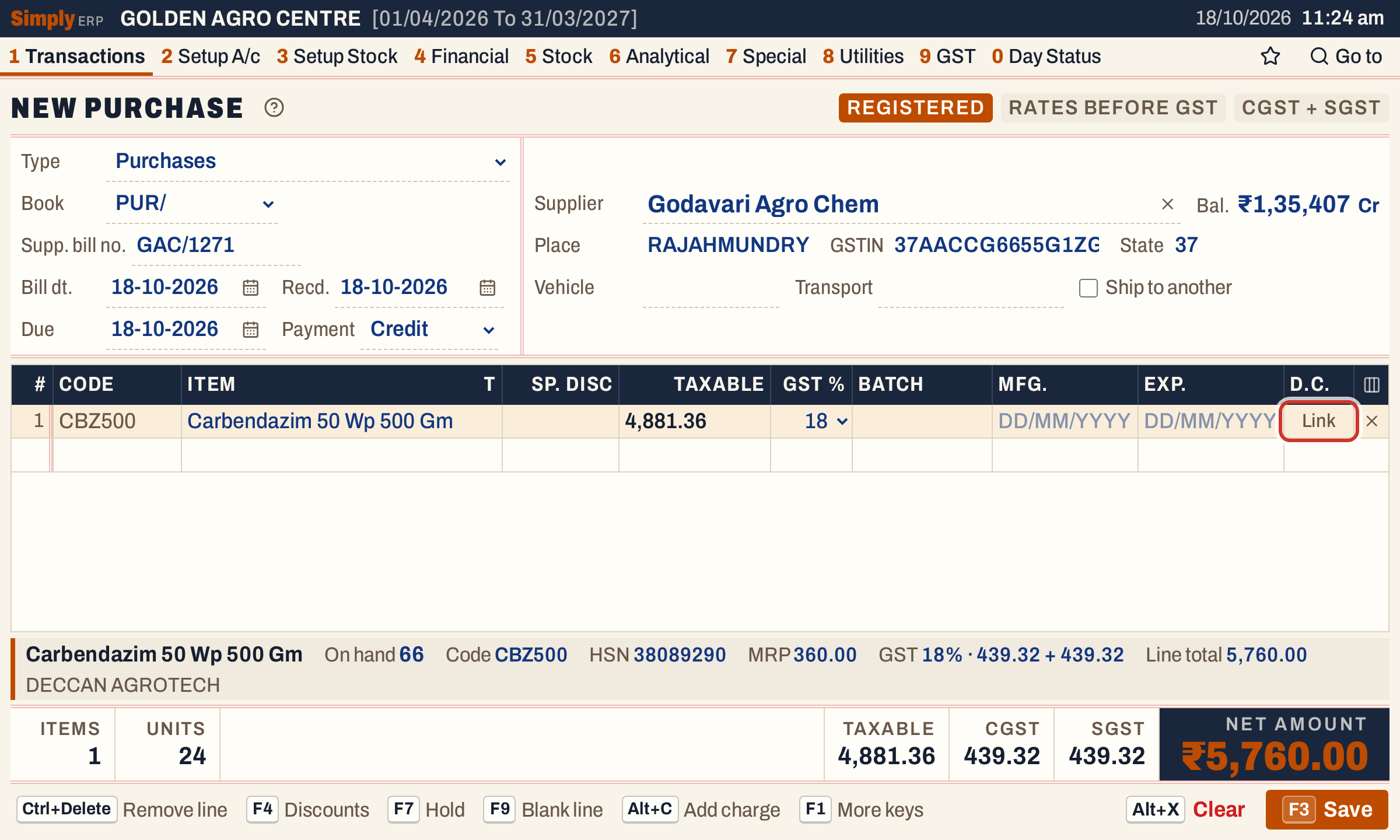 The line has 24 units and no batch yet. The D.C. cell says Link.
A window titled Goods already received, with the item’s name, opens for the line. Open the Goods already received heading in it. Add an existing goods entry opens a list, headed Add recorded goods, of the entries that can be linked to this line:
- the same product;
- received from the bill’s supplier, or with no party;
- with units still unbilled;
- once one entry is linked, only entries of the same batch.
Each choice is named by the entry’s Ref, or by its date when it has no Ref, and shows its batch and the units still unbilled. The D.C. number is not shown there. The search box finds an entry by reference, date or batch.
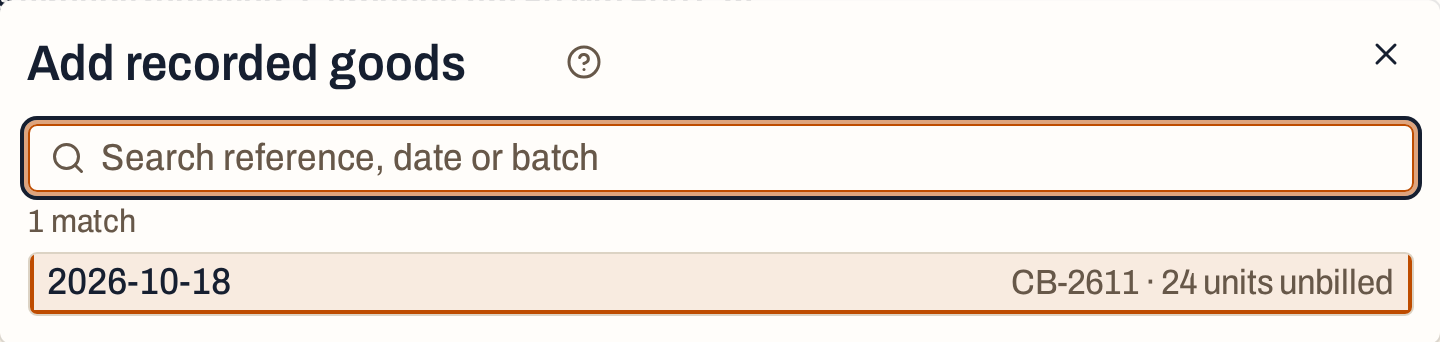 One entry is waiting to be billed.
Choose the entry. It is linked for the units the line still needs, up to what is unbilled; Linked quantity can be changed, and Unlink takes the link off. Stock to move shows the units of the line that no link covers.
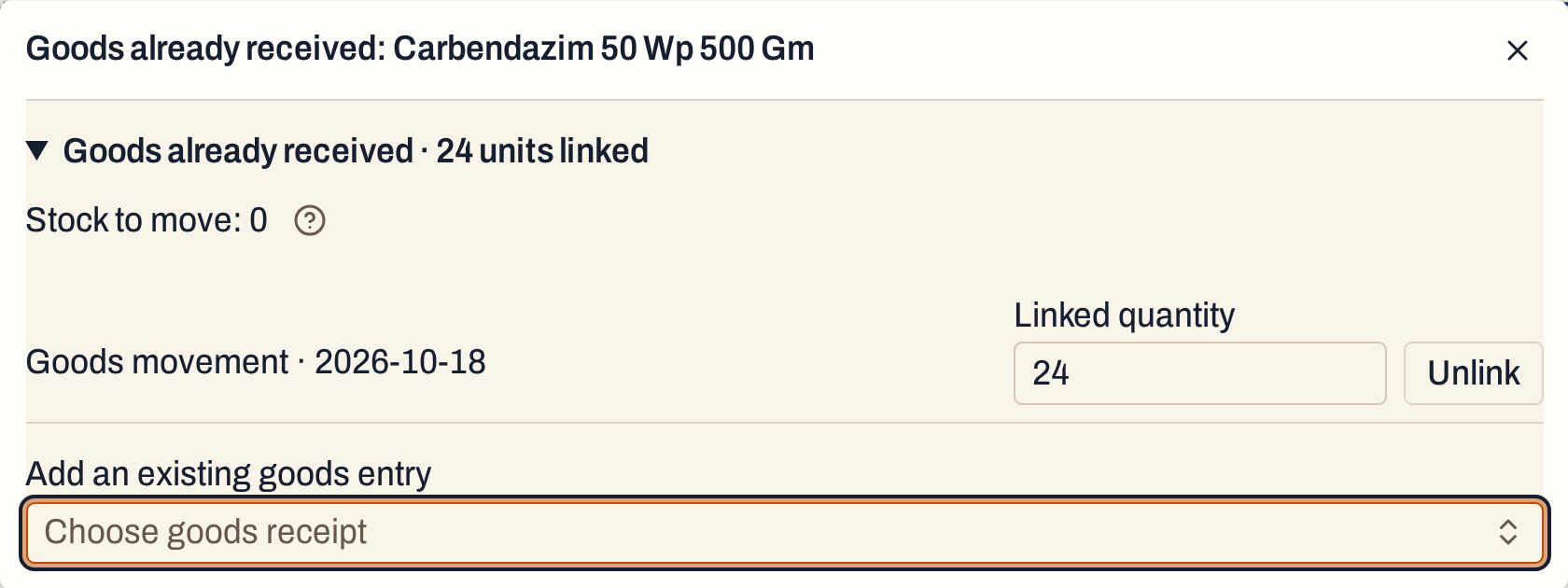 All 24 units are covered, so the bill moves 0 units into stock.
Close the window. The line takes its batch and the dates from the entry, and the D.C. cell shows the units linked.
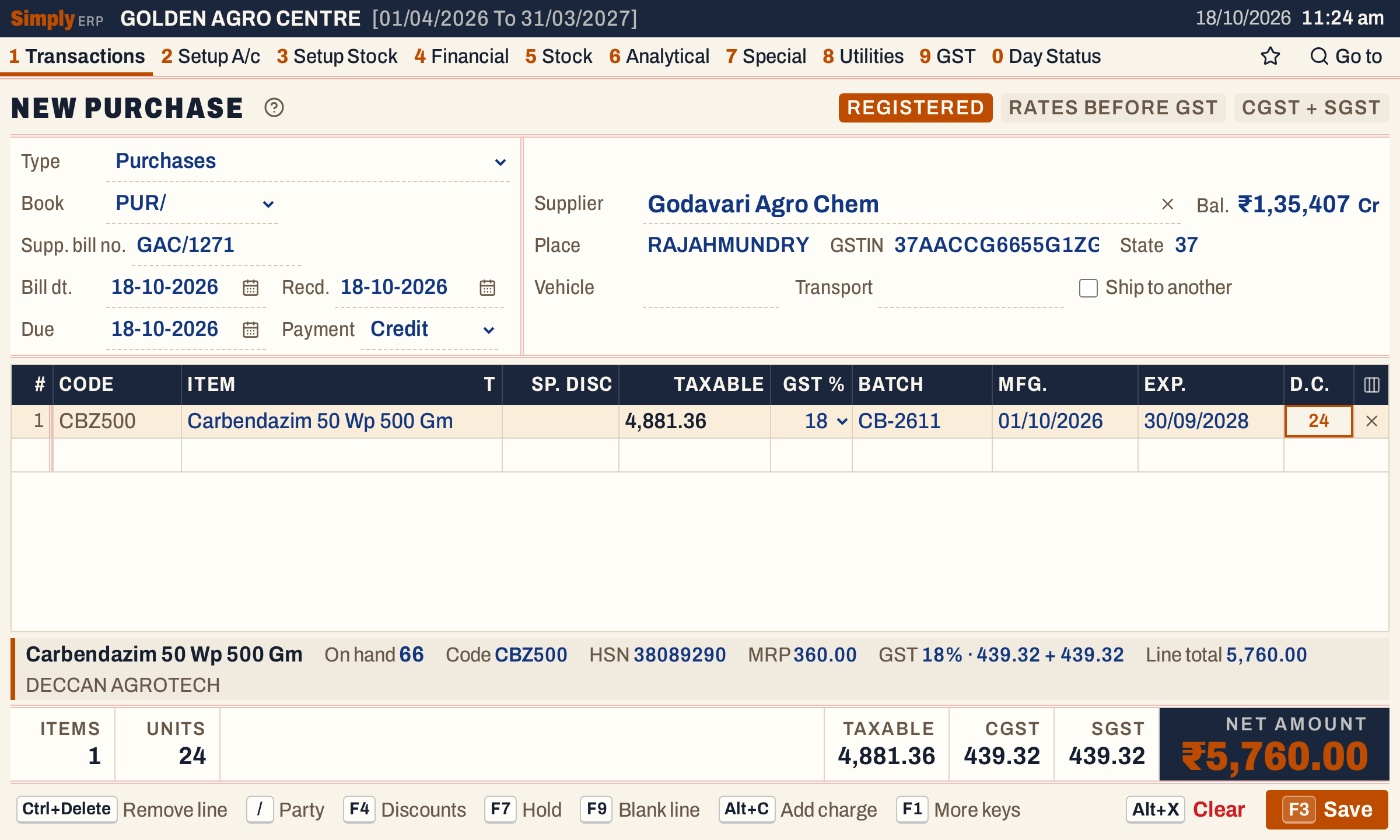 The batch and dates come from the goods entry.
The same bill can link several entries to one line, and several lines can each link their own. Linked units cannot be more than the line’s units. Press F3 to save the bill.
What saving the bill does
The bill is posted as any purchase bill: the purchase, the GST and the amount you owe the supplier. The difference is in stock. Only the units the links do not cover are added to stock; the linked units were added when you received them. In this example 24 units are linked out of 24, so the bill adds nothing, and the stock stays at 66.
The register now shows the entry as billed: Unbilled is 0 and Bills names the bill.
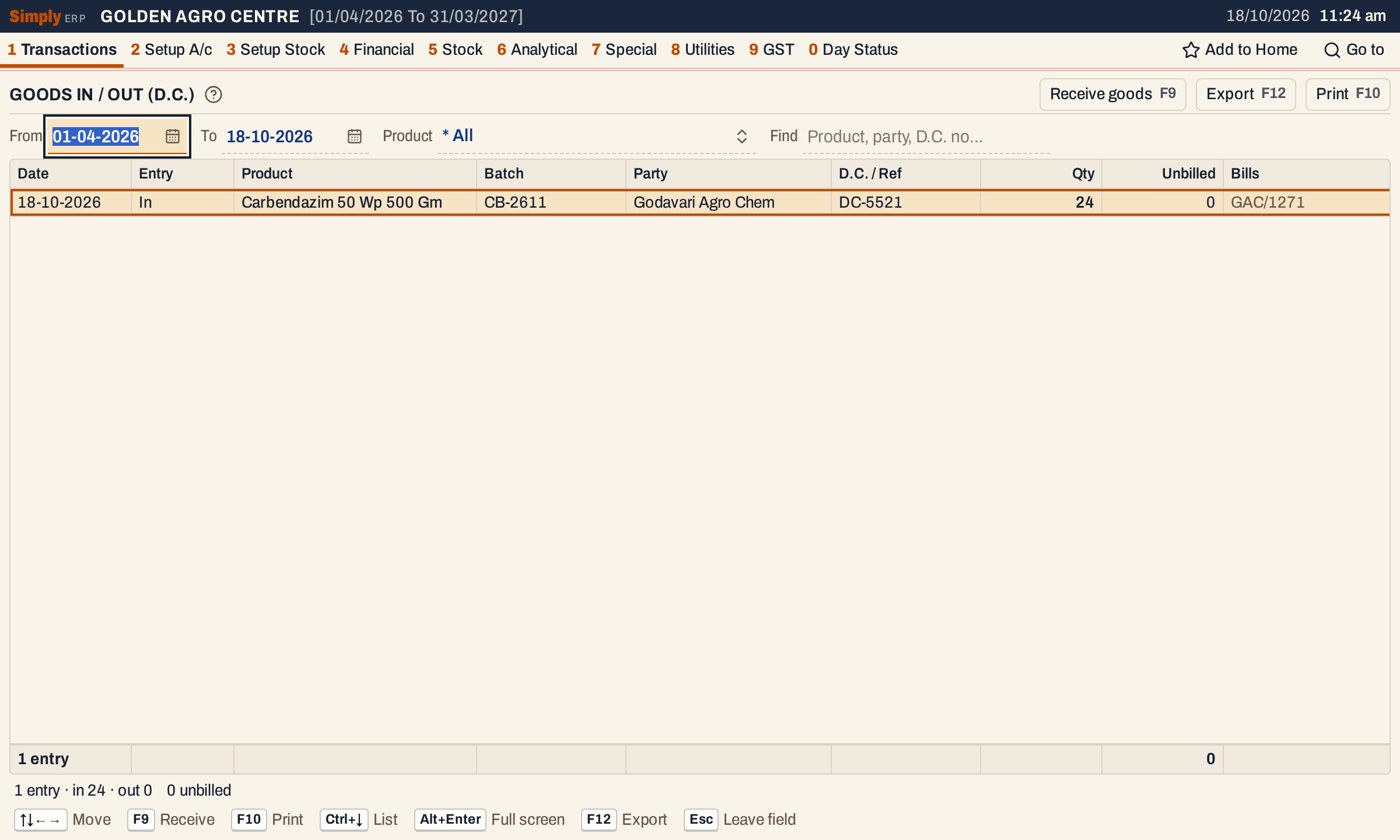 Billed on GAC/1271. Nothing is left unbilled.
Stock is still 66: the goods were counted once.
If you delete the bill, its links are released and the entry is unbilled again. The Pending DC List lists the goods that are still waiting for their bill.
Change an entry
Move to the entry and press Enter. The same line opens with its values. Change them and press F3; the stock follows the new quantity.
 The entry opens with its values; the quantity is changed to 5.
Once a bill has taken goods, the entry keeps its product, batch, party and direction, and its quantity cannot go below the units billed. Remove the link from the bill first to change those.
Delete an entry
Move to the entry and press Ctrl+Delete. A line asks you to confirm, and the cursor is on Delete. Press F3 or Enter to delete, or Esc to keep it.
 Deleting takes the units out of stock again.
 The units come off the stock.
An entry that a bill has taken cannot be deleted. SimplyERP names the bill instead. Press F4 on the entry to open that bill, and remove the link there.
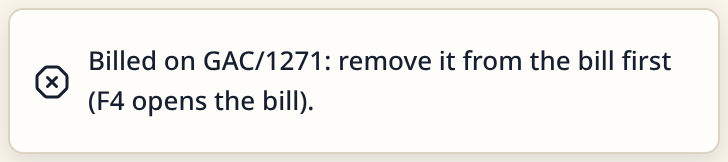 A billed entry is protected until the bill releases it.
Print and export
F10 prints the list as it stands, with the unbilled total, and F12 exports it; the export also has the bills’ numbers. When an admin PIN is set, changing and deleting an entry asks for it. Receiving goods does not.
Keys on this screen
| Key | What it does |
|---|---|
| F9 | Receive goods |
| Enter | In the list, change the entry; in the entry line, go to the next field |
| F3 | Save the entry |
| Ctrl+Delete | Delete the entry (asks first) |
| F4 | Open the bill that took the entry |
| Ctrl+↓ | From the choices to the list |
| F10 | |
| F12 | Export |
| Esc | Leave the entry line, or the register |
Common questions
Do I have to use this screen? No. If the bill arrives with the goods, enter the purchase bill alone and leave the D.C. column empty.
What happens if I enter the bill without linking the goods? The bill adds its units to stock, so the same goods are counted twice, and the entry stays unbilled. Link the goods in the bill’s D.C. column, or edit the bill and link them.
The goods came from a supplier I did not name. Leave Party empty. An entry with no party can be linked to a bill from any supplier.
Updated 4 November 2026.