All Bills
On this page
All Bills is the register of every bill and note saved in your books for the financial year so far: sales, purchases, returns, credit and debit notes and other purchases. Type part of a party’s name or a bill number in Find to reach one bill. Then open it, change it, or mark bills to print them or to export the list to Excel.
Open the report
Press Alt+1 for Transactions, then Y for All Bills (Find a Bill). The list opens for the financial year from its first day to today, newest bill first, with the cursor in Find.
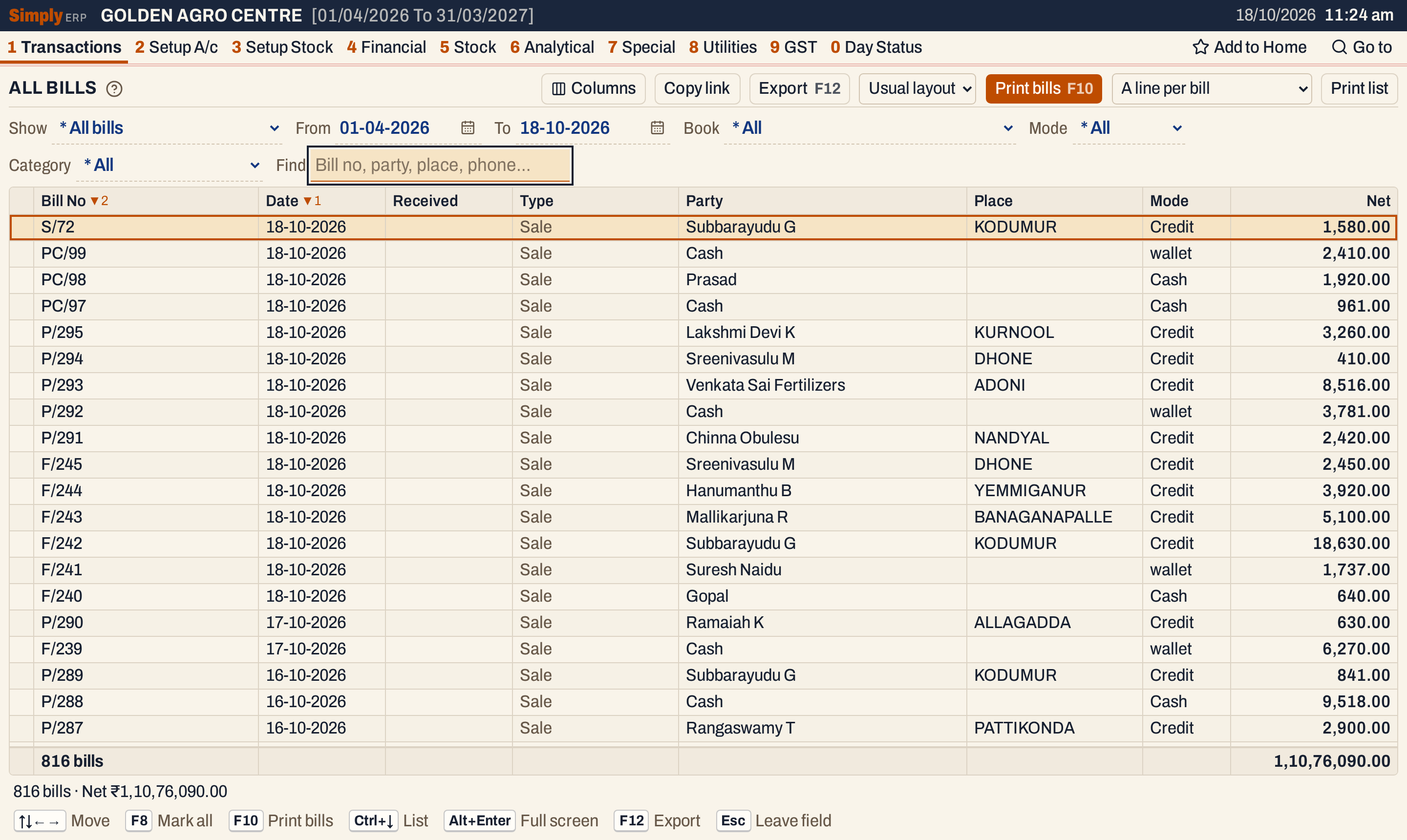 All Bills on the books’ last day: 816 bills, net ₹1,10,76,090.00. Category and the tax columns are switched off here with Columns, so that Net sits beside Mode on this window.
What it lists
One line for each bill or note saved in the books, of every kind: sales, purchases, sales returns, purchase returns, GST credit and debit notes, and other purchases. A line is one bill, not one item on it.
- A bill is listed on the day it entered the books. Your own bills (sales, purchase returns, notes you issue) enter on their own date. A bill the other party dated is listed on the day you received it: a purchase, a sales return, a credit or debit note received, or an other purchase. The party’s own date stays on the bill (see Received below).
- The period is the one in From and To, and both days are included.
- Receipts, payments, journals and non-GST credit and debit notes are not bills. They are in All Vouchers.
Columns
A column shows only when some bill in the list has a value in it, so a list of sales has no Type column, and a list in which every bill was received on its own date has no Received column. Bill No, Date, Party and Net always show. Columns lists the columns the list can show.
| Column | What it shows |
|---|---|
| Bill No | The bill’s number, such as P/290, in its book’s series. Sortable. |
| Date | The date on the bill. For a bill the other party dated, the party’s own date. Sortable. |
| Received | The day you received a bill the other party dated, when that is not the date on the bill. |
| Type | The kind of bill: Sale, Purchase, Sales return, Purchase return, Credit note issued and so on. Shown when the list has more than one kind. |
| Book | The bill book the bill was made in, such as Pesticide Sales. Off by default; switch it on in Columns. |
| Party | The customer’s or supplier’s name. Sortable. |
| Place | The party’s place. Sortable. |
| GSTIN | The party’s GSTIN. Off by default; switch it on in Columns. |
| Mode | Cash or Credit, as the bill was saved. A bill saved with another mode, such as card or wallet, shows that mode. |
| Category | The item categories of the bill’s lines, separated by commas. |
| IRN | A tick when the bill’s e-invoice is in force, and Cnl when it was cancelled. |
| EWB | A tick when the bill’s e-way bill is in force, and Cnl when it was cancelled. |
| Taxable | The bill’s taxable value. |
| CGST, SGST, IGST | The tax on the bill. Each shows when some listed bill has it. |
| Add | Other charges added to the bill, such as freight. Off by default; see Add discounts and charges to a bill. |
| Less | Other deductions taken off the bill, such as a cash discount. Off by default. |
| Net | The bill’s net amount. Sortable. It stays at the right edge when the list scrolls sideways. |
The line under the list gives the number of bills and the total of each figure column.
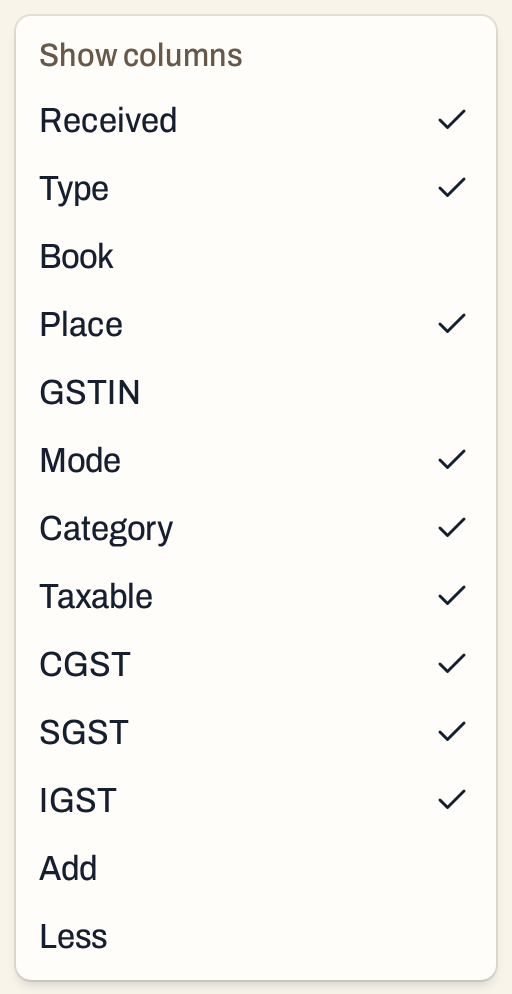 Columns lists only the columns this list can show. Book, GSTIN, Add and Less are off until you tick them. IRN and EWB are not listed because no bill here has an e-invoice or an e-way bill.
Choices
| Choice | What it does |
|---|---|
| Show | The kind of bill: * All bills (the default), G S T Outward (sales and purchase returns), G S T Inward (purchases and sales returns), Sales, Purchases, Sales returns, Purchase returns, Credit notes, Debit notes, Credit and debit notes or Other purchases. Changing Show clears the marks. |
| From, To | The period. They open as the financial year’s first day and the working date. If you set a date that goes past the other, both dates become the one you typed. |
| Book | Shown when the period’s bills use more than one bill book. * All or one book. |
| Mode | * All, Cash or Credit. A bill saved with card or wallet is listed under * All only. |
| Category | Shown when the period’s bills have more than one item category. A bill is listed when one of its lines is in the category you choose. |
| Find | Narrows the list as you type. Every word you type must match a part of the bill’s number, party, place, phone number, GSTIN or book. A word of three or more characters that is not all digits also matches when its letters come in that order, close together. |
 Show picks the kind of bill. From and To give the period, which opens at the financial year’s first day.
 Category and Find sit on the second line of the choices. Find is empty until you type in it.
Type a word in Find and the list narrows as you type. Find on ramaiah lists the 18 bills of Ramaiah K, newest first, with their net total of ₹92,123.00 in the status line.
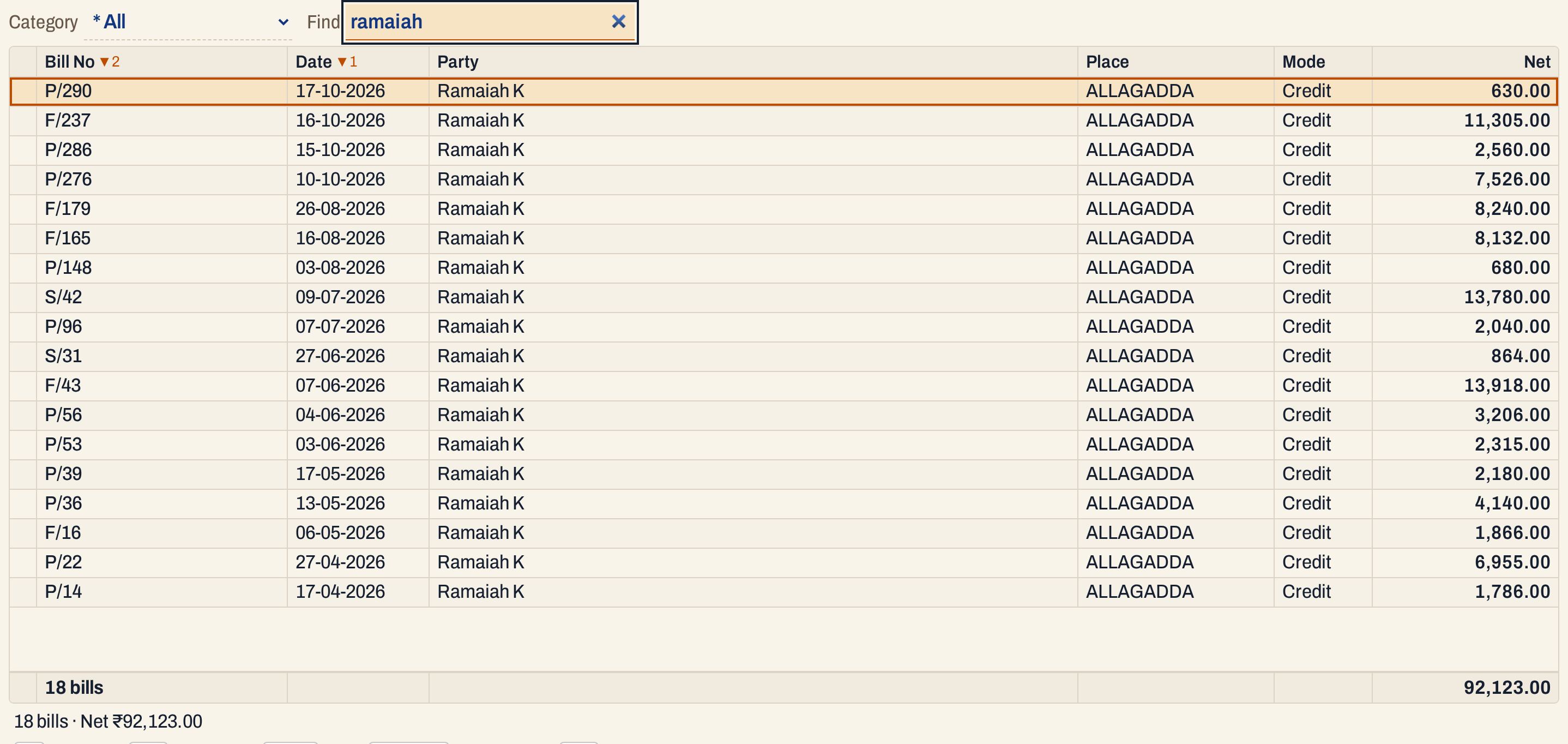 The bills of one party, and the count and net total of the bills listed. Category and the tax columns are off here, as in the first picture.
Sort. Click a column title to sort by it, and click it again to reverse the order. Net starts with the largest first. Shift+click adds a second key, up to four. The list starts with the newest date first and, for the same date, the highest bill number first.
How the figures are worked out
- Which bills: a bill is in the list when the day it entered the books is within From and To. For a bill the other party dated, that is the day you received it. The Date column still shows the party’s own date, and sorting by Date uses it.
- Taxable, CGST, SGST, IGST, Add, Less and Net are the amounts saved on each bill. The register does not work them out again. Taxable is the value of the item lines after their discounts. Add and Less are the charge lines of the bill. Net = Taxable + CGST + SGST + IGST + Add − Less.
- Totals: each figure column’s total is the sum of the bills listed, rounded to the paisa. The status line gives the number of bills and the total of Net.
- Find, Mode, Category and Book narrow the list before the totals are worked out, so the totals always cover what is listed.
- Category is the set of item categories on a bill’s lines. A bill with items from two categories is listed under both, and its Category column shows both names.
- Mode is the payment mode the bill was saved with. Cash and Credit select only the bills saved with that mode.
- IRN and EWB come from the e-invoice and e-way bill saved on the bill. A tick means in force; Cnl means cancelled.
- Sorting puts the chosen column first. Where the values are equal, the next key decides, and bills still tied follow the direction of the first key.
Open, mark, print and export
- Enter opens the bill. F4 opens it for changes; see Edit a bill. Ctrl+Delete deletes it from its own screen; see Delete a bill.
- F2 marks the bill under the cursor and moves down. Marked bills show a tick, and the status line says how many are marked.
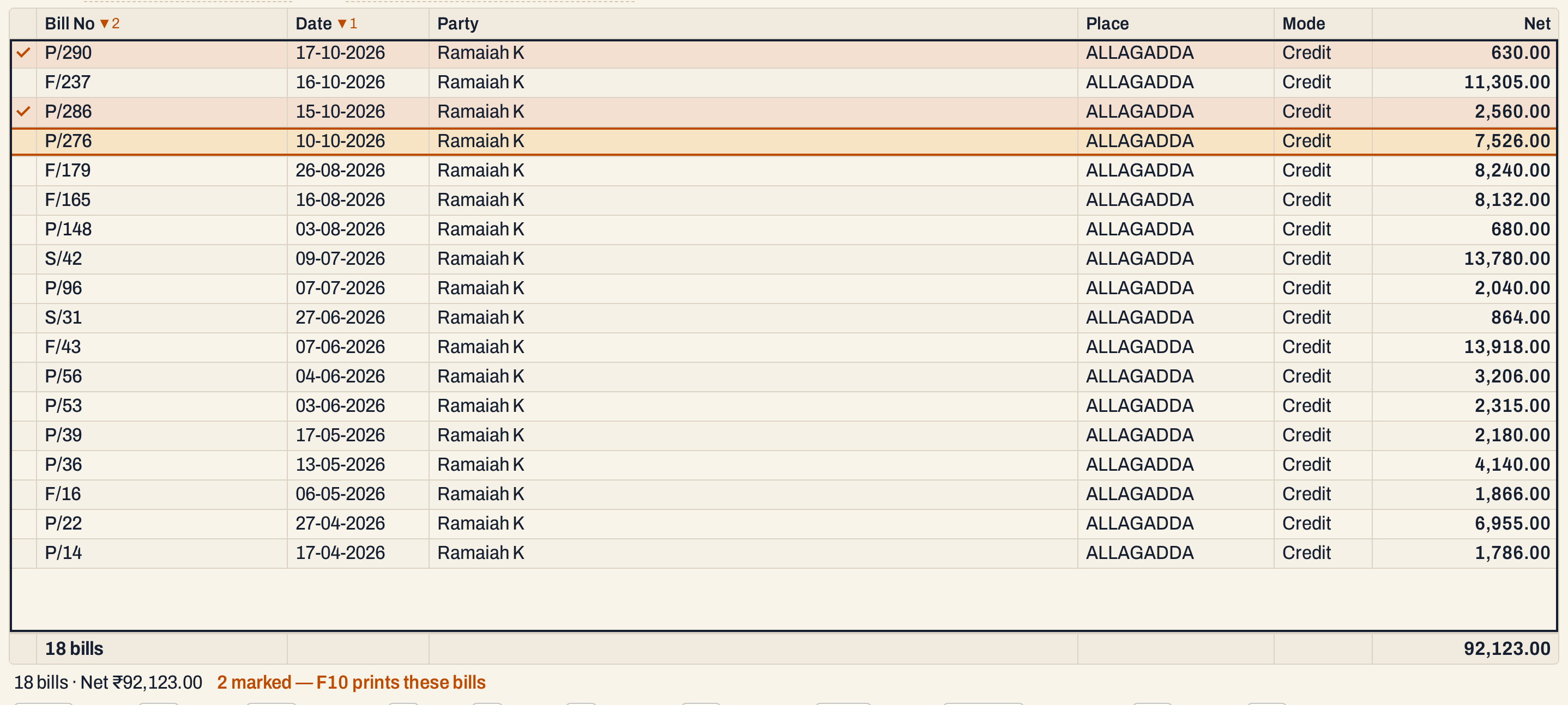 Two bills marked. F10 prints only these; with no bill marked, it prints the bill under the cursor.
- F8 marks every bill in the list. Press it again to clear the marks.
- F10 prints the marked bills, or the bill under the cursor when none is marked, in the Print layout chosen: Usual layout, Full page or Half page. Up to 200 bills print at a time.
- Print list prints the list itself, not the bills, under the heading ALL BILLS - CHECK LIST. It prints the marked bills, or every bill listed when none is marked. Choose the layout in the box beside it: A line per bill, GST % wise (a line per bill and rate of GST under each day, with the day’s totals) or Summary: day × GST % (each day’s totals by rate of GST). The printed list leaves out the Book, Category, IRN and EWB columns; the Excel file keeps them.
- F12 exports the list to Excel. Copy link gives a link that opens the same list with the same choices.
 Usual layout is the Print layout for F10. The check list choice sits beside Print list.
If you press F9 with Show set to one kind of bill, it starts a new bill of that kind. With * All bills there is nothing to start.
Keys on this screen
| Key | What it does |
|---|---|
| Enter | Open the bill |
| F4 | Edit the bill |
| Ctrl+Delete | Delete the bill, on its own screen |
| ↓ or Enter in Find | Move from Find into the list |
| F2 | Mark or unmark the bill, and move down |
| F8 | Mark every bill listed, or clear the marks |
| F9 | New bill of the kind chosen under Show |
| F10 | Print the marked bills, or the bill under the cursor |
| F12 | Export the list to Excel |
| Alt+Enter | Give the list the whole window |
Common questions
Why is a bill missing from the list? Check From and To. A purchase is listed on the day you received it, so a purchase dated in one month and received in the next appears in the period of the day it was received.
Why does a card or wallet bill not show under Cash or Credit? Mode offers only Cash and Credit. A bill saved with card or wallet is listed under * All only.
Where are the changes made to a bill? Changed Bills lists each change made to a saved bill, by the date of the change.
Updated 4 November 2026.