Journal
On this page
The Journal report lists the journal vouchers you have made: the entries that move an amount from one account to another without a bill, a receipt or a payment. Cash deposited in the bank, salary due but not yet paid, a correction between two accounts. Each voucher is listed leg by leg, so you can see which accounts it debited and credited.
Open the report
Press Alt+4 for Financial Reports, then C. The report opens for the financial year from its first day to today. The picture shows 30-09-2026 to 18-10-2026.
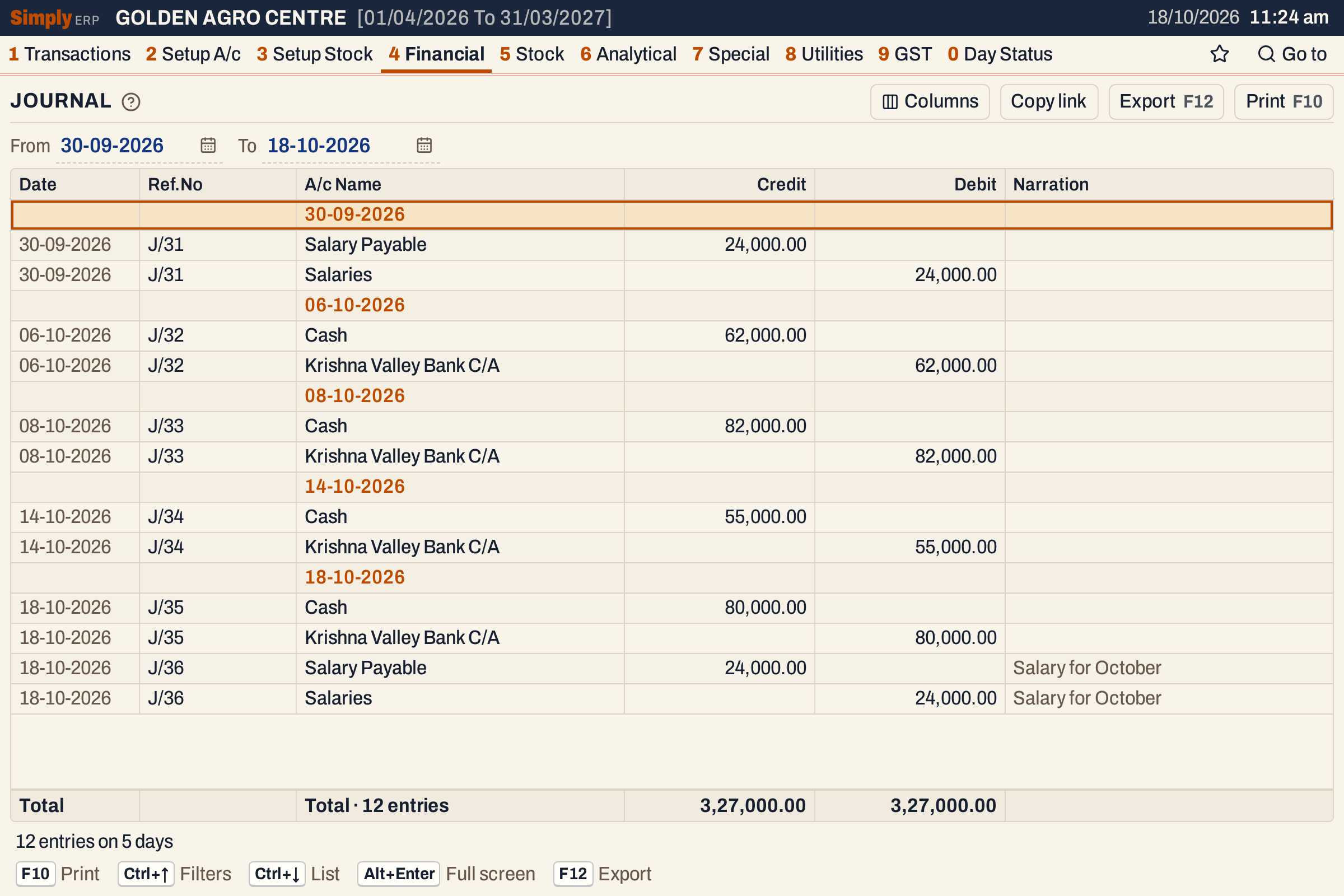 Each day has a heading. Each journal is two or more lines, one for every account it touches.
What it lists
One line for each leg of each journal voucher dated in the period, both days included: the vouchers made in Transactions, Journal (Alt+1, D).
- Receipts and payments are not journals, and are not listed. See the Cash Book and the Bank Book.
- Non-GST credit and debit notes are also made as vouchers of their own and are not listed here.
A journal is saved only when its debits equal its credits, so the two totals at the foot agree.
Columns
| Column | What it shows |
|---|---|
| Date | The date of the journal. |
| Ref.No | The journal’s number, such as J/32. Every leg of a journal carries it. |
| A/c Name | The account of the leg. |
| Credit | The amount, when the leg credits the account. |
| Debit | The amount, when the leg debits the account. |
| Sub A/c Name | The sub account of the row. Shown only when a leg has one. |
| Narration | The narration typed on the leg’s row. The earlier journals in the picture have none typed; J/36 has Salary for October on both rows. |
The first line of each day is its date. The journals of a day come in the order of their Ref.No, read as text. In each journal the credit legs come before the debit legs, each smallest amount first. The totals line at the foot adds the Credit and Debit columns of the legs shown and counts them; the status line says how many entries there are on how many days. Journals have no balance column.
Choices
| Choice | What it does |
|---|---|
| From, To | The period. Both dates must fall in the financial year. |
| Columns | Hides the Date, Ref.No or Narration column (and Sub A/c Name when shown). The print leaves out the Ref.No, narration and sub account too, and the Excel file leaves out all that are hidden. |
 The period, above the grid.
Click a column title (Ref.No, A/c Name, Credit or Debit) to sort the legs within each day, and click again to reverse. The day headings stay where they are. Every choice is kept in the page address, so Copy link gives a link that opens the same report.
How the figures are worked out
Nothing is calculated here: each figure is the amount of a leg exactly as it was saved. A leg is a Credit when the voucher credited its account and a Debit when it debited it. The totals are the sums of the legs shown.
The same legs appear in the Ledger of each account, where a journal’s postings show Journal Entry under Particulars. J/36 above credits Salary Payable 24,000.00 and debits Salaries 24,000.00, so it adds 24,000.00 to what you owe in salary and 24,000.00 to the year’s salary expense.
A journal made as a cash row, such as J/32 which credits Cash and debits the bank for the 62,000.00 deposited, is also in the Cash Book and the Bank Book.
Open, print and export
- Enter on a leg opens the journal voucher, where it can be changed or deleted. Back returns to the same line.
- F10 prints the report headed JOURNAL VOUCHERS, with the period under it. The columns are Ref.No, Particulars, Credit and Debit. A journal’s number is printed on its first leg only, unless you have sorted the lines, and the account name is printed in capitals with the narration and sub account under it. The print ends with the totals.
- F12 saves it as an Excel workbook, with the figures as numbers.
- Alt+Enter gives the whole window to the list.
Updated 4 November 2026.