Record a payment
On this page
A payment records money that went out: a supplier’s bill paid by cheque, the electricity bill paid in cash, a salary. It reduces what you owe the supplier, or books the expense, and lowers your cash or bank balance. The screen is the same as for receipts, with the money going the other way. Every row you fill becomes its own payment with its own number.
Open a new payment
Press Alt+1 for the Transactions menu, C for Payments, then N for New Entries. M (View / Modify / Delete / Print) lists the payments already saved.
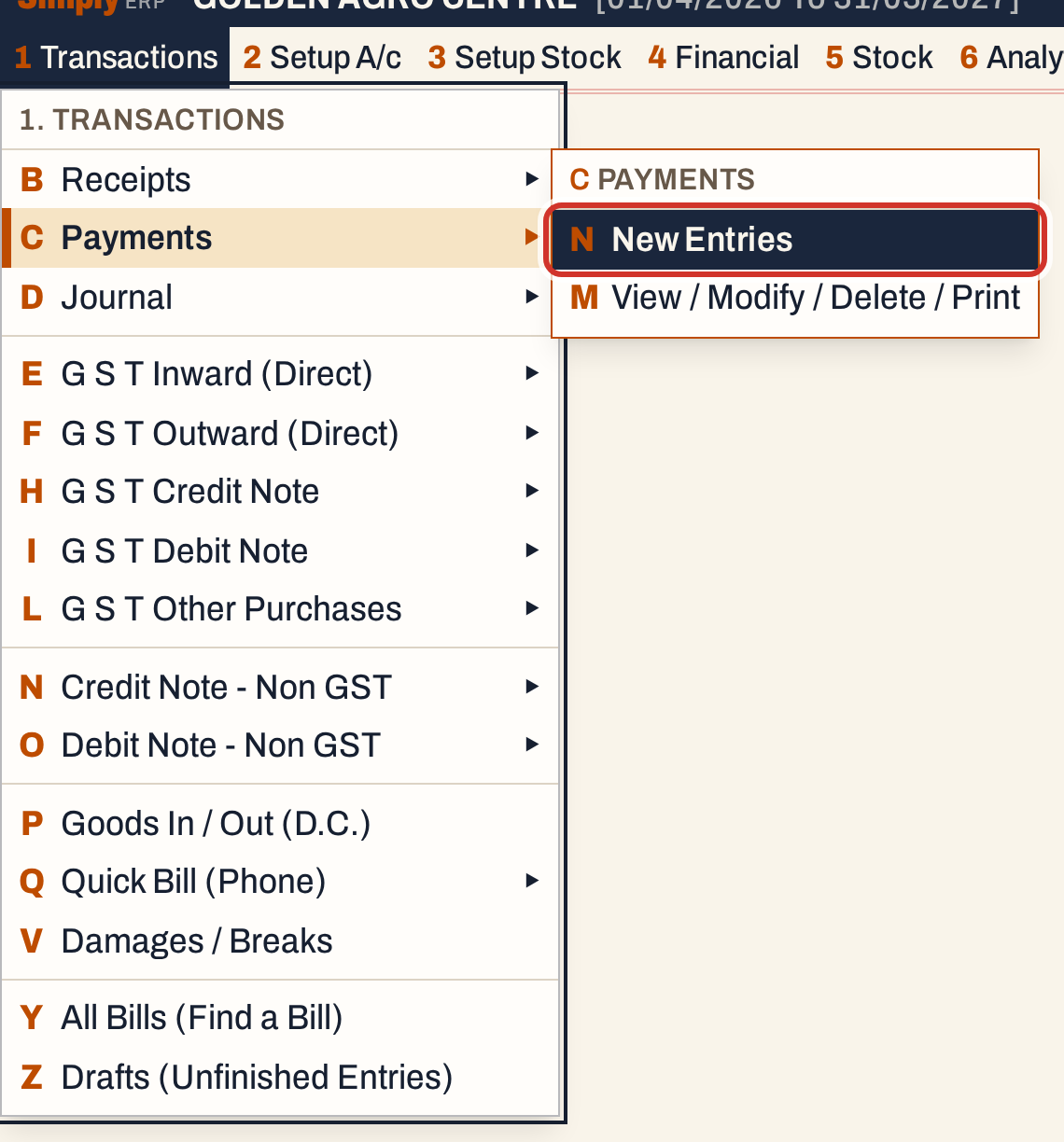 1 C N: Transactions, Payments, New Entries.
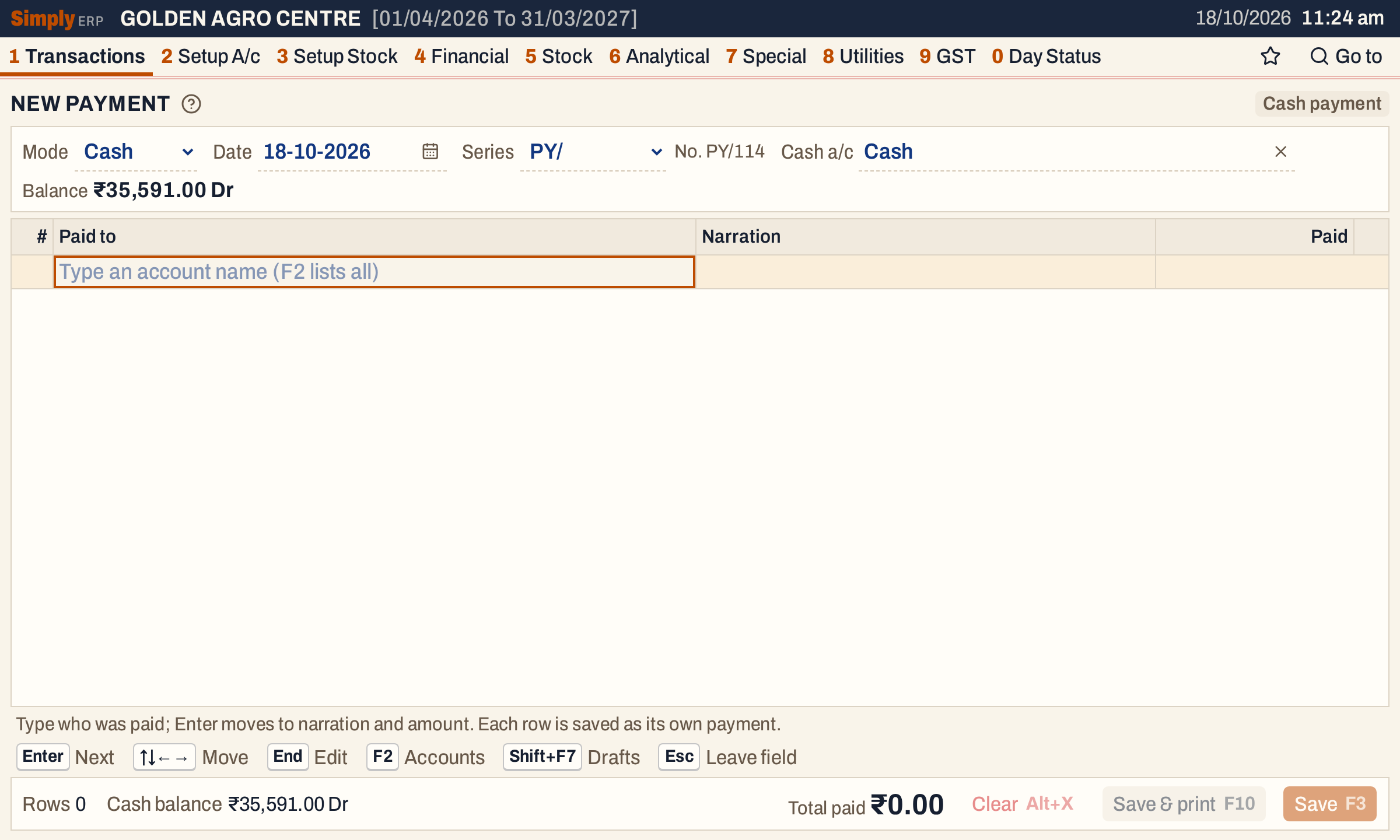 A new cash payment. The columns are Paid to, Narration and Paid.
The header and the rows work as they do for a receipt: Mode (Cash or Bank), the date, the series with its next number (PY/114 here) and the account the money comes from, with its balance. The cursor starts on the first row. See Record a receipt for the header, the account lists and the keys; this page covers what differs.
Record a cash payment
Type part of the name in Paid to. Any account can be chosen: a supplier, an expense account, a person. Then type the narration and the amount in Paid.
The line under the rows shows the account, its balance and what the balance becomes. For an expense account the balance grows: Electricity Charges stands at ₹10,800.00 Dr and becomes ₹12,300.00 Dr. The footer shows the cash balance falling by the same amount.
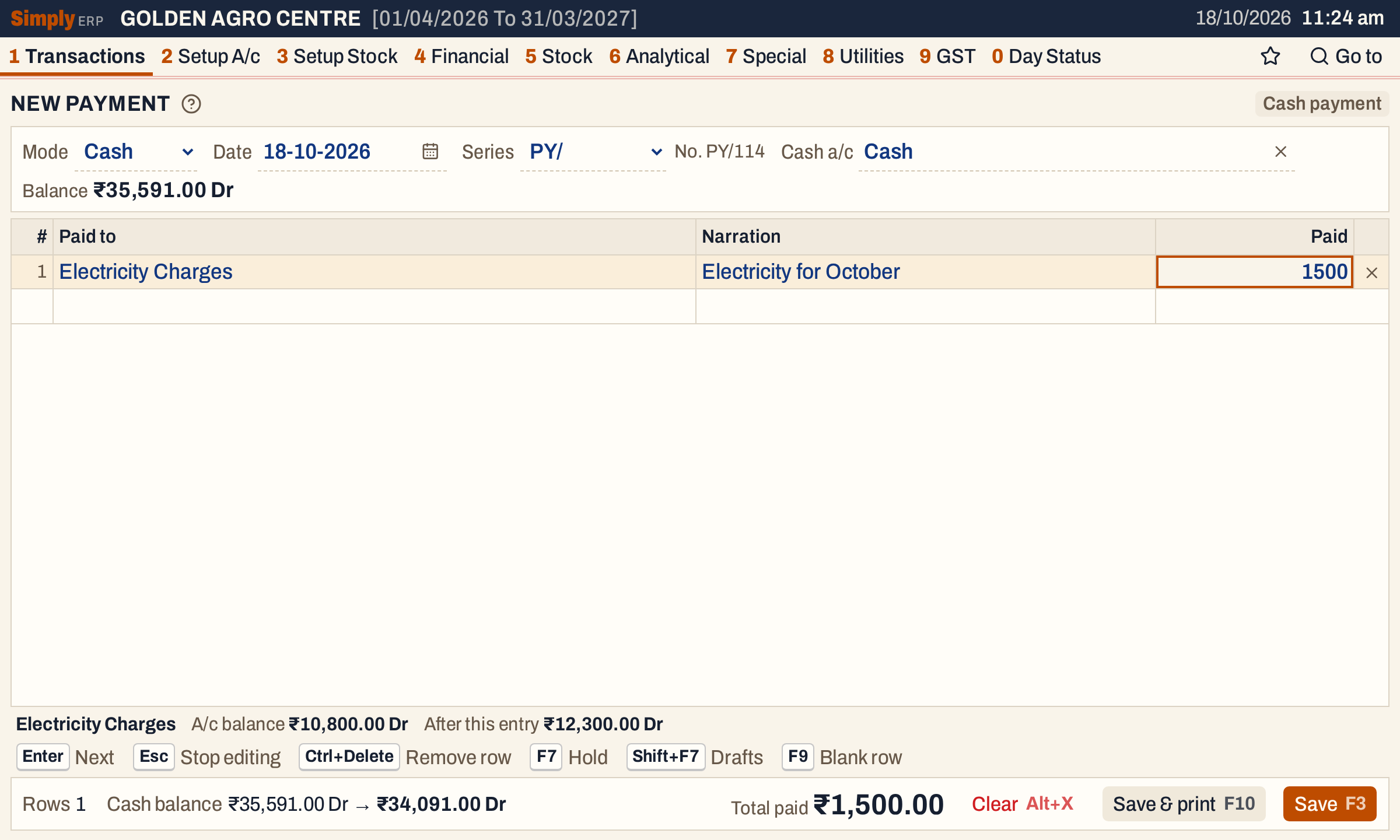 ₹1,500.00 paid in cash for electricity. The cash balance falls from ₹35,591.00 Dr to ₹34,091.00 Dr.
Press F3 to save. The rows clear for the next payment and the header stays.
Record a payment by cheque or transfer
Change Mode to Bank and choose the bank account the money comes from. A bank row has two more columns, Chq./UTR no. and Chq. date.
- For a cheque, type the cheque number, then its date.
- For a transfer, type NEFT, RTGS, IMPS or UPI in Chq./UTR no. and put the transfer’s reference number (the UTR) in the narration. The date can stay empty.
A cheque date needs a cheque number with it. The details are only for bank payments, and switching back to Cash while they are typed is refused until you remove them.
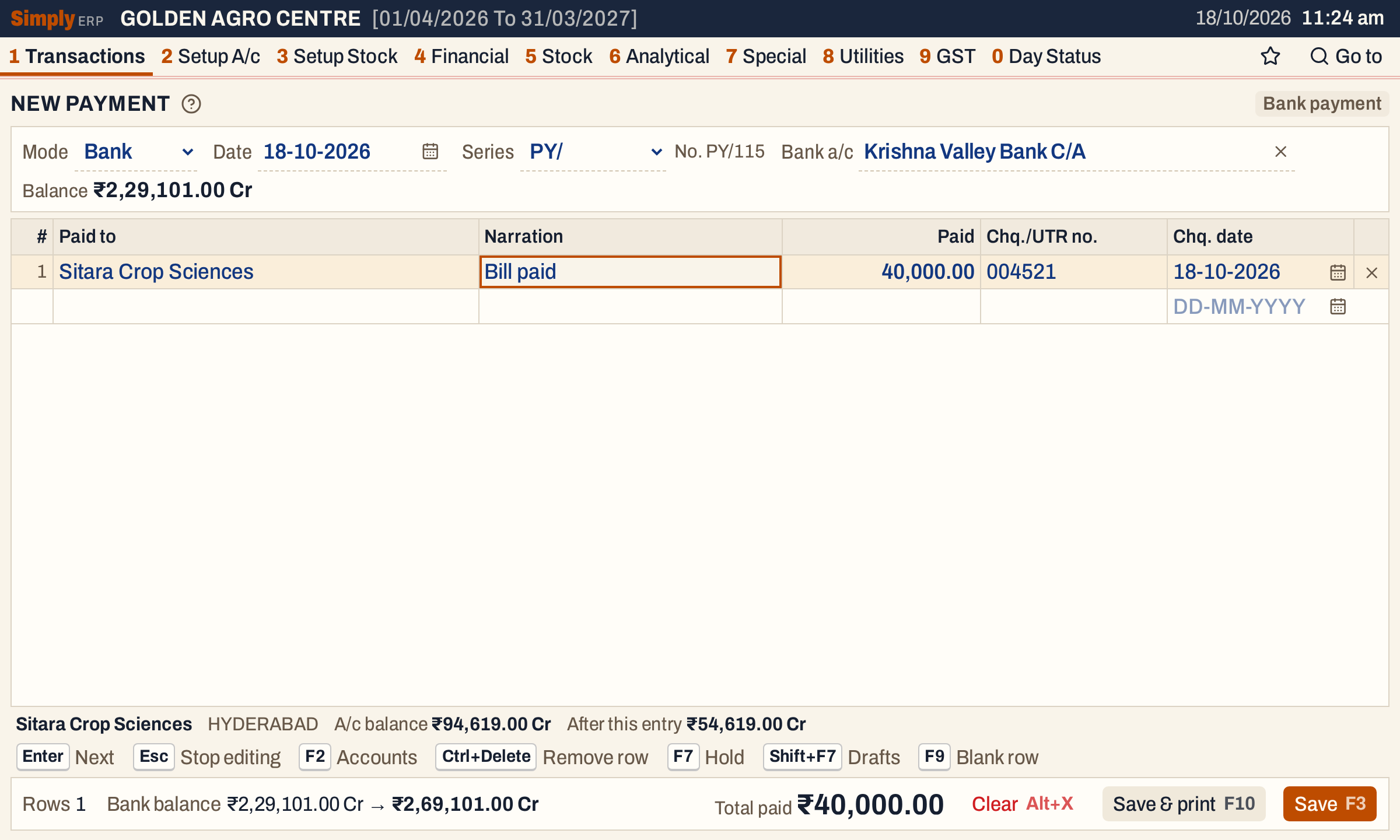 A cheque of ₹40,000.00 to Sitara Crop Sciences. The supplier’s balance falls from ₹94,619.00 Cr to ₹54,619.00 Cr.
A supplier’s balance is a credit (Cr): it is what you owe. Paying it lowers the balance. The bank account here was already overdrawn, so paying from it takes its credit balance from ₹2,29,101.00 Cr to ₹2,69,101.00 Cr.
Press F3. The notice counts the payments, one per row.
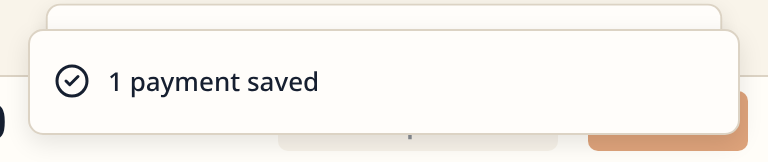 One row, one payment.
Payments by cheque and the cheque register
A payment entered here does not go into the cheque register. The register (8 I) is a separate list of the cheques you issue, kept so you can see which ones the bank has not yet paid. It posts nothing when you issue a cheque in it.
There are two ways to record a cheque you give out:
- Enter the payment here, as above, when you record the cheque the day you write it. The books show the money gone at once, and the cheque number is on the payment.
- Issue the cheque in the register first and let its clearance post the payment. Until the bank clears it, the books are unchanged and the cheque is listed as pending. When it clears, the register can make this same bank payment for you, in the series you choose, so you do not enter it again.
Use one way for a cheque. If you enter the payment here and also clear the register’s cheque with Post bank payment ticked, the cheque is posted twice.
What saving does to your books
Each row makes one payment with its own number, dated on the header’s date. It has two postings:
| Account | Debit | Credit |
|---|---|---|
| The account of the row (who was paid) | The amount | |
| The cash or bank account of the header | The amount |
The two payments of this example:
| Payment | Debit | Credit | Amount |
|---|---|---|---|
| PY/114, cash | Electricity Charges | Cash | 1,500.00 |
| PY/115, bank, cheque 004521 | Sitara Crop Sciences | Krishna Valley Bank C/A | 40,000.00 |
Stock is not touched. The saved payments are listed under 1 C M, one line each. The register opens on the financial year to date; here From and To are both set to 18-10-2026.
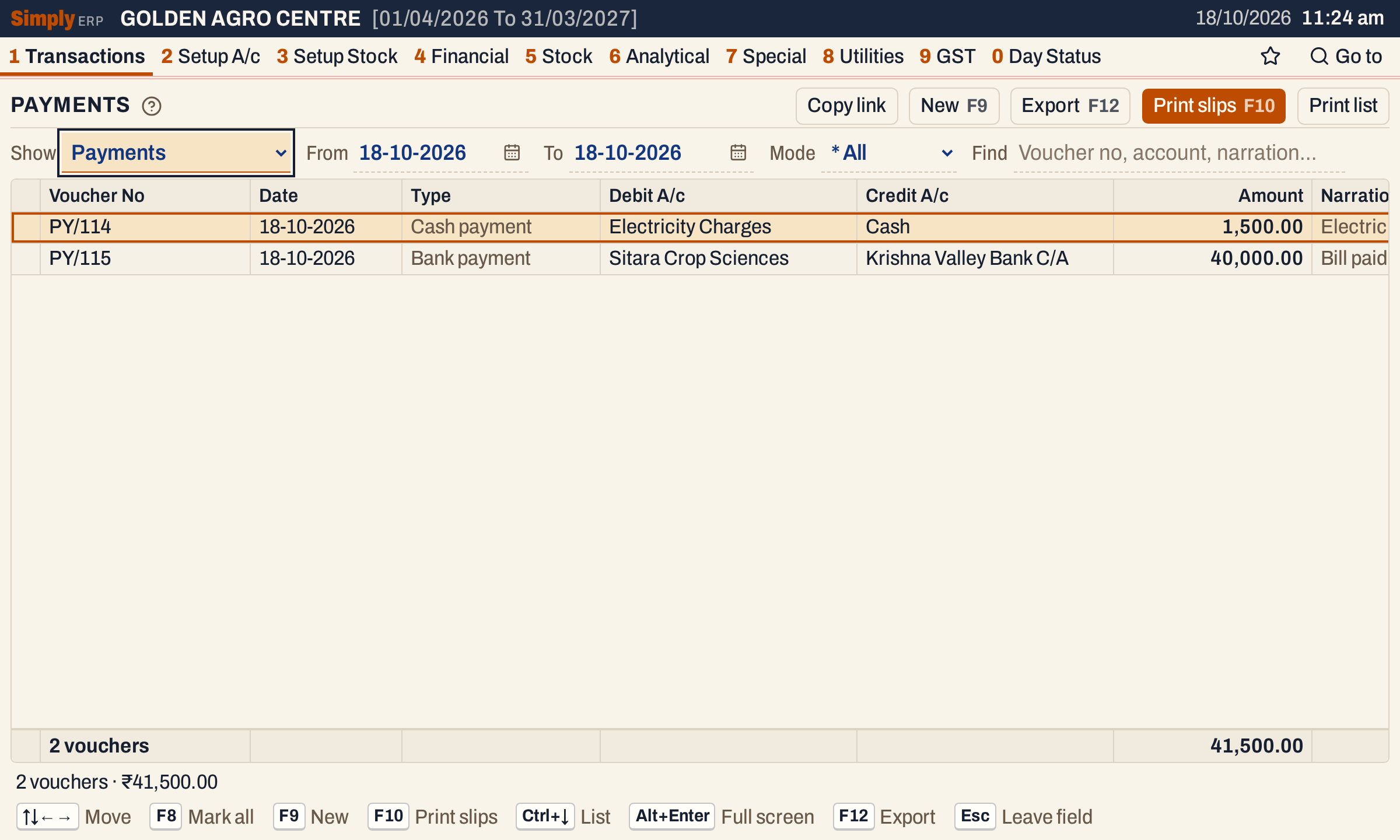 Each payment has its own number. The footer adds them: 2 vouchers, ₹41,500.00.
Open a payment to see both postings.
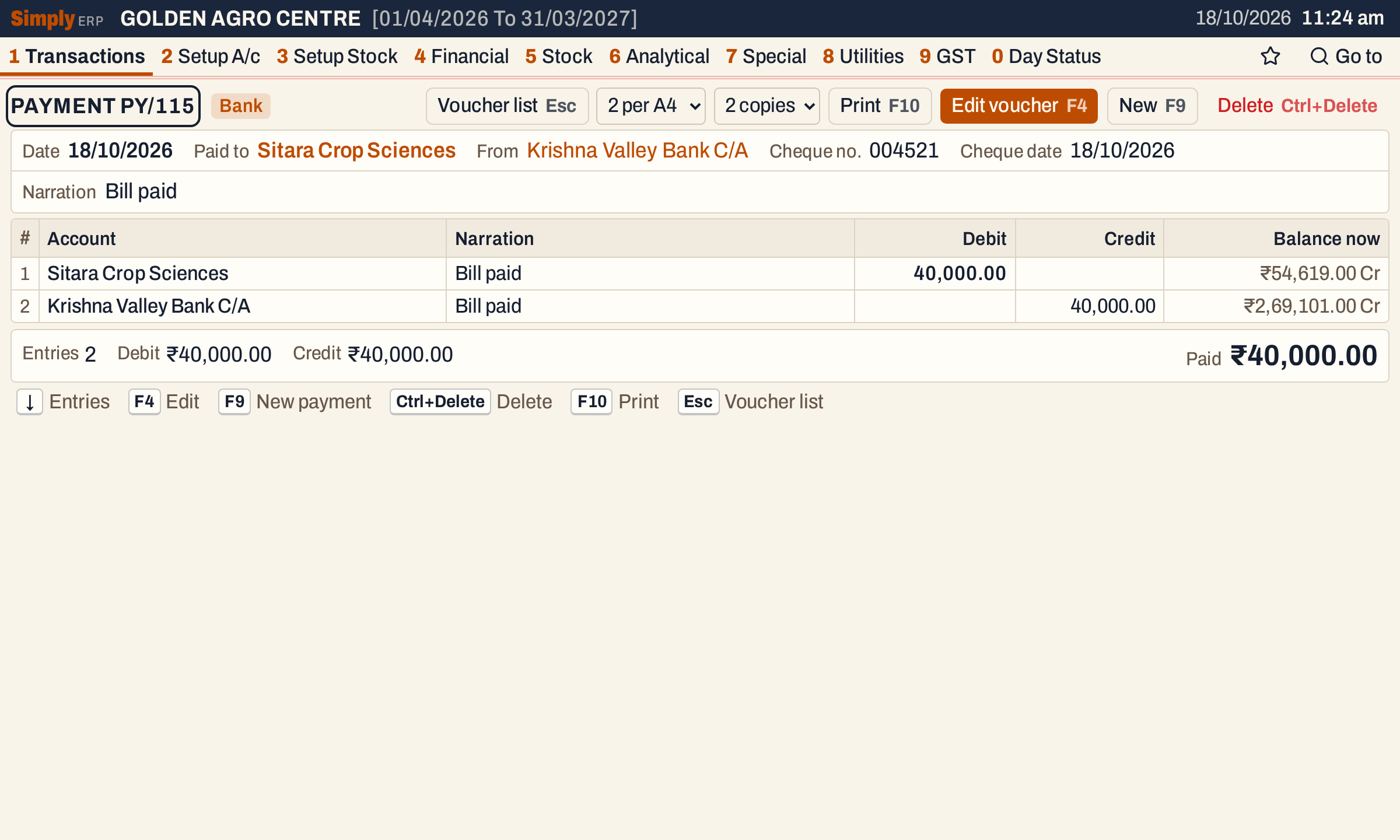 Balance now shows each account’s balance today: ₹54,619.00 Cr for the supplier and ₹2,69,101.00 Cr for the bank.
The payment then shows in the supplier’s ledger, the bank book or cash book, and the cash day book.
Print the payment slip
F10 saves and prints the slips, and on a saved payment F10 prints it again, two to an A4 sheet or one per A5 sheet. The slip of a bank payment names the party and its GSTIN, the bank account, and the cheque number and date.
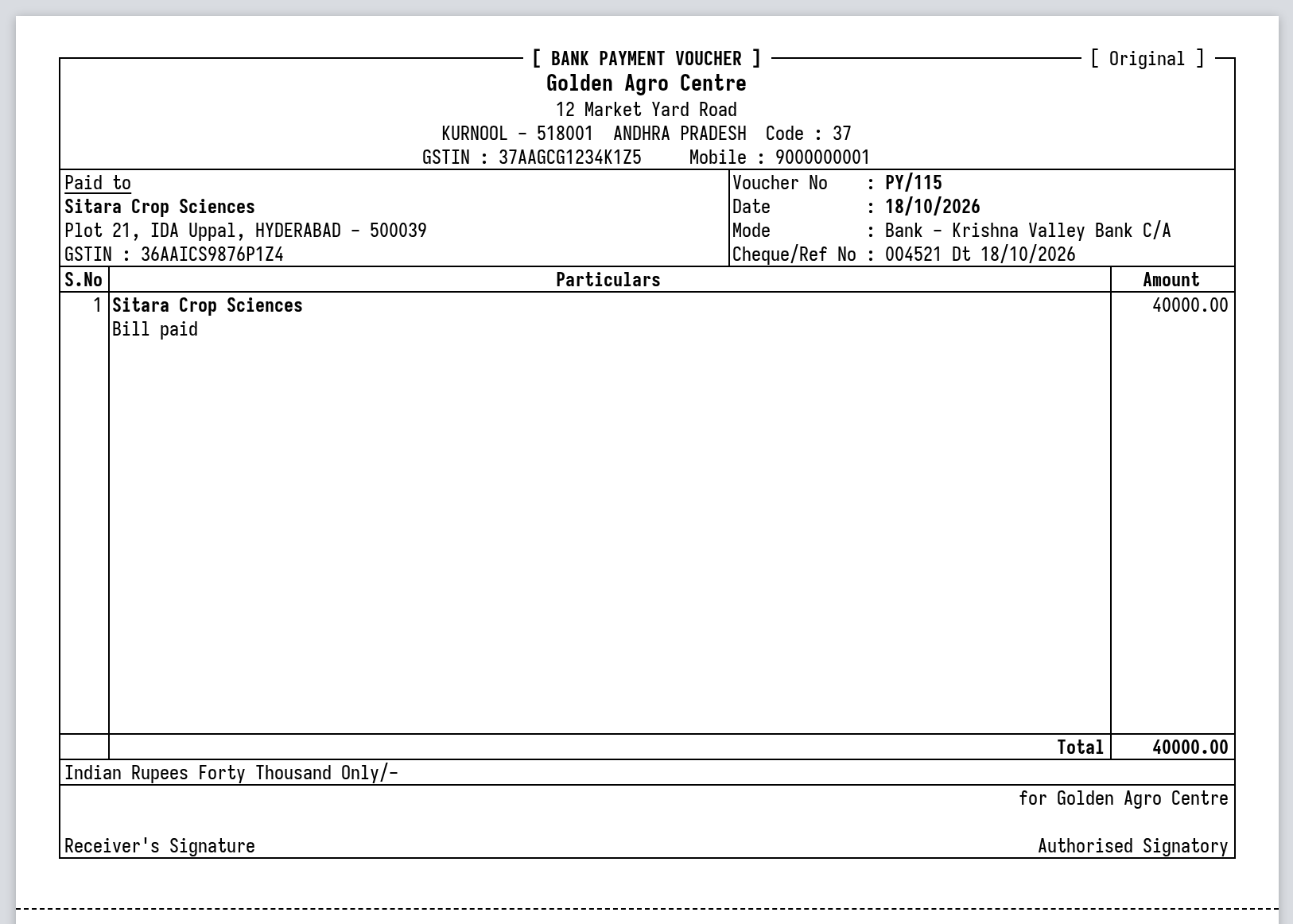 The slip has a place for the receiver’s signature.
Keys on the payment screen
The keys are those of the receipt screen.
| Key | What it does |
|---|---|
| Enter | Next field, and on to the next row after the last field |
| F2 | List the accounts, or in Narration the saved narrations |
| F3 | Save every row |
| F10 | Save and print the slips |
| Ctrl+Delete | Remove the row |
| F7 | Hold the entry in Drafts |
| Alt+X | Clear the entry (asks first) |
Common questions
Can I pay several people at once? Yes. Fill one row for each, all from the same cash or bank account. Saving makes one payment for each row.
Can I pay one account from another, such as cash into the bank? Not here. A payment cannot be made to the header’s own account or to a cash account. Moving money between cash and bank is a journal entry.
I entered the wrong account or amount. Open the payment from the register and press F4 to change it, or delete it. See Change or delete a voucher. A payment that a cleared cheque made cannot be changed until you reopen the cheque in the register.
Updated 4 November 2026.