Balance Sheet
On this page
The Balance Sheet shows what the business owes (its liabilities, with the owner’s capital) and what it owns (its assets) on one day. Debtors and creditors are shown as totals, the stock is valued, and the profit made so far in the year sits among the liabilities. The two sides total the same.
Open the report
Press Alt+4 for Financial Reports, then H. The report opens as on the working date (today, unless you have set another date); if that is outside the financial year it opens as on the year’s last day, or first day if the working date is before the year starts.
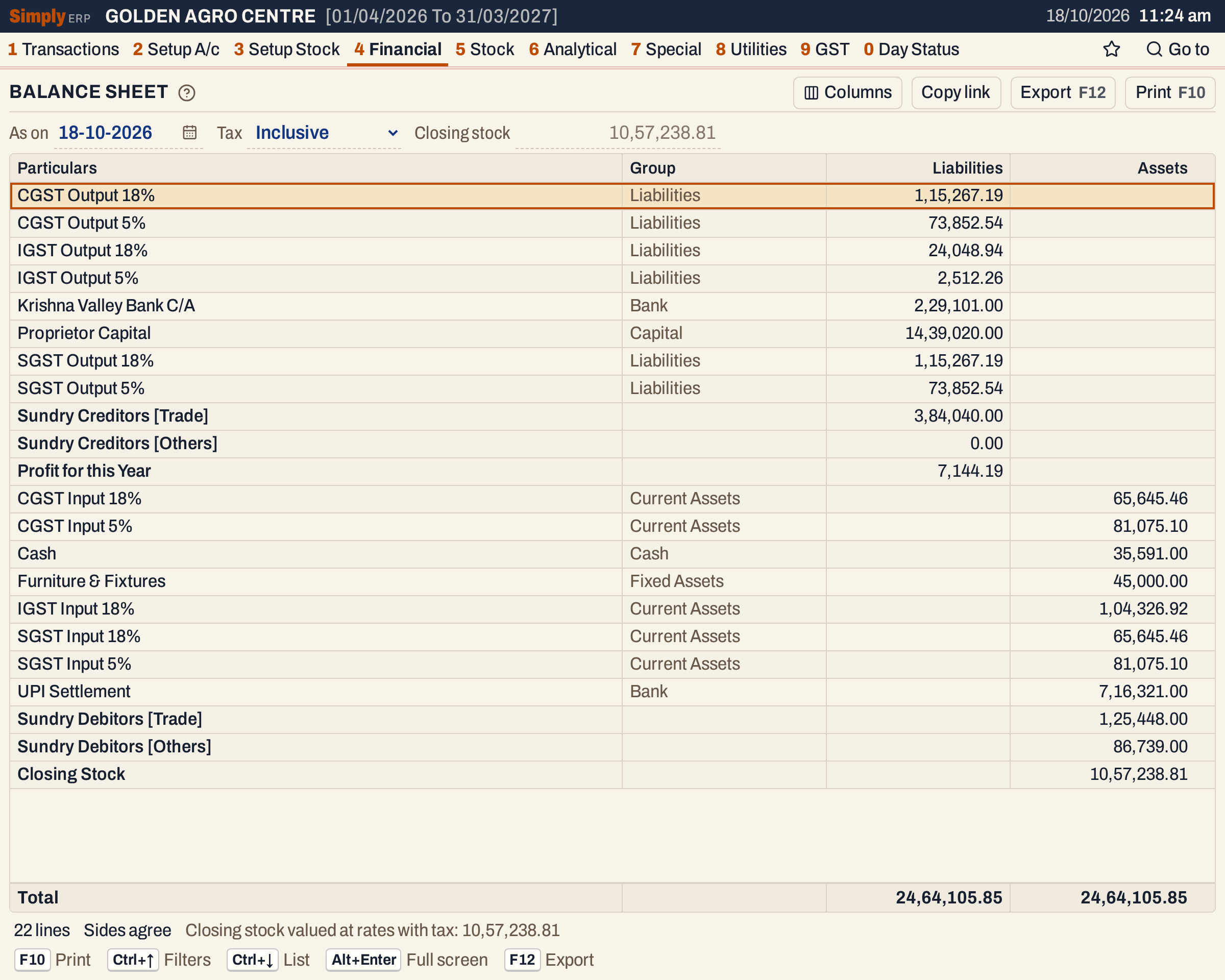 Liabilities are listed first, then assets. Each side totals 24,64,105.85 and the status line says Sides agree.
What it lists
One line for each account that the books mark as a balance sheet account and has a balance on the As on day. Every account that is not a sales, purchase, stock, income or expense account belongs here unless you say otherwise: capital, GST input and output, cash, bank, fixed assets, loans, customers, suppliers and farmers. The Statement field in an account’s form (see Add an account) can move an account to the Trading Account or the Profit & Loss Statement instead.
The balance of an account is everything posted to it up to the end of the As on day, opening balance included. A credit balance is a liability and a debit balance an asset, so a bank account that is overdrawn is listed under Liabilities, and a supplier you have overpaid under Assets. An account whose balance is nil is left out.
Customers, suppliers and farmers are not listed one by one. They are added up into four lines, on the side of each account’s balance:
- Sundry Creditors [Trade]: customers, suppliers and customer-suppliers whose balance is a credit (you owe them);
- Sundry Creditors [Others]: farmers whose balance is a credit;
- Sundry Debitors [Trade]: customers, suppliers and customer-suppliers whose balance is a debit (they owe you);
- Sundry Debitors [Others]: farmers whose balance is a debit.
A customer who has paid in advance is therefore in the creditors, and a supplier you have overpaid is in the debtors. The four lines always appear, even when one is nil.
SimplyERP adds three lines of its own, from the trading and profit and loss accounts:
- Profit for this Year, among the liabilities, the net profit of the Profit & Loss Statement;
- Loss for this Year, among the assets, when the net result is a loss;
- Closing Stock, among the assets, the valuation of the stock on the As on day (not shown when it is nil).
The sales, purchases, expenses and other income accounts are not on the balance sheet. Their effect is in the profit or loss line.
Columns
| Column | What it shows |
|---|---|
| Particulars | The account’s name, or the name of the line SimplyERP works out (in bold). |
| Group | The account’s type (Capital, Bank, Cash, Fixed Assets, Current Assets, Liabilities…). Blank on the sundry lines, the profit or loss and the closing stock. The Columns button hides it. |
| Liabilities | The account’s balance when it is a credit, the sundry creditors and the profit. |
| Assets | The account’s balance when it is a debit, the sundry debitors, the closing stock and a loss. |
The screen lists all the liabilities, then all the assets, each in the order of the account names, followed by the sundry totals and the lines SimplyERP works out. The totals line adds up the two columns. The status line gives the number of lines, Sides agree (or, if they differ, by how much and which side has more) and how the closing stock was valued.
Choices
| Choice | What it does |
|---|---|
| As on | The day the balance sheet is drawn up to. It must fall in the financial year. Default: the working date, kept inside the financial year. |
| Tax | Inclusive (the usual) or Exclusive: whether the closing stock is valued at purchase rates with tax or before tax. |
| Closing stock | Empty by default, where the grey figure shows the valuation. An amount typed here replaces the valuation. The profit changes by the same amount, so the two sides still agree. |
 The same three choices as the Trading Account, because the stock and the profit come from it.
Every choice is kept in the page address, so Copy link gives a link that opens the same report. See Trading Account for how the closing stock is valued.
How the figures are worked out
Accounts. For each balance sheet account, SimplyERP adds the credits posted to it up to the As on day (its opening balance counts as a posting) and subtracts its debits. A positive result is a credit balance, shown under Liabilities. A negative result is a debit balance, shown under Assets.
Sundry lines. Each customer, supplier, customer-supplier or farmer account is taken the same way, and its balance is added to the Creditors line if it is a credit, or to the Debitors line if it is a debit, [Trade] for customers and suppliers and [Others] for farmers.
Profit or loss for the year. It is the Net Profit or Net Loss of the Profit & Loss Statement for the same date, Tax and closing stock: the gross result of the Trading Account, plus other income, less expenses. A profit is added to the liabilities and a loss to the assets.
Totals.
- Total liabilities = the accounts with credit balances + Sundry Creditors [Trade] + Sundry Creditors [Others] + the profit.
- Total assets = the accounts with debit balances + Sundry Debitors [Trade] + Sundry Debitors [Others] + the closing stock + the loss.
For the books in the picture:
- Liabilities: GST output accounts 1,15,267.19 + 73,852.54 + 24,048.94 + 2,512.26 + 1,15,267.19 + 73,852.54, Krishna Valley Bank C/A (overdrawn) 2,29,101.00, Proprietor Capital 14,39,020.00, Sundry Creditors [Trade] 3,84,040.00 and the profit 7,144.19 make 24,64,105.85.
- Assets: GST input accounts 65,645.46 + 81,075.10 + 1,04,326.92 + 65,645.46 + 81,075.10, Cash 35,591.00, Furniture & Fixtures 45,000.00, UPI Settlement 7,16,321.00, Sundry Debitors [Trade] 1,25,448.00, Sundry Debitors [Others] 86,739.00 and the Closing Stock 10,57,238.81 make 24,64,105.85.
The two sides agree because every document SimplyERP saves posts equal debits and credits, and the profit and the closing stock carry the sales, purchases and expenses across. If the sides ever differ, the status line says by how much, and Check Trial Balance lists the documents that do not balance.
Open, print and export
- Enter on an account opens its ledger from the first day of the financial year to the As on date.
- Enter on a sundry line opens the Trial Balance for the year with the cursor on the matching party group (Sundry Debtors, Sundry Creditors, Farmers Debtors or Farmers Creditors), so you can open it to see each party.
- Enter on Closing Stock opens the Closing Stock Valuation, and on Profit for this Year or Loss for this Year the Profit & Loss Statement, for the same date and Tax choice. A closing stock you typed is carried to the Profit & Loss Statement but not to the valuation.
- F10 prints the balance sheet as BALANCE SHEET: the heading LIABILITIES, its lines and Total Liabilities, then ASSETS, its lines and Total Assets. The print has no Group column, and gives As On the date and how the closing stock was valued in its heading. If the sides differ, it adds a line giving the difference and the side with more.
- F12 saves it as an Excel workbook, with the figures as numbers and the Group column when it is shown.
- Alt+Enter gives the whole window to the list.
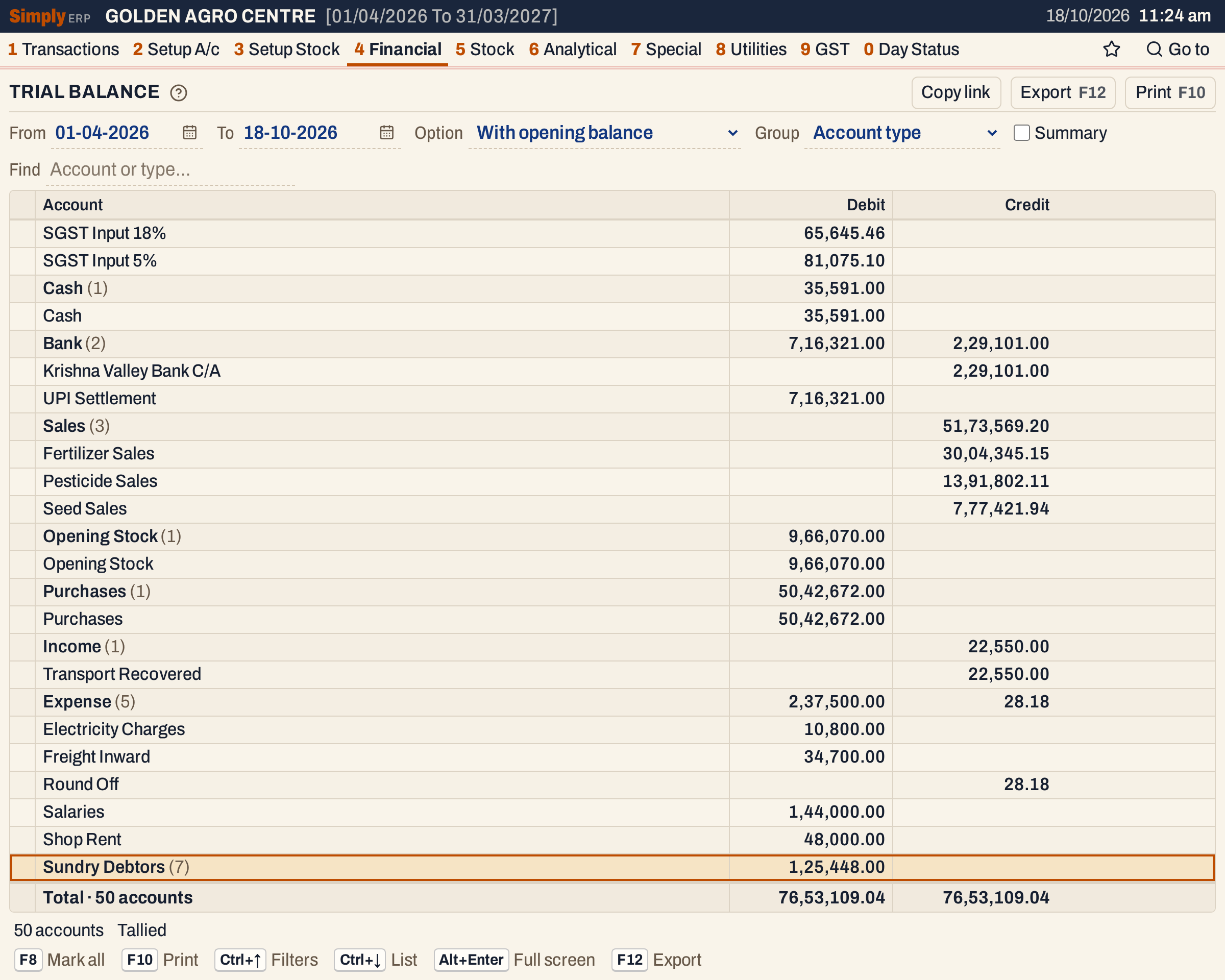 Enter on Sundry Debitors [Trade] opens the Trial Balance on the party group that adds up to the same 1,25,448.00.
Updated 4 November 2026.