A/c Copy
On this page
A/c Copy is the statement of one account: what was posted to it, in date order, and the balance after each line. It carries the same figures as the Ledger in a plainer layout, without the reference and the other account, which makes it the page to print and hand over when a customer or supplier asks for a copy of their account.
Open the report
Press Alt+4 for Financial Reports, then D. Type part of the account’s name in A/c Name and press Enter, or press F2 to list every account. The period starts as the financial year’s first day to today.
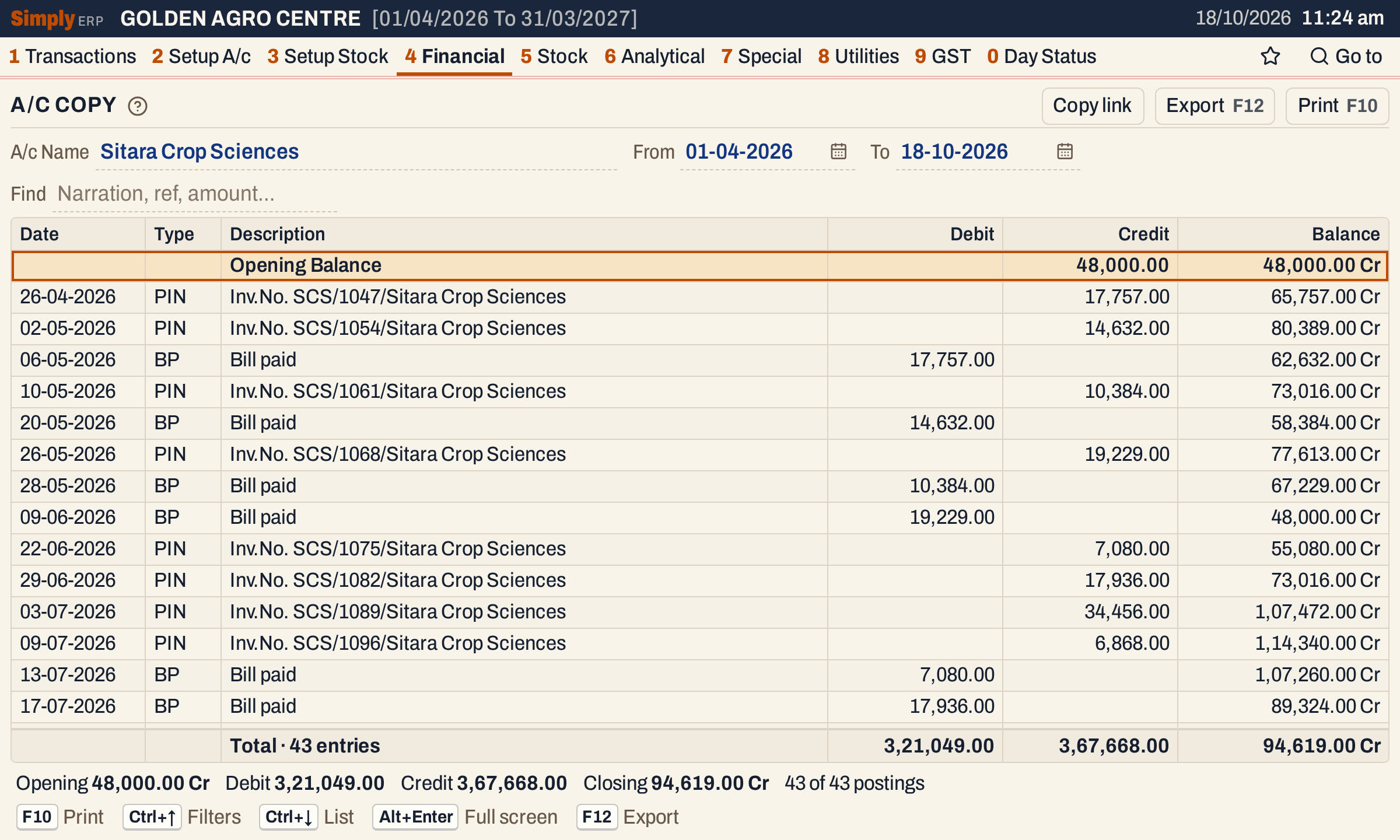 A supplier’s statement. Purchase bills raise what you owe (Cr) and each bill paid brings it down.
The line under the totals gives the same in words: Opening 48,000.00 Cr, Debit 3,21,049.00, Credit 3,67,668.00, Closing 94,619.00 Cr, and the number of postings.
What it lists
One line for every posting made to the account with a date in the period, both days included, and the account’s opening balance as the first line: bills, returns, credit and debit notes, other purchases, receipts, payments and journals.
A/c Copy differs from the Ledger in four ways:
- it lists postings of nil as well, which the Ledger leaves out;
- it has no Ref.No. and no Particulars column, so there is no Columns choice;
- its print is a statement headed A/c STATEMENT, with Credit before Debit;
- when the closing balance is nil, it keeps the side the balance had before it, where the Ledger takes the side of the account’s opening balance.
Columns
| Column | What it shows |
|---|---|
| Date | The date of the posting: the bill’s date, or the voucher’s date. A document the party sent you (a purchase bill, a sales return, a note received, an other purchase) is posted on the day you received it. |
| Type | What posted it: SIN sale bill, PIN purchase bill, SR sales return, PR purchase return, CNI, CNR, DNI, DNR credit and debit notes issued or received, OPN other purchase, CR and BR cash and bank receipts, CP and BP cash and bank payments, JV journal. |
| Description | The narration. A purchase bill’s reads Inv.No. SCS/1047/Sitara Crop Sciences: the supplier’s own bill number and the supplier. A sale bill’s reads Inv. No. F/56 ( SSP50-10;UREA45-10;MOP50-10; ): the bill number, then each item’s code and units. A voucher’s is the narration typed on its row. |
| Debit | The amount, when the posting debits the account. |
| Credit | The amount, when the posting credits the account. |
| Balance | The balance after the line, marked Dr or Cr. |
The first line, Opening Balance, has its amount under Debit or Credit and the balance in the Balance column. The totals line adds up the Debit and Credit columns of the posting lines shown and counts them. The opening line is not in these totals. In the print the columns are headed Tr.Date, Type, Transaction Details, Credit, Debit and Balance.
Choices
| Choice | What it does |
|---|---|
| A/c Name | The account. Type to narrow the list, F2 lists all. The list shows each account’s place and balance. |
| From, To | The period. Both dates must fall in the financial year. If you set one past the other, the other date follows it. The opening balance is the balance on the day before From. |
| Find | Shows only the postings that match what you type: date, type, narration or amount. It also matches the document’s reference and the other account’s name, which this screen does not show. Every word you type must match something in the line. The balances do not change. |
 The period: From and To.
Every choice is kept in the page address, so Copy link gives a link that opens the same statement.
How the figures are worked out
Order. The postings are put in date order, and within one day all the debits come before the credits, each in the order they were posted.
Balance. The balance is worked out down that order from the first posting of the books: the balance of the line above, plus Credit, less Debit. A positive result is marked Cr and a negative one Dr. A supplier’s balance is normally Cr, because you owe them; a customer’s is normally Dr.
Opening. The opening balance is the balance on the day before From: the account’s opening balance from Head of Accounts plus everything posted before From. The account’s own opening balance is a posting dated the first day of the financial year, so a statement that starts on that day shows it as the opening line.
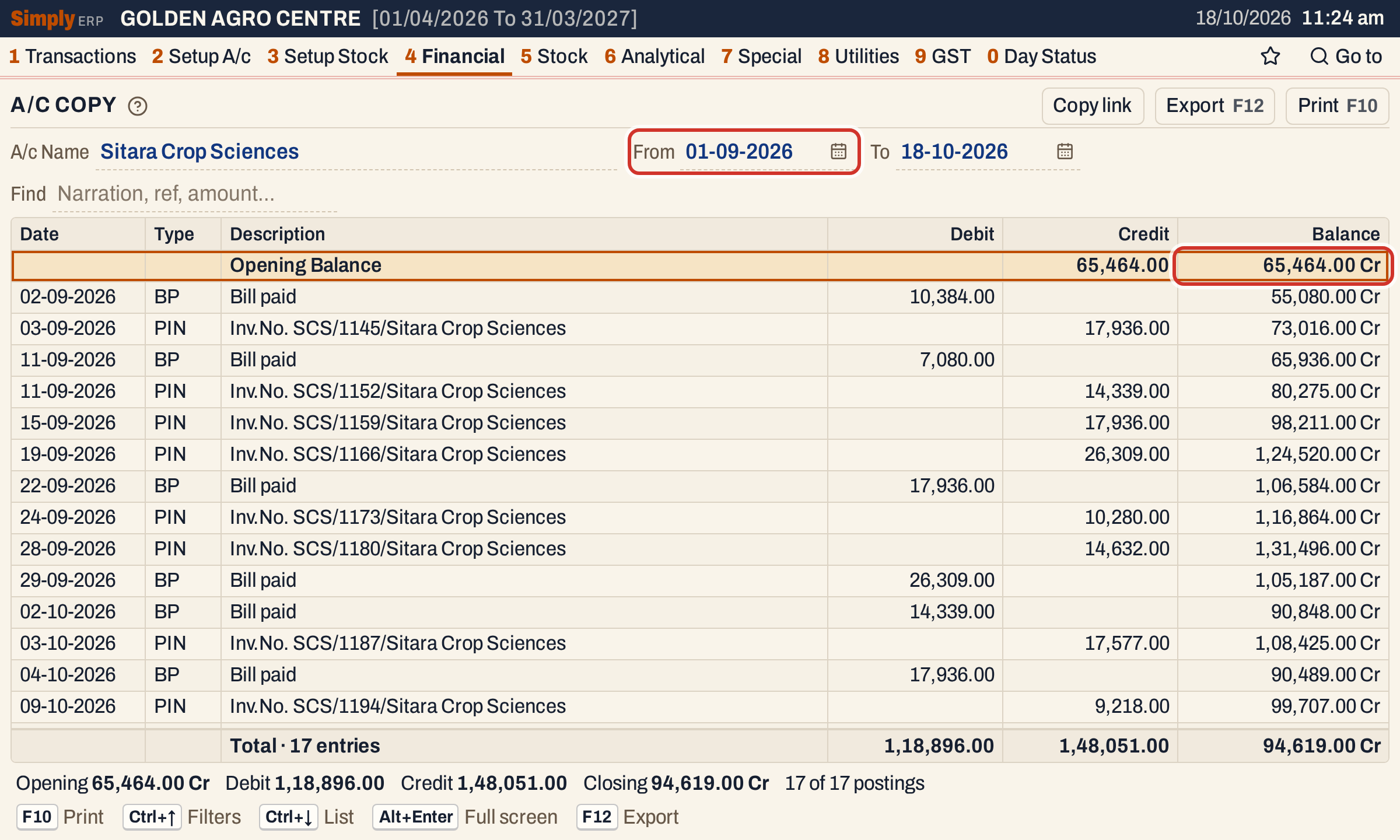 From 01-09-2026 the opening line is what the earlier postings left, 65,464.00 Cr. The closing balance does not change.
Closing. Closing = Opening + Credit − Debit for the period. For the whole year, 48,000.00 Cr + 3,67,668.00 − 3,21,049.00 = 94,619.00 Cr, which is the figure the Trial Balance shows for the account on the same To date.
Find. Find narrows the lines, not the balances. Each line keeps the balance it had in the full statement, and the opening and closing balances are those of the full statement; the totals and the status line count the lines shown.
How a purchase bill appears
A bill posts to every account it touches, and a posting’s other account is what the Ledger shows as Particulars. Purchase bill SCS/1047 from Sitara Crop Sciences posts:
| Account | Debit | Credit |
|---|---|---|
| Sitara Crop Sciences | 17,757.00 | |
| Purchases | 15,048.00 | |
| IGST Input 18% | 2,708.64 | |
| Round Off | 0.36 |
The supplier is credited the bill’s net amount, which is the 17,757.00 you see on 26-04-2026. The purchases account takes the value before GST, the input tax account takes the tax, and a round-off goes to its own account. When the bill is paid, the payment posts a debit to the supplier (the “Bill paid” lines) and a credit to the bank or cash account.
Open, print and export
- Enter on a posting opens the bill or voucher behind it. Back returns to the same line of the statement. The opening line opens nothing.
- F10 prints the postings shown, headed A/c STATEMENT with the account’s name and the period. The print ends with a Totals line, which adds the opening balance on its own side to the period’s debits and credits, and the Closing Balance.
- F12 saves the statement as an Excel workbook, with the figures as numbers.
- Alt+Enter gives the whole window to the list.
Updated 4 November 2026.