Profit & Loss Statement
On this page
The Profit & Loss Statement answers the question every owner asks: after paying for rent, salaries and the rest of the running costs, did the shop make money? It starts from the gross profit of the Trading Account, takes the other income and the expenses into account, and ends in the Net Profit or Net Loss.
Open the report
Press Alt+4 for Financial Reports, then G. The report opens as on today; if today is outside the financial year it opens as on the year’s last day (or first day, if today is before the year starts).
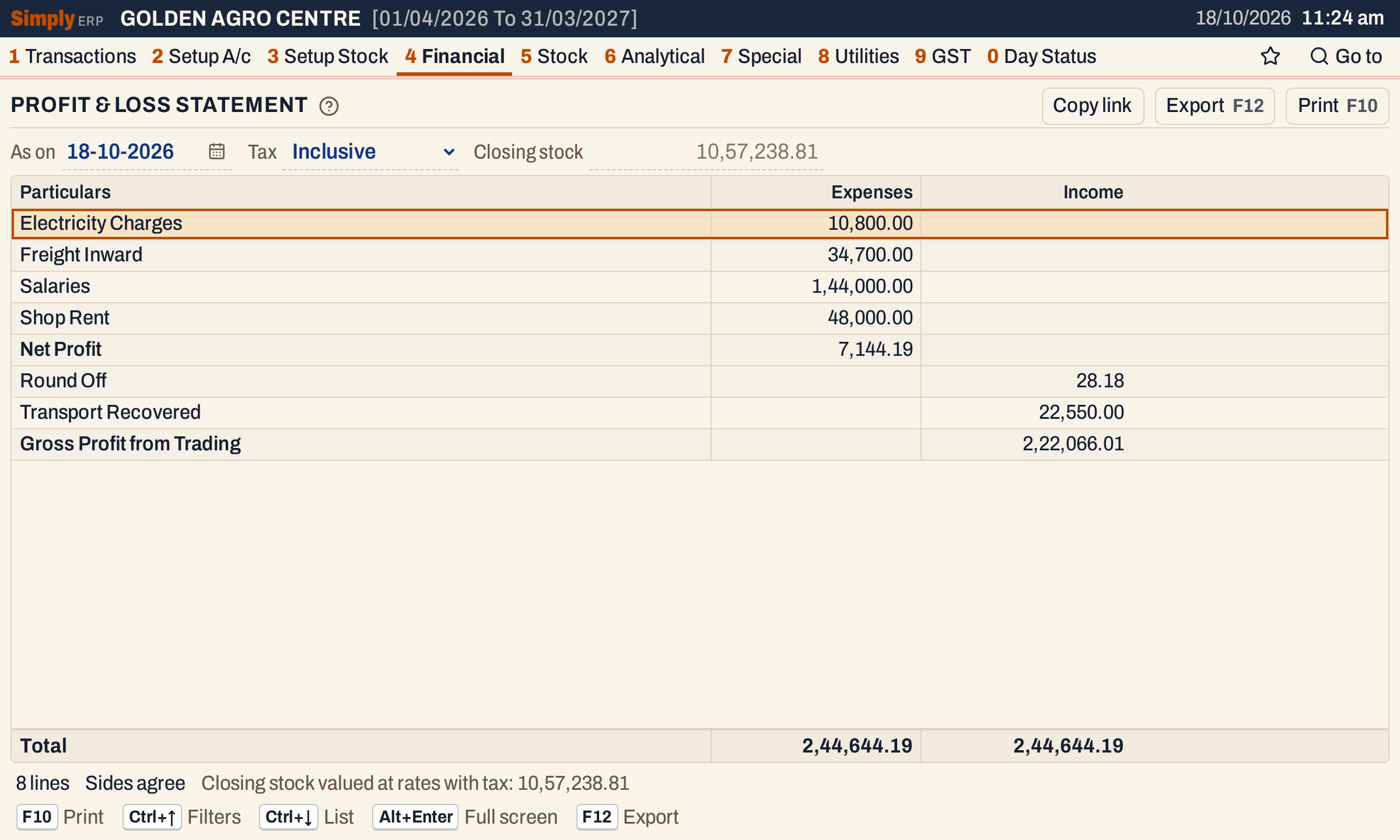 Expenses and Income are two figure columns. Both total 2,44,644.19 and the status line says Sides agree.
What it lists
One line for each account that the books mark as a profit and loss account and has a balance on the As on day:
- accounts of the types Income and Expense belong here unless you say otherwise. The Statement field in an account’s form (see Add an account) can put any account on the Trading Account, the Profit & Loss Statement or the Balance Sheet;
- an account whose balance is a debit is an expense and goes in the Expenses column; one whose balance is a credit is income and goes in the Income column. It is the balance that decides, not the account’s type: an expense account that has been credited more than debited shows in Income;
- an account whose balance is nil is left out.
Only what was posted counts, up to and including the As on day. The opening balance of an account is left out, because a profit is made during the year.
Then come the lines carried or worked out by SimplyERP, in bold:
- Gross Profit from Trading (in Income) or Gross Loss from Trading (in Expenses), the result of the Trading Account for the same As on date, Tax choice and closing stock;
- Net Profit (in Expenses) or Net Loss (in Income), the amount that makes the two sides equal.
The screen lists the expense lines first, with a gross loss and the net profit at their end, then the income lines with the gross profit and the net loss.
Columns
| Column | What it shows |
|---|---|
| Particulars | The account’s name, or the name of the line SimplyERP works out. |
| Expenses | The balance of an expense account, the Gross Loss from Trading and the Net Profit. |
| Income | The balance of an income account, the Gross Profit from Trading and the Net Loss. |
The totals line adds up each column. The two totals are always equal. The status line gives the number of lines, Sides agree (or the difference and its side, if they ever differ) and how the closing stock was valued.
Choices
| Choice | What it does |
|---|---|
| As on | The day the statement is drawn up to. It must fall in the financial year. Default: today, kept inside the financial year. |
| Tax | Inclusive (the usual) or Exclusive: whether the closing stock behind the gross profit is valued at purchase rates with tax or before tax. |
| Closing stock | Empty by default, where the grey figure shows the valuation. An amount typed here replaces the valuation, and with it the gross profit. |
 The same three choices as the Trading Account, because the gross result comes from it.
Every choice is kept in the page address, so Copy link gives a link that opens the same report. The choices only change the gross result: the expense and income accounts do not depend on the stock.
How the figures are worked out
Each account. SimplyERP adds the credits posted to the account up to and including the As on date and subtracts its debits. A negative result is the amount of an expense, a positive result is the amount of an income. The account’s opening balance is not counted.
Net result.
- Total expenses = the expense accounts + the Gross Loss from Trading (nil when the Trading Account made a profit).
- Total income = the income accounts + the Gross Profit from Trading (nil when it made a loss).
- If total income is the same or more, Net Profit = total income − total expenses, and it is shown in Expenses. Otherwise Net Loss = total expenses − total income, and it is shown in Income. Both columns then total the same.
For the books in the picture:
- Expenses: 10,800.00 + 34,700.00 + 1,44,000.00 + 48,000.00 = 2,37,500.00.
- Income: 28.18 + 22,550.00 + gross profit 2,22,066.01 = 2,44,644.19.
- Net Profit = 2,44,644.19 − 2,37,500.00 = 7,144.19, which brings the Expenses column to 2,44,644.19 as well.
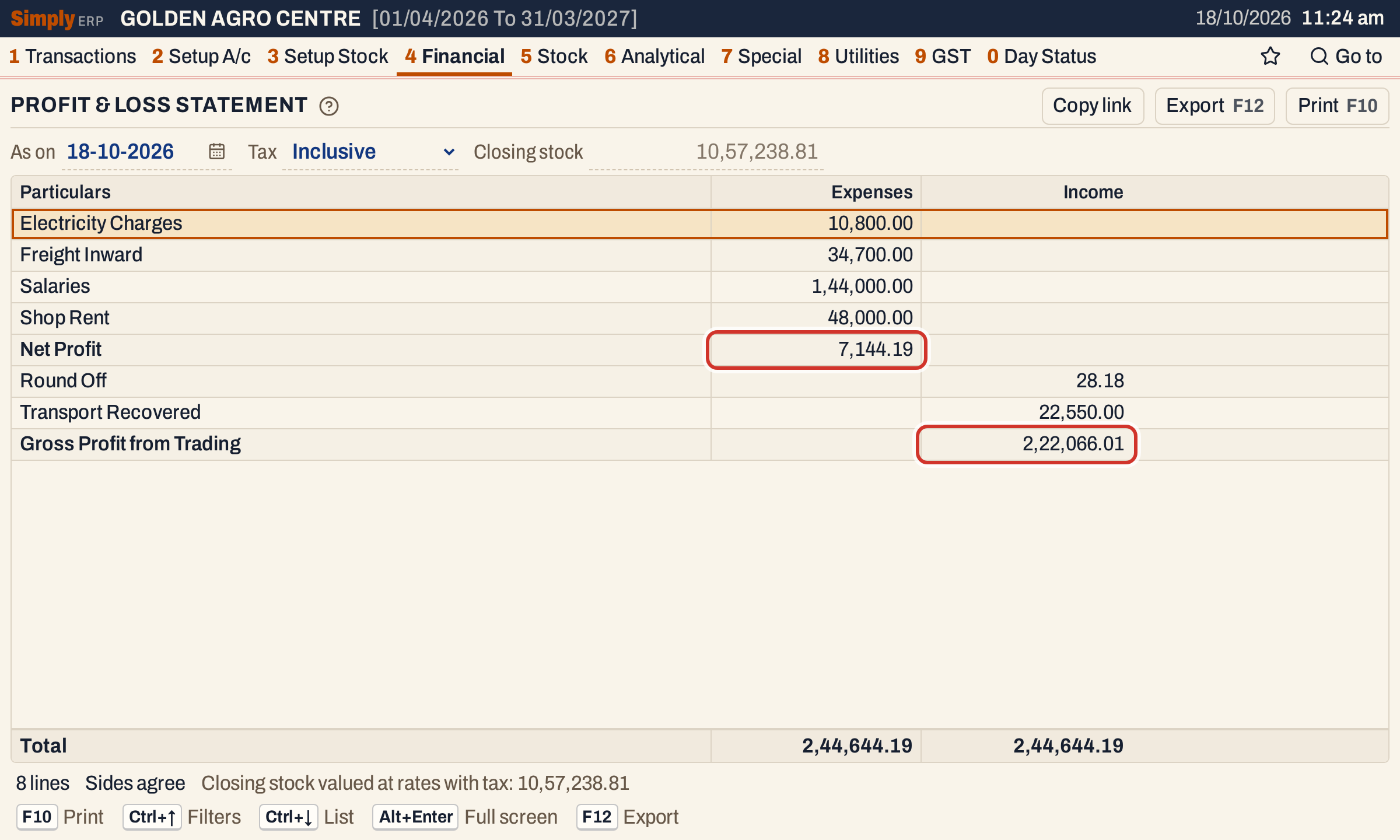 The gross profit is carried in from the Trading Account; the net profit is what is left after the expenses and the other income.
The gross profit depends on the closing stock. A higher valuation of the stock raises the gross profit and the net profit by the same amount. Change Tax to Exclusive and the closing stock is valued before tax. Here that lowers the gross profit from 2,22,066.01 to 1,66,242.20, and the books show a Net Loss of 48,679.62 instead of a Net Profit:
- Total expenses stay 2,37,500.00.
- Total income = 28.18 + 22,550.00 + 1,66,242.20 = 1,88,820.38.
- Net Loss = 2,37,500.00 − 1,88,820.38 = 48,679.62.
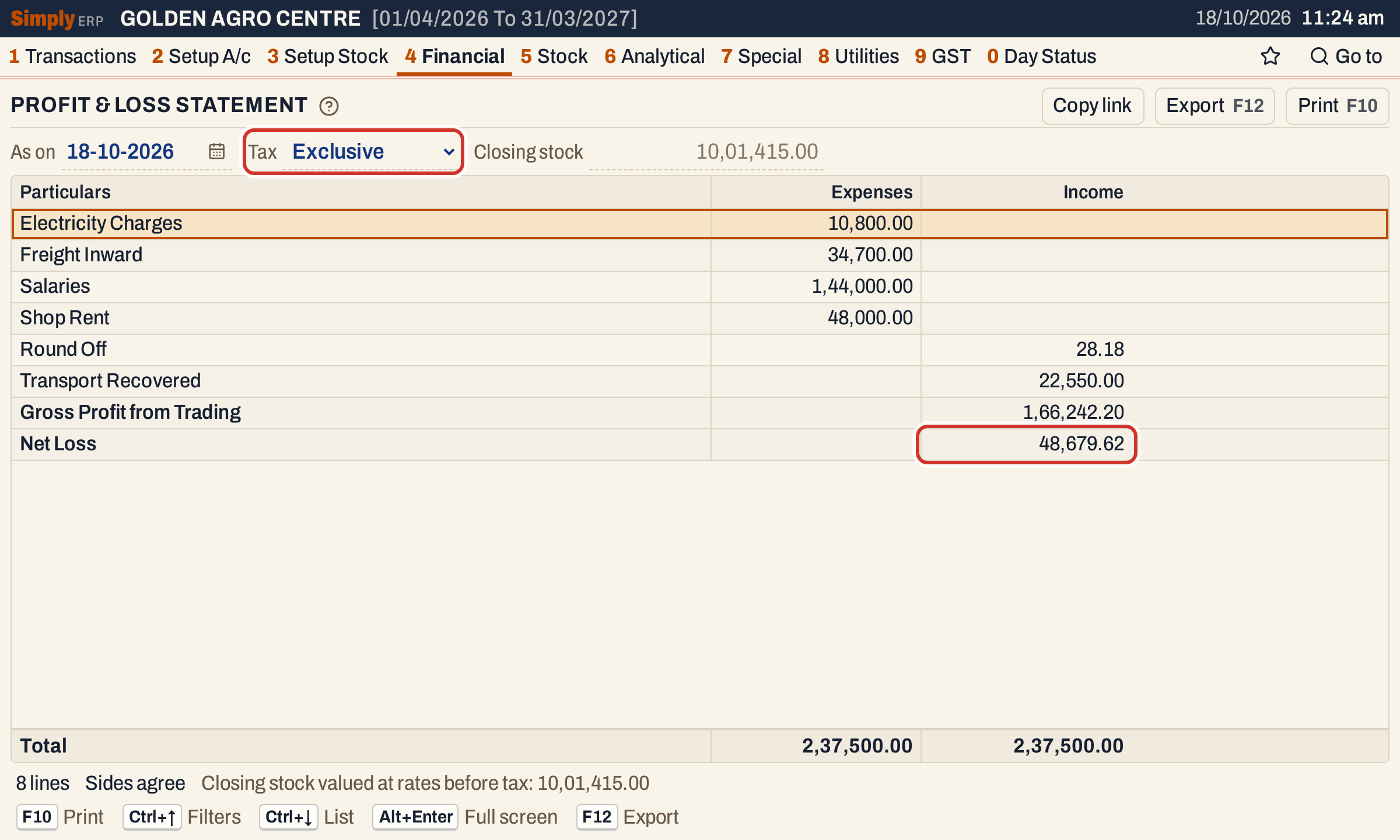 With Exclusive, both columns total 2,37,500.00 and the result is a Net Loss, shown in the Income column.
See the Trading Account for how the closing stock is valued and how to type a closing stock of your own.
Open, print and export
- Enter on an account opens its ledger from the first day of the financial year to the As on date.
- Enter on the Gross Profit from Trading or Gross Loss from Trading line opens the Trading Account for the same choices. A closing stock you typed is carried over.
- F10 prints PROFIT & LOSS STATEMENT with the expenses on the left beside the income on the right (A/c Name and Expenses, then A/c Name and Income). The gross loss ends the left side and the gross profit the right side. After a blank line, the Net Profit (left) or the Net Loss (right) closes the statement. The totals line reads Total Expenses and Total Income, and the heading gives the As On date and how the closing stock was valued.
- F12 saves it as an Excel workbook, with the figures as numbers.
- Alt+Enter gives the whole window to the list.
Updated 4 November 2026.