Category wise Ledger
On this page
The Category wise Ledger is an account’s ledger cut by item category. Choose a category and an account, and it lists only the bills of that account that sold or bought items of that category. Use it to see what one customer bought in fertilizers, or what you bought from one supplier in pesticides, when the same account deals in more than one category.
Open the report
Press Alt+4 for Financial Reports, then R. The cursor is on Category. Choose the category, then type the account’s name in A/c Name. The period starts as the financial year’s first day to today. Until an account is chosen, the grid says to type the account.
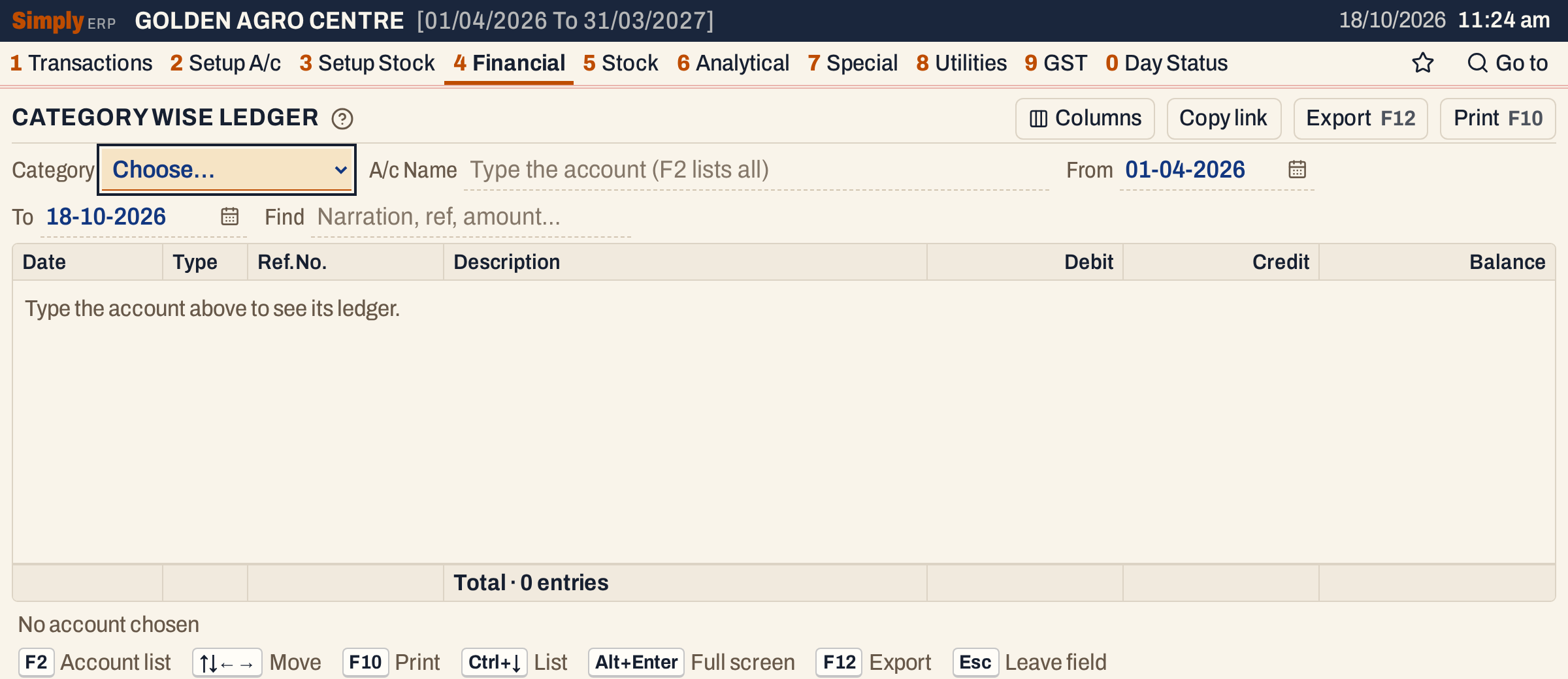 The report as it opens. The status line says No account chosen.
When the books have only one item category, it is chosen for you. These books have three: PESTICIDES, FERTILIZERS and SEEDS.
Type part of the account’s name and the list shows each matching account with its place and balance. F2 lists every account. Any account can be chosen: a customer, a supplier, a sales account, a GST account.
 The list shows the account’s balance in the whole books, not in the category.
Press Enter and the ledger fills in.
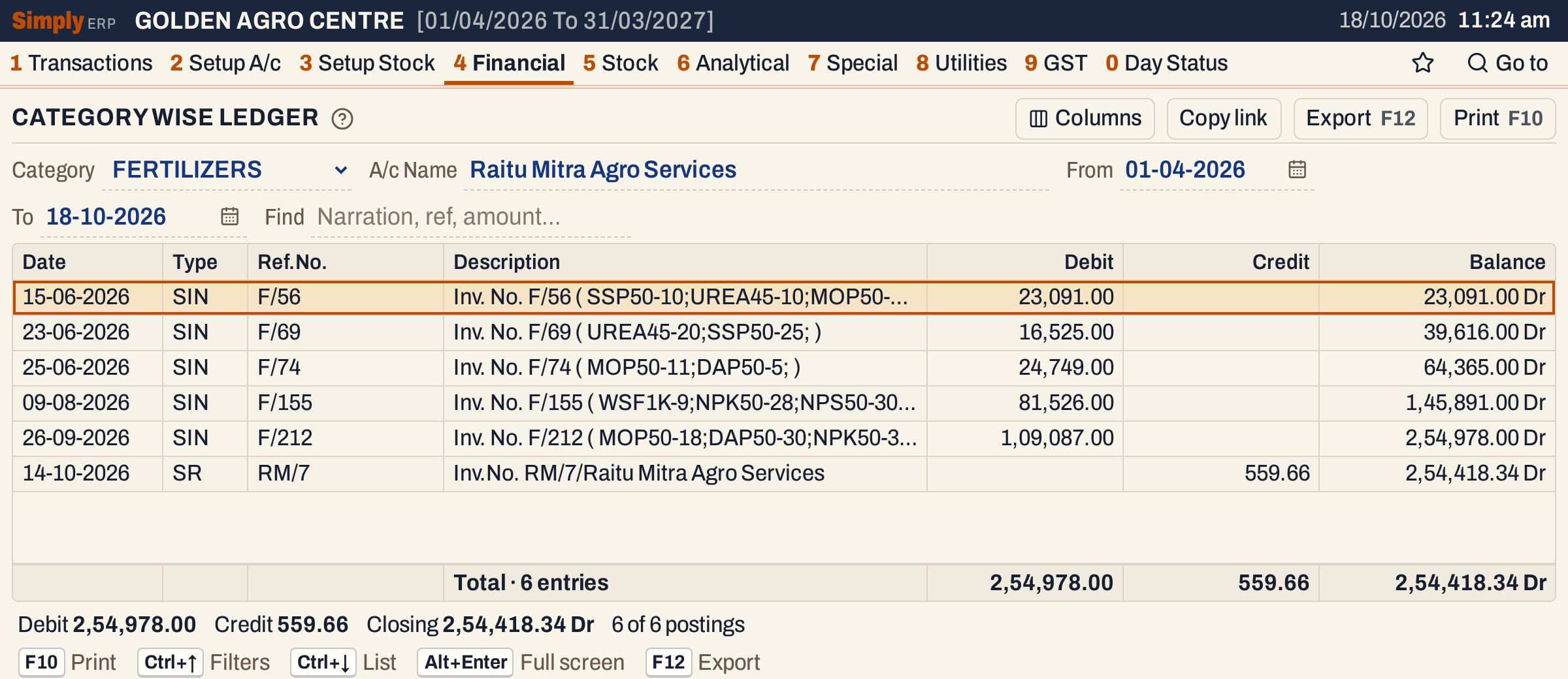 Fertilizer bills only. The customer’s receipts and its pesticide bills are not here.
What it lists
One line for each posting of the chosen account, dated in the period (both days included), that belongs to a bill, return or note of the chosen category:
- sale bills and purchase bills;
- sales returns and purchase returns;
- GST credit and debit notes, issued or received, and other purchases.
A bill belongs to the categories of the items it sells or buys. A bill with items of two categories belongs to both, and appears under each. A bill that has only charges takes the categories of its book. A GST credit or debit note, or an other purchase, takes the categories of the book it is made in; a book that covers every category lists them under each of them, for the whole amount.
A bill’s posting is listed for its whole amount, not for the part that is the category’s. In the supplier example below, bill GAC/1152 has fertilizer and pesticide items and is listed for 22,578.00 under both categories. The totals of the categories can therefore add up to more than the account’s balance.
Receipts, payments, journals and non-GST credit and debit notes are not listed, because the voucher screens give their rows no category. In the picture the customer’s NEFT receipts are not there. Use the Ledger for every posting of an account.
The account’s opening balance is not listed either. The balance column starts at nil on the first line, so it shows the movement of the category in the period, not what the customer owes.
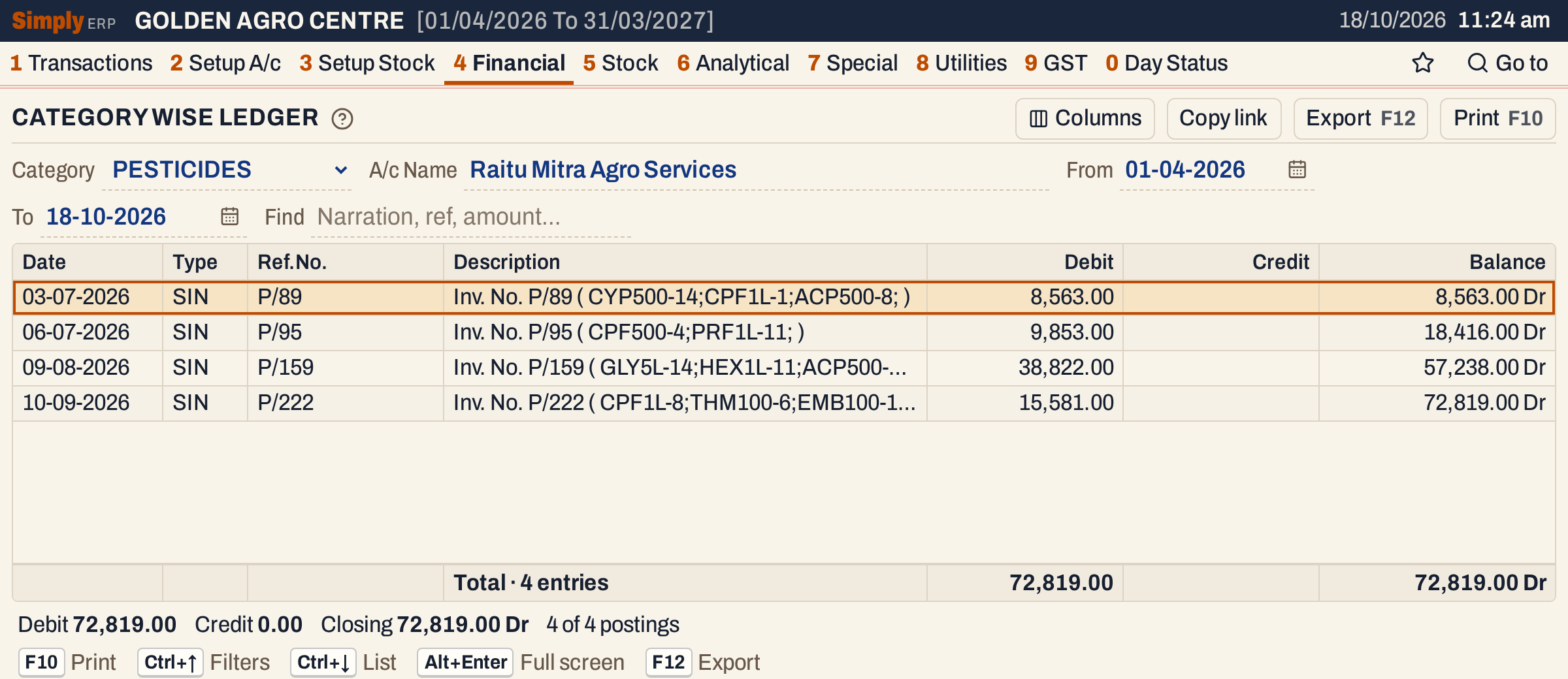 The same account under PESTICIDES: four other bills.
Columns
| Column | What it shows |
|---|---|
| Date | The date of the posting: the bill’s date. A document the party sent you (a purchase bill, a sales return, a note received) is posted on the day you received it. |
| Type | What posted it: SIN sale bill, PIN purchase bill, SR sales return, PR purchase return, CNI, CNR, DNI, DNR GST credit and debit notes, OPN other purchase. Hide it with Columns. |
| Ref.No. | The bill’s number: F/56 for a sale bill, GAC/1152 for a purchase bill (the supplier’s own number). Hide it with Columns. |
| Description | The narration. A sale bill’s reads Inv. No. F/56 ( SSP50-10;UREA45-10;MOP50-… ): the bill number, then each item’s code and units. A purchase bill’s and a return’s names the bill’s number and the party. |
| Debit | The amount, when the posting debits the account. |
| Credit | The amount, when the posting credits the account. |
| Balance | The balance after the line, marked Dr or Cr. |
The totals line under the grid counts the lines and adds up the Debit and Credit columns, and its last figure is the closing balance. The status line gives the same figures in words: Debit, Credit, Closing, and how many postings are shown. When Find is set, the count, Debit and Credit cover only the lines shown, and the closing balance stays that of the whole ledger.
 The totals line of the first picture.
Choices
| Choice | What it does |
|---|---|
| Category | The item category. Chosen for you when the books have only one. |
| A/c Name | The account. Type to narrow the list, F2 lists all. |
| From, To | The period. Both dates must fall in the financial year. If you set one past the other, the other date follows it. |
| Find | Shows only the postings that match what you type: date, type, reference, narration, amount, or the name of the other account of the posting (the sales or purchase account of a bill), which the grid has no column for. The Balance column and the closing balance do not change. |
| Columns | Hides the Type or Ref.No. column. The print leaves them out too. |
Every choice is kept in the page address, so Copy link gives a link that opens the same ledger.
How the figures are worked out
- Which postings. SimplyERP takes the postings of the account whose date is in the period, leaves out the opening balance, and keeps those that belong to a bill or note whose categories include the chosen category.
- Order. By date. Within one day the debits of bills come first, then postings of vouchers, then the rest, each in the order they were posted.
- Balance. The balance of the line above + Credit − Debit, starting from nil. A positive result is a credit balance, marked Cr; a negative result is a debit balance, marked Dr. When a line brings the balance back to nil, it keeps the side the balance had before.
- Closing = total Credit − total Debit of the lines listed, marked Dr or Cr. A closing of nil is shown as Dr.
For the customer’s fertilizer bills: the five bills add up to 2,54,978.00 Dr, the sales return of 559.66 is a credit, and 2,54,978.00 − 559.66 = 2,54,418.34 Dr. A customer’s balance is normally Dr; a supplier’s is normally Cr.
A bill with two categories
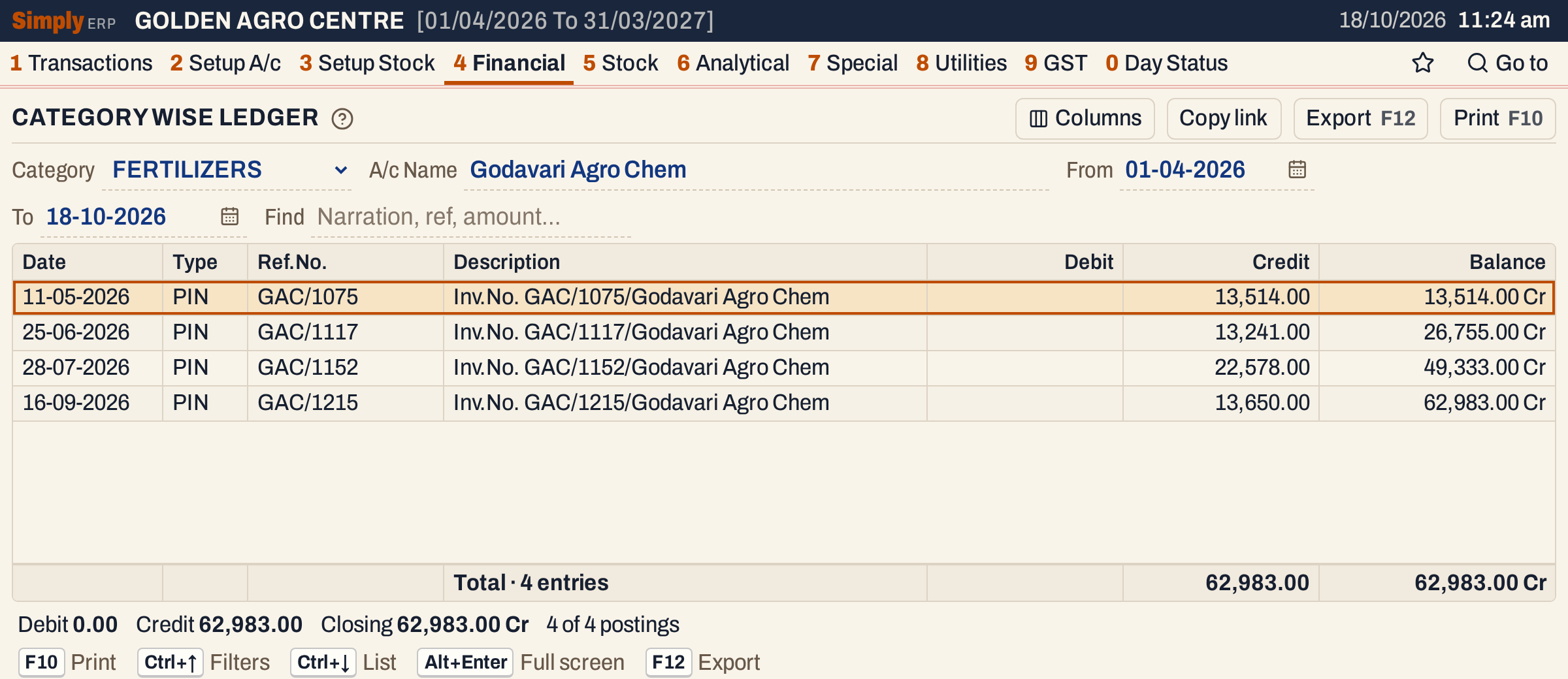 A supplier’s fertilizer purchases: four bills, credit balance 62,983.00 Cr.
Bill GAC/1152 is in the list above because it has fertilizer items. It also has pesticide items, so it is in the PESTICIDES ledger of the same supplier too. Find narrows the lines and not the balances: with Find set to 1152, the pesticide ledger shows the one bill with the balance it has in the full pesticide ledger. Debit and Credit add up the line shown, the closing balance is still that of all 27 postings, and the status line reads 1 of 27 postings match Find.
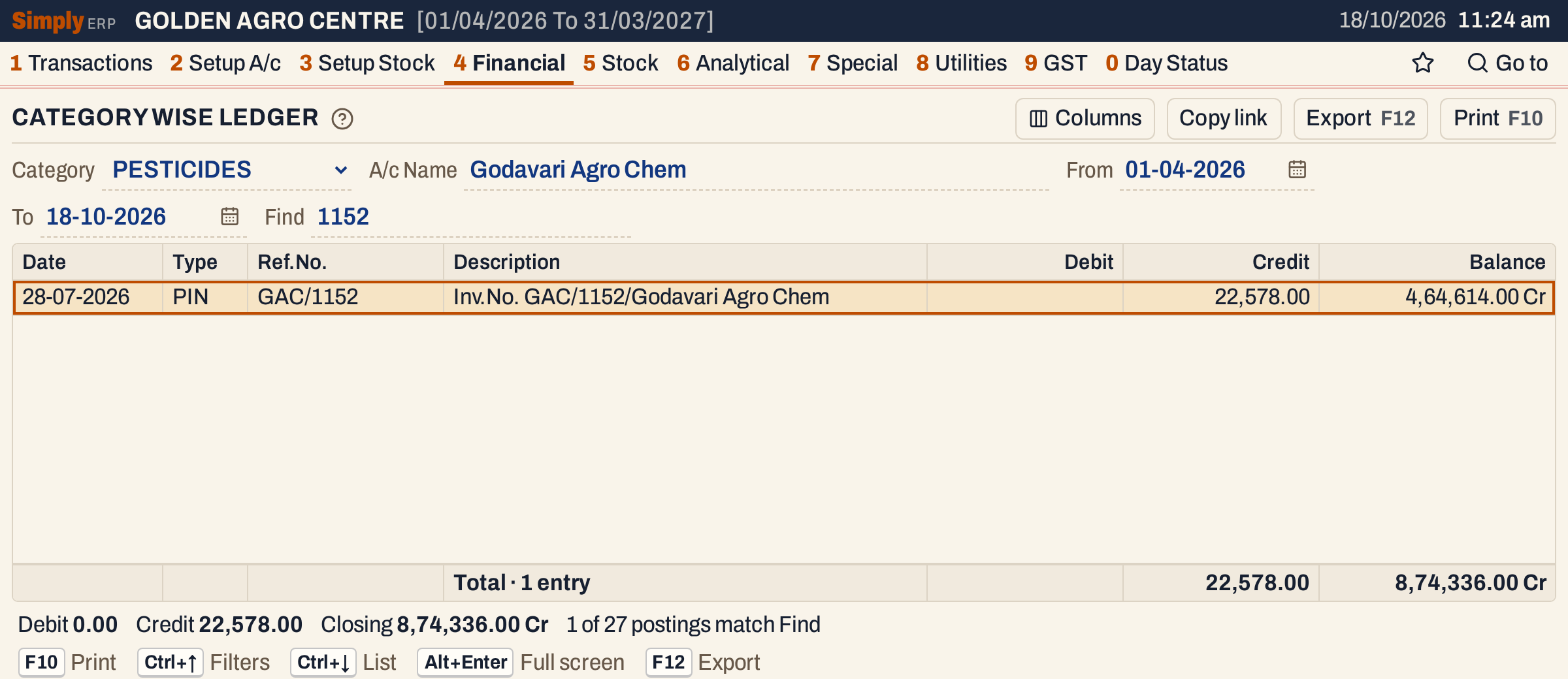 The same bill under PESTICIDES, for the same 22,578.00. Its balance, 4,64,614.00 Cr, and the closing balance, 8,74,336.00 Cr, are those of the whole pesticide ledger; Credit adds up only the line shown.
Open, print and export
- Enter on a line opens the bill behind it. Back returns to the same line. A line that belongs to a voucher opens the voucher.
- F10 prints the lines shown, headed A/c STATEMENT, with the account’s name, the category and the period in the heading. The print has no Balance column: it ends with a Totals line and the closing balance in the Debit or Credit column, marked Dr or Cr. Credit comes before Debit in the print.
- F12 saves the same layout as an Excel workbook, with the figures as numbers.
- Alt+Enter gives the whole window to the list.
Updated 4 November 2026.