Change or delete a voucher
On this page
A receipt, a payment or a journal entry that was entered wrongly is corrected where it is saved: you find it in the voucher register, open it, and either change it or delete it. A changed voucher keeps its number and its place in the series. A deleted one takes its postings out of the accounts at once. This guide uses payments; receipts, journals and non-GST notes work the same way.
Open the voucher register
Each kind of voucher has its own register under its menu entry: M (View / Modify / Delete / Print) after the entry’s letter. Press Alt+1 for the Transactions menu, then C for Payments and M. Use B for receipts and D for journals. To list every kind together, set Show to * All (this is the All Vouchers register).
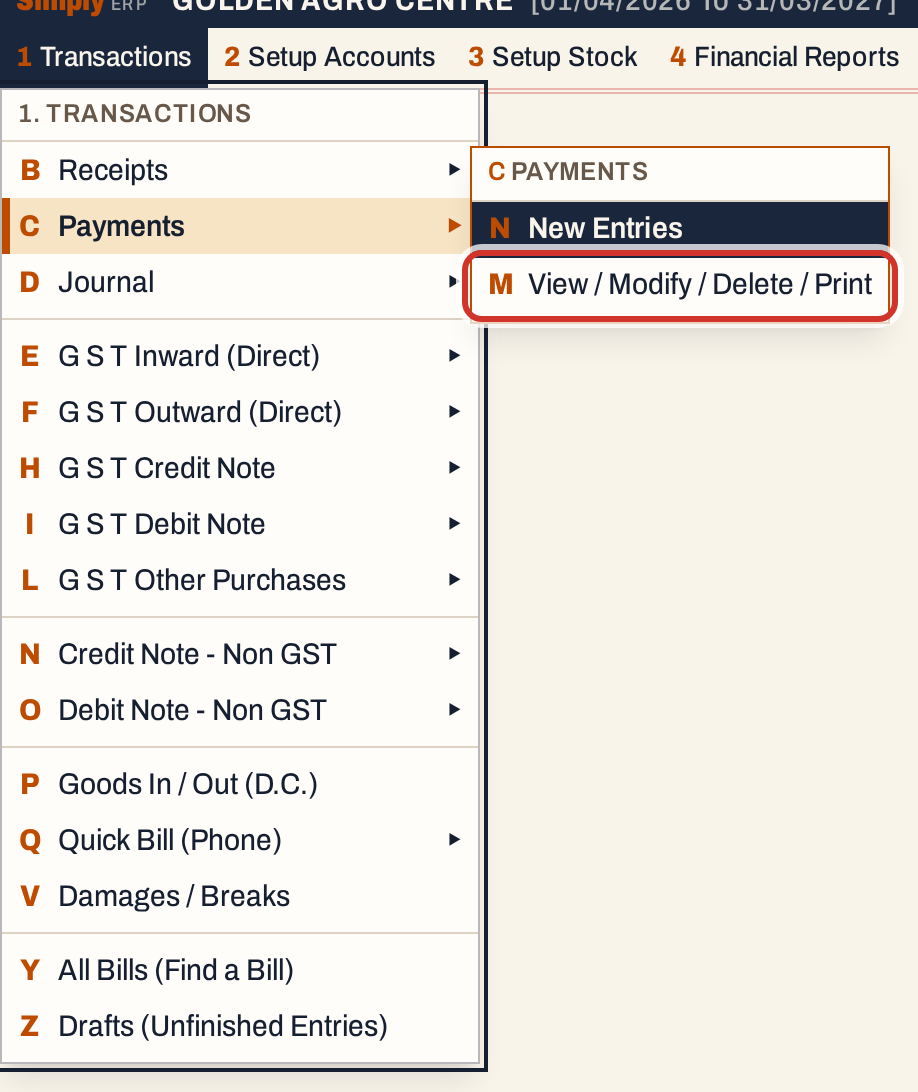 1 C M: Transactions, Payments, View / Modify / Delete / Print.
The register lists the vouchers of the period, one line each, with the newest first. The period starts as the financial year to date: here 01-04-2026 to 18-10-2026.
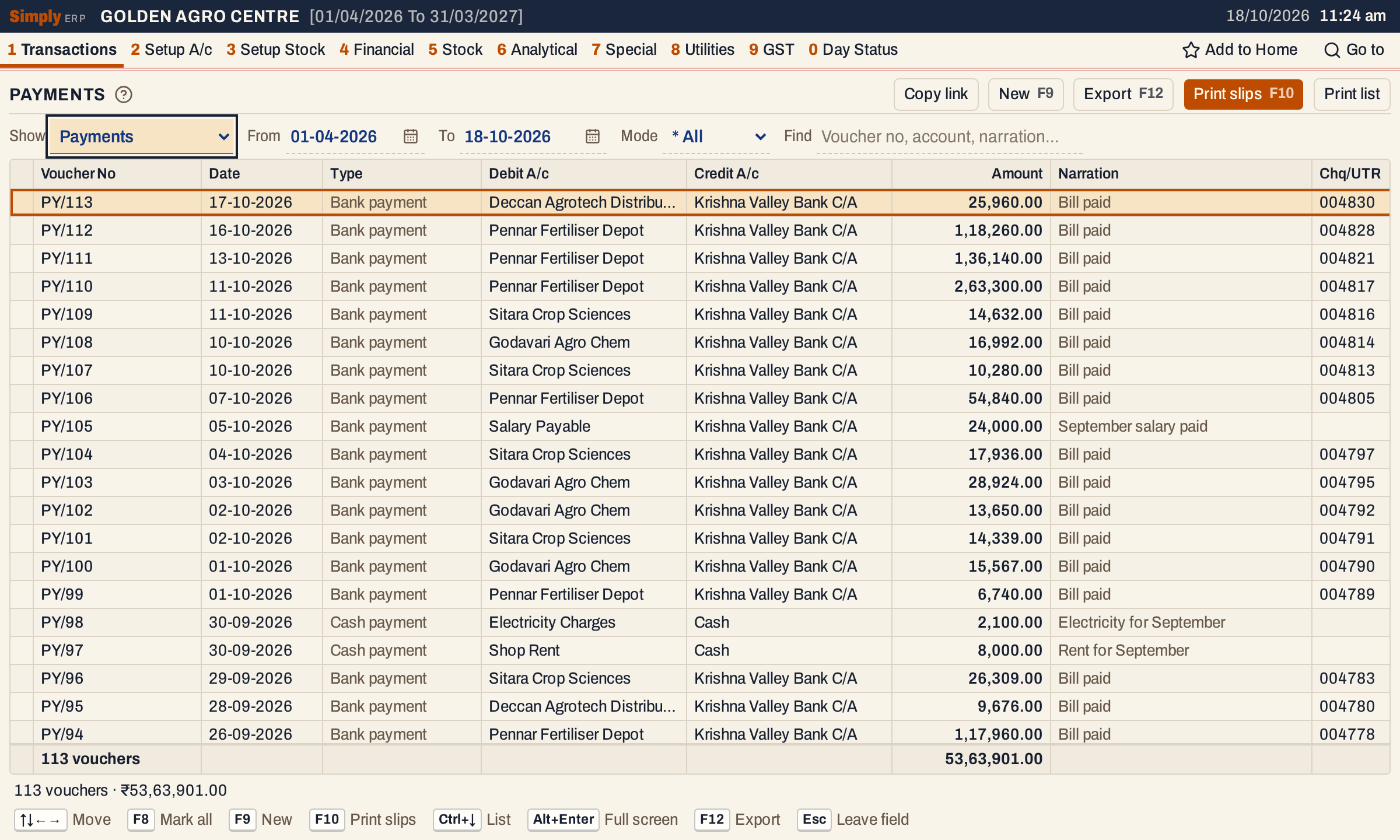 113 payments in the year so far. The footer adds up their amounts.
| Column | What it shows |
|---|---|
| Voucher No | The series and number |
| Date | The voucher’s date |
| Type | Cash payment, Bank payment, and so on. Shown when the list holds more than one kind. |
| Debit A/c, Credit A/c | The account on each side. When a side has several lines, the first account is shown with “+ 2” for two more. |
| Amount | The total debited |
| Party note no. | The party’s own number for a received non-GST note. Shown when any voucher in the list has one. |
| Narration | The narration. For a non-GST note, its particulars (the column is then called Particulars). |
| Chq/UTR | The cheque number or transfer type, when any voucher in the list has one |
The choices above the list are Show (all vouchers, receipts, payments, journals, financial notes, credit notes or debit notes), From and To, Mode (Cash or Bank, shown when the list has cash or bank vouchers) and Find.
Find keeps the vouchers that match what you type in their voucher number, accounts, narration, cheque number, the party’s note number or a note’s particulars. Press Enter or ↓ in Find to go to the list.
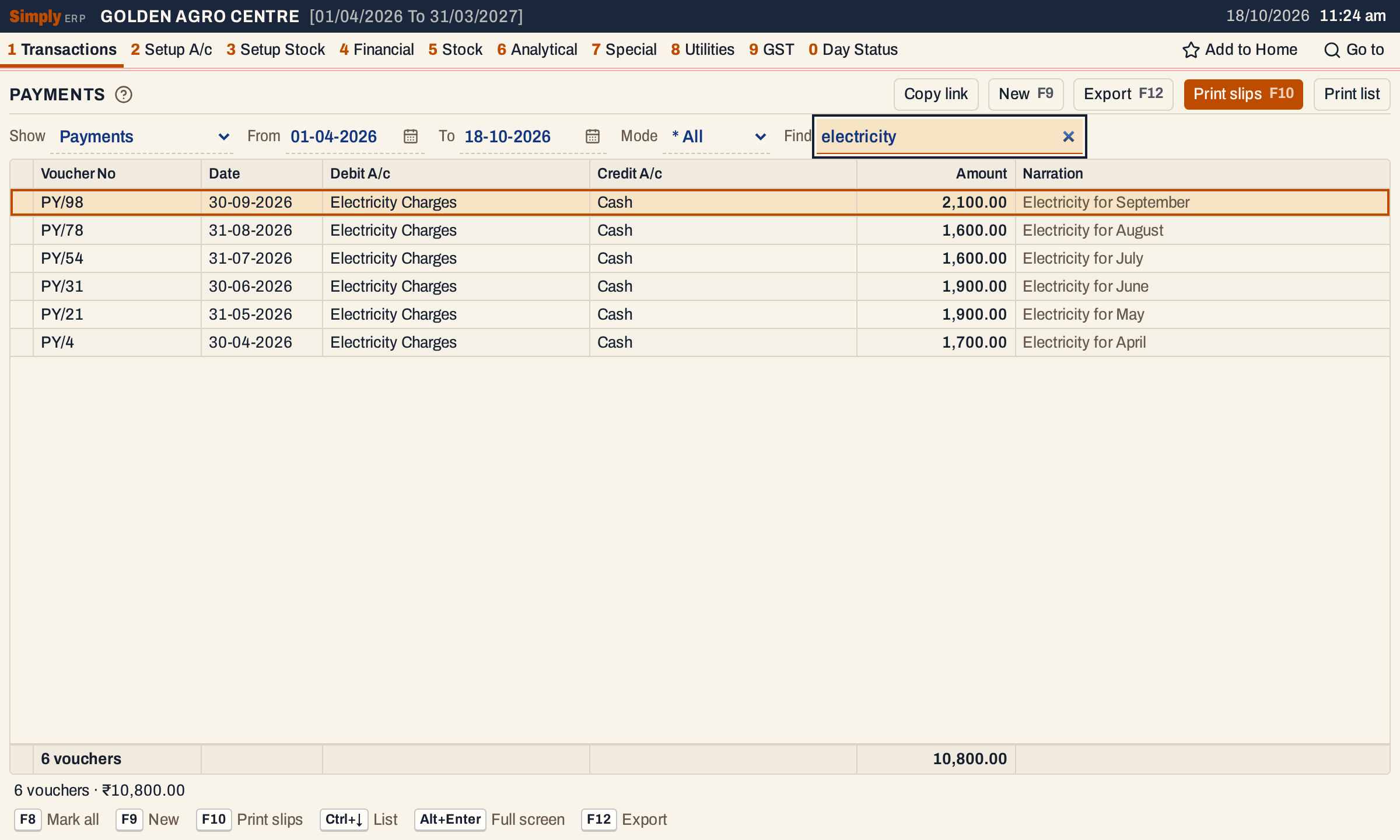 Find “electricity” lists the six electricity payments. The cursor is on the newest, PY/98.
Open the voucher
Move to the voucher and press Enter. Ctrl+↓ takes you from the choices to the list. The voucher opens with its details, its entries, and the totals.
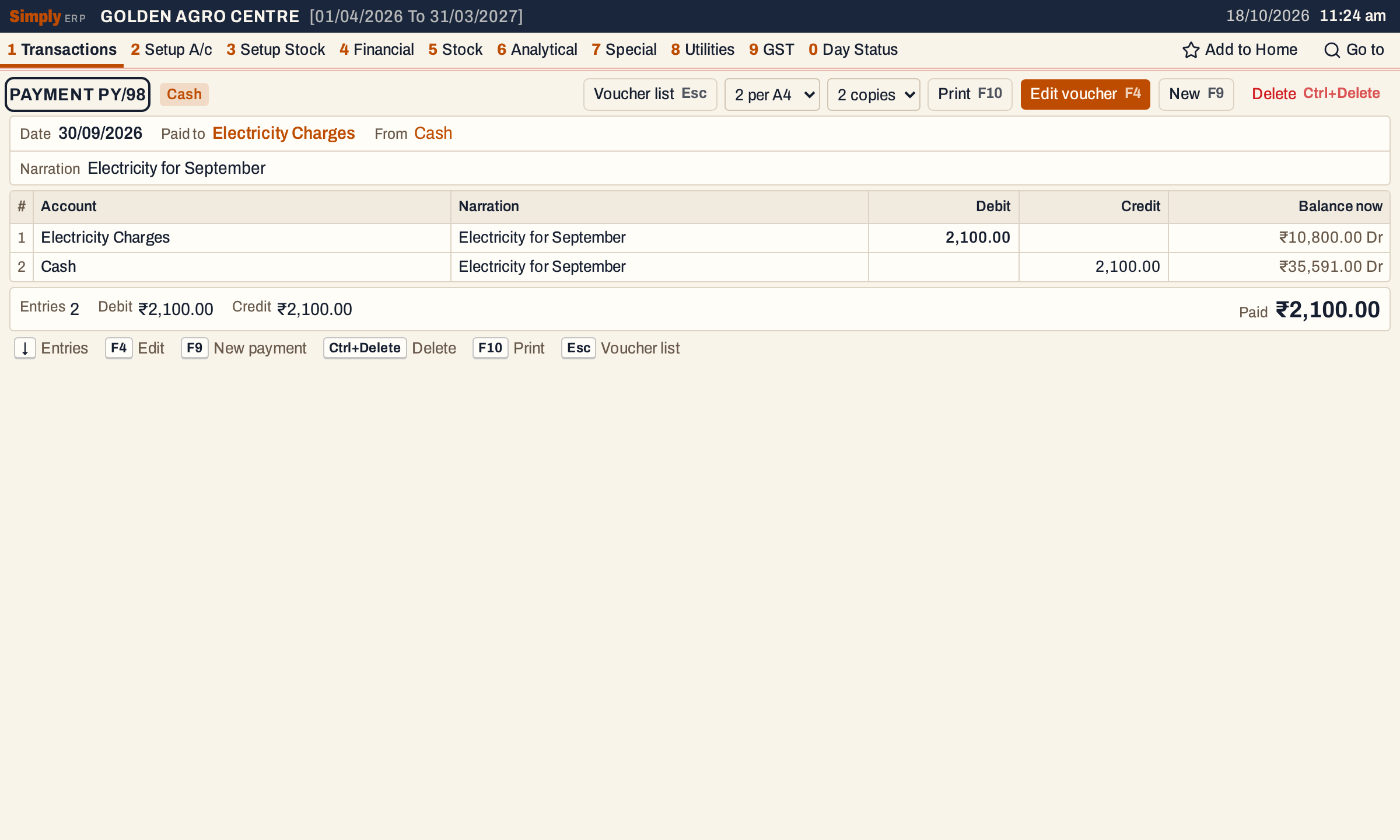 The voucher shows both postings. Balance now is each account’s balance today, including later entries.
From here F4 edits the voucher, Ctrl+Delete deletes it, F10 prints its slip and Esc goes back to the list. F4 also works in the register, on the voucher under the cursor.
Change a voucher
Press F4. The voucher opens in the same screen as a new one, with its values in place. You can change:
- the Mode, the Date and the cash or bank account in the header;
- the account, the narration and the amount of the row, and for a bank voucher the cheque number or transfer type and the cheque date;
- for a journal, every row.
The Series cannot be changed: the voucher keeps its number. The date must fall in the financial year, and the same checks apply as when you enter a voucher, such as a journal that must balance.
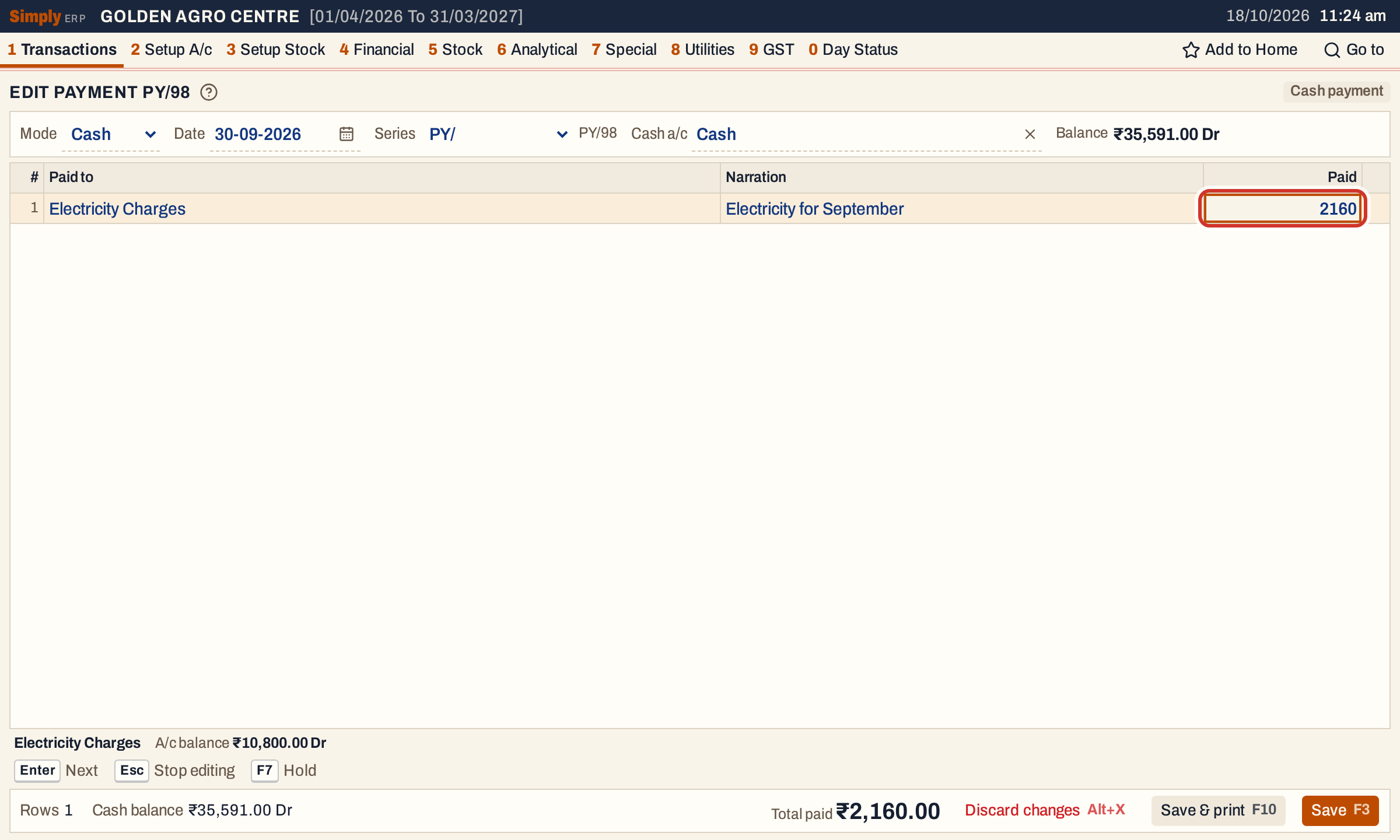 The amount changed from 2,100 to 2,160. The series is fixed.
Press F3 to save. The voucher opens again with its new figures.
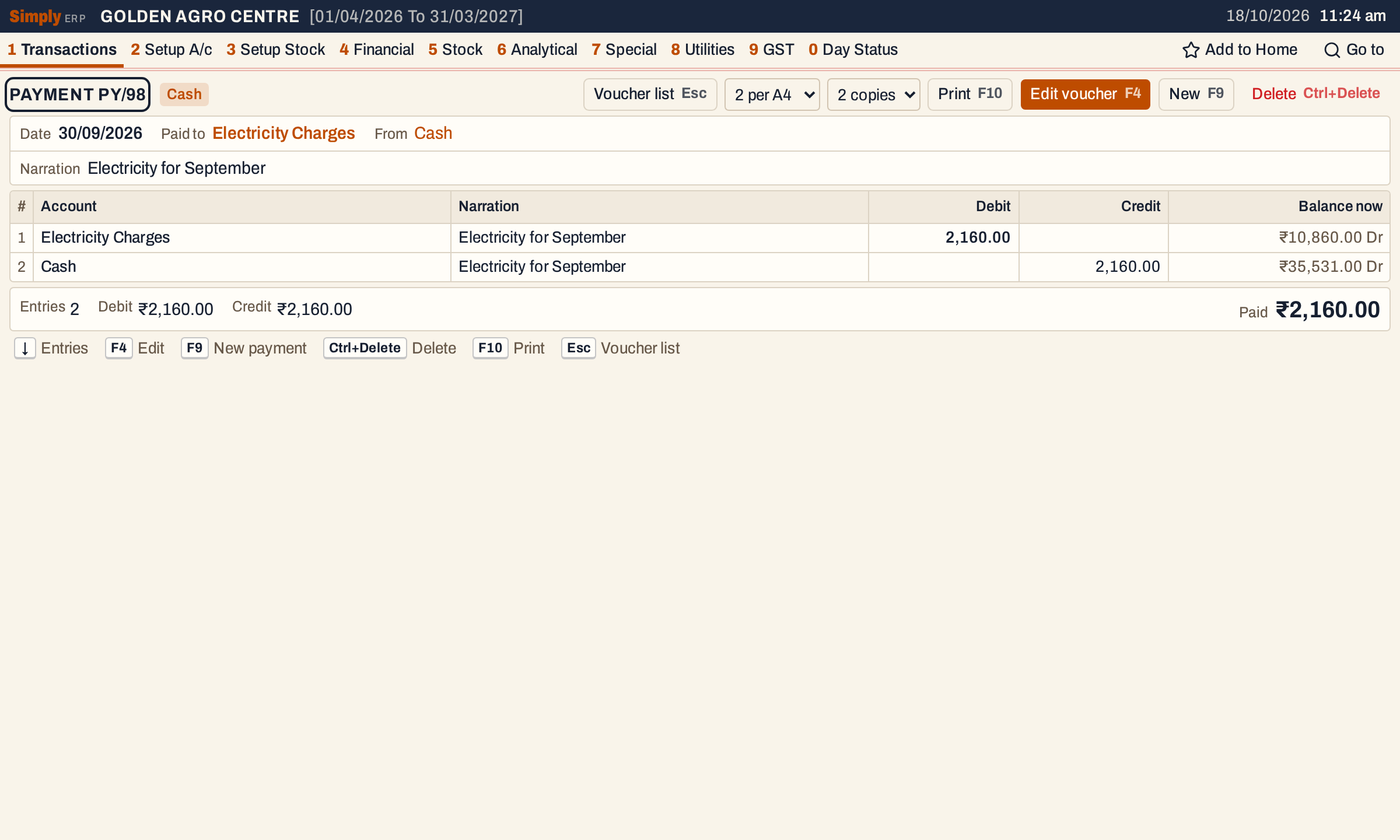 Electricity Charges went from ₹10,800.00 Dr to ₹10,860.00 Dr, and Cash from ₹35,591.00 Dr to ₹35,531.00 Dr: ₹60 more was paid.
Alt+X discards the changes, after asking.
Delete a voucher
Open the voucher and press Ctrl+Delete, or click Delete. The register itself does not delete.
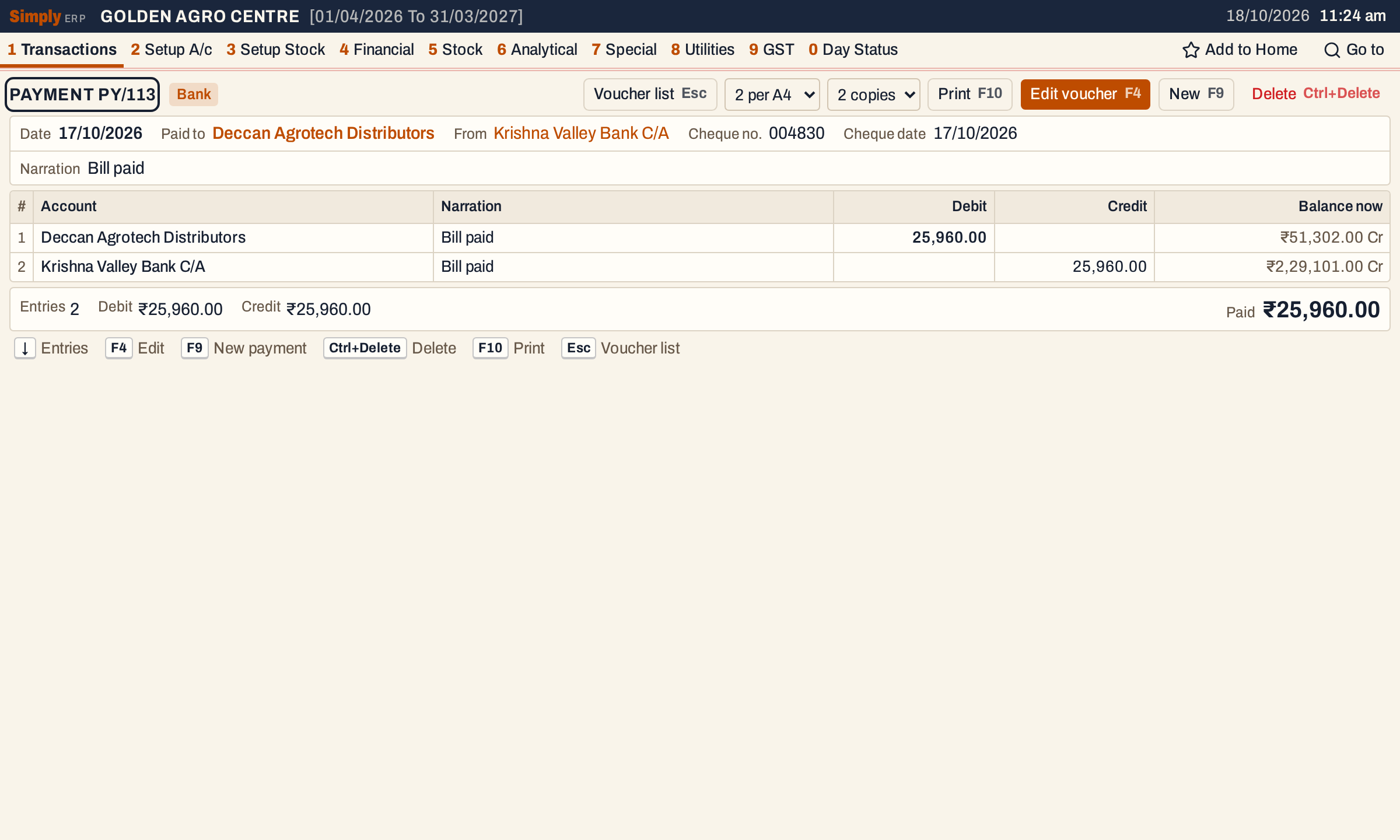 PY/113 is the newest payment.
A question opens, and the cursor starts on Cancel, so a stray Enter deletes nothing. To delete, press Tab to reach Delete and then Enter, or click Delete.
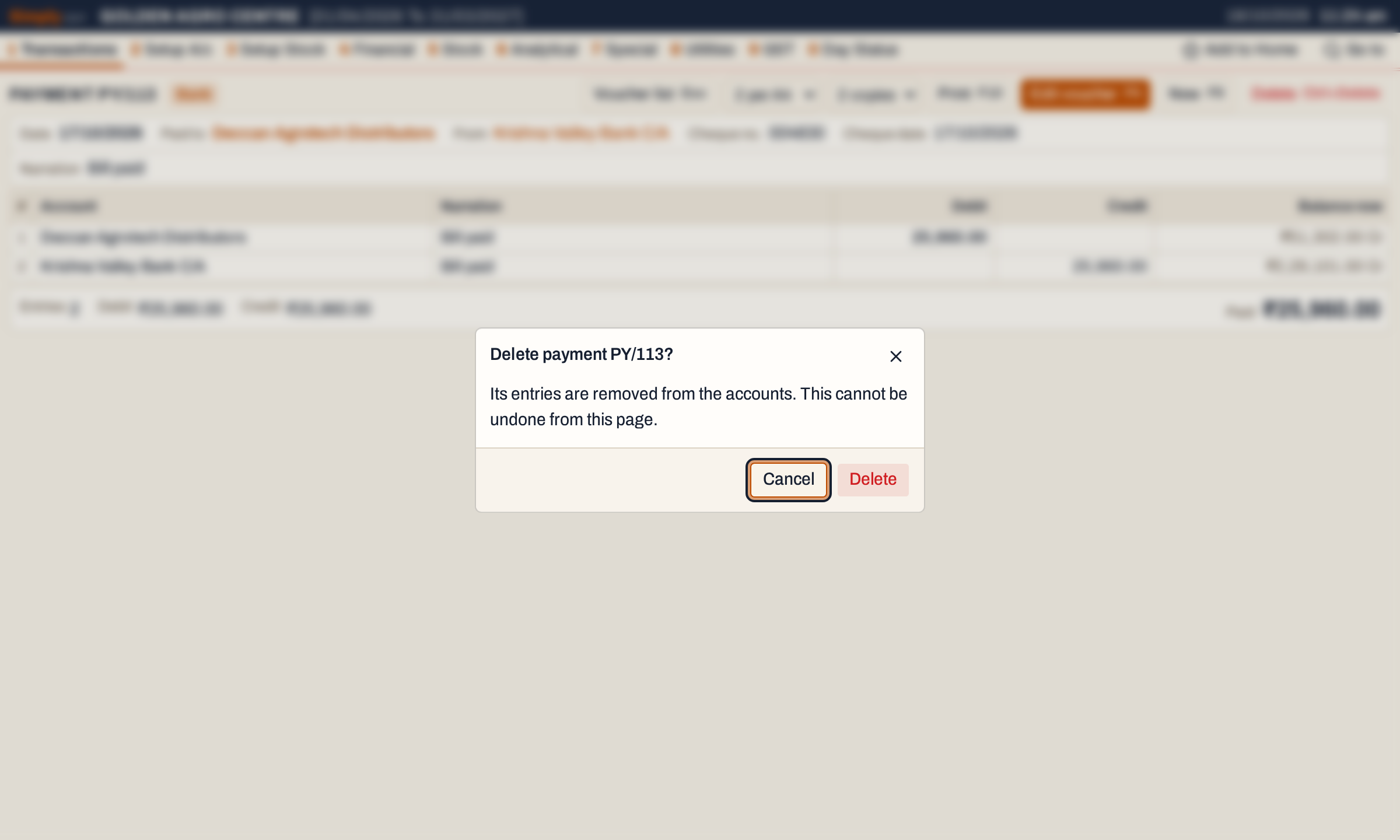 Deleting cannot be undone from this page.
The payment is gone from the register and a notice names it. The register now holds 112 payments, and the footer total is ₹53,38,001.00: the earlier ₹53,63,901.00, less this payment’s ₹25,960.00, plus the ₹60 added when PY/98 was changed.
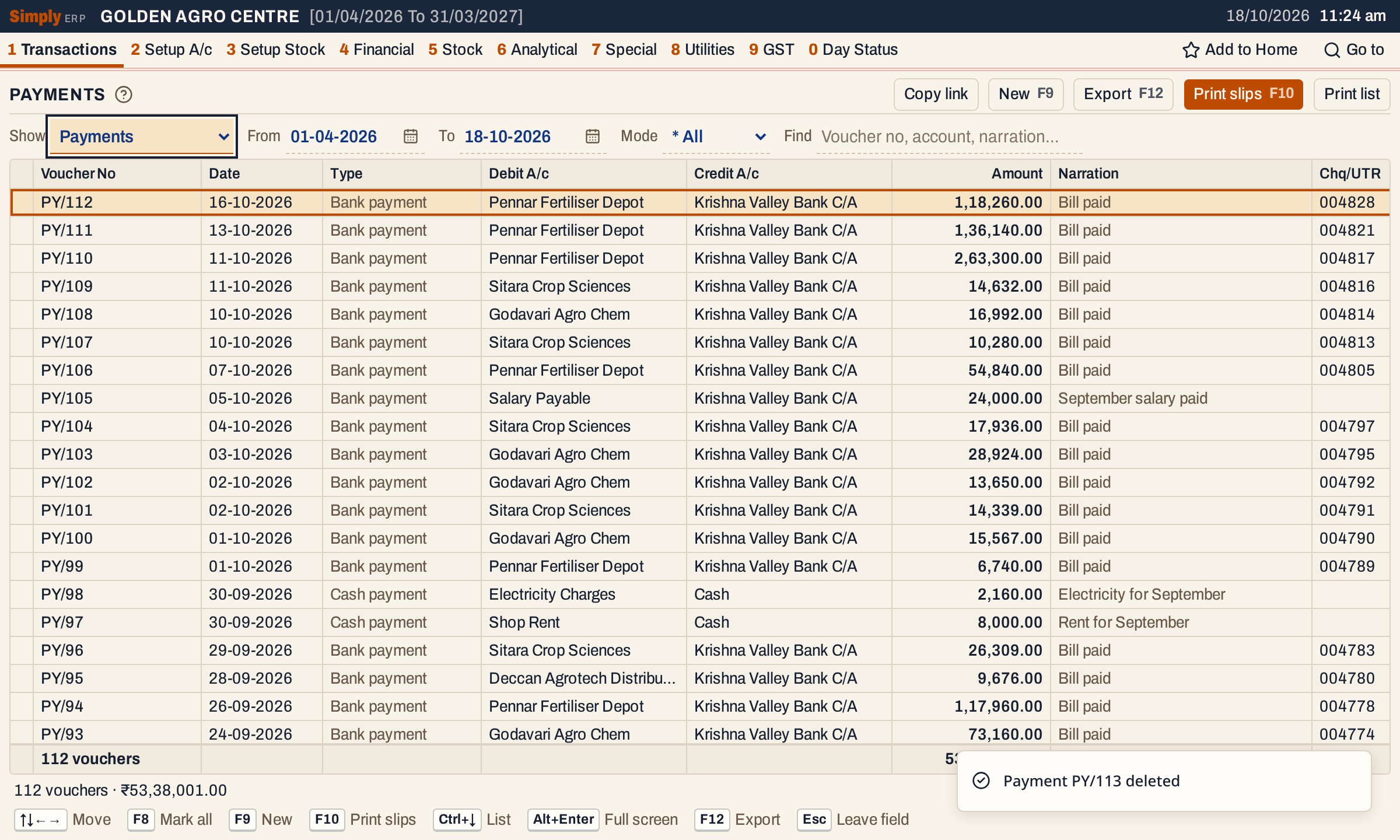 The newest payment is now PY/112.
The number of a deleted voucher is not used again. A new payment starts at PY/114, not PY/113.
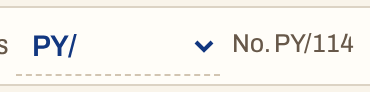 The next number after the deleted PY/113 is PY/114.
What changing or deleting does to your books
| Action | What happens |
|---|---|
| Change | The voucher’s postings are removed and posted again from the saved figures, on the voucher’s date. Its number stays. |
| Delete | The voucher and its postings are removed. Its number is not reused. |
In this example, changing PY/98 posted ₹2,160.00 Dr to Electricity Charges and ₹2,160.00 Cr to Cash in place of ₹2,100.00. Deleting PY/113 removed ₹25,960.00 Dr from Deccan Agrotech Distributors and ₹25,960.00 Cr from Krishna Valley Bank C/A.
Receipts, payments and journals do not touch stock. The changes show at once in the accounts’ ledger, the cash book or bank book, and in the All Vouchers register.
Two things stop a change or a delete:
- A payment made by clearing a cheque in the cheque register cannot be changed or deleted. Reopen the cheque first; this removes the payment, and the cheque is pending again.
- When an admin PIN is set, saving a change or deleting a voucher asks for it.
Keys
| Key | Where | What it does |
|---|---|---|
| Enter | Register | Open the voucher |
| F4 | Register, voucher | Edit the voucher |
| F3 | Edit screen | Save the change |
| Ctrl+Delete | Voucher | Ask to delete it |
| F9 | Register, voucher | Start a new voucher of this kind (in the register, when Show is one kind) |
| F2, F8 | Register | Mark the voucher, mark every voucher |
| F10 | Register, voucher | Print the slips of the marked vouchers, or of the one under the cursor |
| F12 | Register | Export the list |
| Esc | Voucher | Back to the register |
The register’s Print list button prints the list itself, the marked vouchers or all of them. At most 200 slips are printed at a time.
Common questions
Can I change a bill the same way? Bills are changed and deleted from All Bills. See Edit a bill and Delete a bill.
Can I change the series or number of a voucher? No. To record it in another series, delete it and enter it again.
I deleted the wrong voucher. Enter it again from Record a payment, Record a receipt or Journal entry. It gets a new number.
Updated 4 November 2026.