A/c Position
On this page
The A/c Position shows what one account really stands at as on a date. The Ledger has only what has been posted. The A/c Position adds what the ledger does not know yet: goods received or sent out but not billed, cheques given but not cleared, and the difference between the rate billed and the rate agreed. Each is a line of its own, on its debit or credit side, and together they add up to a closing balance.
Open the report
Press Alt+4 for Financial Reports, then O. Type part of the account’s name in A/c Name and press Enter, or press F2 to list every account. The report opens as on today (or the financial year’s last day, if today is later).
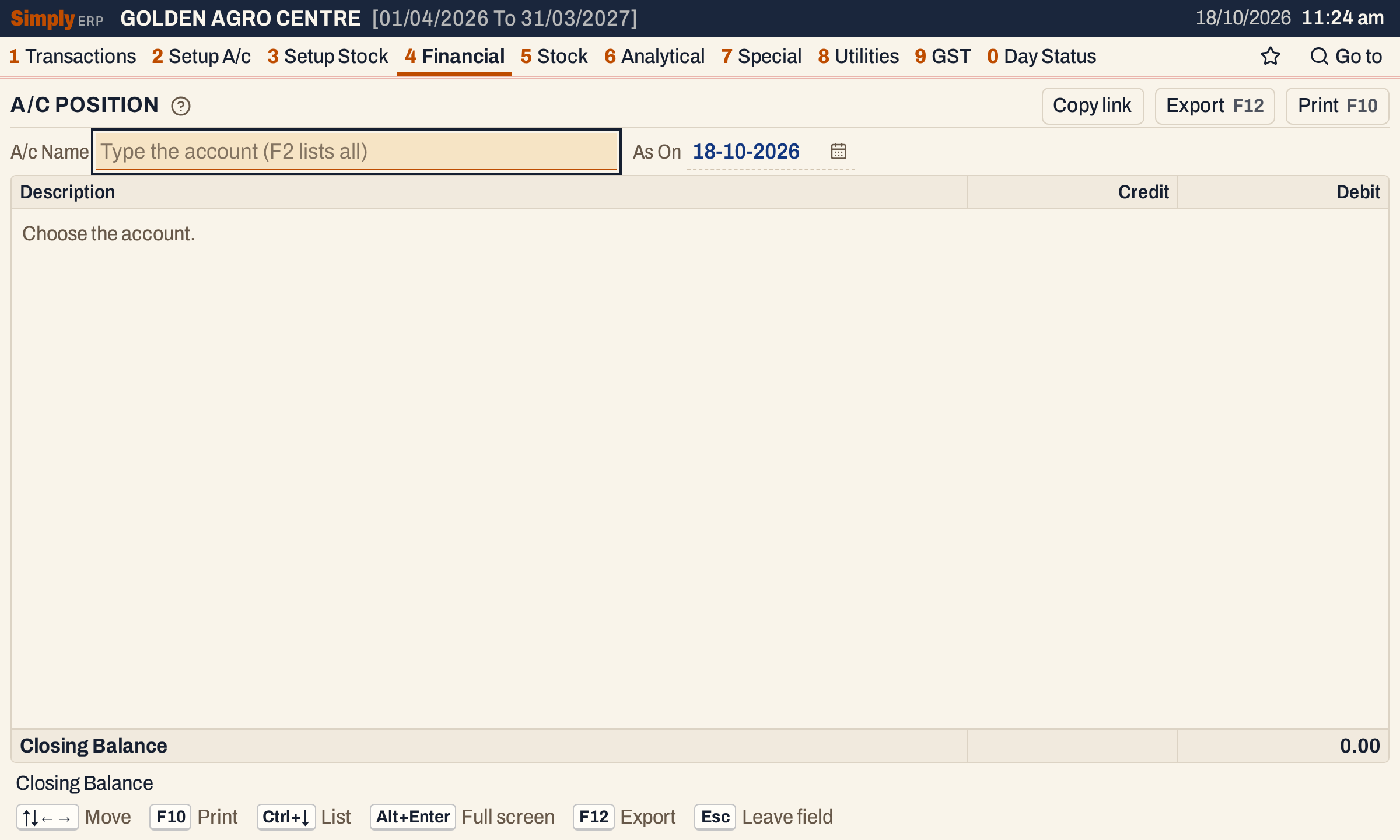 The report waits for an account.
 The list shows each account’s place and its balance.
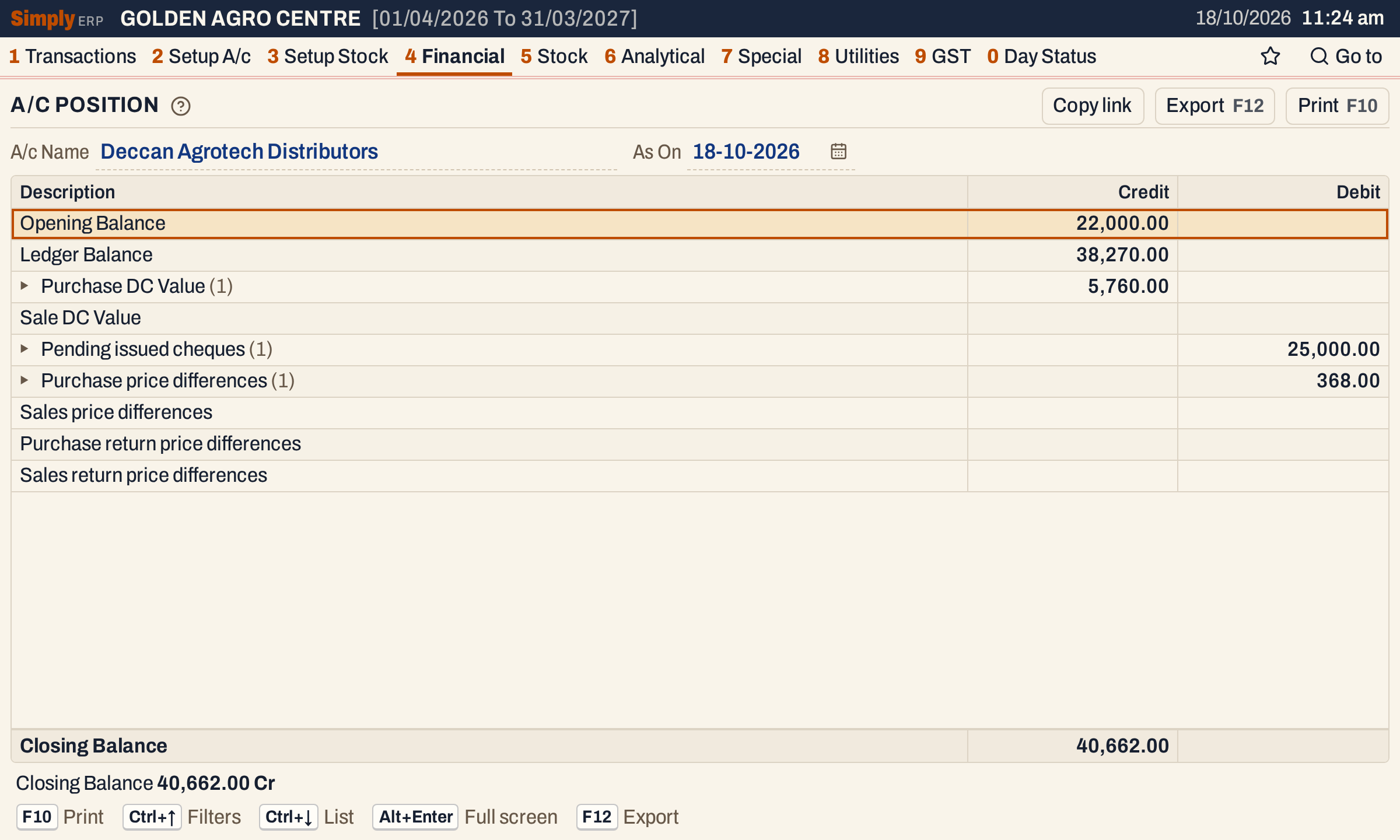 A supplier. Every line has a side, Credit or Debit. A triangle marks a line that has documents under it, and the number in brackets says how many.
What it lists
Always the same nine lines, in this order, for the account you choose. A line with no figures is left empty.
| Line | Side | What it is |
|---|---|---|
| Opening Balance | Dr or Cr | The balance at the start of the financial year. |
| Ledger Balance | Dr or Cr | What was posted to the account from the first day of the financial year to the As On date. |
| Purchase DC Value | Credit | Goods received from the account that no bill has taken yet. |
| Sale DC Value | Debit | Goods sent out to the account that no bill has taken yet. |
| Pending issued cheques | Debit | Cheques given to the account and not yet cleared or cancelled. |
| Purchase price differences | Debit | Purchase bill lines with an agreed rate: how far the rate billed is above it. |
| Sales price differences | Credit | Sale bill lines with an agreed rate: how far the rate billed is above it. |
| Purchase return price differences | Credit | The same for purchase returns. |
| Sales return price differences | Debit | The same for sales returns. |
Goods come from Goods In / Out (Alt+1, then P), which lists goods received as In and goods sent out as Out. Only an entry with a Quoted price counts; an entry without one is not in the report. Cheques come from the issued cheques register (8 I). Price differences come from the Agreed column of a bill line, which holds the agreed rate including GST. A bill line with no agreed rate has no difference.
Choices
| Choice | What it does |
|---|---|
| A/c Name | The account. Choosing another account closes the lines you had opened. |
| As On | The day the position is drawn up to. Documents dated after it are left out. |
 The two choices above the grid.
The period always starts on the first day of the financial year. Every choice, with the lines you have opened, is kept in the page address, so Copy link gives a link that opens the same report.
How the figures are worked out
- Opening Balance = everything posted to the account before the financial year, with its opening balance counted as a posting. Credits less debits: a credit result is shown under Credit, a debit result under Debit.
- Ledger Balance = the credits posted from the first day of the financial year to the As On day, less the debits, the same way. The opening balance is not counted again here. Opening Balance and Ledger Balance together are the balance the Ledger shows on the As On day: in the pictures 22,000.00 + 38,270.00 = 60,270.00 Cr, the balance in the account list.
- Purchase DC Value and Sale DC Value = for each goods entry of the account dated up to the As On day (earlier years included), the quantity not yet taken by a bill × the quoted price. A purchase bill takes goods when its line is linked to the entry with the D.C. cell; only bills posted up to the As On day count. A received entry gives Purchase DC Value, a sent-out entry Sale DC Value. In the pictures: 24 units of Carbendazim at 240.00 = 5,760.00 Cr.
- Pending issued cheques = the amounts of the cheques in the register made out to the account that were issued on or before the As On day and were not cleared or cancelled by then. Under the line each cheque shows its issue date, its number and its narration. A cheque leaves this line on the day it is cleared or cancelled in the register. Clearing it with Post bank payment ticked posts the payment to the account’s ledger on the cleared date, so the amount is counted once. Here: cheque 004522 for 25,000.00.
- Price differences = for every bill line with an agreed rate, the quantity × (the line’s cost per unit, less the agreed rate), for bills of that account posted up to the As On day, earlier years included. The cost per unit is the rate billed with GST, after the line’s discounts and after any charge or discount the bill shares out over its lines. The sums are put on the line of the bill’s type: purchase bills, sale bills, purchase returns, sales returns. The figure is negative when the bill’s rate was below the agreed rate. Here: a purchase of 20 Mancozeb at 380.00 + 18% GST = 448.40 against an agreed 430.00 gives 20 × 18.40 = 368.00 Dr.
- Closing Balance = total of the Credit column less total of the Debit column. A positive result is shown as Cr, otherwise as Dr (a nil balance as 0.00 Dr). In the pictures: 22,000.00 + 38,270.00 + 5,760.00 − 25,000.00 − 368.00 = 40,662.00 Cr.
A line’s documents are shown on the side of its line. The status line under the grid repeats the closing balance with its Dr or Cr.
Documents under a line
Press Enter on a line with a triangle to list its documents under it, and Enter again to close them. The lines you open stay open when you change As On. The Date, Ref.No. and Qty columns appear while any are open. A goods entry shows its date, D.C. number (its Ref when it has none), product and quantity left to bill. A cheque shows its issue date, its number and its narration. A price difference shows the bill’s date and number, the product, the bill’s quantity and the line’s difference.
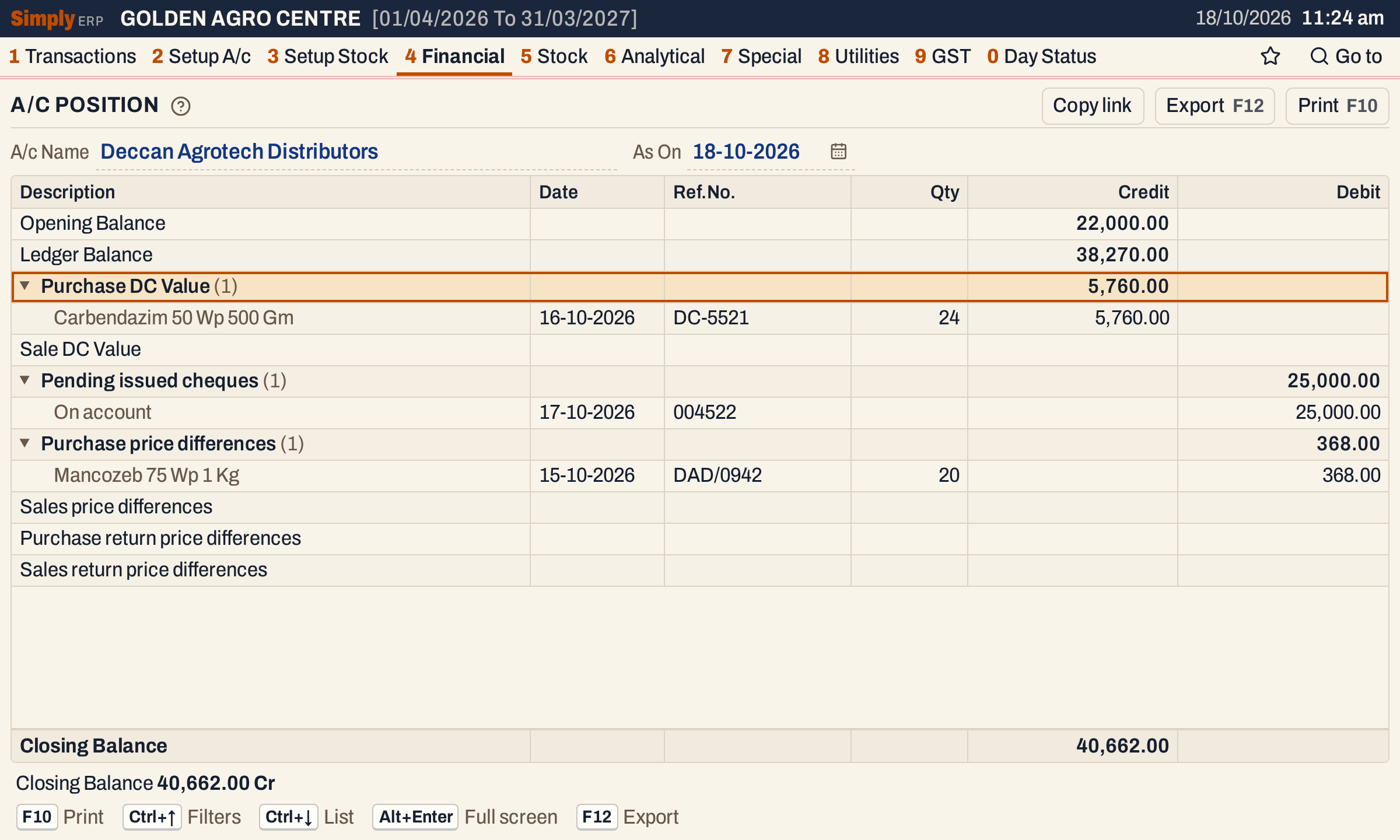 Each line’s documents, with the same closing balance.
A customer’s position
For a customer the sale side shows. Here Sri Lakshmi Agro Traders has an opening balance of 12,500.00 Dr, goods sent out but not billed (Sale DC Value) of 12 units of Dap 18-46-0 at 1,350.00 = 16,200.00 Dr, and a sale bill P/296 of 10 Chlorpyrifos at 560.00 + 18% GST = 660.80 against an agreed 640.00 (a difference of 20.80 × 10 = 208.00 Cr).
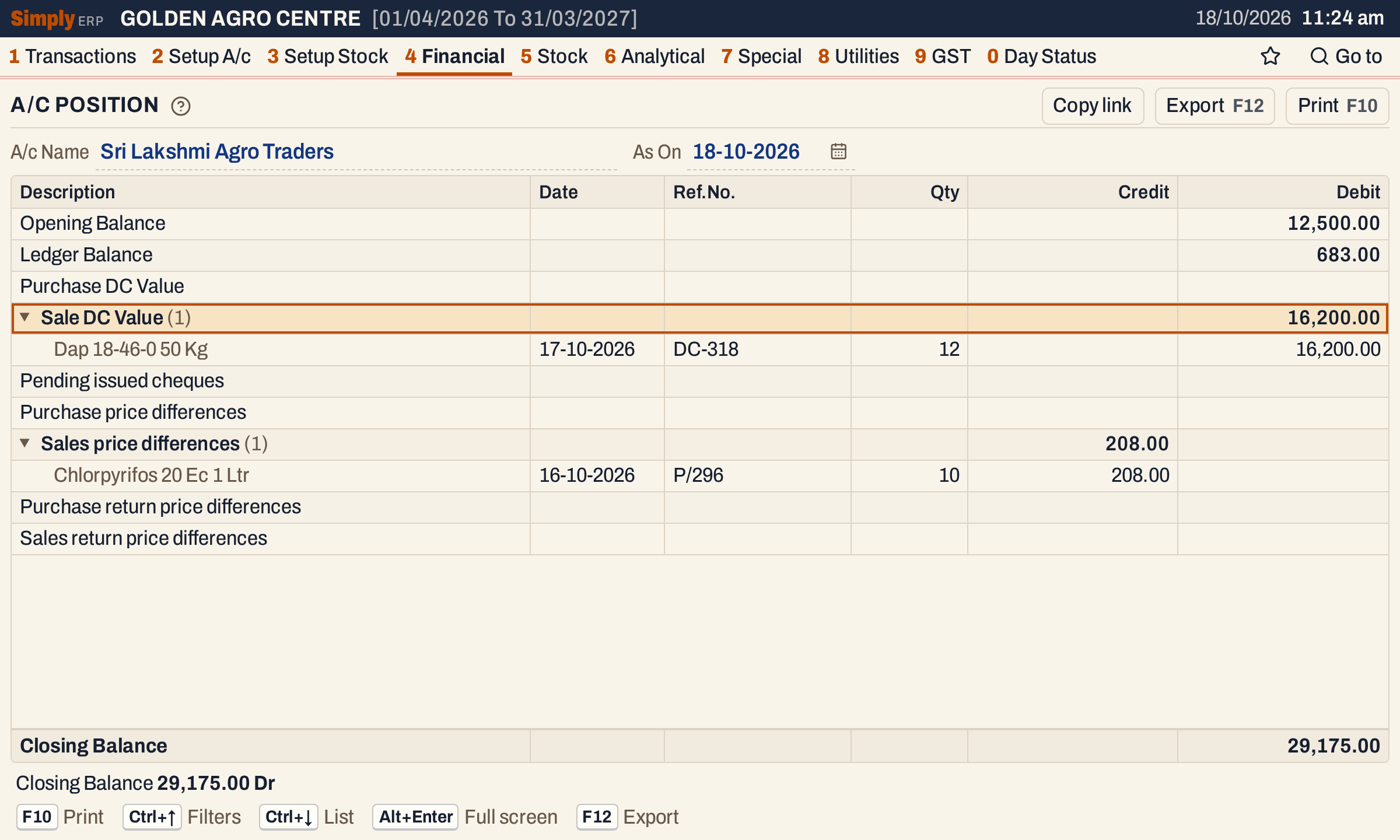 A customer. 12,500.00 + 683.00 + 16,200.00 − 208.00 = 29,175.00 Dr.
Open, print and export
- Enter on a price difference’s document opens its bill; Alt+← returns to the report. Goods entries and cheques have no bill to open.
- F10 prints the report as A/C STATUS with the account’s name and the As On date in its heading. The lines you opened are printed with their documents, each on a line of its own under its heading, and the last line is the closing balance.
- F12 saves it as an Excel workbook, with the figures as numbers and the Date, Ref.No. and Qty of each document in columns of their own.
- Alt+Enter gives the whole window to the list.
Updated 4 November 2026.