Make a credit note for a rate difference
On this page
Sometimes you bill at one price and later agree a lower one with the customer. A rate difference note credits the difference without changing the bills. You type the agreed price on each sales line in the Rate Difference Statement, mark the lines, and SimplyERP prepares a GST credit note from them: one line for each bill line, with its original bill, its GST and the amount to credit.
Open the statement
Press Alt+7 for the Special Reports menu, then D for Rate Difference St.
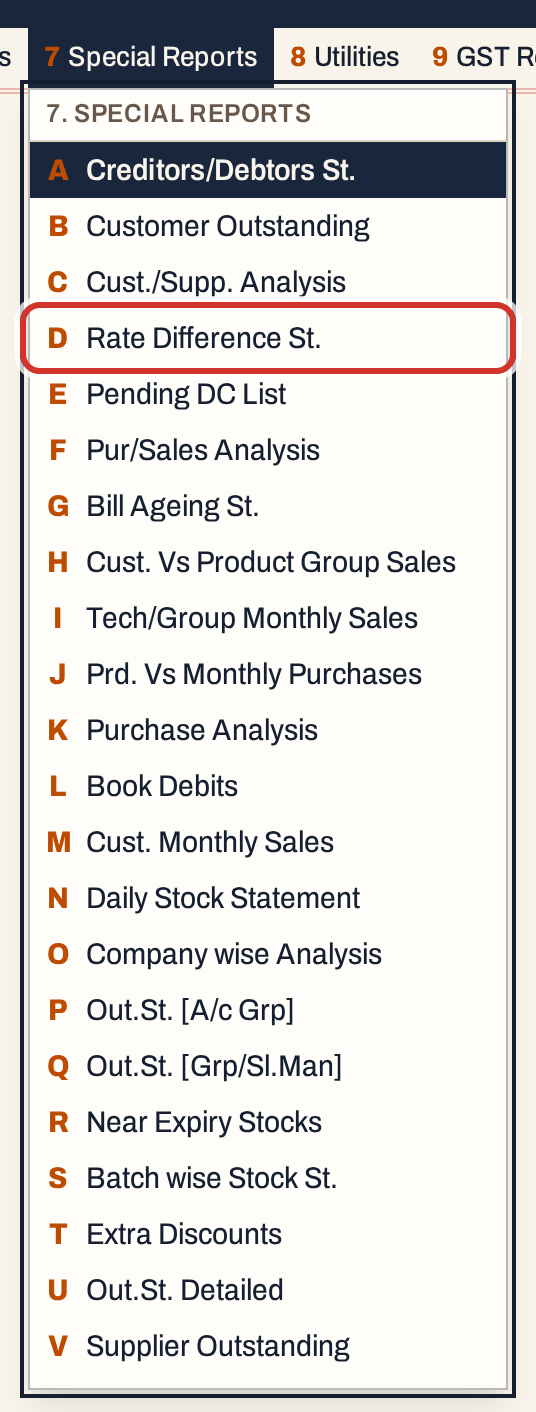 7 D: Special Reports, Rate Difference St.
The statement opens with the cursor in Party. It lists the stock lines of one party in a period. Choose the party. From and To start at the first day of the financial year and the working date, and must stay inside the year. Order lists the lines by Date (the default), Product or Inv. No.; a click on a column title sorts by that column.
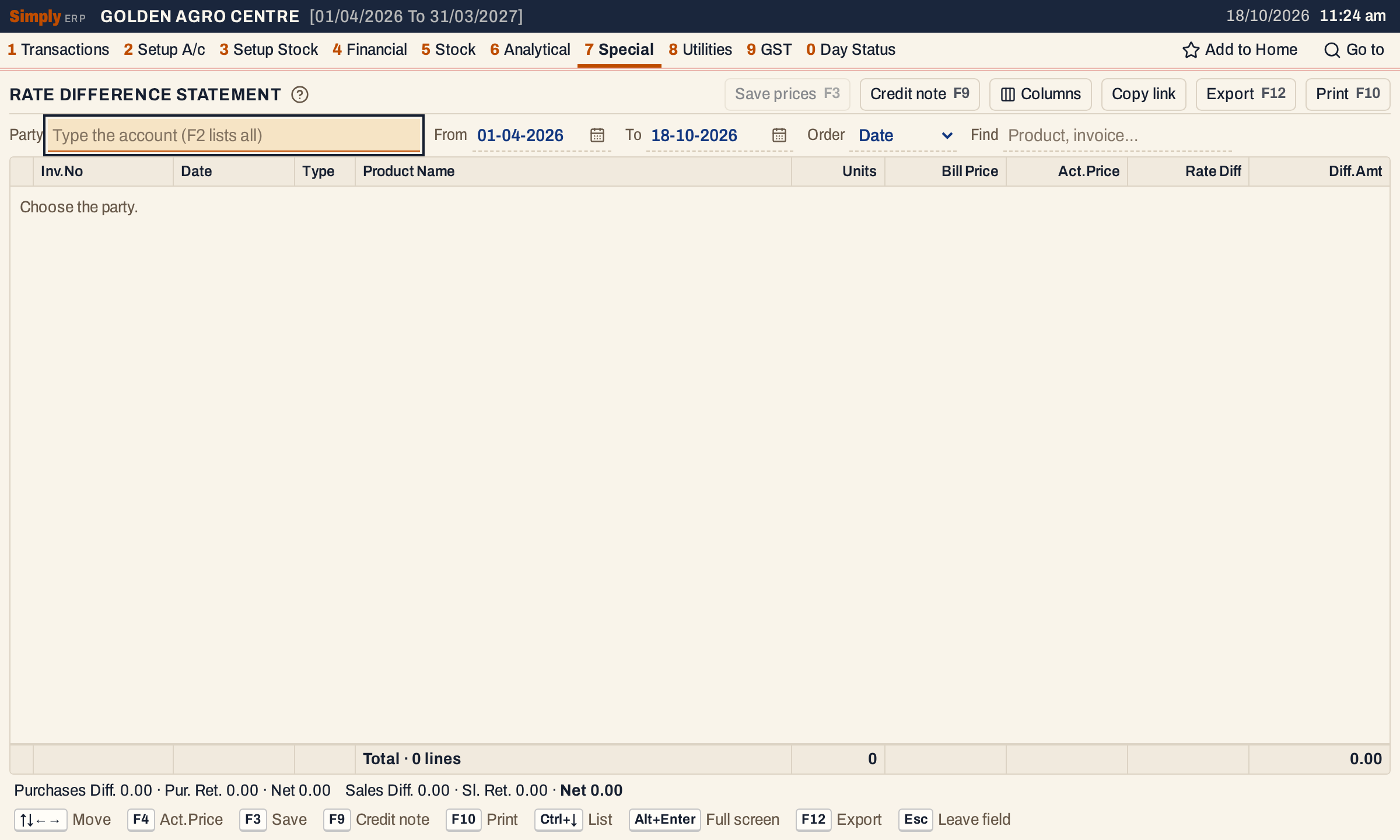 Choose the party first.
Type part of the customer’s name and press Enter. Every stock line billed with the party in the period appears: sales, sales returns, purchases and purchase returns. Type says which: SIN is a sale, SR a sales return, PIN a purchase and PR a purchase return. Bill Price is the line’s price per unit with GST, after the line’s discounts. To find the lines of one item or one bill, type its name or number in Find. Ctrl+↓ goes to the list.
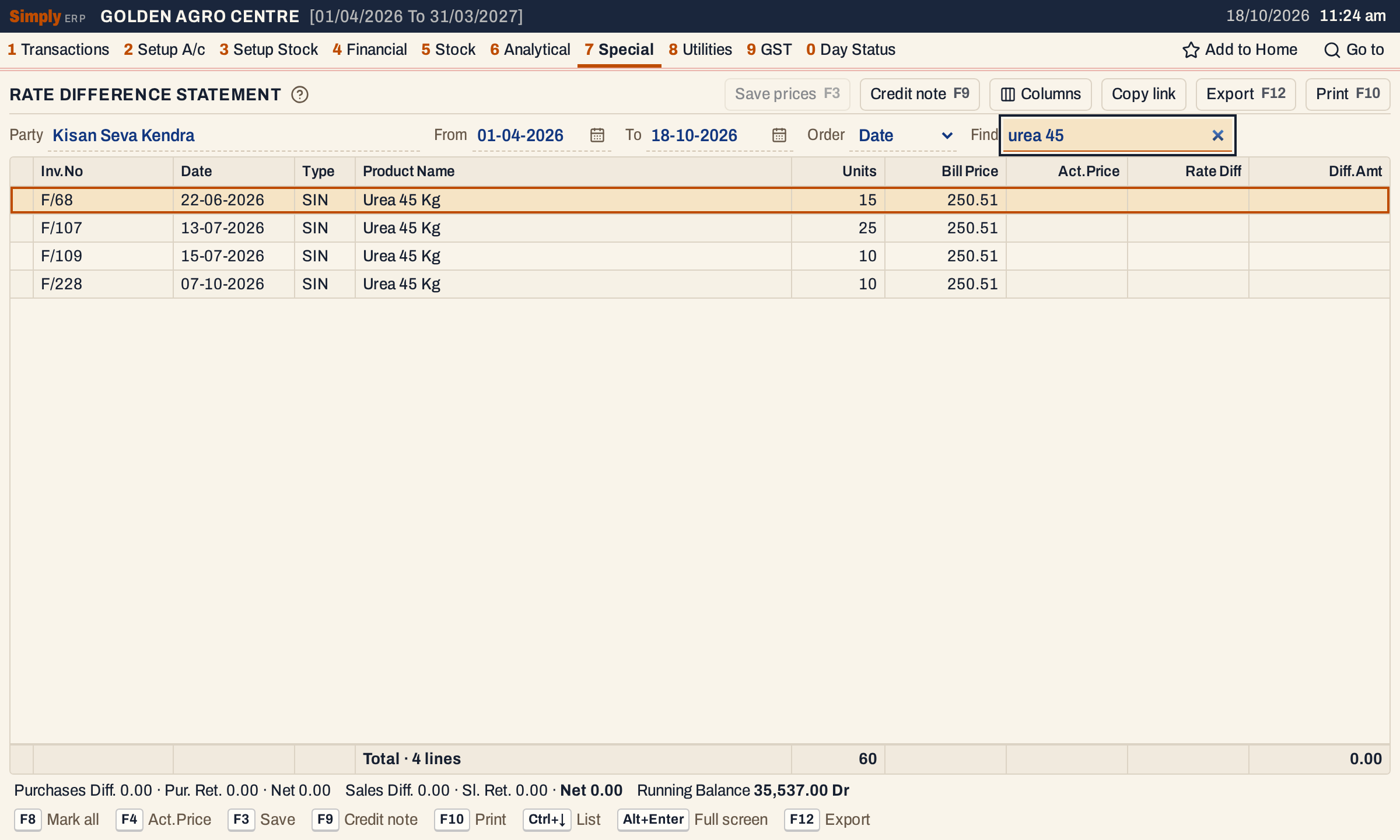 Four sales of Urea 45 Kg to this customer. Act.Price is empty until you type it.
Type the agreed prices
Move to a line with ↑ and ↓ and press F4. A field for the Act.Price opens under the list, with the item, the bill and its bill price. Type the price you agreed and press Enter. Esc cancels. Typing 0 clears the price. If the price is more than the bill price, SimplyERP asks whether to continue.
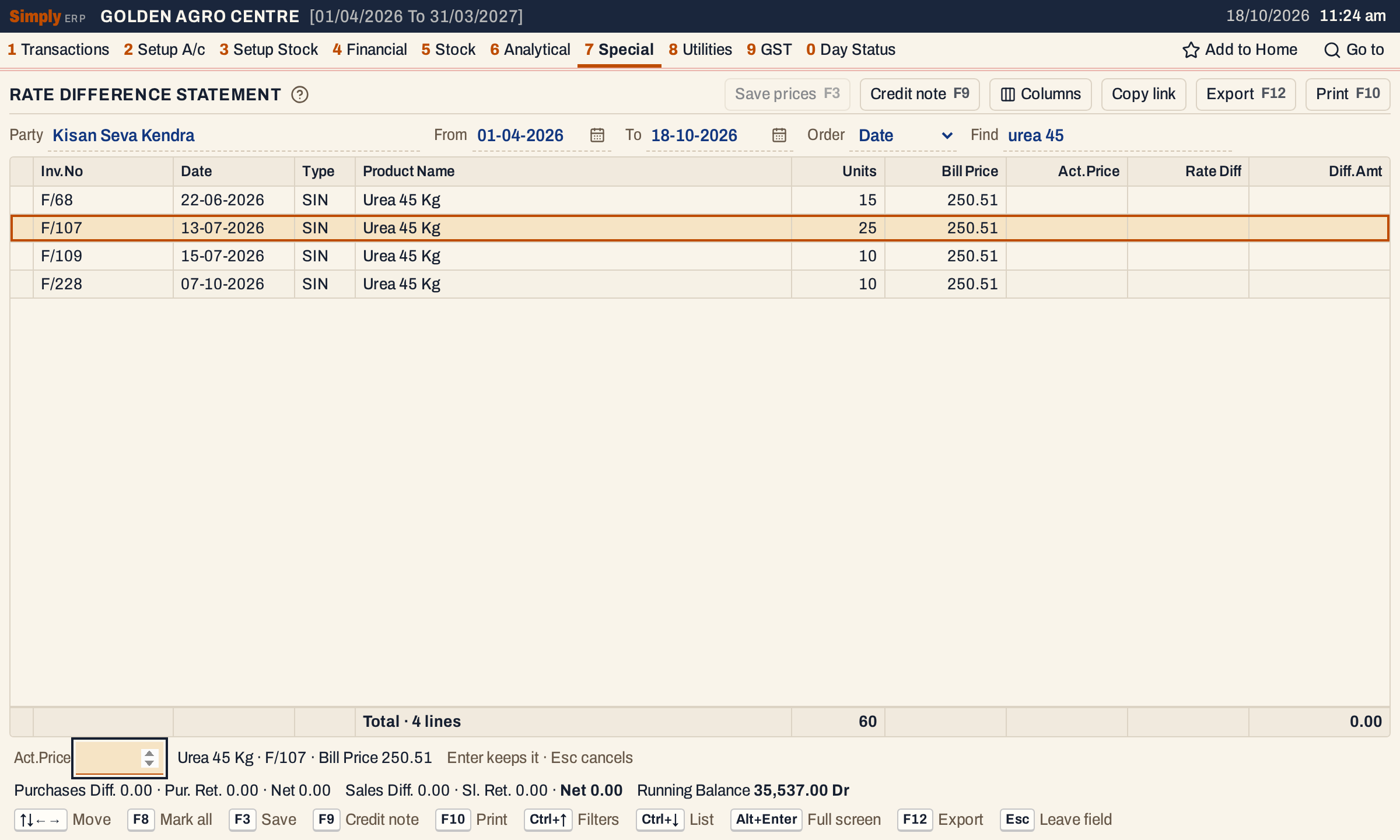 The line under the cursor is the one being priced.
Enter keeps the price and moves to the next line. The line shows the figures at once:
- Rate Diff is the Bill Price minus the Act.Price.
- Diff.Amt is the Units times the Rate Diff.
A line without an actual price shows no difference.
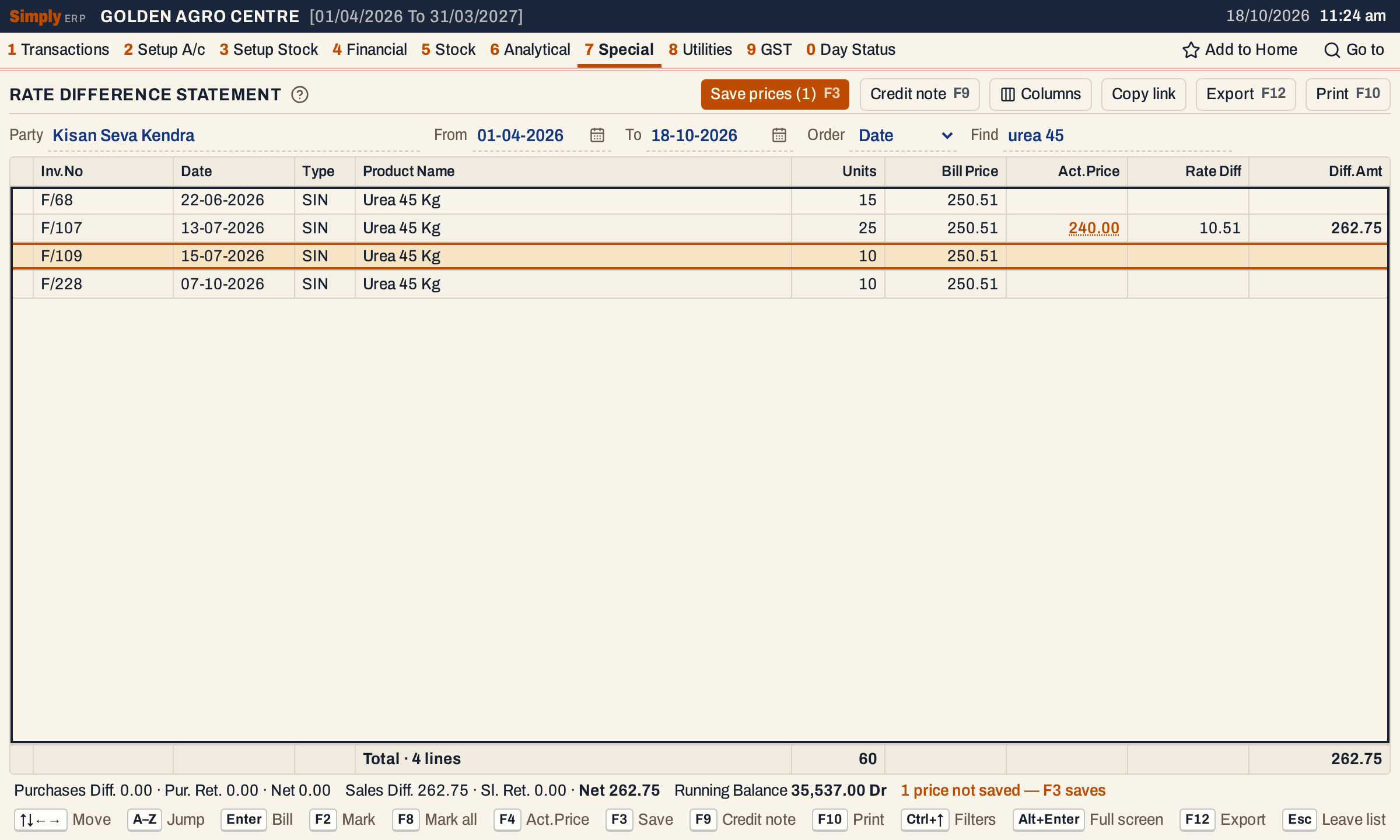 25 units at ₹10.51 less is ₹262.75. The price is underlined until it is saved.
Price the next line the same way. Then press F3 to save the typed prices. The prices are kept with the bill lines. The line under the list says how many were saved. The totals at the bottom show the differences by type: Sales Diff., Sl. Ret. (sales returns), and their Net, with the party’s running balance.
Mark the lines and prepare the note
Press F2 on each line to credit, which marks it with a tick, and F8 marks all. Then press F9, or click Credit note.
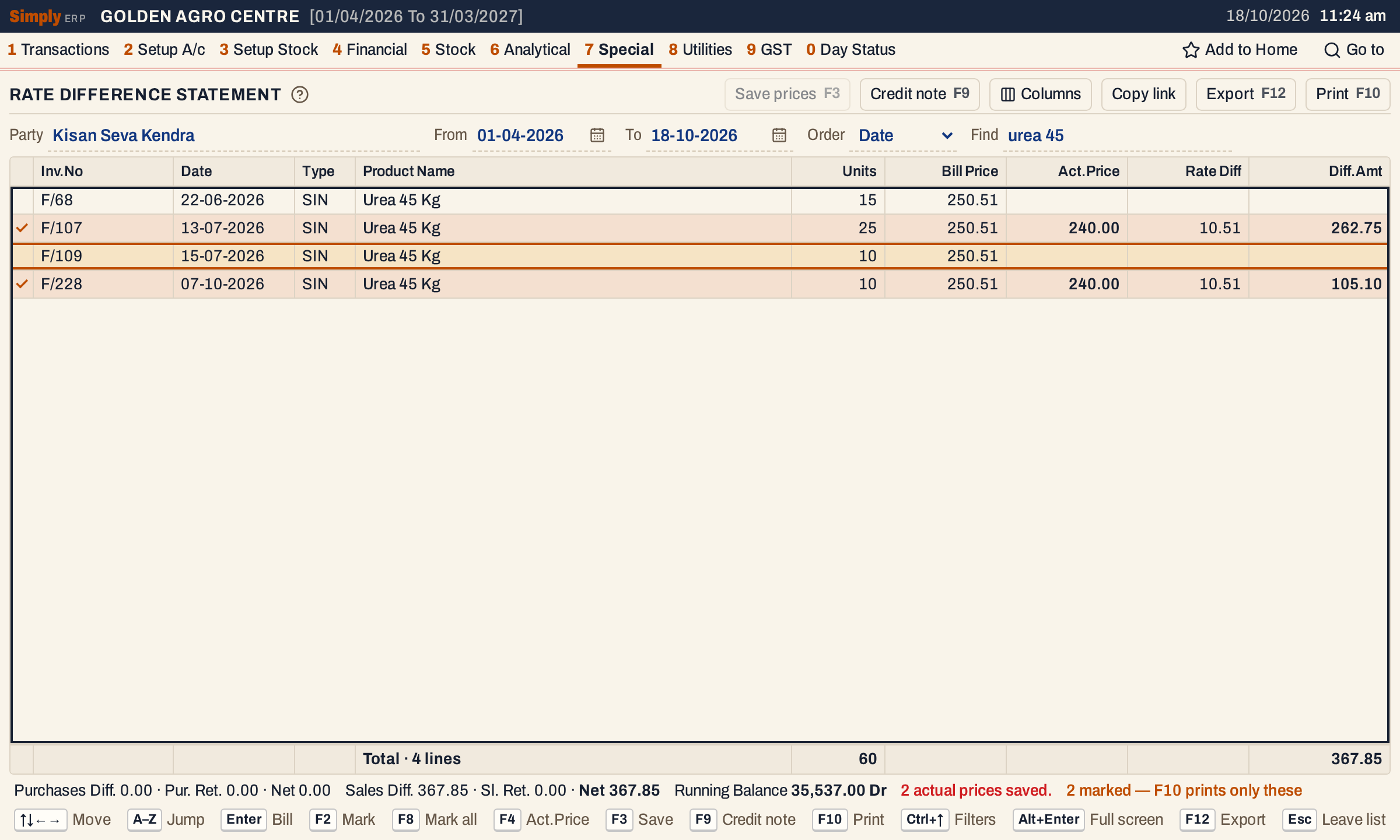 Two marked lines. F10 would print only these.
SimplyERP prepares the note when:
- the prices are saved (otherwise it says “Save the actual prices (F3) before preparing a credit note”),
- at least one line is marked, and at most 15,
- every marked line is a sale or a sales return of one customer, with a difference, and no credit note yet,
- the net difference is above zero (a sales return line counts as a minus), and
- the bills use the same GST mode, CGST and SGST or IGST.
The note opens on the credit note screen for you to check. Nothing is saved yet; if you leave the screen the note stays in Drafts.
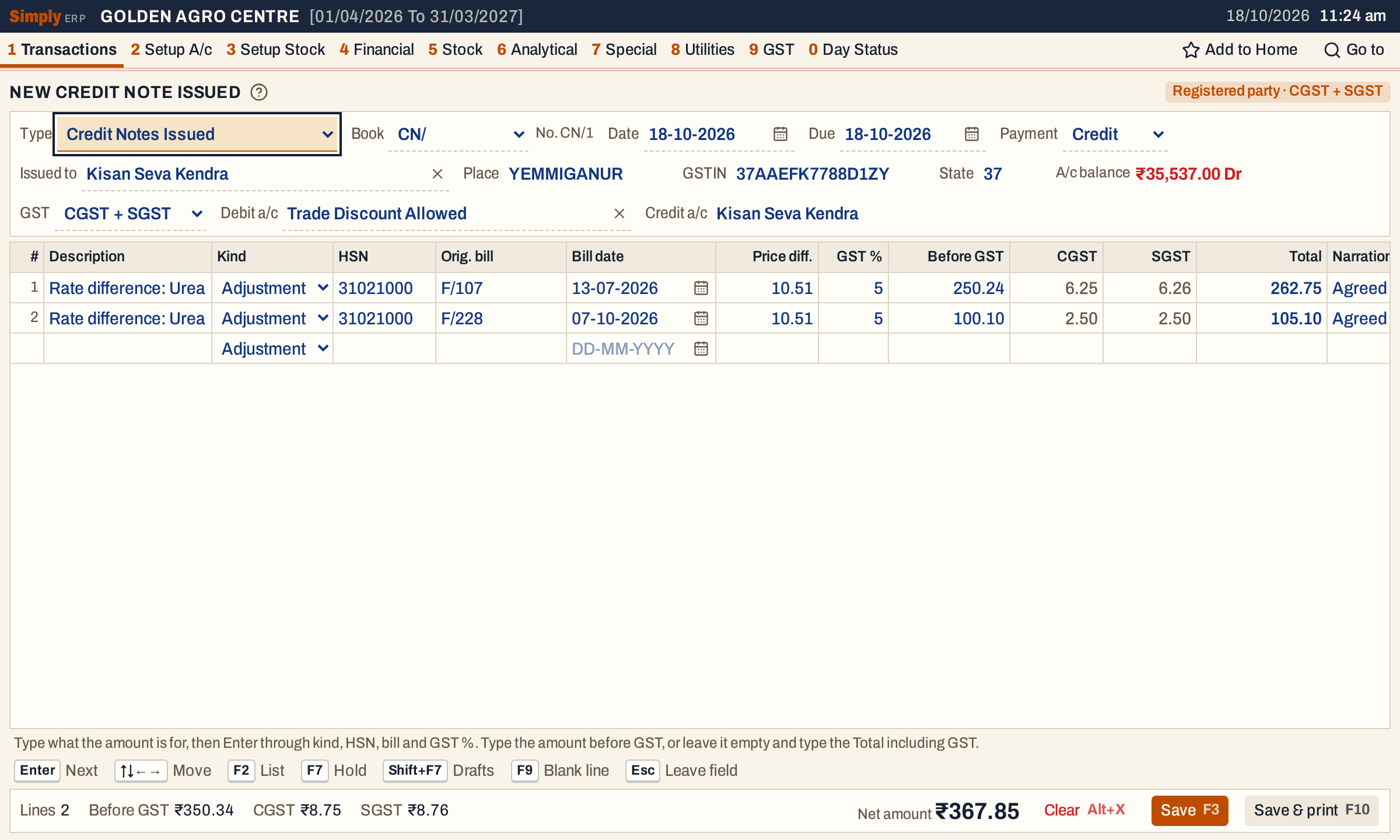 The note is dated on the last day of the statement’s period.
Check the lines
Each prepared line is one bill line:
- Description: “Rate difference:” and the item’s name.
- Orig. bill and Bill date: the sale it corrects.
- HSN and GST %: those of the sale line.
- Price diff.: the Rate Diff, per unit.
- Total: the Diff.Amt, which SimplyERP takes as including GST. It works back the amount before GST at the line’s rate, and splits the tax into CGST and SGST, or IGST.
- Narration: the agreed price, the billed rate and the quantity.
 ₹262.75 including 5% GST is ₹250.24 before GST.
 The status line of the line under the cursor.
You can still change the lines as on any GST credit note: the party, the debit account (Trade Discount Allowed here), the amounts. Removing a line takes that bill line out of the note and frees it. A prepared line keeps its link to the bill line it came from, so its source cannot be changed once saved. Press F3 to save the note.
What saving does
The note is an ordinary credit note issued, numbered from the CN/ book (CN/1 here). It is a GST document, so GSTR-1 lists it with the credit and debit notes. No stock moves: the lines carry the item for reference only.
| Account | Debit | Credit |
|---|---|---|
| The customer | Net amount | |
| The debit account | The amount before GST | |
| CGST and SGST output accounts, or IGST output | The tax on the lines |
For this note, Kisan Seva Kendra is credited ₹367.85, Trade Discount Allowed is debited ₹350.34 (₹250.24 and ₹100.10), and the CGST Output 5% and SGST Output 5% accounts ₹8.75 and ₹8.76.
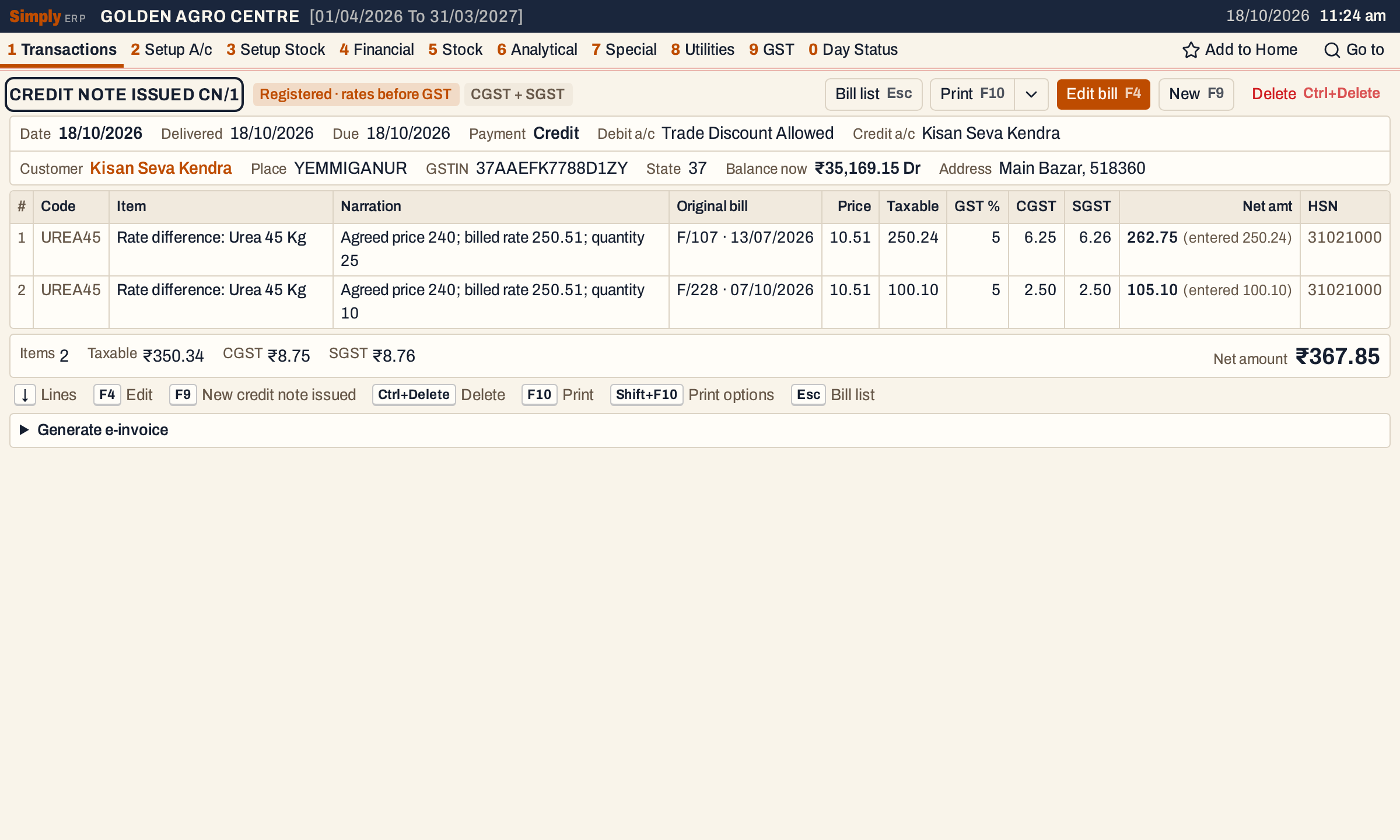 The balance fell from ₹35,537.00 Dr to ₹35,169.15 Dr, by the net amount.
A line can be credited once
Go back to the statement. A line that already has a rate difference note cannot be credited again. You can still mark it with F2, but F9 refuses and says “Mark only sales or sales-return lines with a difference that have no credit note yet.”
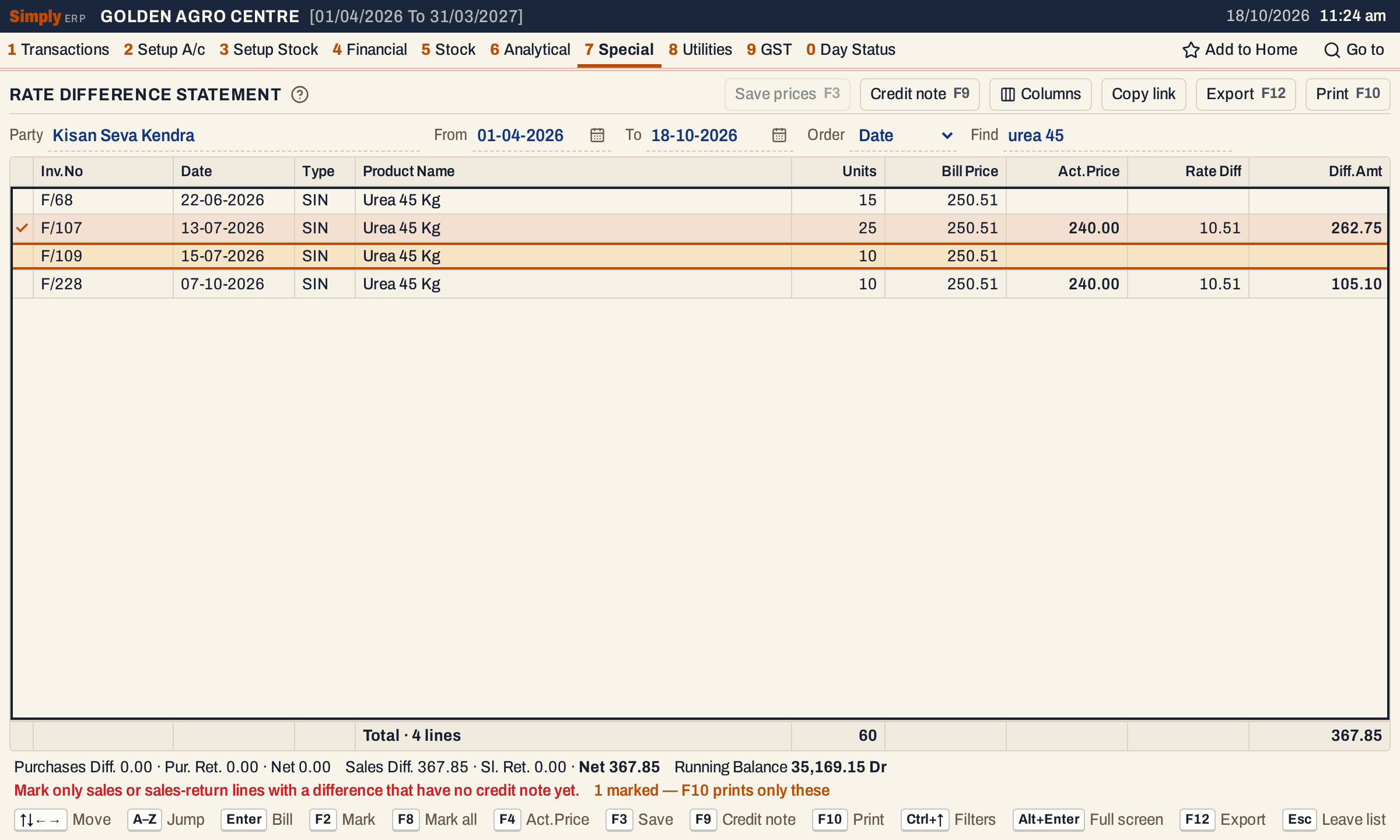 The credited lines stay in the statement with their prices, and the balance shows the credit.
If you delete the credit note, or take a line out of it, the bill line is free to be credited again.
Keys on the statement
| Key | What it does |
|---|---|
| F4 | Type the Act.Price of the line under the cursor |
| F3 | Save the typed prices |
| F2 | Mark the line |
| F8 | Mark all lines |
| F9 | Prepare the credit note from the marked lines |
| Enter | Open the bill of the line |
| F10 | Print the statement (only the marked lines when any are marked) |
| Ctrl+↓ | Go to the list |
On a Mac, ⌥ stands for Alt and ⌘ for Ctrl.
Common questions
Why not edit the bills? The bills stay as they were issued. The credit note records the later agreement as its own document, dated on the last day of the statement’s period (change the date on the note if you need to), and the original bills stay in your books as billed.
Can I credit a purchase? The statement shows purchase lines too, but SimplyERP prepares credit notes only from sales and sales returns. For a supplier’s rate difference, enter the GST credit note you receive from them.
SimplyERP says “A selected price or quantity changed.” The bill line was changed after the statement was read. Open the statement again, mark the line again and press F9.
Updated 4 November 2026.