Keep a register of issued cheques
On this page
The cheque register is a list of the cheques you have given out and the bank has not yet paid. You note a cheque when you hand it over, and clear it when the bank pays it. Until then the books are unchanged: noting a cheque posts nothing. Clearing it can post the bank payment for you, so you do not enter the payment twice.
Open the register
Press Alt+8 for the Utilities menu, then I for Chq. Issued Register.
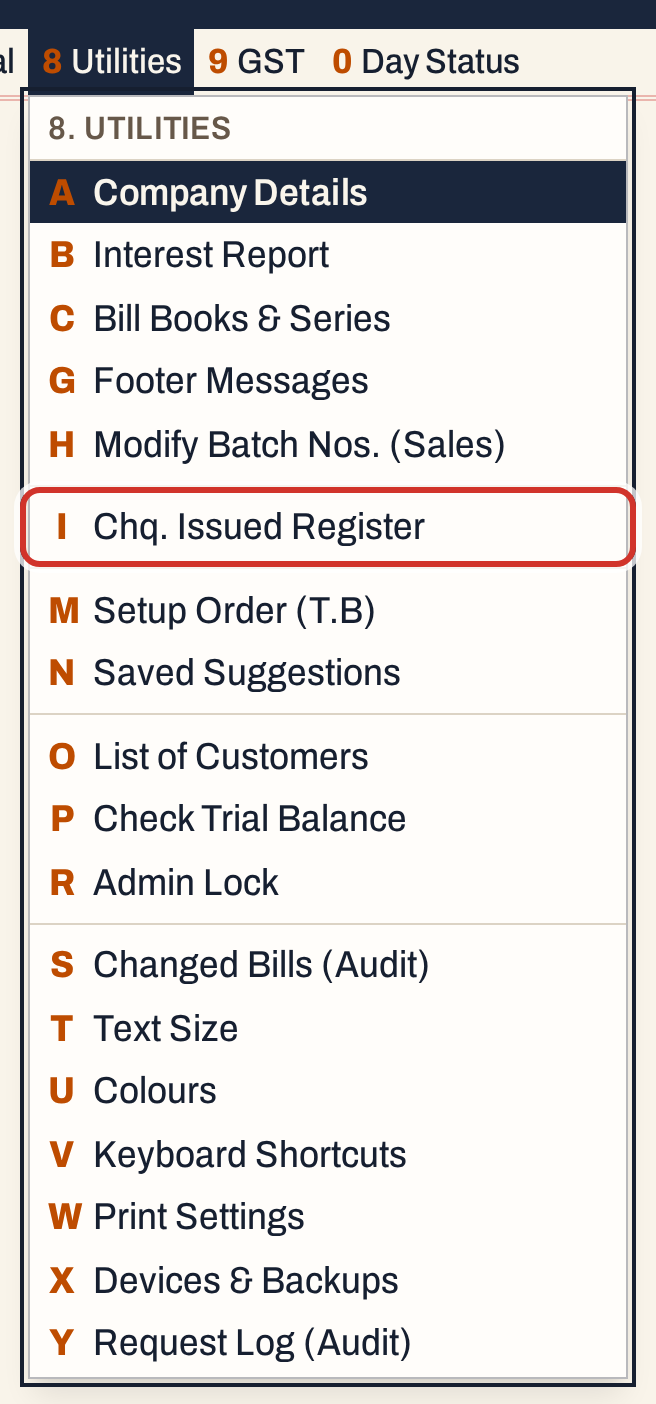 8 I: Utilities, Chq. Issued Register.
The register opens as the Issued register, showing the pending cheques. It is empty until you issue the first one.
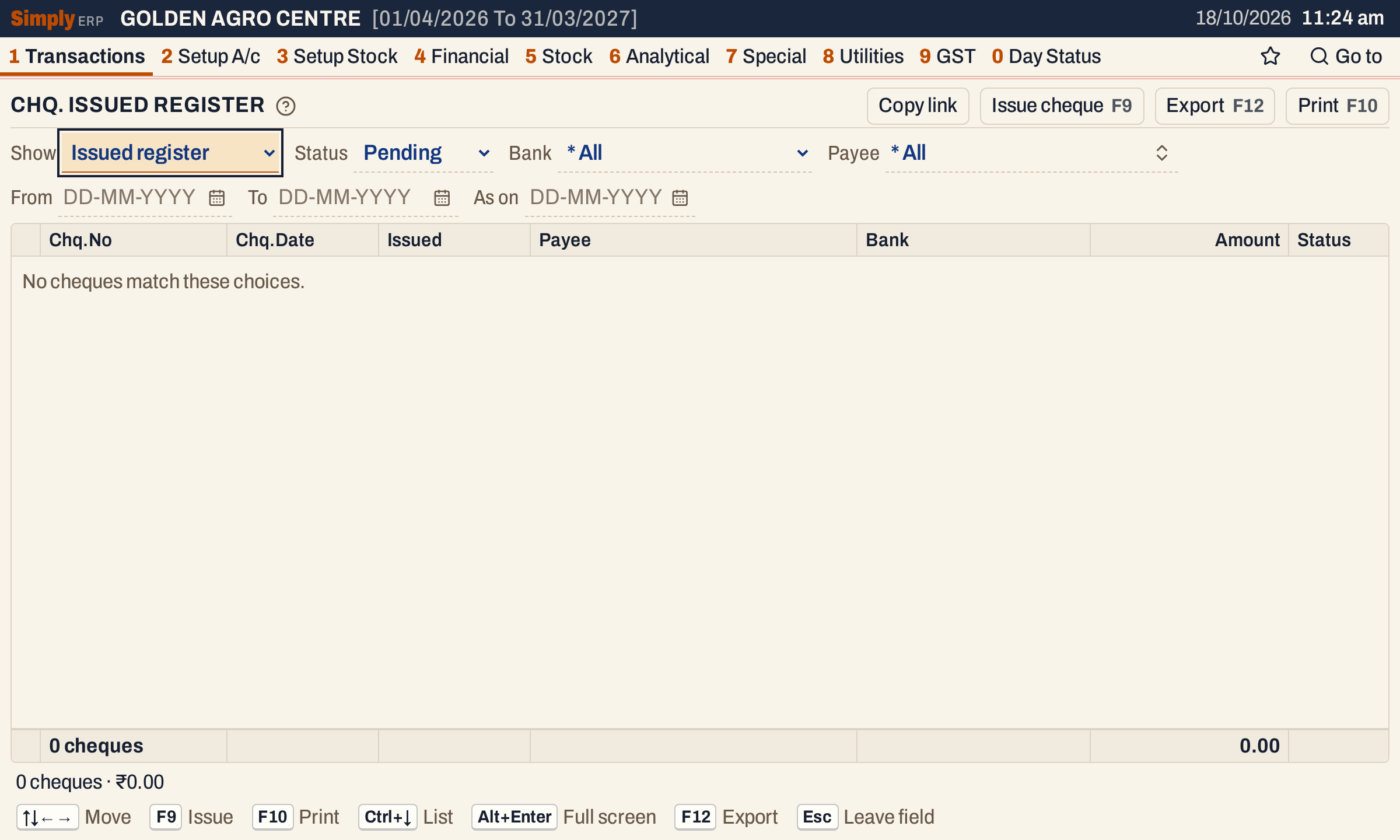 A new register. The cursor starts on Show.
Issue a cheque
Press F9. A line opens above the register with these fields; Enter moves from one to the next.
| Field | What to enter |
|---|---|
| Bank | The bank account the cheque is drawn on. Only accounts of the Bank type are listed. When you have chosen a bank in the register’s Bank choice, or have only one bank account, it is chosen for you. |
| Payee | The account of the person the cheque is made out to. Type part of the name. |
| Chq.No | The cheque number. Required. |
| Issued | The day you gave the cheque out. It starts on today’s working date. |
| Chq.Date | The date written on the cheque, which can be later than the day you issue it. It starts on today’s working date and can be left empty. |
| Amount | The amount, above zero, with at most two decimal places. |
| Note | A note about the cheque. It becomes the payment’s narration if you clear the cheque with its payment. |
The bank and the payee must be different accounts.
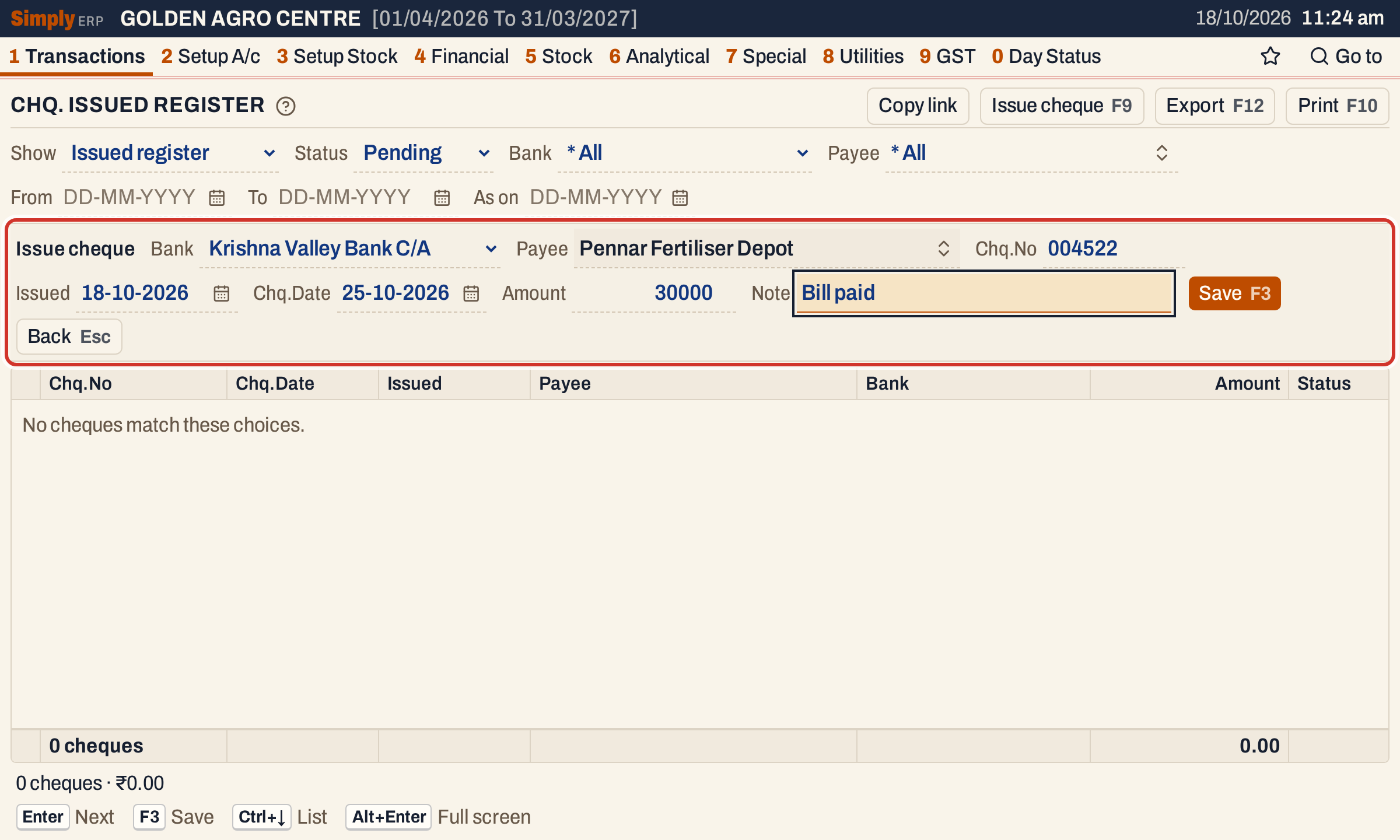 Cheque 004522 for ₹30,000 to Pennar Fertiliser Depot, dated 25-10-2026.
Press F3 to save. The line closes and the cheque is added to the register; press F9 again for the next one. Esc goes back to the register without saving.
Four cheques are in the register below. The grid lists them by issue date, then by cheque number, and the footer counts them and adds their amounts.
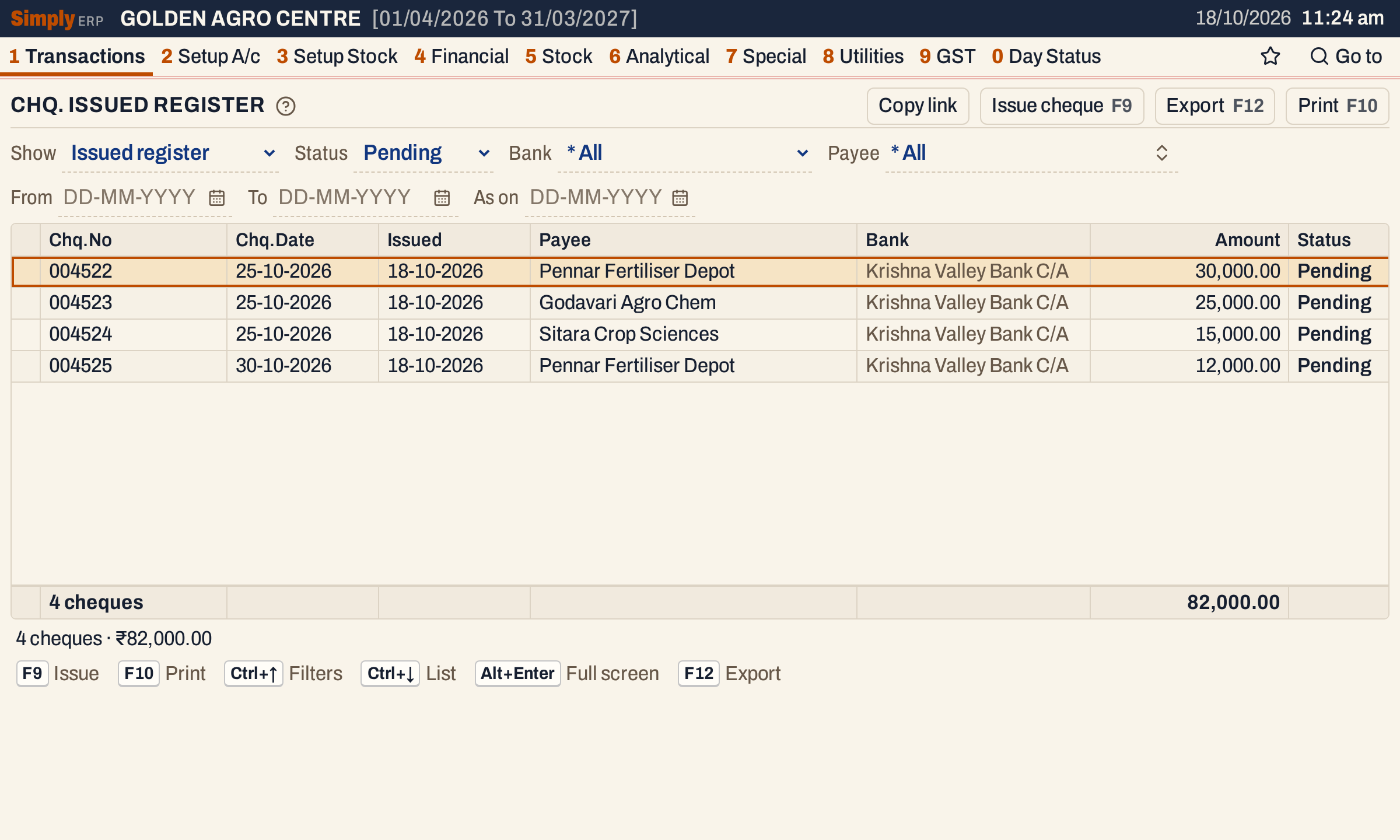 Four pending cheques, ₹82,000.00 in all.
To change a pending cheque, move to it and press Enter or F4. The same line opens with its details. Only pending cheques can be changed; a cleared or cancelled cheque cannot.
Four views of the register
Show chooses the view. The same cheques are listed in each; what differs is the filter and the order.
| View | What it lists |
|---|---|
| Issued register | Every cheque in the choices you set. Status starts on Pending; choose All, Pending, Cleared or Cancelled. Ordered by issue date, then cheque number. It also has As on, described below. |
| Clearance | Pending cheques only. Enter on a cheque opens the clearing line at once. |
| Pending list | Pending cheques only, grouped by payee. Each payee’s line shows the number of cheques in brackets and their total. |
| Check list | Every cheque; Status starts on All. It has two more choices, No. from and to: when you type them, only the cheque numbers between them are listed, in cheque number order. |
All the views share Bank, Payee and the From and To dates, which keep the cheques issued between those dates.
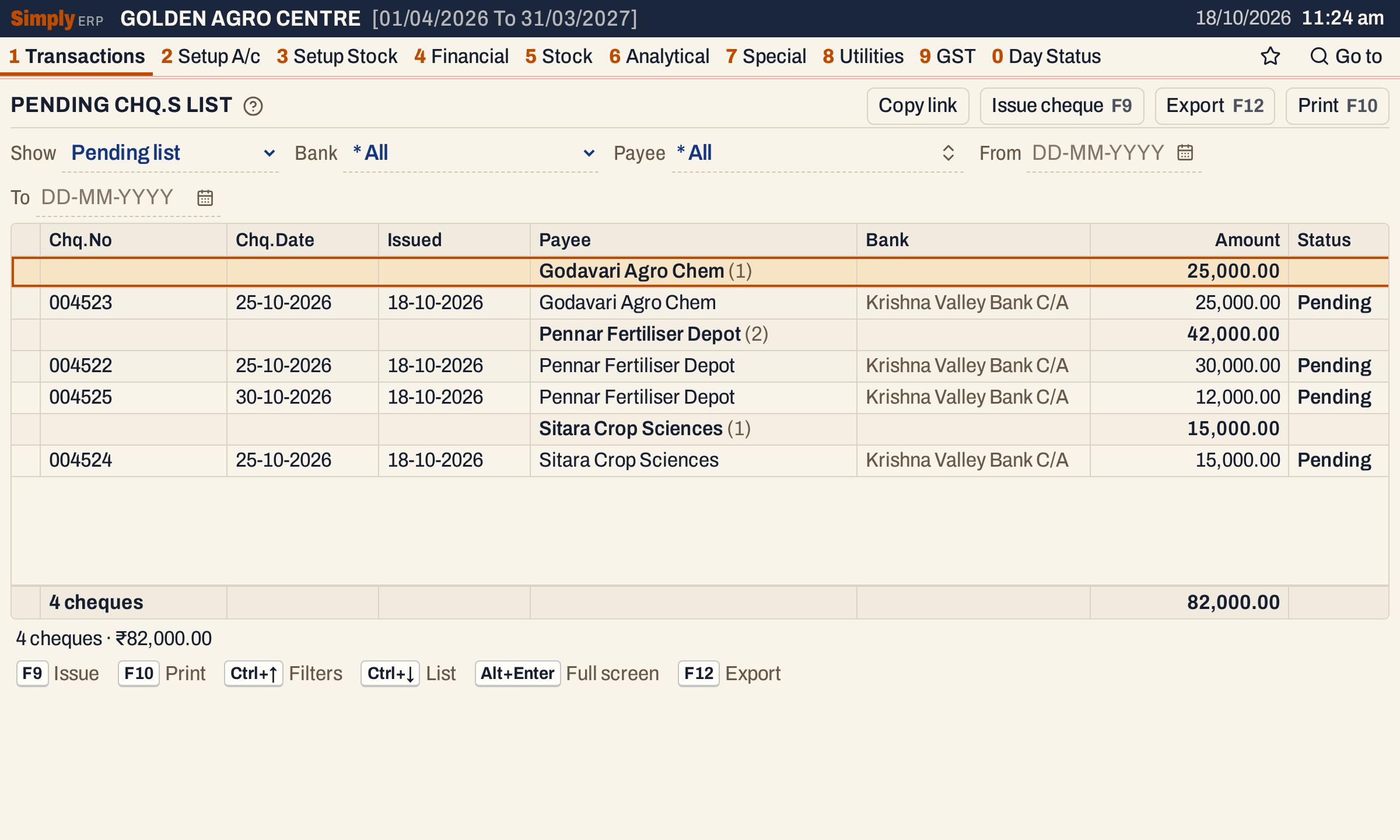 The Pending list shows how much is waiting with each payee: Pennar Fertiliser Depot has two cheques out, ₹42,000.00 in all.
As on, in the Issued register, shows the register as it stood on a past date. It leaves out the cheques issued after that date, and counts a cheque as cleared or cancelled only if that happened on or before it. While a date is set the register is read-only. Clear the date to issue or change cheques again.
Clear a cheque
When the bank pays a cheque, move to it and press F6. A line opens above the register.
- Action is Clear. Cleared on starts on today’s working date. It cannot be before the day the cheque was issued.
- Post bank payment, when ticked, makes the bank payment for you. Choose the payment Series, which lists each with its next number (with only one series, it is chosen for you). The payment is made from the cheque’s bank to its payee, for its amount, on the cleared date, with the cheque’s number, date and note.
- Leave Post bank payment unticked when you have already entered the payment yourself. The cheque is then only marked cleared, and nothing is posted.
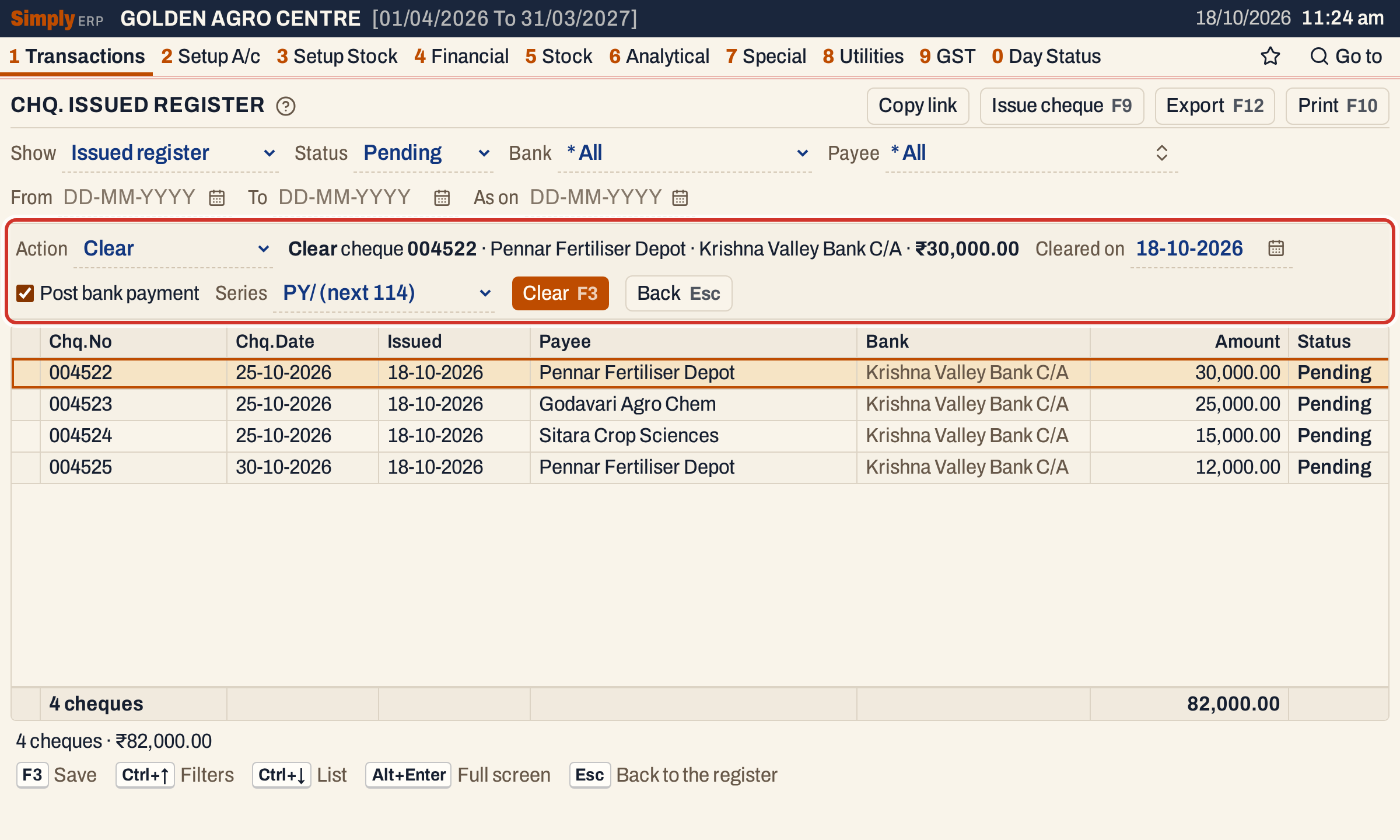 Clearing cheque 004522 with its payment in series PY/, whose next number is 114.
Press F3. The cheque no longer shows while Status is Pending. Choose Status All or Cleared, or use the Check list, to see it as Cleared, with the date in the On column.
Open a cleared cheque with Enter to see the payment its clearance made.
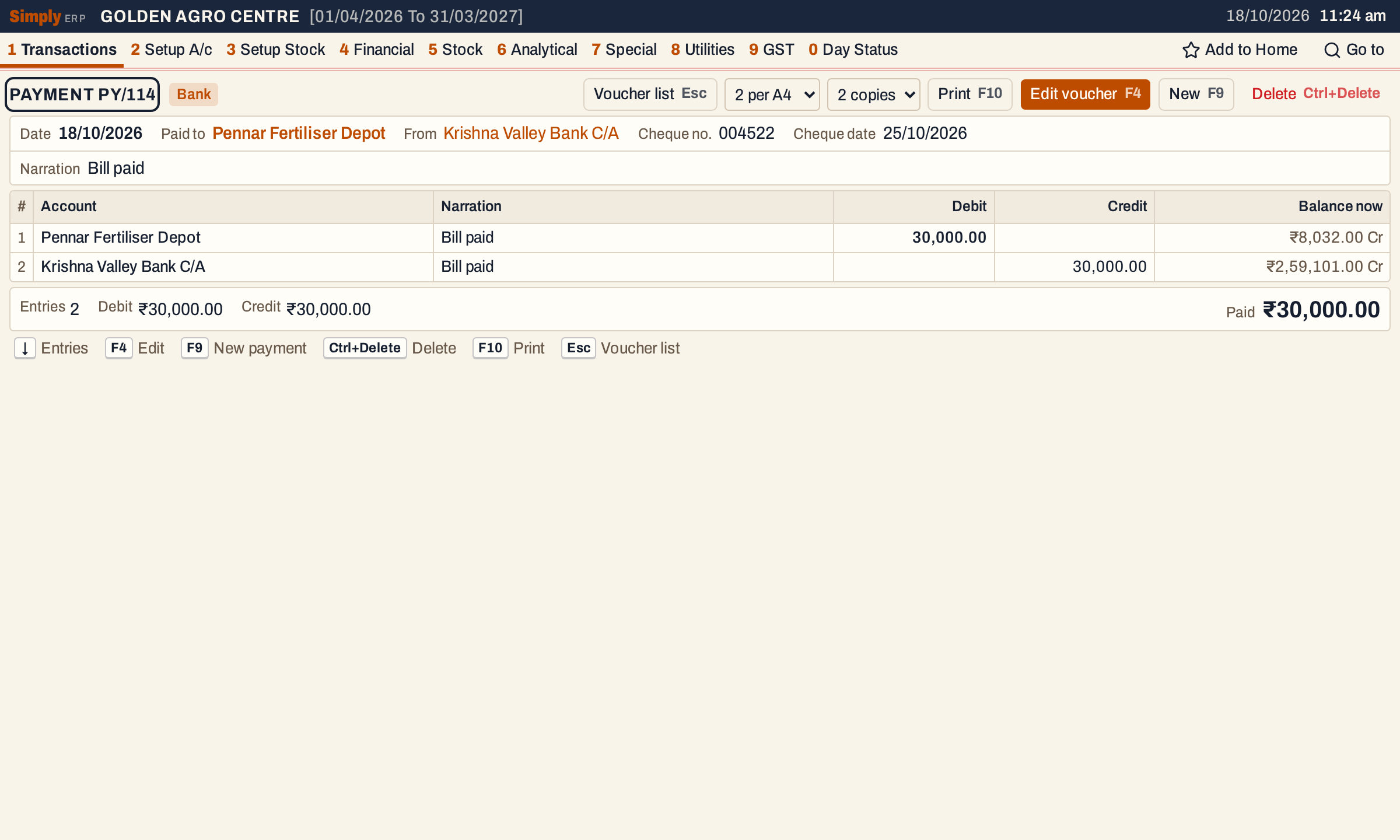 The payment the clearance made. Pennar Fertiliser Depot now stands at ₹8,032.00 Cr and the bank at ₹2,59,101.00 Cr.
Tick Post bank payment only for a cheque you have not entered as a payment. A payment entered under Record a payment is not linked to the register. If you enter it there and also clear the cheque with the payment ticked, the cheque is posted twice.
Cancel a cheque
For a cheque that was torn up, lost or stopped, press F6 on it and change Action to Cancel cheque. Choose the Cancelled on date, which starts on today’s working date and cannot be before the issue date, and press F3.
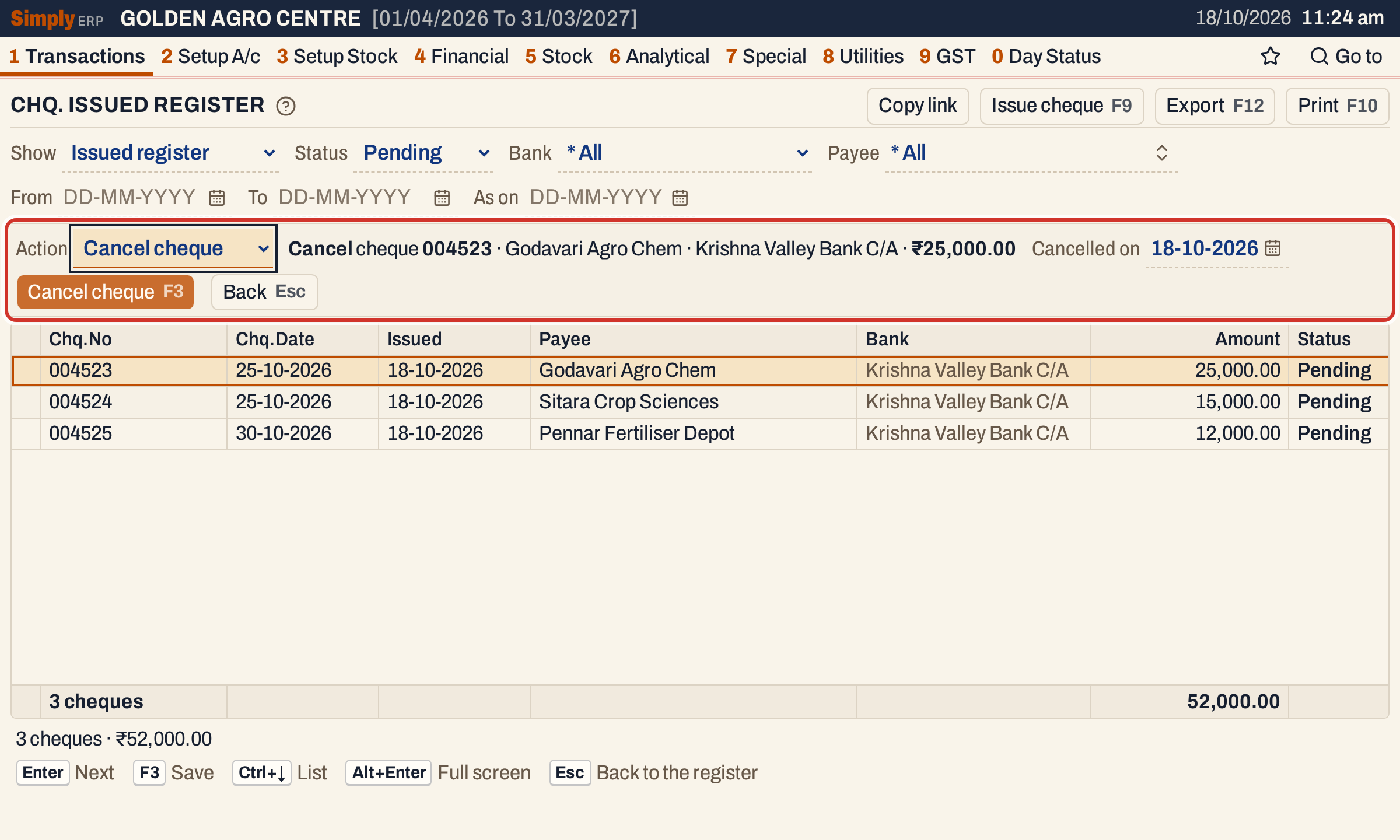 Cancelling cheque 004523. Nothing is posted, because a cheque in the register posted nothing.
A cancelled cheque stays in the register for the record. While Status is Pending it is not listed; with Status All or Cancelled, or in the Check list, it is listed with a line through it. A cancelled cheque cannot be changed or reopened. The Check list shows all four cheques together.
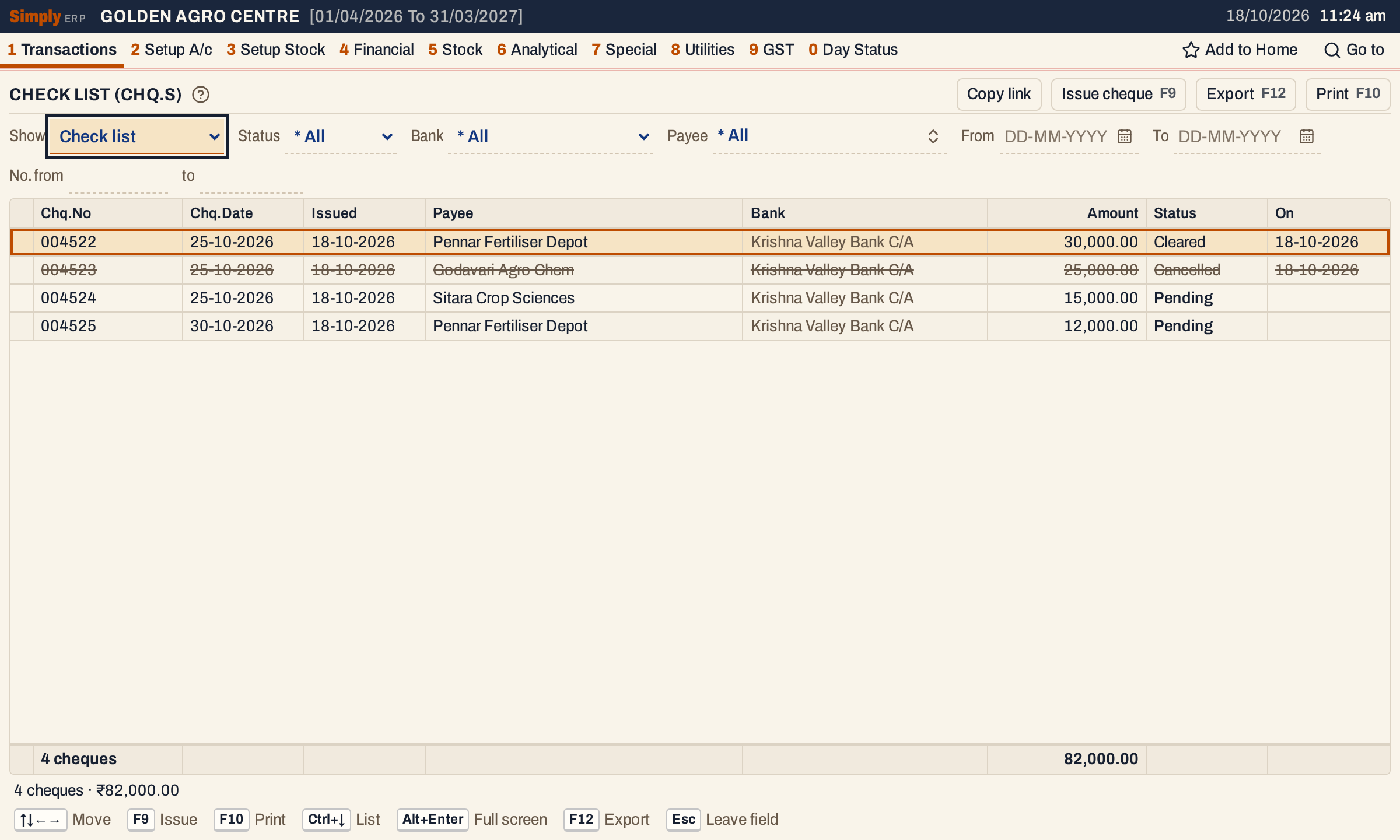 The Check list. The On column gives the day a cheque was cleared or cancelled.
Reopen a cleared cheque
If a cheque was cleared by mistake, or the bank returned it, show it (Status All or Cleared, or the Check list), move to it and press F6. The line asks you to confirm: the cheque becomes pending again, and the payment its clearance made is deleted. Press F3.
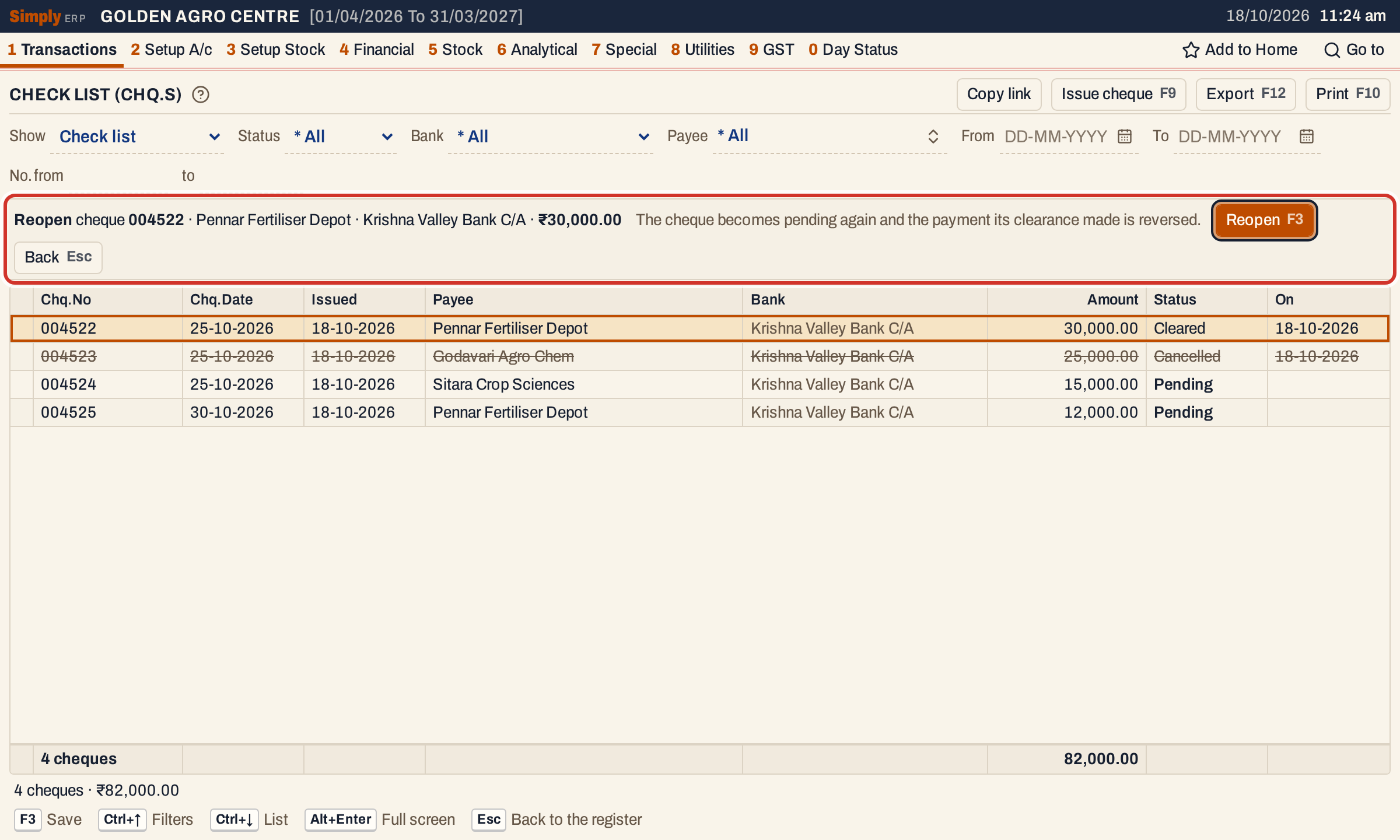 Reopening cheque 004522 removes payment PY/114.
A cheque cleared without its payment is reopened without anything to reverse.
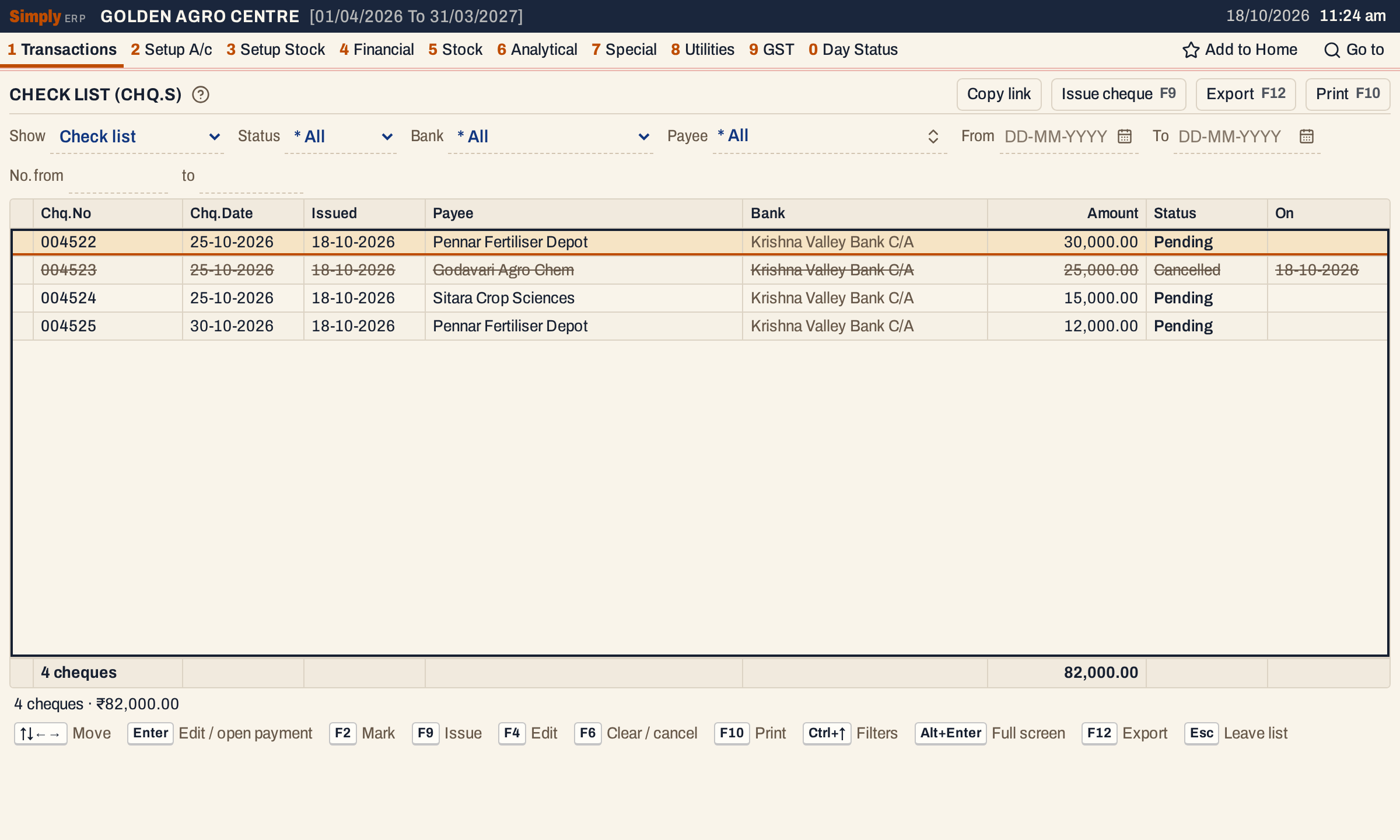 Cheque 004522 is pending again.
What it does to your books
| Action | Postings |
|---|---|
| Issue, change or cancel a cheque | None |
| Clear, Post bank payment unticked | None; the cheque is marked cleared |
| Clear, Post bank payment ticked | One bank payment in the chosen series: the payee is debited and the bank account credited, for the cheque’s amount, on the cleared date |
| Reopen | The payment made by the clearance is deleted with its postings; the cheque is pending again |
In this example clearing 004522 debited Pennar Fertiliser Depot ₹30,000.00 and credited Krishna Valley Bank C/A ₹30,000.00. Reopening it removed both.
The payment shows in the vouchers register (All Vouchers), in the payee’s ledger and in the bank book. Stock is not touched.
The cash and bank balances list a line for the cheques still pending. After the reopening, they show the bank back at ₹2,29,101.00 Cr, its balance before the clearance, and the three cheques still pending, ₹57,000.00 in all.
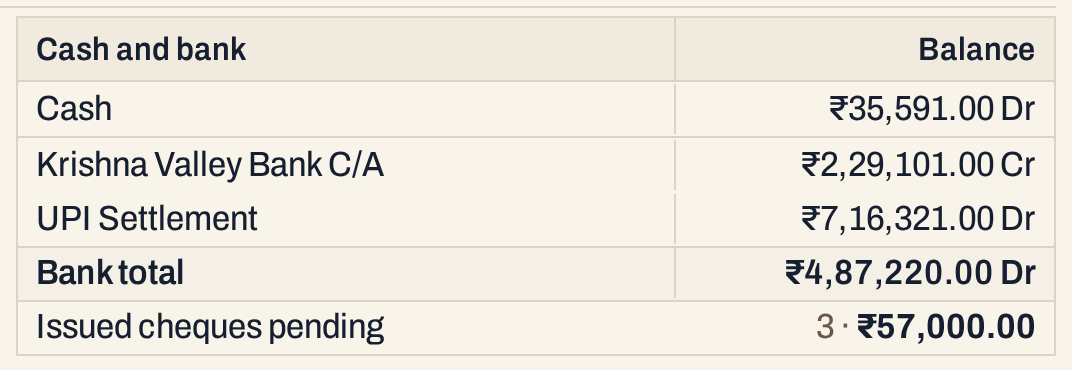 The balances do not change when a cheque is noted. The pending line counts the cheques still out.
Print and export
F2 marks the cheque under the cursor. F10 prints the marked cheques, or all the cheques in the view when none are marked. F12 exports the same list. The Issued register and the Check list also print each cheque’s status.
Keys on this screen
| Key | What it does |
|---|---|
| F9 | Issue a cheque |
| Enter | On a pending cheque, change it (clear it, in the Clearance view); on a cleared cheque that has a payment, open it |
| F4 | Change the pending cheque |
| F6 | Clear or cancel a pending cheque; reopen a cleared one |
| F3 | Save the line |
| Esc | Leave the line, or leave the field |
| Ctrl+↑ / Ctrl+↓ | Go to the choices, or to the list |
| F2 | Mark the cheque |
| F10 | Print the marked cheques, or all |
| F12 | Export |
Common questions
Do I have to use the register? No. You can enter every cheque as a payment on the day you write it. The register is for cheques you want to see as outstanding until the bank pays them. See Record a payment.
A cheque is wrong after I cleared it. Can I change it? Reopen it with F6. The cheque is pending again, and you can change it or clear it again. The payment it made is deleted, so a new payment is made at the next clearing if you tick Post bank payment.
Does the register ask for the admin PIN? When an admin PIN is set, changing, cancelling and reopening a cheque ask for it. Issuing and clearing do not.
Updated 4 November 2026.