A/c Confirmation
On this page
At the end of the year, or whenever a party’s balance is in doubt, you ask the party to confirm what the books say. A/c Confirmation prepares that request. It lists your accounts with their balances for a period, and for each account you mark it prints the statement for the period followed by a letter asking the party to confirm the closing balance, with a reply block to sign and send back.
Open the report
Press Alt+7 for Special Reports, then Z for More Special Reports and H. The report opens for the financial year from its first day to today, with every account that has a balance or entries in the period.
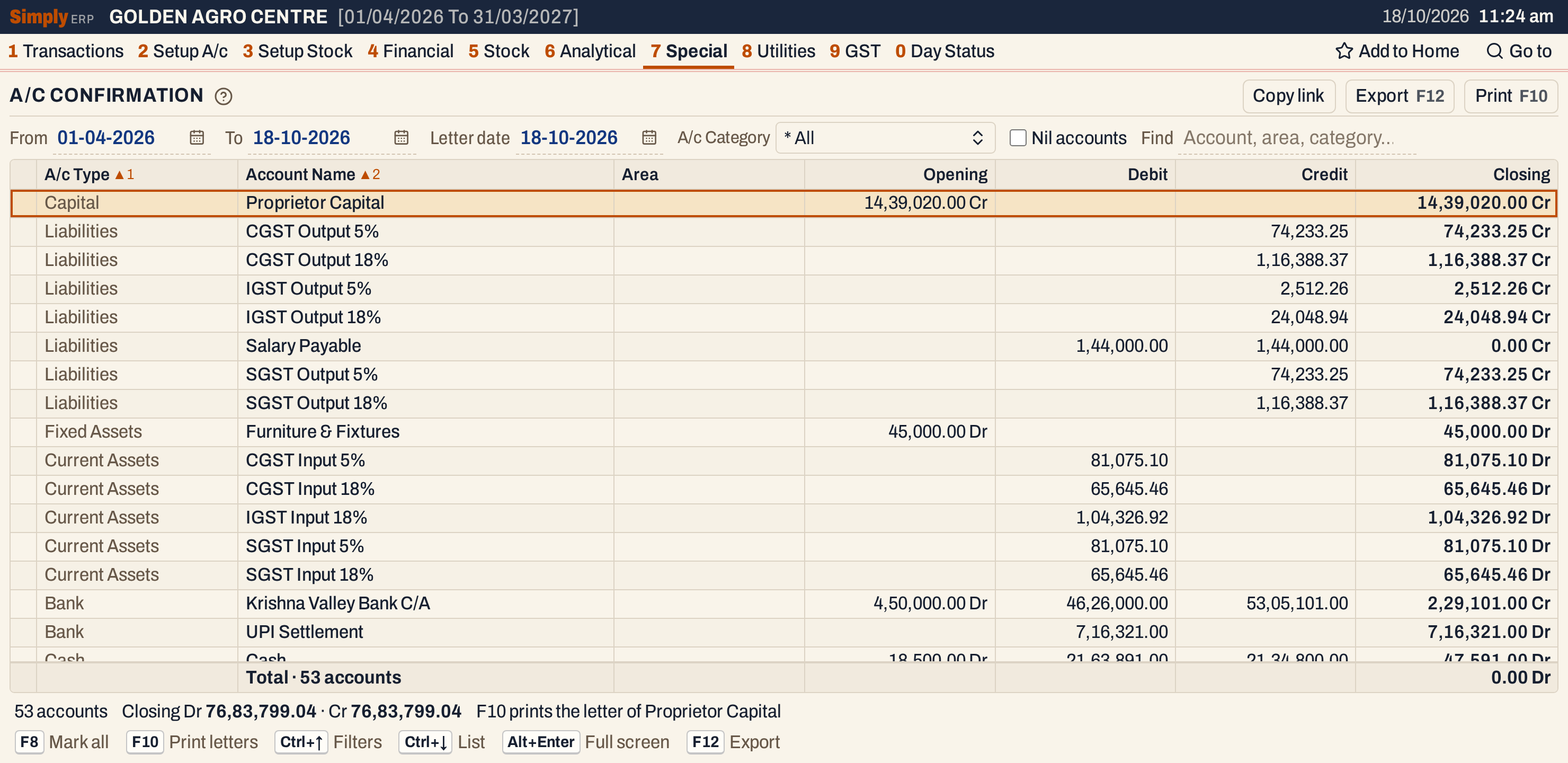 The accounts in account type order, and in name order inside each type.
What it lists
One line for each account in your books, of every type: customers, suppliers, farmers, and also cash, bank, sales, expense and tax accounts. The figures are the ones of the trial balance for the period. An account with no opening balance, no entries in the period and no closing balance is left out unless you tick Nil accounts. An account whose entries cancel out, such as Salary Payable above, is listed because it has entries.
Columns
| Column | What it shows |
|---|---|
| A/c Type | The account’s type. |
| Account Name | The account’s name. |
| Area | The account’s City / town. Blank when it has none. |
| Opening | The balance at the start of the period, marked Dr or Cr. Blank when nil. |
| Debit | The debits posted in the period. Blank when there are none. |
| Credit | The credits posted in the period. Blank when there are none. |
| Closing | The balance at the end of the period, marked Dr or Cr. A nil balance shows as 0.00. |
The totals line gives the number of accounts and the net closing balance, and the line under the list gives the total of the closing debits and of the closing credits. Click a column title to sort by it, and click again to reverse. The accounts come in type order and then name order at first.
Choices
| Choice | What it does |
|---|---|
| From, To | The period of the statement and its figures. |
| Letter date | The date at the top of the letter. It is the To date unless you change it. The balance and its “as on” date in the letter always follow the To date. |
| A/c Category | Only the accounts of the types you tick. * All is the default. |
| Nil accounts | Also lists the accounts with nothing in them. |
| Find | Shows only the accounts whose name, area or type matches what you type. |
Every choice is kept in the page address, so Copy link gives a link that opens the same report.
 The choices above the list.
Choose the account types
Open A/c Category and tick the types you write to, then choose Done. To confirm customers’ balances, tick Customer.
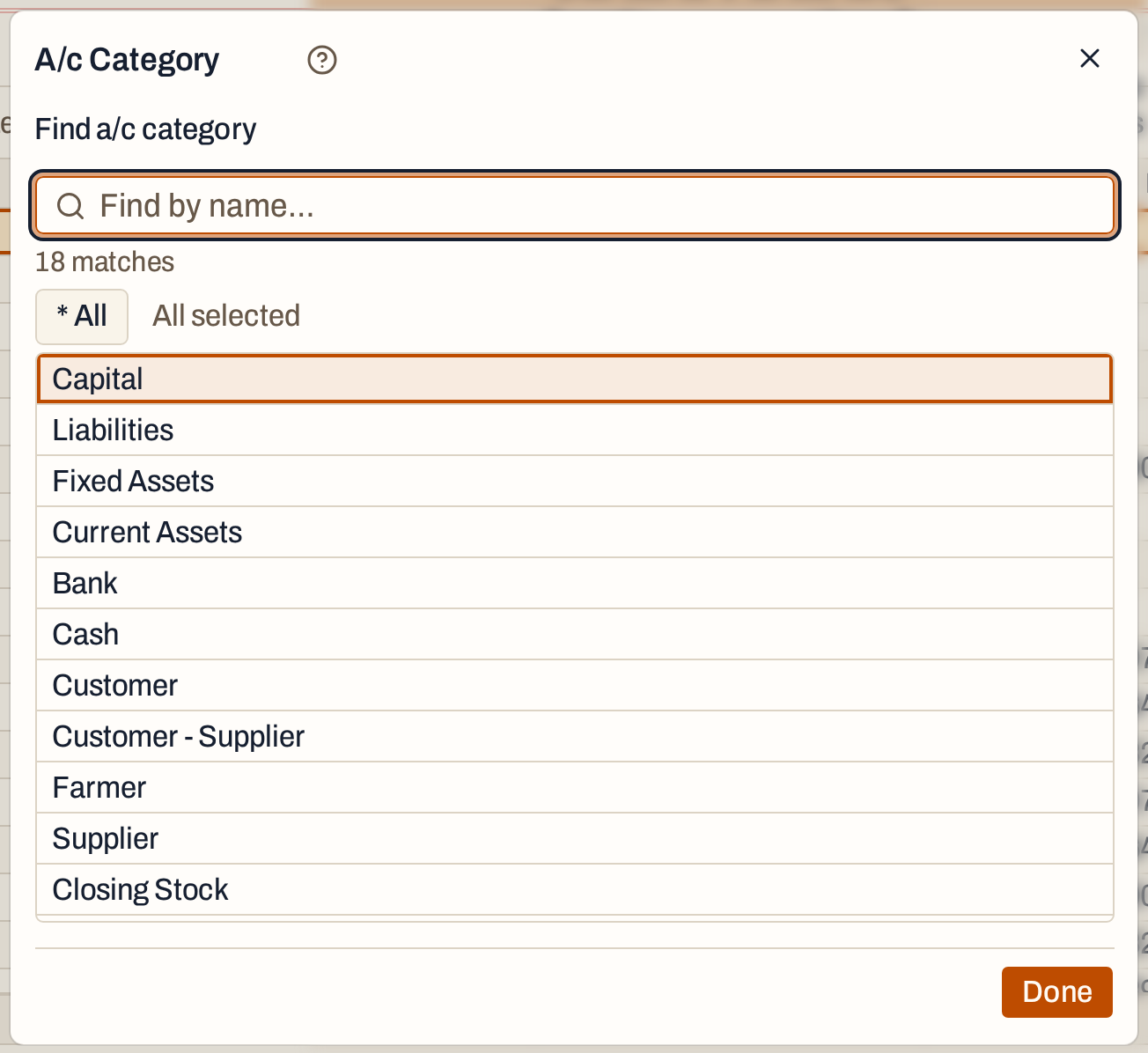 The list holds the account types of the books; scroll for the rest.
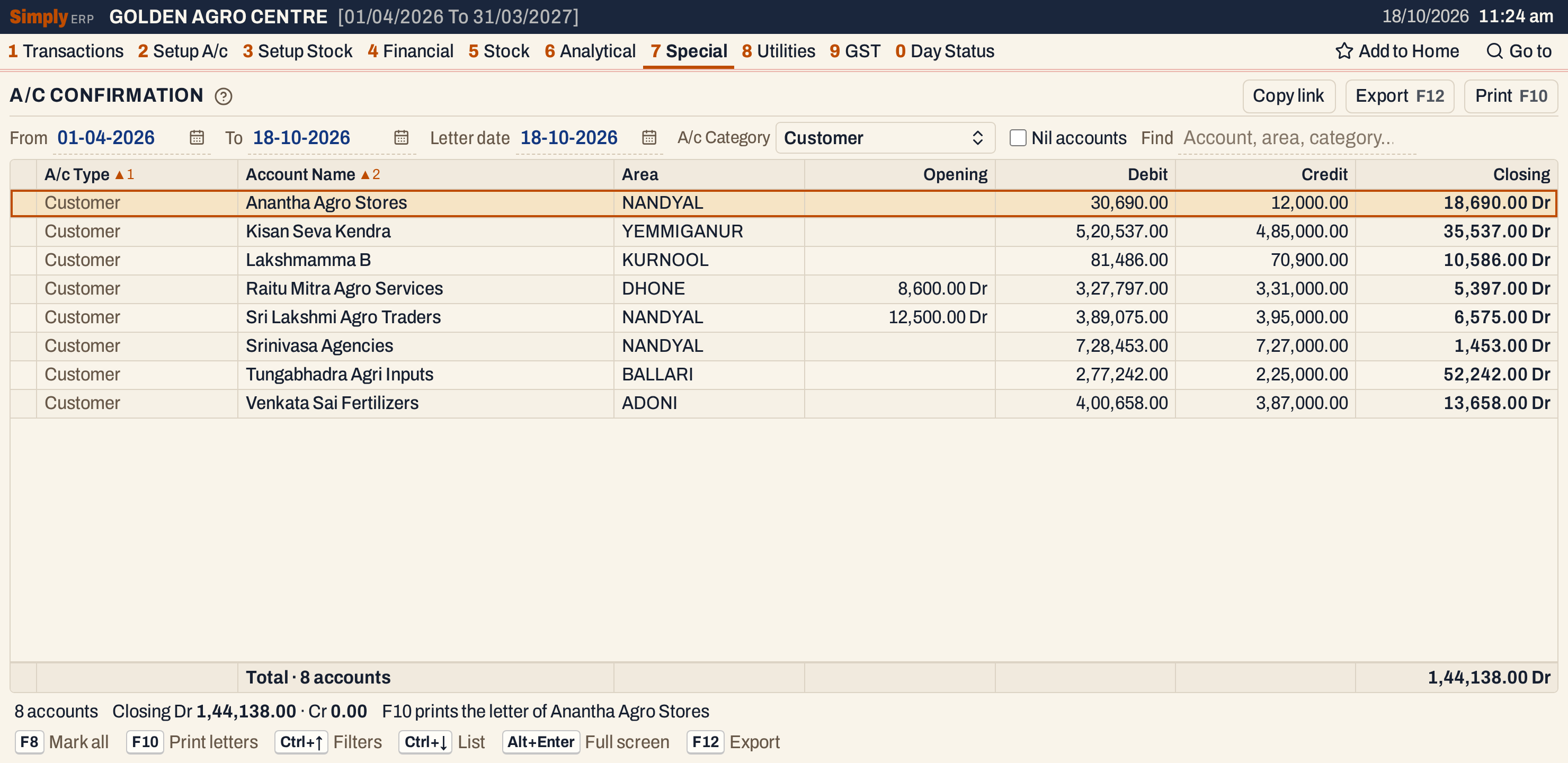 Eight customers, with Anantha Agro Stores first.
Mark the accounts and print
Move to an account and press F2 to mark it, or F8 to mark every account listed (when all are marked, F8 clears them). A tick shows on a marked account, and the status line says how many are marked. Then press F10.
 The tick marks the account.
 The status line shows what F10 will print.
F10 prints the marked accounts. When none is marked it prints the account the cursor is on, and the status line says so. The report first fetches the statements, so the print can take a moment after the key. With no accounts listed, it asks you to mark an account or move to one.
Each account prints on its own pages.
The statement. The company’s name and address, the account’s name and the period, then one line for each entry of the period: the date, the particulars, and the credit or the debit. An opening balance has its own line first. Under the lines come the totals of the credit and debit columns, with an opening balance counted in its column, and the closing balance with Dr or Cr. Then comes a line saying that all entries were agreed with the company’s books of accounts and with the interest clause mentioned in its invoice, and a place for a signature with seal.
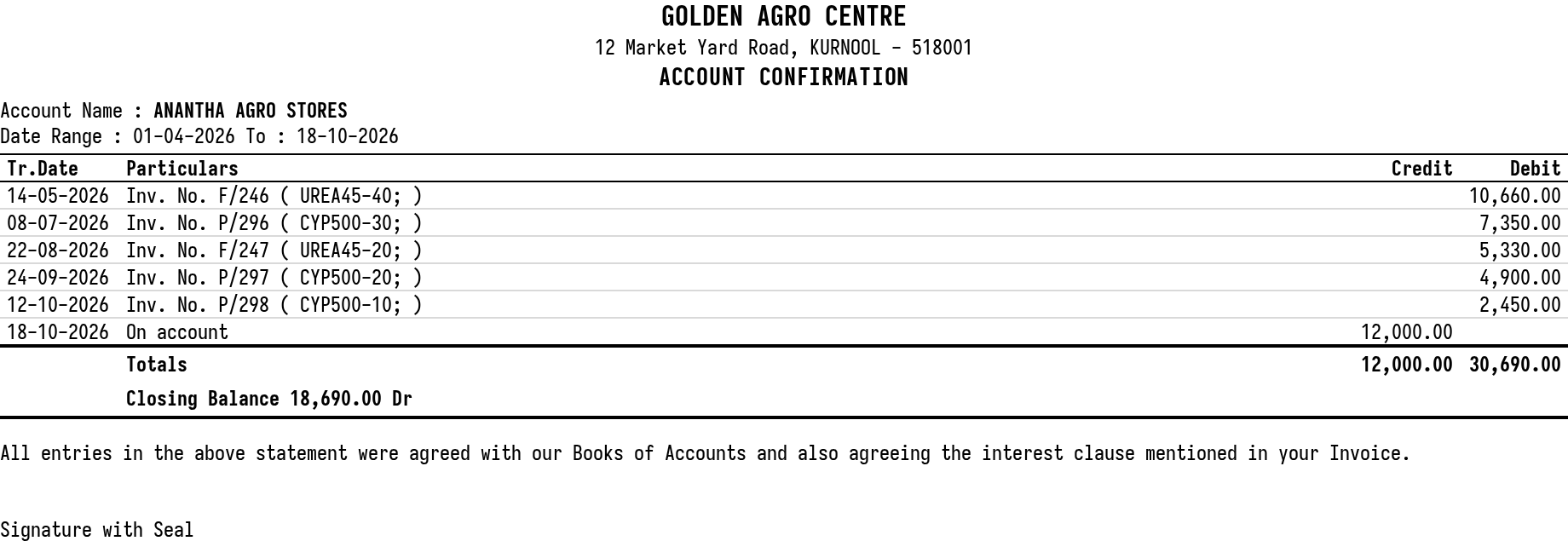 The statement of the period, with its totals and closing balance.
The letter. On a page of its own: the company’s name and address, the letter date, the party’s name (its legal name when it has one) and its address, and the subject, Balance Confirmation as on the To date. It says the statement for the period is enclosed, gives the balance as on that date, Rs. 18,690.00 Dr here, and asks the party to reconcile it with its books, confirm it in the block below and send one copy back with its signature and seal. The letter closes with Yours Faithfully, the company’s name and a line for the partner. The wording is fixed. Below a dashed line is the Balance Confirmation Block, addressed to you, where the party agrees the balance, writes its date and place, and signs with its seal.
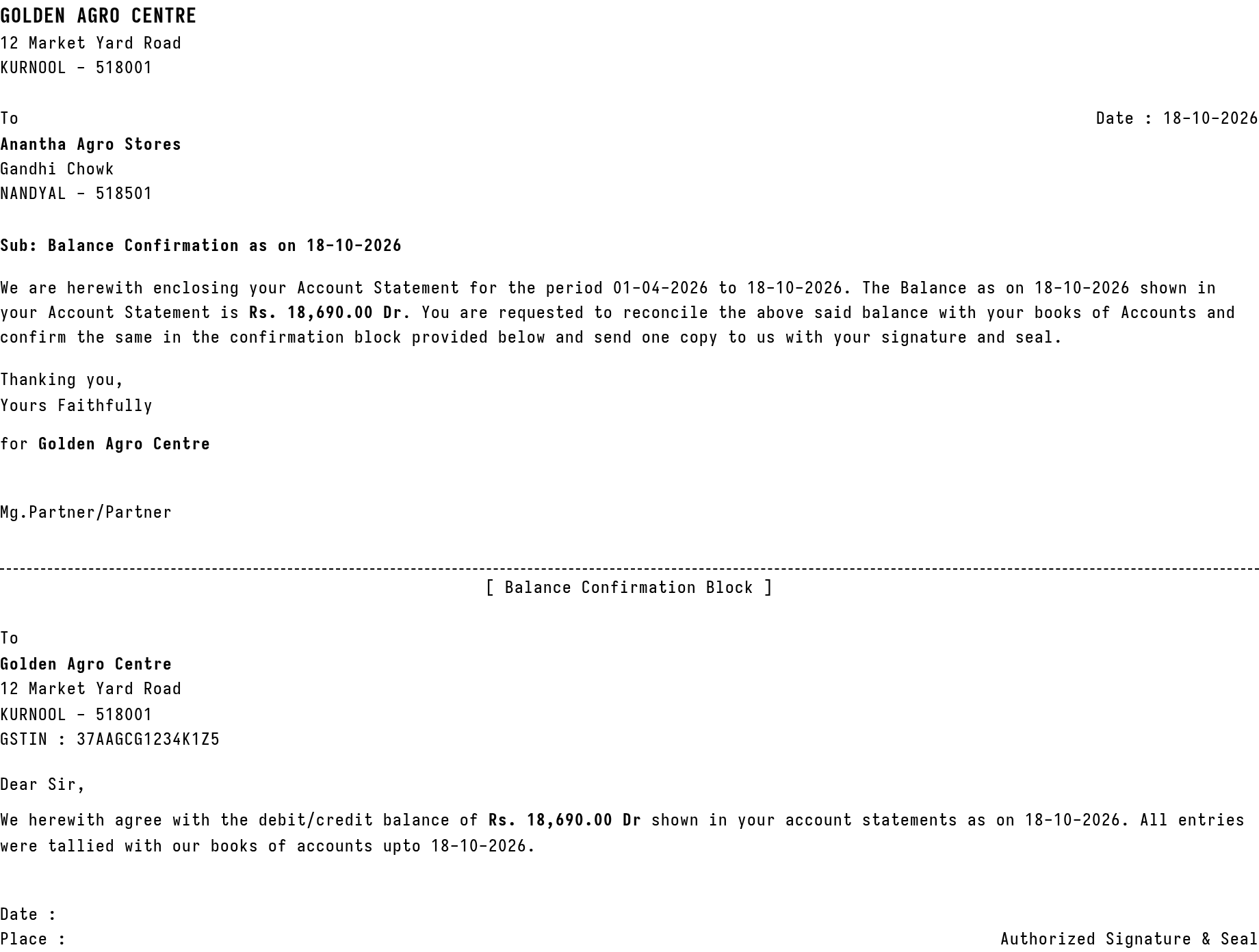 The letter and its reply block.
The party’s address is taken from its default address, with its GST number when it has one.
How the figures are worked out
- Opening = the account’s opening balance + everything posted to it before the From date.
- Debit and Credit = the debits and credits posted from the From date to the To date.
- Closing = Opening + Credit − Debit. It is shown Dr when it is a debit and Cr when it is a credit.
These are the figures of the Trial Balance with the Detailed option. The balance in the letter is the closing balance of the statement. The lines of the statement are those of the account’s ledger for the same period.
Open, mark, print and export
- Enter on an account opens its ledger for the same period.
- F2 marks an account and F8 marks them all.
- F10 prints the statement and letter of each marked account, or of the account under the cursor when none is marked.
- F12 saves the statements of those accounts as an Excel workbook.
- Alt+Enter gives the whole window to the list.
Updated 4 November 2026.