Batch Wise Stock
On this page
Batch Wise Stock lists the stock you hold today batch by batch: the item, the batch number, the manufacturing and expiry dates and the units left. Use it to see what is about to expire, to find which batch a shelf holds, or to find batches whose stock has gone below zero.
Open the report
Press Alt+7 for Special Reports, then S. The report opens for all categories, with the batches below zero left out, in item name order and then batch number.
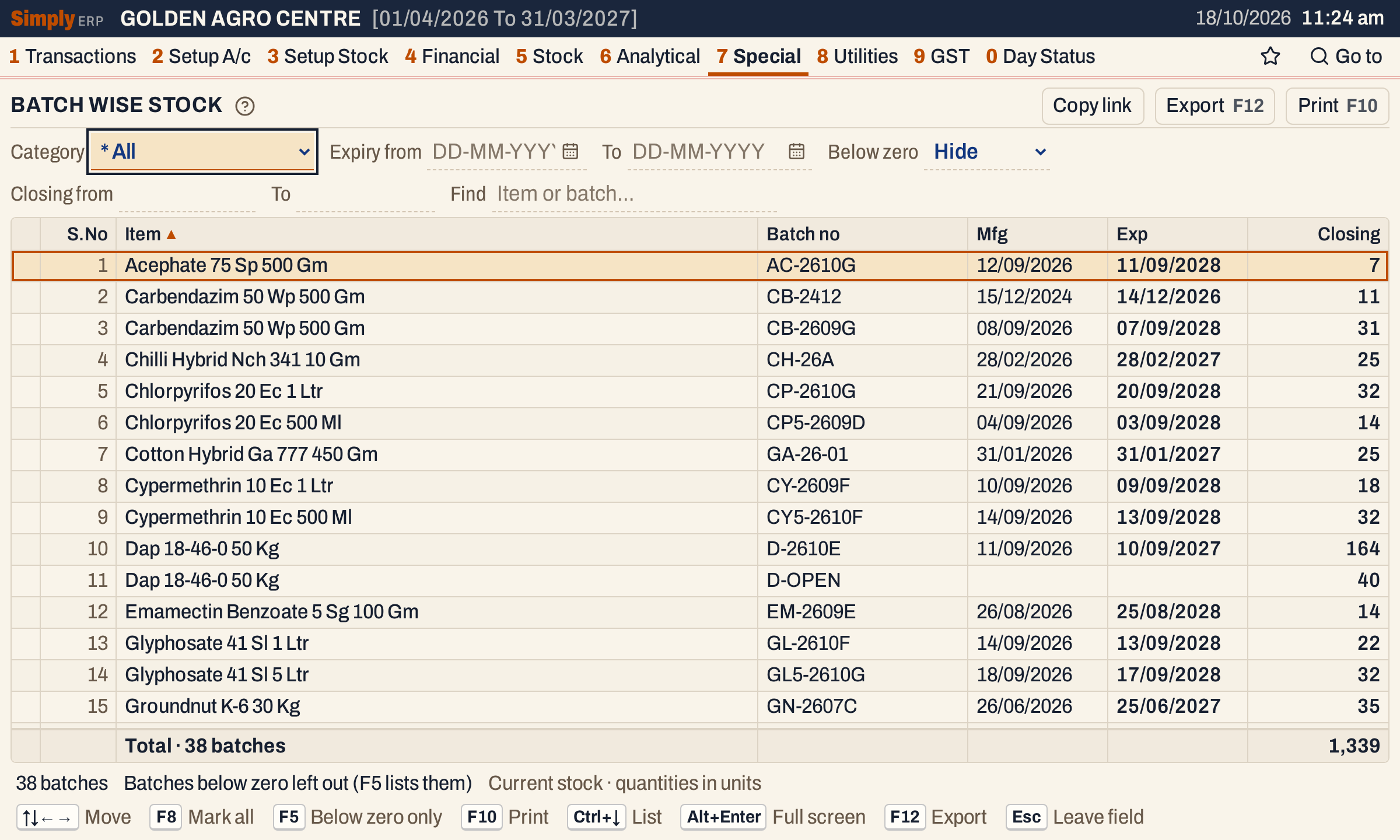 One line for each batch. The status line says 38 batches, and the totals line adds up their stock to 1,339.
What it lists
One line for each batch of each item that has stock under that batch number. The report has no From or To date: it counts everything posted to the batch, whatever its date, so it shows the stock now.
A batch’s stock is made up of:
- its opening stock, from the opening stock you entered for the item (3 G);
- purchase bills and sales returns, which add to it;
- sales bills and purchase returns, which take from it;
- goods received or delivered on a delivery challan in Goods In / Out (1 P), which add or take;
- damage and breakage entered in Damages / Breaks (1 V), which take from it.
A bill line counts only for the units that no Goods In / Out entry has already covered, so goods that came in on a challan and are billed later are not counted twice.
Only items are listed, not charges. A batch whose stock is exactly zero is left out, and so are lines with no batch number. Two items with the same batch number are two lines. If one item’s batch number is posted with different dates, it is still one line, and it shows the dates of the first posting in this order: opening stock, purchase, sale, purchase return, sales return, damage.
Columns
| Column | What it shows |
|---|---|
| S.No | The line’s number. |
| Item | The item’s name. |
| Batch no | The batch number. |
| Mfg | The manufacturing date, blank when the batch has none. |
| Exp | The expiry date, in bold, blank when the batch has none. |
| Closing | The batch’s stock in units. A batch below zero is shown in red, the whole line. |
The totals line under the grid counts the batches listed and adds up Closing. Click a column title to sort by it, and click again to reverse. Closing sorts largest first on the first click. Lines without a date come last when sorting by Mfg or Exp.
Choices
| Choice | What it does |
|---|---|
| Category | Only the items of this category. * All (the default) lists every category. |
| Expiry from, To | Only batches that expire on a day within this range, both days included. When either date is filled, a batch with no expiry date is left out. |
| Below zero | Hide (the default): only batches with stock above zero. Show: every batch that has stock, above or below zero. Only these: only batches below zero. F5 switches to Only these, and back to Hide. |
| Closing from, To | Only batches whose closing stock, in units, is within this range, both ends included. Leave one blank for no limit. |
| Find | Only batches whose item name or batch number holds every word you type. |
Every choice is kept in the page address, so Copy link gives a link that opens the same report.
 The choices above the grid.
How the figures are worked out
Closing is the sum of everything posted to the batch, in units:
Closing = opening stock + purchases + sales returns + goods received − sales − purchase returns − goods delivered − damage.
The choices then decide which batches are listed:
- Batches whose Closing is exactly zero are never listed.
- Below zero Hide keeps the batches above zero, Only these keeps those below zero, and Show keeps both.
- The expiry range and the Closing range then narrow the list. The Closing range works on what is left after step 2, so with Hide a range that starts below zero still lists nothing below zero.
The totals line adds up the Closing of the batches listed. When the list is narrowed, the total is for the narrowed list.
Batches that expire soon
Fill Expiry from with today’s date and To with the end of the period you are worried about. With the category Pesticides, 18-10-2026 to 31-12-2026 lists two batches: Carbendazim 50 Wp 500 Gm batch CB-2412, expiring 14/12/2026 with 11 units, and Neem Oil 1500 Ppm 1 Ltr batch NM-2412, expiring 30/11/2026 with 30 units.
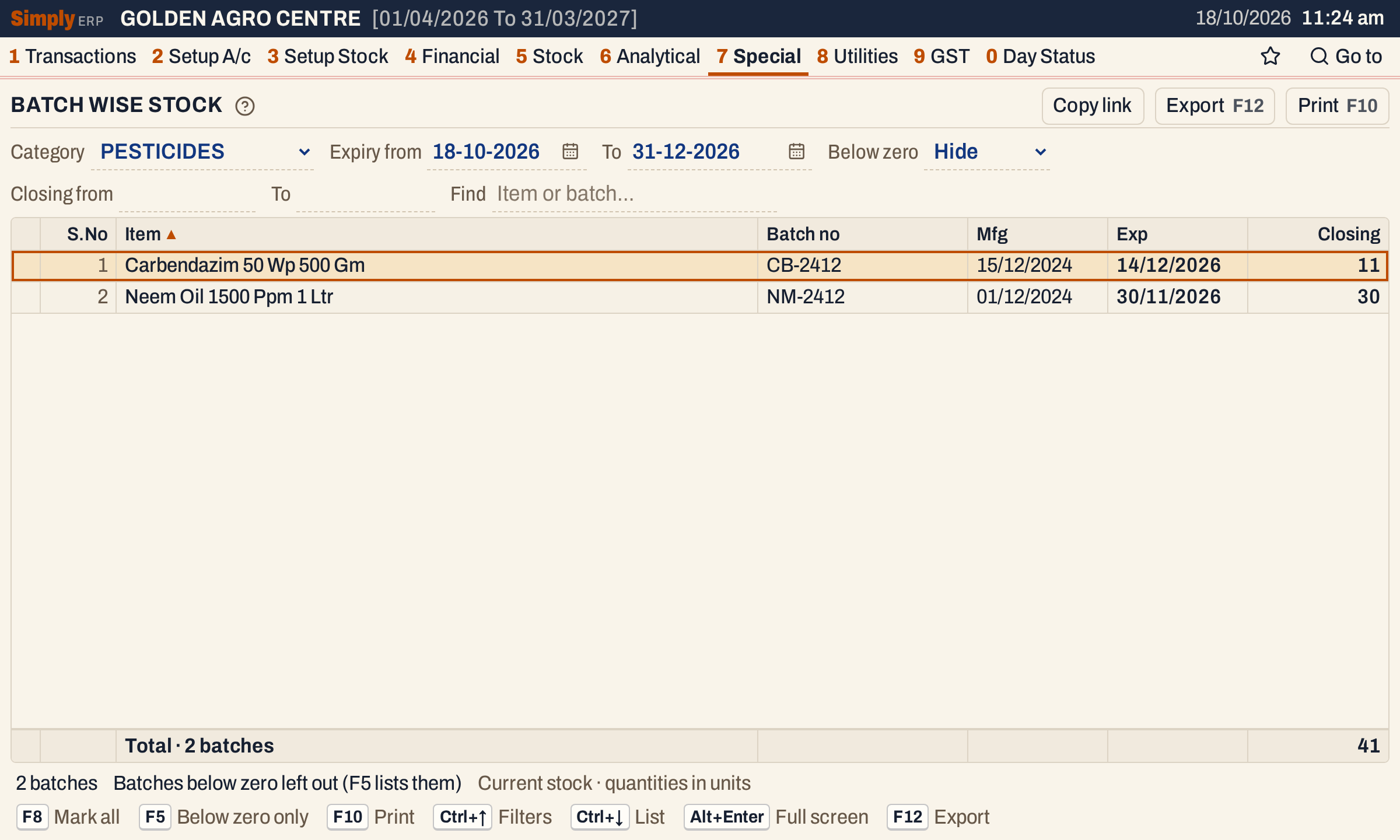 Two batches expire in the range. The total is 41 units.
Near Expiry Stocks (7 R) is the report made for this question.
Batches below zero
A batch goes below zero when more has been sold, returned or written off against it than was received. It can mean that a bill used a batch number the stock does not hold, or that the purchase has not been entered yet. Choose Only these (or press F5) to list only those batches.
In the example, 5 units were written off as damaged against Profenofos 50 Ec 1 Ltr batch PF-2607E, which held 2 units. The batch is now at −3 and shows in red. Correct the sale line’s batch with Change Sale Batch Numbers or enter the missing purchase.
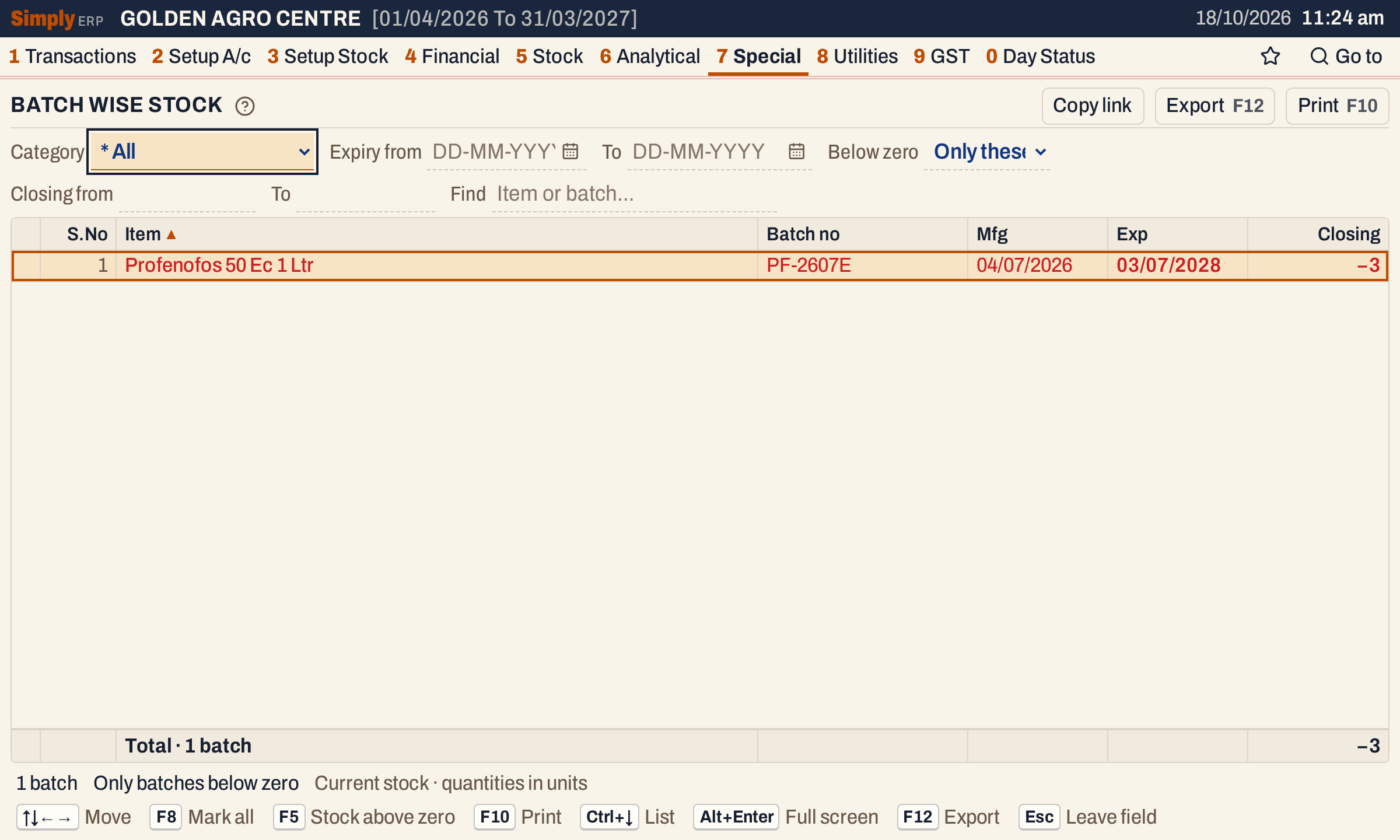 The batches below zero, in red. The status line says Only batches below zero.
Open, mark, print and export
- Enter on a batch opens the item’s Stock Ledger, for the financial year from its first day to today.
- F2 marks a batch and F8 marks them all. F10 then prints only the marked batches.
- F10 prints the report as BATCH WISE STOCKS, with the category, the expiry range (or “All expiry dates”) and your other choices in its heading, the columns S.No, Item Name, Batch No., Mfg. Date, Exp. Date and Cl.Stock, and a total line.
- F12 saves what the print shows as an Excel workbook, with the figures as numbers.
- Alt+Enter gives the whole window to the list.
Updated 4 November 2026.