Extra Discounts
On this page
The Extra Discounts report lists the bills on which a discount was given, one line for each bill, with the amount before the discount, the amount after it and the discount itself. Where a line took a second discount, the extra discount, it has its own column. Use it to see which customers get discounts from you, and which suppliers give them to you, and how much.
Open the report
Press Alt+7 for Special Reports, then T. The report opens for the financial year from its first day to today, with the cursor on Party and the choice Customers.
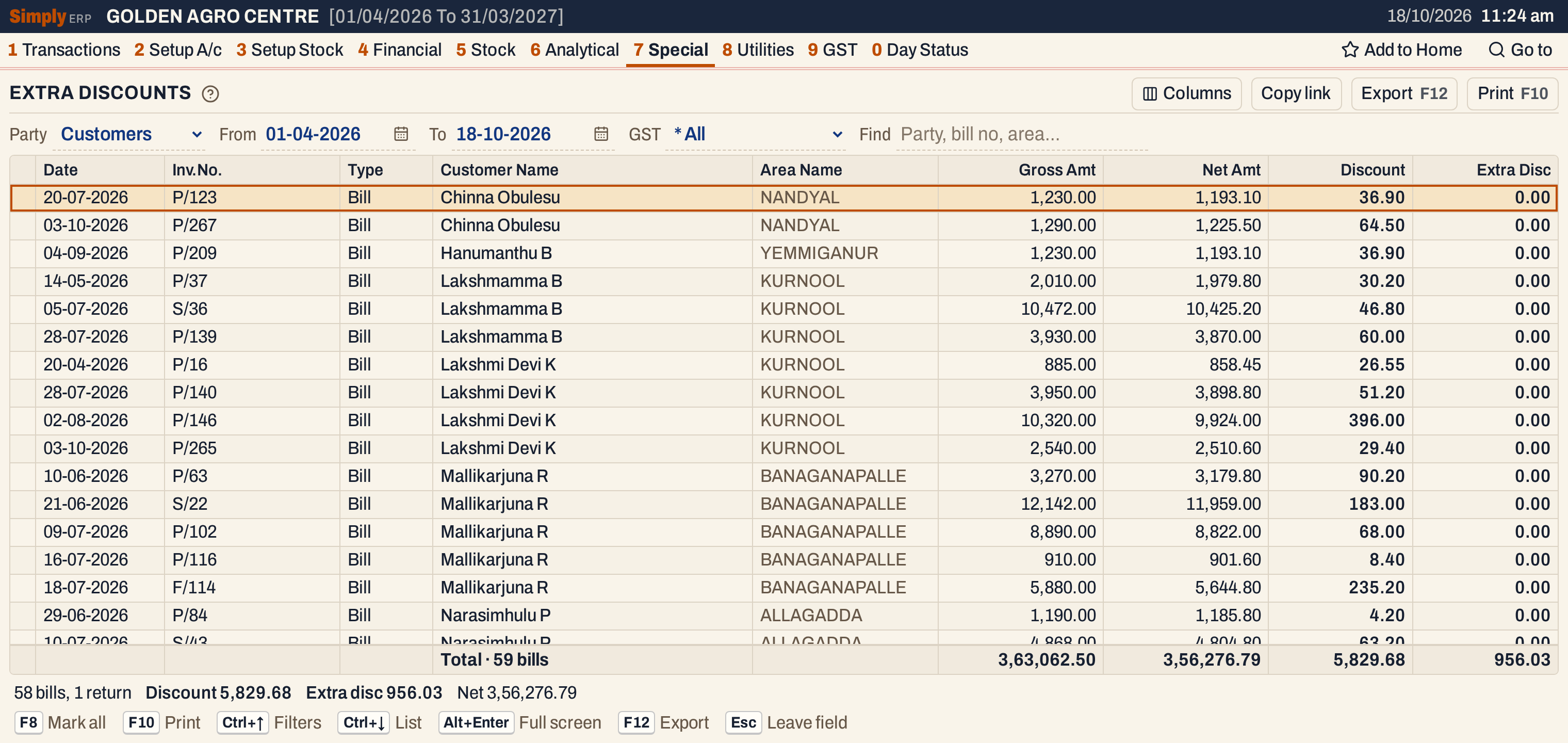 One line for each discounted bill, in customer name order. The totals line adds up each amount column.
What it lists
One line for each bill of the period on which a discount was given, both days of the period included, by the date the bill is posted:
- Customers: sales bills and sales returns, of customers, farmers and accounts that are both customer and supplier;
- Suppliers: purchase bills and purchase returns, of suppliers and accounts that are both customer and supplier.
Only credit bills are listed. A cash bill is never in this report. A bill is listed when any of its item lines has a first or second discount. Returns are listed with the bills and count against them.
Columns
| Column | What it shows |
|---|---|
| Date | The date the bill is posted. |
| Inv.No. | The bill’s number. |
| Type | Bill, or Return (grey). It shows only when the list has a return. |
| Customer Name / Supplier Name | The party’s name as written on the bill. |
| Area Name | The place on the bill. Hide it with Columns. |
| Gross Amt | The bill’s item amounts before any discount, added up. |
| Net Amt | The item amounts after the discounts, added up. |
| Discount | The first discount of each item line, added up. In bold. |
| Extra Disc | The second discount of each item line, added up. In bold. It shows only when at least one bill has an extra discount. |
A return’s amounts are below zero. The totals line counts the lines and adds up the four amount columns. The status line gives the bills and returns, and the totals of Discount, Extra disc and Net. A line is called a bill in the totals line, returns included. Here the totals line says 59 bills and the status line 58 bills and 1 return.
Most bills have a Discount only, so Extra Disc is 0.00 for them. On a narrow window the right-hand columns are off to the right; scroll the grid sideways to see them.
Choices
| Choice | What it does |
|---|---|
| Party | Customers (the default) or Suppliers. |
| From, To | The period, both days included. Both dates must fall in the financial year. |
| GST | Customers only: * All, Registered or Unregistered, for customers with or without a GSTIN. |
| Find | Shows only the lines that match what you type in the party’s name, the bill number, the place, the date or the word Bill or Return. Every word you type must match; a word of three letters or more also matches when its letters appear in that order, close together. |
There is no Payment choice, because only credit bills are listed. Click a column title to sort by it, and click it again to reverse; a first click on an amount column puts the largest first. Every choice is kept in the page address, so Copy link gives a link that opens the same report.
 The choices of the report as it opens.
Find
Type a party’s name, a bill number, a place or a date. Here sri lakshmi leaves the bill P/296 and the return SLA/RET/1 of Sri Lakshmi Agro Traders.
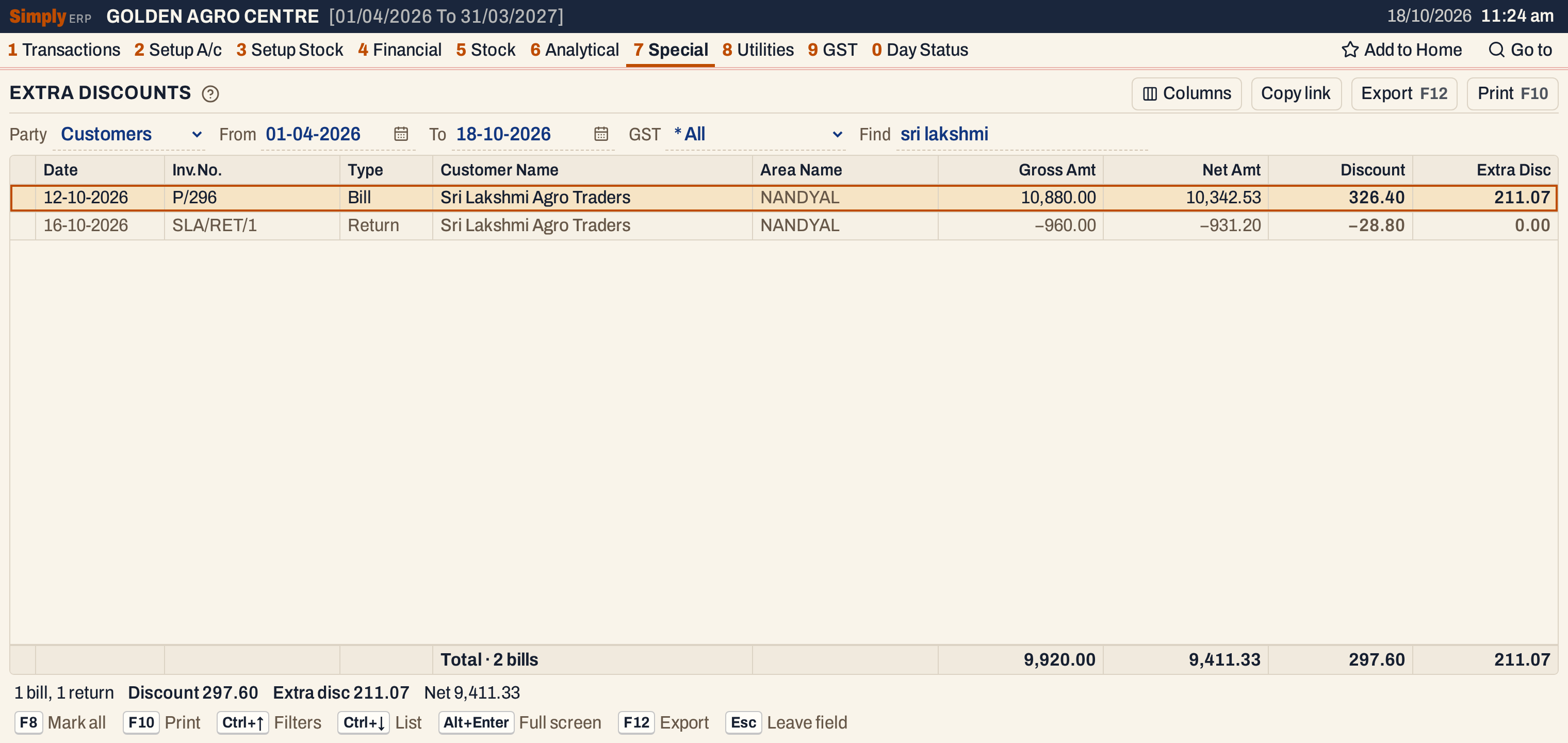 Find narrows the lines; the totals line follows. Together the bill and the return come to a discount of 297.60.
Suppliers
Choose Suppliers to see the discounts the suppliers gave you on their bills. Here there are 34 bills with a total discount of 31,924.00.
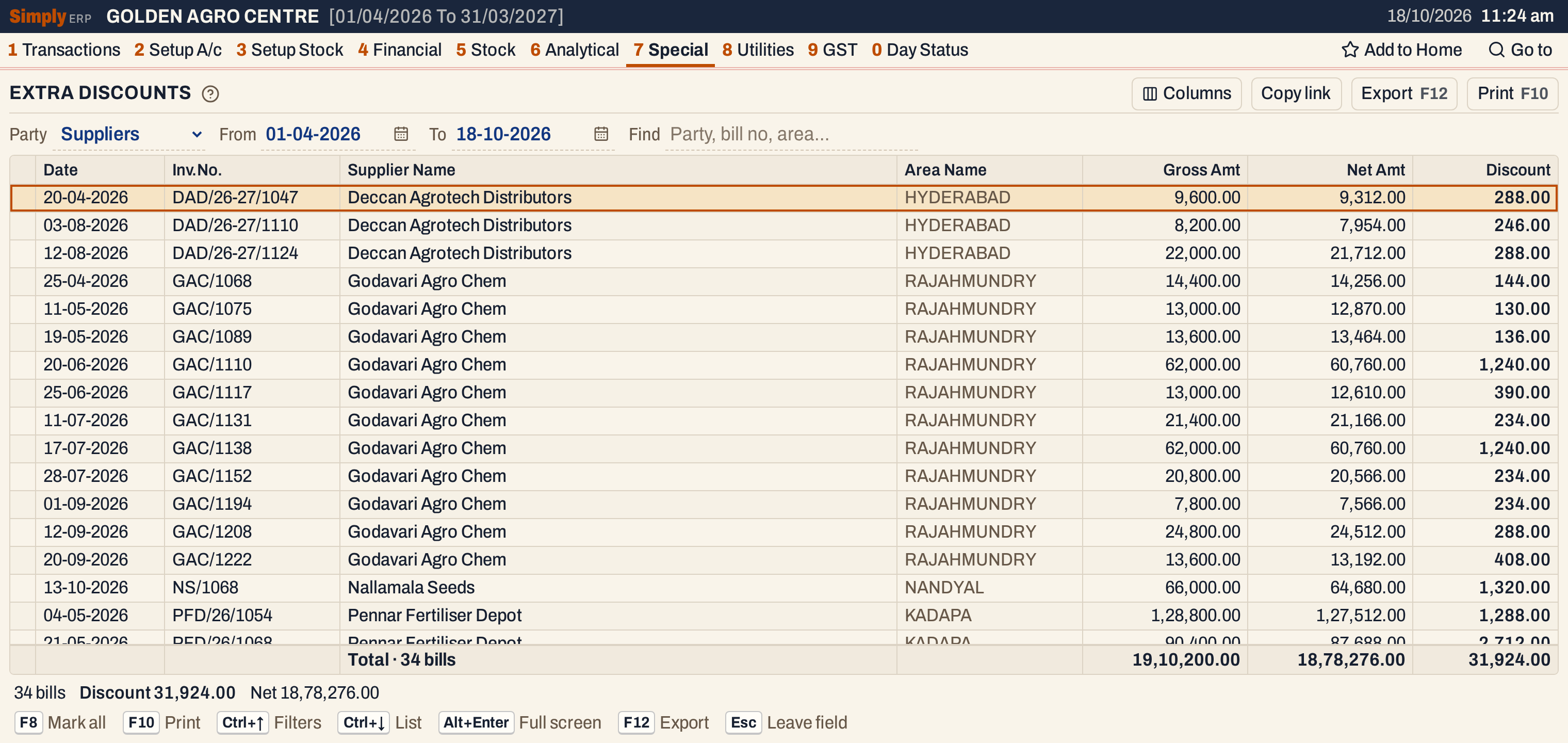 Purchase bills in supplier name order. None of these bills has an extra discount, so there is no Extra Disc column.
How the figures are worked out
For each bill, SimplyERP adds up its item lines. A line can take up to three discounts one after the other, each on what is left after the one before; the report reads the first two. On the bill screen the first is the line’s Disc. % and Disc. amt and the second its Sp. disc; F4 on a line shows all three (see Add discounts and charges to a bill).
- Gross Amt of a sales line = its amount before discount and before GST for a customer with a GSTIN, and its net amount plus its discount (with GST) for a customer without a GSTIN. For a purchase line it is the units × the price on the bill, before discount, or the entered amount for a line entered as an amount.
- Discount = the first discount of each line. A line with no discount stages recorded counts its discount amount here.
- Extra Disc = the second discount of each line. A third discount is not shown here.
- Net Amt = for a party with a GSTIN, the lines’ taxable amounts (after the discounts, before GST); for a party without one, the lines’ net amounts (after the discounts, with GST).
- A return is taken with its sign changed, so its amounts are below zero and reduce the totals.
- The totals add up the lines on the screen.
Here bill P/296 of Sri Lakshmi Agro Traders, a customer with a GSTIN, has two lines: 10 Glyphosate 41 Sl 1 Ltr at 480.00 and 8 Profenofos 50 Ec 1 Ltr at 760.00, a gross of 10,880.00. The first discount, 3%, is 144.00 and 182.40, so Discount is 326.40. The second discount, 2% of what is left, is 93.12 and 117.95, so Extra Disc is 211.07. Net Amt is 10,880.00 − 326.40 − 211.07 = 10,342.53. The return SLA/RET/1 of 2 units of Glyphosate at 480.00 took a 3% discount: gross −960.00, Discount −28.80 and Net Amt −931.20.
Open, mark, print and export
- Enter on a line opens the bill. Alt+← returns to the list, with the cursor on that bill.
- F2 marks a bill and F8 marks every bill on the screen. When any are marked, F10 prints only those, and the print says Marked bills only.
- F10 prints the report under the title INVOICES - EXTRA DISCOUNTS, with the period and Customers or Suppliers in its heading. Each party is a heading with its bills, then its returns, and a total line for the party (called Net (bills less returns) when it has returns). The print ends with Totals and the number of bills.
- F12 saves it as an Excel workbook, with the area name.
- Alt+Enter gives the whole window to the list.
Updated 4 November 2026.