Purchase Due Dates
On this page
Purchase Due Dates lists your purchase bills with the date each falls due and the credit days the supplier gave. It answers two questions: which bills of one supplier were received in a period, and which bills of all suppliers fall due on one day. Use the second one each morning to see what to pay.
Open the report
Press Alt+7 for Special Reports, then Z for More Special Reports and A. The report opens as Supplier wise for the financial year from its first day to today, and asks you to choose the supplier.
Choose the supplier in A/c Name. Type part of its name and the list shows the suppliers, with their place and balance. Enter takes the one highlighted.
 The list holds the accounts of type Supplier and Customer - Supplier.
The report then lists that supplier’s bills.
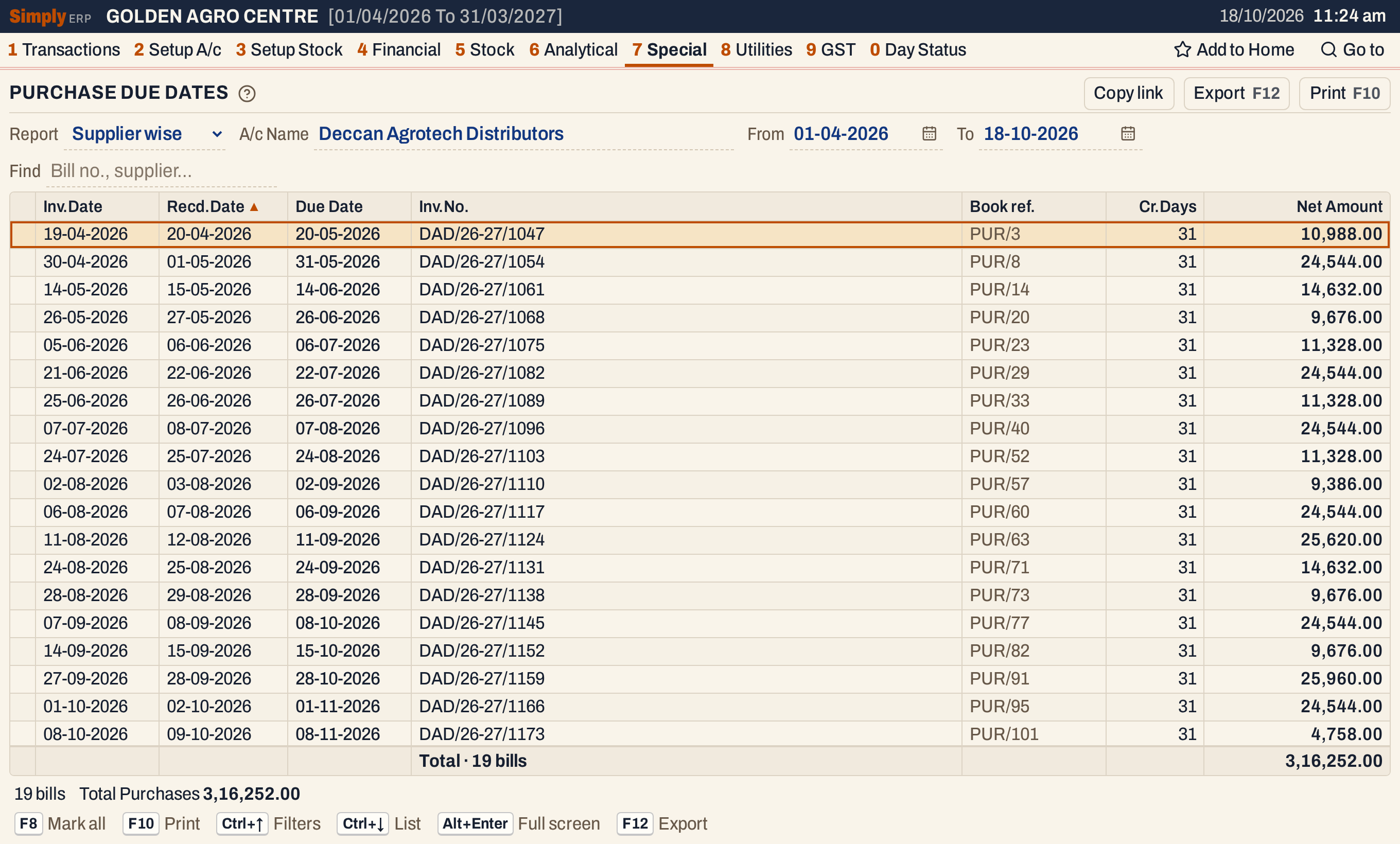 Nineteen bills of one supplier, 3,16,252.00 in all.
What it lists
The purchase bills saved on the purchase bill screen, one line for each bill.
- Supplier wise lists the bills of the chosen supplier received from the From date to the To date, both days included. The received date is the date on the bill’s Received field, not the supplier’s bill date.
- Date wise lists the bills of every supplier whose due date is the date you choose.
Purchase returns and notes are not listed, and nothing is taken off for payments made: a bill is listed whether or not it has been paid.
Columns
| Column | What it shows |
|---|---|
| Inv.Date | The date of the supplier’s bill (the Bill dt. of the purchase bill). |
| Recd.Date | The date you received the goods and booked the bill (Received). |
| Due Date | The date the bill falls due (Due). |
| Inv.No. | The supplier’s bill number. |
| Book ref. | Your own book and number for the bill, such as PUR/3. The column shows when at least one bill’s book reference differs from its supplier’s bill number. It is not on the print. |
| Cr.Days | The credit days: the days from the supplier’s bill date to the due date. |
| Net Amount | The bill’s net amount: the goods with their GST and any charges added or taken off. |
| Supplier Name | The supplier. Date wise only. |
Click a column title to sort by it, and click again to reverse. Shift+click adds a second sort. The bills come in received-date order at first.
Choices
| Choice | What it does |
|---|---|
| Report | Supplier wise (the default) or Date wise. |
| A/c Name | The supplier. Supplier wise only. |
| From, To | The period in which the bills were received. Supplier wise only. |
| Due on | The due date to list. Date wise only. It opens on today’s date. |
| Find | Shows only the bills whose supplier’s bill number, book reference or supplier name matches what you type. |
Every choice is kept in the page address, so Copy link gives a link that opens the same report.
 The choices of Supplier wise.
Date wise
Choose Date wise and set Due on to a date. The report lists every bill due that day, with the supplier’s name in the last column. Here the date is 19-10-2026, and two bills fall due.
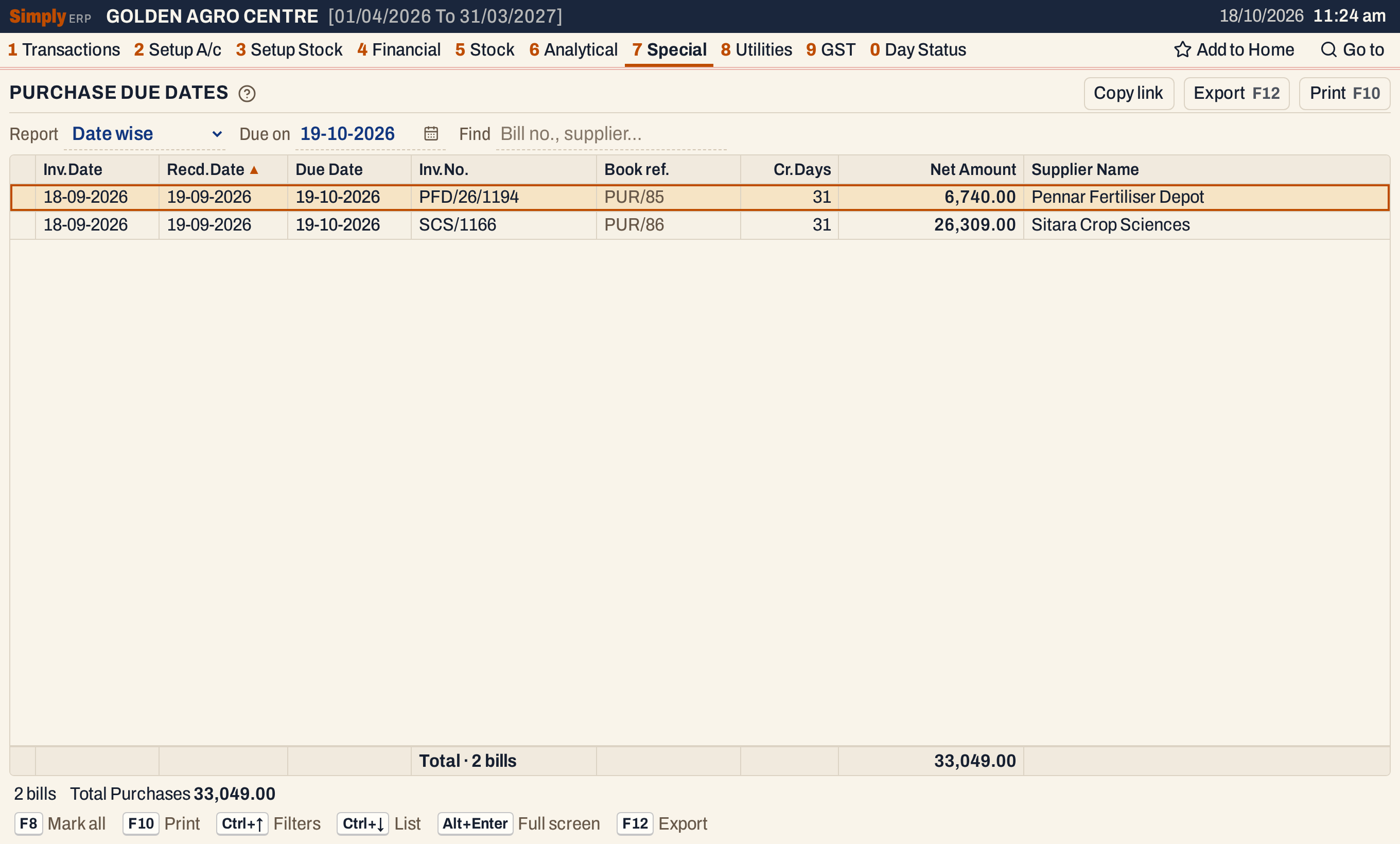 Two bills fall due on 19 October, 33,049.00 in all.
 Date wise has only the date to choose.
How the figures are worked out
- A bill’s Due Date is the date set in the Due field when the purchase bill was saved. The purchase bill does not let the due date fall before the received date.
- Cr.Days = Due Date − Inv.Date, in days. The bill of Pennar Fertiliser Depot, dated 18-09-2026 and due on 19-10-2026, has 31 credit days.
- Net Amount is the net amount of the bill. For the bill PFD/26/1194 it is the goods, 4,800.00, and 240.00 of GST, which is 5,040.00, plus 1,700.00 of freight, 6,740.00 in all.
The totals line under the list counts the bills and adds up the Net Amount.
 The number of bills and their total.
Open, mark, print and export
- Enter on a bill opens the purchase bill, with its Bill dt., Received and Due dates.
- F2 or Space marks a bill and F8 marks them all. F10 then prints only the marked bills. The status line shows how many are marked.
- F10 prints the report as it is on the screen, headed PURCHASE DUE DATES, with the supplier’s name and the period, or the due date, and a Totals line. The print calls the Net Amount column Bill Amt.
- F12 saves it as an Excel workbook; the Book ref. column is in the workbook.
- Alt+Enter gives the whole window to the list.
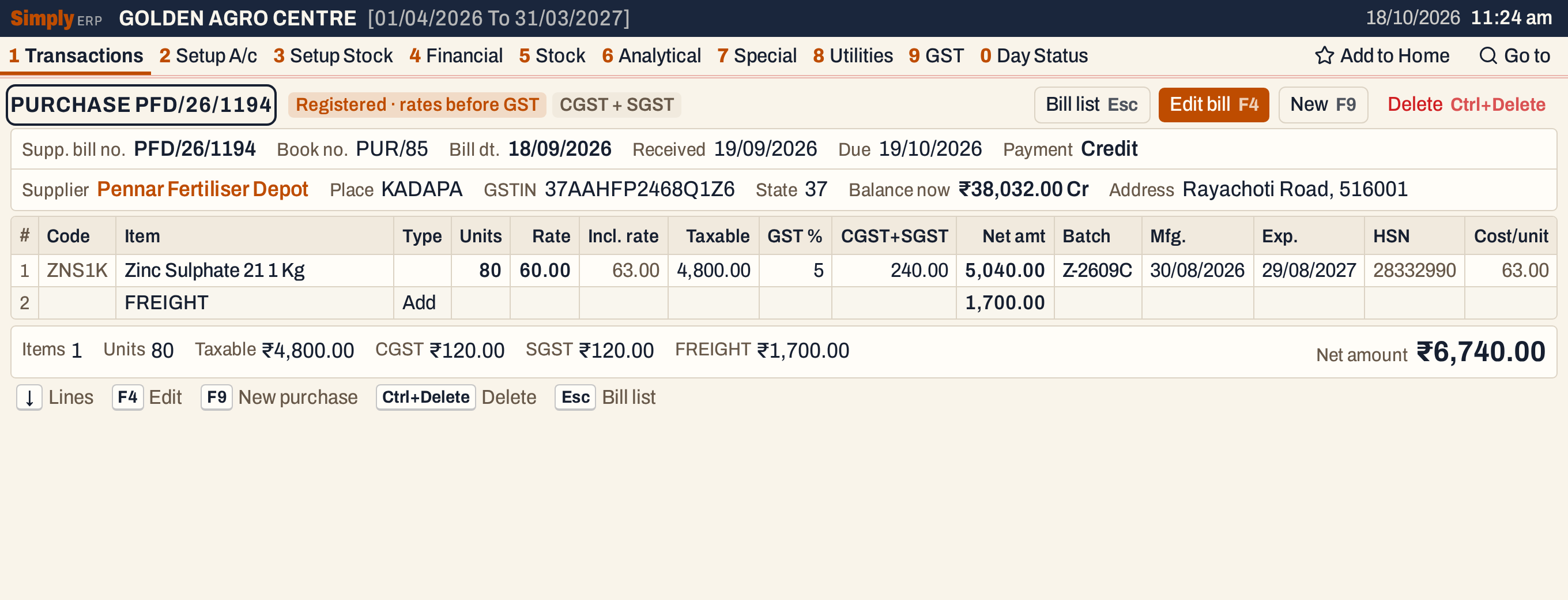 A bill opened from the list shows the three dates.
Updated 4 November 2026.