Change the batch of a sale line
On this page
A sale line records which batch of the item it was sold from. When the wrong batch was picked, or none was, the batch stock is wrong too: one batch shows more in hand than it holds, another less. Modify Batch Nos. (Sales) lists every item line of your sale bills with its batch, so you can find the lines to correct. Enter opens the bill, you pick the right batch, and the batch stock follows when you save.
Open the list
Press Alt+8 for the Utilities menu, then H for Modify Batch Nos. (Sales).
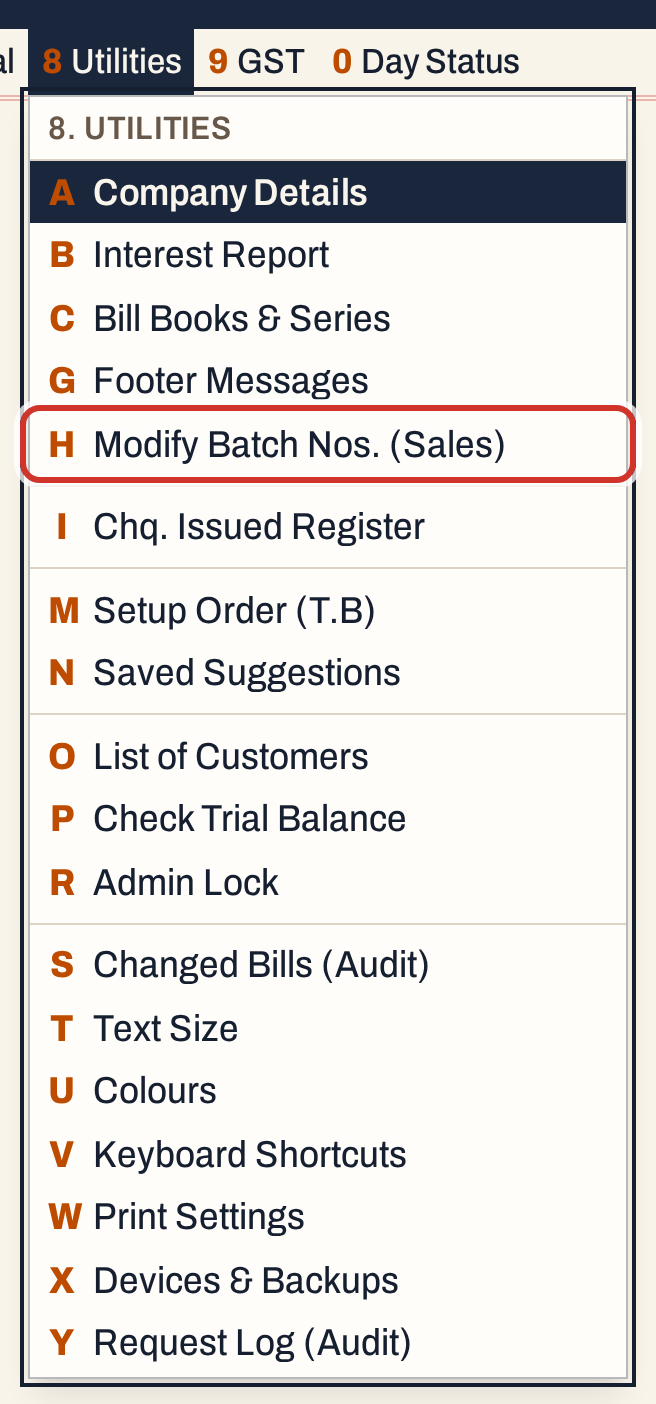 8 H: Utilities, Modify Batch Nos. (Sales).
The screen lists the sale lines of the year so far, from the first day of the financial year to today’s working date, in date order. The cursor starts on From.
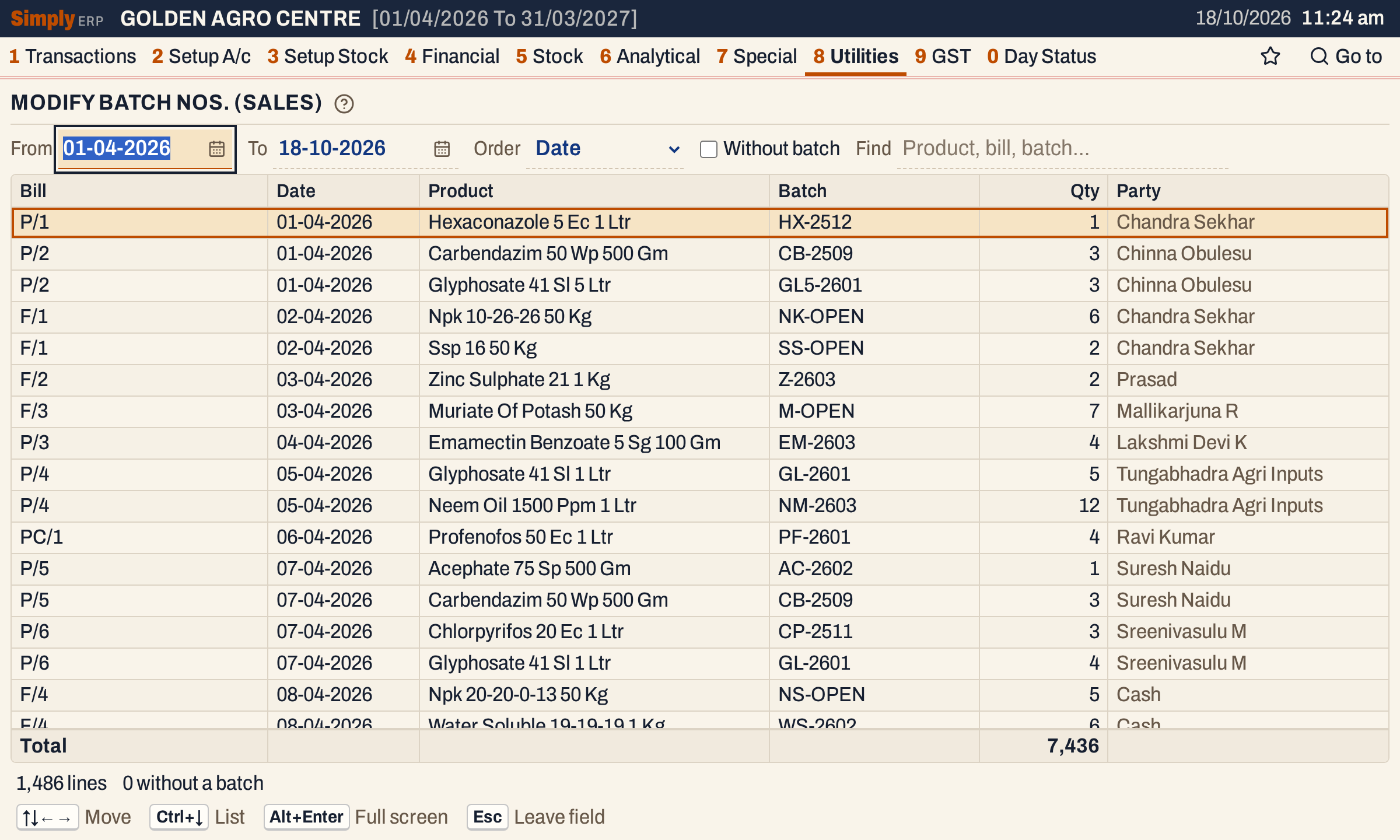 All the sale lines of the showcase books: 1,486 lines, 7,436 units, and none without a batch.
What the list shows
One row is one item line of a sale bill. A bill with three items gives three rows. Only lines that sold units are listed: sales returns, purchase bills and charge lines are not in it.
| Column | What it shows |
|---|---|
| Bill | The bill number, with its series, such as P/2. |
| Date | The bill’s posting date. |
| Product | The item sold. |
| Batch | The batch the line was sold from. A line with no batch shows none, in red. |
| Qty | The units sold on the line. |
| Party | The party named on the bill; when the bill ships to another party, that party. |
The footer adds the Qty of the rows listed. Under the grid, the status line gives the number of lines listed and, in red, how many lines in the whole period have no batch. That second count does not change with Find or Without batch.
Narrow the list
| Choice | What it does |
|---|---|
| From and To | The period, by the bill’s posting date. They start on the financial year’s first day and today’s working date, and stay inside the financial year. |
| Order | Date lists by date, then bill number, then product. Product lists by product name, then date, then bill. |
| Without batch | When ticked, lists only the lines that have no batch. |
| Find | Keeps the lines whose product, bill number, batch or party match what you type. |
Press Enter in Find, or Ctrl+↓ from any choice, to move into the list. To find the lines of one item, type part of its name.
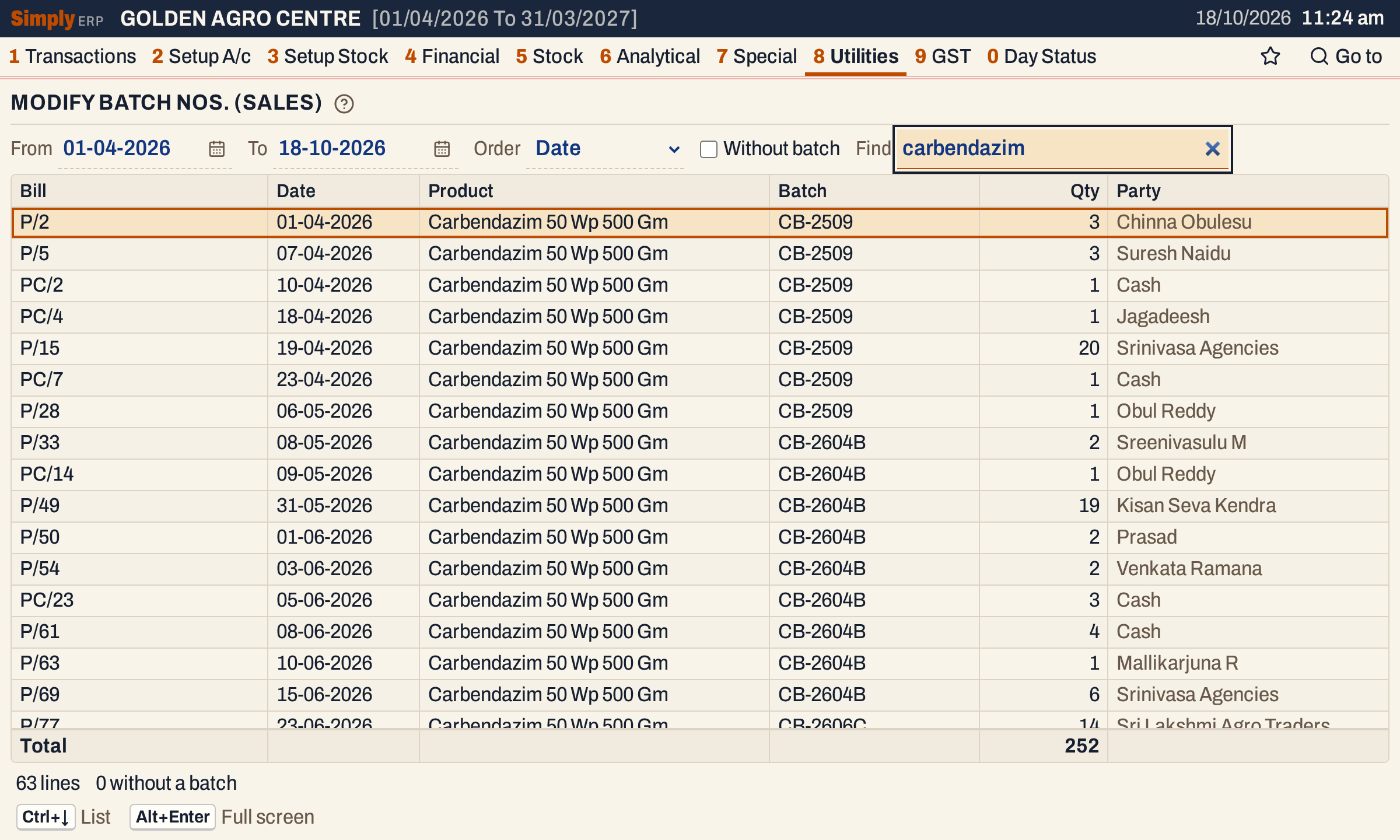 Carbendazim 50 Wp 500 Gm was sold on 63 lines, 252 units in all. The first line is on bill P/2.
In the list, the arrow keys and Page Up and Page Down move the cursor. Typing jumps to the first row whose bill number begins with what you type, or, in Product order, whose product does.
See what the batches hold
Before changing a line, look at what each batch of the item has in stock. The batch list of a new sale bill shows it, with the Left of each batch.
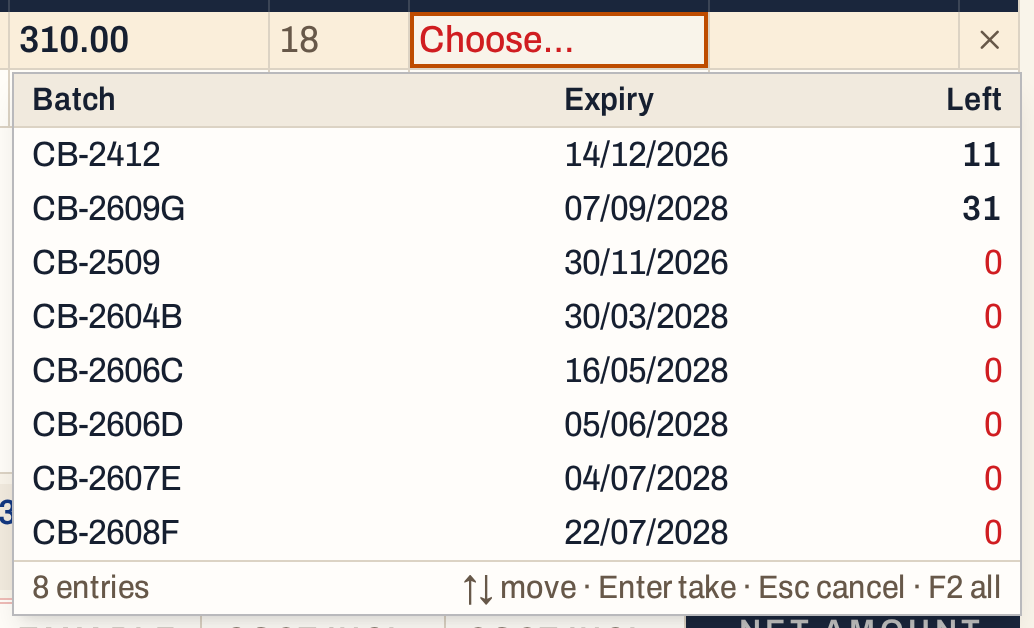 Before the change: CB-2509 has 0 left, CB-2412 has 11 and CB-2609G has 31.
Open the bill
Move to the line and press Enter. The bill opens for editing, the same screen as in Edit a bill. Here the cursor was on bill P/2, which sold Glyphosate and Carbendazim to Chinna Obulesu.
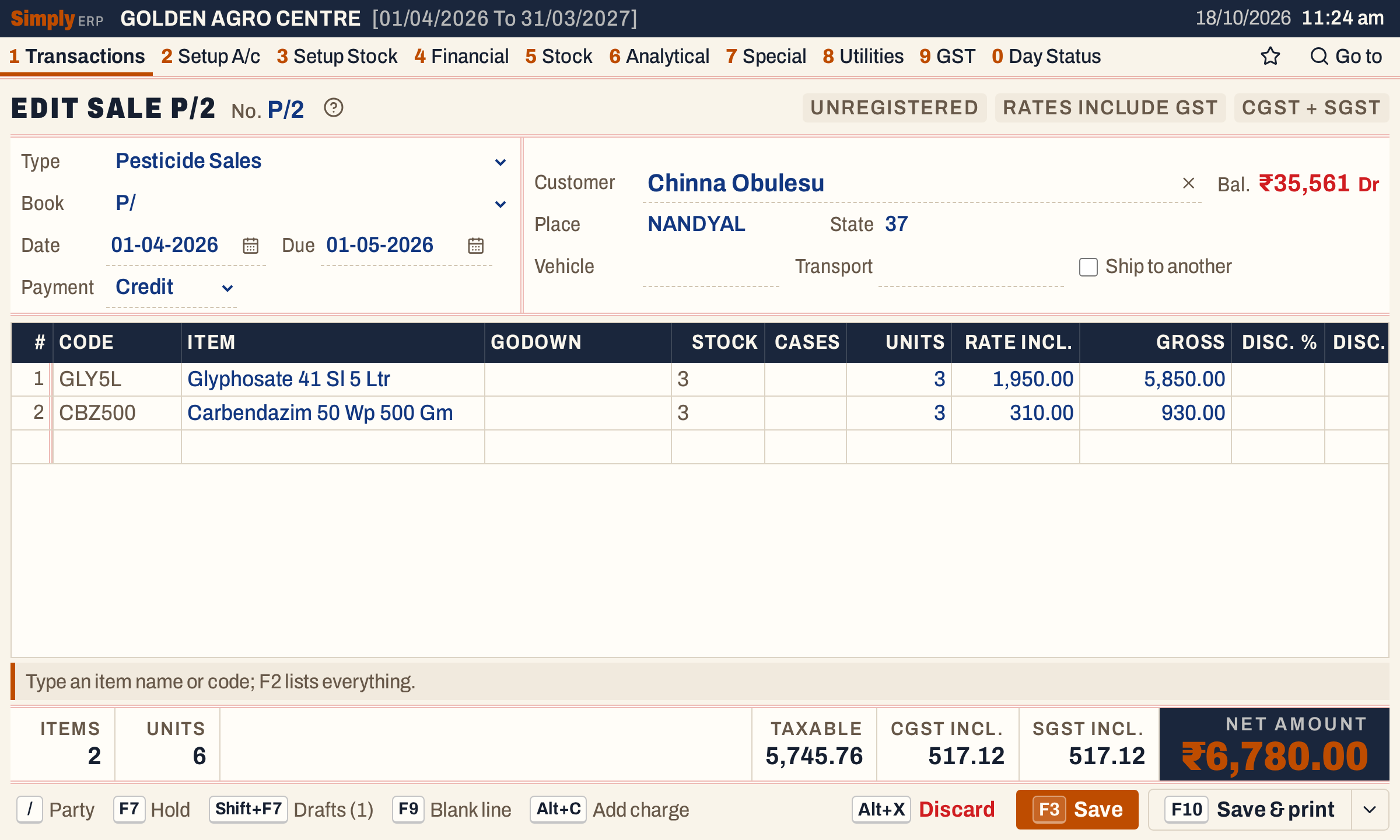 Bill P/2 in the edit screen. The net amount is ₹6,780.00.
The Batch column is further to the right on the line. Press Enter through the line’s cells to reach it, or click it. Line 2, the Carbendazim line, was sold from batch CB-2509.
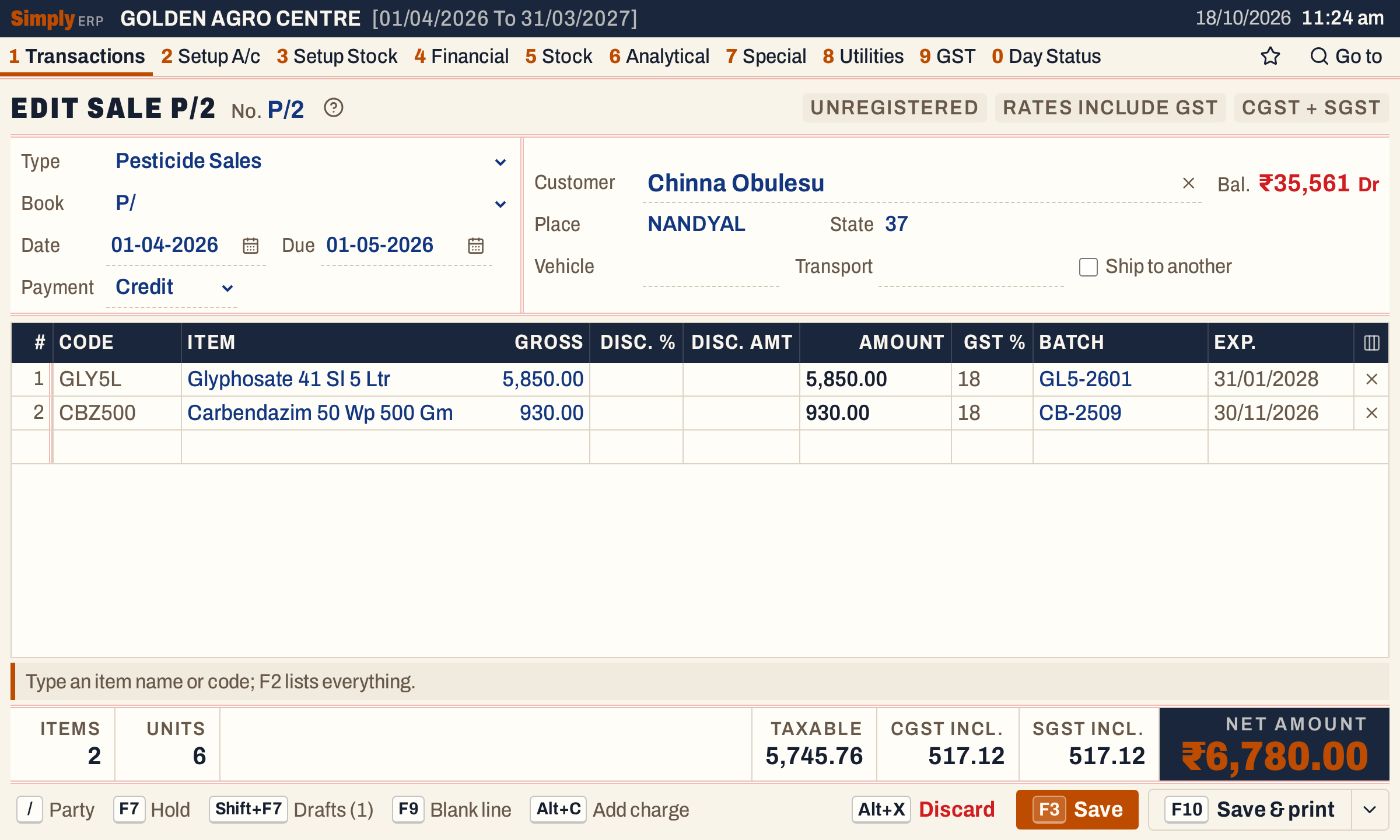 The Batch and Exp. columns of the two lines.
Choose the right batch
Click or move into the Batch cell of the line and press F2. The list shows the item’s batches, with their expiry and how many each has Left. Batches in stock come first, by nearest expiry, then expired batches that still have stock, then batches with none in stock. A batch with nothing left shows 0 in red.
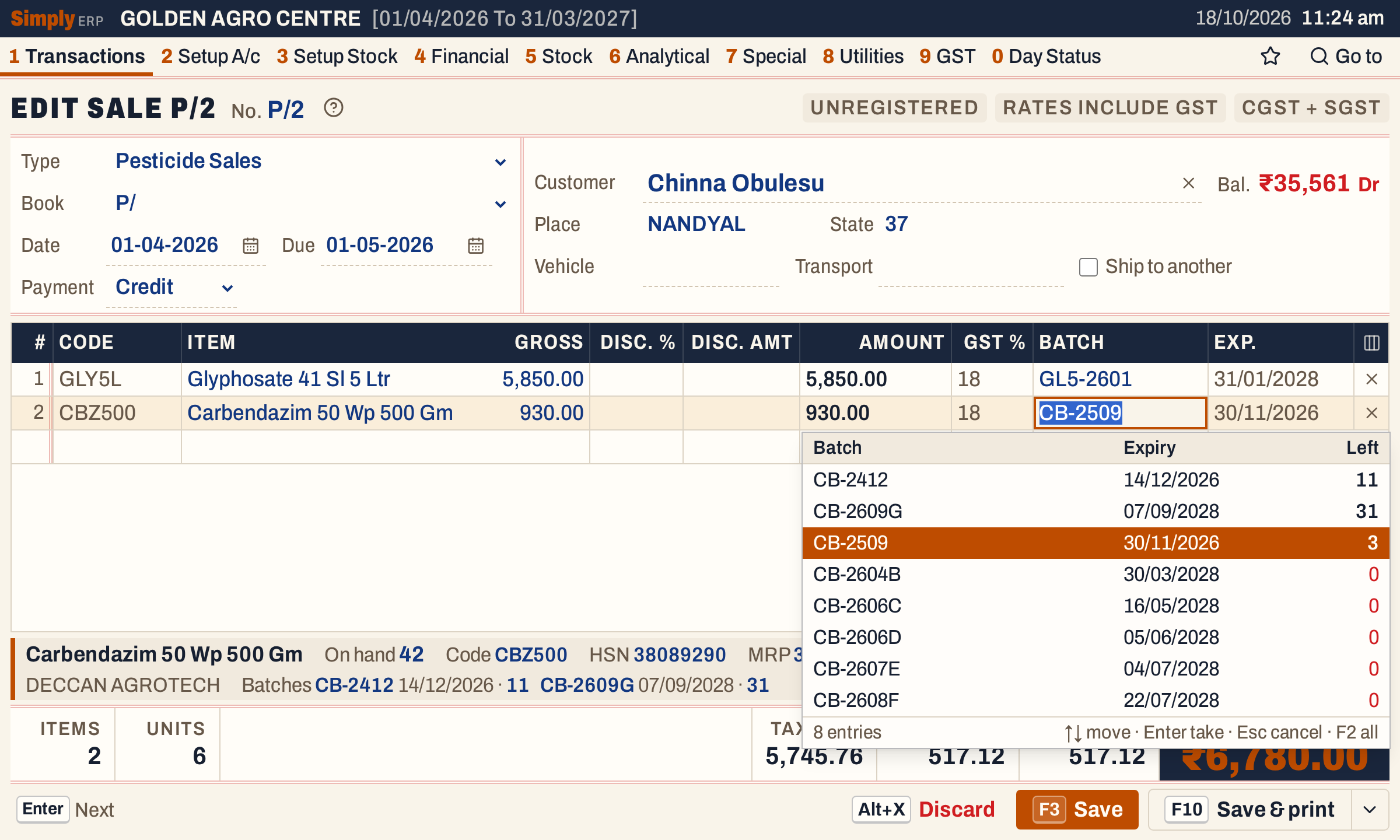 In an edit, the bill’s own units are put back first, so CB-2509 shows 3 left, the three units this line took. It stays among the batches with no stock because it holds none until the bill is saved.
Move to the batch with ↑ or ↓ and press Enter. The line takes the batch and its expiry date. In this example the line was moved to CB-2412.
 Line 2 now shows CB-2412, expiring 14/12/2026.
If you choose a batch that has some units left, but fewer than the line sold, and another batch has stock, the line is split: it takes what the batch has left, and a new line below carries the rest, with its batch list open for you to pick the next batch. If the chosen batch has none left, or no other batch has stock, the line stays whole, and shows that the stock is short.
Changing the batch does not change the amounts. The rate, discount, GST and the bill’s net amount stay as they were.
Save the bill
Press F3. The bill is saved under the same number, and SimplyERP shows it with a notice that it was updated.
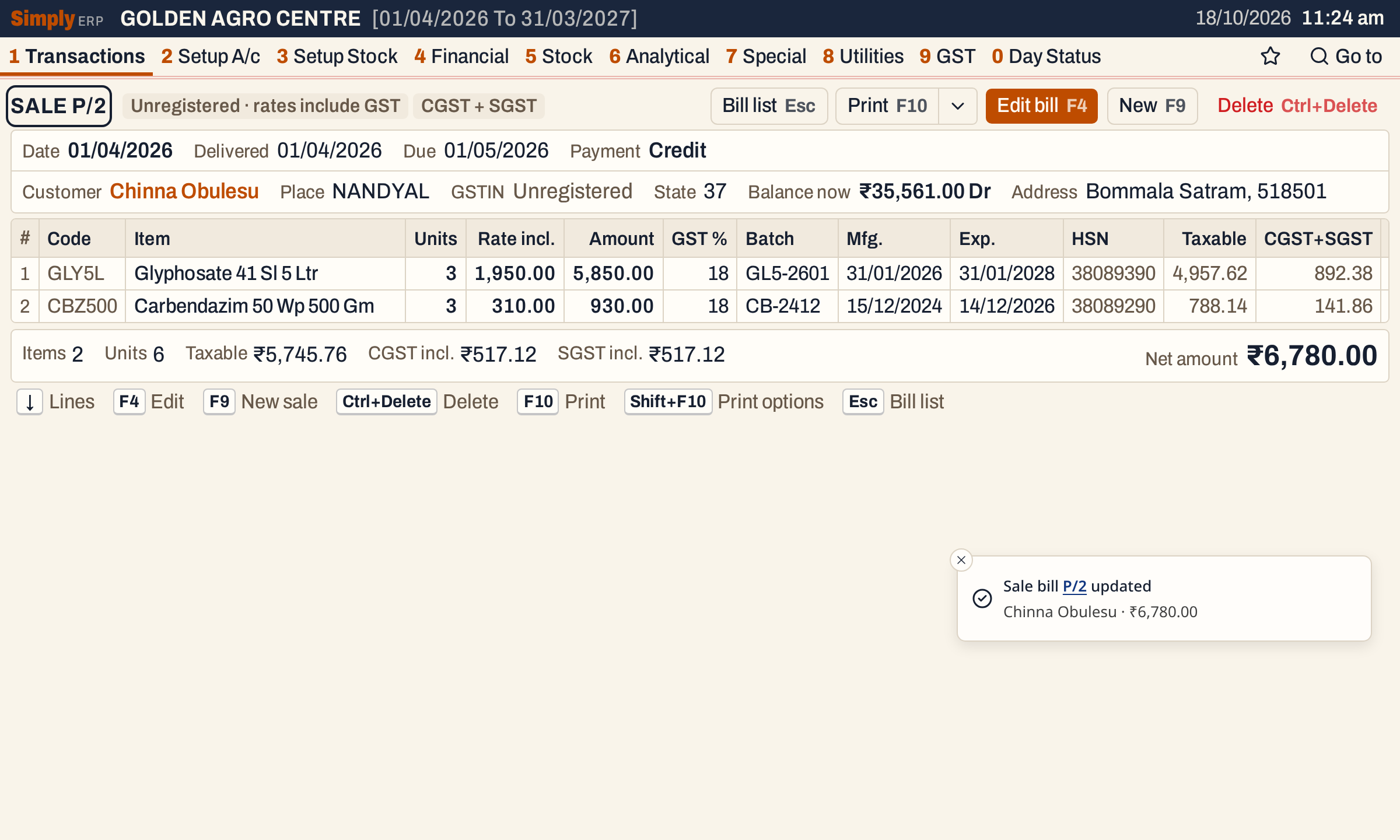 The bill keeps its number and its net amount of ₹6,780.00. Line 2 is now in batch CB-2412.
When an admin PIN is set, saving a changed bill asks for it.
What saving does to your books
- The line’s batch is changed on the bill. The bill’s number, date, customer, rates and amounts stay the same, so the customer’s account and the GST figures are not affected by a batch change alone.
- Batch stock follows. The three units go back to the old batch, CB-2509, and come off the new one, CB-2412. The item’s stock on hand is the same, because the same units were sold.
- The change is logged. SimplyERP keeps a copy of the bill as it stood before the edit, which Changed Bills (Audit) lists.
Open the bill’s batch list again, or the batch wise stock statement, to see the result. The same new-sale batch list now shows CB-2509 with 3 left, CB-2412 with 8, and CB-2609G with 31:
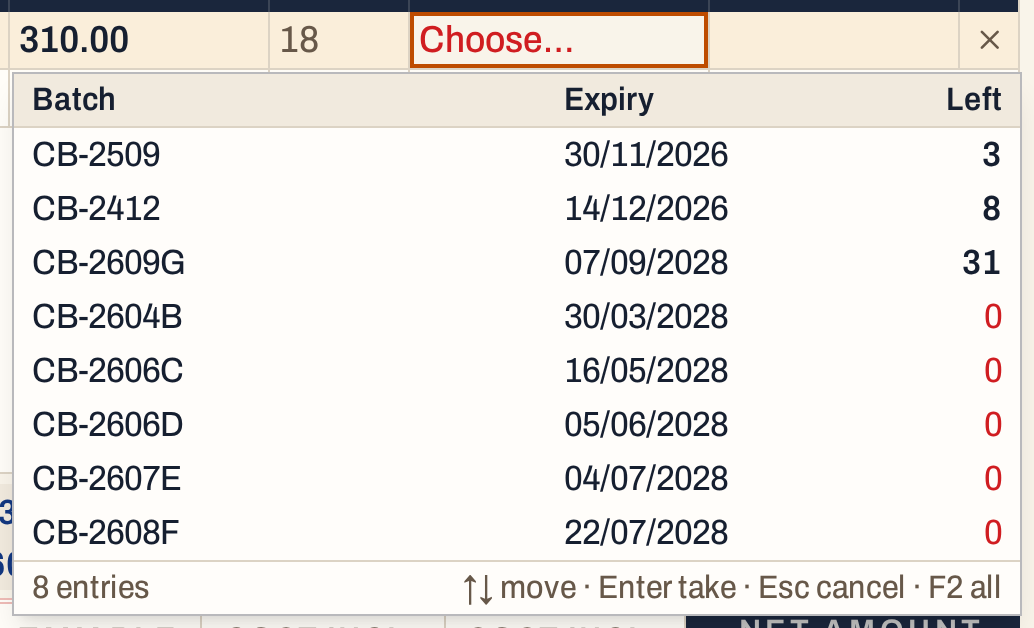 After the change: CB-2509 has 3 left, up from 0, and CB-2412 has 8, down from 11.
The list of sale lines shows the new batch against the same bill.
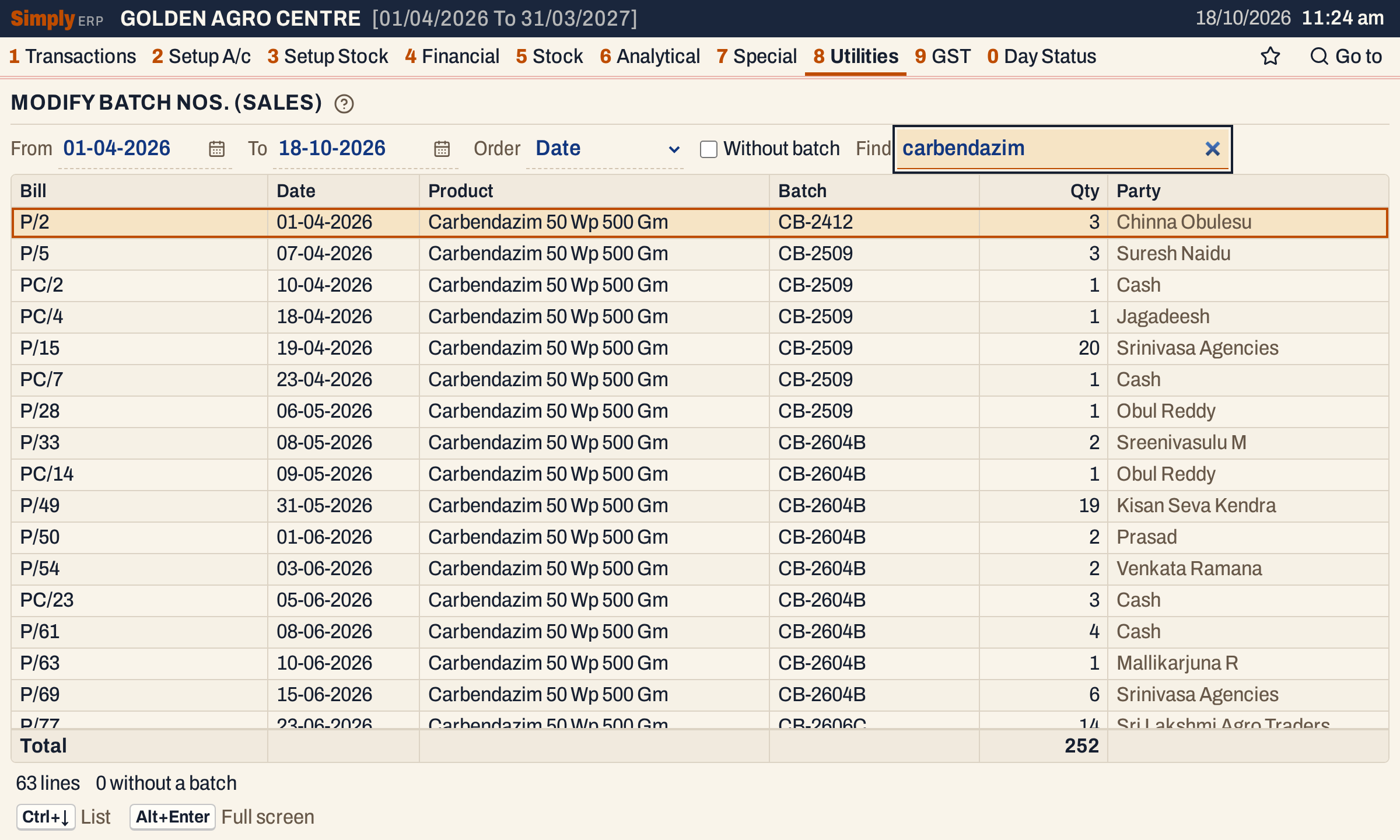 Bill P/2 is now in batch CB-2412. The other 62 lines are not changed.
See the stock ledger for the movements of the item, and batch wise sales for what each batch has sold.
Keys on this screen
| Key | What it does |
|---|---|
| Ctrl+↓ | From a choice, move into the list |
| ↑ ↓ | Move through the lines |
| Enter | In Find, move into the list; on a line, open its bill for editing |
| Alt+Enter | Give the whole window to the list |
| F2 | In the bill’s Batch cell, list the item’s batches |
| F3 | Save the bill |
| Esc | Leave the field |
Common questions
Does this change my accounts? No. A batch change moves stock between batches only. The bill’s amounts, the customer’s balance and the GST stay as they were.
A line shows none in the Batch column. What do I do? The line was saved without a batch. Tick Without batch to list these lines, open each bill and choose its batch.
I cannot find a bill in the list. Check the From and To dates, and clear Find and Without batch. The list holds sale bills only: sales returns and purchase bills are not in it.
Updated 4 November 2026.