List of Customers
On this page
The List of Customers lists the customers, customer-suppliers and farmers in your books with the city and any GSTIN, phone or licence numbers recorded for each. It is a list of names and details, not of balances: for what each party owes, use Customer Outstanding.
Open the report
Press Alt+8 for Utilities, then O. The report opens with every customer, customer-supplier and farmer, in alphabetical order.
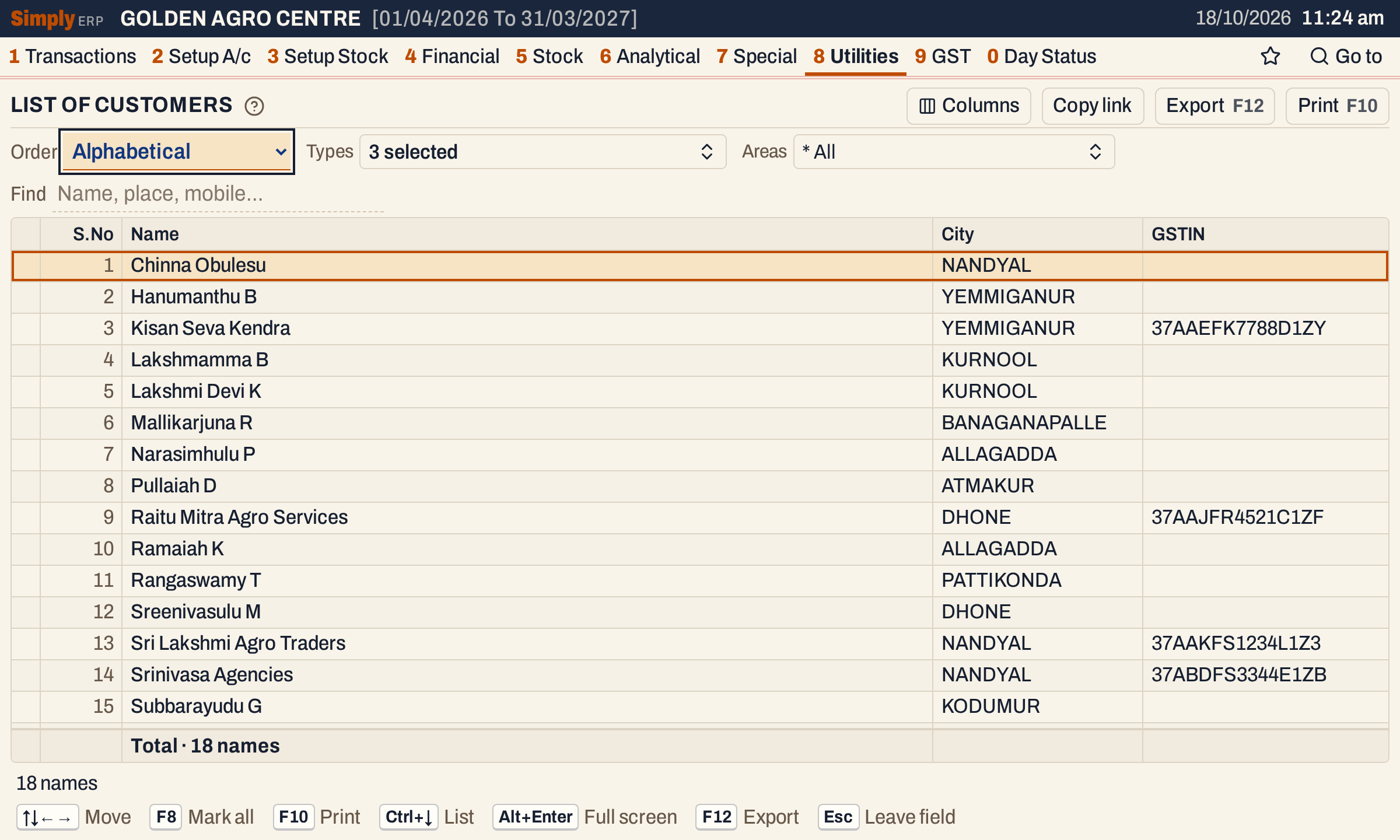 Each name is numbered in the order shown. The total line counts the names.
What it lists
One line for each account whose account type is one of the types chosen under Types. The types start as Customer, Customer - Supplier and Farmer. Accounts of any other type are left out, so your suppliers are not listed unless you choose their type.
Each line shows the account’s name and the details of its default address: the address marked as default, or the first address if none is marked. The name is the account’s legal name, or its display name when it has no legal name.
Columns
| Column | What it shows |
|---|---|
| S.No | The number of the name in the order shown. Group headings are not numbered. |
| Name | The name of the account. |
| City | The place of the default address, or the account’s city, in capitals. |
| Mobile | The phone number of the default address, or of the account. |
| Other phone | The other phone of the default address. |
| Contact person | The contact person of the default address. |
| P.L. No. | The pesticide licence number of the default address. |
| A.G.L. No. (Retail) | The fertilizer retail licence number of the default address. |
| A.G.L. No. (Wholesale) | The fertilizer wholesale licence number of the default address. |
| S.L. No. | The seed licence number of the default address. |
| iFMS ID | The iFMS ID of the default address. |
| GSTIN | The GSTIN of the default address. |
| Aadhaar | The Aadhaar number of the default address. |
A column shows only when at least one listed name has a value in it. The Columns button hides any of these columns from the screen and the print. In the screenshots only City and GSTIN are recorded, so they are the only columns beside S.No and Name.
Choices
 The choices above the list. Types shows 3 selected.
| Choice | What it does |
|---|---|
| Order | Alphabetical (the default): by name, then city. Account type: a heading for each type with the number of names under it, then the names. Area wise: a heading for each area, then the names. |
| Types | The account types to list: Customer, Customer - Supplier and Farmer to begin with. The field shows the type’s name when one is chosen, the count when several are, and * All when none is, which lists every account. Changing the types clears the Areas choice. |
| Areas | The areas of the names in the chosen types, with * All by default. Choose one or more to list only those areas. |
| Find | Shows only the names that match what you type. See below. |
F2 on Types or Areas opens its list. The list updates the report as you tick; Done closes it. * All in the list clears the ticks. It has a Find box of its own for a long list of types.
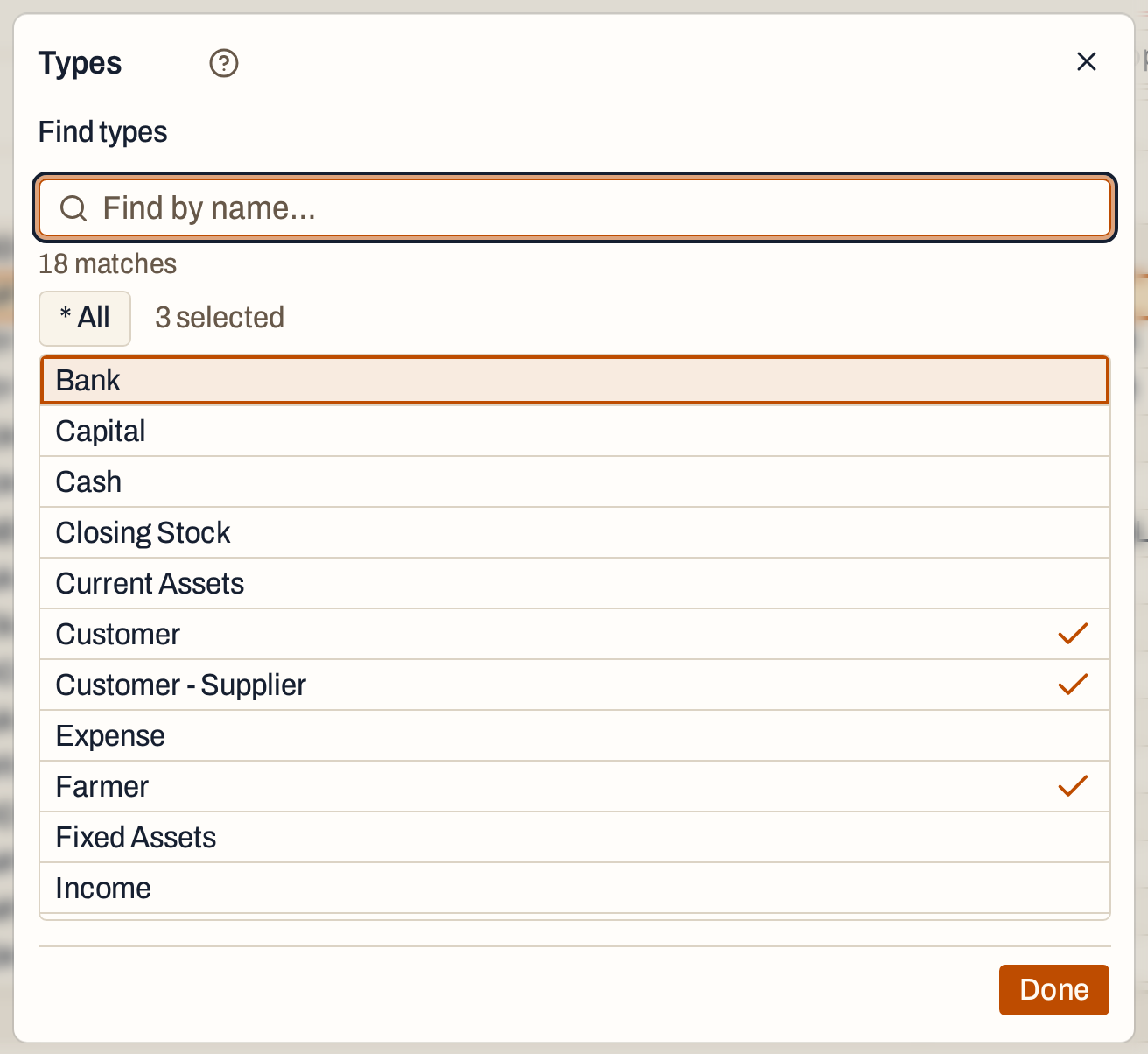 The three types ticked at the start. * All clears them.
Find matches each word you type against the name, the city, the area, the mobile number and the GSTIN. Every word must match part of one of them, and capitals and punctuation do not count. A word of three or more characters that is not all digits also matches when its letters come in that order, close together.
 Find by a place: both names are in Kurnool, so both stay in the list.
Order by account type
With the order set to Account type, the names are grouped under their type. Each heading gives the number of names under it, and the numbering runs on through the groups.
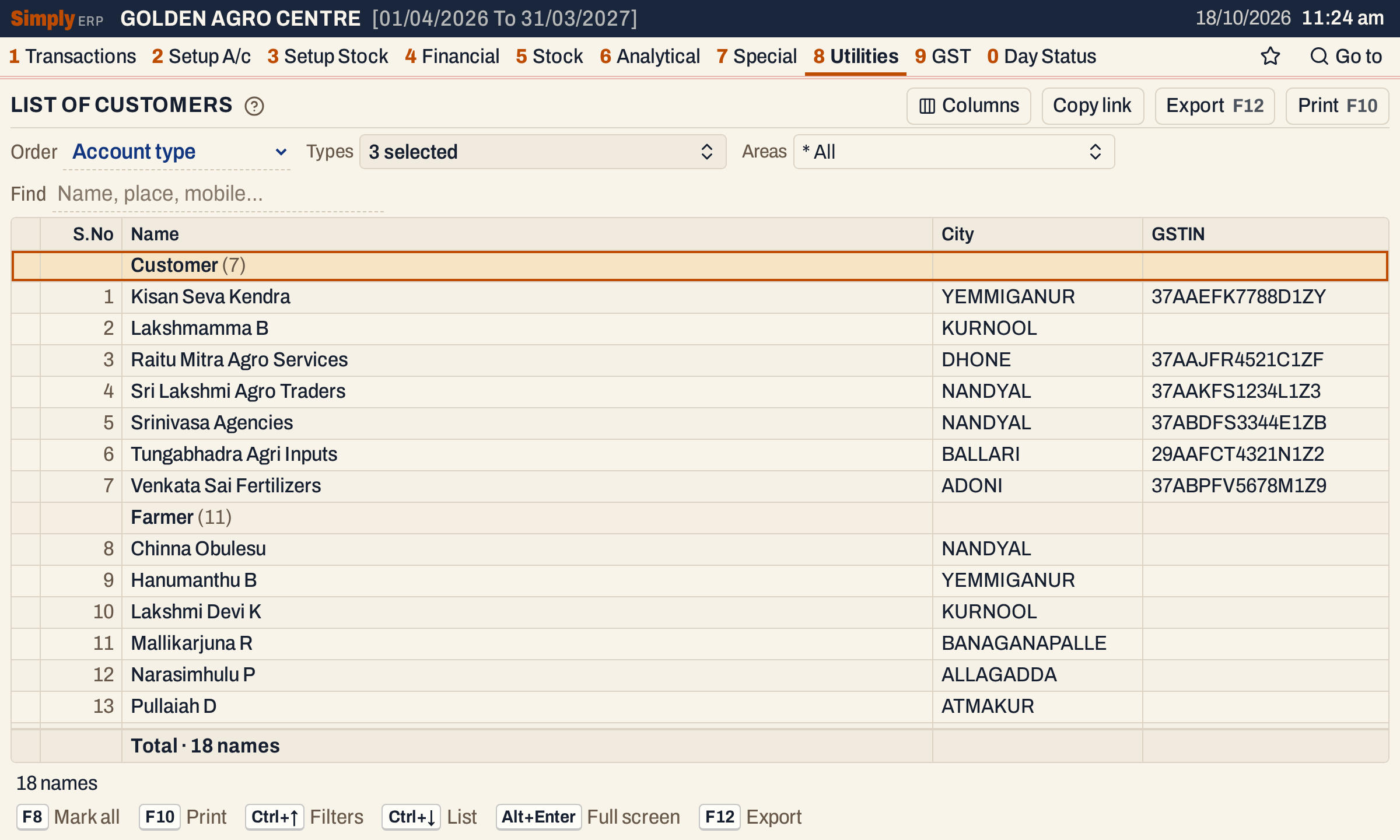 Customer (7) and Farmer (11): the seven customers come first, then the eleven farmers, and the numbers run on from 7 to 8.
Mark names to print
Press F2 or Space to mark the highlighted name, and F8 to mark all the names in the list. F8 again unmarks them when all are marked. The status line counts the marked names and says that F10 prints only those.
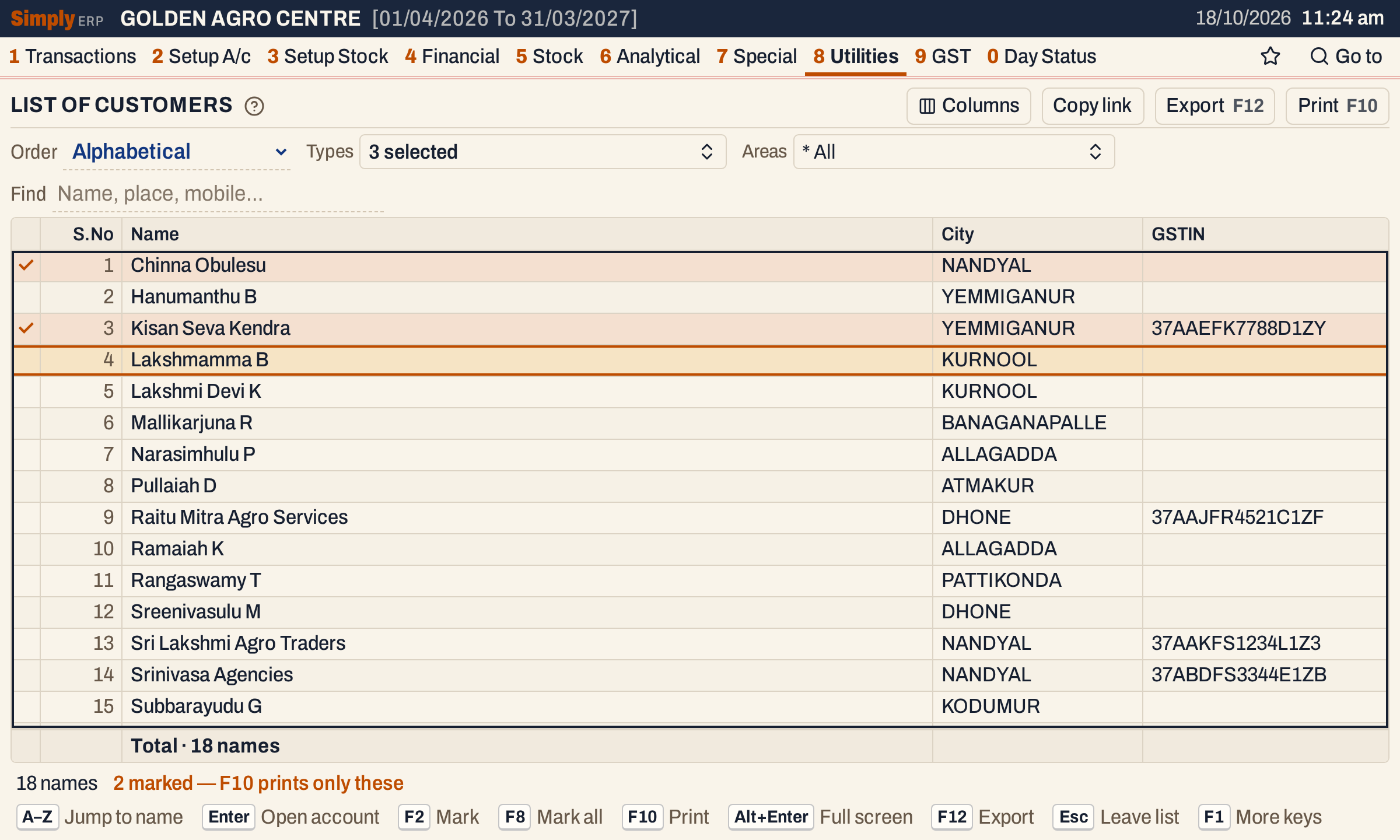 Two names marked with F2. A tick shows each marked name.
How the figures are worked out
- The list starts from every account of the chosen types. Each account gives one line, from its default address.
- The sort. Alphabetical sorts by name, then by city. Account type sorts by the type’s name, then by name. Area wise sorts by area, then by name, and a name with no area goes under No area. All sorts ignore capitals. The city and area are shown in capitals.
- The numbers. S.No counts the names in the order shown, from 1. A heading is not a name, so it is not counted.
- The count. The total line and the status line count the names that the choices leave in the list: Total · 18 names is the number on the screen, grouped in the Indian style.
- Marked names are counted only while they are in the list: a marked name that Find or Areas has hidden is not counted or printed.
Open, print and export
- Enter opens the highlighted name’s account, from which you can change the account. Typing letters jumps to a name.
- F10 prints the list under the heading CUSTOMERS LIST, with your company’s name and the choices you made. The print numbers its names from 1. When names are marked it prints only those, without group headings. Otherwise it prints every name and keeps the group headings of the Account type and Area wise orders.
- F12 exports the list. Copy link gives a link that opens the same list with the same choices.
- Alt+Enter gives the whole window to the list.
Updated 4 November 2026.