Change an account
On this page
You change an account when something about it changes: a new phone number, a different group, a wrong opening balance, a branch in another town with its own GST number. The account keeps its bills, receipts and ledger; only the details you edit change.
Open the account
Press Alt+2 for Setup Accounts and A for Head of Accounts. The list starts in its Find box. Type part of the name, press Enter to go down into the list and Enter again to open the account under the cursor.
The account opens on its own page: the current balance, links to its ledger and statement and to a receipt or payment for it, its details, and its addresses.
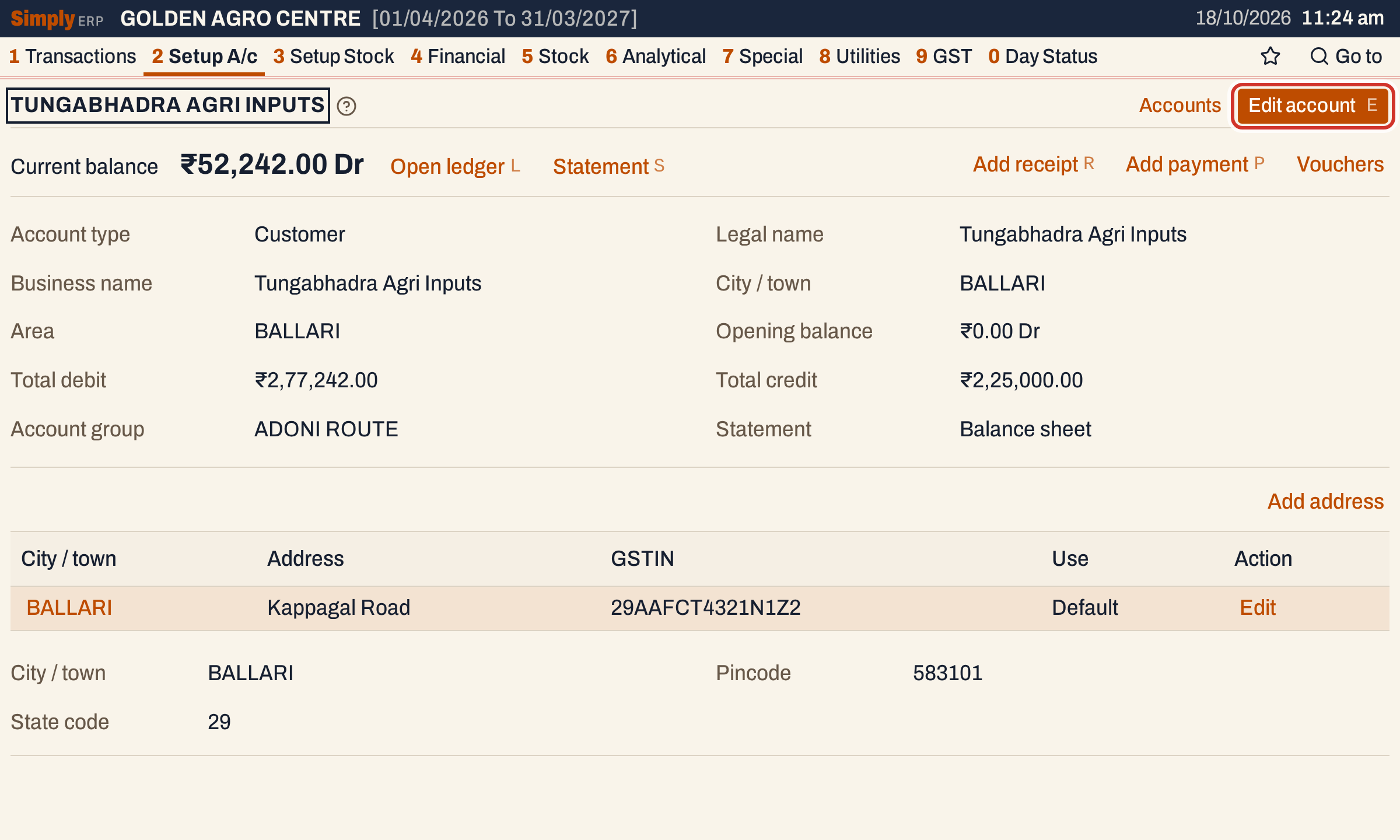 The current balance is the opening balance plus the account’s debits and credits. Edit account, or the E key, opens the edit form.
Only the details that have a value are listed. A field you cannot see on this page is empty.
Edit the account
Press E. The form has the same fields as when the account was added (see Add an account), filled in, with the cursor in Account name. It has no address box: addresses are changed on their own screens, below.
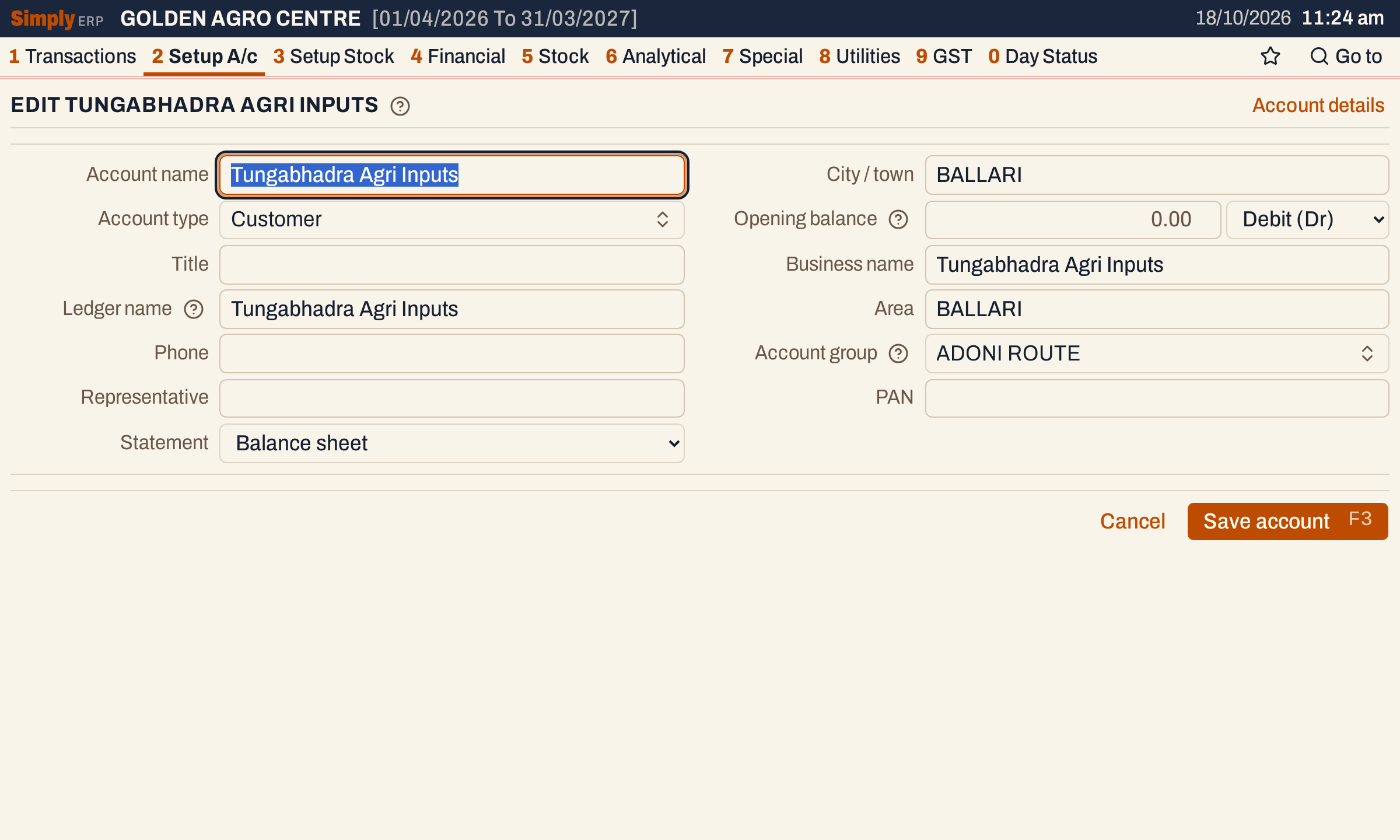 The edit form.
Change what you need. Here the opening balance is corrected to ₹15,000 Dr and a phone number is added.
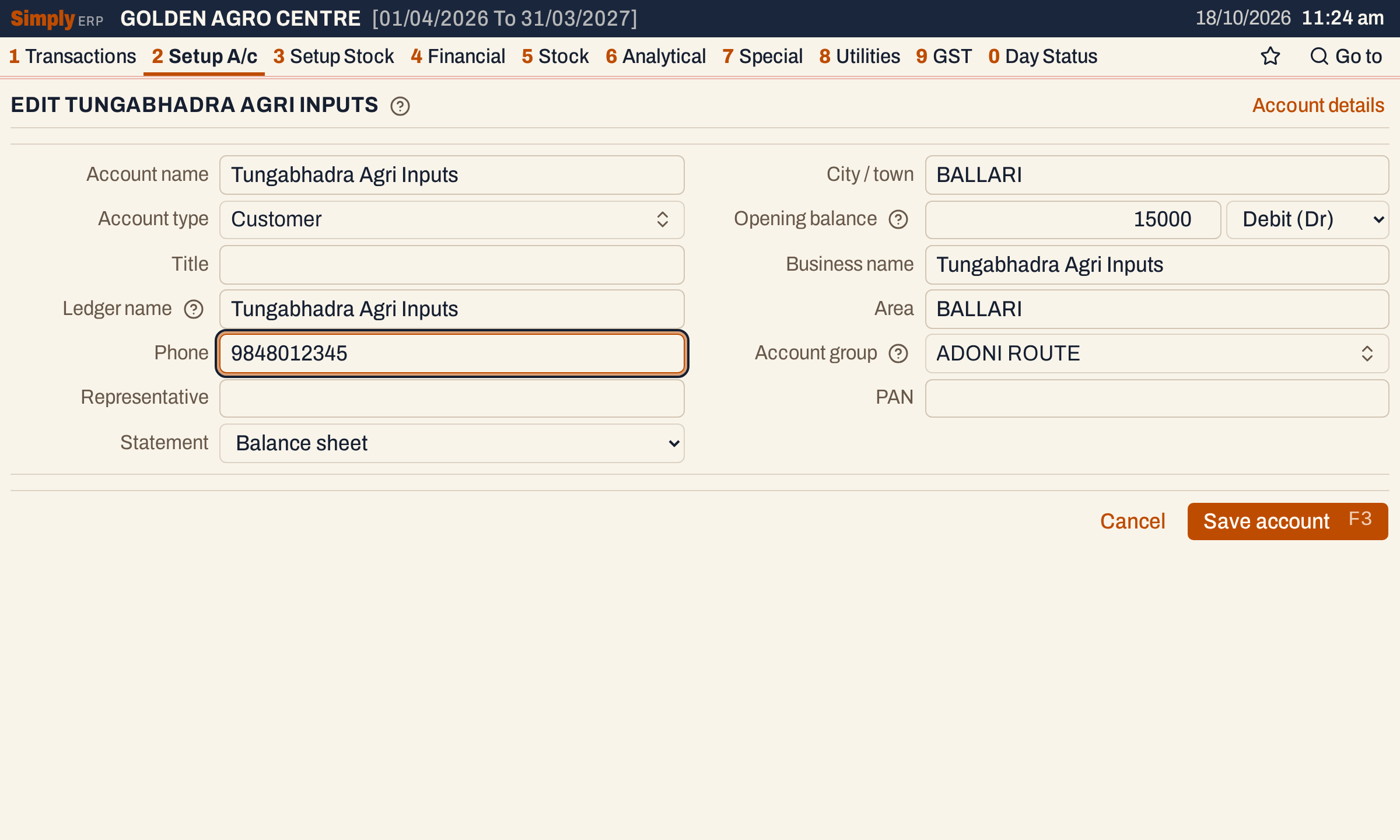 The two changes, before saving.
What each change does:
- Account name, Business name, Title and City / town build the Ledger name again, as long as the Ledger name was the one built from them. A Ledger name you typed yourself is kept. Clear it to have it built again. Two accounts cannot have the same Ledger name; saving is refused with a message that asks you to add the city or another word.
- Area follows the city while it is the city’s name. An area you typed stays.
- Account group must be one of your account groups. To move many accounts at once, use Account grouping.
- Account type can be changed. The Statement keeps the value it was saved with: choose Use account type to have it follow the new type.
- Opening balance and its side change the account’s “Opening balance” entry in the ledger. Entering zero removes the entry.
- An account that has a GST number on any address must keep its Business name.
Press F3 to save. A notice says “Account saved” and the account page opens again.
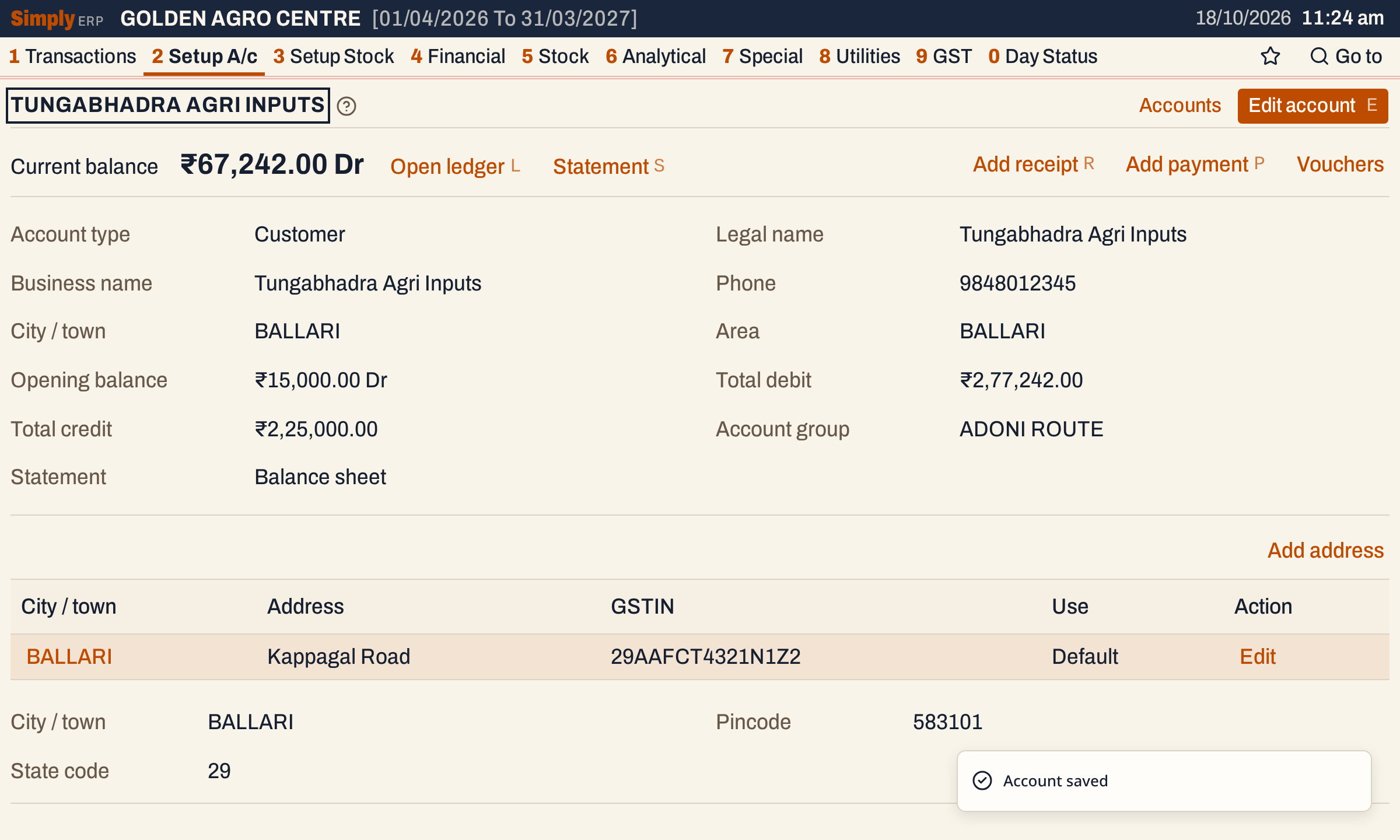 The current balance moved by the ₹15,000 added to the opening balance: ₹52,242.00 Dr became ₹67,242.00 Dr.
Add an address
A customer or supplier with more than one place of business can have an address for each. Click Add address on the account page.
The form has the address fields of Add account (city or village, street address, address line 2, pincode, mandal, district, state, state code, contact person, other phone, transport, GST number, PAN and licence numbers), and also the address’s own Phone and Email. The state code follows the first two digits of the GST number. A GST number needs the city or village, the street address and a six-digit pincode with it, and it must be in the 15-character GST form.
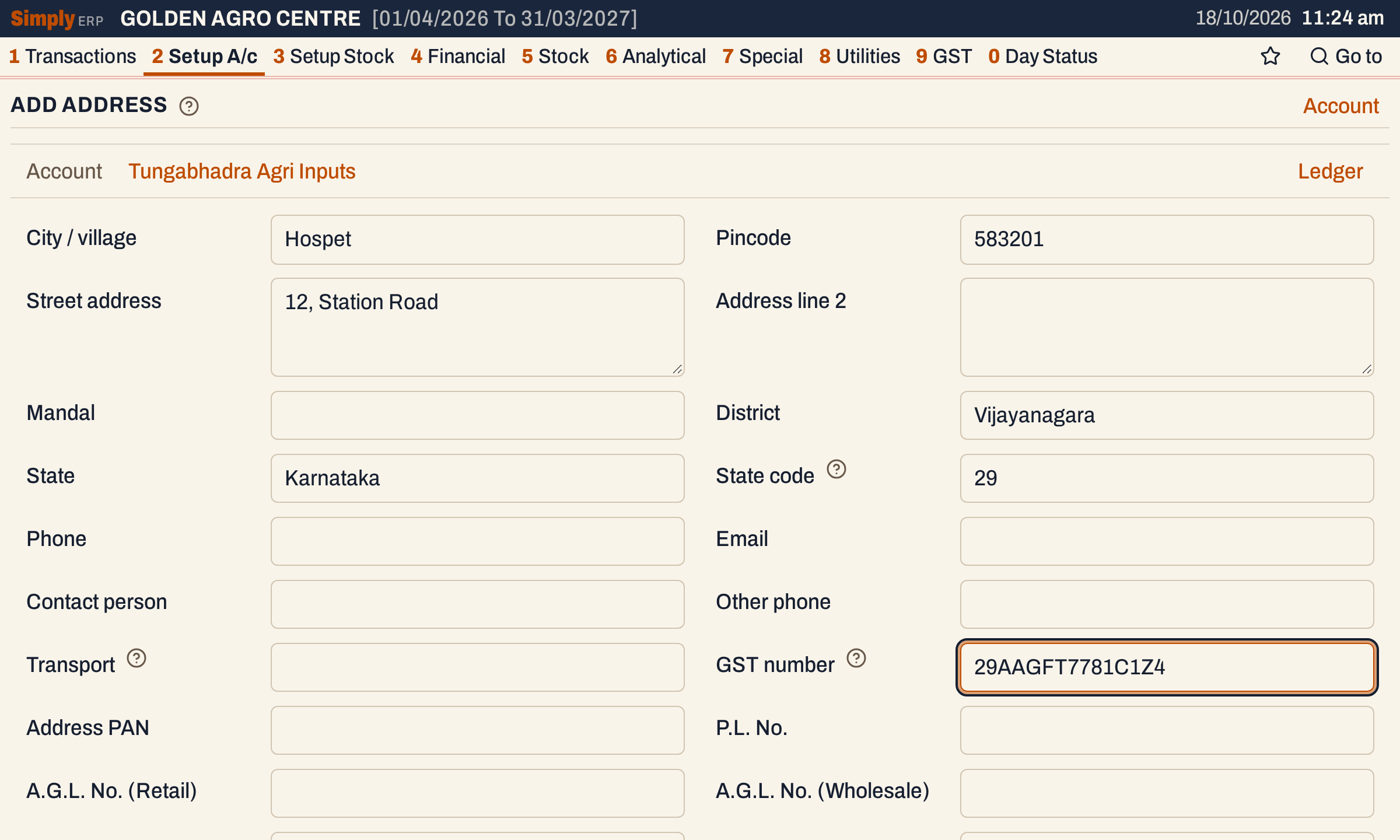 A second address, in Hospet, with its own GST number.
Press F3 to save, or click Add address at the bottom. In a one-line field, Enter also saves the address, so use Tab to move between fields. A notice says “Address added”.
The account page then lists both addresses. The Use column marks the address that was saved with the account as Default; click a city to see all the details of that address under the table.
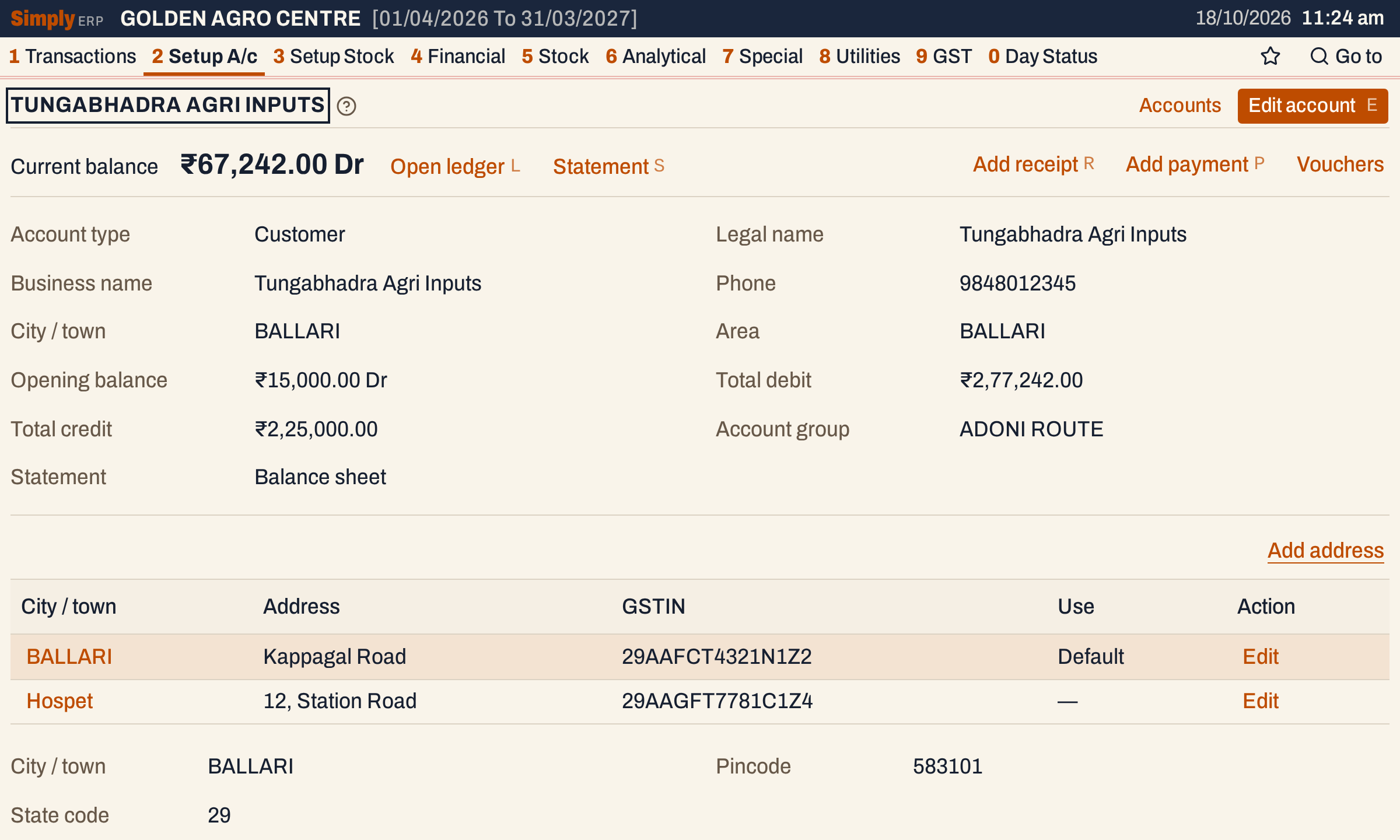 Each address has its own GSTIN and its own Edit link.
Edit an address
Click Edit at the end of the address row. The form opens with the address filled in. Change what you need and press F3; a notice says “Address updated”. A GST number that you have not changed does not need the city, street and pincode again, so an address with an older GST number can still be saved for another change.
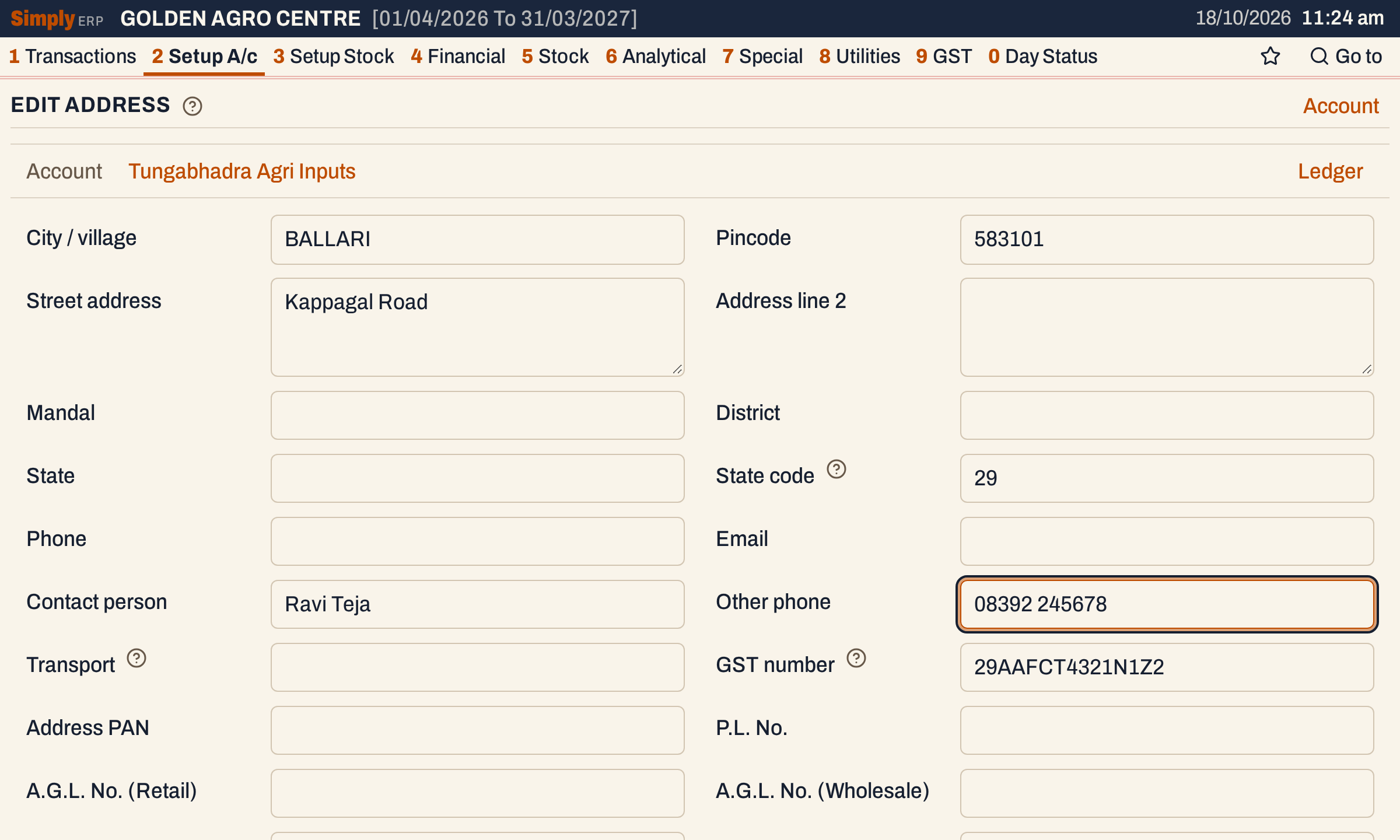 A contact person and another phone added to the Ballari address.
What a bill then offers
On a credit bill, the customer list shows one line for each address, with its place and GSTIN, and the account’s balance on every line. Choose the address the bill is made out to: its address, place, state and GSTIN go on the bill. Goods going somewhere else are named in the Ship to another box.
 One account, two addresses, one balance. See Make a sale bill.
Keys on these screens
| Key | What it does |
|---|---|
| E | On the account page: edit the account |
| L | On the account page: open its ledger |
| S | On the account page: open its statement |
| R, P | On the account page: add a receipt, add a payment for the account |
| F3 | Save the account or the address |
| Ctrl+S | Save the account or the address |
| Tab | Next field |
On a Mac, ⌘ stands for Ctrl.
Common questions
Can I delete an account? SimplyERP has no delete for accounts or addresses. To get rid of a duplicate, merge it into the account you keep: see Merge accounts.
The form says the ledger name is taken. Another account already has that Ledger name. Add the city or another word to tell them apart.
Updated 4 November 2026.