Add discounts and charges to a bill
On this page
A bill can be lowered or raised in two ways. A discount belongs to one item line and lowers its value, and so its GST. A charge belongs to the whole bill: freight, transport, a cash discount or a round-off. Both are made on the bill screen, with the keyboard, on a sale, a purchase, a return or a bill you are editing.
The examples here are one sale to Ramaiah K, a customer without a GSTIN, whose bill has two items and three charges.
Give a line a discount
Each item line has two discount columns in the grid, Disc. % and Disc. amt. Type either one and SimplyERP works out the other. The one you typed last is the one that holds: if you change the units or the rate afterwards, a percentage works out a new amount, and an amount stays as it is while its percentage is worked out again.
 10% of ₹3,100.00 is ₹310.00, which leaves ₹2,790.00.
The discount is taken from the line’s value in the same basis as the rates. For a customer with a GSTIN the rates are before GST and the discount comes off the value before GST. For a customer without one the rates include GST, and the discount comes off the value including GST. Either way the GST on the line is worked out again on what is left, so a line discount lowers the GST too.
Give a line more than one discount
Press F4 on a line to open its discounts. A line takes up to three, and each is taken from what the ones before it leave, not from the original value. The window opens on the first discount not yet used. Type a percentage or an amount, and Enter moves to the next field and closes the window after the last.
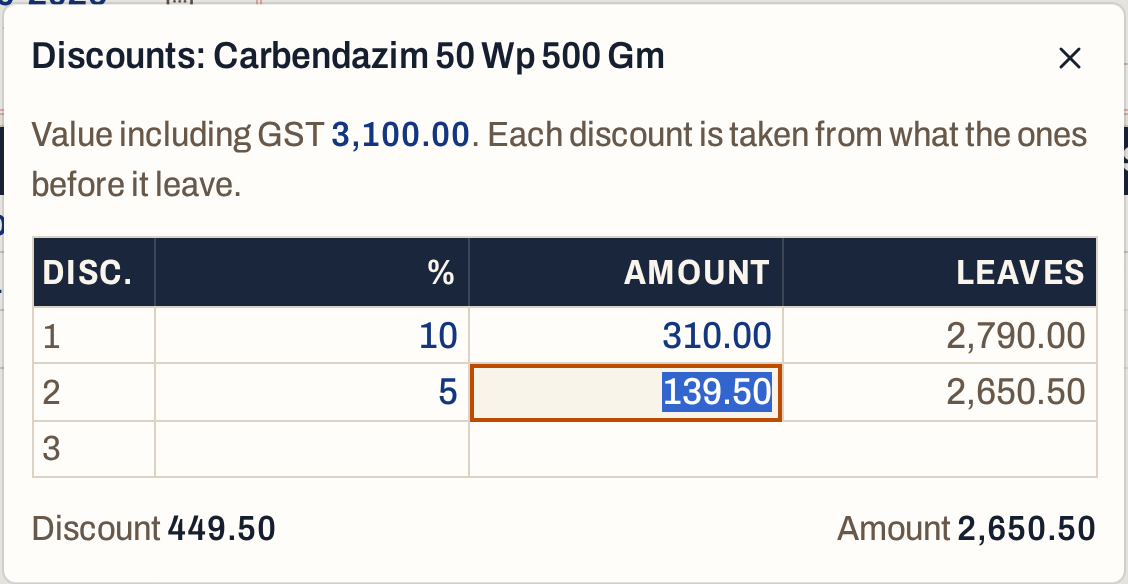 The second discount, 5%, is 5% of the ₹2,790.00 left, so it is ₹139.50 and not ₹155.00.
The grid shows the first discount of the line. The totals and the saved bill show all of them: 449.50 here.
 The Amount column is what is left after every discount.
Some bills also have a Sp. disc column, a special discount taken after the first. Purchases and sales returns show it; on other bills, the column button at the right end of the grid heading lists the optional columns and switches it on. It is the same as the second discount in F4, as an amount.
A discount cannot be more than what is left of the line. If it is, F3 does not save the bill and says which discount.
 A discount of ₹3,200.00 on a line worth ₹3,100.00 is refused.
Add a charge
Press Alt+C to add a charge line to the bill. The cursor goes to the Charge cell. Type part of the name, or press F2 to list them all. The list shows each charge, its kind, its GST rate and the account it posts to.
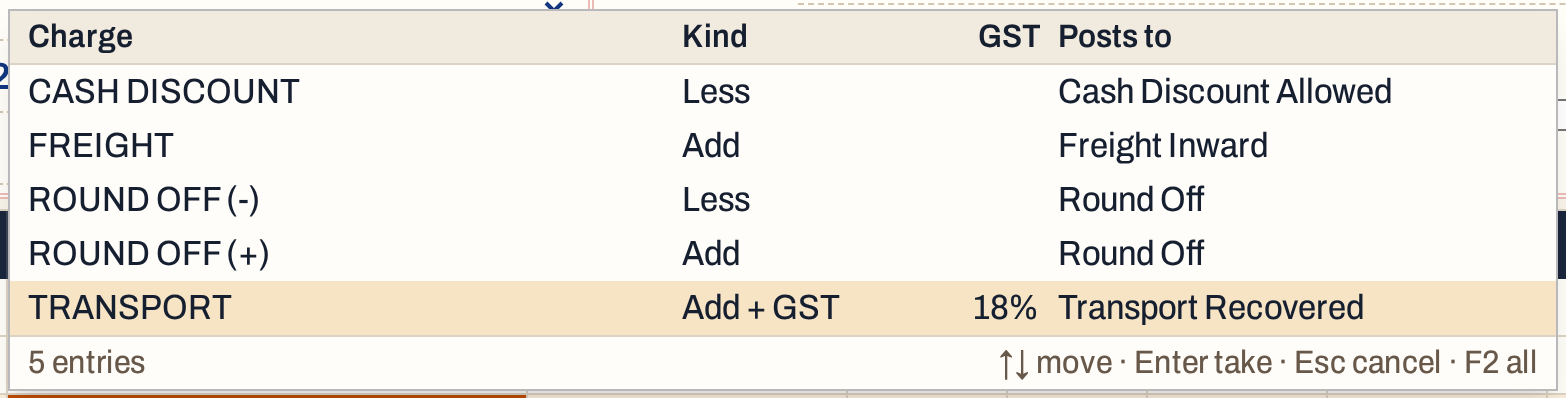 The charges are set up once in Setup Stock, Add / Less Charges (3 N); see Add and less charges.
Press Enter to take the charge and type its amount. The amount is entered in the bill’s basis: before GST for a customer with a GSTIN, including GST for one without. Enter then moves to a new blank line, and Alt+C adds the next charge. The band under the grid shows the charge’s kind, its GST, the account it posts to and the line total.
 Transport is an Add + GST charge: typing 236.00 including GST is ₹200.00 and ₹36.00 of GST.
A charge has one of three kinds:
| Kind | What it does to the bill |
|---|---|
| Add | Adds its amount to the net amount. No GST is charged on it. Shown as Others in the totals. |
| Add + GST | Adds its value before GST to the taxable value, and the GST at the charge’s rate to CGST and SGST (or to IGST). |
| Less | Takes its amount off the net amount, after the GST is worked out. The GST does not change. Shown as Less in the totals. |
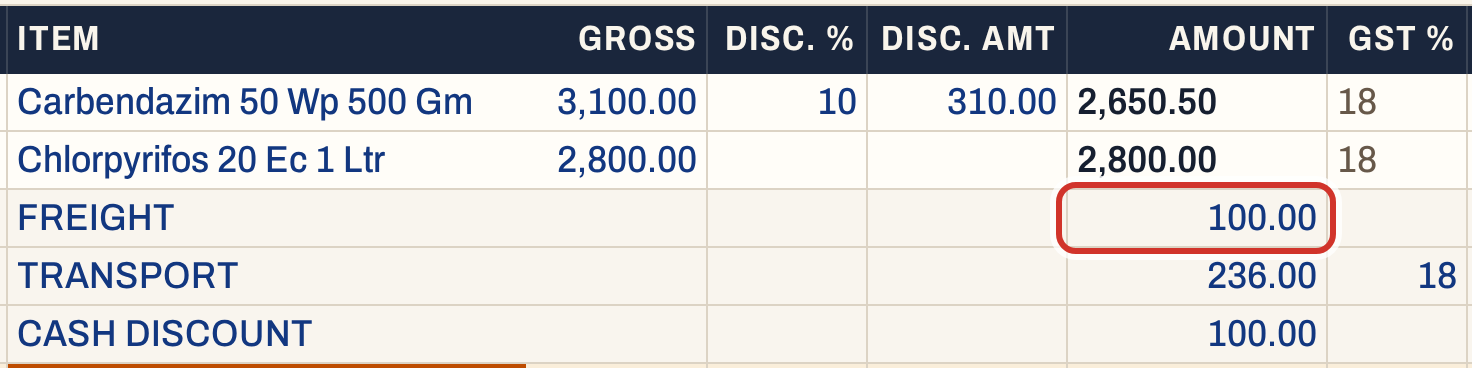 Charges are lines of the bill. Ctrl+Delete removes one.
To round a bill to a whole rupee, add one of the round-off charges with the paise to add or to take off. On a multi-book sale each charge also needs a bill category; see Make a multi-book sale.
Check the totals
 The totals add up as the bill will print.
Here is how the figures come to ₹5,686.50:
| Amount | |
|---|---|
| Items before discount (3,100.00 + 2,800.00) | 5,900.00 |
| Less discounts (310.00 + 139.50) | −449.50 |
| Items after discounts, including GST | 5,450.50 |
| Add freight (Add) | 100.00 |
| Add transport, 200.00 plus 36.00 GST (Add + GST) | 236.00 |
| Less cash discount (Less) | −100.00 |
| Net amount | 5,686.50 |
The taxable value is 4,819.06: the items after discounts, 5,450.50, come to 4,619.06 before GST, and the transport adds 200.00. CGST and SGST are 433.72 each: 415.72 on the items and 18.00 on the transport.
Save the bill
Press F3 to save. The saved bill shows each discount as it was typed, in the Disc. column (10%+5% with 310.00 + 139.50), and each charge as a line of its own. Its totals name each charge (Freight, Cash discount) in place of Others and Less.
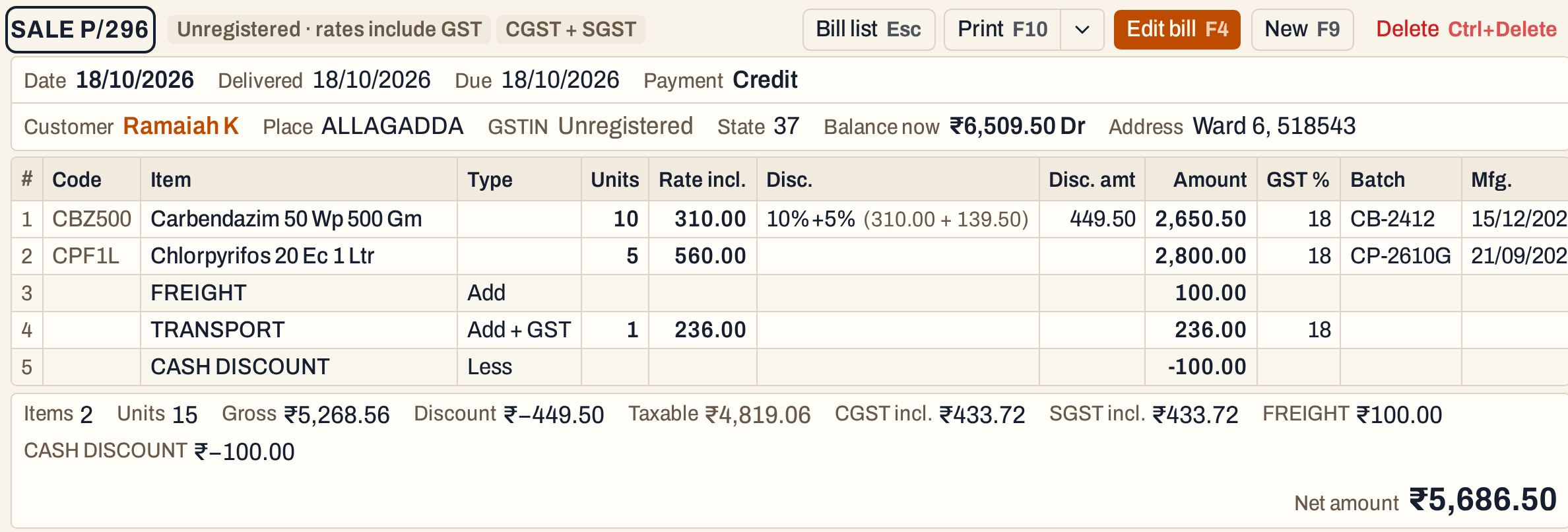 The customer’s balance went from ₹823 to ₹6,509.50 Dr.
What saving does to your books
Each charge posts to the account it names in Setup Stock N, not to the sales account. The postings of this bill are dated on the bill date:
| Account | Debit | Credit |
|---|---|---|
| Ramaiah K, the customer | 5,686.50 | |
| Cash Discount Allowed, the cash discount’s account | 100.00 | |
| Pesticide Sales, the bill book’s sales account | 4,619.06 | |
| Transport Recovered, the transport’s account | 200.00 | |
| Freight Inward, the freight’s account | 100.00 | |
| CGST Output 18% | 433.72 | |
| SGST Output 18% | 433.72 | |
| Total | 5,786.50 | 5,786.50 |
The sales account is credited the value of the items after discounts and before GST. A discount is not posted as a separate amount. An Add charge is credited to its account and a Less charge is debited to its account, so the cash discount is debited to Cash Discount Allowed.
The discounts and charges show in the customer’s ledger and in the accounts they post to, and so in the trial balance.
Keys for discounts and charges
| Key | What it does |
|---|---|
| F4 | Open the line’s three discounts |
| Alt+C | Add a charge line |
| F2 | List the charges |
| Enter | Next field, and from the last discount or the amount to the next line |
| Ctrl+Delete | Remove a line or a charge |
| F3 | Save |
On a Mac, ⌥ stands for Alt and ⌘ for Ctrl.
Common questions
How do I give a discount on the whole bill? Add the Cash discount charge (Less) with the amount. It takes the amount off the net amount and does not change the GST. To lower the GST as well, give the lines their own discounts.
Which discount lowers GST? A line discount does, because GST is worked out on what is left of the line. A Less charge does not.
Where do I add a new charge, such as packing? In Setup Stock, Add / Less Charges (3 N). Choose its kind and the account it posts to. It then appears in the Alt+C list.
Can I change a discount after saving the bill? Yes. Open the bill from All Bills and press F4. See Edit a bill.
Updated 4 November 2026.