Set up the quick bill
On this page
The quick bill lists only the items you set up here, in the order you set. This screen also chooses the sale book the quick bill bills in, the fields it shows without asking, and how its bills print on the main computer. Set it up once on the main computer: the setup is kept in the books, so every phone and computer that opens the books makes quick bills with it.
Open the setup
Press Alt+1 for Transactions, Q for Quick Bill (Phone), then S for Set Up Items & Printer. On a phone, the menu button lists the same pads and letters. The Set up button on the Quick Bill screen opens it too.
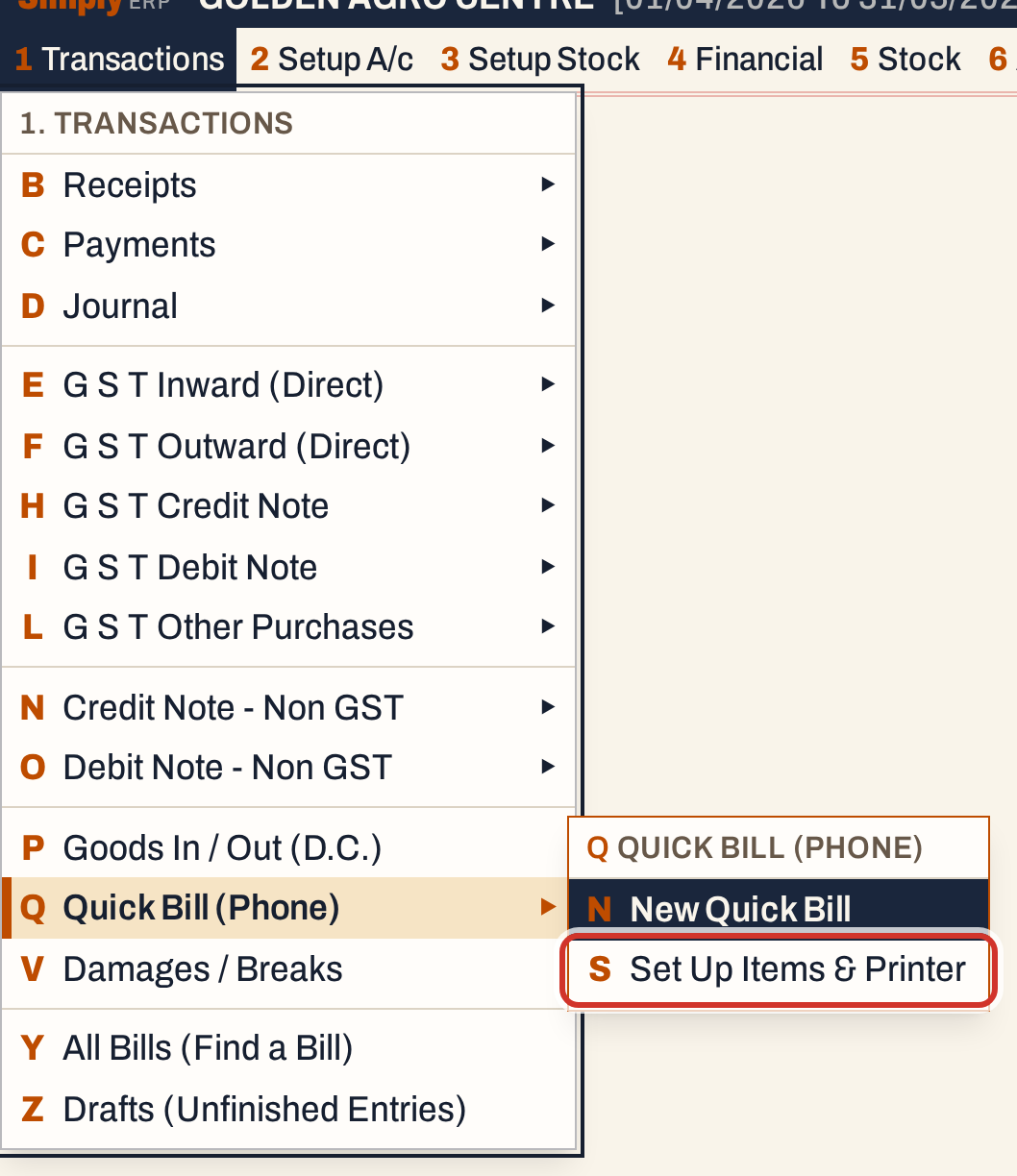 1 Q S: Transactions, Quick Bill (Phone), Set Up Items & Printer.
The screen opens with the current setup: the choices at the top and the list of items below.
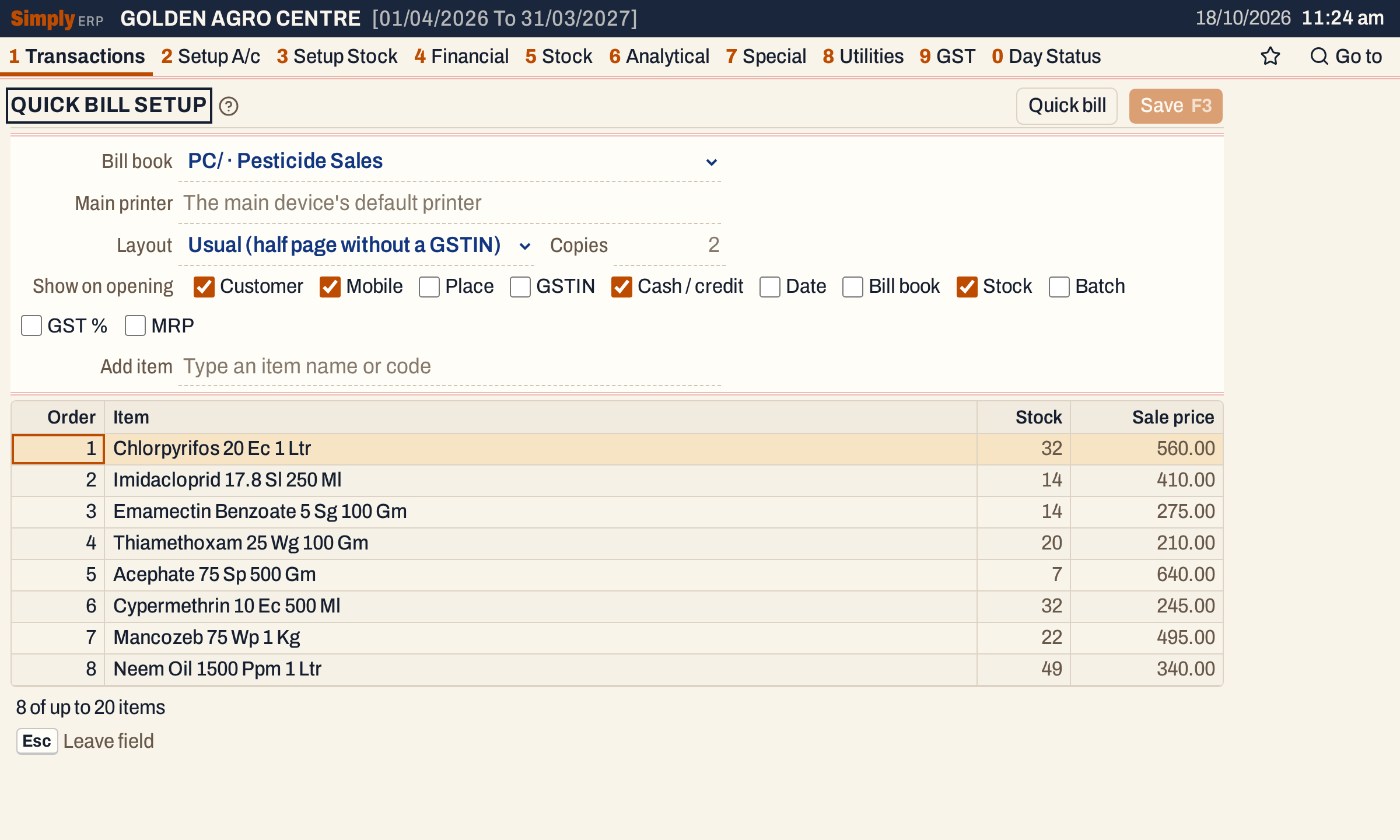 The setup of the showcase shop: eight items, and Customer, Mobile, Cash / credit and Stock shown on opening.
Choose the bill book and how bills print
Bill book is the sale bill book the quick bill saves in, which numbers its bills. Choose Choose on each bill to let the clerk pick the book on every quick bill. With only one sale book, that book is used and the field says so.
The three fields under it are for a bill that is made on a phone or computer that edits through the main computer. That bill prints on the main computer’s printer, with nothing to press there:
- Main printer is the printer on the main computer. In the desktop app the field lists the computer’s printers; elsewhere you type the printer’s name. Leave it empty for the computer’s default printer.
- Layout is Usual (half page without a GSTIN), Half page, 2 per A4, Half page on A5 or Full page A4. On the device that saves the bill, Save & print uses the same layout.
- Copies is a number from 1 to 10. Leave it empty to print the usual two.
 Here every quick bill prints half page, 2 to an A4 sheet, in one copy.
Choose what shows on opening
Show on opening lists the fields the quick bill shows without asking: Customer, Mobile, Place, GSTIN, Cash / credit, Date and Bill book for the header, and Stock, Batch, GST % and MRP under each item. Books that have never been set up start with Customer, Mobile and Stock ticked and no items. Tick the ones the counter needs. The others are not lost: More on the quick bill (F4) shows them all.
 Batch and GST % ticked. A batch shows under an item once it has units, because that is when its batch is chosen.
A field shows anyway when the bill cannot go without it: the Bill book when there is no book to use, and the Customer and Payment fields on a credit bill.
Add the items
Click in Add item and type part of an item’s name or code. The list shows the items that match, with their code, stock and sale price.
 Enter takes the highlighted item and adds it to the end of the list.
Only stock items can be listed, not charges, and only items the chosen bill book can sell: a book sells the categories of its bill type (see Bill books and series). An item already on the list is not offered again. If you later choose a book that does not sell a listed item, the item shows in red as (not sold in this book), and Save refuses until you take it off. The list holds up to 20 items; adding a 21st shows a message instead.
The Sale price column is the rate each quick bill starts with, including GST. It comes from the item (see Item prices and codes); change it there, not here.
Put the items in order
The list keeps the order the quick bill shows, so put the fastest sellers first. Move the cursor into the list with Ctrl+↓, then:
- Alt+↑ or Alt+↓ moves the item under the cursor one place.
- Enter on the Order number lets you type the place to move it to, and Enter again keeps it.
- Ctrl+Delete takes the item off the list.
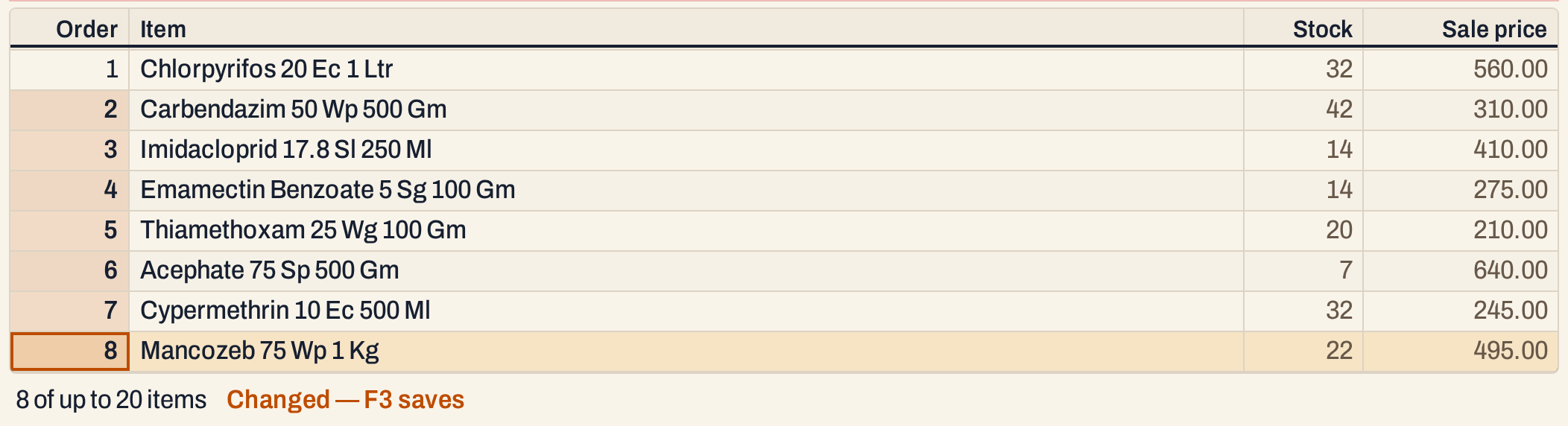 Carbendazim was typed to place 2 and Neem Oil taken off. The changed order numbers are shaded.
An item that is no longer in the books shows as No longer in the books, and drops out of the list when you save.
Save
Press F3, or click Save. Until then the line under the list says Changed, and Discard puts back what was saved. The line under the list then says the setup is saved for every device.
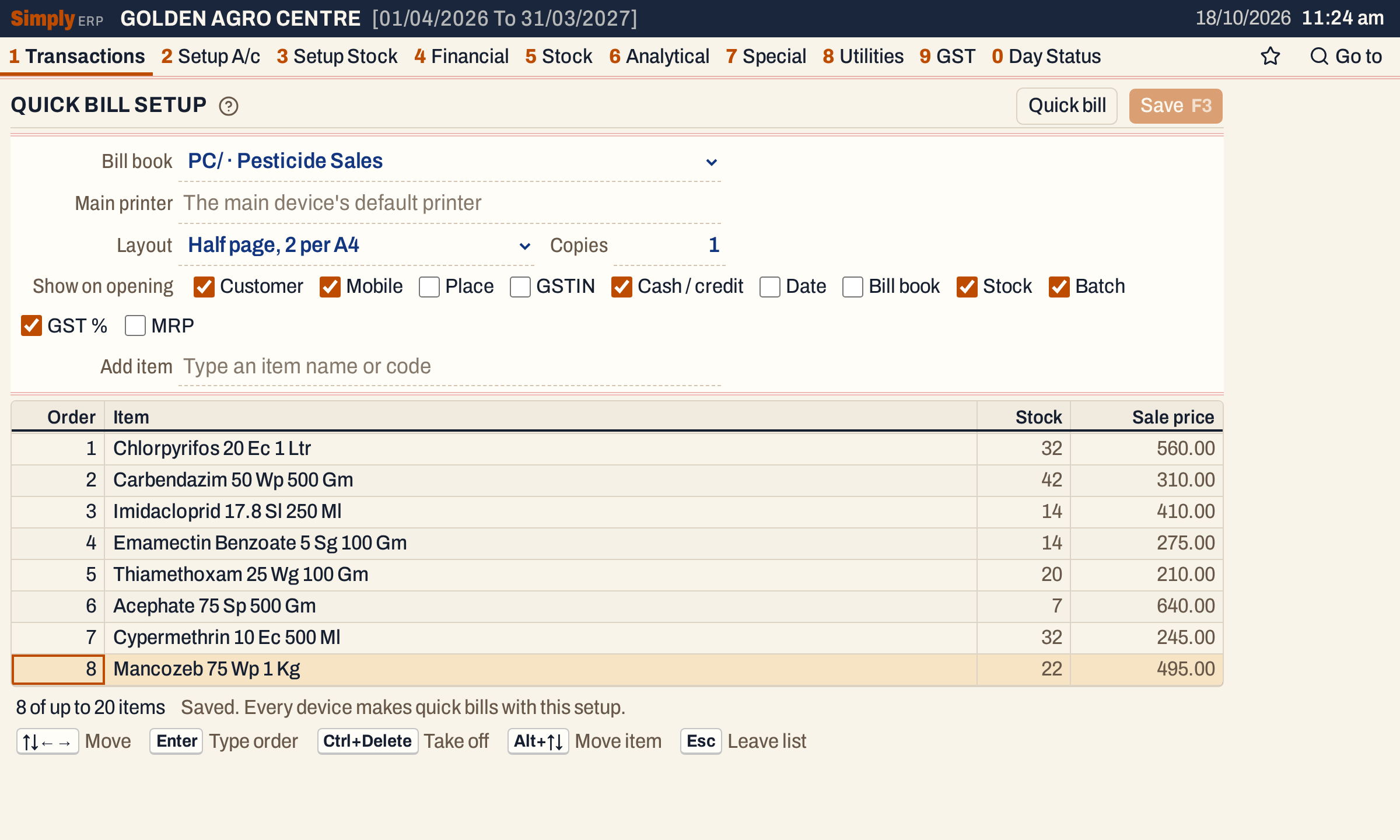 The setup is saved in the books.
Open Quick Bill (the Quick bill button) to see the result: the items in the new order, each with the fields you chose.
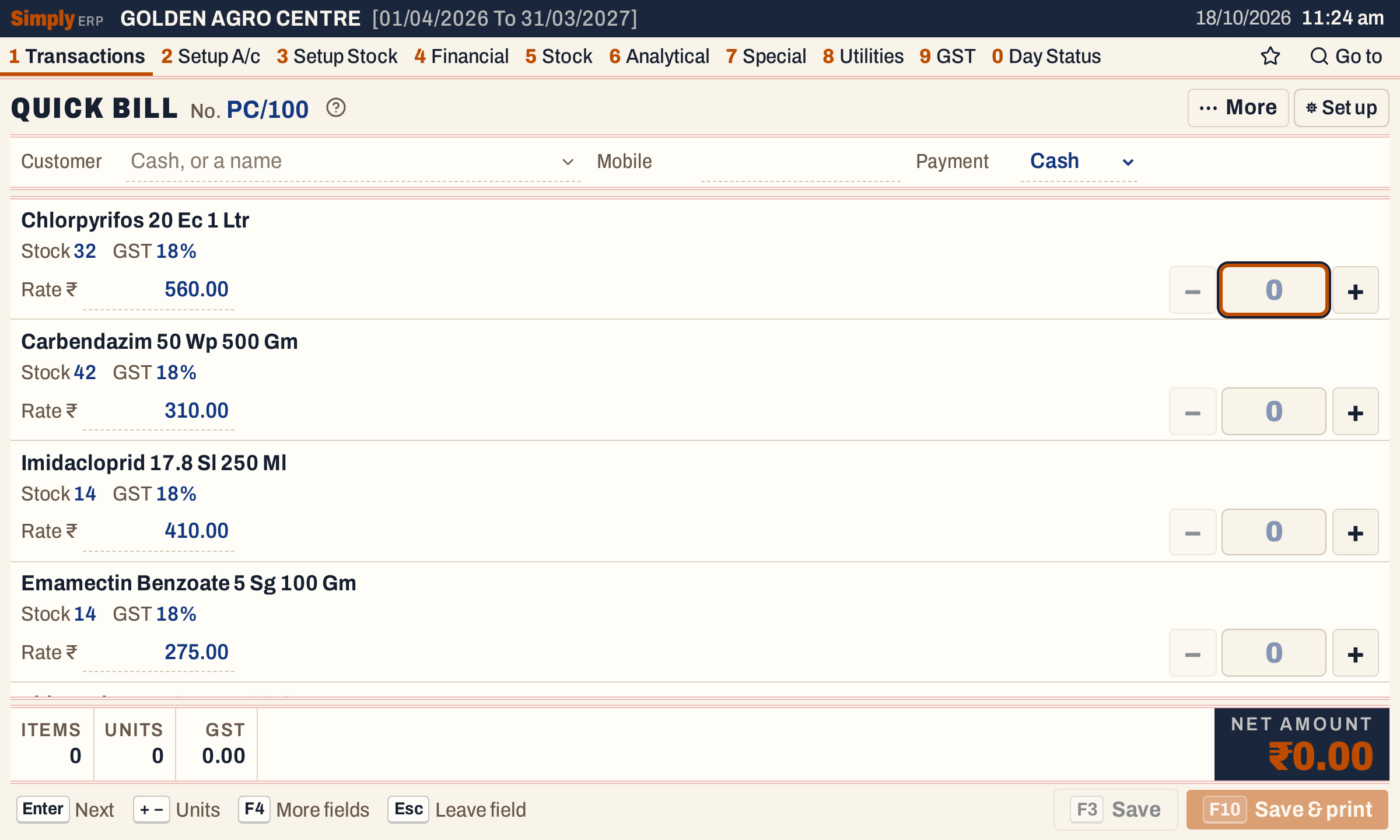 Carbendazim is second, and each item shows its stock and GST because those fields are ticked. On a computer the same screen opens as on a phone.
Keys on this screen
| Key | What it does |
|---|---|
| Enter | Next field; in the list, type a new order number |
| F2 | In Add item, list all the items |
| Ctrl+↓ | Go to the item list |
| Alt+↑ / Alt+↓ | Move the item under the cursor |
| Ctrl+Delete | Take the item off the list |
| F3 | Save |
| Esc | Leave the list |
Common questions
Does changing an item’s sale price change the quick bill? Yes. Each quick bill starts every item at its sale price at that time. Bills already saved do not change.
Updated 4 November 2026.