Generate an e-invoice and e-way bill
On this page
A business whose turnover is above the government’s e-invoicing limit must report each sale to a registered customer as an e-invoice (an IRN from the government’s invoice registration portal), and goods worth more than ₹50,000 travel with an e-way bill. SimplyERP files both from the saved bill, keeps their numbers on the bill, and cancels them there within 24 hours.
Filing needs the internet and an account signed in to SimplyERP, and every request to the portals is charged to a wallet (see Wallet and charges below). The IRN, the e-way bill number and the times in the pictures on this page are made up, like the rest of the shop’s books.
Which bills can be filed
Whether your shop must file is set by the GST rules, not by SimplyERP. SimplyERP offers filing for these bills:
| Bill | E-invoice | E-way bill |
|---|---|---|
| Sale to a customer with a GSTIN | Yes | Yes, at any value (the rules require one over ₹50,000) |
| Sale to a customer without a GSTIN | No | Yes, when the bill is over ₹50,000 |
| Purchase return | No | Same rule as a sale |
| Sales return, GST credit note or debit note issued (a rate difference note is a credit note) | Yes, when the customer has a GSTIN | No: it is filed as an e-invoice alone |
| Purchase bill, credit or debit note received, other purchase | No | No |
A document that moves no goods has no e-way bill.
SimplyERP offers only what the bill can still be filed for. A bill that already has everything it needs shows no Generate section.
Open the saved bill
Find the bill in All Bills (Alt+1, then Y) and press Enter. Under the totals, a bill that can be filed has a section titled Generate e-invoice / e-way bill, or Generate e-way bill or Generate e-invoice when only that one can be filed.
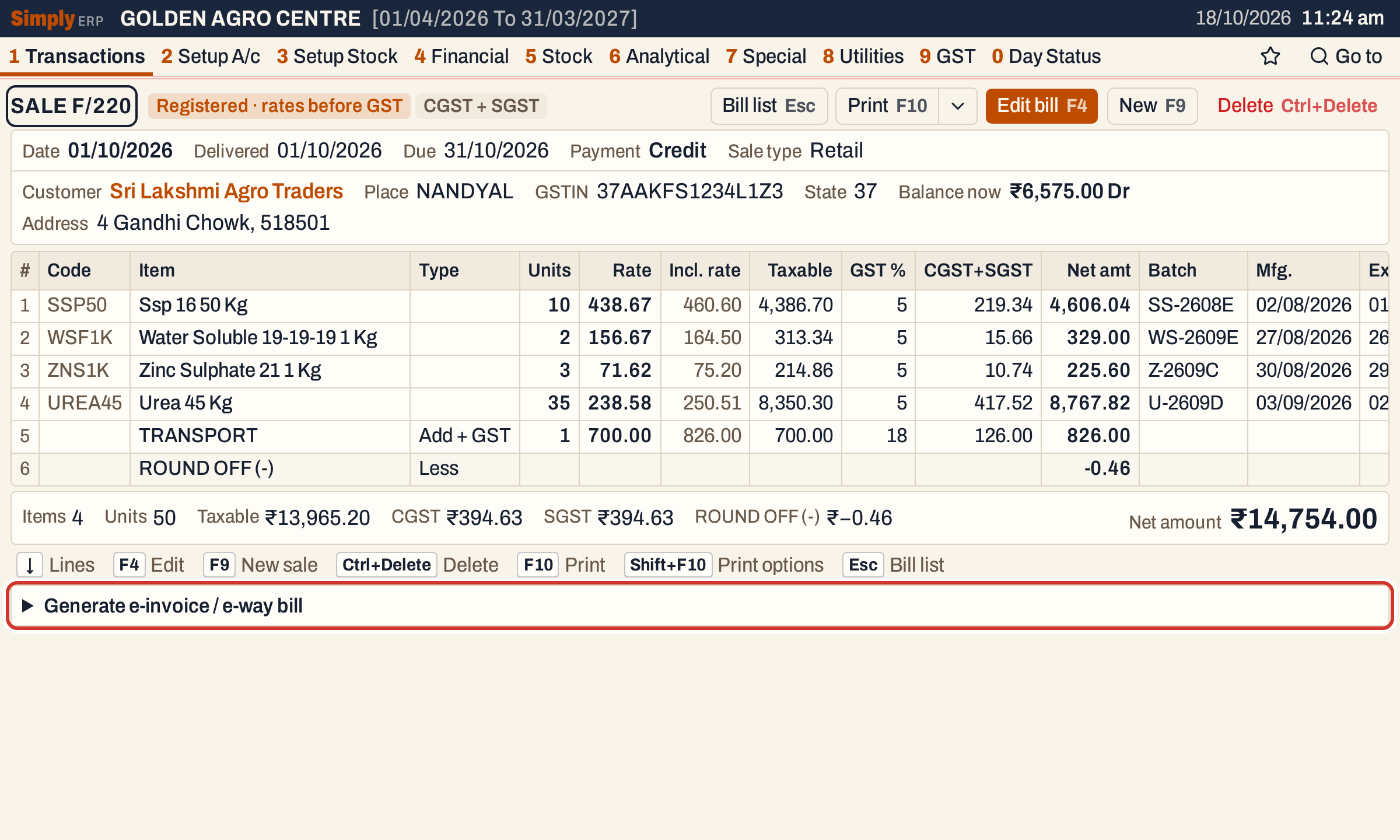 A registered customer’s bill. Click the section’s title to open it.
Sign in
Filing is made as the signed-in account. In the desktop and phone apps you are already signed in at the store launcher. In a web browser, the section first asks for the account’s email and password.
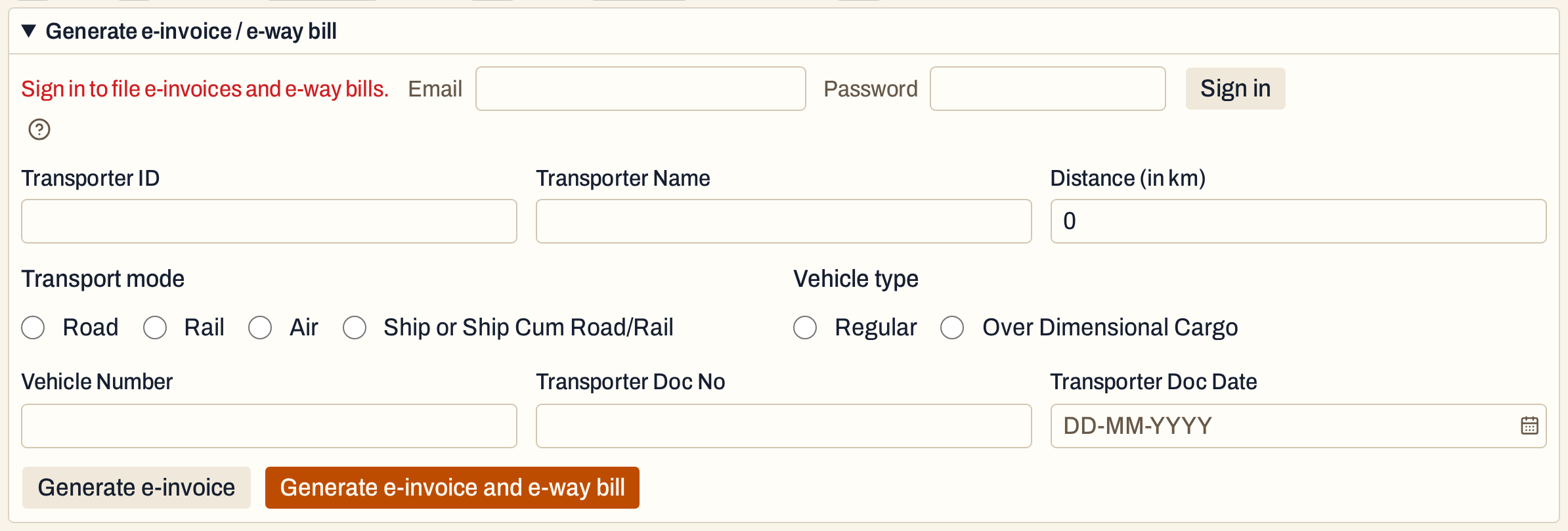 Sign in once; the browser keeps it until the page is reloaded.
Wallet and charges
Every request SimplyERP sends to the portals is charged to the wallet of the account that owns the store: filing an e-invoice, filing an e-way bill, and each cancellation. The charge is made when the request is sent, so a request the portal refuses is charged too. A request is refused when the wallet cannot cover it. SimplyERP’s own checks run before anything is sent, and a request it refuses at that stage is not charged.
Account & Wallet (Alt+8, then Z) shows the balance to everyone who works in the company. The owner of the wallet can open Wallet Usage there with F4 to see every charge and top-up.
The store also needs its e-invoice portal username and password saved on its SimplyERP account. When they are missing, SimplyERP says so and charges nothing.
Enter the transport details
The e-way bill needs transport details. Enter either a Transporter ID or a Vehicle Number:
- Transporter ID is the transporter’s 15-character ID. When you have typed all 15, SimplyERP looks up the Transporter Name and fills it in. A transporter ID needs a name.
- Vehicle Number needs the Transport mode and the Vehicle type. Choosing Road sets the vehicle type to Regular.
- Distance (in km) and the transporter’s document number and date are optional.
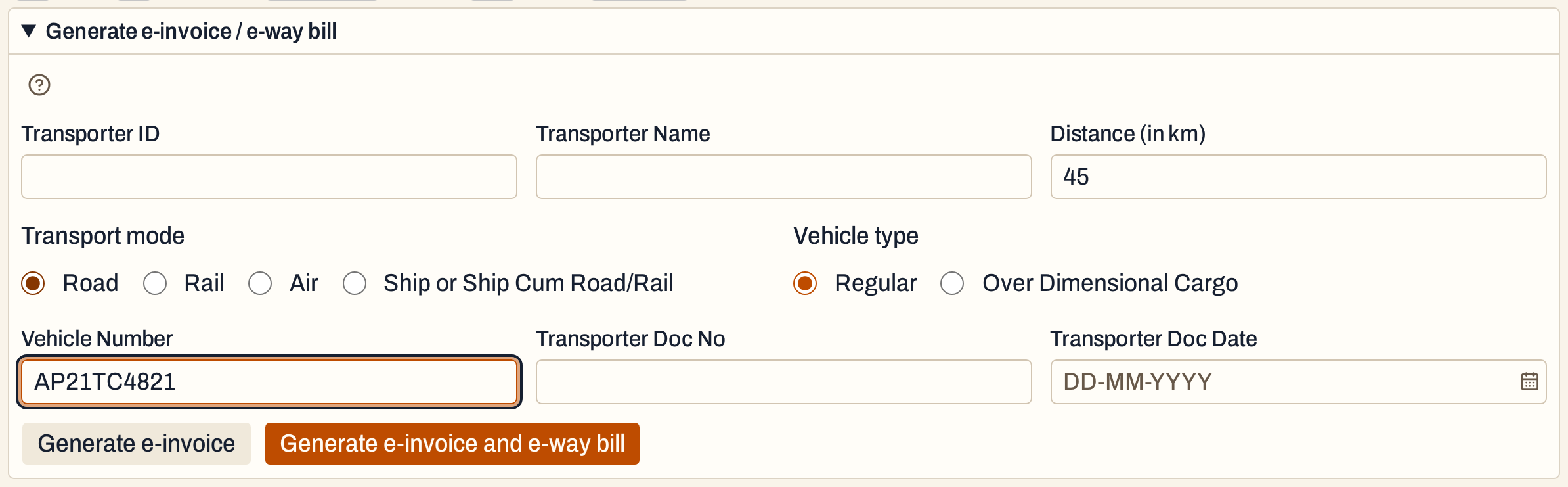 A vehicle on the road: 45 km by AP21TC4821.
If something is missing, SimplyERP says what before it sends anything: “Transporter ID or Vehicle Number is required”, “Transport Mode and Vehicle Type are required”, and so on.
A bill without a GSTIN has no e-invoice; when it is over ₹50,000 the section shows Generate e-way bill alone. A walk-in cash bill often keeps no delivery PIN code or place, so the form then also asks for Delivery PIN code and Delivery place, and the bill keeps them.
Generate
Three buttons can appear:
- Generate e-invoice files the e-invoice alone.
- Generate e-invoice and e-way bill files both in one step, with the transport details above.
- Generate e-way bill files the e-way bill alone, for a bill that already has its e-invoice or has none.
The government’s portal checks everything. If it refuses, the bill is left as it was and a table lists each field and the reason, under “The e-invoice was not generated. Correct the reported fields and try again.”
SimplyERP also refuses before sending when it knows the portal would:
- The document number must be up to 16 letters, digits, / and -, and must not start with 0, / or -.
- The difference between the net amount and the lines, taxes and charges (the round off) can be at most 99.99.
- A bill that already has an e-invoice cannot be filed again, and a bill whose e-invoice was cancelled cannot be filed again: the portal never takes the same bill number twice.
When the filing is done, the bill opens again with the numbers on it.
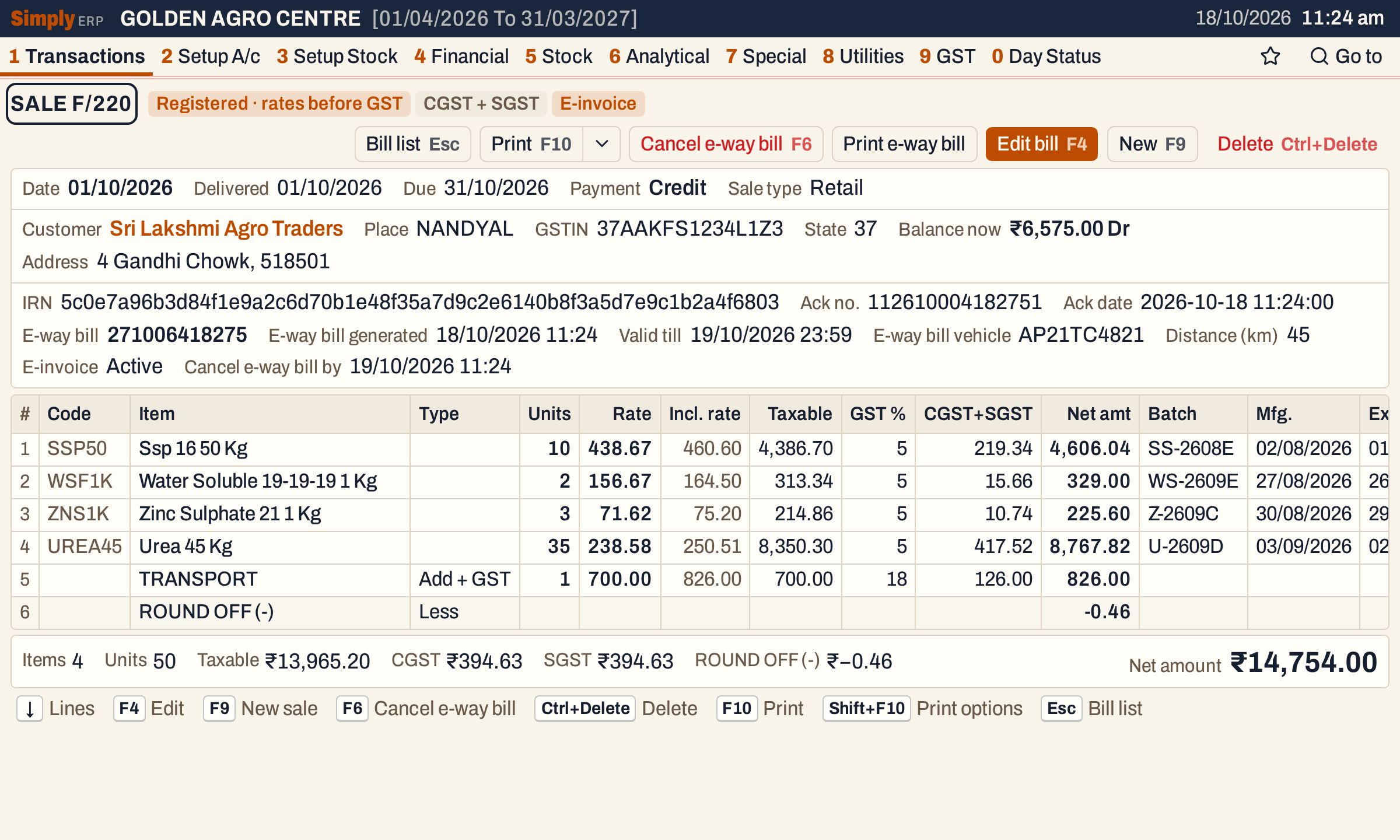 The bill is tagged E-invoice. Its Delete and Edit buttons are still there, but with limits (below).
 The numbers stay on the bill. Cancel e-way bill by is the last moment the portal takes a cancellation.
The Ack date is shown as the portal gives it.
Print them
F10 prints the bill as usual (see Print a bill). A bill with an e-invoice prints its IRN, the acknowledgement number and date and the signed QR code. Print e-way bill prints the e-way bill in the government’s layout. A cancelled e-invoice prints its IRN with “E-Invoice : Cancelled on” and the time, without the QR code, and a cancelled e-way bill is printed with a CANCELLED line.
In All Bills, the IRN and EWB columns tick the bills that have them. Cnl marks one that was cancelled.
Cancel within 24 hours
The government allows a cancellation within 24 hours of filing. The bill shows Cancel … by with the deadline, and offers F6 to cancel. The e-way bill comes first: the portal does not cancel an e-invoice while its e-way bill is active.
Press F6, choose the Reason and type a Remark:
- The reasons are the government’s: Duplicate, Data entry mistake, Order cancelled, Others.
- A remark is always needed for an e-invoice, up to 100 characters. For an e-way bill, a remark is needed only for Others, up to 50 characters.
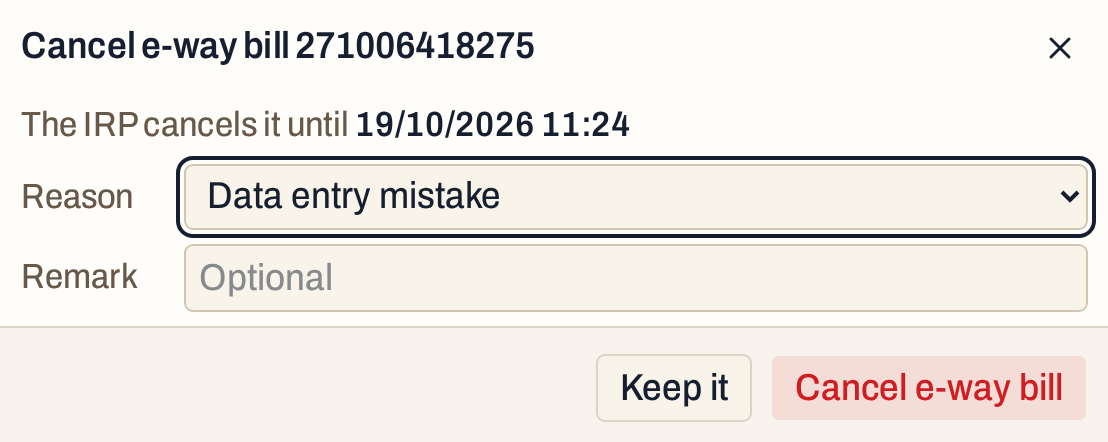 Keep it leaves the bill as it is.
After the e-way bill is cancelled, press F6 again to cancel the e-invoice. It shows its IRN and a warning: the portal never takes this bill number again, so a corrected sale is entered as a new bill.
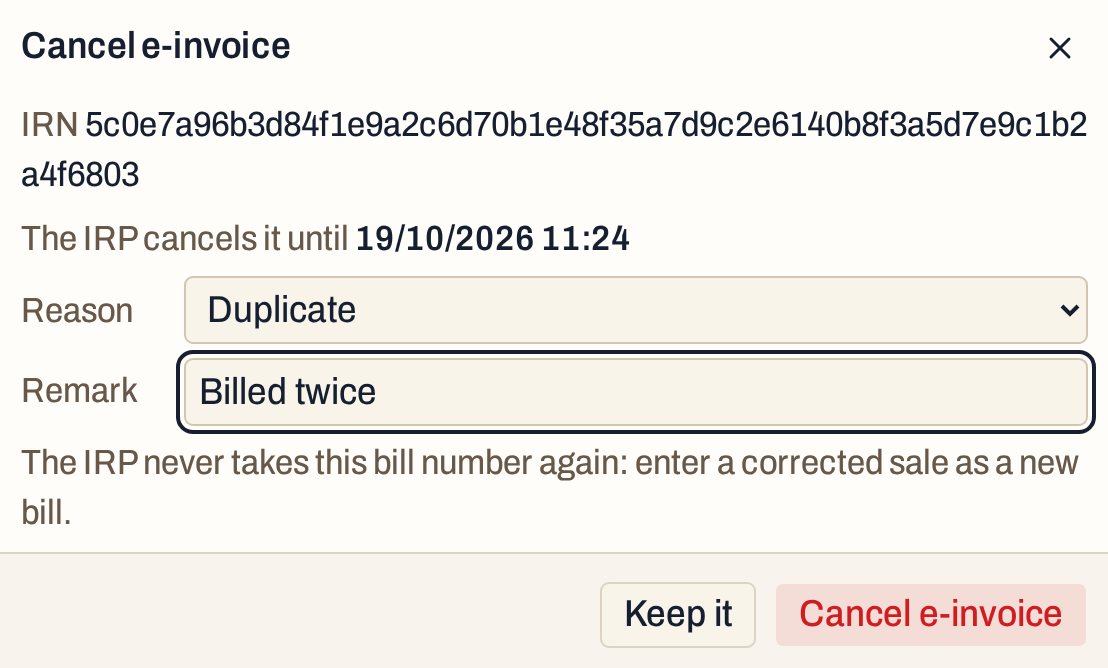 A cancelled e-invoice cannot be undone.
Each cancellation is charged, so SimplyERP checks first and refuses one the portal would refuse: one already made, one after the 24 hours, or one without the remark it needs. The numbers stay on the bill, marked cancelled, with the time, reason and remark.
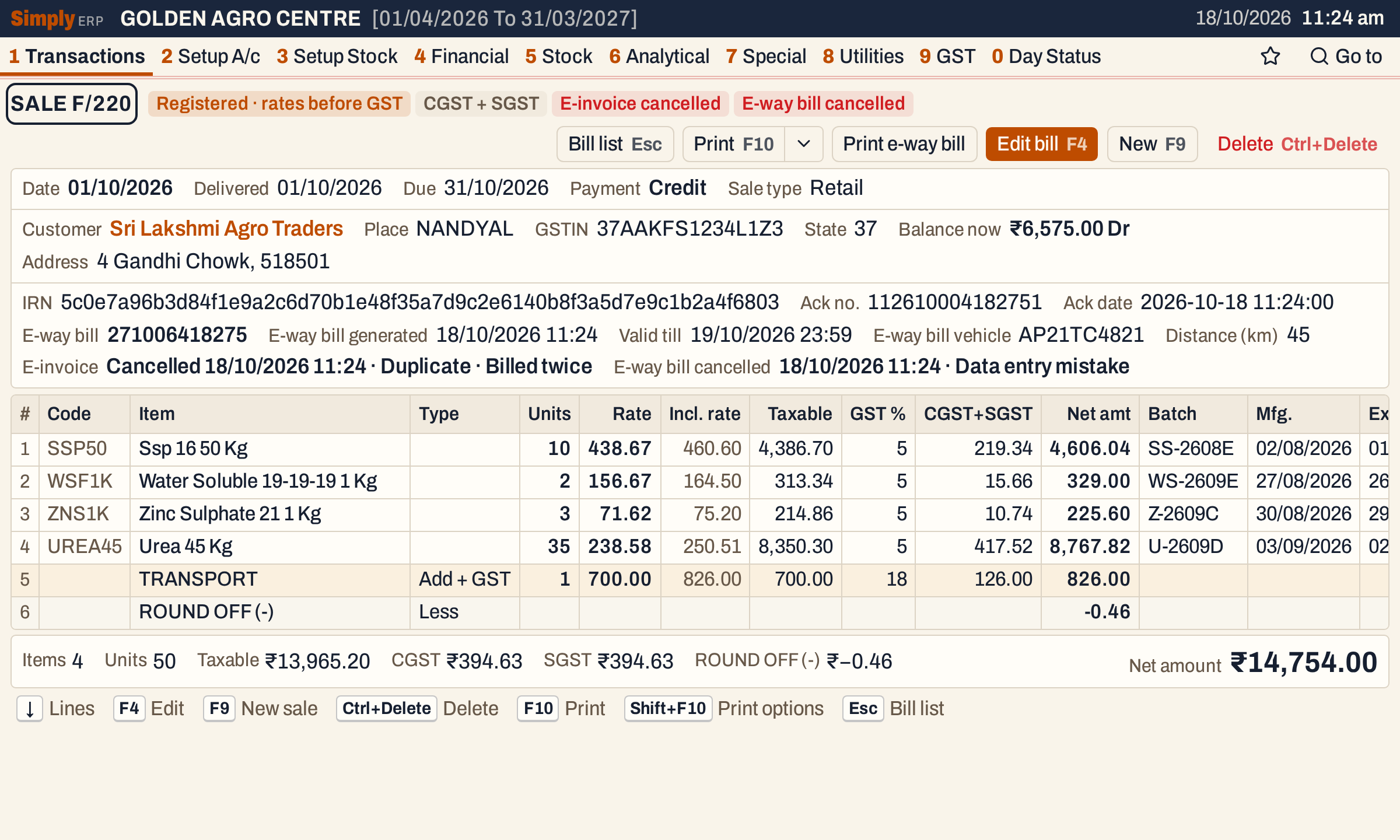 The record of both cancellations stays on the bill.
A cancelled e-way bill can be filed again with new transport details, as long as the bill’s e-invoice is active or the bill has none. The cancelled one stays listed on the bill as Earlier e-way bills, cancelled.
What a filed bill cannot do
- While its e-invoice is active, a bill cannot be deleted, and its party, date, items, quantities and amounts cannot be changed. A batch or the transport can. Cancel the e-invoice within 24 hours, or issue a credit note. See Edit a bill and Delete a bill.
- While its e-way bill is active, a bill cannot be deleted.
- If an admin PIN is set, cancelling an e-invoice or an e-way bill asks for it.
Keys
| Key | What it does |
|---|---|
| F6 | On a filed bill, cancel the e-way bill, or the e-invoice once the e-way bill is cancelled |
| F10 | Print the bill |
| F4 | Edit the bill, within the limits above |
| Ctrl+Delete | Delete the bill, not while it has an active e-invoice or e-way bill |
Common questions
Does the Generate section show for every bill? No. It shows only for a bill that still has something to file, by the table above. It shows whether or not your turnover makes e-invoicing compulsory. A bill you can no longer file, such as one with a cancelled e-invoice, shows none.
Can I make the e-invoice sheet myself instead? GST E-Invoice Export lists the B2B sale lines of a period and writes them as an Excel worksheet. It does not send anything to the government.
Updated 4 November 2026.