Add a customer, supplier or item from a bill
When a customer, supplier or item is not in the books yet, you do not have to leave the bill and lose it. Press Alt+N on the bill. SimplyERP keeps the bill in Drafts, opens the form to add the account or the item with what you typed, and brings you back to the same bill with the new one chosen.
This page follows two bills: a sale to a new customer, and a purchase of a new item.
Add a new customer from a sale
On a credit sale, type the customer’s name in the Customer field. When no account matches, the list says so and shows a New account button, which Alt+N presses.
 No account matches the name. Alt+N adds one. It works with the list open or closed.
The same key works in the Supplier field of a purchase, and on a cash bill in the customer’s name. The bill is kept in Drafts (1 Z), a notice says so, and the Add account form opens.
The form starts with what the bill knows:
- the account name you typed;
- the account type: Customer on a sale and on a sales return, Supplier on a purchase and on a purchase return;
- on a cash bill, the place, phone number, GSTIN, state and PAN you had typed for the customer.
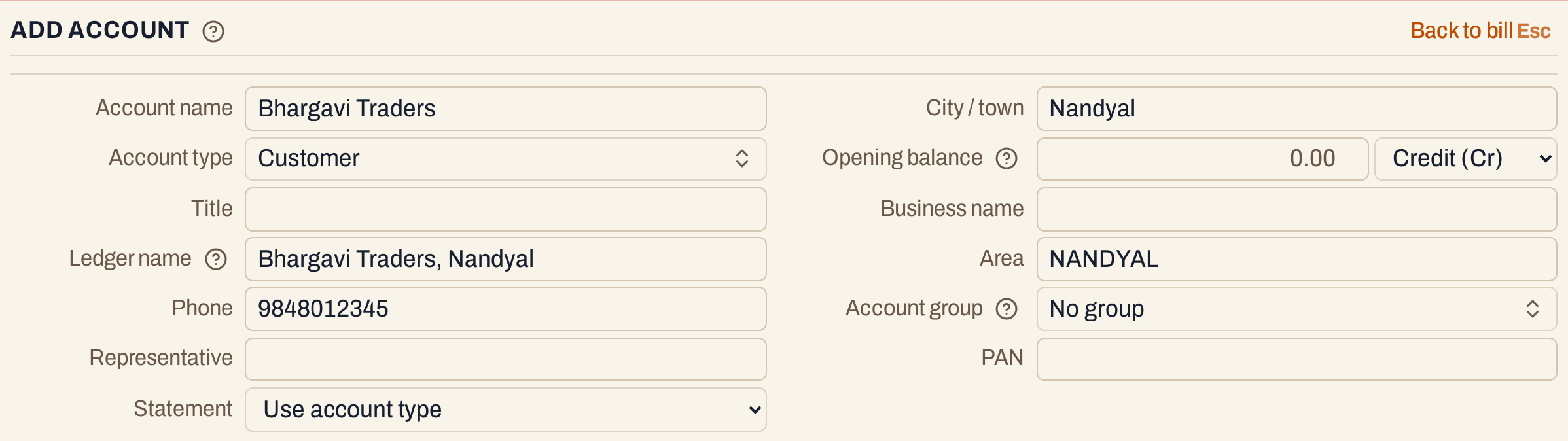 The rest of the form is the same as for any account. The ledger name is made from the name and the town.
Fill in what you know, such as the town, the phone number and the address. See Add an account for the fields. Press F3 to save. SimplyERP adds the account and returns to the bill with the customer chosen, their place and state filled in, and the cursor in the Customer field.
 The new account has no balance yet.
To return without adding anything, click Back to bill, or press Esc when the cursor is not in a field (in a field, Esc first lets go of it). The bill is as you left it.
The bill then goes on as usual. Here it takes 2 units of Carbendazim and is saved with F3.
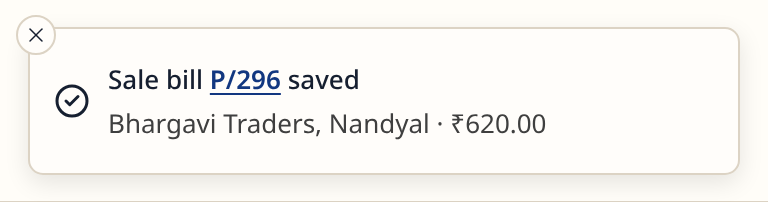 Saving the bill removes it from Drafts.
The new customer’s ledger holds the sale from the first bill.
 The account started with this sale.
 The customer owes ₹620.00.
Add a new item from a purchase
A new product is added as a stock group: the product with its packings, company, GST rate and HSN. A bill sells the packings, so the form saves the group and puts its packing on the bill’s line.
On the bill, type the item’s name in the Item cell. When no item matches, the list shows a New item button, and Alt+N presses it. Here a purchase from Godavari Agro Chem is open, with the supplier’s bill number GAC/1270.
 No item has that name.
The bill is kept in Drafts, and the New group form opens with the name you typed, in capitals. When the bill’s type sells one category, the category is already chosen; here it is chosen by hand. Choose the GST %, type the HSN, and add the packing with its code, the number per case and its prices. Enter moves between the cells and F9 adds another packing.
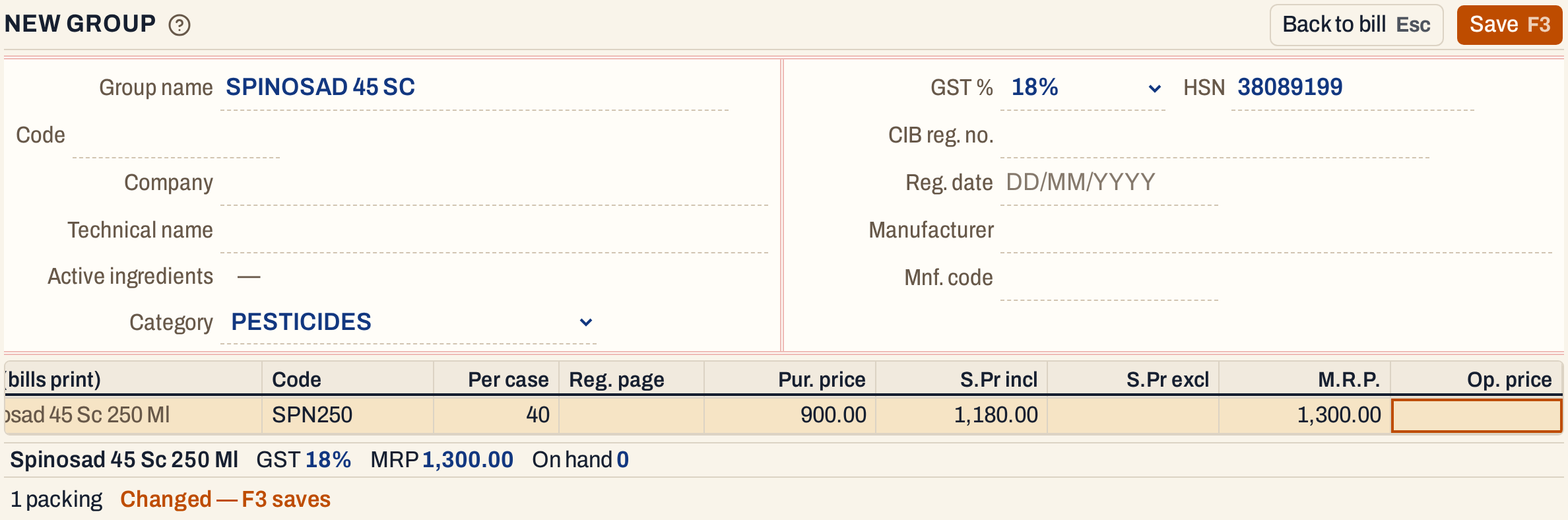 This is the form that adds any stock group; Add a stock group describes every field.
Press F3. SimplyERP saves the group and returns to the bill. The line now holds the group’s packing, with its code, HSN, MRP and GST from the group. To bill another packing of the group, choose it in the Item cell.
 The new item is on the line.
 The new item has no stock yet.
A new item starts with no stock, and a purchase brings some in. Type the units, the rate, and the batch with its manufacturing and expiry dates, then press F3. Here: 24 units at ₹900.00 in batch SPN-2610A, which comes to ₹25,488.00 with GST.
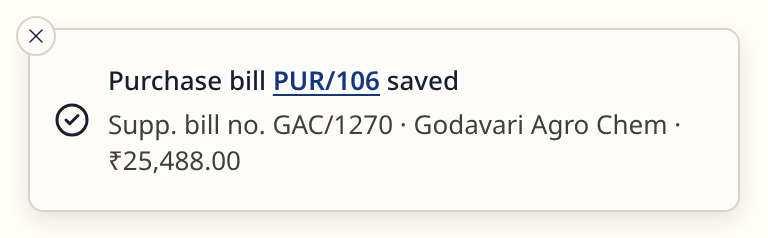 The purchase is saved, and the stock is in.
The next sale lists the item with its stock.
 The new item, with the 24 units the purchase brought in.
On a sale the same key works in the Item cell. The new item then has nothing to sell until a purchase, or opening stock, brings stock in.
Keys
| Key | What it does |
|---|---|
| Alt+N | In the customer, supplier or an item cell: add a new account or item, with the list open or closed |
| F3 | On the form: save it and go back to the bill with it chosen |
| Esc | On the form, with the cursor not in a field: go back to the bill without adding anything |
| 1 Z | Open Drafts, where the bill waits meanwhile |
On a Mac, ⌥ stands for Alt.
Common questions
Can I come back to the bill later? Yes. The bill is kept in Drafts while the form is open. Open it from there and carry on.
Can I add a customer on a cash sale? Yes. On a cash bill the customer is just a name, so a walk-in needs no account. Use Alt+N when you want the customer saved: the details you typed on the bill go into the form.
Updated 4 November 2026.