Make a quick bill
On this page
Quick Bill is a short cash sale for the counter. It lists only the few items you set up, each with its rate and a box for the units, so a second person can bill the queue from a phone while the main computer stays free. It saves an ordinary GST sale bill: stock goes out, and the sale and its GST are posted to your books.
Quick Bill makes new bills only. Anything beyond the listed items, such as an item you did not set up or a correction to a saved bill, is done on the sale bill screen. The items, the fields it shows and the printer are chosen in Set up the quick bill.
Open Quick Bill
On a phone, tap the menu button at the top right. The menu lists the pads; open Transactions (1), then Quick Bill (Phone) (Q), then New Quick Bill (N). On a computer, press Alt+1, Q, then N.
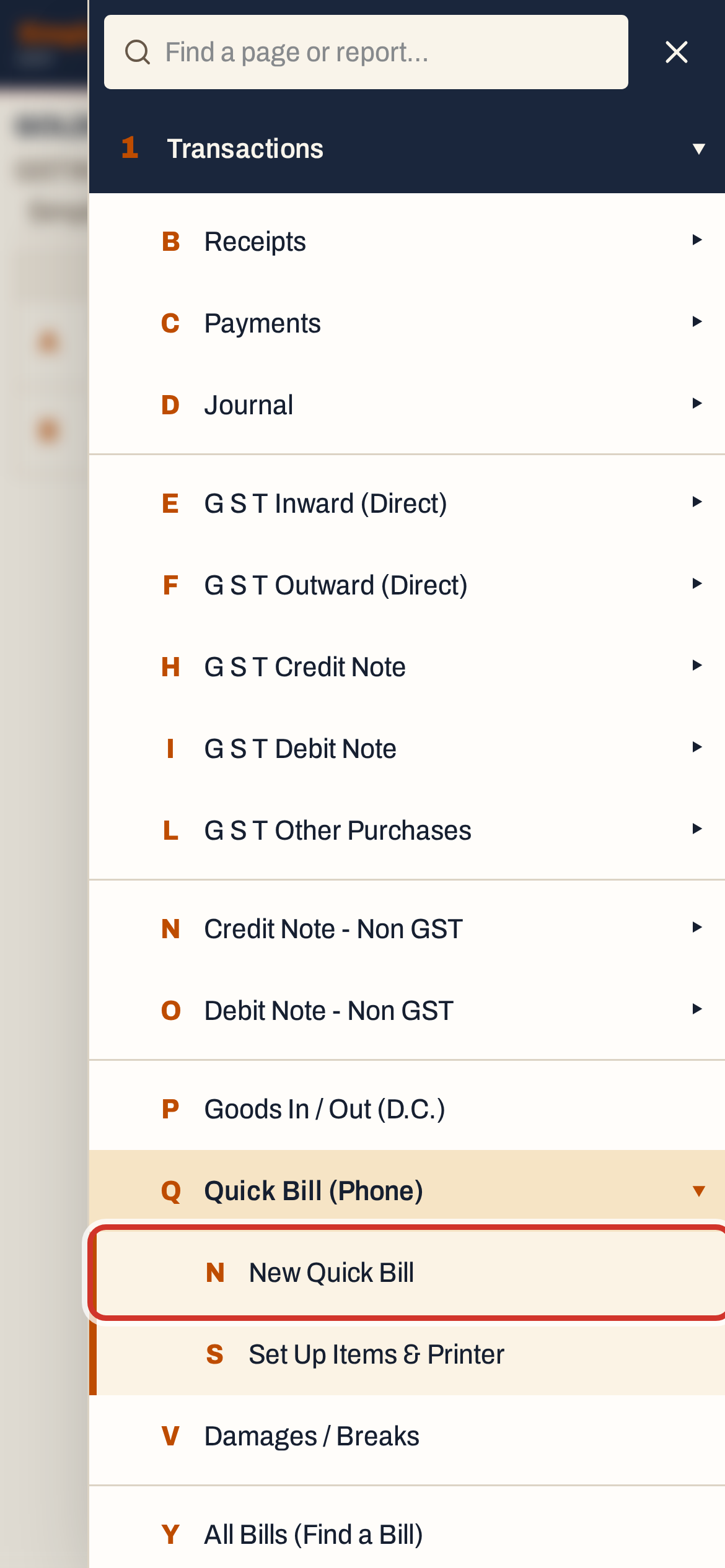 1 Q N: Transactions, Quick Bill (Phone), New Quick Bill.
The screen is made for a phone: a touch screen under 48 rem wide gets the layout below, with finger-sized buttons. On a computer the same screen opens and works with the keyboard.
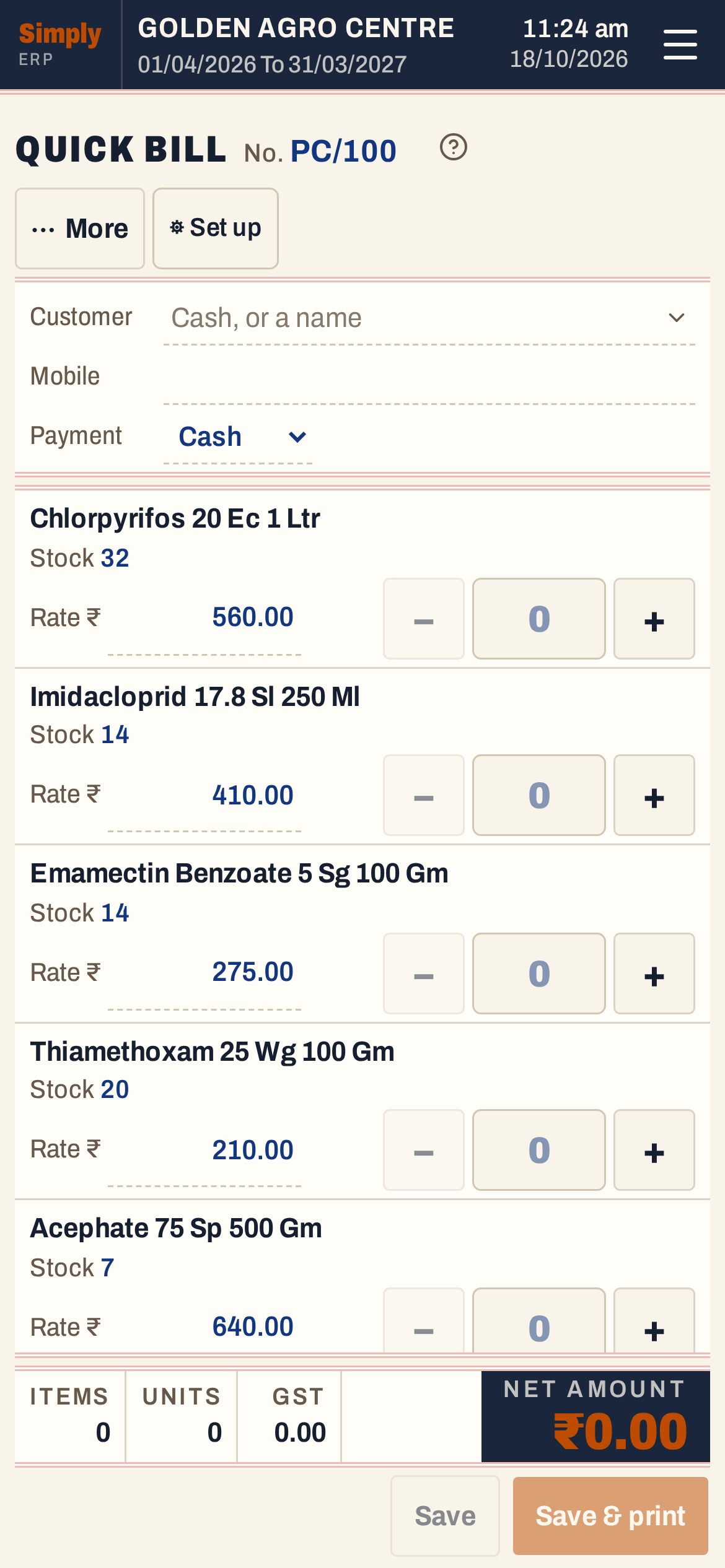 The screen as it opens. The bill number, PC/100 here, shows beside the heading.
Each listed item is one row: its name, the fields the setup shows (here its stock), the Rate with GST included, already filled from the item’s sale price, and the units with − and + around them. The list scrolls; the totals and the Save buttons stay at the bottom. The bill’s book, date and cash payment are already set, so there is nothing to choose before billing.
Fill the units
Tap + to add one unit, − to take one off, or tap the units box and type the number. On a keyboard, + and − in the units box step the same way, and Enter goes from the units to the rate and on to the next item’s units. A part unit typed as 2.5 stays as typed until you use + or −, which go to the next whole number.
The rate is the item’s sale price including GST. Change it for a customer who pays another rate; the line’s total changes with it. A row with units gets a coloured edge and shows its total at the right.
For a customer name, type it in Customer. Leave it empty and the bill is made to Cash.
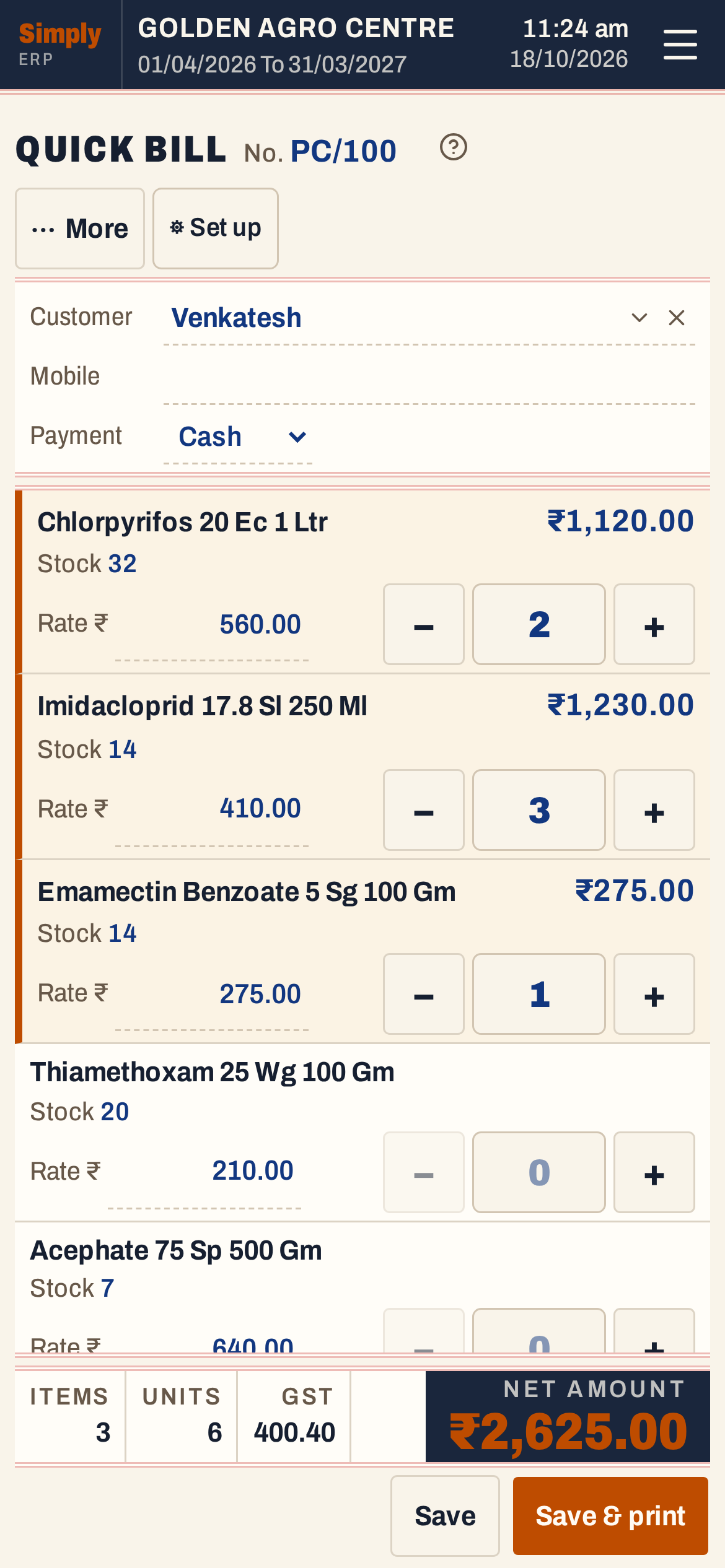 Three items: 2 + 3 + 1 = 6 units. The strip above Save shows 3 items, 6 units, 400.40 GST and the net amount, ₹2,625.00.
The strip above the buttons adds the bill up as you type: Items, Units, the GST in the rates, and the Net amount.
Each item’s units are taken from its batches. SimplyERP starts with the batch that expires first among those that have stock and have not expired, then goes to the next, with a line on the bill for each batch. A batch that has expired is not used. You do not choose batches.
The Stock shown for an item counts only what can be sold this way: batches in stock that have not expired. If you enter more units than that, the figure turns red and says how many are short (for example, 7 · 2 short for 9 units). It does not stop the bill from saving.
Show more fields
Only the fields chosen in the setup show on opening; here they are Customer, Mobile, Payment and each item’s stock. Tap More (F4 on a keyboard) to show the others: Place, GSTIN, Date and Book, and under each item its batch, GST and MRP. The button then reads Fewer.
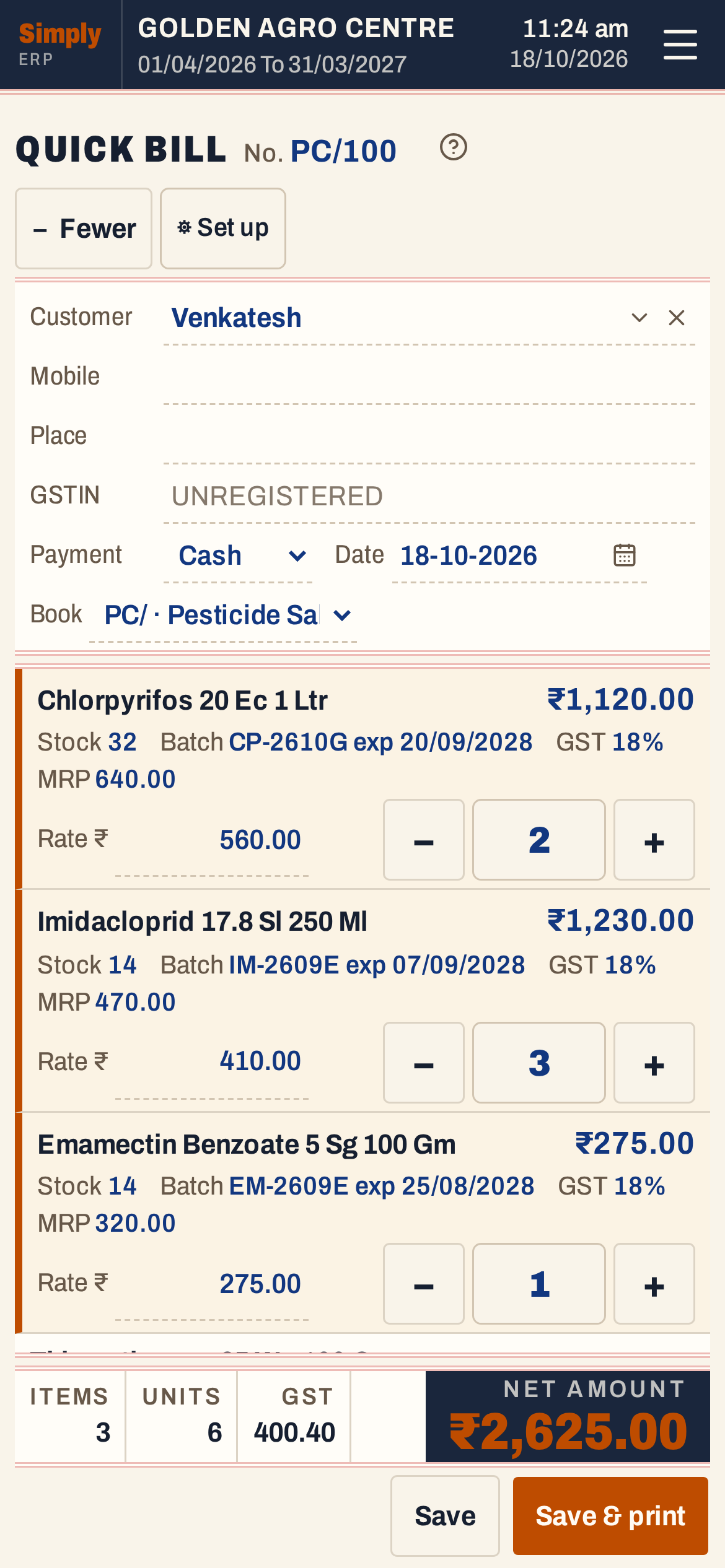 More shows the batch each line will take and its expiry. The Book field is narrow on a phone and shows PC/ · Pesticide Sa…; it reads PC/ · Pesticide Sales.
- Customer takes a name for a walk-in. For a saved customer on a cash bill, use the arrow at the end of the field (F2 on a keyboard) to list the saved accounts.
- GSTIN sets the customer’s state from its first two digits. A customer in another state is billed IGST, and the GST figure at the bottom is then named IGST.
- Payment is Cash or Credit. Choose Credit and the Customer field must be a saved account; Customer and Payment show by themselves when the payment is Credit.
- Date starts on today’s working date.
- Book is the sale bill book the bill is numbered in. It shows by itself only when the setup names no book and your books have several sale books.
Save or print
- Tap Save, or press F3, to save the bill.
- Tap Save & print, or press F10, to save and print it. The layout is the one chosen in the setup. On a phone or computer that edits through the main computer, the button reads Save & print on main device and the bill prints on the main computer’s printer, with the printer, layout and number of copies from the setup and nothing to press there. If it cannot print, the bill is still saved, and a notice offers Print here to print it on this device.
Saving takes the whole bill at once. If something is missing, such as a credit bill with no saved customer, a red message above the strip says what to fix. Save stays off until at least one item has units.
After saving, a notice names the bill, the units go back to nothing and the cursor returns to the first item, so the next customer’s bill starts at once. The date, customer and payment return to their starting values, and the book you used stays.
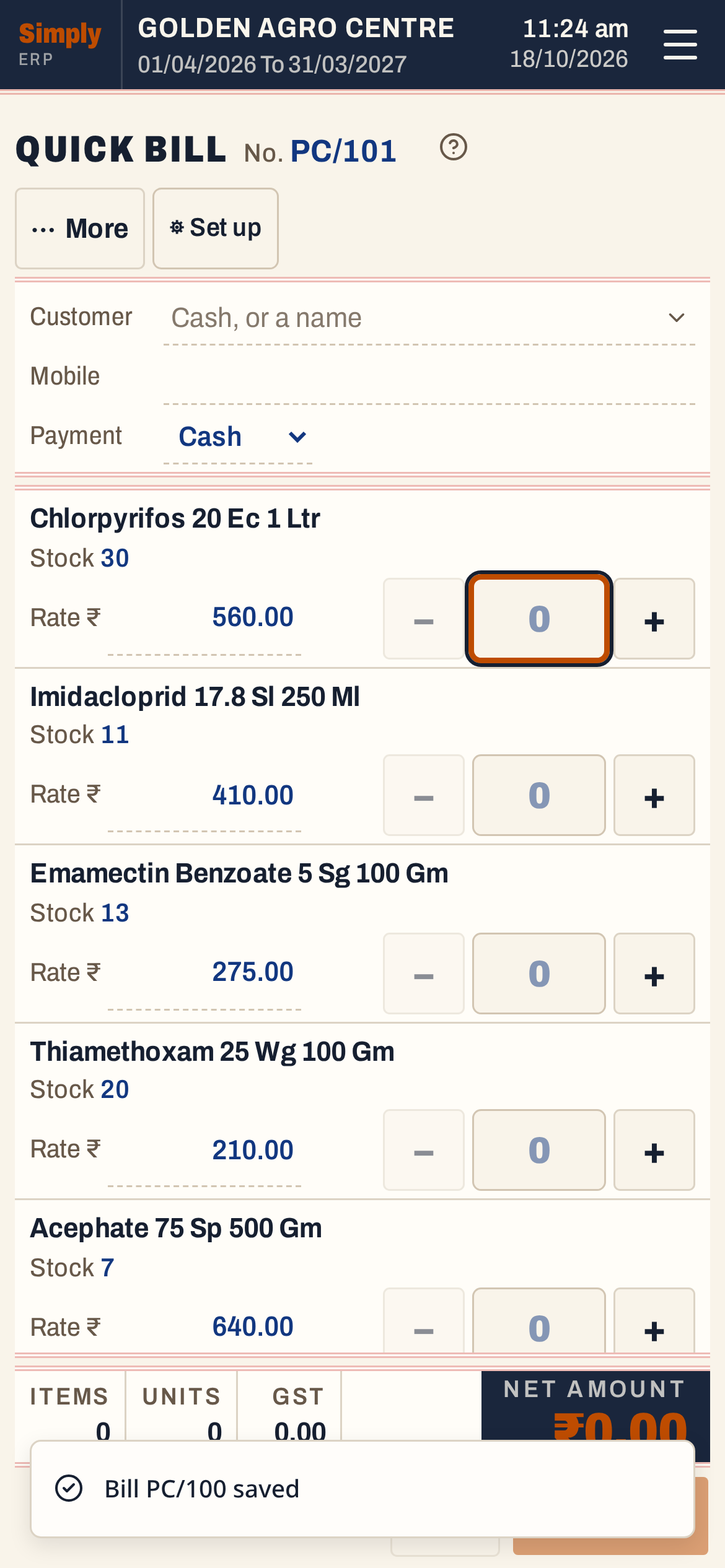 The notice names the saved bill, PC/100. The next bill is PC/101.
Every quick bill is in All Bills (1 Y) like any other sale.
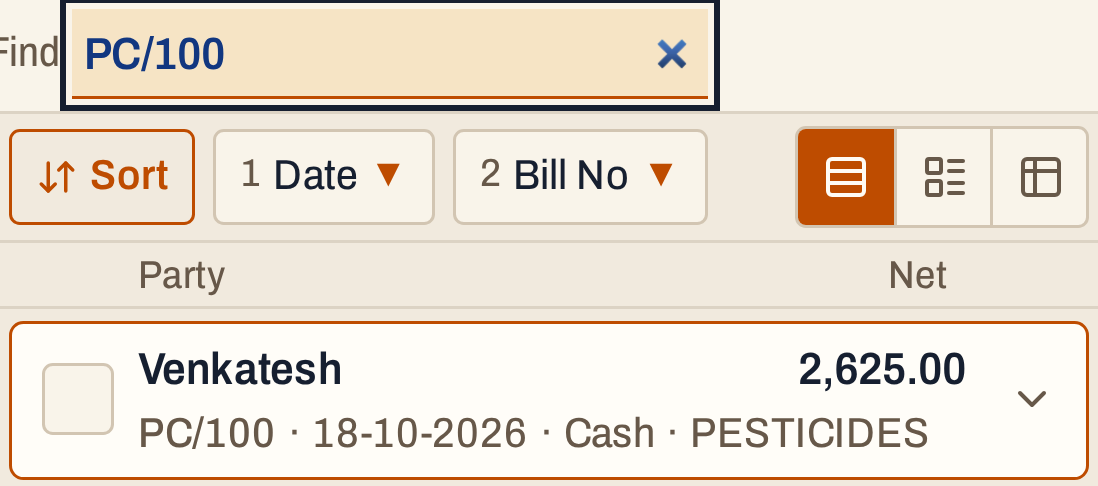 Type the bill number in Find.
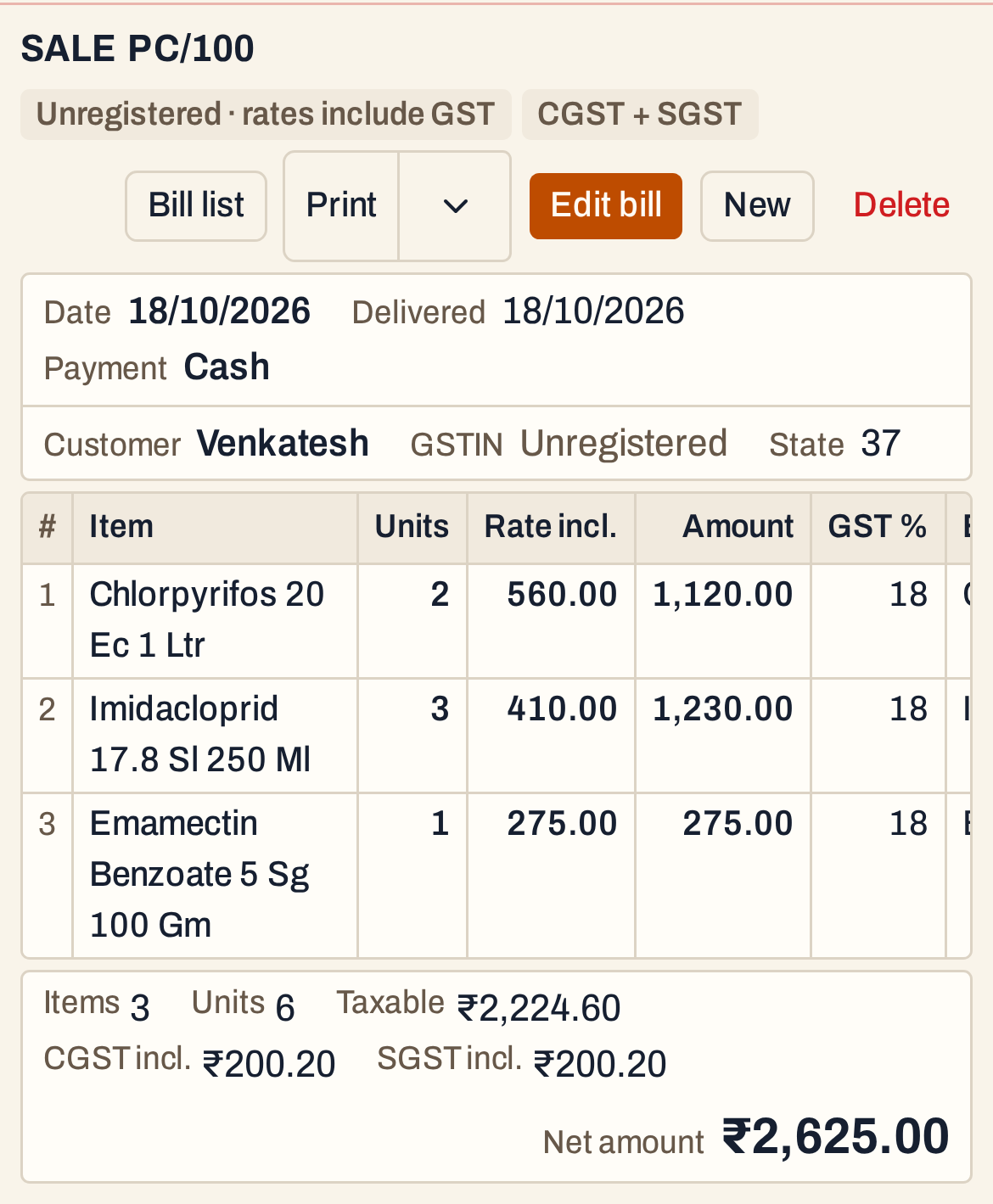 The saved bill is a normal sale bill. A customer with no GSTIN is billed at rates that include GST, so ₹2,625.00 is ₹2,224.60 taxable plus ₹200.20 CGST and ₹200.20 SGST.
What saving does to your books
A quick bill is a sale bill, so it makes the same postings as one made on the sale bill screen, dated on the bill’s date. This cash bill:
| Account | Debit | Credit |
|---|---|---|
| The bill book’s cash account | 2,625.00 | |
| The bill book’s sales account | 2,224.60 | |
| CGST output | 200.20 | |
| SGST output | 200.20 |
On a credit bill the customer’s account is debited instead of the cash account. The units leave stock from the batches shown on each line.
The bill then shows in the sales register, the cash book for a cash bill, and the stock statement.
Keys on this screen
| Key | What it does |
|---|---|
| Enter | Next field: from the units to the rate and on to the next item |
| + and − | One more or one less unit in the units box |
| F4 | More fields, or fewer |
| F3 | Save |
| F10 | Save and print |
| F2 | In Customer, list the saved accounts |
| F1 | Every key on the screen |
On a phone every one of these is a button.
Common questions
An item I sell is not on the list. Add it in the setup (1 Q S); see Set up the quick bill. The list takes up to 20 items.
Can I change a quick bill after saving it? Yes, as any sale bill: open it from All Bills and press F4. It opens on the sale bill screen. See Edit a bill.
Does the customer need a name? Not on a cash bill. An empty Customer is billed to Cash.
Updated 4 November 2026.