Bill books and series
On this page
A bill book is a kind of bill with its own rules: which account its bills post to, which cash account a cash bill uses, which items it can sell, and whether it is wholesale or retail. A series is the numbering of a book: a prefix such as P/ and the number the next bill takes. Bill Books & Series is where you add a book, add or change a series and set a next number. It also holds the series of receipts, payments and journals.
Open Bill Books & Series
Press Alt+8 for Utilities, then C.
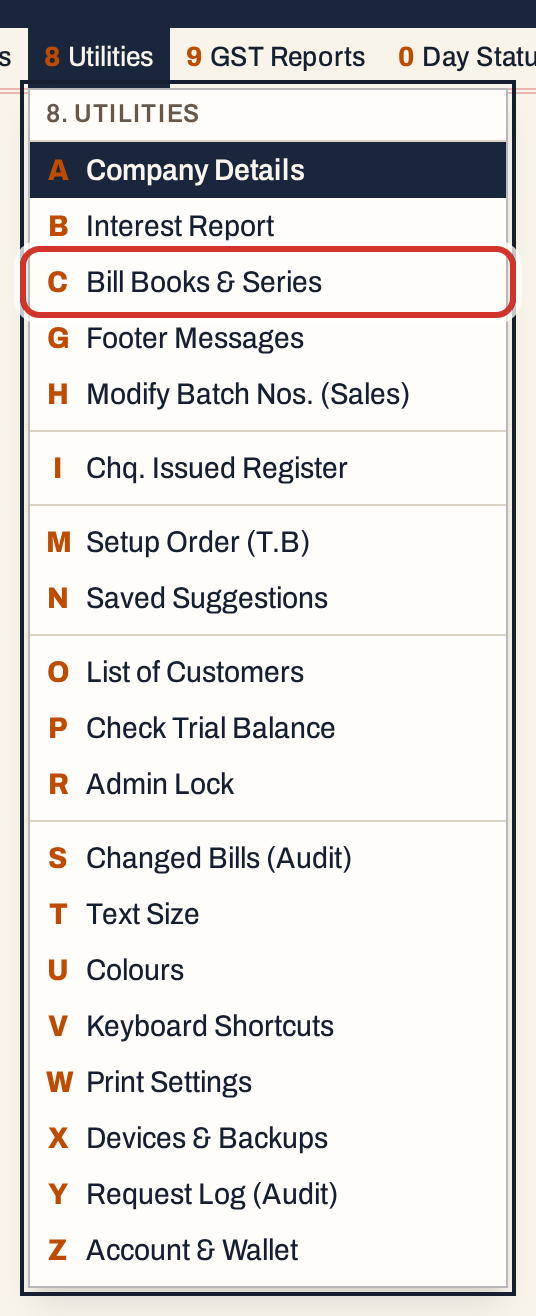 8 C: Utilities, Bill Books & Series.
The screen opens on the bill books, with the cursor in the list. The books on the example shop’s books are three sales books (Fertilizer, Pesticide and Seed Sales), purchases, sales returns, purchase returns and the credit and debit notes.
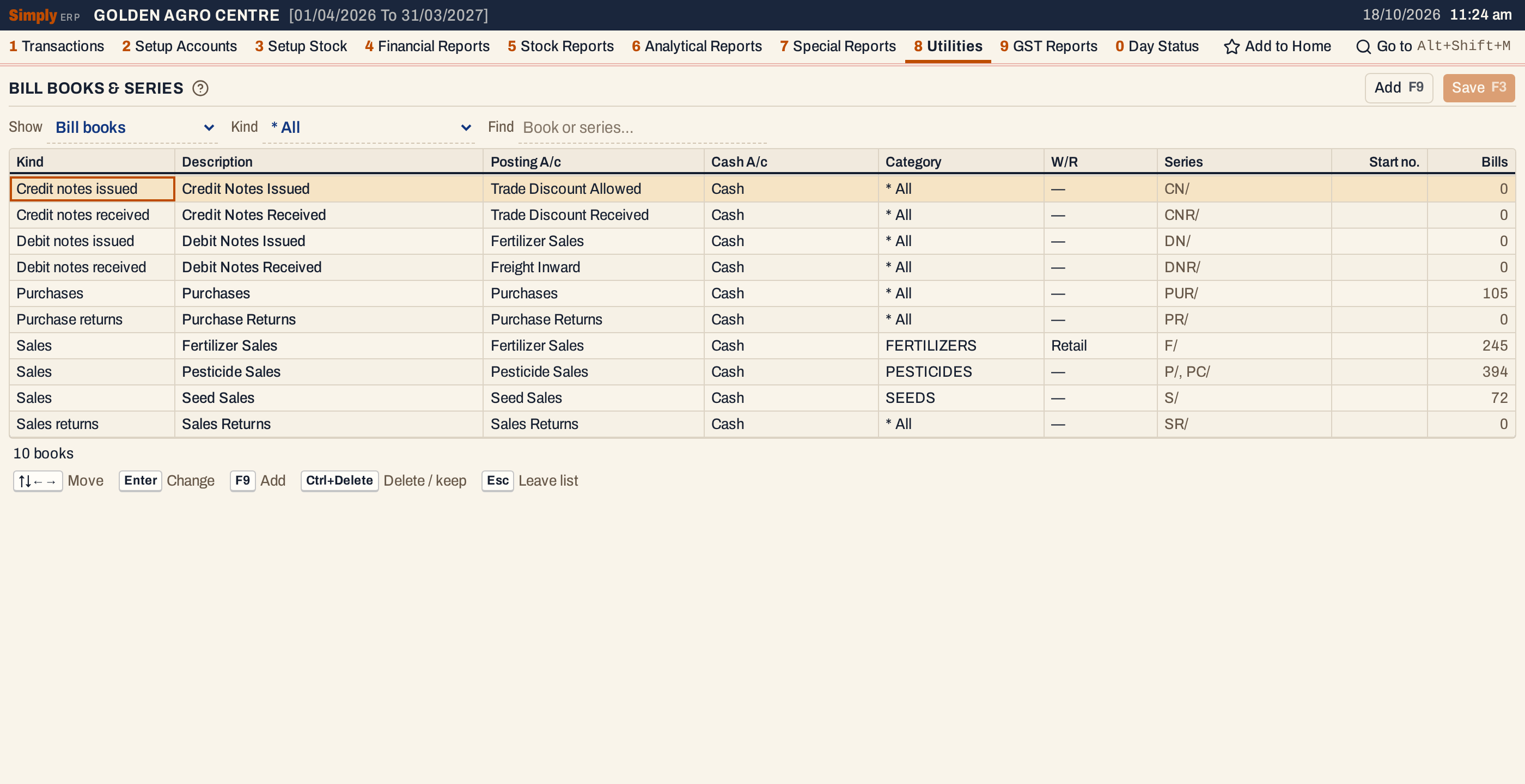 One row per book. The Bills column counts the bills now in each book.
The Show choice above the list picks one of three views: Bill books, Bill series and Voucher series. Kind narrows the books or series to one kind of bill. Find looks for a word in a book’s description or series (in Bill series, also the multi-bill key). Voucher series has no Kind choice. Enter or ↓ in Find goes down to the list.
 Kind set to Sales.
What a bill book holds
| Column | What it is |
|---|---|
| Kind | The kind of bill: Sales, Purchases, Sales returns, Purchase returns, Credit notes issued or received, Debit notes issued or received and Other purchases. Other sales shows only on books that already have it. It cannot be changed once the book has bills. |
| Description | The book’s name, up to 100 characters. It is the Bill type you choose on the bill screen. |
| Posting A/c | The account the book’s bills post to: the sales account for a sales book, the purchases account for a purchase book, the note account (such as Discount Allowed) for a note book. The choices are the accounts of the right type for the kind. |
| Cash A/c | The cash or bank account a cash bill uses. |
| Category | The product category the book sells. A bill type lists only the items of its category. * All lets the book sell every category; it is offered only when the books have more than one category. |
| W/R | Wholesale, Retail or none (—). A fertiliser bill prints the retail A.G.L. No. from a retail book and the wholesale one otherwise; see Change company details. |
| Series | The book’s series, joined with commas. Typed only when you add a book. |
| Start no. | The first number of a new book’s first series. Typed only when you add a book. |
| Bills | How many bills the book holds now, or “new” for a book not saved yet. |
Add a bill book
Here the example shop wants a separate retail book for pesticides, with its own numbers.
- Click a row of the list so the cursor is in it, then press F9. A new row starts in its Kind column, as Sales, or as the kind chosen above.
- Choose the Kind, Sales. Press Enter to keep it and move on.
- Type the Description, Pesticide Retail Sales, and press Enter.
- Choose the Posting A/c, Pesticide Sales, and the Cash A/c, Cash. On a choice, press Enter to change it, pick with the arrow keys or by typing the first letters, and press Enter to keep it.
- Choose the Category, PESTICIDES, and W/R, Retail.
- Type the Series, PRS/, and the Start no., 1.
 The new row is highlighted until it is saved, and the line under the list counts the changes.
A new book needs a description, a posting account, a cash account, at least one category, and a series of up to 30 characters. If any of these is empty, saving is refused with a message that says what is missing. Press F3 to save. The book is saved together with its first series, starting at the number you typed.
 Saved: 11 books, listed by description, with the cursor on the new one, which has no bills yet.
To change a book later, move to the cell and press Enter or start typing. Description, posting account, cash account, category and W/R can be changed. The Kind can change only while the book has no bills.
To delete a book, press Ctrl+Delete on its row: it is struck through, and F3 deletes it with its series. A book that has numbered any bill, including bills that were changed or deleted since, cannot be deleted. Ctrl+Delete again takes the mark off.
See and change the series
Choose Bill series in Show. Each row is one series of a book, with the kind of its book, its Next no., the Last used number and how many documents it has numbered.
 A book can have several series: Pesticide Sales has P/ and PC/. In these rows Next no. is one more than Last used.
When you save a bill, it takes the series’ next number, and the next number moves one past it. You can change a next number, for example to start a new year at 1 or to skip ahead, but it must come after the last number used, so no two documents share a number. A number at or below it is refused as you type.
 P/ has used up to 295, so 10 is refused. Esc drops the change.
A series with no documents can start at any number from 1. Here the new PRS/ series is set to start at 101 and saved.
 Next no. 101 for PRS/.
To add another series to a book, press F9 in this view and choose the Bill book in the new row. A book cannot have the same series twice. A series that has numbered any document, including bills since changed or deleted, cannot be deleted. Deleting one takes it off the footer lines that print on it, and a footer line left with no series is deleted.
A Multi-bill key can be typed on a series of a Sales book. It is the key that the multiple-book sale uses; see Multi-book sale. A book cannot use the same key twice.
The footer lines that print under bills (8 G) are chosen by series; see Footer messages.
Voucher series
Choose Voucher series to see the numbering of receipts, payments and journals. It works the same way: a series, a next number that must come after the last used, and the count of documents.
 The Vouchers column shows the kinds of voucher each book takes.
See the new book on a bill
Open a new sale (Alt+1, F, N) and choose the Bill type Pesticide Retail Sales. The Book is its series, PRS/, chosen for you because the type has one series. The heading shows the number the next bill will take, PRS/101. A type with several series asks you to choose one. See Make a sale bill.
 The next bill is PRS/101.
To see the numbers each series has used, the gaps inside them and the cancelled numbers, open Invoice Series Status.
Keys on this screen
| Key | What it does |
|---|---|
| ↑ ↓ ← → | Move between cells |
| Enter | Change the cell; again, keep the change and move on |
| F9 | Add a row |
| Ctrl+Delete | Mark the row to delete, or take the mark off |
| F3 | Save every changed row |
| Esc | Drop the change in the cell; then leave the list |
| F1 | Every key on the screen |
On a Mac, ⌘ stands for Ctrl.
Common questions
Why was my next number refused? It must be higher than the last number used. The message names that number.
Can I rename a book? Yes: change its Description in the list and press F3.
Does an Admin Lock PIN affect this screen? Yes. While a PIN is set, saving asks for it; see Admin lock.
Why can’t I change a book’s Kind? The book has bills. A kind of bill can change only while the book has none.
Several rows were changed and one failed. What was saved? Each row is saved on its own. The ones that passed are saved, and the line under the list says “Not saved —” with each failed row’s name and why; those rows stay on screen for you to correct.
Updated 4 November 2026.