Hold a bill and finish it later with Drafts
On this page
A draft is an entry that is not saved yet. SimplyERP keeps every bill, note, other purchase, receipt, payment and journal entry you are typing as a draft, so you can hold a customer’s bill while you serve the next one, leave a bill unfinished, and come back to it later. A draft changes nothing in your accounts until you save it.
The examples here are two sales at the counter of Golden Agro Centre: one held for Ramaiah K, one left unfinished for Kisan Seva Kendra.
How an entry becomes a draft
You do not have to do anything to start a draft. About a second after you stop typing on an entry screen, SimplyERP writes the entry to your books as a draft. Drafts are kept in the books, not in the browser, so every window and device of the company and year sees them.
There are three ways an entry is kept:
- Hold it. Press F7 to hold the entry and start a fresh one in the same screen.
- Leave it. Go to another screen, or to the menu, without saving. Nothing asks first.
- Close the window. The draft was already written while you typed.
An entry is left out of Drafts when nothing has been typed on it.
Hold a bill for the next customer
Ramaiah K’s bill has one line, 4 units of Carbendazim 50 Wp 500 Gm, and the next customer is waiting. Press F7. A notice says where the bill went, and the screen starts a new bill, ready for the first field.
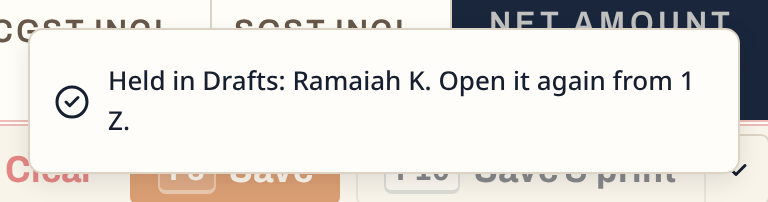 The notice names the customer on the bill that was held.
If nothing is typed yet, F7 only says so: “Nothing is typed to hold.”
The key bar of the fresh bill counts the other drafts of its kind.
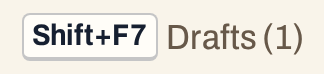 One bill is waiting. Shift+F7 lists it.
The held bill is not posted. No stock moves, and the customer’s balance stays as it was. The bill has no number yet either: a sale takes its number from its bill book when it is saved.
Open the list of drafts
Press Alt+1 for the Transactions menu, then Z for Drafts (Unfinished Entries).
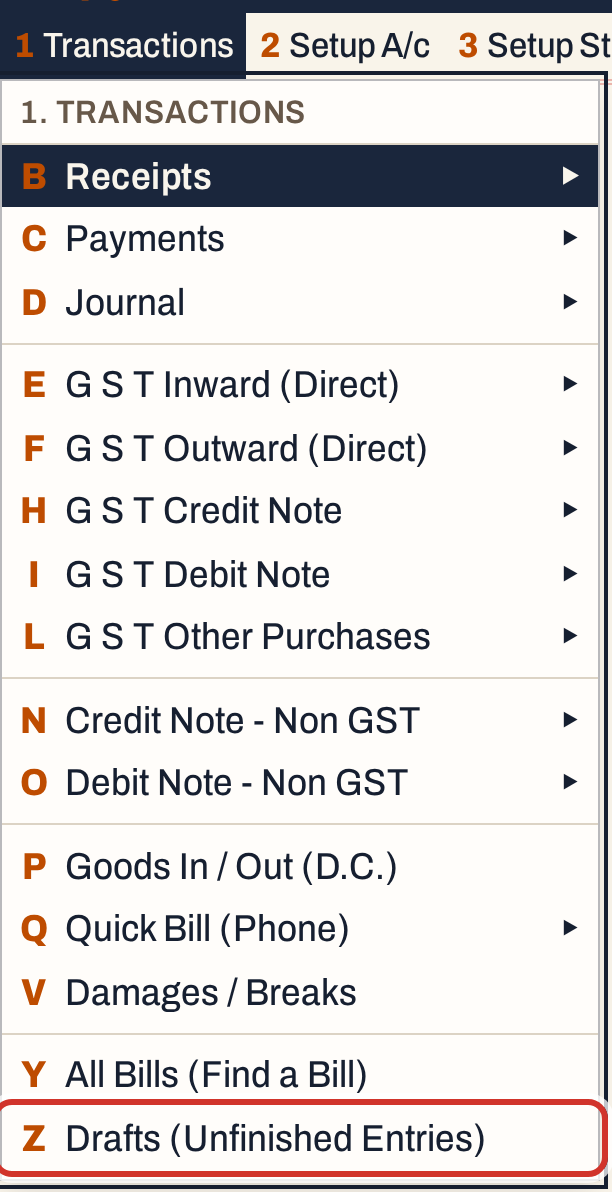 1 Z: Transactions, Drafts (Unfinished Entries).
In this example the next customer’s bill, for Kisan Seva Kendra, was left unfinished by going to the menu. SimplyERP shows the notice “The unfinished entry is kept in Drafts (1 Z).” and the list shows both bills, the newest change first.
 Each draft is one line, newest change first.
| Column | What it shows |
|---|---|
| Changed | The date and time the draft was last written, on this computer’s clock |
| Entry | What the draft is: “New sale”, “New purchase”, “New receipt”, “New journal entry”. A draft of a bill you are editing says “Edit” instead of “New”, and one on the multi-book screen says “New multi-book sale” |
| No. | The number, when the entry has one. A new sale has none until it is saved; a purchase carries the supplier’s bill number |
| Party / account | The customer, supplier or account on the entry |
| Lines | How many lines the entry has |
| Amount | The entry’s net amount so far. The Total line under the list adds them up |
| Open in | Only when a draft is open in another tab of this computer: it says “Another tab” |
Two choices sit above the list.
 Show narrows the list to one kind of entry, and Find searches it.
| Choice | What it does |
|---|---|
| Show | All entries (the default), Bills, Notes & other purchases, or Receipts, payments & journals |
| Find | Keeps the drafts whose entry name, party or number match what you type. Enter or ↓ moves from Find to the list |
On the list, ↑ and ↓ move between drafts, and typing letters jumps to a party.
Finish a draft
Move to the draft and press Enter. It opens on its own screen, a sale on the sale screen and so on, with everything that was typed.
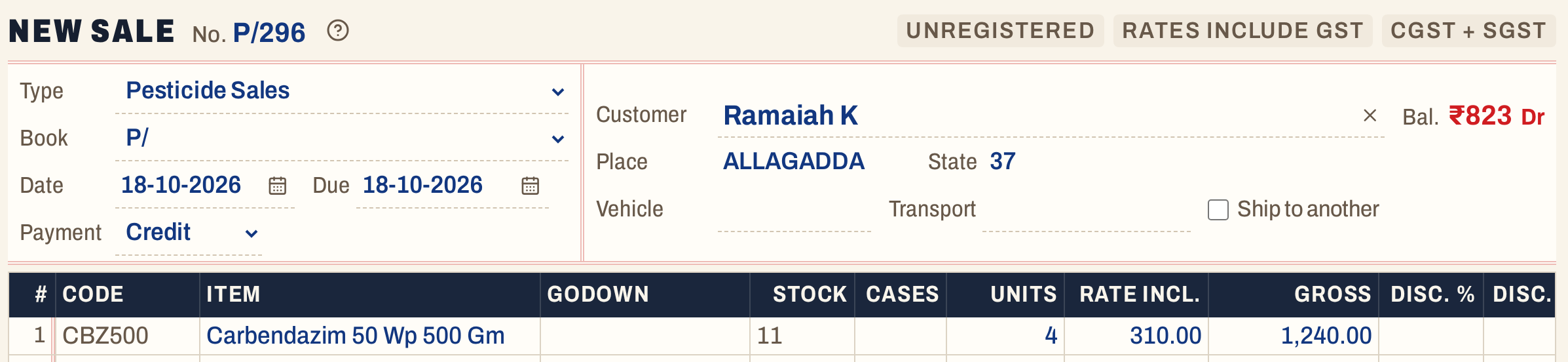 Ramaiah K’s bill comes back as it was held. The heading shows the book’s next number, P/296; the bill takes a number only when it is saved.
The key bar now lists F7 Hold and Shift+F7 Drafts.
 The other draft is counted, not this one.
Change what you need and press F3 to save as for any bill. Saving posts the entry as usual, and the draft leaves the list. A draft is open in one tab of a computer at a time: if another tab has it, Enter goes to that tab in the desktop app, and in a browser says to finish it there.
Switch to another draft
You can move between drafts without going to the list. Press Shift+F7 on an entry screen. A window lists the other drafts of the same kind, with New entry at the top.
 The window lists bills on a bill screen, notes on a note screen, and vouchers on a voucher screen.
↓ and ↑ move, Enter switches, and Esc goes back. The entry on the screen stays in Drafts, so nothing asks first. New entry is the same as F7: it starts a fresh entry and keeps this one.
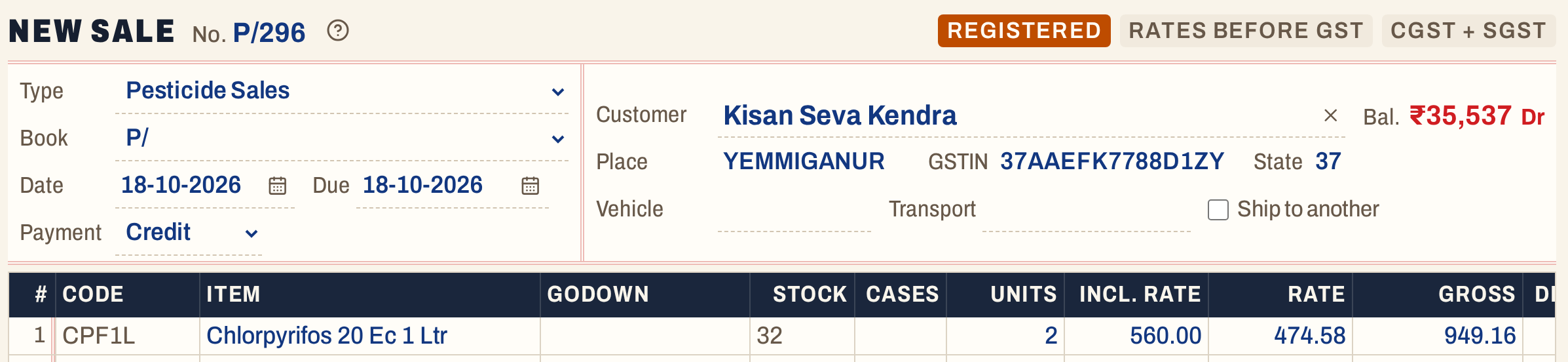 Kisan Seva Kendra’s bill is now on the screen.
Press F3 to save it.
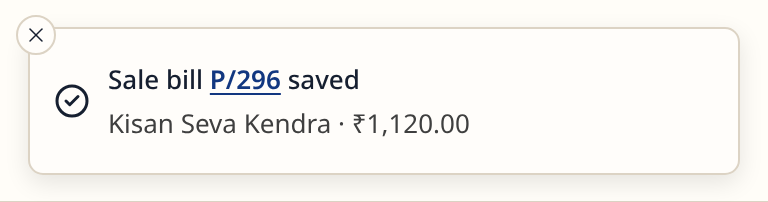 The saved bill takes the next number in its book, P/296.
Back in the list, the saved bill is gone and the held one is still there.
 A saved entry leaves Drafts.
Delete a draft
On the list, press Ctrl+Delete to delete the draft under the cursor. A window asks first, and it starts on Cancel.
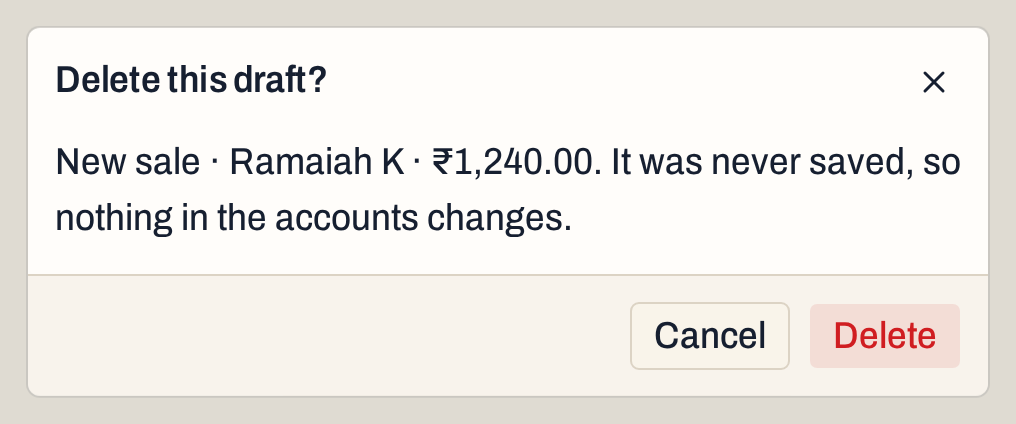 Choose Delete to confirm; a notice says “Draft deleted”.
A deleted draft is gone. Nothing was posted, so nothing in your accounts changes.
 The empty list says how a draft is made.
Clear an entry instead
To throw away what you typed on a new entry, press Alt+X, the Clear button beside Save. It asks first. If you confirm, the entry and its draft are removed, a notice says “Bill cleared”, and a new entry starts.
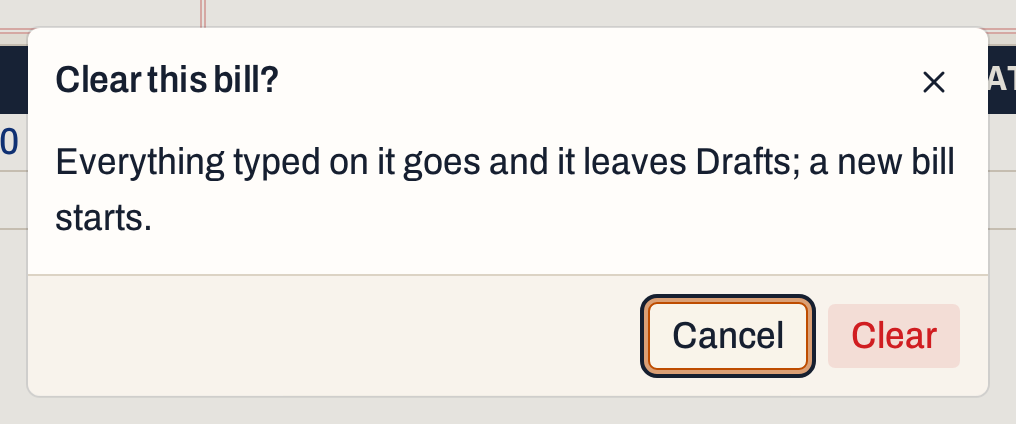 Cancel is chosen first, so Enter alone does not clear the bill.
On a saved bill you are changing, the button is Discard. The saved bill stays as it was, and the unfinished edit leaves Drafts. See Edit a bill.
What drafts do to your books
Nothing. A draft is not an entry in the books: no ledger line, no stock, no GST and no bill number. Everything happens when you save the entry, as set out in Make a sale bill, Make a purchase bill and the other guides.
Keys for drafts
| Key | What it does |
|---|---|
| F7 | On an entry screen: hold the entry in Drafts and start a fresh one |
| Shift+F7 | On an entry screen: list the other drafts of the same kind, to switch or start a new entry |
| Alt+X | On an entry screen: clear the entry and its draft, after asking |
| 1 Z | Open the list of drafts |
| Enter | On the list: open the draft on its own screen |
| Ctrl+Delete | On the list: delete the draft, after asking |
| F3 | On the draft’s screen: save the entry; its draft leaves the list |
On a Mac, ⌥ stands for Alt, ⌘ for Ctrl and ⇧ for Shift.
Common questions
Will I lose a bill if the power fails or the window closes? The draft is written about a second after you stop typing, so at most the last second of typing is lost. Open Drafts and the bill is there.
Can I hold a bill in one window and finish it in another? Yes, on the same computer or another one. Drafts are kept in the company’s books. A draft is open in one tab at a time: another tab that has it shows Another tab in the list.
What if a draft was saved or deleted in another window? Opening it says “That draft is no longer in Drafts; it was saved or deleted.” and a new entry starts.
Does a bill I am editing get a draft too? Yes. If you leave a saved bill’s changes unfinished, they are kept as an “Edit” draft, and opening that bill again reopens the unfinished changes. See Edit a bill.
Updated 4 November 2026.