Add a stock group
On this page
A stock group is one product in all its packings. Lambda Cyhalothrin 5 EC in 250 ML and 500 ML is one group of two items. You type what the packings share (company, technical name, category, GST rate, HSN) once, on the group, and each packing keeps only its own code and prices. Bills sell the packings, so a new product is not ready to bill until its group is saved.
Adding a group records no accounts and no stock. It makes the items that bills, purchases and stock reports then list. The stock itself is entered afterwards in Opening stock or by a purchase bill.
Open the group list
Press Alt+3 for the Setup Stock menu, then C for Groups.
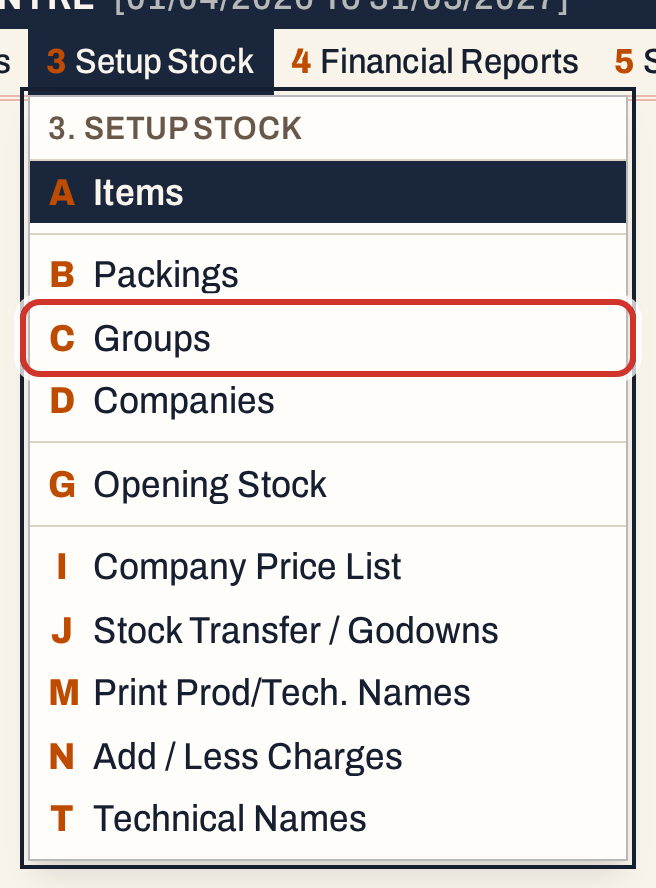 3 C: Setup Stock, Groups.
The list shows every group with its code, company, technical name, HSN, GST %, category and how many packings it has. Type in Find to narrow it by code, name, company, technical name, active ingredient or HSN, or pick a Company or Technical name above it. The list opens in Group order; click a column title to sort. Enter opens the group under the cursor.
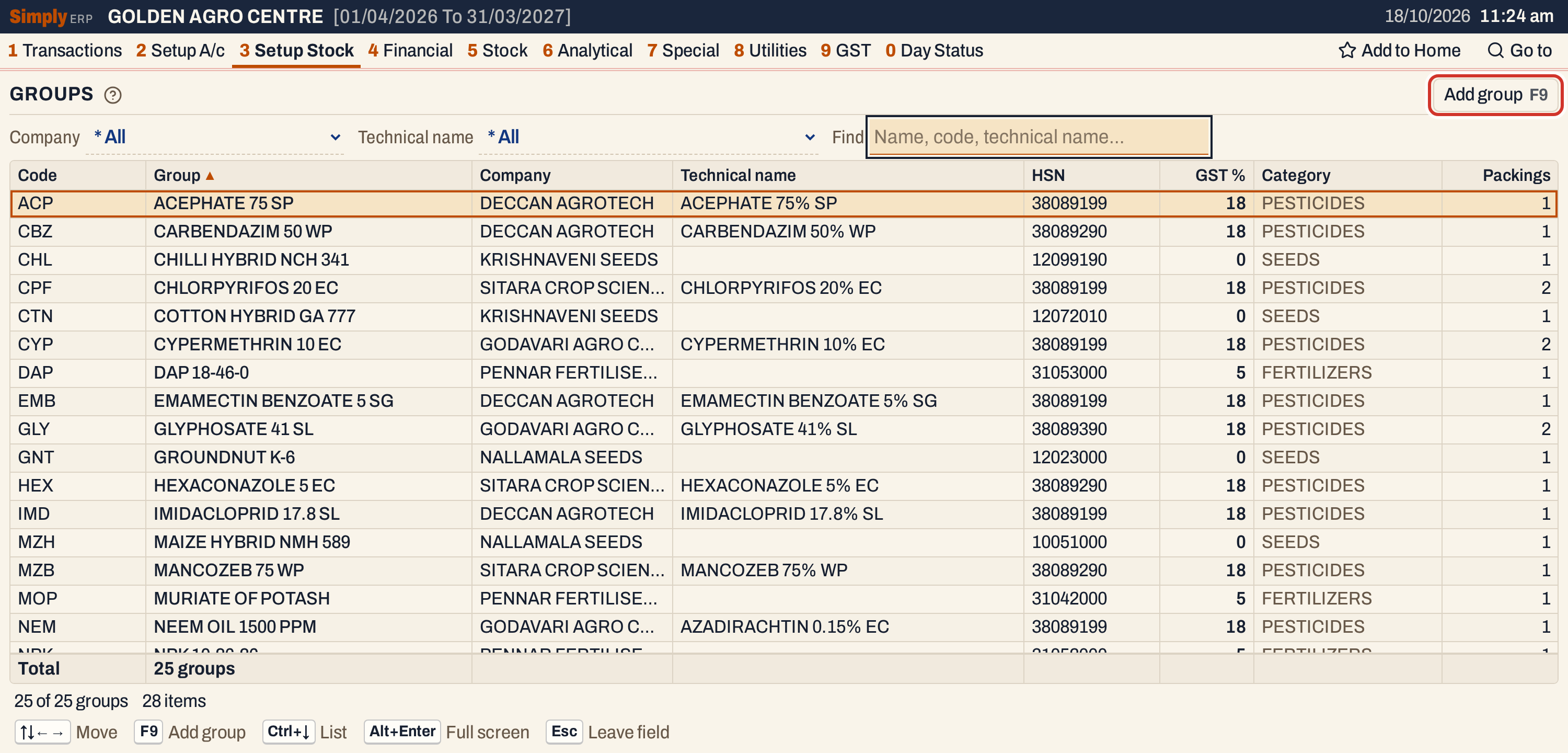 The list starts on the Find box. F9, or Add group, starts a new group.
Press F9 for a new group.
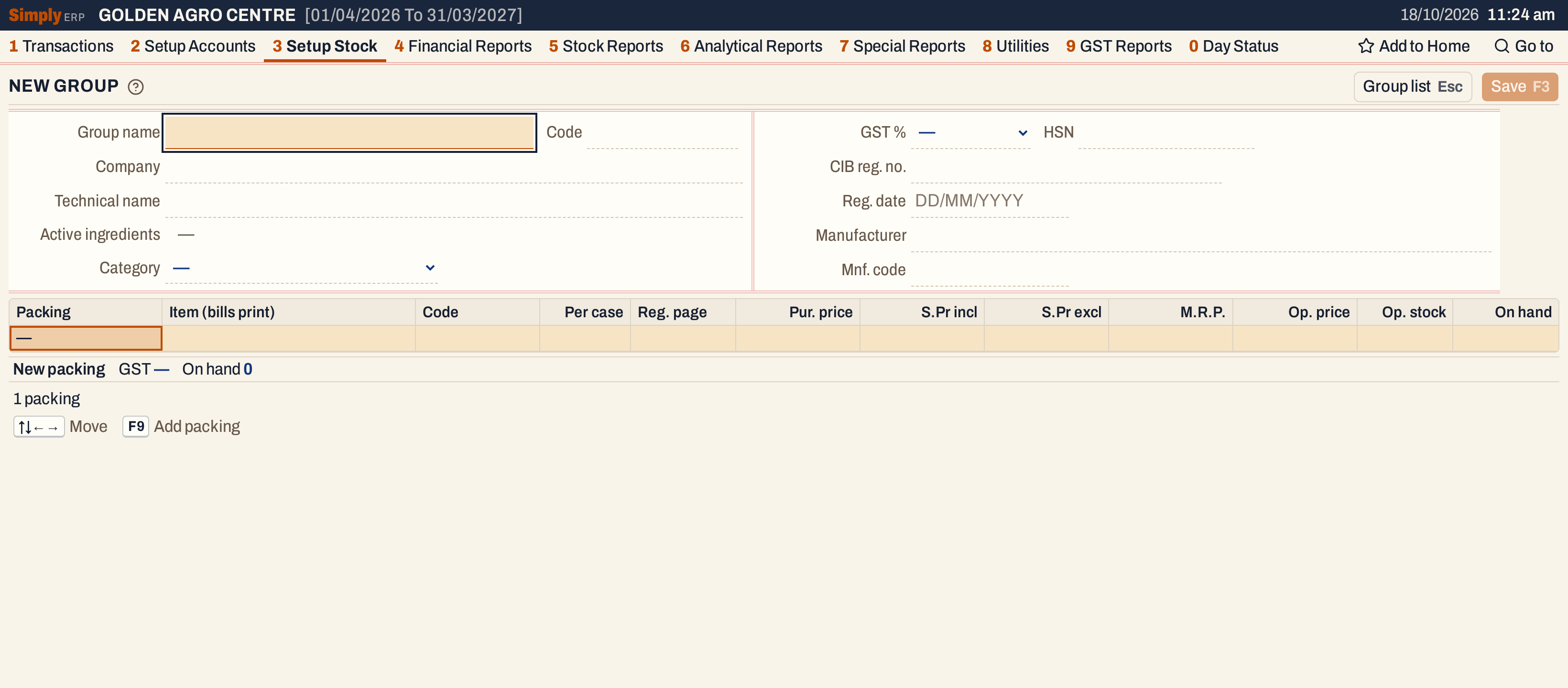 The form has two panels for what the packings share, and a grid of packings under them.
Name the group and choose its company
The cursor starts in Group name. Type the product the way you want it on bills, up to 60 characters; the name is kept in capitals, with single spaces. Two groups cannot have the same name. Enter moves to Code, a short group code of up to 20 characters. It is optional, but if you type one, no other group may use it.
In Company, type a few letters and the list shows the companies already set up. Enter takes the highlighted one. A company that is not in the list can be typed in full; it is added to the list when you save. Companies are kept in Companies.
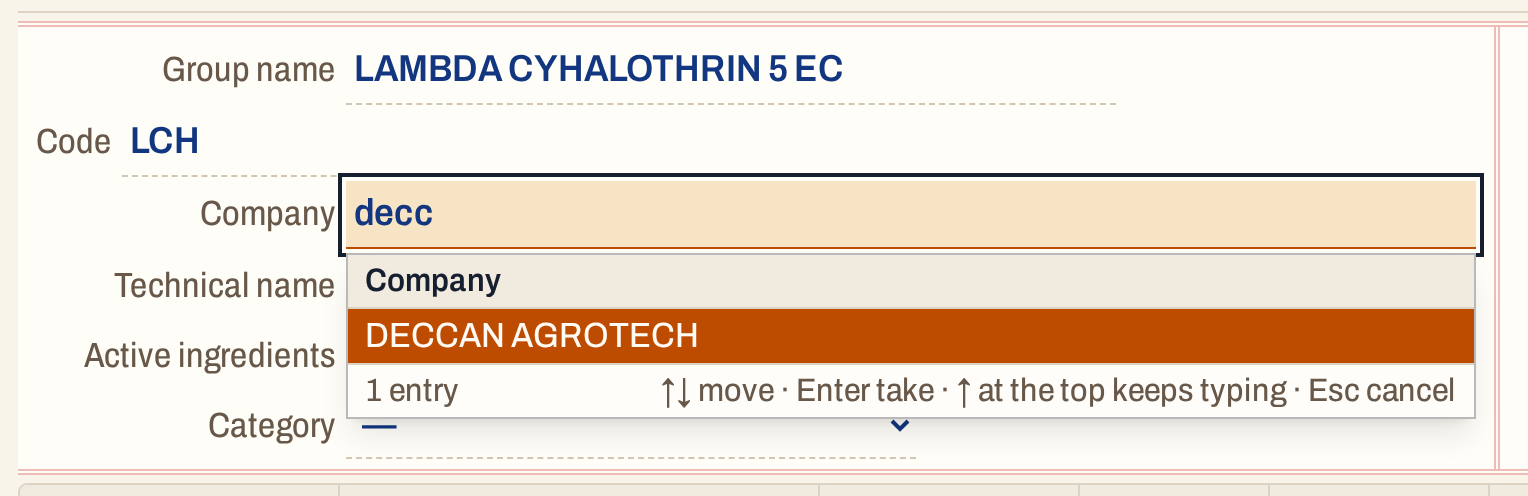 Typing finds the company by any part of its name.
Give it a technical name
Technical name is what the product contains, such as a pesticide’s active ingredient and strength. It works the same way: the list shows saved names with the number of groups using each, and a name that is not saved yet joins the list when the group is saved.
 A new technical name is kept as typed. The alternatives list (Alt+A) uses it to find products with the same technical name.
Active ingredients under it fills in by itself. For a saved name it shows the ingredients kept with that name; for a new one it takes each part before a “+”, without the strength and the formulation (EC, SC, WP and so on). Ingredients are kept with the name in Technical names.
Choose the category, GST rate and HSN
Category is a short list of your books’ categories, such as PESTICIDES or SEEDS. A bill type sells only the items of its categories, so choose the category the bill type expects.
On the right panel, GST % is a list of the rates the books post. It must be chosen. HSN is optional, but if you type one it must be 4, 6 or 8 digits.
The registration particulars are printed by Form X and Appendix B:
- CIB reg. no. and Reg. date (DD/MM/YYYY; the date cannot be after today).
- Manufacturer and Mnf. code.
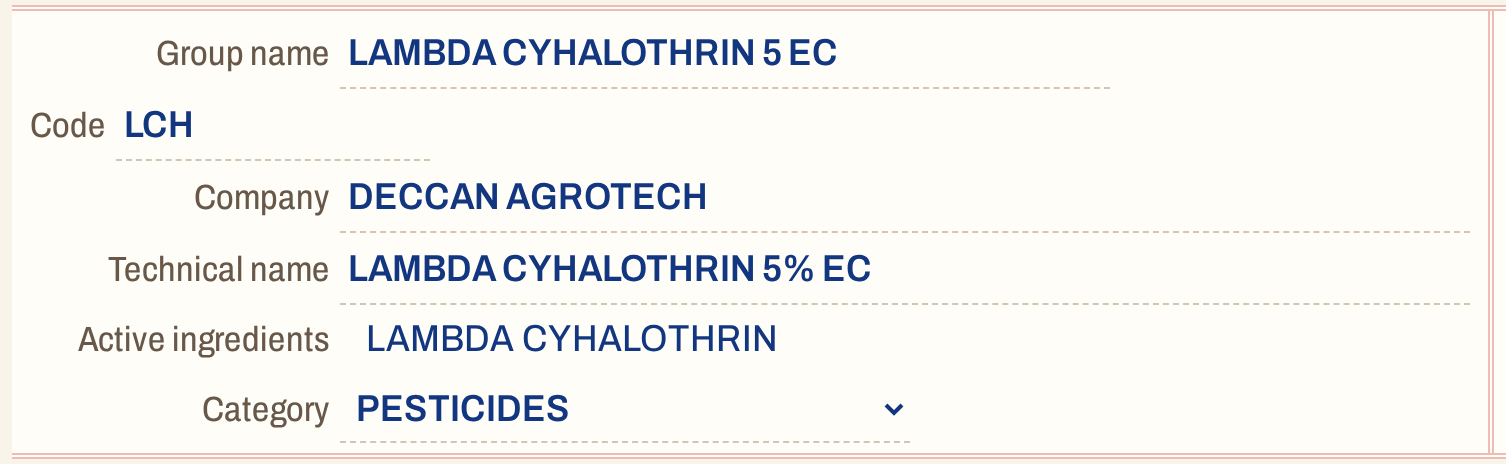 Everything in this panel is shared by the group’s packings.
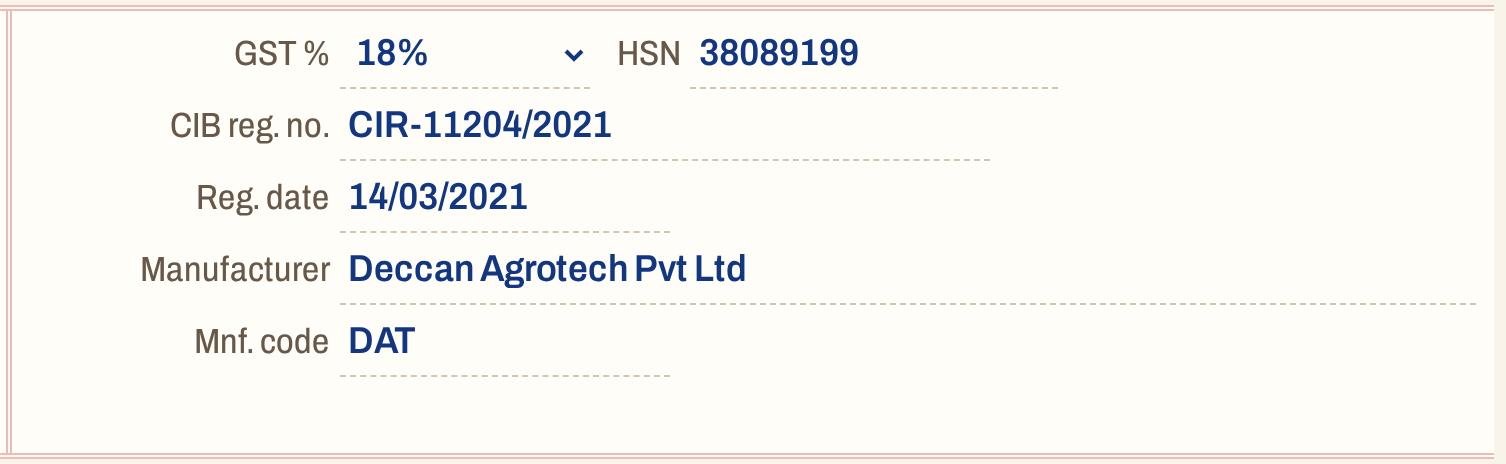 GST 18% and HSN 38089199 apply to every packing of the group.
Add the packings
Enter from the last field moves into the packings grid. Each line is one packing of the product:
- Packing is chosen from the packing list, which is kept in Packings. Press the first letter or digit of the packing, such as 2 for 250 ML, and its list opens on the first packing that begins with it. A packing that is not in the list cannot be used; add it in Packings first, and a group can have each packing only once.
- Item (bills print) shows the name the item will have: the group name and the packing together, such as Lambda Cyhalothrin 5 Ec 250 Ml.
- Code is the item’s own code, required, up to 20 characters. No other item may have it.
- Per case is the number of packs in a case. Reg. page is the page of your own register, if you keep one.
- The prices: Pur. price (purchase), S.Pr incl (sale price with GST), S.Pr excl (sale price before GST, optional), M.R.P. and Op. price, the opening price. Amounts are in rupees; a blank is 0, except in S.Pr excl, where blank means not recorded.
Type a value and press Enter to go to the next cell, or move with the arrow keys. Press F9 for another packing.
 Two packings, each with its own code and pack count.
 The sale price with GST cannot be above the MRP. The price before GST is optional.
The columns Op. stock and On hand at the right of the grid are for stock that already exists. For a new packing they are blank; the stock is entered in Opening stock.
What the form checks before saving
Press F3 to save. The form first checks what it can. If something would be refused, it takes you to the field or line, and the line under the grid says what to change, so nothing is half-saved. It checks that:
- the group has a name, a GST rate from the list and, if typed, an HSN of 4, 6 or 8 digits;
- there is at least one packing, each from the packing list and used once;
- every packing has a code, and no two packings of the group share one;
- a sale price is not above the MRP, and a price before GST is not above the sale price with GST.
A wrong registration date is marked in its field when you leave it. The save itself also refuses a group name or code that another group has, and an item code that another item has, with a message that says which.
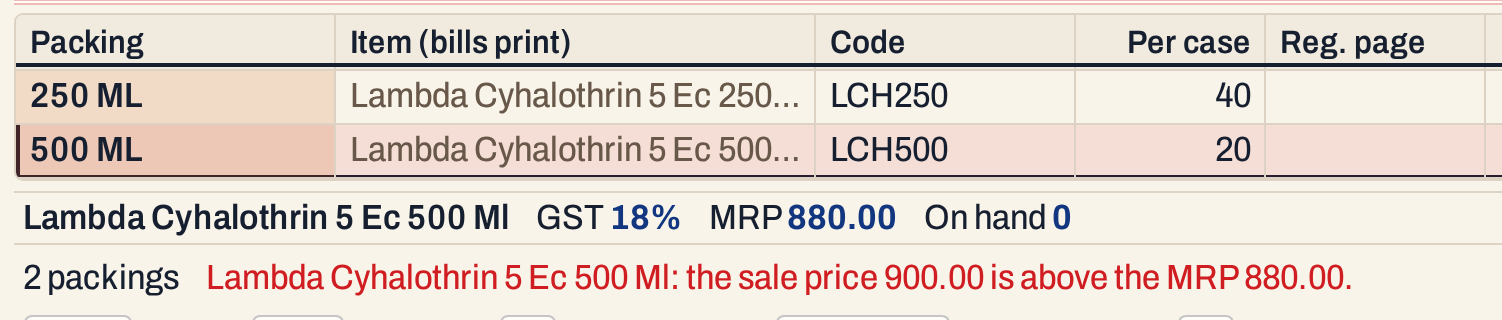 The second packing is marked and the problem is named. Correct the price and press F3 again.
Save
F3 saves the group and all its packings together, or none of them. A new group stays open after saving, now with its packings’ stock figures beside them.
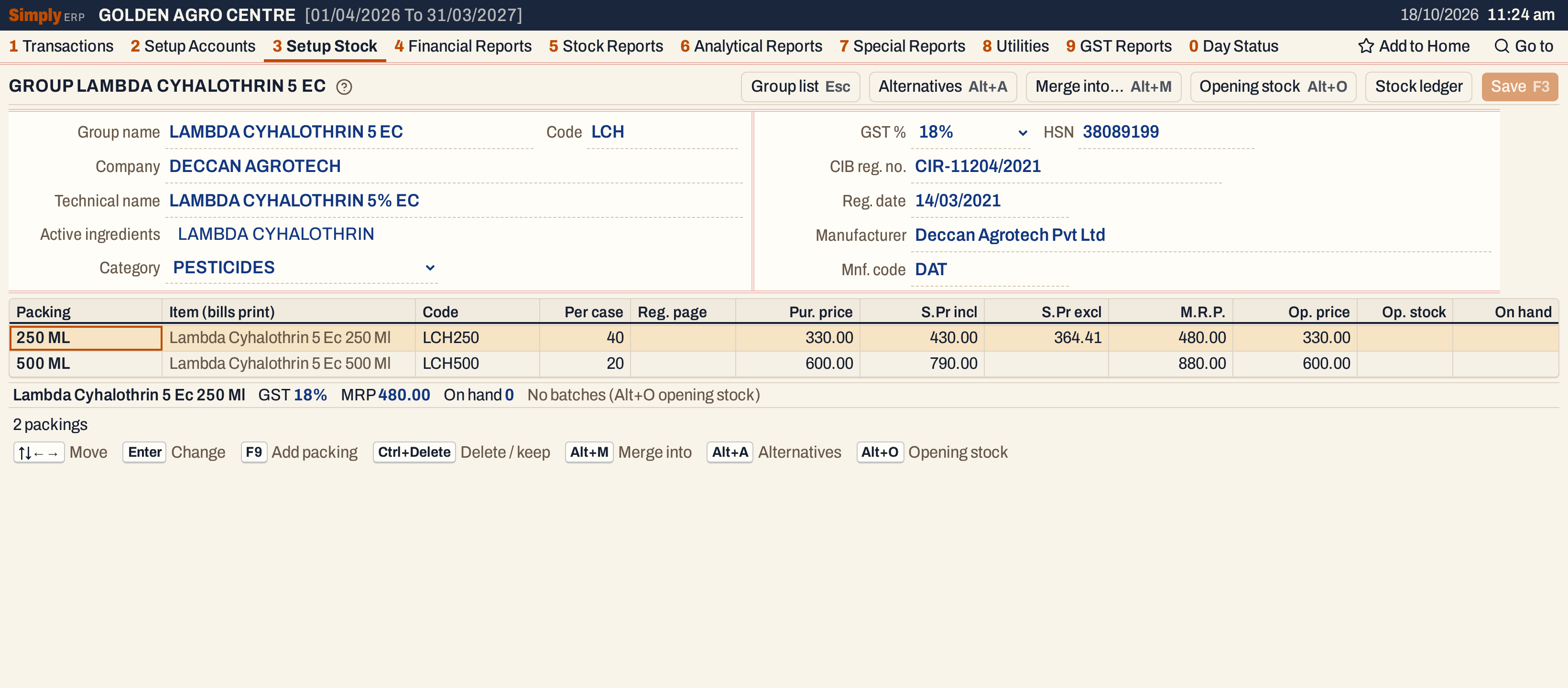 The group is saved. Alt+O opens Opening stock for the packing under the cursor, and Alt+A lists its alternatives.
Each packing is now an item named from the group and its packing. It takes the group’s company, technical name, category, GST rate and HSN. A later change to the group reaches every packing at once; bills already saved keep the tax they were made at.
Open a sale bill, type part of the name, and both packings are listed with their MRP, sale price, GST and stock (0 until stock comes in).
 The new items in a sale bill. The Rate shown is the sale price with GST.
What saving does to your books
Nothing is posted to the accounts. The save adds the group and its items to the stock list, adds the company and the technical name to their lists if they were new, and gives each item its name, GST, HSN and category from the group. A new item takes the books’ purchase price convention when every existing item follows the same one.
Keys on the group form
| Key | What it does |
|---|---|
| Enter | Next field, and on into the packings |
| F9 | Add a packing |
| F3 | Save the group and its packings |
| Ctrl+Delete | Mark a packing with no stock for deletion; press again to keep it |
| Alt+O | Opening stock of the packing under the cursor (the group must be saved) |
| Alt+M | Merge a duplicate item into another packing of the same size, see Merge items |
| Alt+A | Alternatives of the packing under the cursor |
| Esc | Leave the field; again, back to the list. With unsaved changes it asks once |
| F1 | Help for the screen |
Common questions
A new packing of an existing product? Open the group from the list (Enter), press F9, choose the packing, give it a code and prices, and save. Do not make a second group for it.
The packing I need is not in the list. Add it in Packings first. A packing label such as 250 ML states its size, which the packing list keeps.
Can I delete a group? In the group list, Ctrl+Delete deletes the group under the cursor with its packings, but only if none of its items has bills, batches, opening stock, damages, goods in or out, godown entries, godown transfers or unfinished entries. A used item is merged into another instead.
I need a new product while billing. Press Alt+N in the Item field of a bill; see Add a party or item from a bill.
Updated 4 November 2026.