Day to Day Purchases
On this page
The Day to Day Purchases report totals your purchase bills day by day for a period: what you bought on credit, what you paid for in cash, and the total. Use it to see the days your stock came in, to compare the period’s buying with and without GST, or to see the purchase returns you sent back.
Open the report
Press Alt+6 for Analytical Reports, then H. The report opens for the financial year from its first day to today, one line for each day.
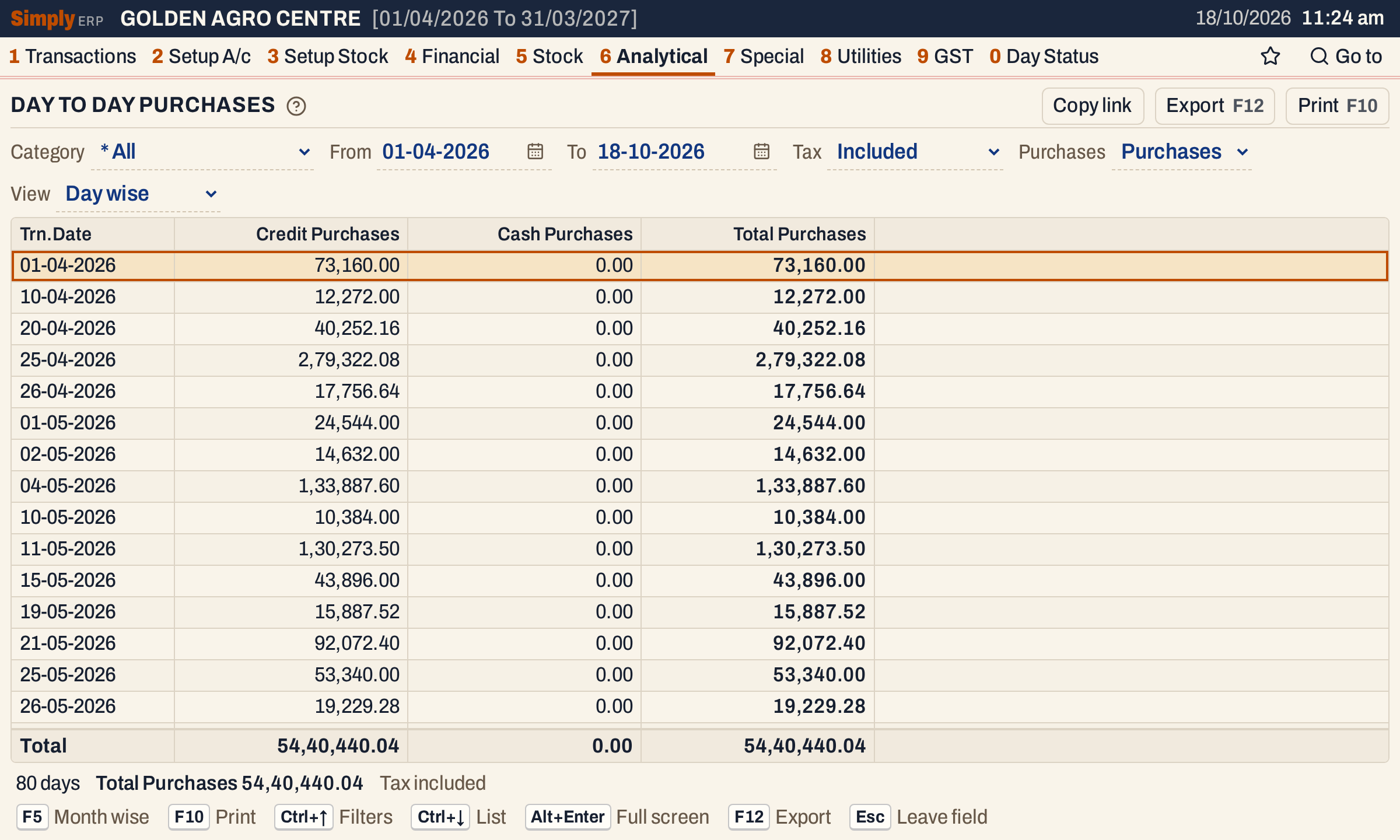 Each line is one day. On 01-04-2026 the purchases came to 73,160.00, all on credit.
What it lists
One line for each day that has a purchase bill in the period, or for each month in Month wise. The report reads:
- purchase bills, each on the day it was received. When no received date is set, that is the bill’s date;
- purchase returns, instead of purchase bills, when Purchases is set to Returns. A return is counted on its own date.
Sale bills, receipts and payments are not counted. A day with no bills is left out.
Columns
| Column | What it shows |
|---|---|
| Trn.Date | The day, as dd-mm-yyyy. In Month wise the column is Month, with the month’s name, and a Year column follows it. |
| Credit Purchases | The bills on credit. Titled Credit Returns when Purchases is set to Returns. |
| Cash Purchases | The bills paid in cash. Cash Returns for returns. |
| Card and wallet column | The bills paid by card or wallet. Shown only when the period has such a bill. |
| Total Purchases | The day’s total, under the same choices. Total Returns for returns. |
Click a column title to sort by it, and again to reverse. The lines start in date order. Changing the view clears the sort.
The totals line under the list adds up every column. The status line gives the number of days (or months), the total, and whether tax is included or excluded.
Choices
| Choice | What it does |
|---|---|
| Category | Only the bills that have an item of this category. The default is * All. |
| From, To | The period, both days included. They start at the financial year’s first day and the working date. The calendar offers only the days of the financial year. If you set one date past the other, the other follows it. |
| Tax | Included (the default) adds GST to the figures. Excluded shows them before GST. |
| Purchases | Purchases (the default) or Returns, the purchase returns of the period. |
| View | Day wise (the default) or Month wise. F5 switches between them. |
Unlike Day to Day Sales, there are no Payment or GST choices.
 The choices of the report as it opens.
How the figures are worked out
For each purchase bill (or purchase return) in the period:
- The day is the day the bill was received, or for a return its own date. From and To are both counted.
- The amount is what the bill posts to the purchase account of its bill book (a return, to the account it credits): the taxable value after discounts, plus or minus any charge that does not name an account of its own. A charge that posts to an account of its own is not in it, and neither is a product line posted to another account.
- With Tax Included, the bill’s CGST, SGST and IGST are added to that amount. With Tax Excluded they are left out.
- The column is the bill’s payment mode: cash, credit, or card or wallet. A return is put in its column by the payment mode of the return itself.
- Category: a bill counts when at least one of its item categories is the one chosen, and then its whole amount counts, not only the lines of that category.
Each day’s figures are added up from its bills, rounded to the paisa, and the total line adds up the days. Month wise adds the days of each month the same way; the first and last month count only the days inside the period.
The difference between the two Tax choices is the GST on the bills. For the period in the first picture, the total is 54,40,440.04 with tax included and 50,42,672.00 excluded, so 3,97,768.04 is GST.
 The totals line adds up every day; the status line gives the number of days and the total.
Month wise
Press F5 (or choose Month wise) to add up each month.
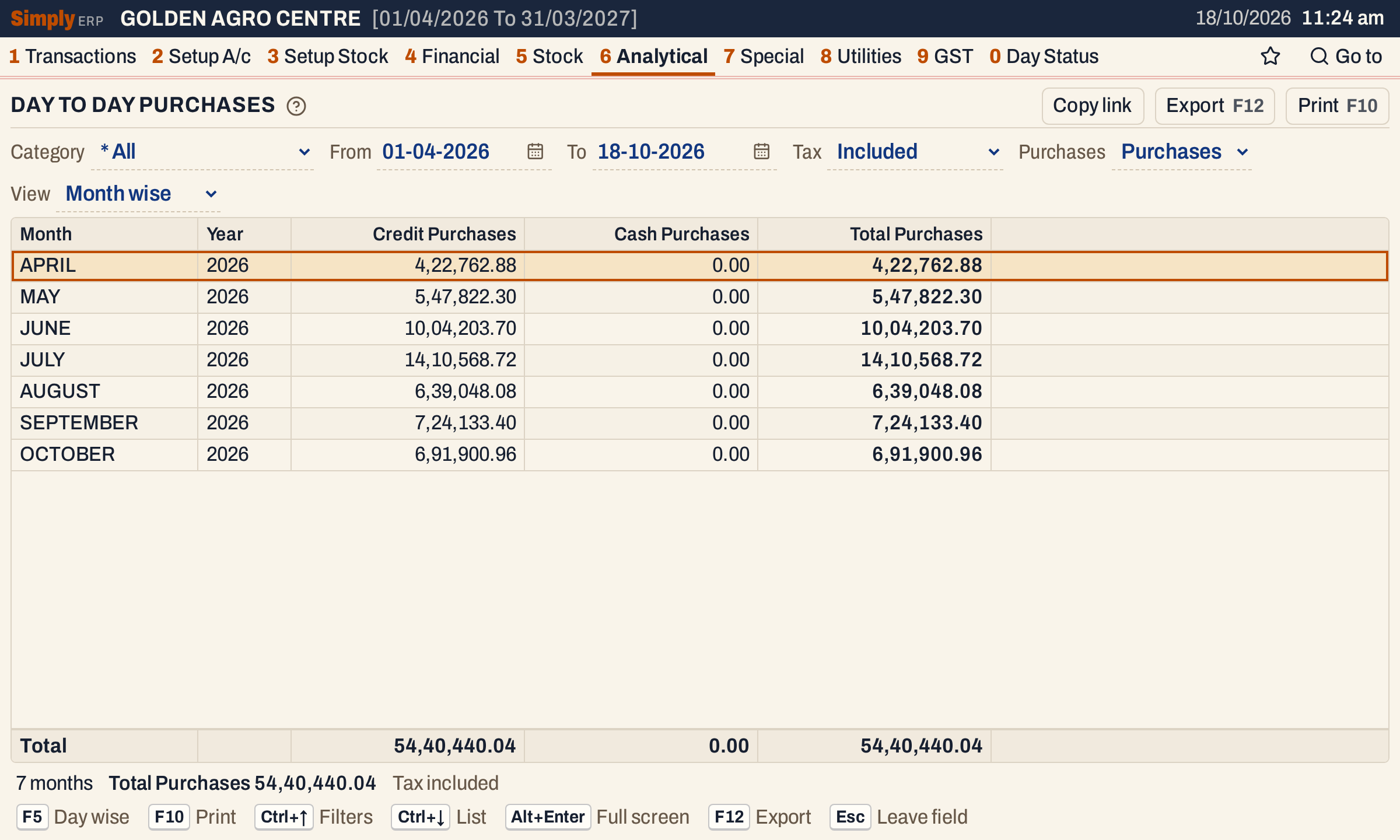 Seven months from April to October 2026, with a total of 54,40,440.04.
Tax excluded
Tax Excluded takes the GST out of every bill. The total falls from 54,40,440.04 to 50,42,672.00 for the same period.
 The same days with Tax Excluded.
Purchase returns
Choose Returns to see the purchase returns of the period, in the same columns with Returns in their names. Three purchase returns were posted on 18-10-2026 in this example, so the report shows that one day with 5,141.26 of credit returns.
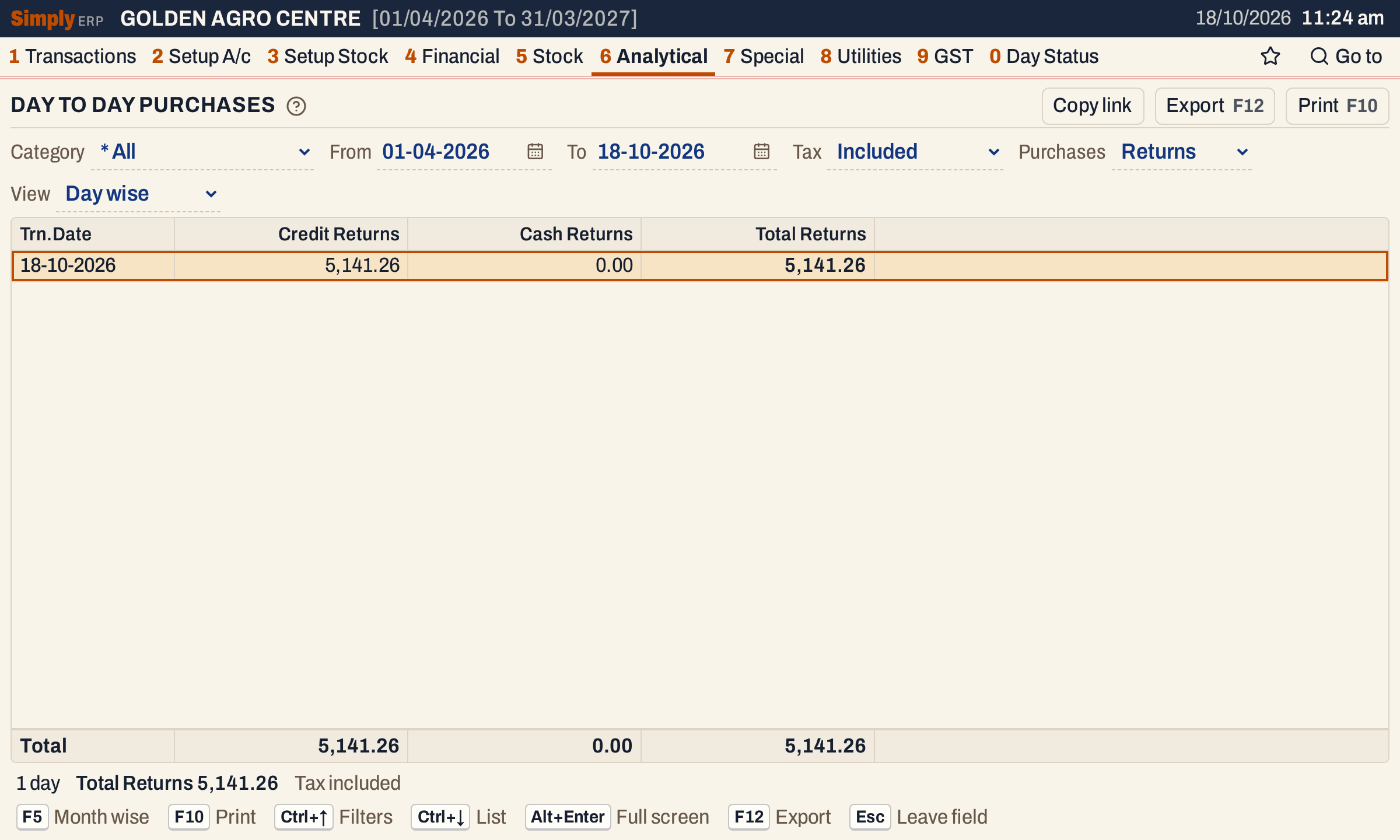 Purchase returns of the period.
Open, print and export
- Enter on a day opens that day’s bills in Bill wise Analysis [Purchases], with the same category and returns choices. On a month, it opens the month’s bills. Alt+← there returns to the day.
- The report does not mark lines.
- F10 prints the report as it is on the screen, titled DAY WISE PURCHASES SUMMARY (or MONTH WISE PURCHASES SUMMARY; DAY WISE PURCHASES RETURNS SUMMARY and MONTH WISE PURCHASE RETURNS SUMMARY for returns). Under the title are the period, the tax choice and the category, when chosen.
- F12 saves it as an Excel workbook.
- Alt+Enter gives the whole window to the list.
Updated 4 November 2026.