Product vs Customer Sales
On this page
The Product vs Customer Sales report answers who bought one product. Choose a product and it lists each customer and farmer who bought it in the period, under a heading for their village, with the units, the litres or kilograms and the amount. Use it to find the customers for a product before a new stock arrives, or to see which villages buy it.
Open the report
Press Alt+6 for Analytical Reports, then F. Choose the Product first: the report shows nothing until you do. The period starts on the first day of the financial year and ends on today.
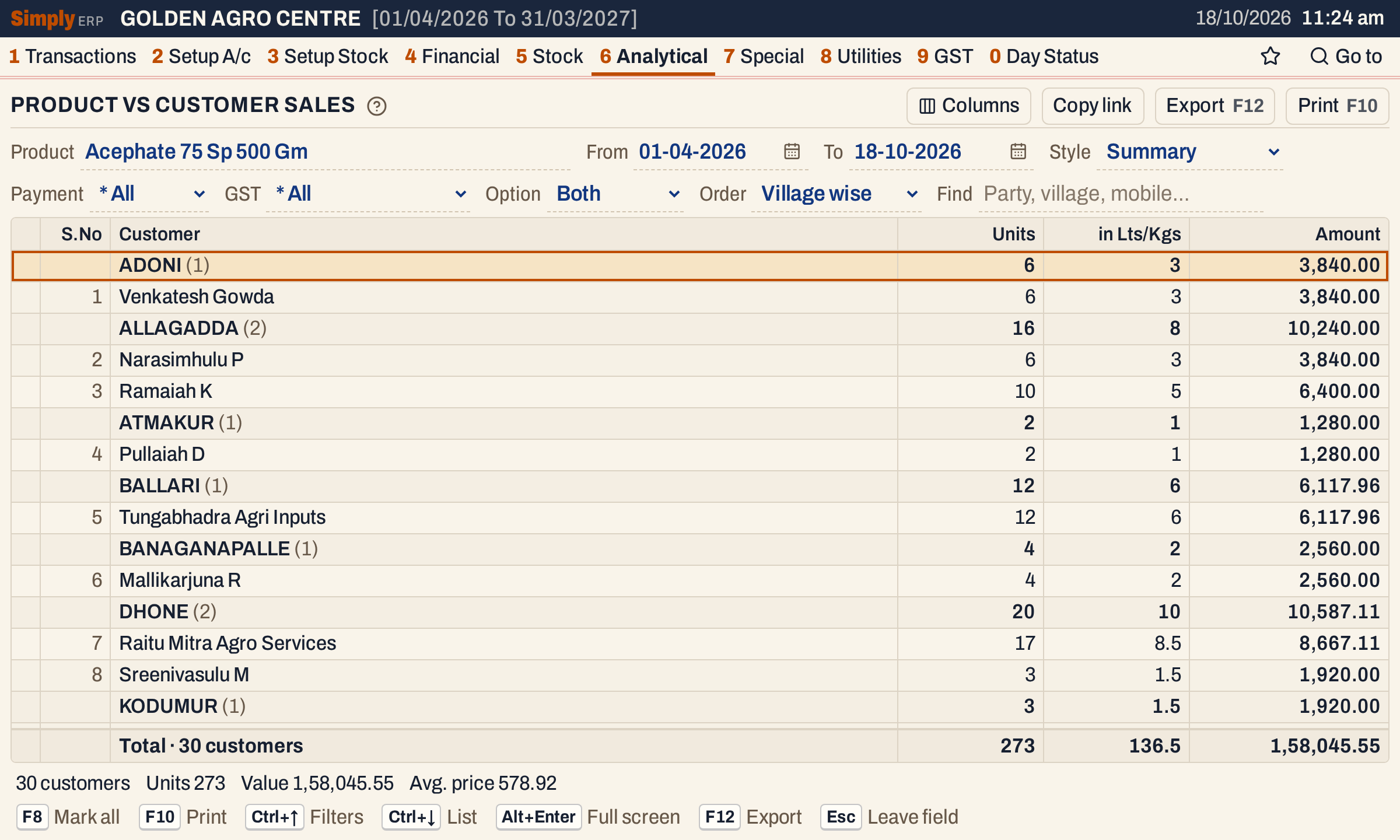 Each village is a heading with its totals. Under it are the customers and farmers of that village who bought the product.
What it lists
- Sale bills of the product in the period, from every customer and farmer, cash bills included. Each bill line of the product is one line. A bill counts on its own date.
- Counter bills with no customer account are listed under the name typed on the bill, Cash in the showcase books, or Cash Sales when the bill has no name. Bills with the same name and city are one customer in Summary.
Sales returns, GST credit and debit notes and purchases are not in this report: it counts only the units sold.
Columns
Summary shows these columns:
| Column | What it shows |
|---|---|
| S.No | The line’s number in the list. The Columns button hides it. |
| Customer | The customer or farmer. Under a village heading, the name alone. |
| City | The customer’s city, or the place on the bill when the account has no city. Shown when Order is not Village wise. |
| Mobile | The customer’s mobile number. Shown only when at least one line has one. |
| Units | The units sold to the customer. |
| in Lts/Kgs | The litres or kilograms: units times the pack size. |
| Amount | The value of the sales. See how it is worked out below. |
Detailed shows each bill line instead: the Customer, then City and Mobile as above, Inv.No., Inv.Date (the bill’s date), Units, Price and Amount. It has no Lts/Kgs column. The Columns button hides S.No, City and Mobile, and Price in Detailed or in Lts/Kgs in Summary.
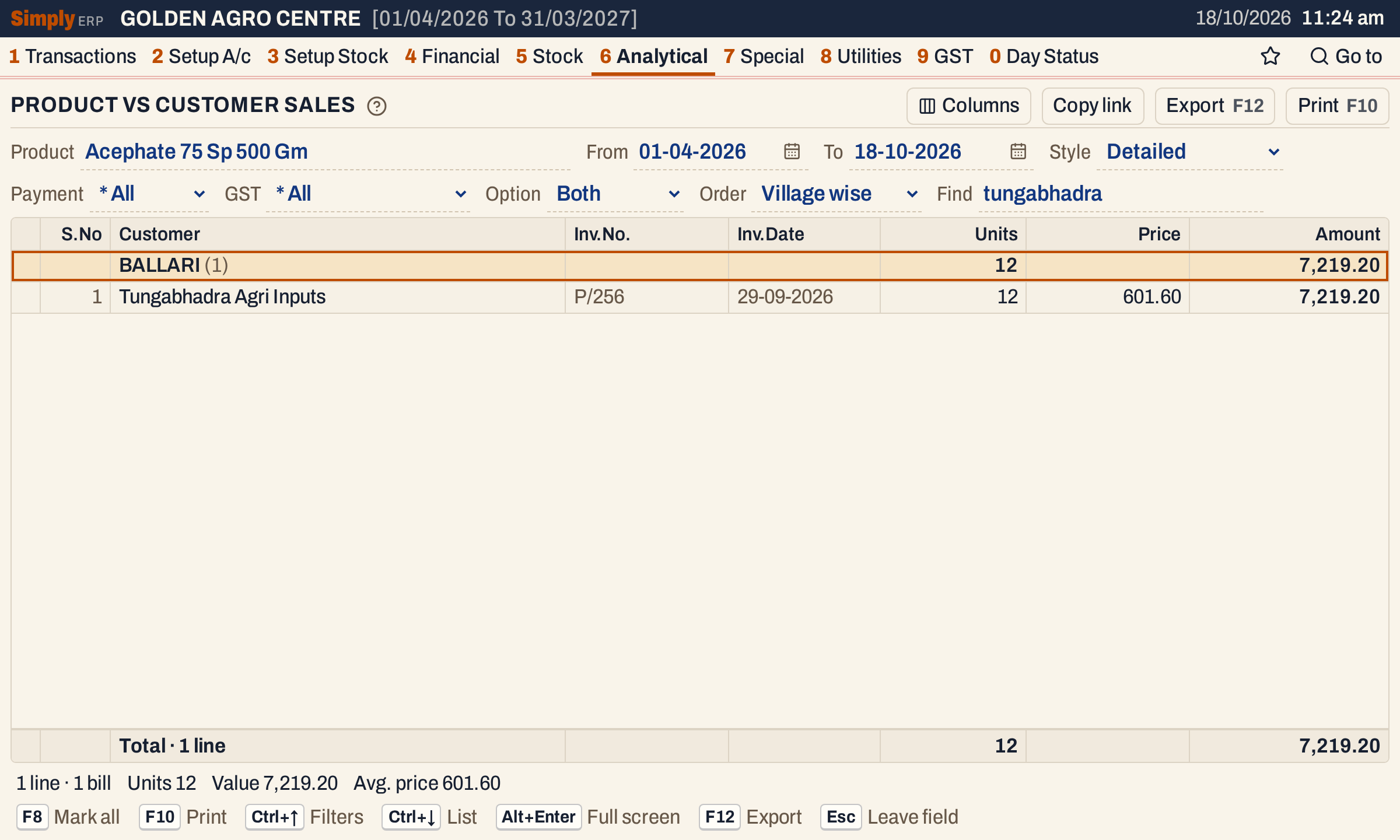 Detailed lists each bill line. Here Find narrows it to one customer.
Choices
| Choice | What it does |
|---|---|
| Product | The product to report. Required. |
| From, To | The period. The defaults are the first day of the financial year and today. |
| Style | Summary (the default): one line for each customer. Detailed: every bill line of the product. |
| Payment | * All (the default), Cash or Credit: the bill’s payment mode. |
| GST | * All (the default), Registered or Unregistered: whether the bill was to a customer with a GSTIN. |
| Option | Both (the default). Customers leaves out farmers and cash bills. Farmers keeps the farmers and the cash bills, and leaves out customers. A cash bill counts as a farmer’s whoever it is to; any other bill counts as its account’s type, and an account with no type counts as a farmer. A Customer - Supplier account counts as a customer. |
| Order | Village wise (the default): customers under their village headings. Party wise: in Summary the customers by name, without headings; in Detailed a heading for each customer with their bills under it. Date wise (Detailed only): the bill lines by date, without headings. |
| Find | Shows only the lines where every word you type is found in the customer, village, mobile number or, in Detailed, the bill number. A word of three or more letters also matches when its letters appear in that order, close together. |
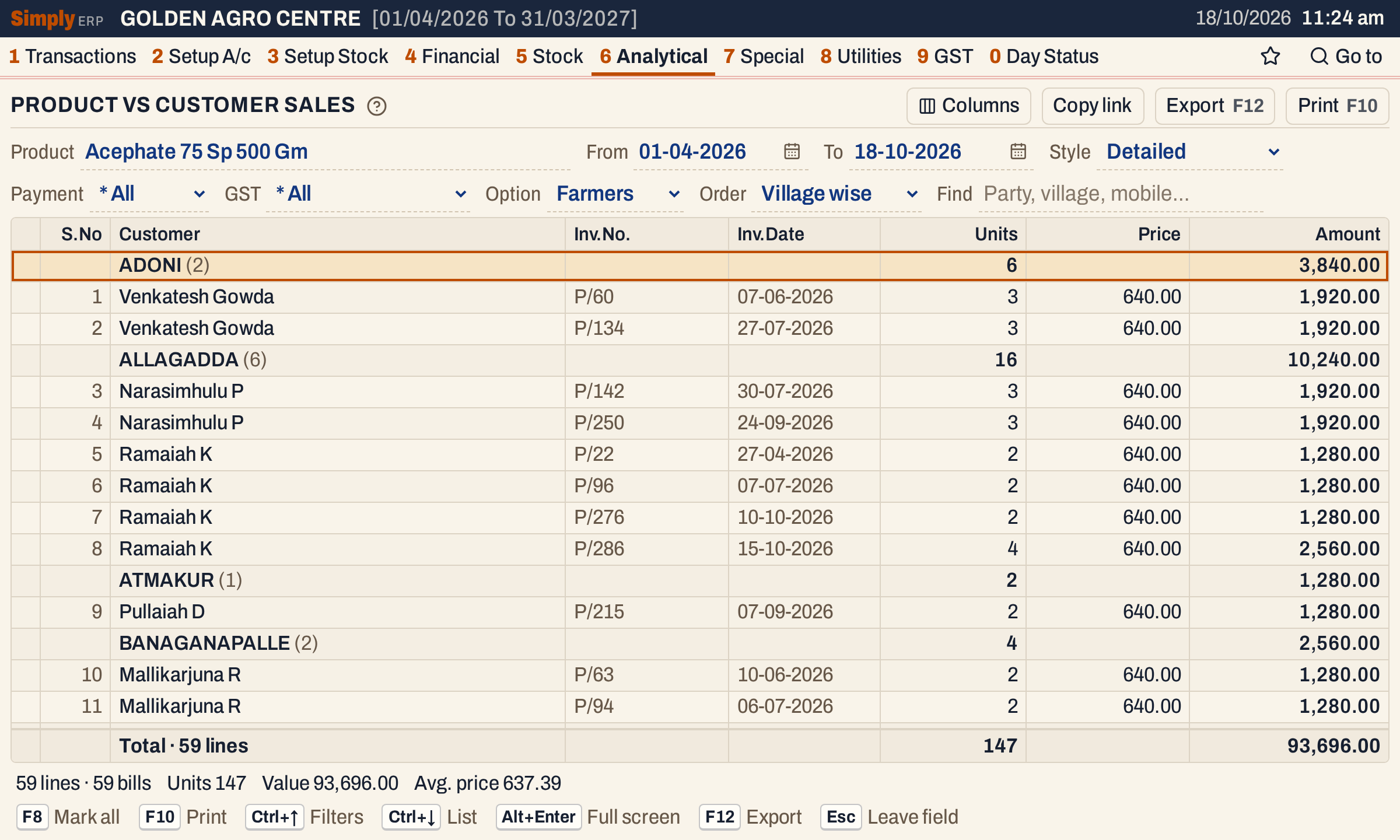 Option Farmers leaves out the customer accounts and keeps the farmers and the cash bills.
How the figures are worked out
Each bill line of the product adds to its customer’s line in Summary, or to its own line in Detailed.
- Units = the units on the bill line.
- in Lts/Kgs = the units times the pack size of the product.
- Price (Detailed only) = the line’s value after its discounts, with GST, divided by its units and rounded to paise. For example, 12 units at 601.60 come to 7,219.20.
- Amount in Detailed = Units × Price, so it includes GST.
- Amount in Summary = the amount saved on each bill line, added up by customer. For a bill with a GSTIN for the customer it is the line’s taxable value, before GST; for other bills it includes GST. For example, Tungabhadra Agri Inputs bought 12 units at 601.60 including GST. The Summary shows 6,117.96, which is 7,219.20 before 18% GST, while Detailed shows 7,219.20. Summary and Detailed therefore differ for a customer whose bills carry a GSTIN.
The Total line adds up the lines shown. The status line gives the number of customers or lines, the units, the value and the Avg. price, which is the value divided by the units. In Summary the value leaves out the GST of bills with a GSTIN, so the Avg. price is lower than in Detailed.
Villages are listed in name order, and customers without a village come last under the heading * City.
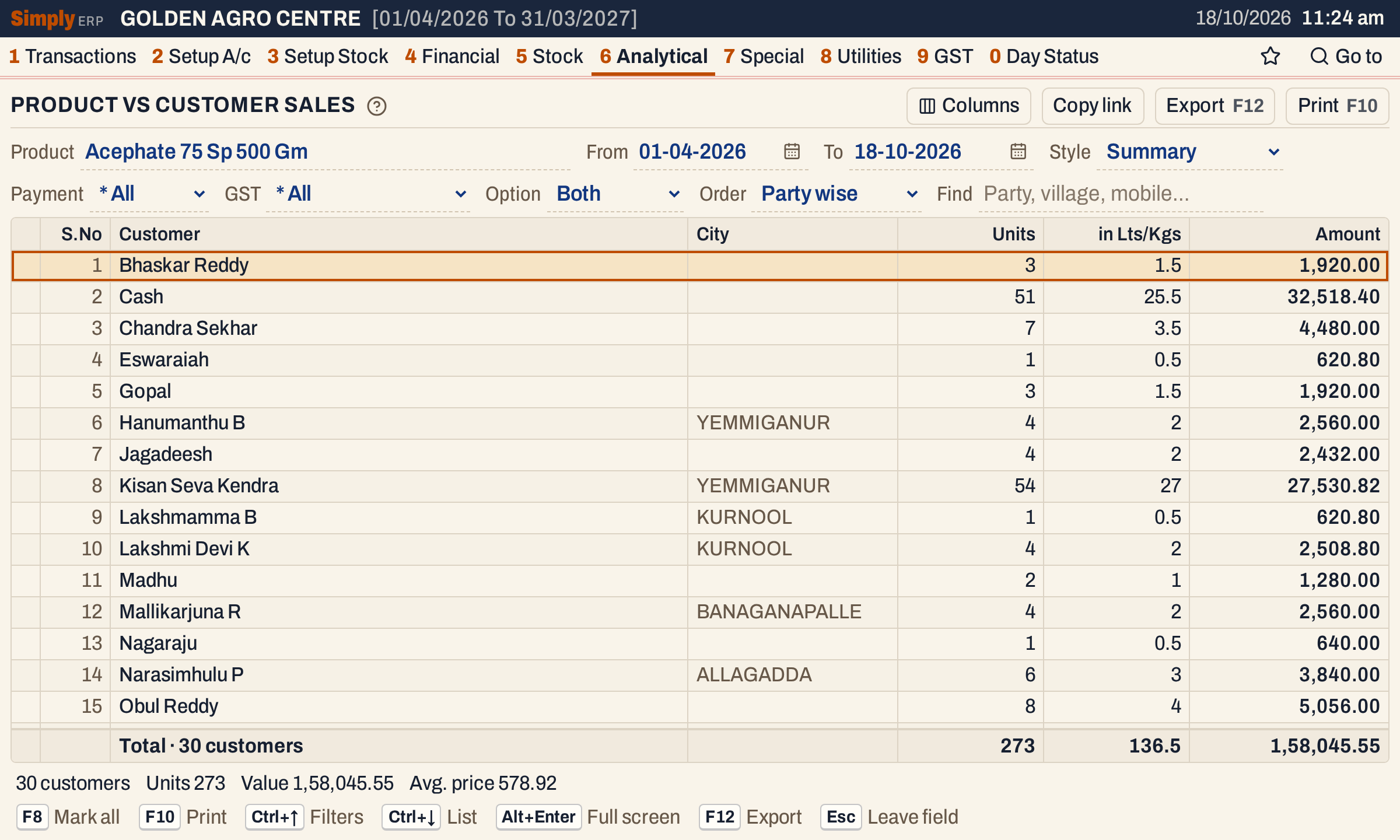 Party wise lists the customers by name, with the city of each. Cash is the counter sales.
Open, mark, print and export
- Enter on a bill line in Detailed opens the bill. In Summary, Enter on a customer opens the Customer vs Product Sales report for that customer and this product. On a counter customer with no account, such as Cash, it opens Detailed in Party wise order with Find set to that name. The word Cash also matches the cash bills of customers with an account, so that list is longer than the counter bills alone.
- F2 marks a line and F8 marks them all. F10 then prints only the marked lines.
- F10 prints the report as it is on the screen, with the product, the period and your choices.
- F12 saves it as an Excel workbook.
- Alt+Enter gives the whole window to the list.
Updated 4 November 2026.