Product Group Wise Purchases
On this page
The Product Group Wise Purchases report shows how much you bought of one product group from each supplier, in litres or kilograms, with one column for each pack size. Use it to see which supplier supplies which pack of a group, and how much of the group you took in over the period.
Open the report
Press Alt+6 for Analytical Reports, then K. Choose the Group first: the report shows nothing until you do. The period starts on the first day of the financial year and ends on today.
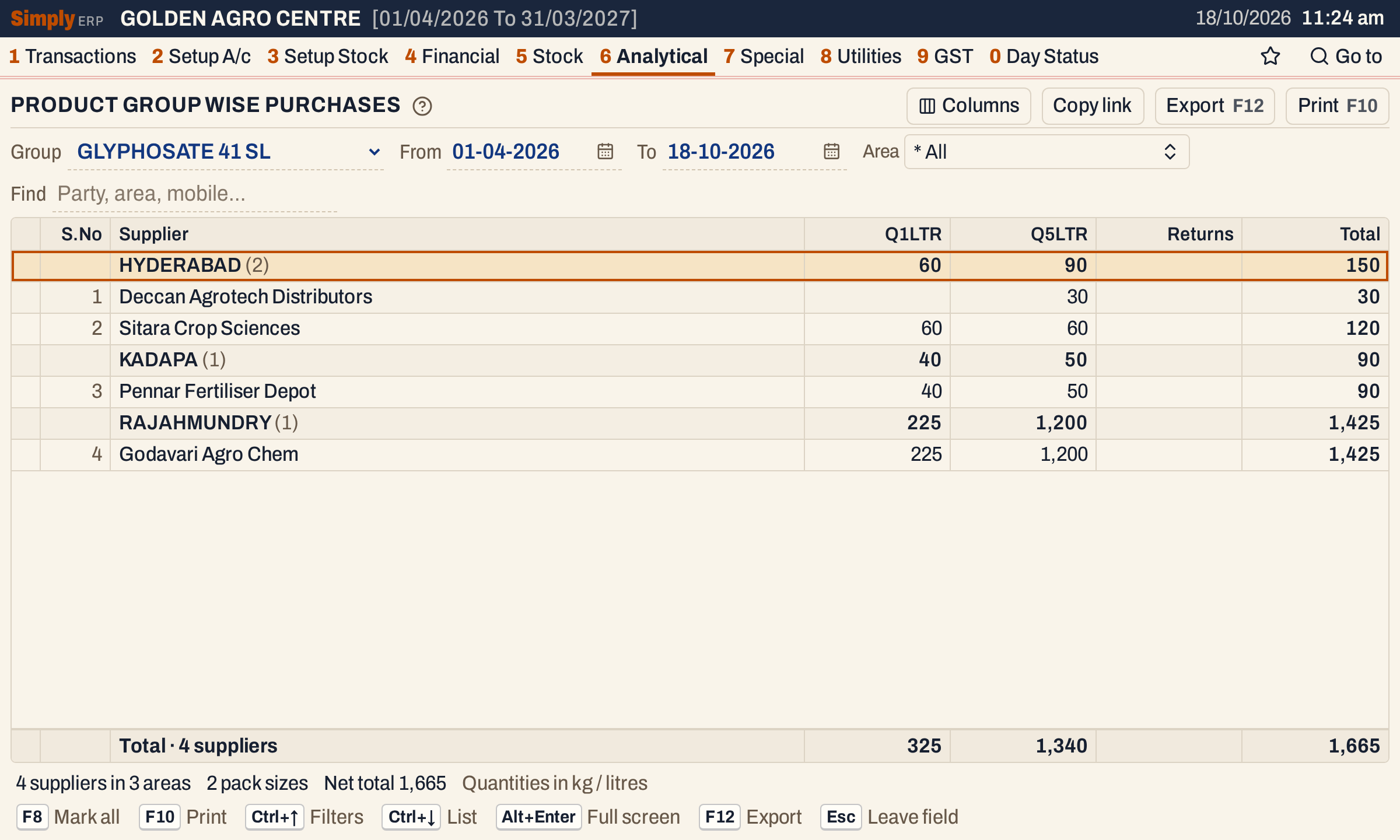 Each area is a heading with the number of suppliers under it and their totals. Each supplier is a line, and each pack size is a column.
What it lists
One line for each supplier who has a figure in the period. Each line is one supplier, however many bills it came on. Only these records are read:
- Purchase bills with Payment set to Credit, for the items in the group. Purchases paid in cash are left out.
- Purchase returns of those items, whatever their payment, shown in the Returns column.
- Goods received on a purchase or sent back to a supplier (1 P) whose bill is not yet entered, for the quantity not yet billed, in the Q columns and the Returns column.
A purchase or a purchase return counts on the date it is posted: a purchase on its Recd. date, a return on its bill date. Goods count on the date of the entry. Sales, and purchases of other groups, are not in the report.
Columns
| Column | What it shows |
|---|---|
| S.No | The line’s number in the list. The Columns button hides it. |
| Supplier | The supplier’s name. Under an area heading, the supplier’s name alone. |
| Q and the pack size, for example Q1LTR | The quantity bought in that pack size, in kg or litres. One column for each pack size among the lines shown. |
| Returns | The quantity returned to the supplier, in kg or litres. |
| Total | The quantity bought less the quantity returned. |
A column for a pack size the supplier did not buy in is left blank, not 0. The pack columns run from the smallest pack to the largest.
Choices
| Choice | What it does |
|---|---|
| Group | The product group to report. Required. The list holds the groups of your items, in name order. |
| From, To | The period. The defaults are the first day of the financial year and today. |
| Area | Shows only the suppliers of the areas you tick. The default is * All. An area is the supplier’s city, or the place on the bill when the account has no city. A supplier with neither is under * General, which the list does not offer. |
| Find | Shows only the suppliers whose name, area or mobile matches what you type. |
The quantities are always kg or litres. The report has no units choice. Click a column title to sort by it: the areas stay together, and with a figure column they come in order of their totals. Every choice is kept in the page address, so Copy link gives a link that opens the same report.
 The Group is the first choice. The period opens on the first day of the financial year to today.
How the figures are worked out
For each supplier and each pack size of the group:
- Q, for a pack size = the sum, over the bill lines of that supplier and pack size in the period, of the units bought multiplied by the pack’s size in kg or litres. Four units of a 1 LTR pack make 4 in the Q1LTR column; two of a 5 LTR pack make 10 in the Q5LTR column. An item with no pack size recorded counts as 0, so a supplier whose only purchases are of such items is not listed.
- Returns = the same kind of sum over the supplier’s purchase returns of the period.
- Total = all the Q columns of the line less Returns.
- Area heading = its suppliers’ figures added together.
- Total line = the figures of every line shown added together. The status line’s Net total is the Total column’s total.
A pack is the item’s packing label, or its name when it has none, so two items of the same group with different packing labels make two columns.
Areas are listed in name order, and the suppliers under each in name order. * General comes last. Figures are shown with Indian grouping, and a blank cell means nothing was bought or returned in that pack.
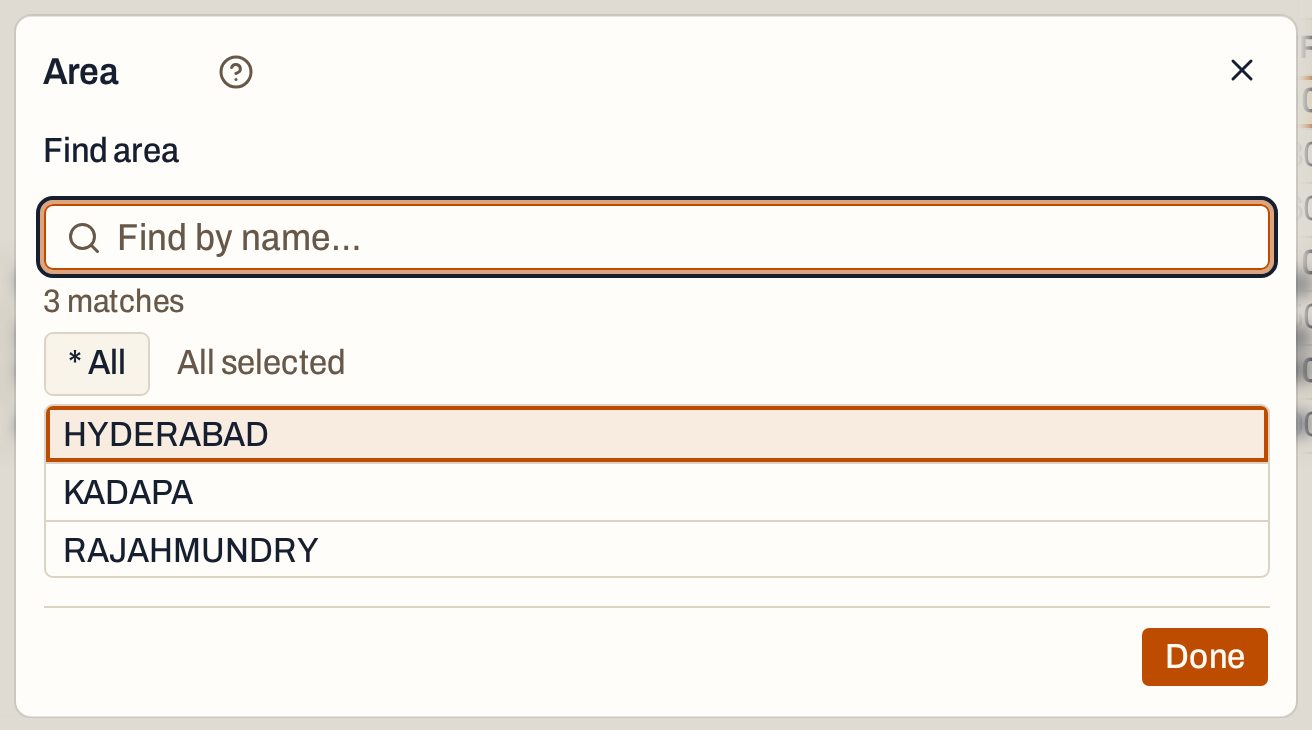 Area lists every area the group’s suppliers have in the period. Tick one to see only its suppliers.
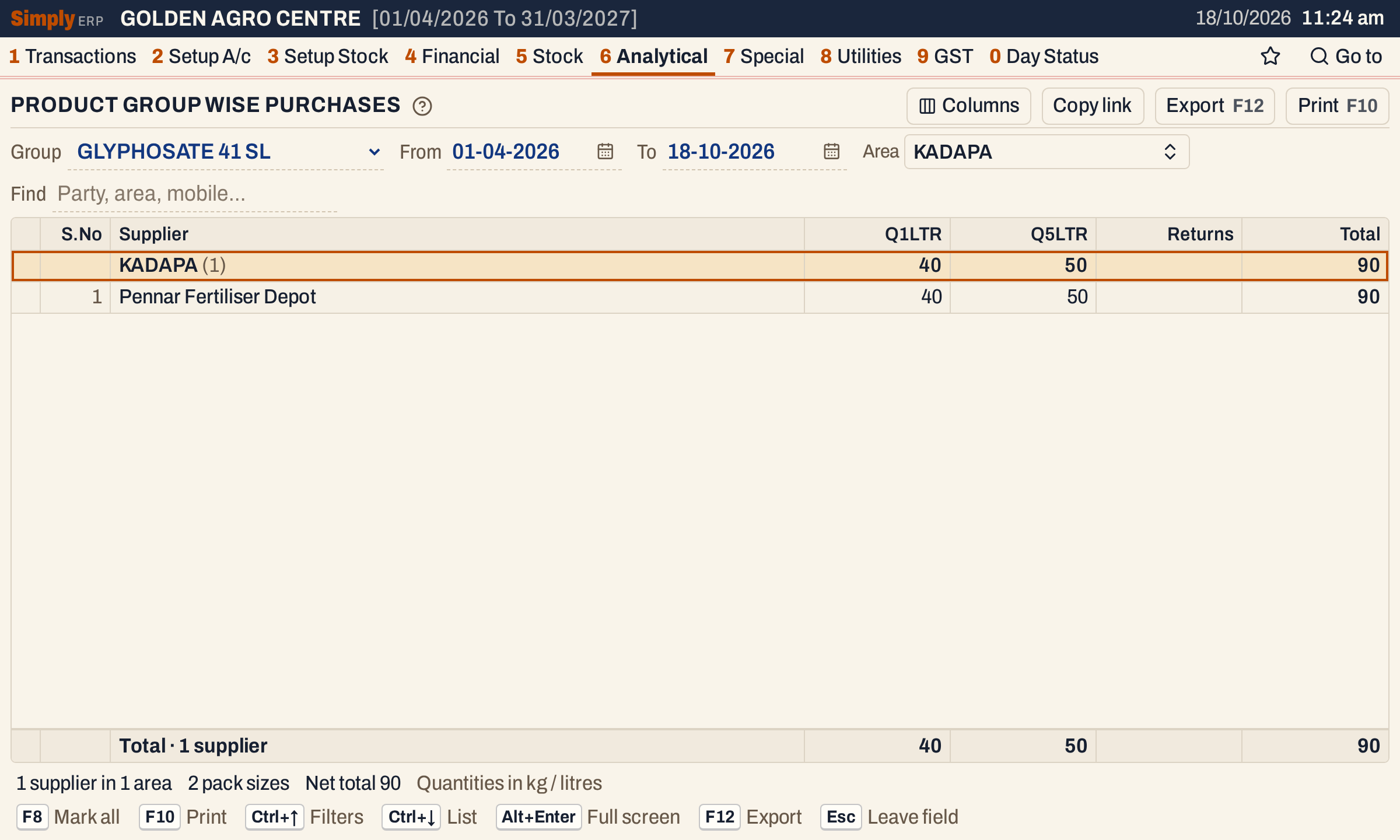 With one area chosen, the totals and the status line count only that area’s suppliers.
Open, mark, print and export
- Enter on a supplier opens its Purchase Statement for the items of the group and the period, which lists the bills behind the figures. Enter on an area heading does nothing.
- F2 marks a supplier and F8 marks them all. F10 then prints only the marked suppliers.
- F10 prints the report under the heading PRODUCT GROUP WISE PURCHASES ANALYSIS, with the group, the period, the unit and the area or Find you chose, and each area as a heading with its suppliers and totals. The last line is the grand total.
- F12 saves the same lines as an Excel workbook.
- Alt+Enter gives the whole window to the list.
Updated 4 November 2026.