Godowns and stock transfers
On this page
If you keep stock in more than one place, such as the shop, a godown and a mandi yard, SimplyERP can say where each unit is. You list your godowns, say which godown each stock entry went to, and record a transfer when you move goods from one to another. The item’s total stock never changes: a godown only divides it.
Nothing here posts to the accounts, and a transfer does not touch batches. The screen has four views, chosen in Show: Godowns, Stock locations, Transfers and Register page.
Open the screen
Press Alt+3 for the Setup Stock menu, then J for Stock Transfer / Godowns.
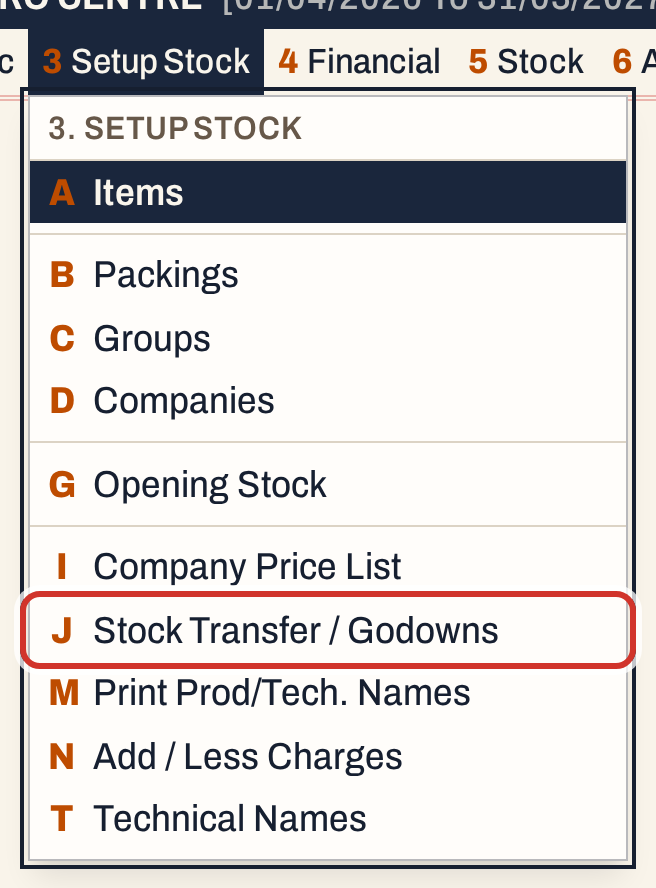 3 J: Setup Stock, Stock Transfer / Godowns.
It opens on the list of godowns.
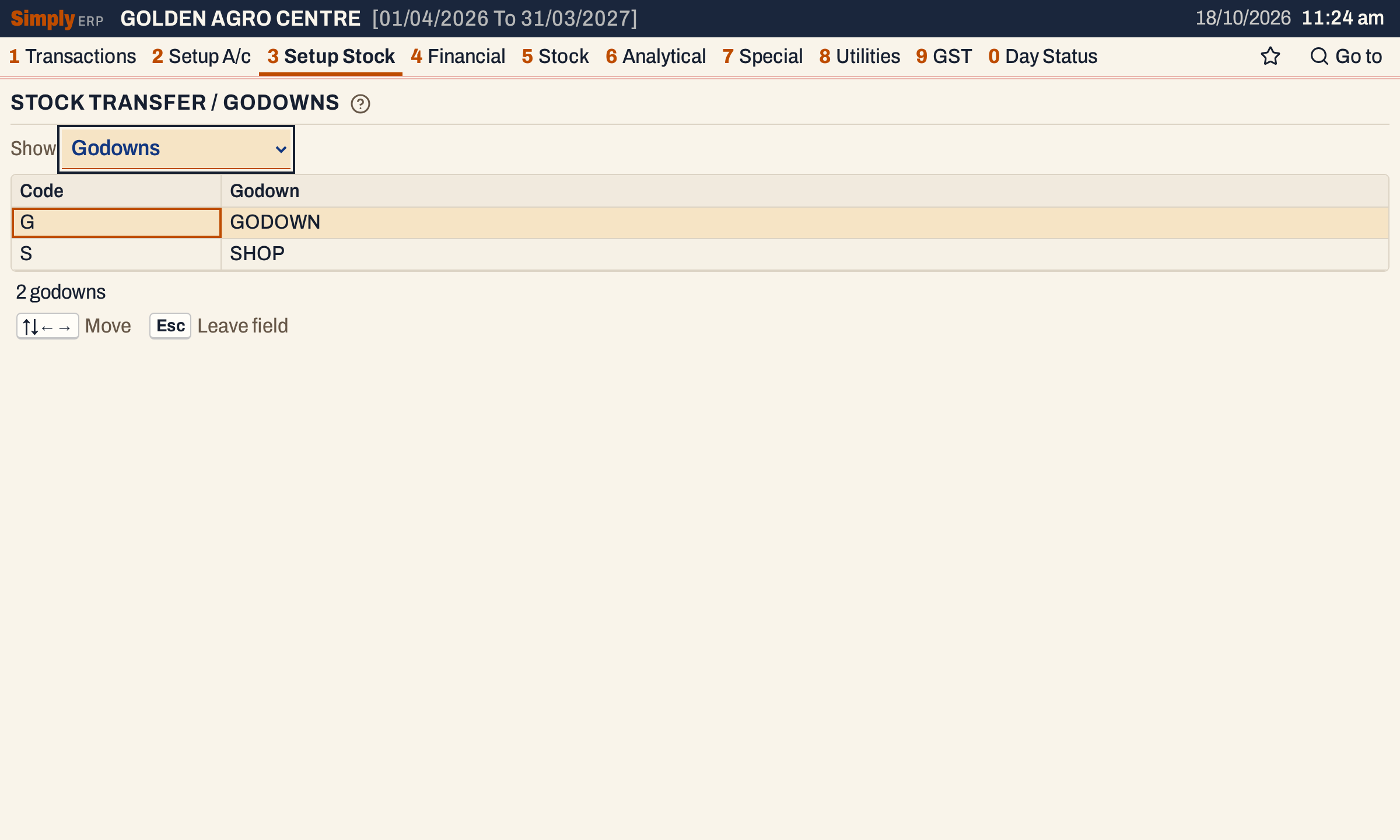 Show picks the view. The showcase shop has two godowns, GODOWN and SHOP.
Add the godowns
Click a godown row (or press Ctrl+↓ to go into the list) and press F9 for a new one. Type its Code (up to 20 characters, optional) and its Godown name (up to 60 characters, required), pressing Enter after each. Changed cells stay highlighted until you save.
 A new godown, not yet saved.
Press F3 to save.
 Three godowns, listed by name.
To rename a godown, change its name and save. Ctrl+Delete marks a godown for deletion (it is struck through; press it again to keep it) and F3 deletes it. A godown that has stock allocated to it or a transfer is not deleted; the screen says so.
Once your company has a godown, bills get a Godown column, see Godowns on a bill.
Say which godown holds the stock
Choose Stock locations in Show, then choose the Item. The list has one line for every stock entry of the item:
- Opening, the item’s opening stock;
- Bill line, each sale, purchase and return;
- Goods in / out, goods received or delivered before their bill;
- Adjustment, stock adjustments.
 The stock change of each entry, and how much of it is not yet in a godown.
The columns are Date, Entry, Reference, Stock change, W/R, Godowns (where it went, with the quantities) and Not assigned (what is still in no godown). W/R is the wholesale or retail pool of the entry: a bill takes it from its bill book (see Bill books and series), and an opening balance has none.
Press Ctrl+↓ to go from the Item field into the list, and Enter on an entry to open its godown lines.
 F9 adds a line. A new line starts with the quantity that is not yet assigned.
Each line has a Godown, a W/R pool (optional) and a Quantity above zero. Choose the godown from the list, change the quantity, and press F9 for the next line. Here 40 units go to GODOWN and the other 20 to SHOP.
 The header line shows how much of the entry is still not assigned.
Every line needs a godown or a pool, and the lines together cannot be more than the entry’s quantity. If they are, the screen turns Not assigned red and refuses to save.
 70 is more than the 60 the entry holds. Correct the quantity and press F3 again.
Press F3 to save. Esc goes back to the entries.
 The entry now shows where its stock is.
Stock you leave unassigned stays in no godown. A godown line is saved for that entry only: opening stock is entered in Opening stock, and each bill line can name its godown when you make the bill.
Move stock between godowns
Choose Transfers in Show, then the item. The list shows every transfer of the item with its date, reference, units, the godown and pool it came From, where it went To, and a note.
 No transfers yet. F9, or Add transfer, starts one.
A transfer has:
- Date, which starts on the working date. It must fall in the company’s financial year.
- Qty, above zero.
- From and To, a godown each, with a Pool (Wholesale or Retail) beside each.
- Ref and Note, both optional.
Name both godowns or neither, and both pools or neither. The two sides must differ in godown or in pool, or the screen says to choose a different godown or pool. The screen does not check that the From godown holds that many units.
 Ten units from GODOWN to SHOP.
Press F3 to save.
 The transfer is listed.
Enter on a transfer changes it, and Ctrl+Delete deletes it after asking. The godown balances are then worked out again.
See the stock by godown
The Godown Stock Board shows each item’s stock in each godown. After the 40 and 20 split and the transfer of 10, Fipronil stands at 30 in GODOWN and 30 in SHOP.
 40 − 10 = 30 in GODOWN, and 20 + 10 = 30 in SHOP.
The board counts entries and transfers dated before its As on date, so the date itself is left out. Stock in no godown is listed under Unassigned, and stock adjustments are not counted. An opening line given the Retail pool is left out of the board. The Wholesale / Retail Stock Movement report reads the W/R pools and the transfers between them.
Godowns on a bill
When your company has godowns, a bill gets a Godown column after the item. Its list shows each godown with the stock of that item, and No godown.
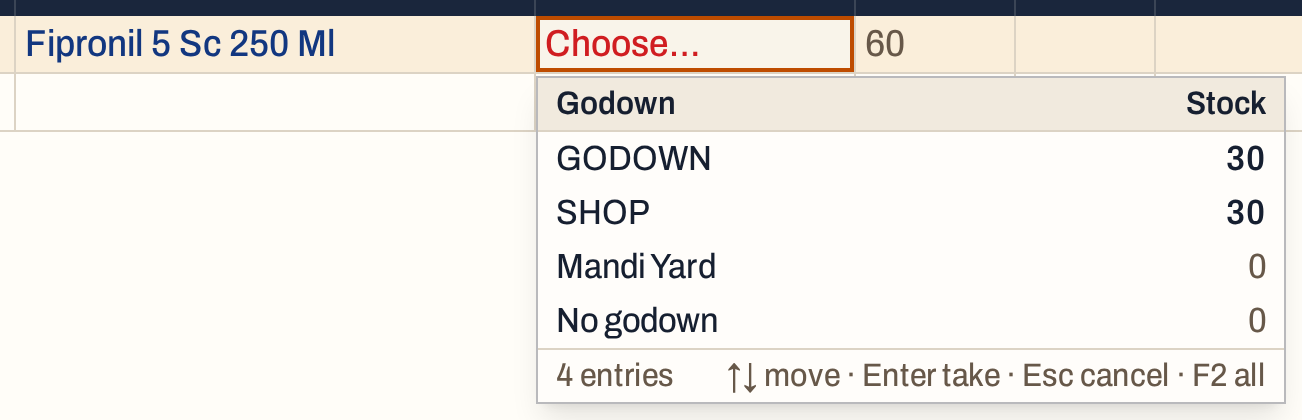 The godown list on a bill shows what each godown holds, so you pick the one the goods leave from.
A picked item takes the godown that its last bill line in the same direction used (for goods going out, while that godown still holds the item), or else the only godown that holds it. When several godowns hold it and none is taken this way, the cell asks you to choose. A sale from a godown that holds fewer units than the line is marked on the line’s information band, but the bill is not stopped. The godown you choose is saved with the line and shows in Stock locations as a Bill line.
Register page
Register page is the item’s page in the stock registers, typed as text such as 12 or Z-1. Choose the item and save it. The same figure is the Reg. page of the item’s packing line in its group.
 One field, saved with F3.
What saving does to your books
| Record | Change |
|---|---|
| Accounts and the ledger | Nothing is posted |
| An item’s total stock and its batches | Unchanged by godown lines and by transfers |
| A godown line | Splits one stock entry between godowns and pools |
| A transfer | Moves units between godowns or pools on its date |
Keys on this screen
| Key | What it does |
|---|---|
| Ctrl+↓ | From the Show and Item fields into the list |
| Enter | Open the entry’s godown lines, or change a transfer or a cell |
| F9 | Add a godown, a godown line or a transfer |
| Ctrl+Delete | Mark a godown or line for deletion; delete a transfer |
| F3 | Save |
| Esc | Back |
| F1 | Help for the screen |
On a Mac, ⌘ stands for Ctrl.
Common questions
Does a transfer change the stock of the item? No. It moves units between godowns only; the item’s total, its batches and your accounts are unchanged.
What is the W/R column? It marks stock as wholesale or retail. Bills take it from their bill book; for other entries you can choose it on a godown line or a transfer.
Why is some stock “Not assigned”? No godown line says where it is. It is counted as being in no godown.
Updated 4 November 2026.