Set the order of account types in the Trial Balance
On this page
Every account has a type, such as Capital, Bank, Cash, Sales or Expense. Setup Order (T.B) sets the order in which the types are listed in the Trial Balance. Set it once to match the order you read your books in; every Trial Balance after it follows.
Open Setup Order (T.B)
Press Alt+8 for Utilities, then M for Setup Order (T.B).
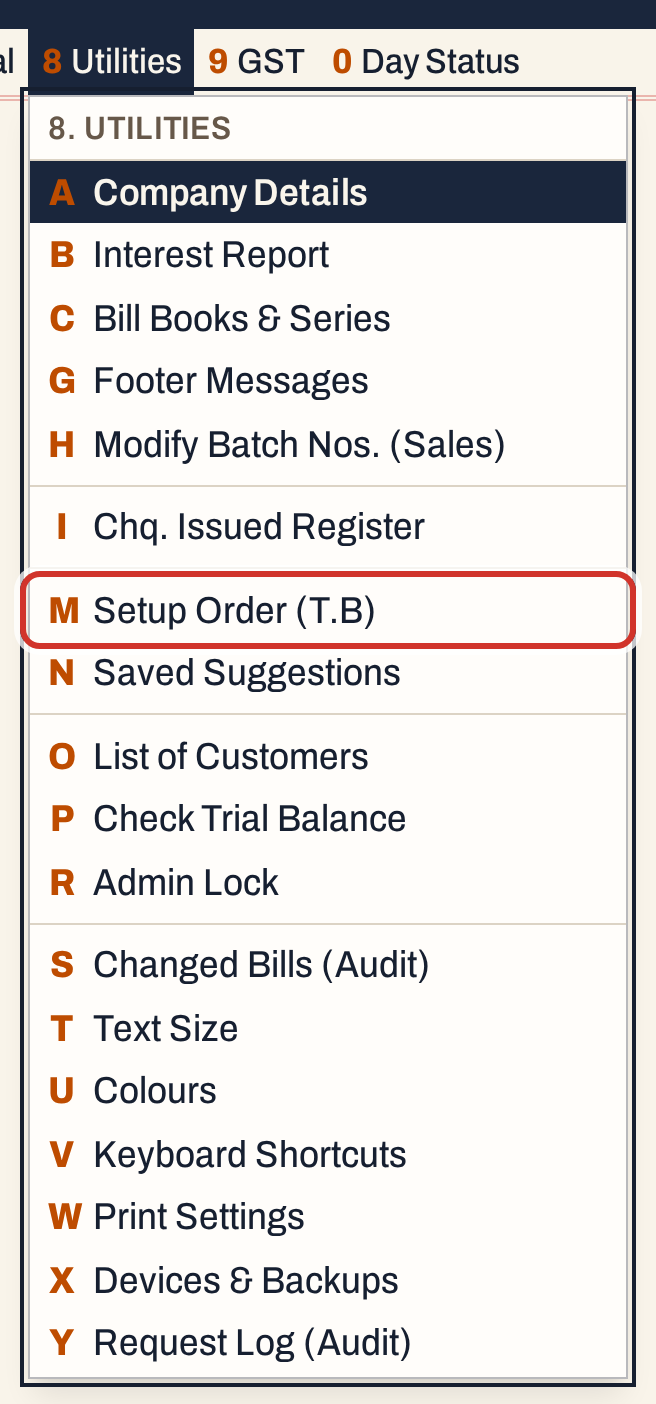 8 M: Utilities, Setup Order (T.B).
The screen lists every account type in its present order. Order is the position, Account type the name, and Accounts how many accounts of your books have that type. The status line counts the types. The cursor starts on the first type.
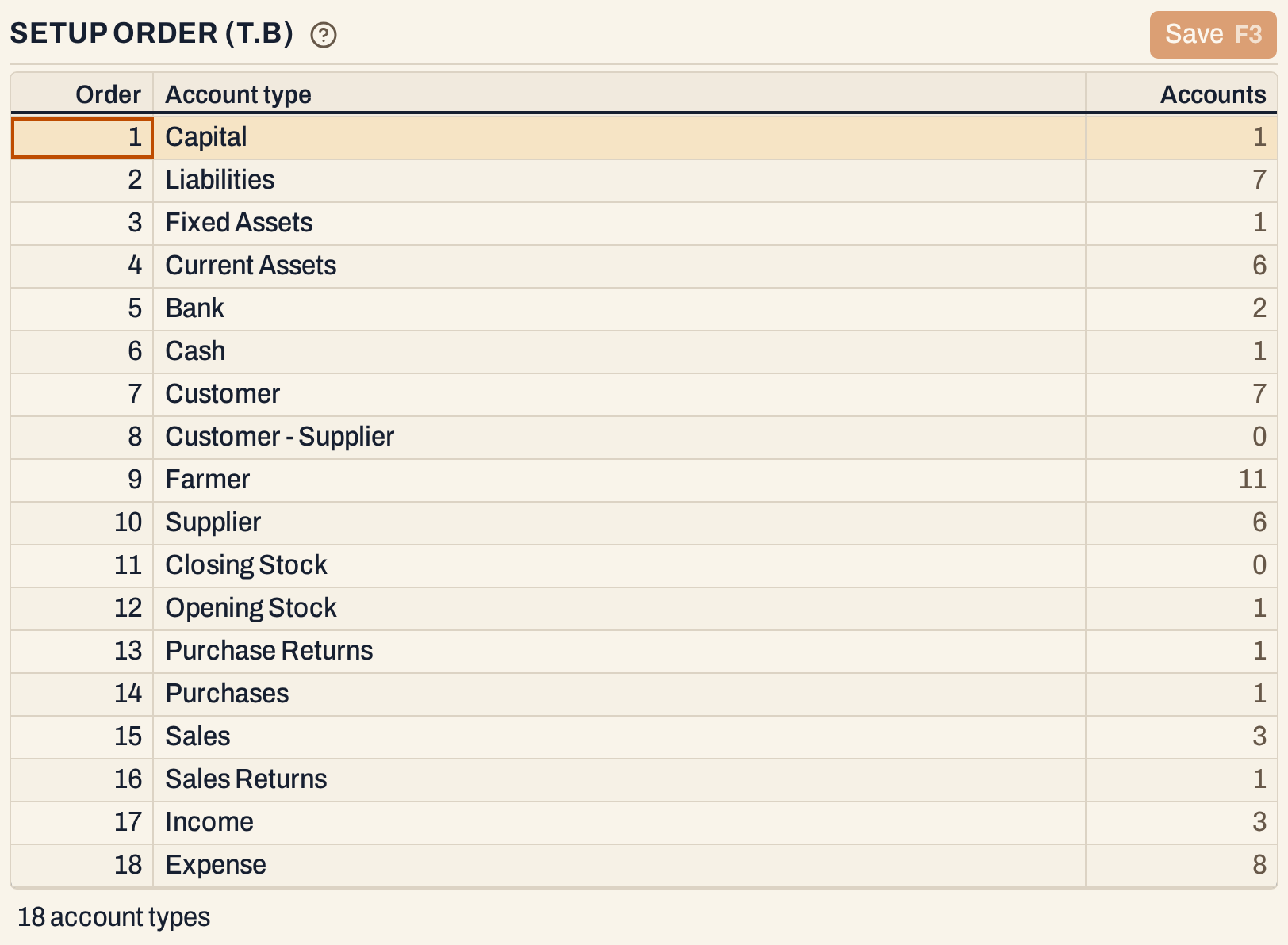 The types of the showcase books, 18 of them. You cannot add or rename a type here, only move it.
See the Trial Balance first
Here is the Trial Balance of the showcase books by account type, with the Summary box ticked so that each type is one line (see Trial Balance). The types come in the order of this screen. Types that share a position, as in books that have never saved an order, are not strictly one after another: their accounts are listed by account name, and a type is placed where its first account falls. This is why Sales comes before Opening Stock here.
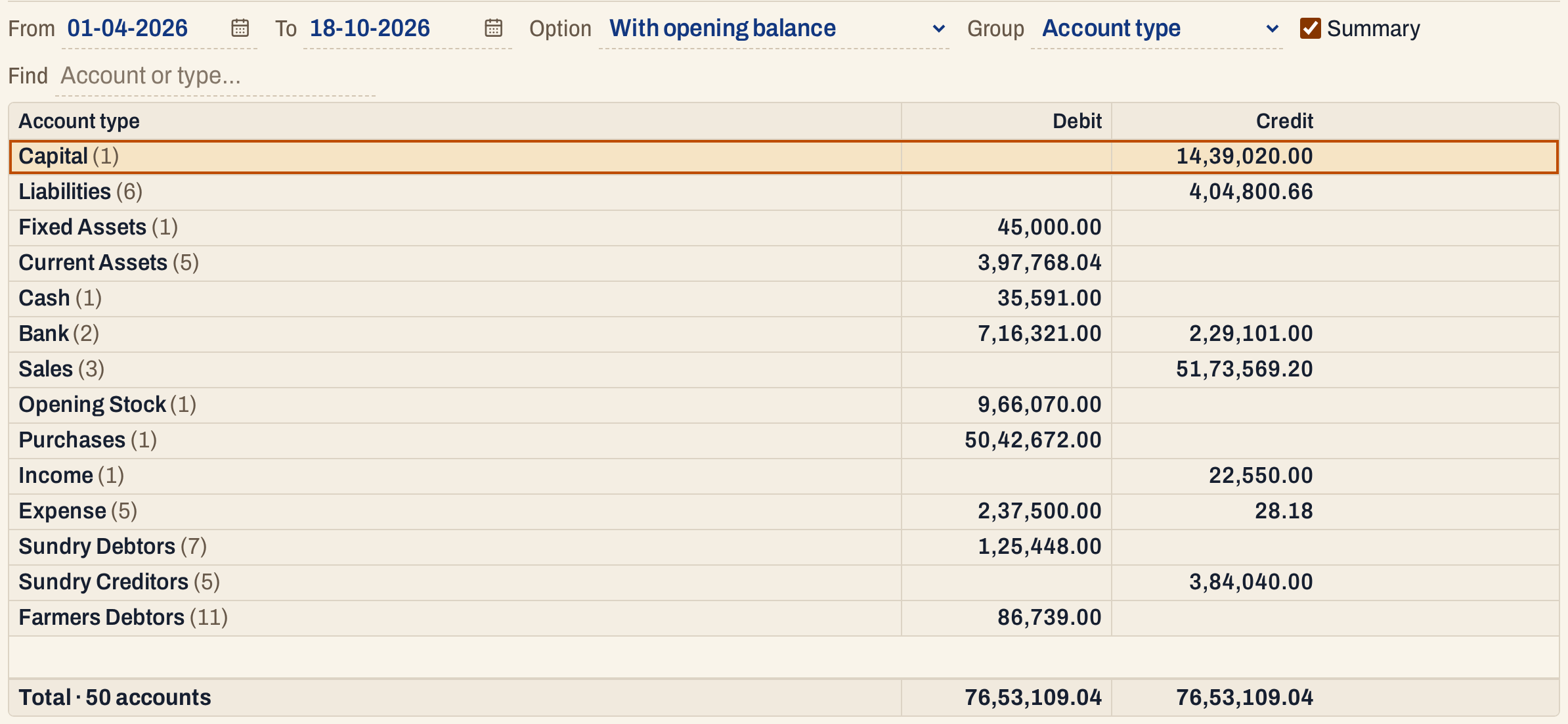 The Trial Balance before the order is saved.
Move a type
Move to the type with ↑ and ↓. Two ways move it:
- Press Alt+↑ or Alt+↓ to move the type under the cursor one place up or down. Press it again to go on.
- Press Enter on its Order number, type the position you want and press Enter. The type goes to that position and the types between move down or up by one. A number larger than the number of types puts it last.
Here Cash is moved from sixth to first with five presses of Alt+↑.
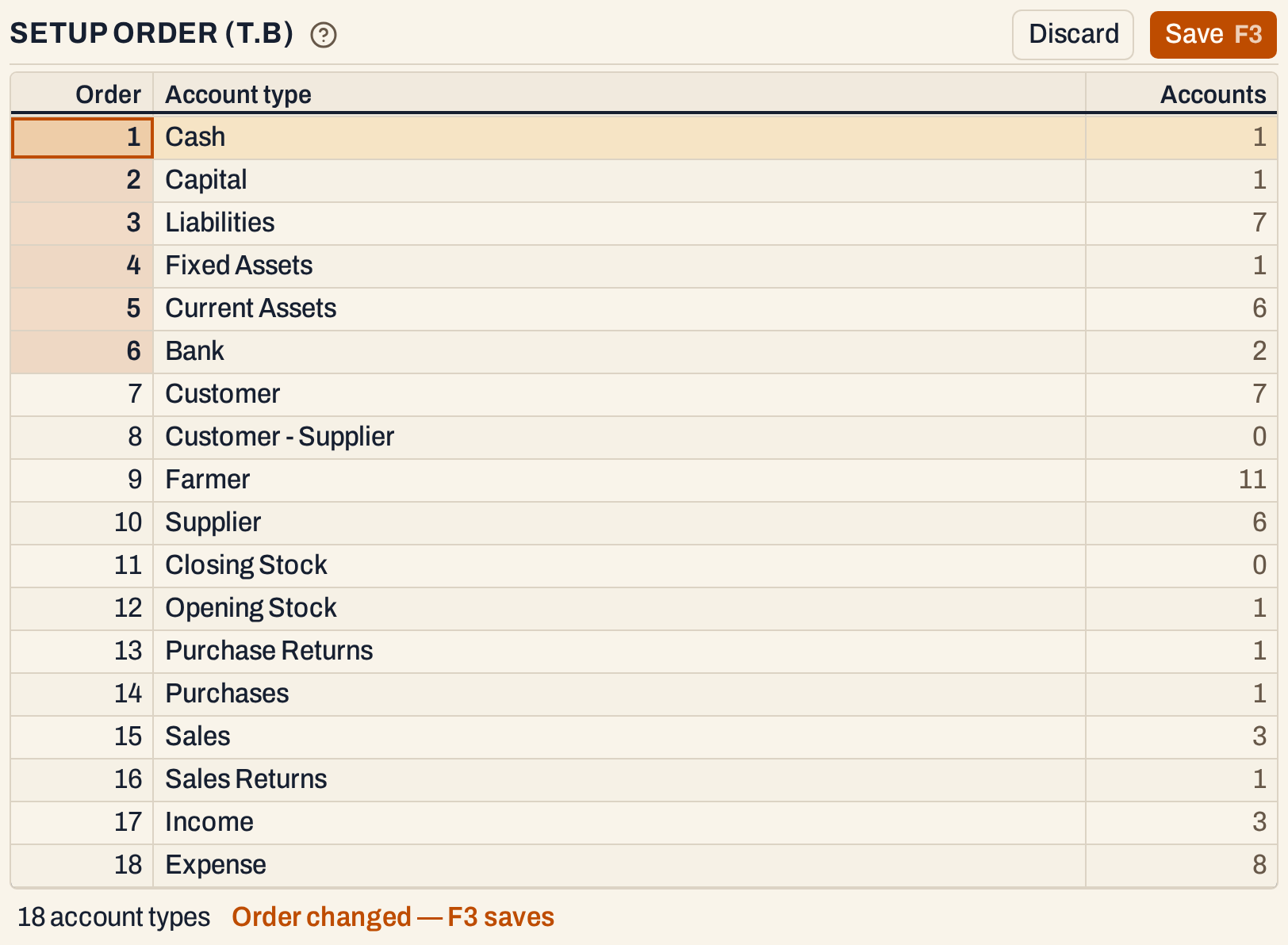 Cash is first. The numbers that changed are shaded, and Save and Discard are now available.
Then Bank, now sixth, is moved to second by typing its position.
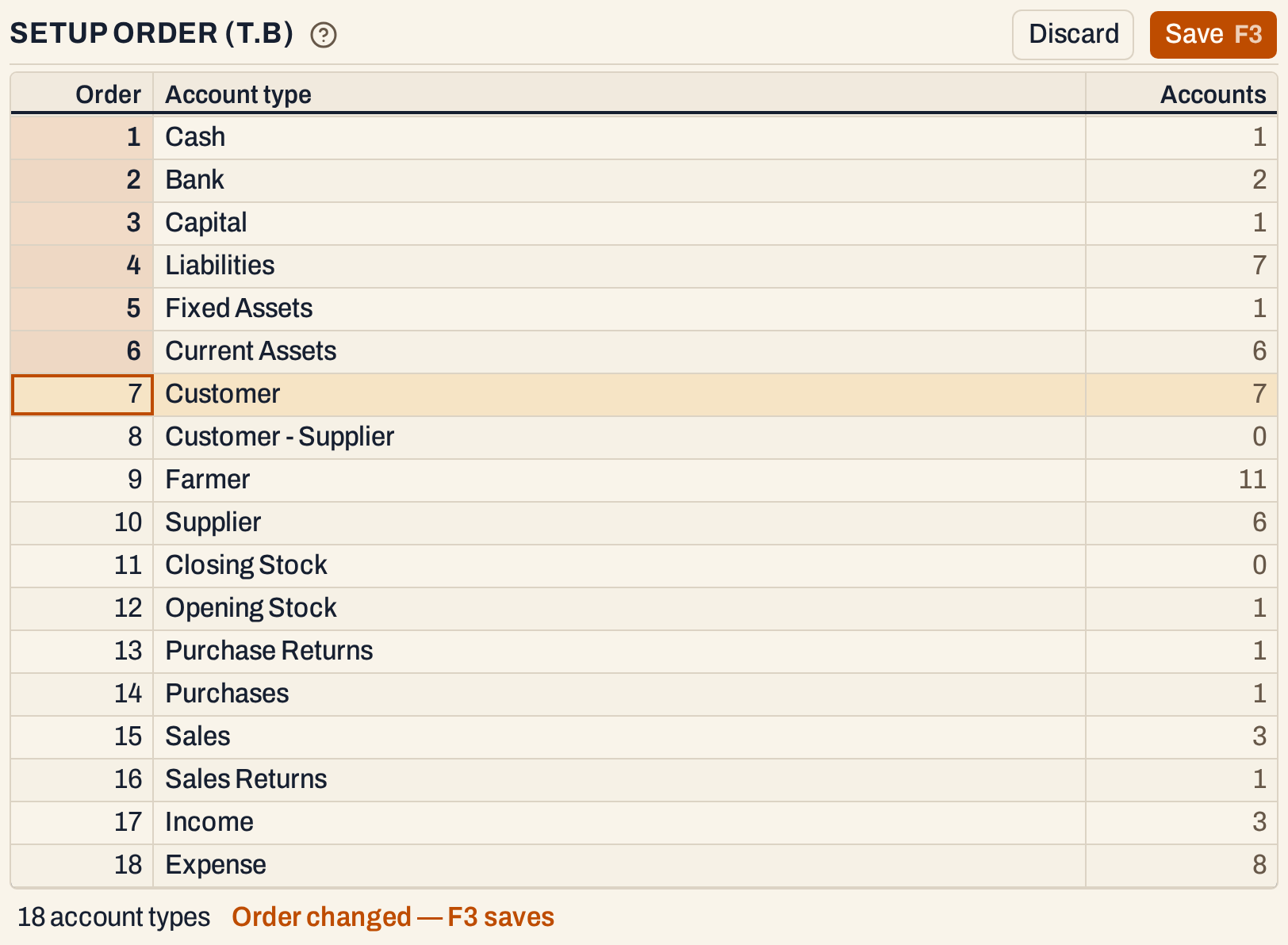 Cash, then Bank. Nothing is saved yet.
Discard throws away the moves you have not saved.
Save the order
Press F3 (or click Save). The order of all the types is saved together, and the status line says “Order saved. The trial balance and final accounts follow it.”
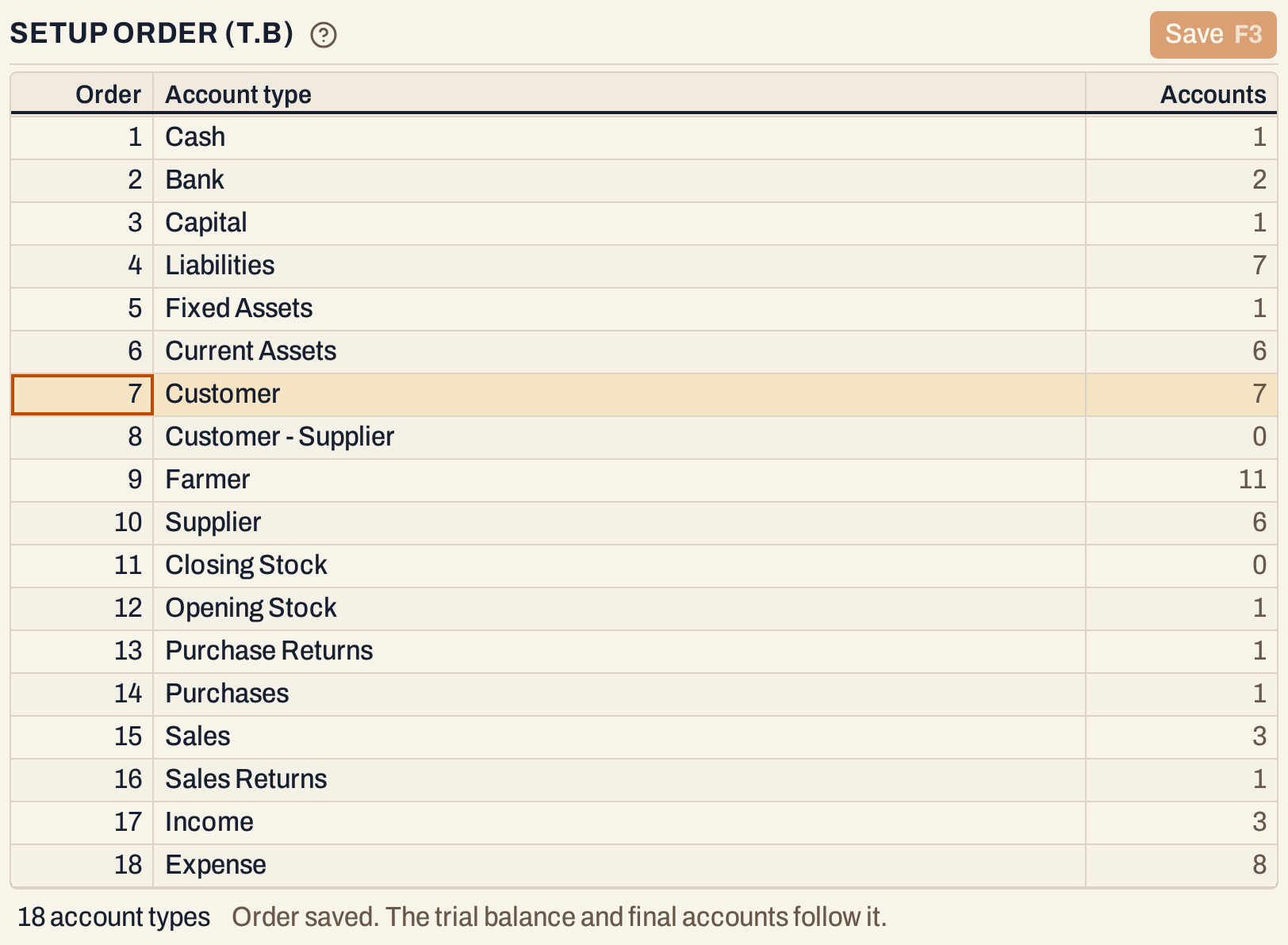 Saved. Every type now has its own position, 1 to 18.
Saving numbers the types 1, 2, 3 and so on, in the order shown. If the list on the screen no longer matches the books’ types, the save is refused with a message to refresh the list; open the screen again and repeat the moves.
What the order changes
Open the Trial Balance again. The types follow the new order.
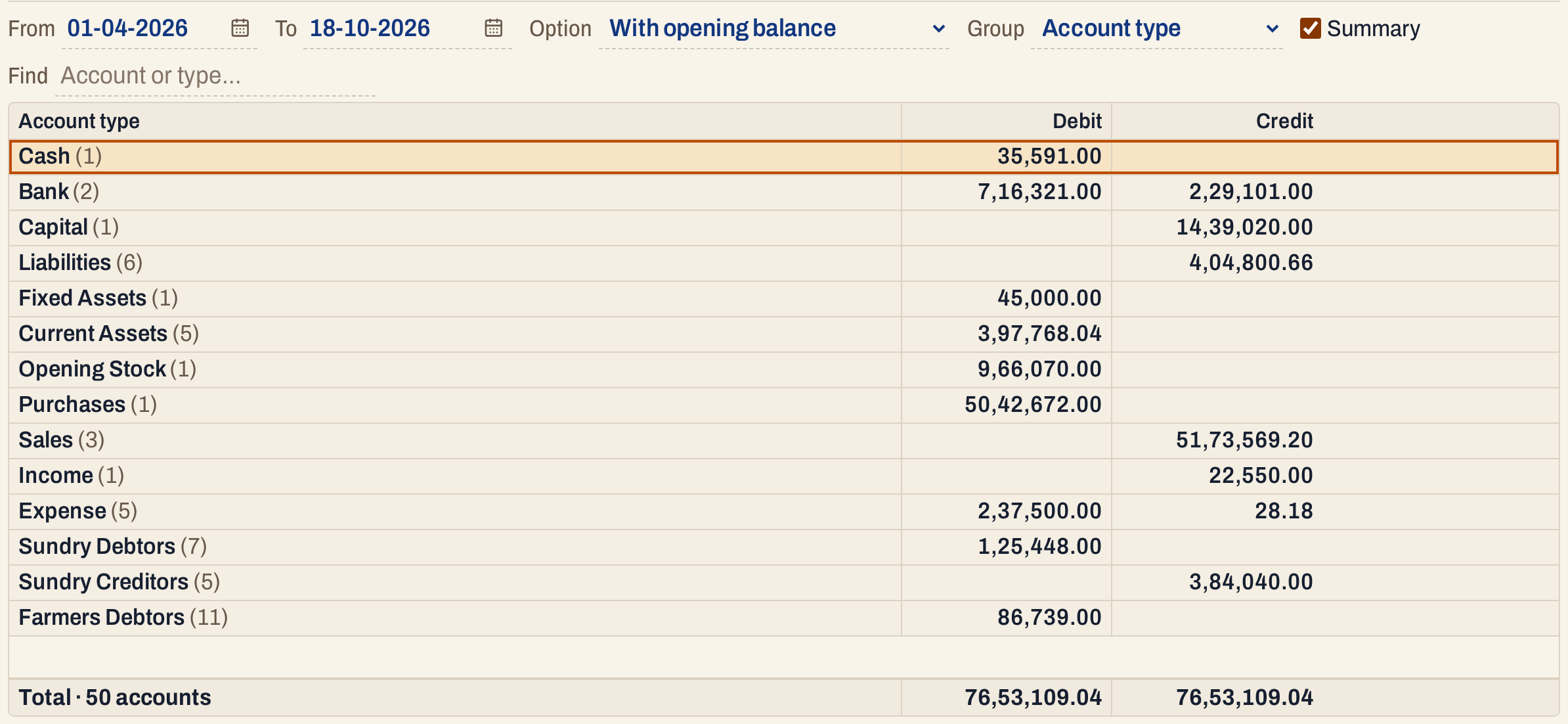 Cash and Bank are first. The total is the same: only the order changed.
- In the Trial Balance the accounts are listed by the order of their type, and within a type by account name. With Group set to Account type, each type’s accounts are under its heading, and the headings follow the order.
- The party types (Customer, Customer - Supplier, Farmer and Supplier) are not listed one by one in the usual view. Their accounts are gathered into the rows Sundry Debtors, Sundry Creditors and Farmers Debtors, which come last, so the position of these types does not move those rows.
- In the A/c wise view of the Balance Sheet (Grouped), the accounts are listed by account type in this order. Its Group wise views follow the groups’ schedule numbers instead.
- Sorting a column in the Trial Balance (by account, by type or by an amount) puts the order aside; the saved order is what the list shows when it is not sorted by a column.
The order is only for listing. No figure changes, and the Trial Balance still tallies.
Keys on this screen
| Key | What it does |
|---|---|
| ↑ ↓ | Move between types |
| Alt+↑ Alt+↓ | Move the type up or down one place |
| Enter | Type a position for the type under the cursor |
| F3 | Save the order |
| Esc | Leave the list |
On a Mac, ⌘ stands for Ctrl.
Common questions
Can I add or rename an account type? Not here. This screen only sets the order of the types the books have.
I moved a type to the wrong place. Move it again and save, or click Discard before you save.
Does the order change any figure? No. It orders the lines of the Trial Balance and the A/c wise Balance Sheet (Grouped); it does not change any amount.
Updated 4 November 2026.