Make a non-GST debit note
On this page
A non-GST debit note raises what a customer owes you, or what you owe a supplier, by an amount that has no GST on it: interest on a late payment, a charge recovered. It is one party against one other account, with up to nine lines of particulars that print on the note. It is not a GST document, so no GST return includes it. If the amount corrects a bill and carries GST, make a GST debit note instead.
Open a new debit note
Press Alt+1 for the Transactions menu, O for Debit Note - Non GST, then N for New Entries.
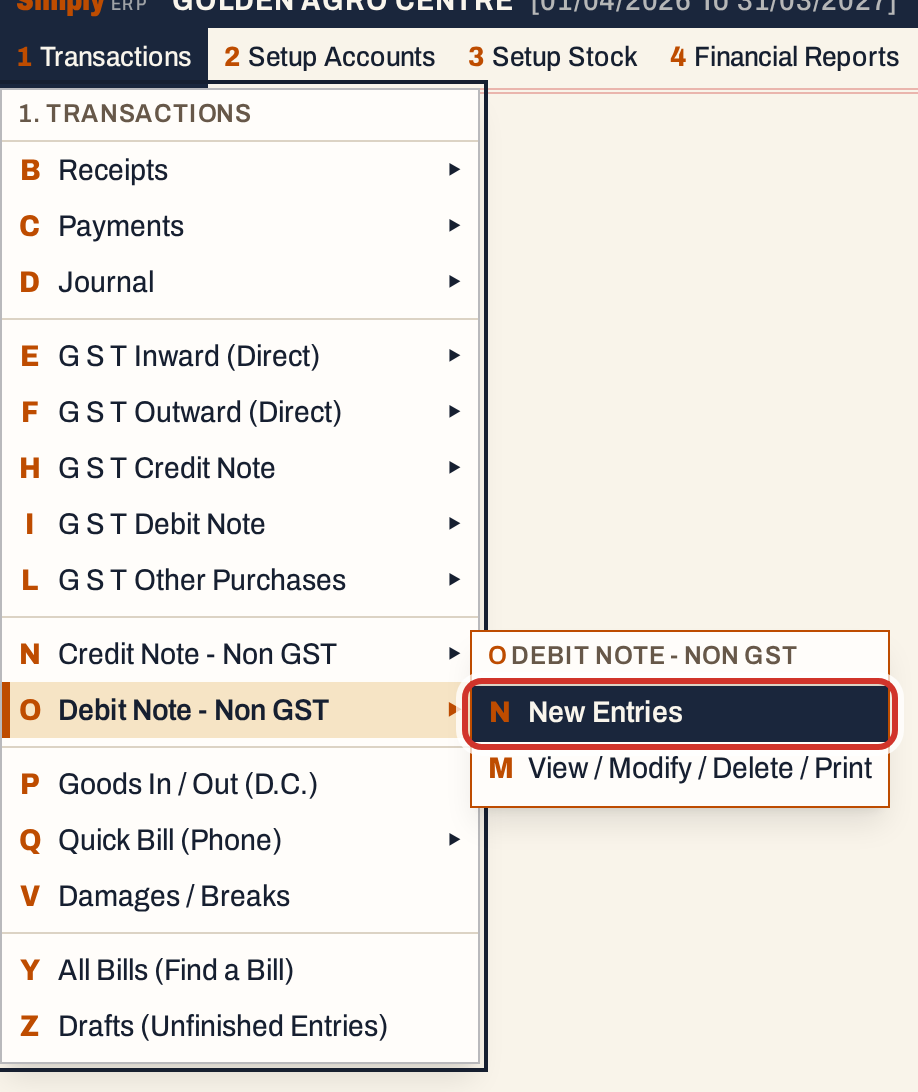 1 O N: Transactions, Debit Note - Non GST, New Entries.
The screen opens on Debit note issued, with the cursor in the Note field. The note takes the next number of the journal series (No. J/36 here), so notes and journal entries share one run of numbers. The date starts on today’s working date.
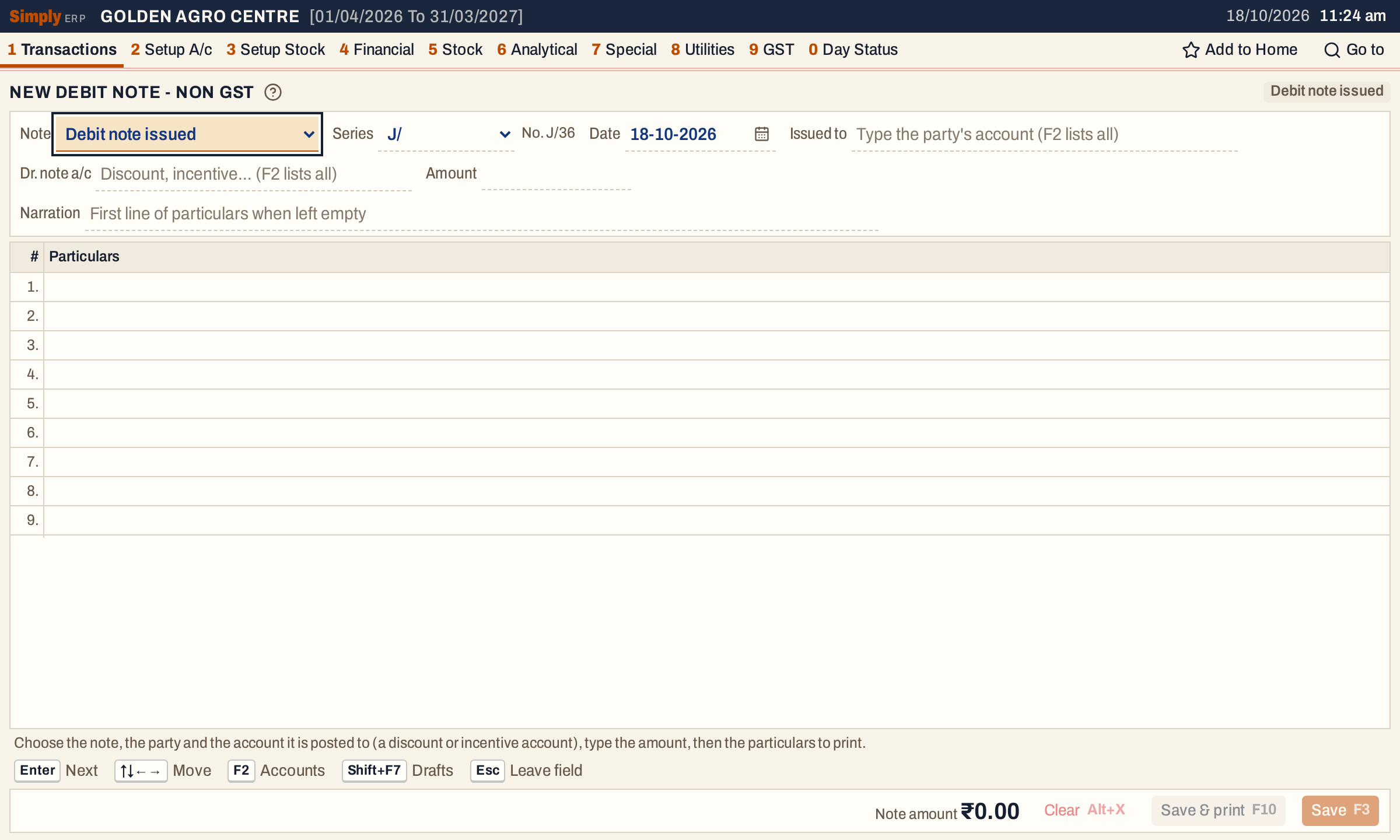 A new debit note issued.
Choose the party
Type part of the account’s name in Issued to. The list shows each match with its place and balance. Enter takes the highlighted one. F2 lists every account. The note needs a saved account.
 Typing finds the account by any part of its name.
Choose the note account and the amount
Dr. note a/c is the account the note posts against the party: an income account for a charge you make, an expense account for a charge made to you. Type part of its name and take it with Enter. It must be a different account from the party. A new note starts with the series and note account of the latest note of the same kind (issued or received).
 The note account. Its balance shows beside it once chosen.
Type the Amount, with at most two decimals. The Narration is the line the ledgers show. Leave it empty and the first line of the particulars is used.
Type the particulars
The nine lines under the header are what the note prints: what the charge is for, the period. Each line takes up to 100 characters. Enter or ↓ moves to the next line, ↑ to the one above. Enter on an empty line with nothing typed below it goes on to Save.
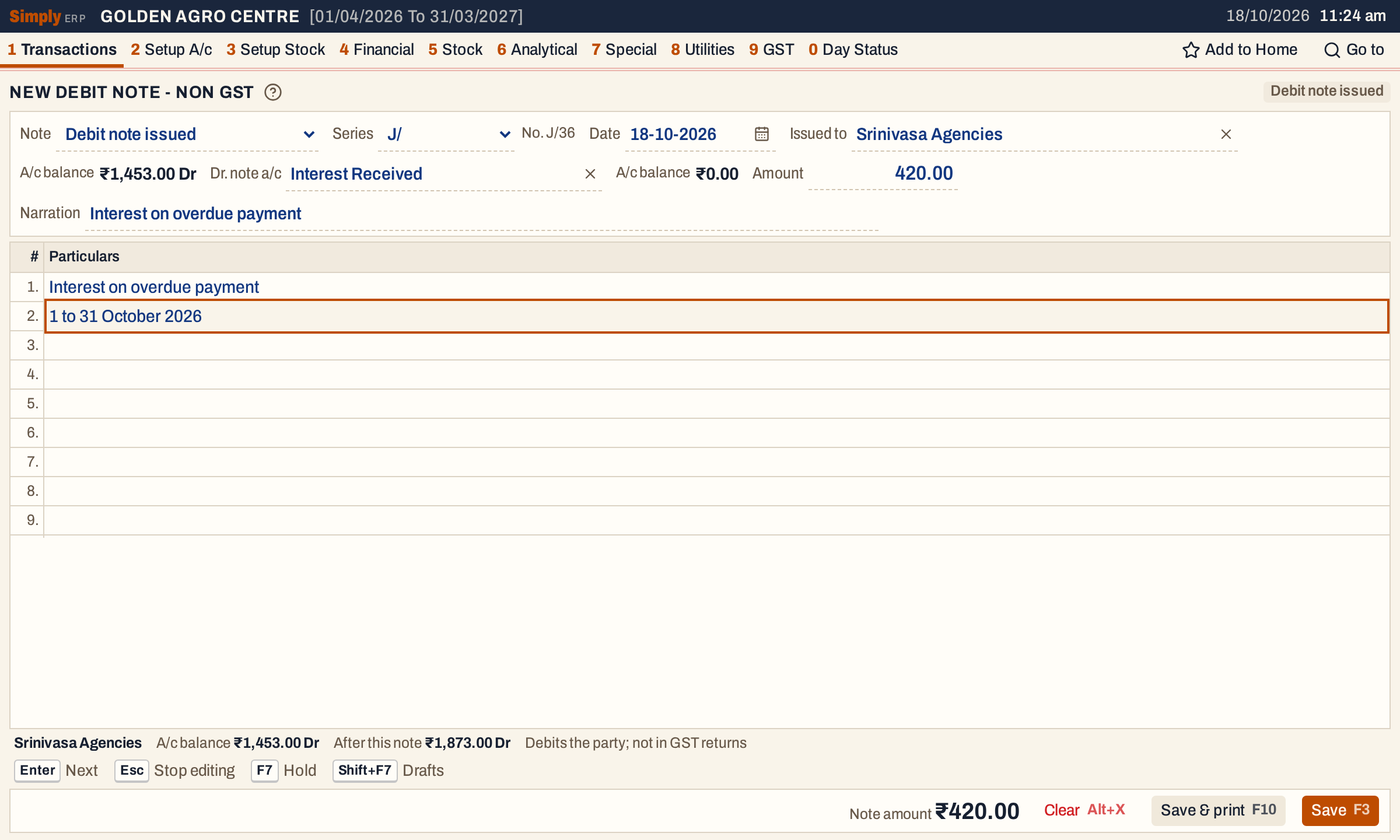 Interest of ₹420.00 charged to a customer.
While you type, the line under the particulars shows the party’s balance and what it will be after the note, and says where the note posts.
 The customer owed ₹1,453.00; after the note, ₹1,873.00.
Save
F3 saves the note. F10 saves it and prints the note. SimplyERP asks for what is missing before it saves: the party, the note account, a note account that is not the party, and an amount above zero. A notice says the note is saved, and a fresh note opens with the same series and note account.
To find it later, press Alt+1, O, M. This opens the register of debit notes, which starts with the cursor in Show. Type the note number in Find, press Ctrl+↓ to go to the list, and Enter opens the note.
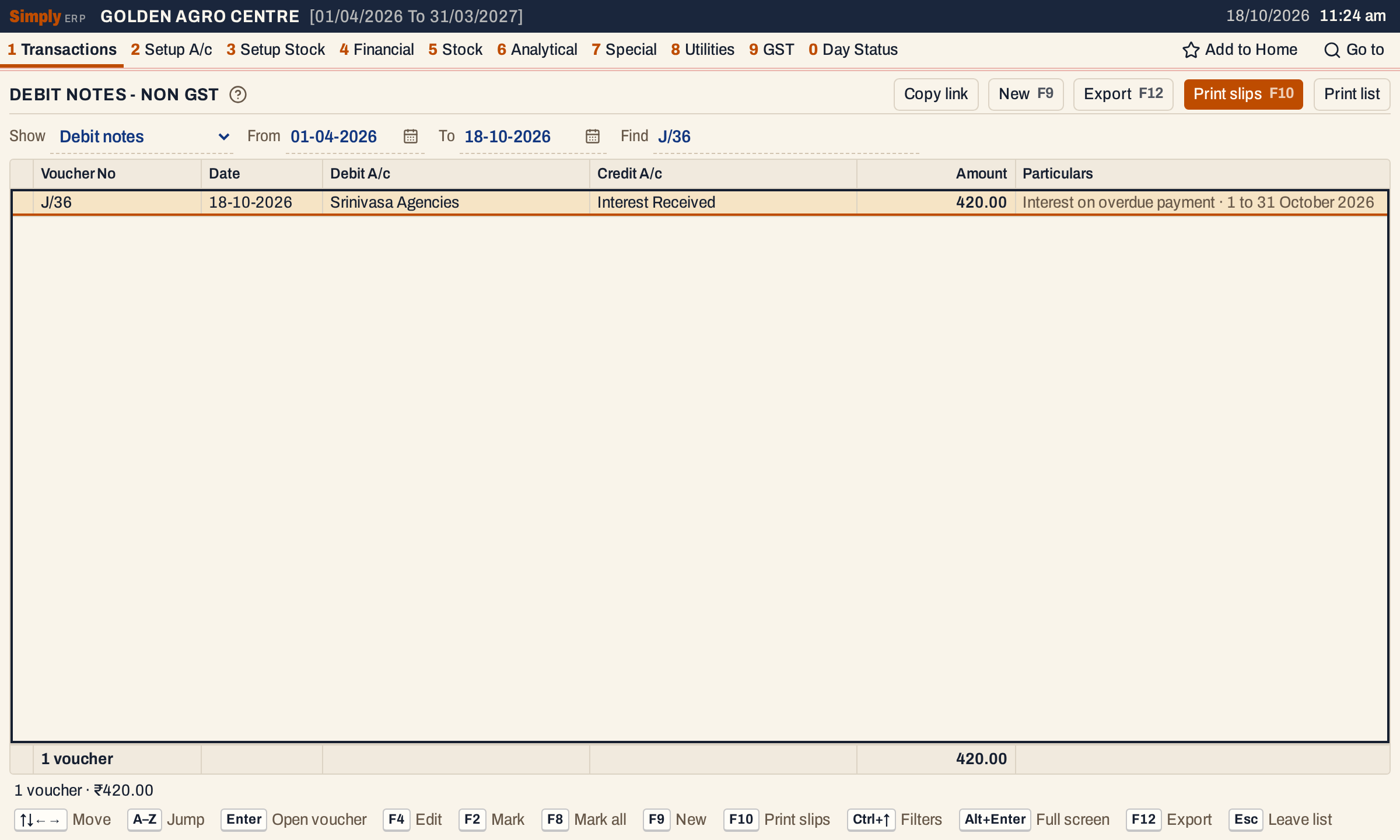 The register shows the debit and credit accounts and the particulars.
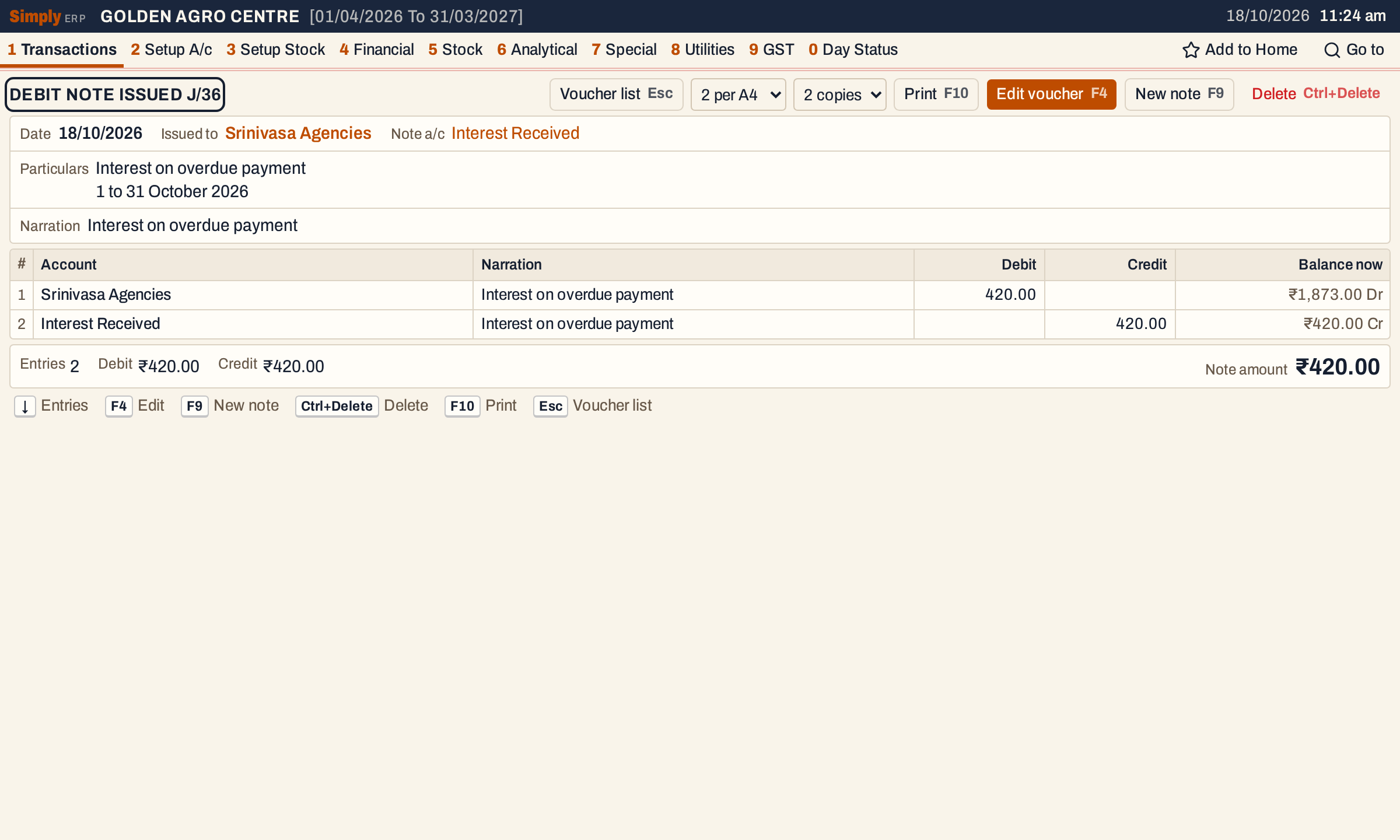 The saved note shows both postings and each account’s balance now.
On the saved note, F4 edits it, F10 prints it (choose the paper and the copies beside Print), and Ctrl+Delete deletes it after SimplyERP asks. An edit cannot change the type of note. The same notes are in All Vouchers; a received note shows the supplier’s number in its Party note no. column.
What saving does to your books
A debit note issued is posted on its date:
| Account | Debit | Credit |
|---|---|---|
| The party | Amount | |
| The note account | Amount |
For this note, Srinivasa Agencies is debited ₹420.00 and Interest Received is credited ₹420.00. Nothing is posted for GST, and no stock moves. The note shows in the ledger of both accounts.
A debit note received
A debit note received is one a supplier sends you. Choose Debit note received in the Note field. The header changes, because the supplier numbered and dated the note:
- Their note no.: the supplier’s number for the note. It is required, and the same number cannot be entered twice for one supplier.
- Note dt.: the date on the supplier’s note. It is optional, and it cannot be later than the day you received it.
- Recd.: the day you received it. It starts on the working date, and replaces the Date field.
- The party field is Received from. The party is credited and the note account debited.
 The supplier’s note number and the day it was received.
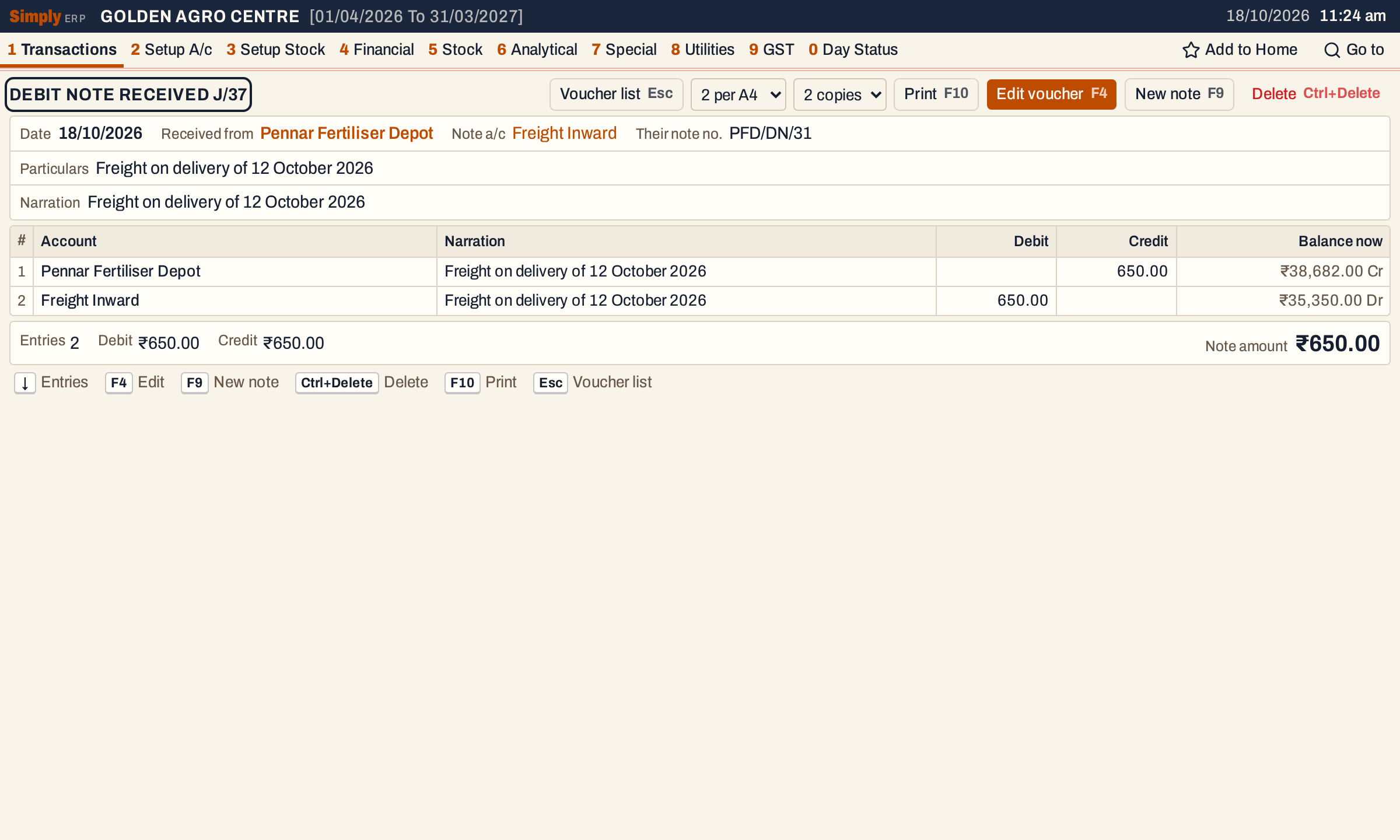 A supplier’s charge of ₹650.00. The Balance now column shows where each account stands after the note: you owe the supplier ₹38,682.00.
| Account | Debit | Credit |
|---|---|---|
| The party | Amount | |
| The note account | Amount |
Keys on the note screen
| Key | What it does |
|---|---|
| Enter | Next field, and along the particulars |
| F2 | List the accounts |
| F3 | Save |
| F10 | Save and print |
| F7 | Hold the note in Drafts and start another |
| Shift+F7 | Switch to another draft |
| Alt+X | Clear the note (asks first) |
| Esc | Leave the field |
On a Mac, ⌥ stands for Alt and ⌘ for Ctrl.
Common questions
When do I make a GST note and when a non-GST one? A note that corrects the value of a bill, with GST, is a GST debit note. A charge with no GST on it is a non-GST note. SimplyERP refuses a GST note whose lines carry no GST rate or HSN, and points you here.
Is it the same as a journal entry? It is saved as a journal with a note type, so it uses the journal series. The note screen keeps it to one party and one account and adds the particulars. For other adjustments between accounts, use the journal entry.
Updated 4 November 2026.