Print settings
On this page
Print Settings decides how your prints look and where they go. You choose a font for bills and notes, one for voucher slips and one for reports, and, in the desktop app, the printer that bills, notes and slips print on. A preview shows a real document of your books in the font you pick before you save it.
Open Print Settings
Press Alt+8 for Utilities, then W.
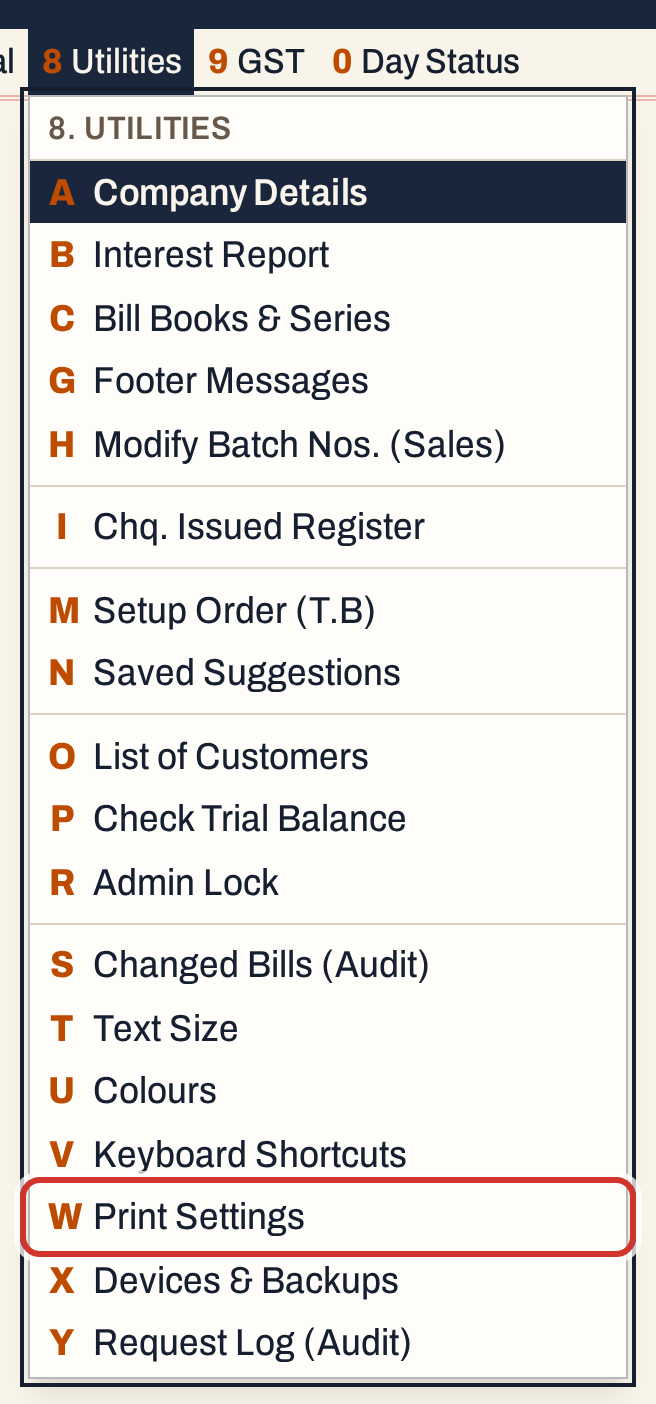 8 W: Utilities, Print Settings.
The screen has the choices at the top and a preview of a bill under them. The cursor is in the first choice, and Enter moves to the next.
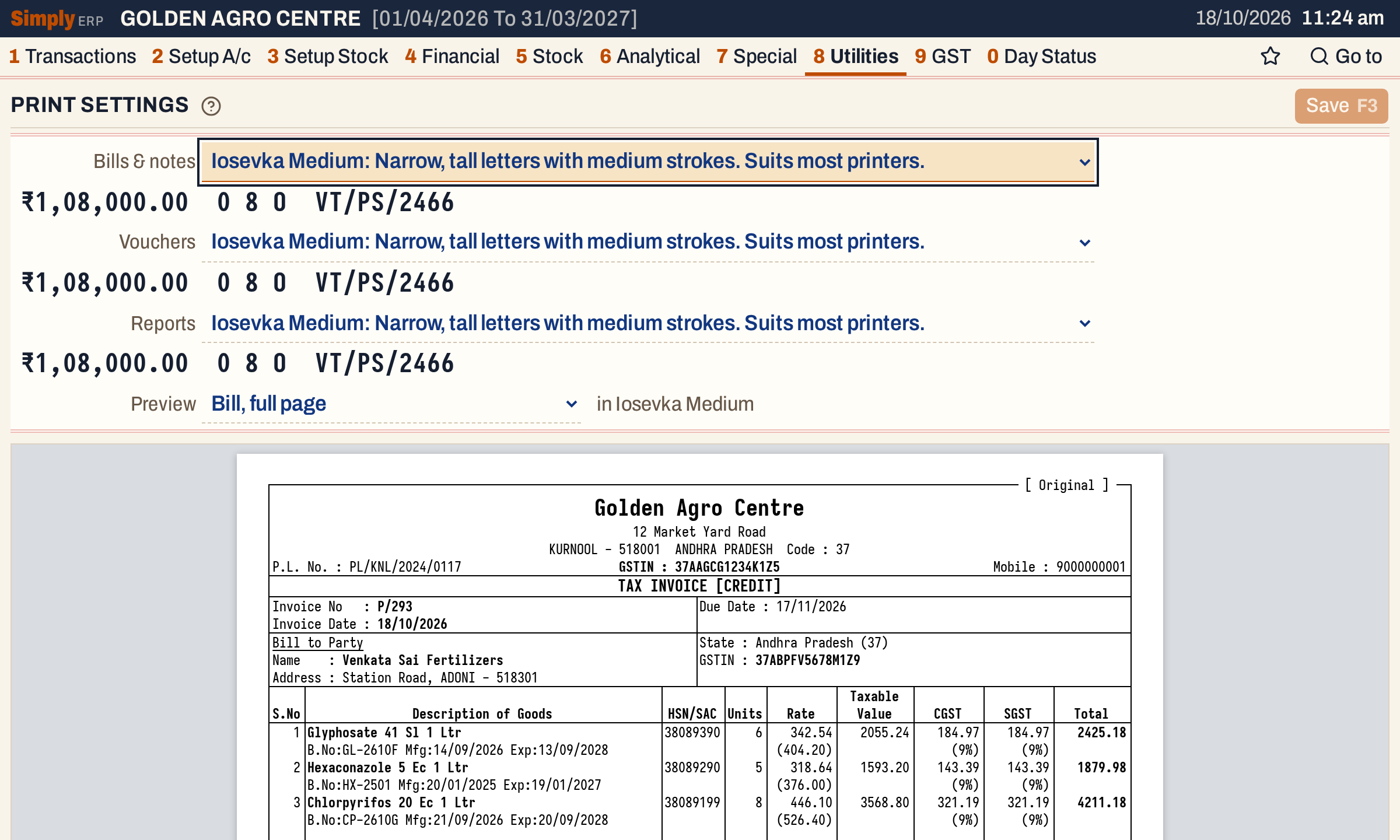 Bill, full page shows the newest sale to a customer with a GSTIN, here P/293.
Printer
In the desktop app the first choice is Printer. It says where F10 and Save & print send bills, notes and voucher slips on this computer:
- This computer’s default printer: prints with no dialog.
- One of the computer’s printers, named in the list: prints with no dialog on that printer.
- Ask each time (print dialog): shows the print dialog for every print.
The choice is kept on this computer at once, without F3. Other computers and phones keep their own, since each counter has its own printer. The note beside the choice says what it means: “bills, notes and slips print here with no dialog · this computer only”, or “bills, notes and slips show the print dialog”.
If a saved printer is not on this computer any more, the list shows its name with “(not on this computer)”. A print that fails leaves the document saved, says why, and offers Choose printer, which prints it through the dialog. Reports always show the print dialog.
The printer choice does not appear in a web browser or on a phone, which always show their own print dialog or sheet. On a bill, the arrow beside Save & print still prints one bill on another printer or as a PDF; see Print a bill.
Choose the fonts
Three prints each have their own font:
| Choice | What it sets |
|---|---|
| Bills & notes | Bills, returns and notes |
| Vouchers | Receipt, payment, journal and note slips |
| Reports | The prints of reports (F10 on a report) |
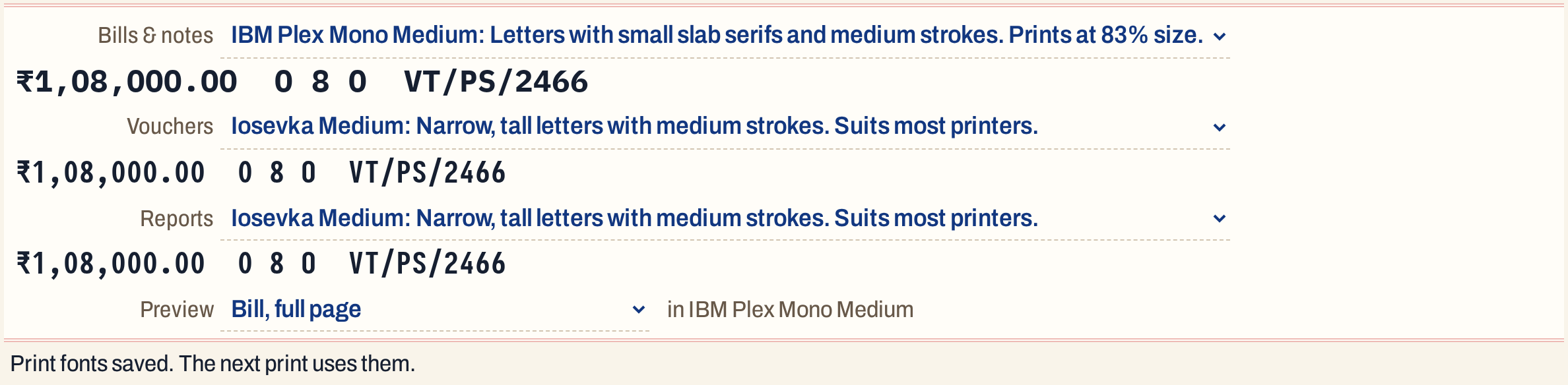
Each starts as Iosevka Medium. The fonts are kept in your books, so every computer and phone that prints these books uses them. Under each choice is a line set in that font, ₹1,08,000.00 0 8 O VT/PS/2466, so you can compare how amounts, the digits 0 and 8 and the letter O look. Every font draws a plain 0 that is not mistaken for an 8.
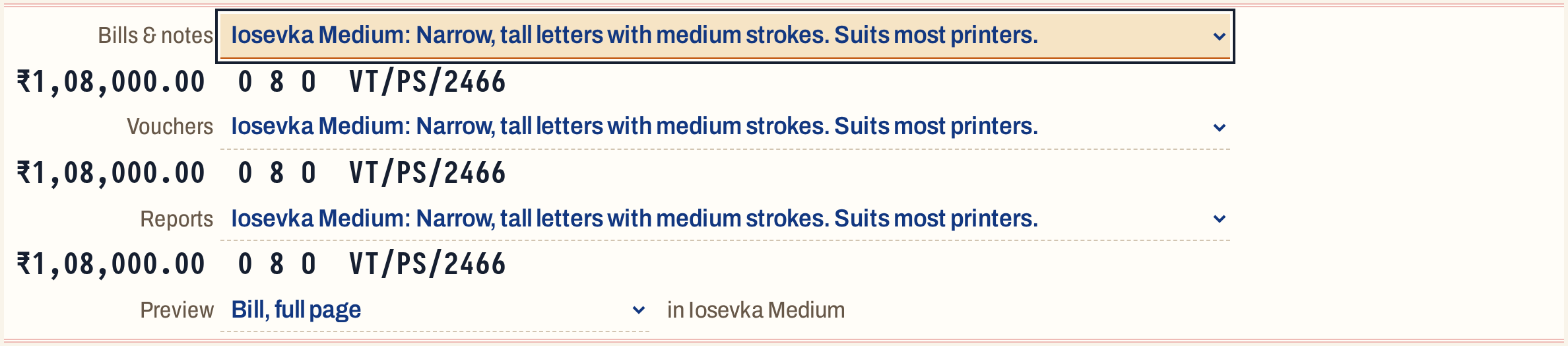 Compare the specimen lines before you choose.
All twelve fonts are monospaced: every character has the same width. A bill is laid out on a grid of narrow characters, so a wider font is printed a little smaller to keep every column in place. The choice says by how much.
| Font | Letters | Size on a bill |
|---|---|---|
| Iosevka Medium | Narrow, tall letters with medium strokes. Suits most printers. | Full size |
| Iosevka | The same letters with lighter strokes, for sharp laser printers. | Full size |
| Iosevka SemiBold | The same letters with the heaviest strokes, for faint or worn printers. | Full size |
| Inconsolata Medium | Rounder letters with medium strokes. | Full size |
| Inconsolata | Rounder letters with lighter strokes. | Full size |
| Courier Prime | Typewriter letters with serifs. | 83% |
| IBM Plex Mono Medium | Letters with small slab serifs and medium strokes. | 83% |
| IBM Plex Mono | Letters with small slab serifs and lighter strokes. | 83% |
| Red Hat Mono | Round, open letters. | 83% |
| Geist Mono | Clean, modern letters. | 83% |
| Chivo Mono | Dark, square letters that stay readable on faint printers. | 83% |
| B612 Mono | Wide letters designed for aircraft cockpit screens. | 77% |
Preview before you save
Choose a font and the preview changes at once, saved or not. If you change a font of another kind of print, the preview switches to that kind. The Preview choice picks the document shown. A document is the newest saved one of its kind, by date:
- Bill, full page: the newest sale to a customer with a GSTIN.
- Bill, half page: the newest sale to a customer without one.
- Return or GST note: the newest sales return or GST credit or debit note.
- Receipt or payment: the newest receipt or payment.
- Journal voucher: the newest journal entry.
- Stock statement: the first page of the stock statement from the start of the financial year to today’s date, drawn as its report print.
When the books have no receipt or journal yet, a made-up one is shown. A bill or note preview with no such document in the books says so instead.
Here is the heading of the full-page bill preview in the default font, Iosevka Medium:
 Before: Iosevka Medium.
Choose IBM Plex Mono Medium for Bills & notes. The line next to the Preview choice names the font shown, and the line below the choices says “Changed — F3 saves”.
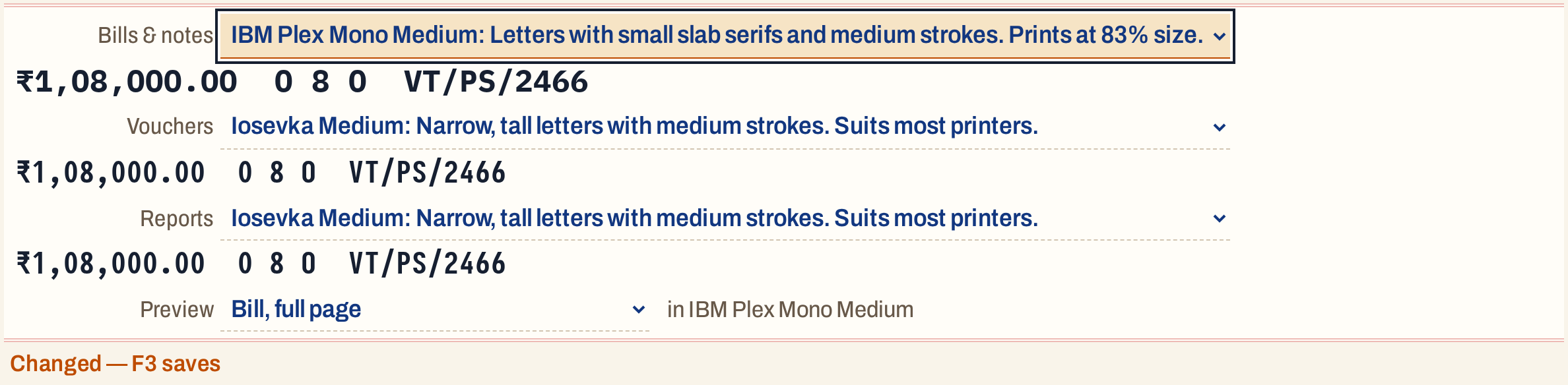 The change is not saved yet.
 After: the same heading with slab serifs, printed at 83% size.
Save
Press F3. The line below the choices reads “Print fonts saved. The next print uses them.” Every bill, slip or report printed after that uses the new fonts, including bills saved earlier, since the font is applied when a document is printed.
 Saved.
If an Admin Lock PIN is set, saving asks for it first; see Admin lock. A read-only copy of the books shows “Read-only copy: change these in the desktop app.”
Check a voucher slip
Choose a font for Vouchers, here Chivo Mono, and the preview switches to a receipt.
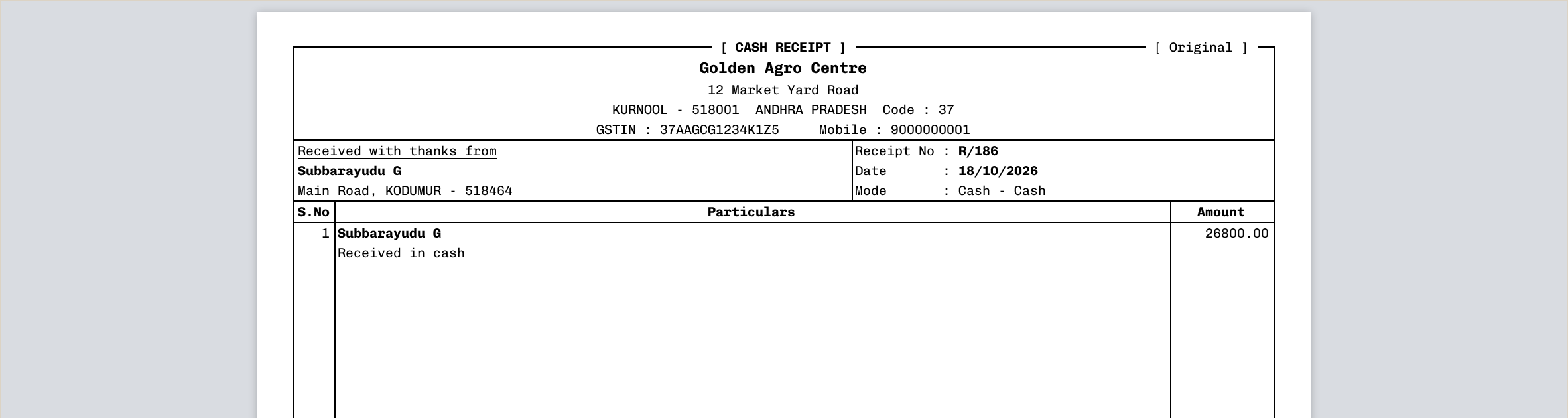 A receipt slip. The preview shows the newest saved receipt or payment of the books.
Keys on this screen
| Key | What it does |
|---|---|
| Enter | Next choice |
| ↑ ↓ ← → | Move between choices |
| F3 | Save the fonts |
| Esc | Leave the field |
| F1 | Every key on the screen |
Common questions
The printer choice is missing. Why? It is shown in the desktop app only. In a browser or on a phone, printing always shows the system’s print dialog.
Does the printer choice reach my other computers? No. It is kept on the computer where you chose it. The fonts, in contrast, are kept in the books and apply wherever they are printed.
Which font suits a faint printer? Iosevka SemiBold, with the heaviest strokes, or Chivo Mono, whose letters stay readable on faint printers. Preview each, and print a test bill.
Does a font change the numbers on a bill? No. It changes the letters and digits only; the layout keeps every column in place, which is why wider fonts print at 83% or 77% size.
Updated 4 November 2026.