Change company details
On this page
Company Details holds the shop’s own particulars: its address, phones, e-mail, tax numbers, licences and bank account. Bills, notes, vouchers and report headings print them, so a change here shows on the next print of any document. Change them when the shop moves, gets a new phone number or licence, or opens a bank account.
What a bill prints now
The heading of a full-page bill is made from these details. This is the heading of a sale bill on the example shop’s books before anything is changed: the name, one address line, the city with its pincode, state and state code, the GSTIN, the pesticide licence and the mobile.
 Before: the office phones, e-mail, Udyam number and bank are empty, so the bill prints nothing for them.
Open Company Details
Press Alt+8 for the Utilities menu, then A for Company Details.
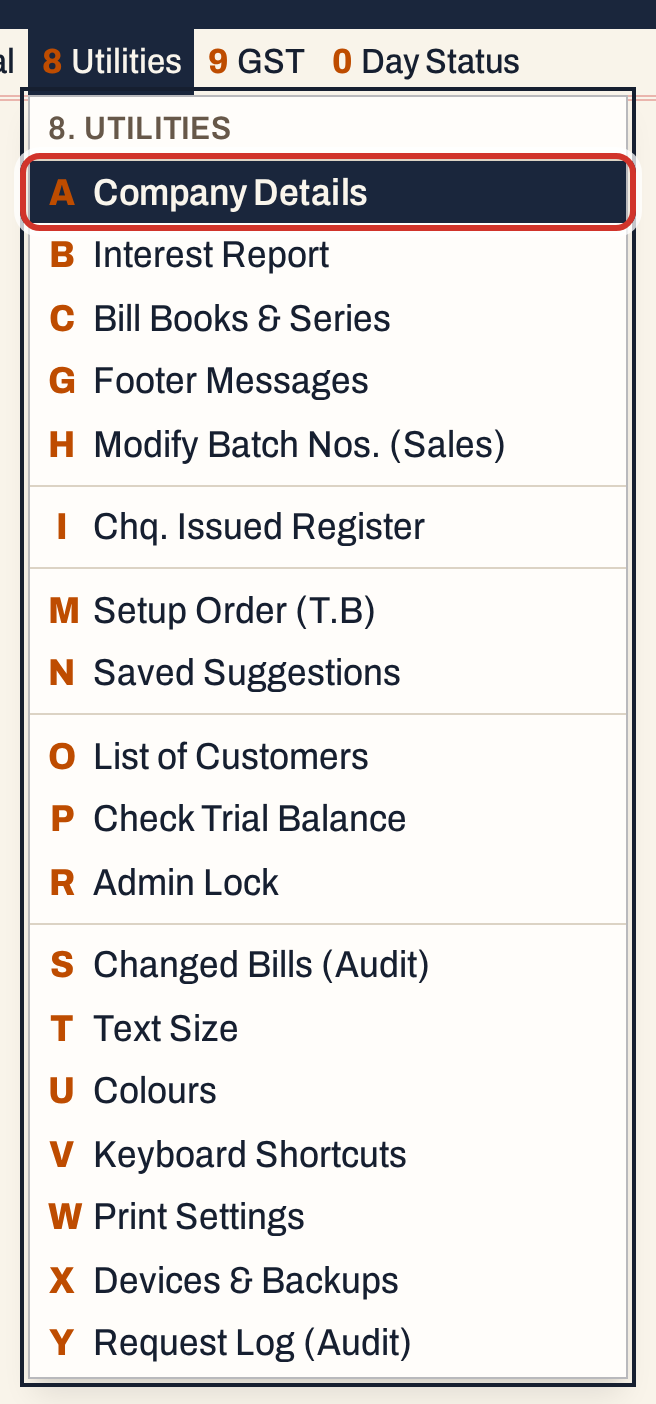 8 A: Utilities, Company Details.
The screen is a form of ruled panels, and the first field, Address, is ready to type in. Enter moves to the next field, and the arrow keys move between fields. A field you reach with the keyboard has its text selected, so typing replaces it. The Save button stays dim until you change something.
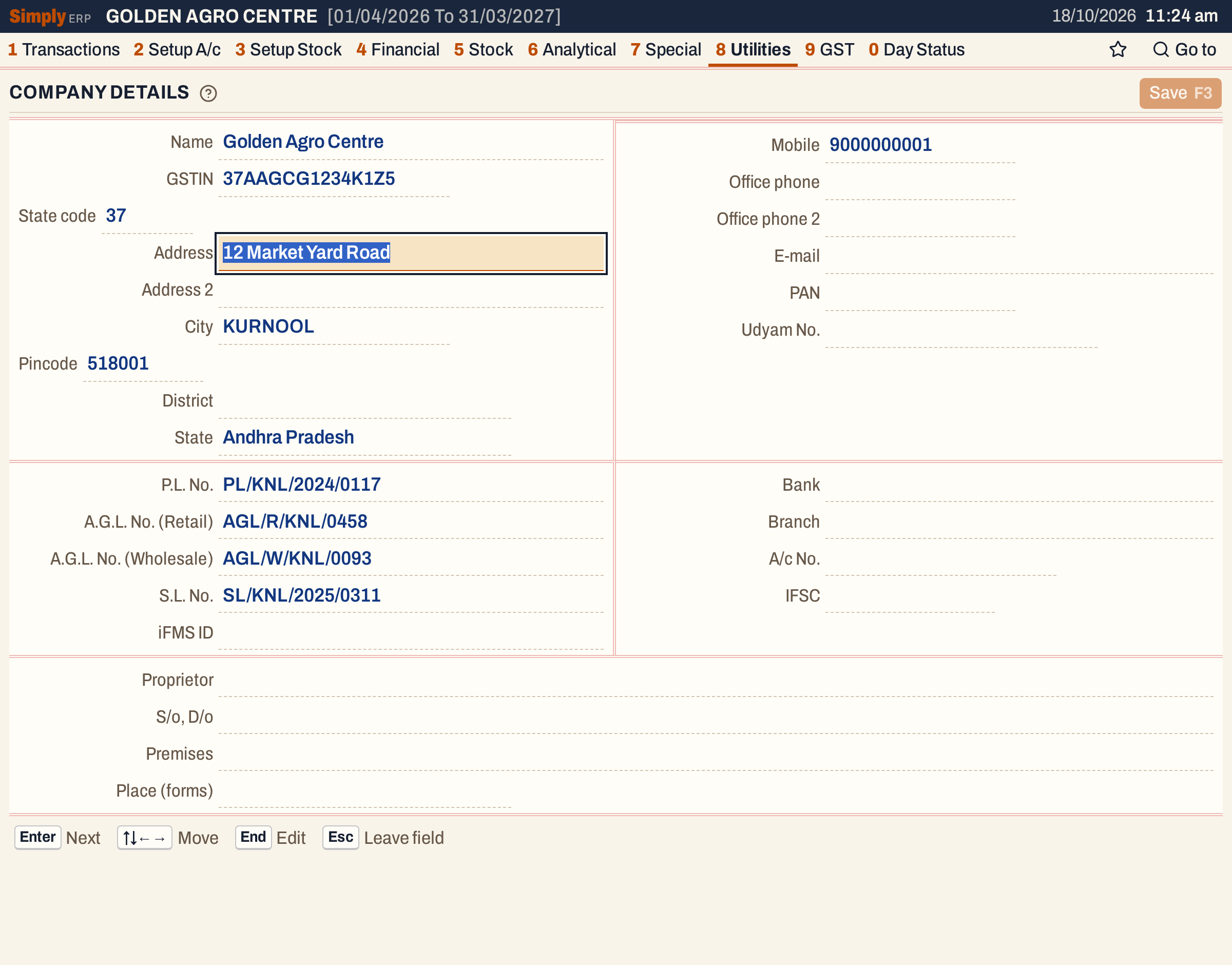 The name and GSTIN are shown but cannot be changed: they identify these books. The state code follows the GSTIN.
The panels
The panels have no headings. On a wide window they are laid out as in the picture, and this table follows that order. Narrower windows stack them.
| Panel | Fields | Where it prints |
|---|---|---|
| Address, top left | Name, GSTIN, State code, Address, Address 2, City, Pincode, District, State | Name and GSTIN are shown only. Address, Address 2 and District are joined with commas into the address line under the shop’s name. Below it come the city with the pincode, the state and the state code. |
| Phones and tax numbers, top right | Mobile, Office phone, Office phone 2, E-mail, PAN, Udyam No. | Mobile, Off.Phone and e-mail at the right of the heading, and the Udyam number under the licences. The PAN is explained below. |
| Licences, middle left | P.L. No., A.G.L. No. (Retail), A.G.L. No. (Wholesale), S.L. No., iFMS ID | The licences in the heading follow what the bill sells: a pesticide bill prints the P.L. No., a seed bill the S.L. No., and a fertiliser bill the A.G.L. No. of its channel (retail on a retail bill, otherwise wholesale), or the other A.G.L. No. when that one is empty. Your iFMS ID is not printed on bills; the Fertilizer Stock & Sales Register starts from it. |
| Bank, middle right | Bank, Branch, A/c No., IFSC | A line under the amount in words, when an account number is filled. |
| Form X, below | Proprietor, “S/o, D/o”, Premises, Place (forms) | The Form X report, as the signatory, the parent’s name, the licensed premises and the place. The Proprietor also starts the Fertilizer Stock & Sales Register’s proprietor. |
Fill in the details
Click a field or move to it and type. Here the example shop gets a district, two office phones, an e-mail address, a PAN, a Udyam number, bank details and the Form X signatory.
Each value is checked when you save, and only the values you changed are checked:
| Field | Rule |
|---|---|
| Pincode | 6 digits |
| Mobile | 10 digits, starting with 6, 7, 8 or 9 |
| Office phone, Office phone 2 | Digits with the STD code, such as 08644-223344 |
| Looks like name@example.com | |
| PAN | 10 characters such as ABCDE1234F, and the same PAN as in the GSTIN |
| Udyam No. | Looks like UDYAM-AP-01-0012345 |
| A/c No. | 9 to 18 digits |
| IFSC | 11 characters such as SBIN0001234 |
PAN, Udyam No. and IFSC are changed to capitals as you type. The PAN is characters 3 to 12 of the GSTIN, so a PAN that differs from it is refused and the message says which one it should be.
 ABCDE1234F was typed. The message names the PAN the GSTIN carries, and the cursor goes to the PAN field.
Everything else on the screen is free text, up to 200 characters. A field you clear is cleared in the books.
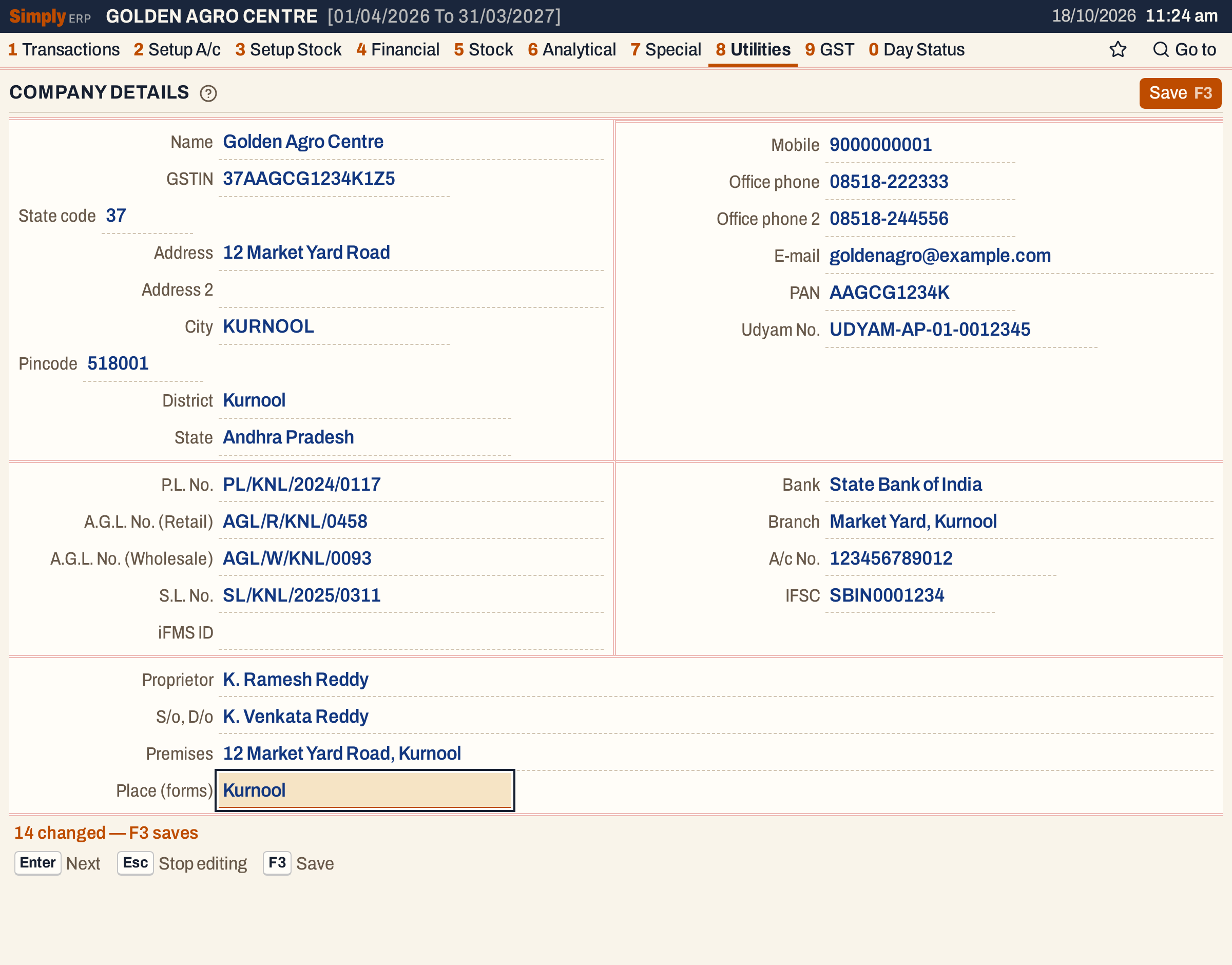 The line under the form counts the fields changed: 14 here.
Save
Press F3. If a value fails its rule, the first one that does is named under the form and the cursor goes to it; fix it and press F3 again. When all pass, the changed values are saved together and the line under the form reads “Company details saved.”
 Saved. The form now shows what is stored.
If the books have an Admin Lock PIN, saving asks for it first; see Admin lock. A read-only copy of the books cannot change these details: it says “Read-only copy: change these in the desktop app.”
What the next print shows
Print the same bill again. The address line now ends with the district, the two office phones print as Off.Phone beside the city line, the e-mail prints below the mobile, and the Udyam number prints under the licence.
 After. The office phones are listed together after “Off.Phone”; a phone equal to the mobile is not printed twice.
With bank details filled, the bill also prints a Bank line under the amount in words.
 The bank lines print only when an A/c No. is filled; without it, none of the bank fields print.
A few more rules for prints:
- A half-page bill prints the mobile only, not the office phones, e-mail, Udyam number or bank lines.
- Voucher slips, and the slips of non-GST notes, print the office phones beside the mobile, without the e-mail and Udyam number.
- The PAN prints beside the GSTIN only on a sale or a return whose net amount is ₹2,00,000 or more.
- Fields with no value are left out; the heading never shows an empty label.
Keys on this screen
| Key | What it does |
|---|---|
| Enter | Next field |
| ↑ ↓ ← → | Move between fields |
| F3 | Save the changed fields |
| Esc | Stop editing, then leave the field |
| F1 | Every key on the screen |
On a Mac, ⌥ stands for Alt and ⌘ for Ctrl.
Common questions
Can I change the company name or GSTIN here? No. They identify the books and are shown only.
Will bills I already saved change? A bill’s print is drawn when you print it, from the details as they are then. Reprinting a bill saved earlier shows the new heading.
Why was my PAN refused? The PAN must be the one inside the GSTIN (characters 3 to 12). The message names it.
Where do the licence numbers of my customers go? On each customer’s account, not here; see Add an account.
Updated 4 November 2026.