Footer messages
On this page
Footer messages are the lines printed under the totals of a bill: the terms of sale, interest on late payment, the court that decides disputes. You type them once, choose which bills they belong to, and every bill of those books prints them as numbered Terms and Conditions beside the signatures.
Open Footer Messages
Press Alt+8 for Utilities, then G.
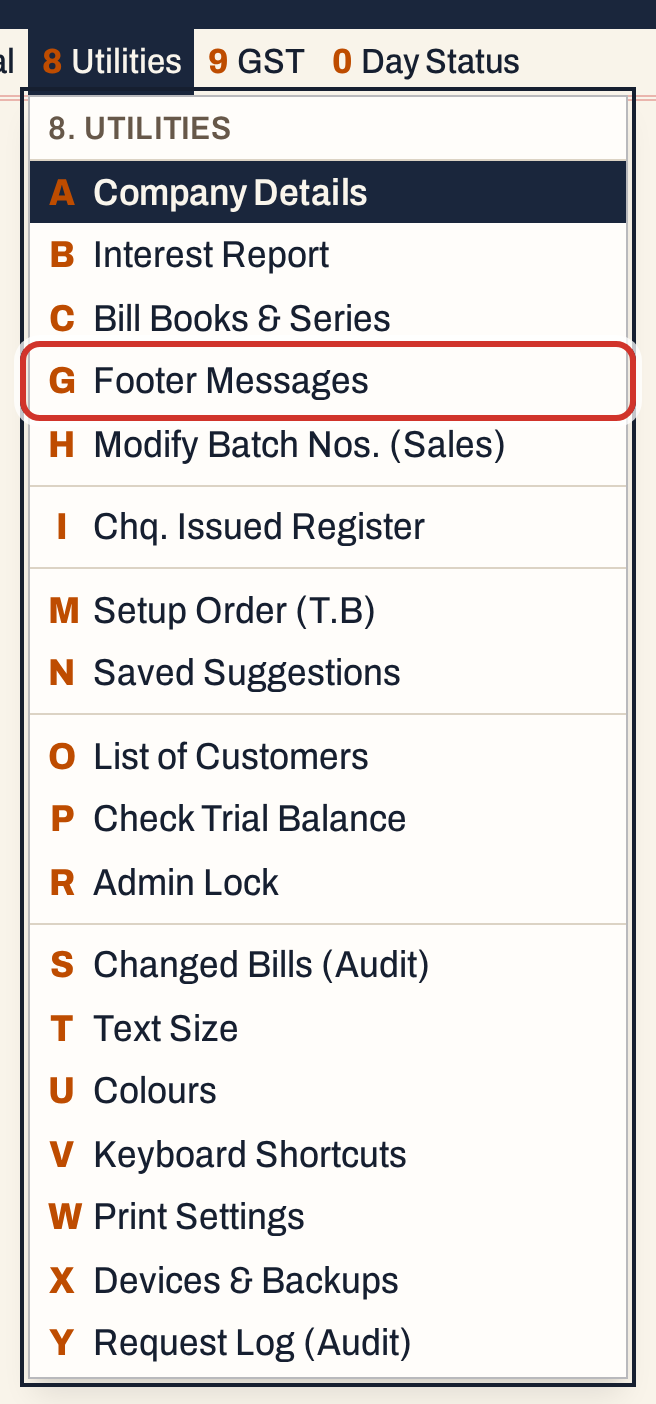 8 G: Utilities, Footer Messages.
The screen opens on the Sales bills. On the example shop’s books no footer lines have been added yet, so the list is empty.
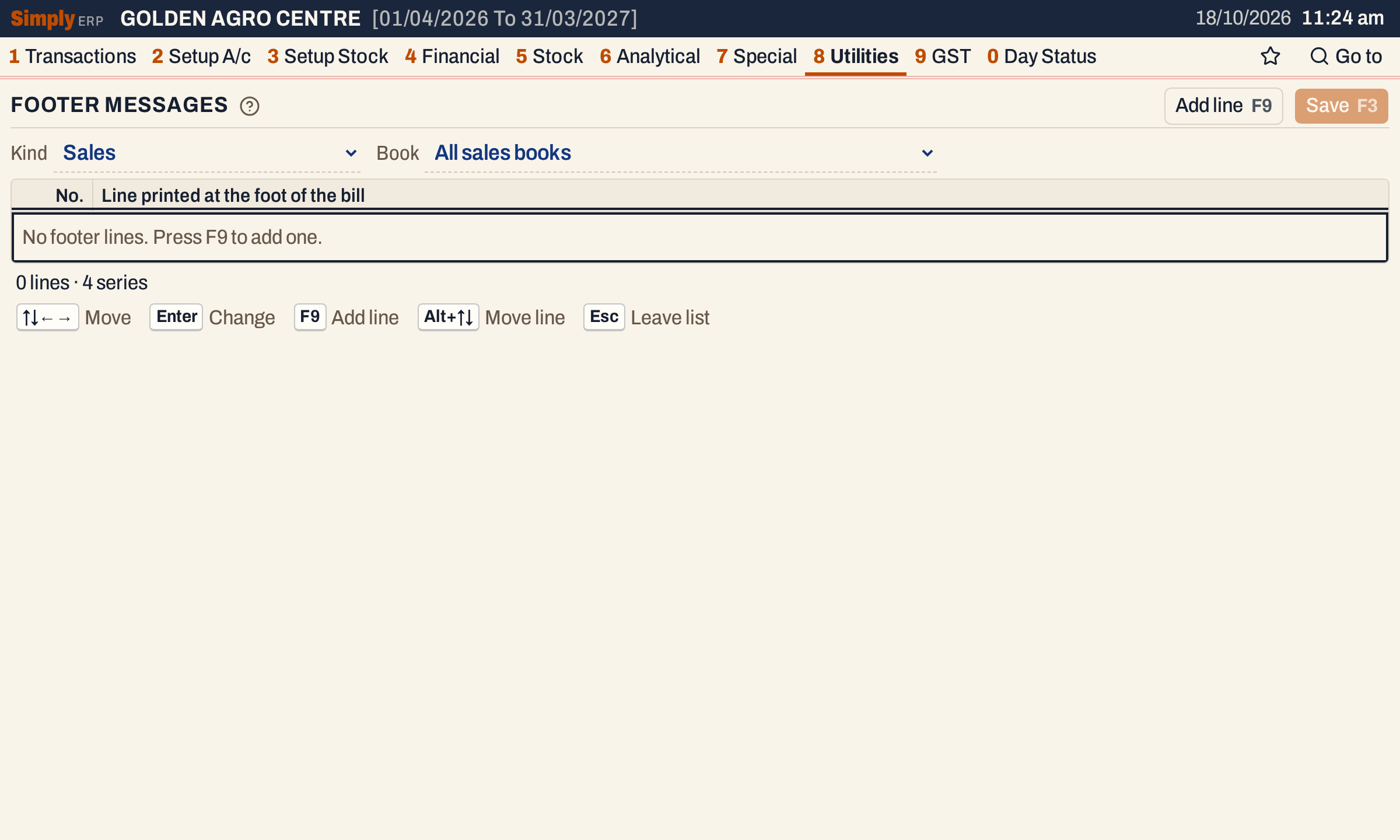 The line under the list counts the lines and the series they print on: all four series of the three sales books.
Choose which bills the lines are for
Two choices above the list say which bills you are editing the lines of:
- Kind is the kind of bill: Sales, Purchases, Sales returns, Purchase returns, Credit notes and Debit notes issued or received, each for the kinds the books have. Not printed holds recorded lines that belong to no book, so they print on no bill.
- Book is one of the books of that kind, or the first entry, All books of that kind (All sales books for Sales). A book with several series prints the lines on all of them.
Each book can have lines of its own: Pesticide Sales can print different terms from Fertilizer Sales. Here the lines are for Pesticide Sales.
 Pesticide Sales has two series, P/ and PC/, so the lines will print on both.
Choose the All entry to give every book of that kind the same lines. If those books print different lines at the moment, the screen shows the first book’s lines, with a note, and saving gives all of them those lines.
Add the lines
- Click the list, or press Ctrl+↓ from the choices, to put the cursor in it.
- Press F9 to add a line, type it and press Enter to keep it.
- Repeat for each line. A line can be up to 200 characters. Empty lines are dropped when you save.
 Lines print in the order of the list.
To change a line, move to it and press Enter or start typing. Alt+↑ and Alt+↓ move the line up or down. Ctrl+Delete takes the line out. A changed line is highlighted until you save, and the line under the list says “Changed — F3 saves”. The Discard button drops all the changes.
Save
Press F3. The lines you see replace the lines of the chosen series: lines you took out are gone, and the notice reads “Footer lines saved.”
 Saved for the two series of Pesticide Sales.
If the choice has no series to print on, saving is refused with “This choice has no series to print on. Add a series in Bill Books & Series first.” See Bill books and series.
What the bill prints
The lines are read when a bill is printed, from the series the bill was numbered in. A pesticide bill numbered in P/ or PC/ prints them under Terms and Conditions, numbered 1, 2, 3 in the space beside the customer’s and the authorised signatures. A list that takes more than nine printed lines on a full page, or five on a half page, does not fit beside the signatures: it is printed above them, one row per line, so it can continue onto the next page.
 The same lines appear on bills saved before, because they are read when printed.
A bill of another book, such as Fertilizer Sales, prints no terms until you add lines for it. A bill without lines still leaves room to sign.
Keys on this screen
| Key | What it does |
|---|---|
| ↑ ↓ | Move between lines |
| Enter | Change the line; again, keep it |
| F9 | Add a line |
| Alt+↑ / ↓ | Move the line up or down |
| Ctrl+Delete | Remove the line |
| F3 | Save |
| Esc | Drop the change in the line; then leave the list |
| F1 | Every key on the screen |
On a Mac, ⌥ stands for Alt and ⌘ for Ctrl.
Common questions
Do the lines print on receipts and payments? No. Footer lines belong to bill books. Vouchers have their own series but no footer lines.
What happens to the lines if I delete a series? The series is taken off every line. A line left with no series is deleted.
Can I have a different footer for cash and credit bills? The lines belong to a book and its series, not to the payment mode. Give the cash bills their own book and series in Bill books and series and add lines for it.
An Admin Lock PIN is set. Can I still change the lines? Saving asks for the PIN; see Admin lock.
Updated 4 November 2026.