HSN Stock Statement
On this page
The HSN Stock Statement lists the goods you sold in a period, one line for each item, with the item’s HSN code, the units sold, the taxable amount and the CGST, SGST and IGST. Group it by HSN code to get the totals of each code. Use it to check the HSN summary of your GSTR-1, to find items that have no HSN code, and to see how much of each item you sold.
Open the report
Press Alt+9 for GST Reports, then E. The report opens on the first month of the financial year (From is the first day of the year, To is one month on) with no grouping. Change From and To to the month or period you need.
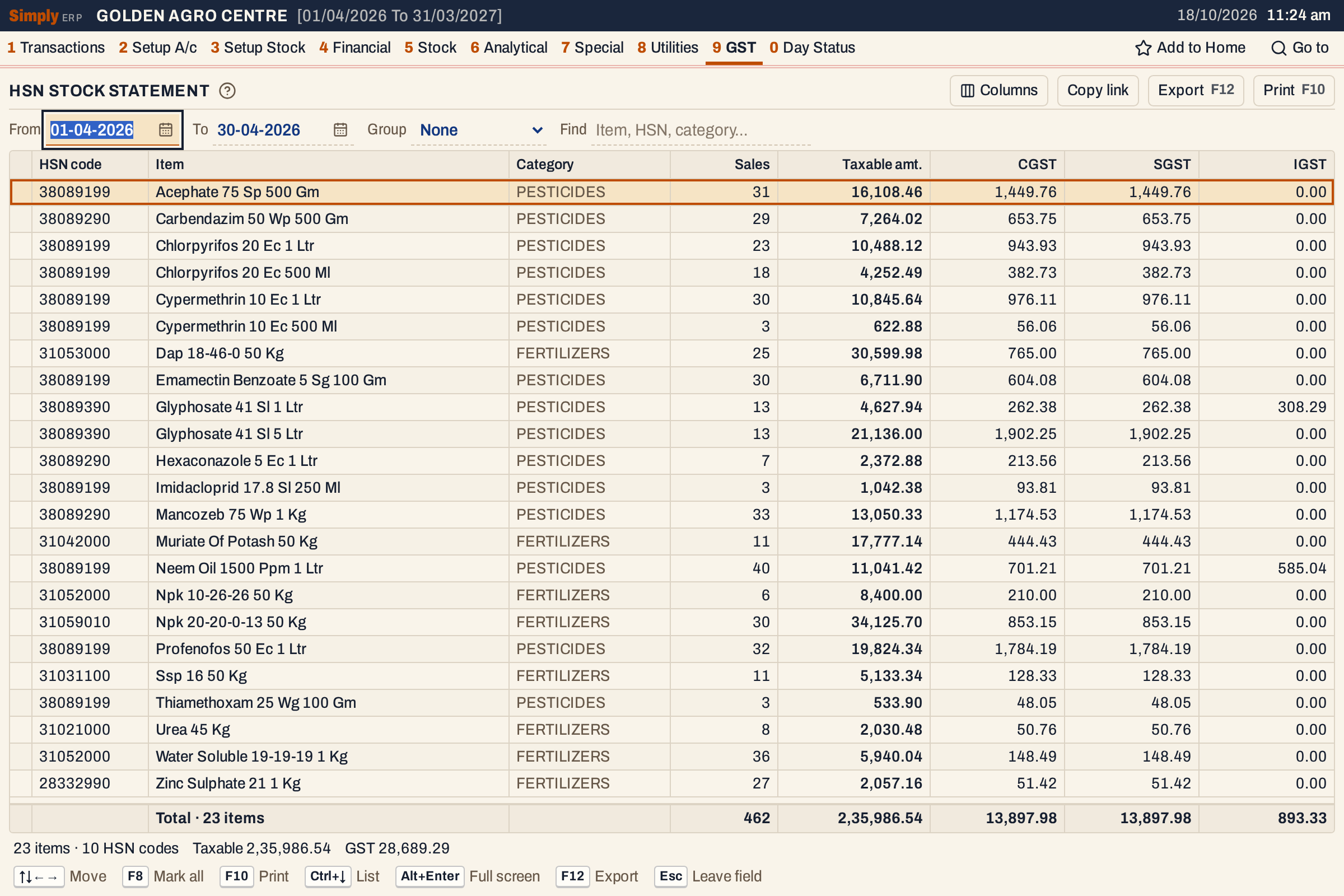 The report as it opens, for April 2026: 23 items, 10 HSN codes, taxable amount 2,35,986.54 and GST 28,689.29.
What it lists
The report reads the item lines of your sale bills. A line of the report is one item: all its sales in the period added up.
- Sale bills of every bill book, cash and credit, to customers with or without a GSTIN. A bill counts on its posting date, From and To both included.
- Only the item lines. The charge lines of a bill (freight, hamali and so on) are not in this report.
- Sales returns and credit and debit notes are not taken off. The report shows what was sold. GSTR-1’s HSN view takes returns and notes off, so an HSN code can differ from GSTR-1 by the period’s sales returns and notes, and by charges that GSTR-1 lists under a code of their own.
- Purchases are not in this report.
The HSN code and category are the item’s as they are now, not what was typed on an old bill. If you change an item’s HSN code on its stock group, all its past sales move to the new code in this report.
Columns
| Column | What it shows |
|---|---|
| HSN code | The HSN code of the item’s stock group. Blank when the item has none. |
| Item | The item’s name, with its packing. |
| Category | The item’s category (Pesticides, Fertilizers, Seeds). Hide it in Columns. |
| Sales | The units sold. |
| Taxable amt. | The amount before GST: the lines’ amounts after discounts. |
| CGST, SGST | The tax of the lines, from the bills as saved. |
| IGST | The IGST of the lines. Shown only when some line in the list has IGST, which is a sale to another state. |
The totals line under the list adds up every column, and counts the items. The status line gives the number of items and of distinct HSN codes, the taxable amount and the GST (CGST + SGST + IGST). When some items have no HSN code, a red notice says how many (“2 items without an HSN code”).
Choices
 The choices above the list.
| Choice | What it does |
|---|---|
| From, To | The period, inside the financial year. Changing From moves To to the day before the same date next month, so a first of the month gives that whole month. |
| Group | None (the default): one list of items. HSN code: a heading for each HSN code, with the item lines under it. |
| Find | Keeps the lines that match what you type in the item name, HSN code or category. |
| Columns | Hides the Category column. The print leaves it out too. |
Click a column title to sort by it, and click again to reverse. Every choice is kept in the page address, so Copy link opens the same report again.
Grouped by HSN code
With Group set to HSN code, each code is a heading line with the number of items under it in brackets and the total of its items: units, taxable amount and the three taxes. The codes are in code order, and items without a code come last under No HSN code.
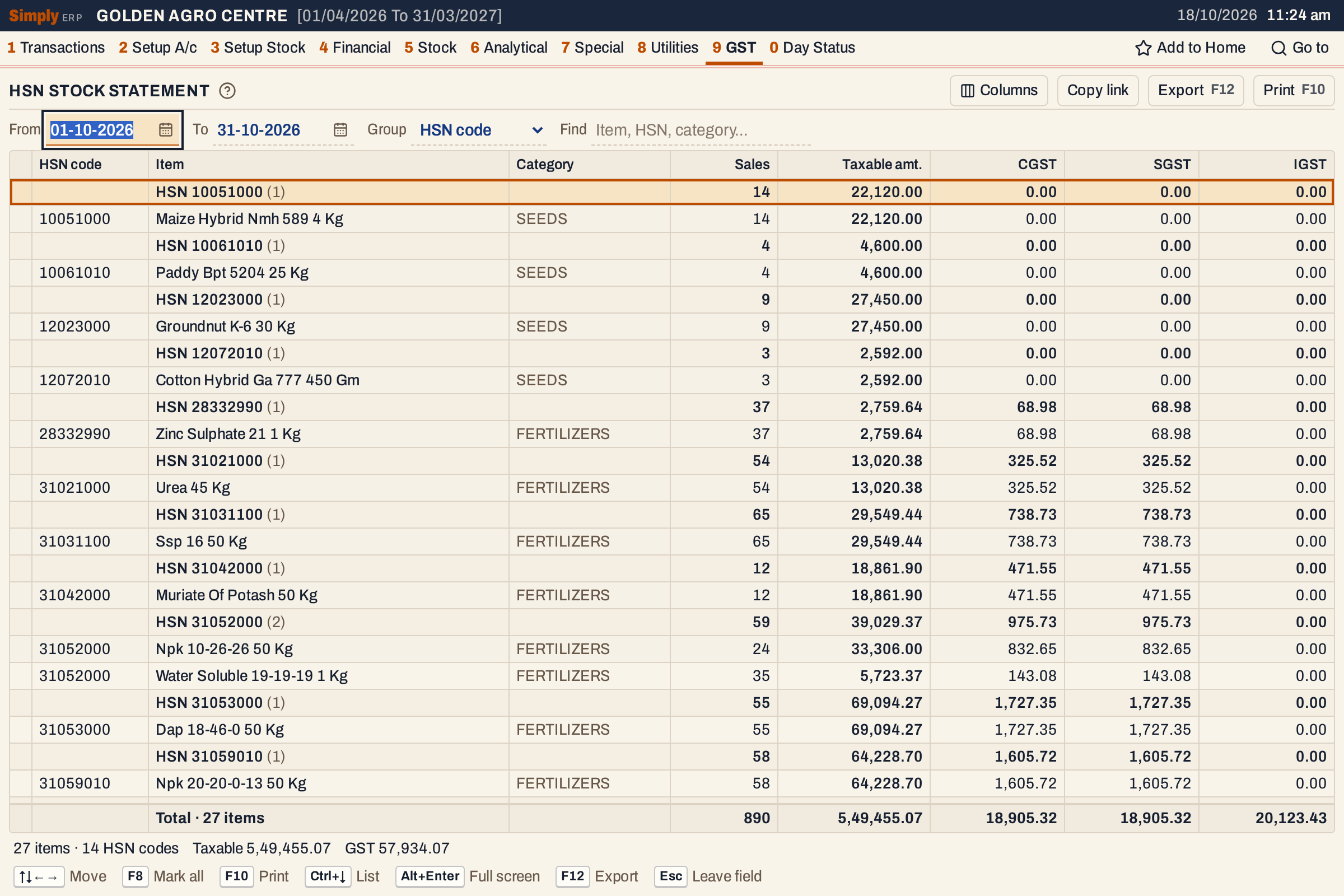 October 2026 by HSN code. HSN 31052000 has 2 items (Npk 10-26-26 and Water Soluble 19-19-19) and adds up to 59 units and 39,029.37. The list goes on below with three more codes.
How the figures are worked out
- Which items. Sale bill lines are added up for each item (the name with its packing, the HSN code and the category). Two bills of the same item are one line.
- Sales is the sum of the units of the item’s lines, to three decimals.
- Taxable amt., CGST, SGST, IGST are sums of the saved line figures, each rounded to two decimals. SimplyERP does not calculate the tax again.
- Totals. The totals line and the heading of a group add up the lines under them. The total of the taxable amount in the status line is the same as the totals line.
- Order. Items are in name order, then category. Click a title to sort by it; figure columns start with the largest. With Group set to HSN code, the items are sorted inside each code, and a click on a figure column puts the code with the largest total first.
- The period is on posting dates. For a sale the posting date is the bill date.
Open, mark, print and export
- Enter on an item opens its stock ledger for the same period.
- F2 marks an item, F8 marks them all, and F10 then prints only the marked items.
- F10 prints the list as shown, under the heading [ HSN - STOCK DETAILS ], with the period, “HSN code wise” when grouped, and Find. The totals line is its Grand Totals.
- F12 saves it as an Excel workbook, with the figures as numbers.
- Alt+Enter gives the whole window to the list.
Set an item’s HSN code on its stock group (stock groups, 3 C), and every packing of the group takes it.
Updated 4 November 2026.